Week 6-Meshing of Hood Challenge
Objective:
Meshing of the given model, by following the mentioned quality criteria.
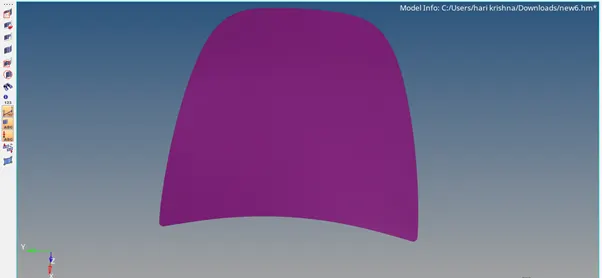
CAD Model Image:
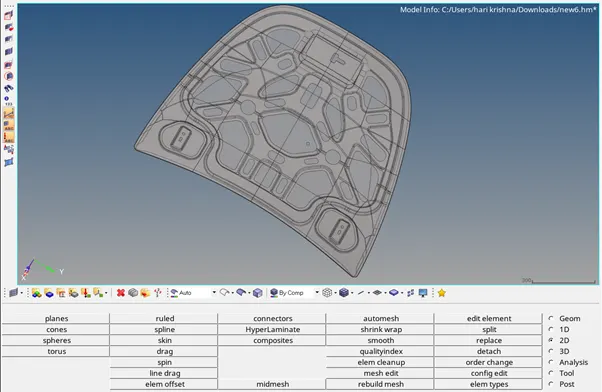
Procedure:
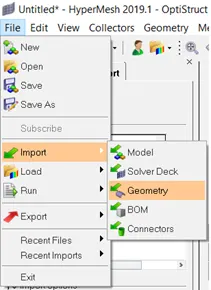
First click on File option on menu bar. And then click on import option and select import geometry option.
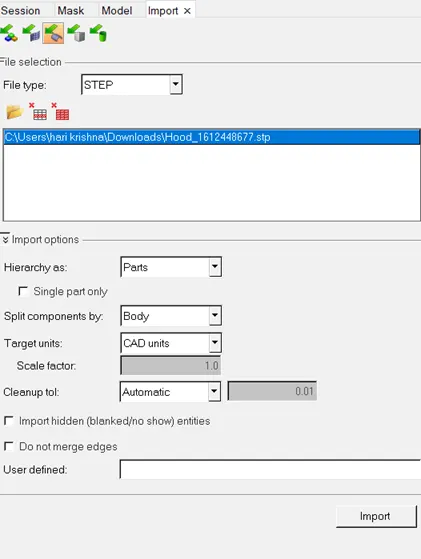
Select file type as STEP, since the given the model is in .stp format. And select file and click on import.
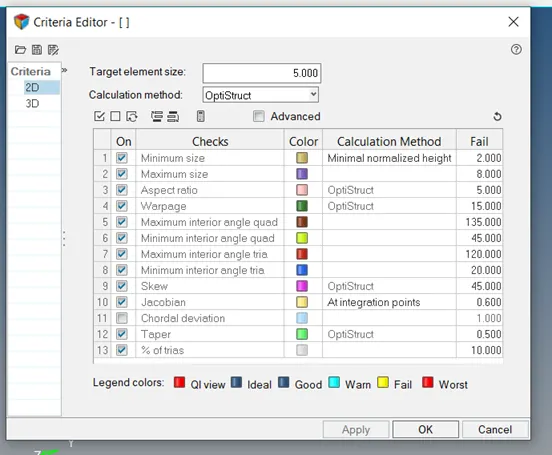
Now set the mentioned quality criteria for the model in hypermesh. For that go to Preferences> Criteria File settings and update as mentioned.
.
Now uncheck the components in components tab except the latch extract body component as shown in figure below.
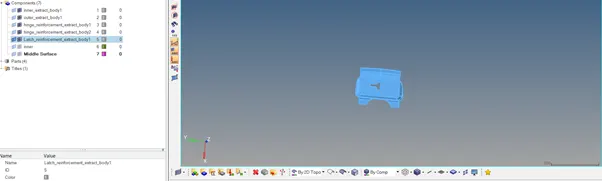
Now delete solids in the model. For that go to Delete option>select solids and click on model and then click on delete entity.
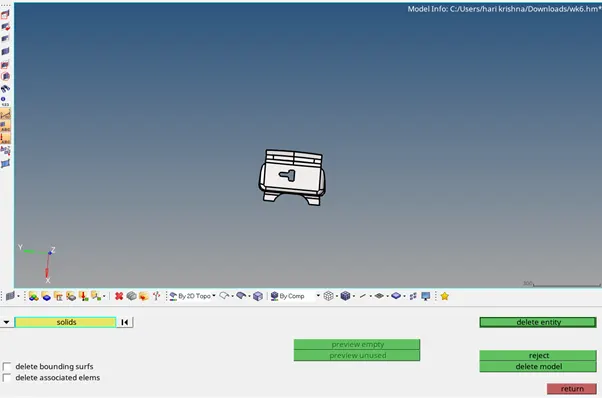
Now change geometry color mode to by 2D Topo from Auto.
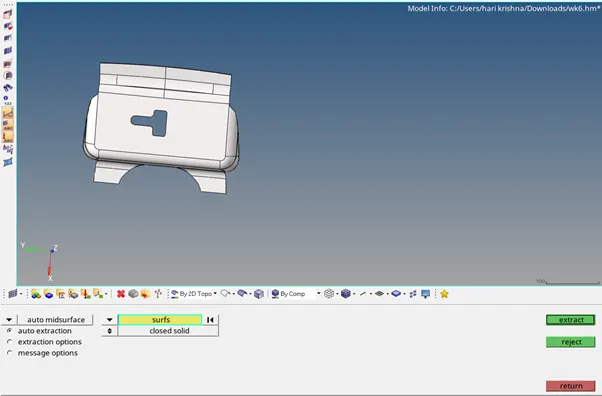
Go to Geom> Midsurface> extraction options- offset+planes> Auto extraction> select surfs> click on extract.
Now go to Geom>autocleanup>select the surfs> Click on autocleanup.
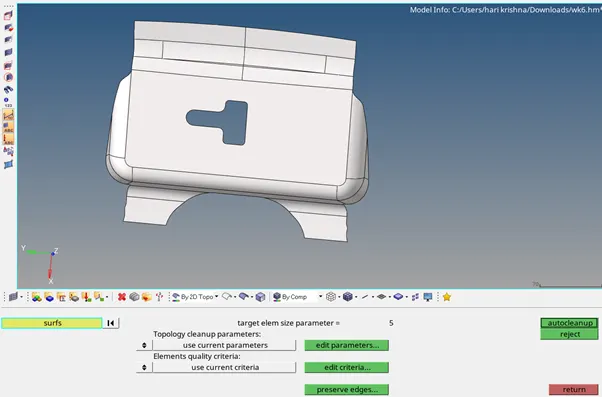
Now we need to create a washer split at the hole to attain a good mesh. Go to geom>quick edit>washer split> set offset value as 5mm>select line and washer split is created as shown in figure.
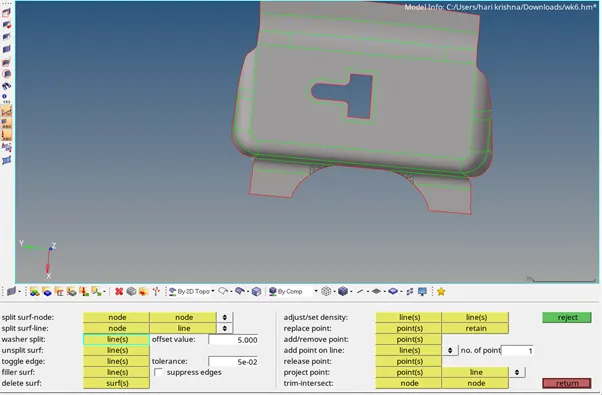
Go to 2D>automesh> Select surfs on model> set element size as 5.000> click on mesh. 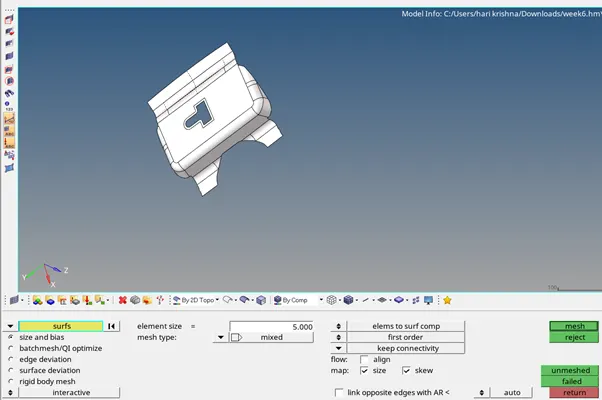
Make the required element adjustments on the model by clicking left mouse button to increase elements and right mouse button to decrease elements on required locations.
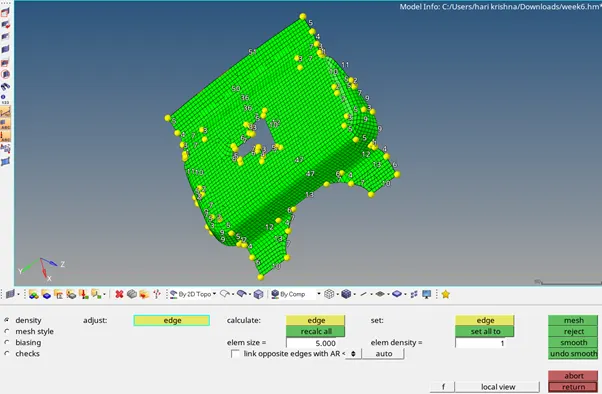
Now go to 2D> elem cleanup. Now we can see that there 11 failed elements.
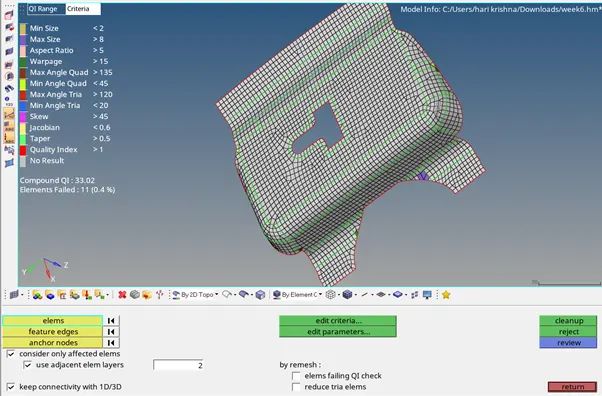
So now click on failed elements and click on cleanup. Now we see that there are zero elements failed.
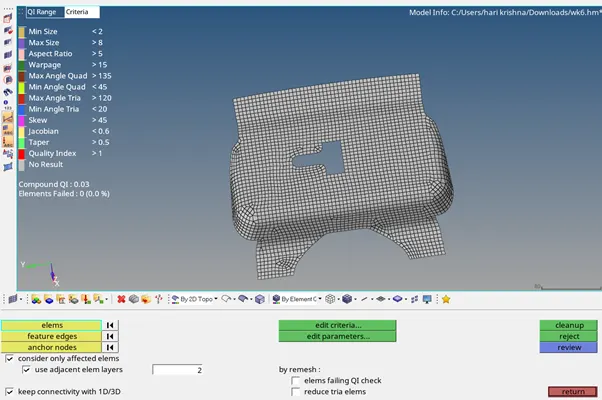
Now uncheck the components in components tab except the hinge extract body1 component as shown in figure below.Now delete solids in the model. For that go to Delete option>select solids and click on model and then click on delete entity.
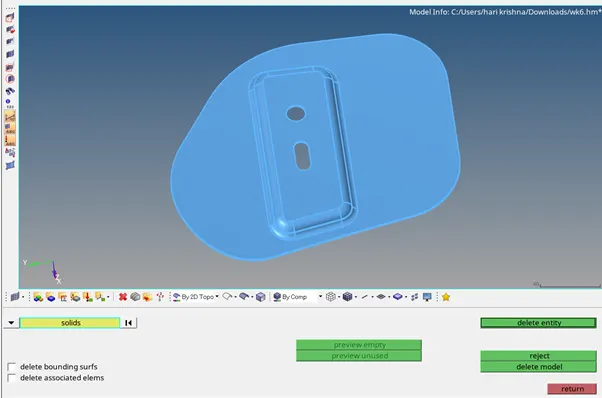
Go to Geom> Midsurface> extraction options- offset+planes> Auto extraction> select surfs> click on extract.
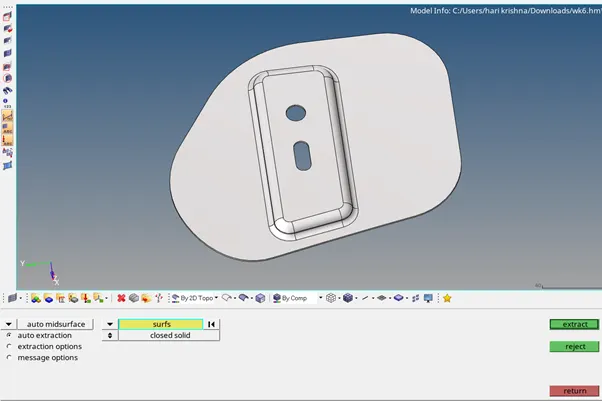
Now go to Geom>autocleanup>select the surfs> Click on autocleanup.
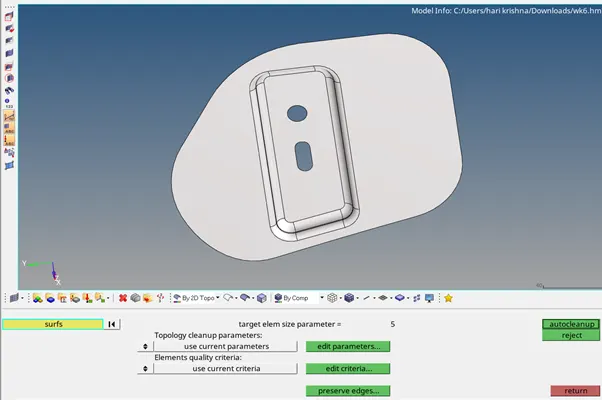
Go to geom>quick edit>washer split> set offset value as 5mm>select line and washer split is created as shown in figure.
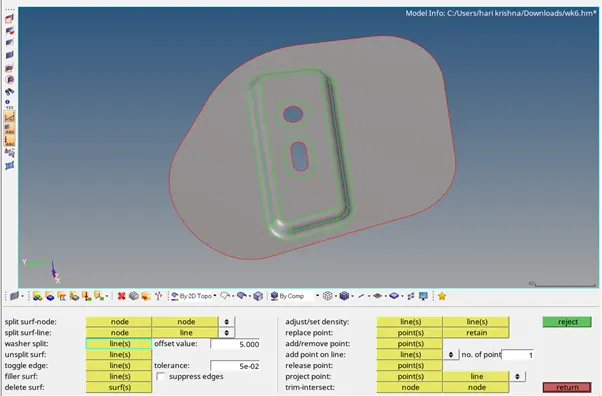
Go to 2D>automesh> Select surfs on model> set element size as 5.000> click on mesh.
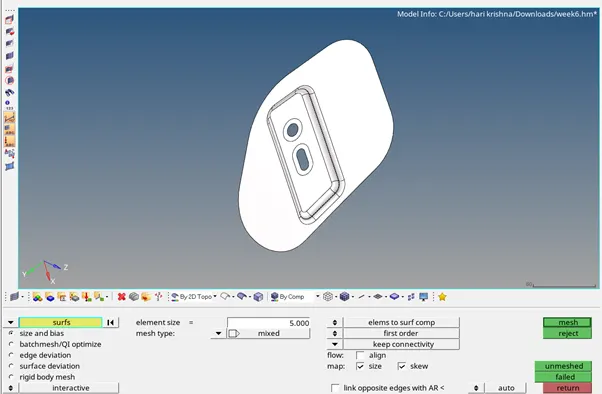
Make the required element adjustments on the model by clicking left mouse button to increase elements and right mouse button to decrease elements on required locations.
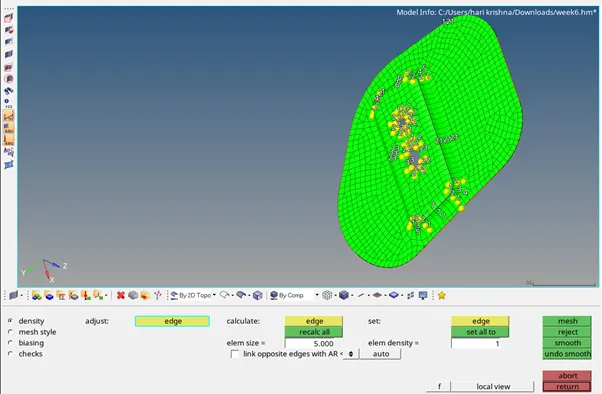
Now go to 2D> elem cleanup. Now we can see that there 20 failed elements.
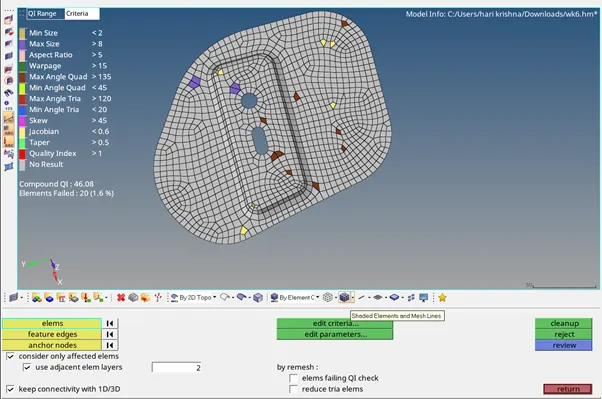
So now click on failed elements and click on cleanup. Now we see that there are zero elements failed.
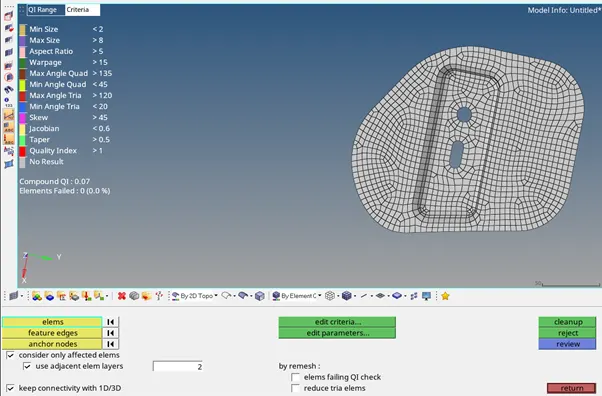
Now uncheck the components in components tab except the hinge extract body1 and body2 components as shown in figure below.Now delete solids.
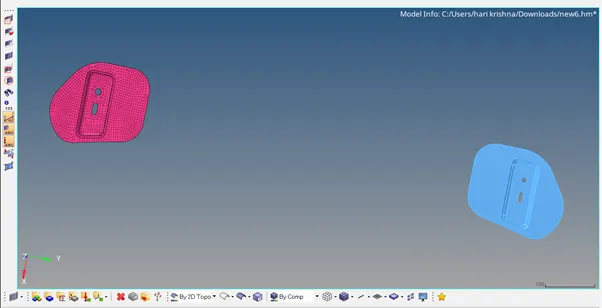
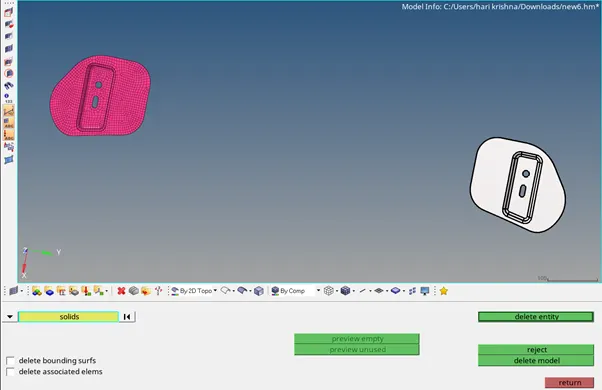
For that go to Delete option>select solids and click on model and then click on delete entity.
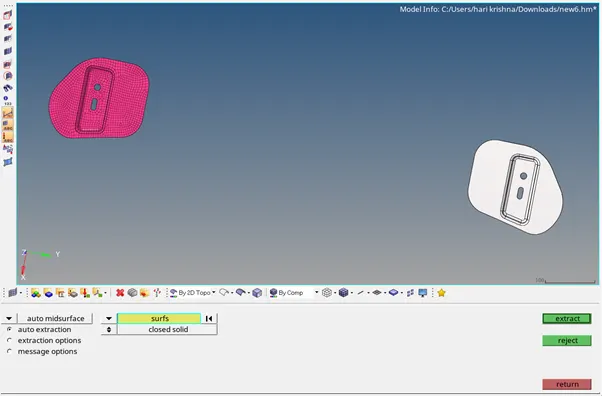
Go to Geom> Midsurface> extraction options- offset+planes> Auto extraction> select surfs> click on extract.
Now go to Geom>autocleanup>select the surfs> Click on autocleanup.
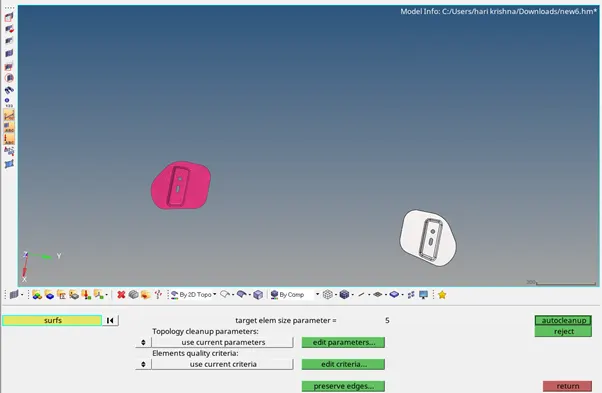
Now we need reflect elements created on hinge extract body1 to body2. For that first we need to create node. For this go to Geom> nodes> Arc centre> select lines
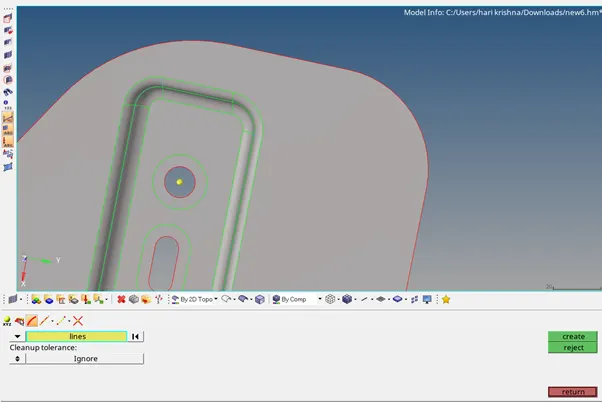
Click on create nodes to create a node, both on hinge body1& body2 as shown below.
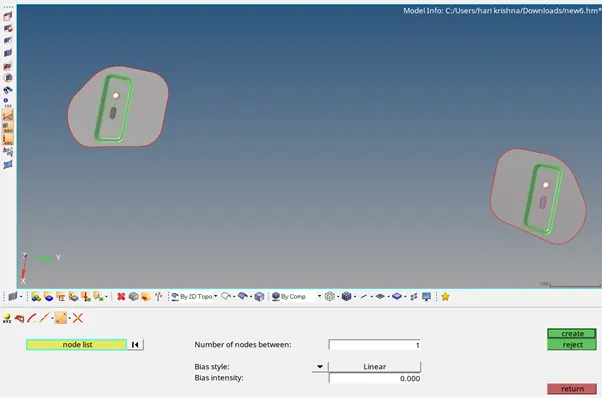
Now go to Geom>nodes> Interpolate nodes> select two nodes to create a node between them.
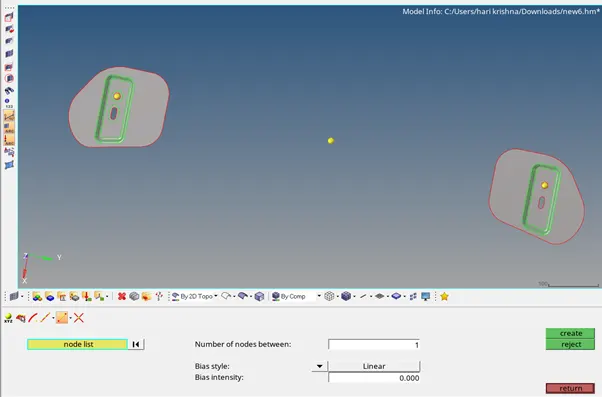
Now go to Tool>reflect> Select all elements on body1 and now click on elems and click duplicate and click on original comp.> since we need to reflect this elements along y-axis so select y-axis option>Click B to select base point>select the center node> Now click on reflect.
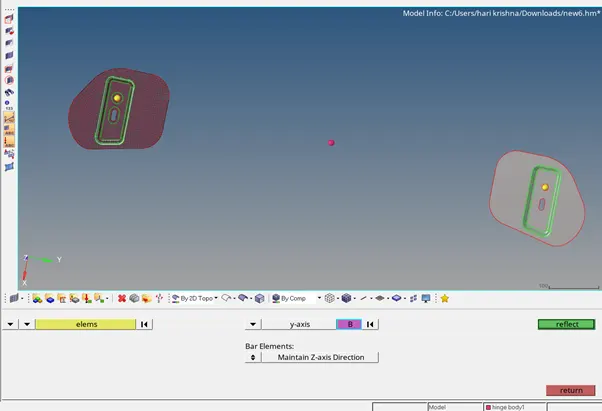
Now the below figure shows the reflected elements. Now go to temp nodes> select created nodes> Click on clear.
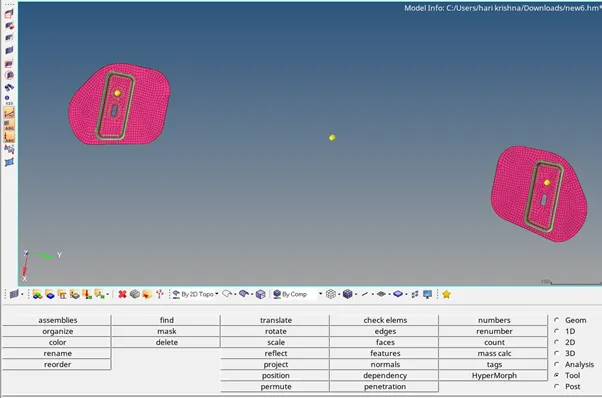
Now uncheck the components in components tab except the inner extract body component as shown in figure below.Now delete solids in the model. For that go to Delete option>select solids and click on model and then click on delete entity.
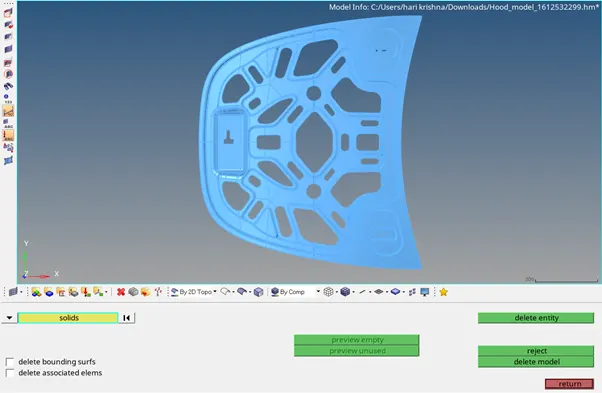
Go to Geom> Midsurface> extraction options- offset+planes> Auto extraction> select surfs> click on extract.
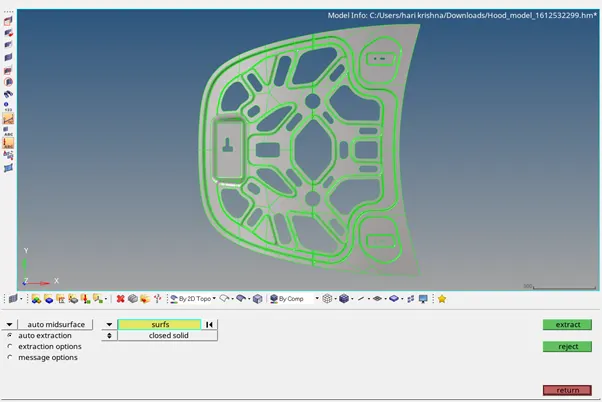
Now go to Geom>autocleanup>select the surfs> Click on autocleanup.
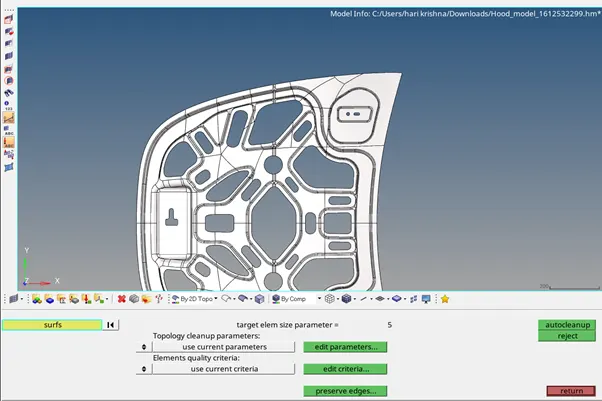
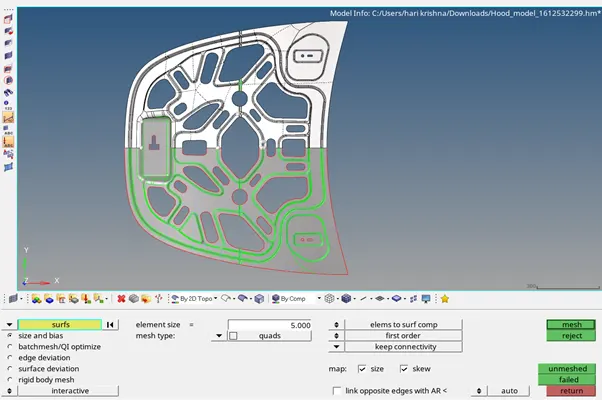
Go to geom>quick edit>washer split> set offset value as 5mm>select line and create washer split on required locations.Now go to 2D>automesh> Select surfs on model> set element size as 5.000> click on mesh.Make the required element adjustments on the model by clicking left mouse button to increase elements and right mouse button to decrease elements on required locations.
Now go to 2D> elem cleanup. Now we can see that there 72 failed elements.
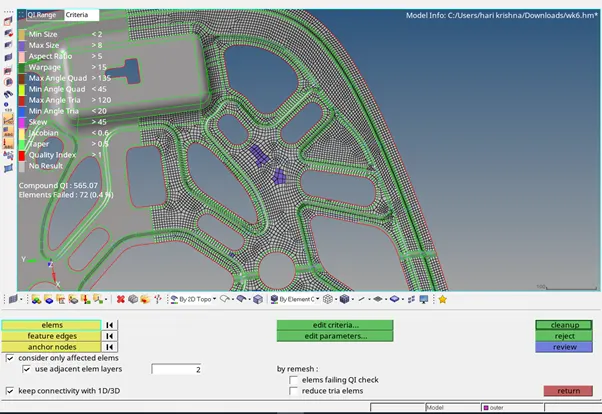
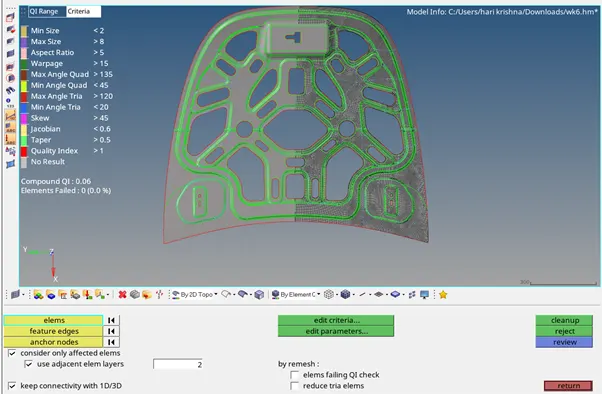
So now click on failed elements and click on cleanup. Now we see that there are zero elements failed.
 .
.
Now go to Tool>reflect> Select all elements on one half and now click on elems and click duplicate and click on original comp.> since we need to reflect this elements along y-axis so select y-axis option>Click on B to select base point>select the node on center line.
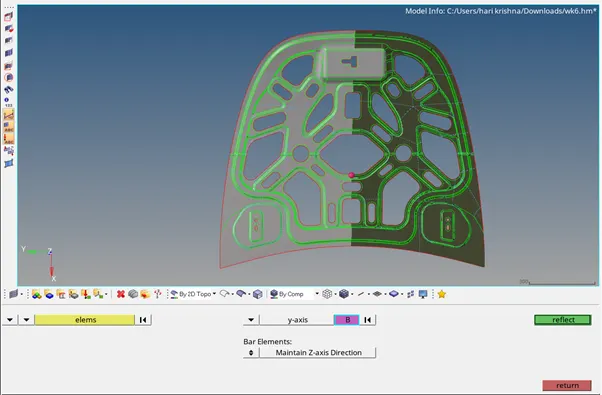
Now click on reflect.
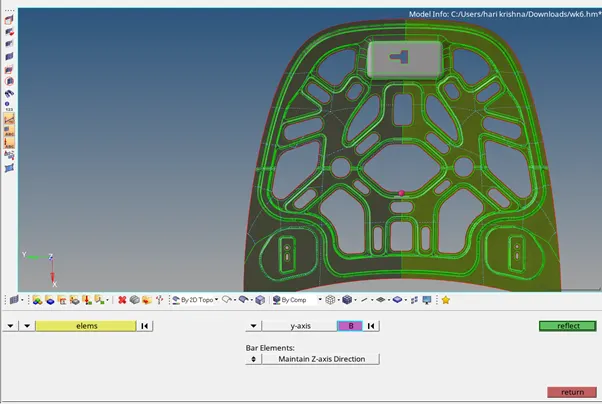
Now we need to mesh non-symmetrical part so for that go to 2D>automesh> Select surfs on model> set element size as 5.000> click on mesh.Make the required element adjustments on the model by clicking left mouse button to increase elements and right mouse button to decrease elements on required locations.
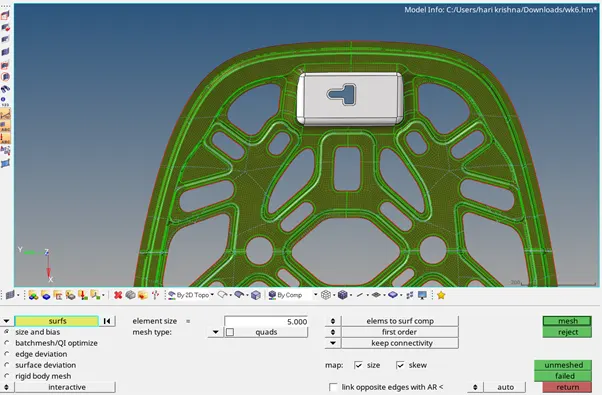
Now go to 2D> elem cleanup.Click on failed elements and click on cleanup. Now we see that there are zero elements failed.
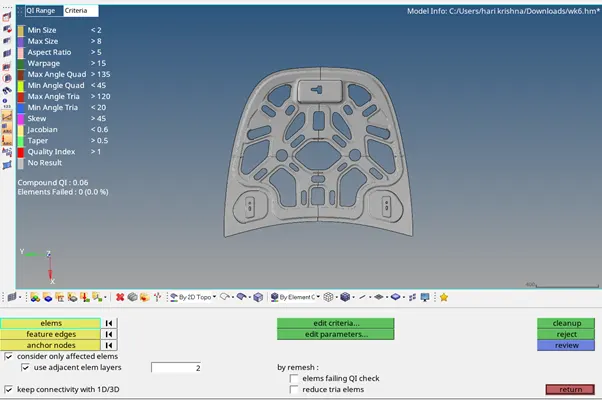
Now uncheck the components in components tab except the outer extract body component as shown in figure below.
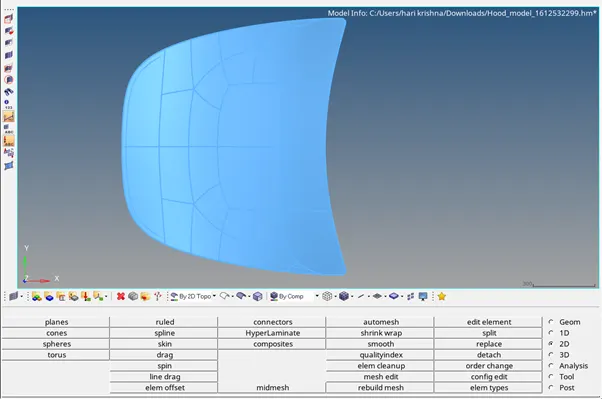
Now delete solids in the model. For that go to Delete option>select solids and click on model and then click on delete entity.
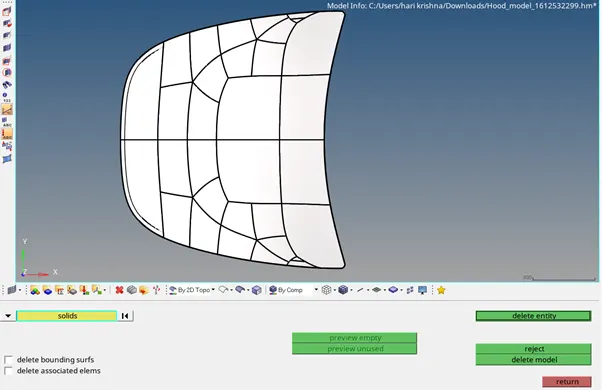
Go to Geom> Midsurface> extraction options- offset+planes> Auto extraction> select surfs> click on extract.
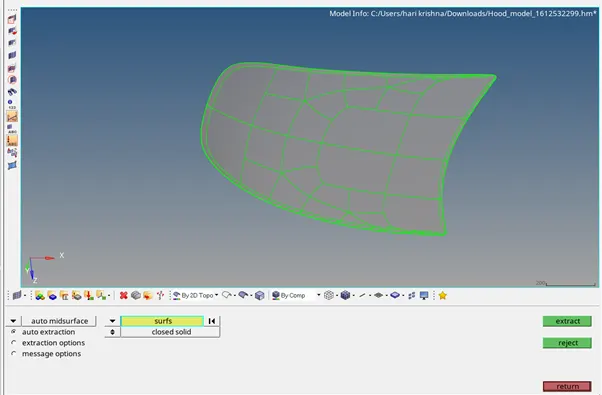
Now go to Geom>autocleanup>select the surfs> Click on autocleanup.
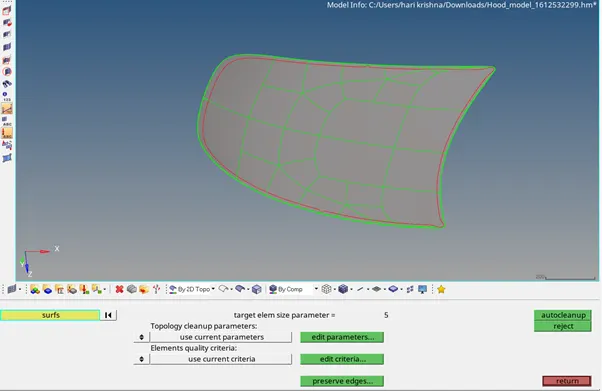
Go to 2D>automesh> Select surfs on model> set element size as 5.000> click on mesh.Make the required element adjustments on the model by clicking left mouse button to increase elements and right mouse button to decrease elements on required locations.
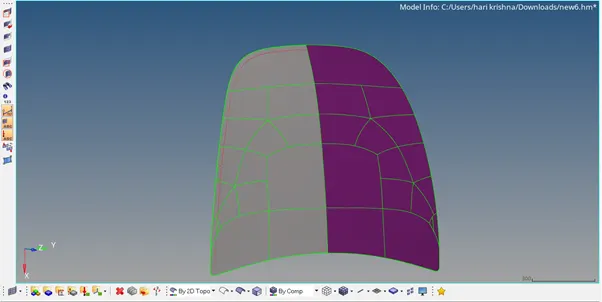
Now go to 2D> elem cleanup.Click on failed elements and click on cleanup. Now we see that there are zero elements failed.
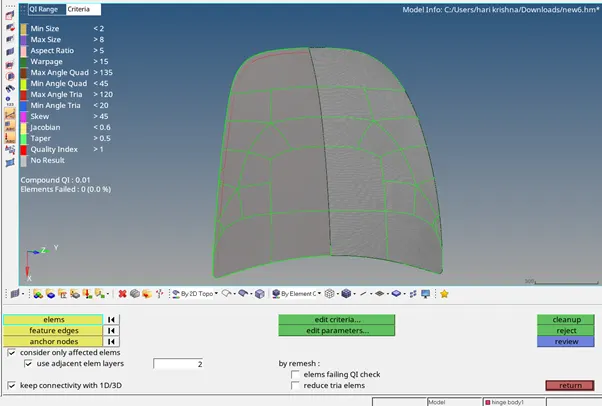
Now go to Tool>reflect> Select all elements on one half and now click on elems and click duplicate and click on original comp.> since we need to reflect this elements along y-axis so select y-axis option>Click on B to select base point>select the node on center line.
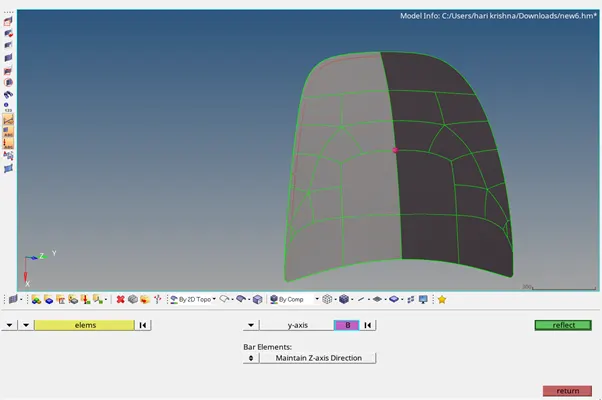
Now click on reflect.
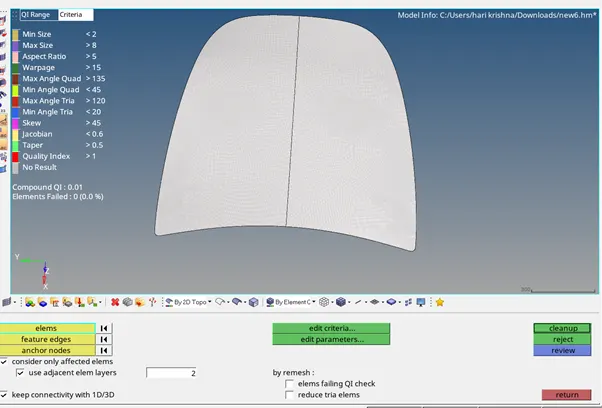
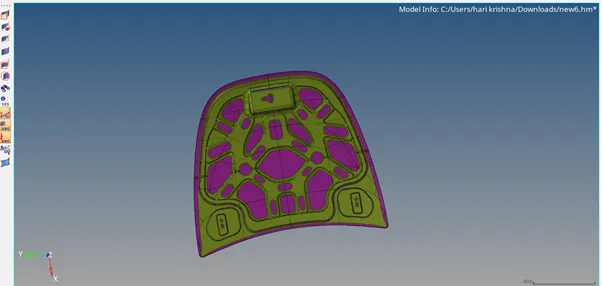
Final CAD Model:
Conclusion:
Thus the component is meshed as per mentioned quality criteria.