Week - 5 - 2D meshing for Plastic components
Aim:
To create a Mid-Surface and mesh with the given quality criteria and to make sure the element given is free from geometrical errors.
Methodology:
The methodology for the given element is as follows:
- Perform a Geometrical Check ( if Errors found fix them)
- Extraction of Mid surface
- Giving the Quality Criteria.
- Creating a mesh
- Assigning Thickness to Mid surface.
- Draw 'SHELL' as 'SOLID'.
Given Model:
The Model given is the Bottle Cap. The quality Criteria is as below
|
S. No. |
Quality Criteria |
Value |
|
1 |
Target/ Average Length |
1 |
|
2 |
Minimum Length |
0.5 |
|
3 |
Maximum Length |
3 |
|
4 |
Aspect Ratio |
3 |
|
5 |
Warping |
15 |
|
6 |
Skewness |
45 |
|
7 |
Jacobian |
0.7 |
|
8 |
Minimum Quad Angle |
45 |
|
9 |
Maximum Quad Angle |
135 |
|
10 |
Minimum Tria Angle |
30 |
|
11 |
Maximum Tria Angle |
120 |
|
12 |
Tria Percentage |
15 |
Procedure :
- Import the bottle cap model in ANSA software
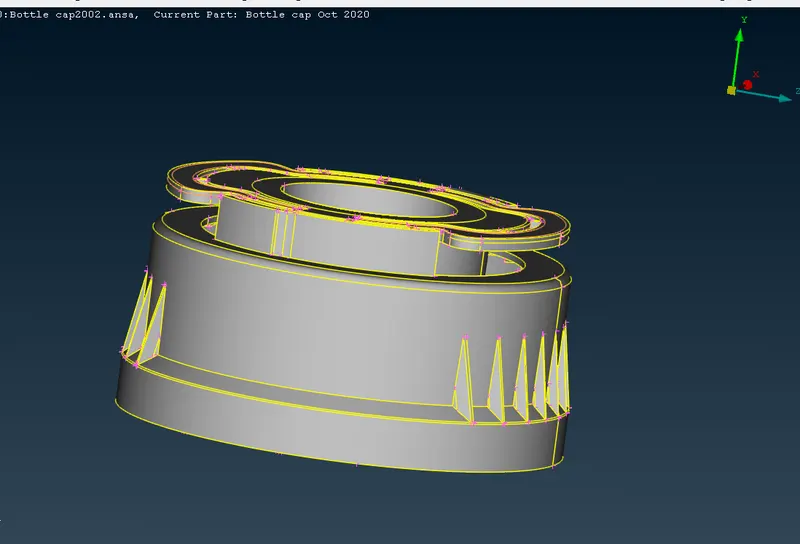
- Before meshing, we have to check the parent geometry.
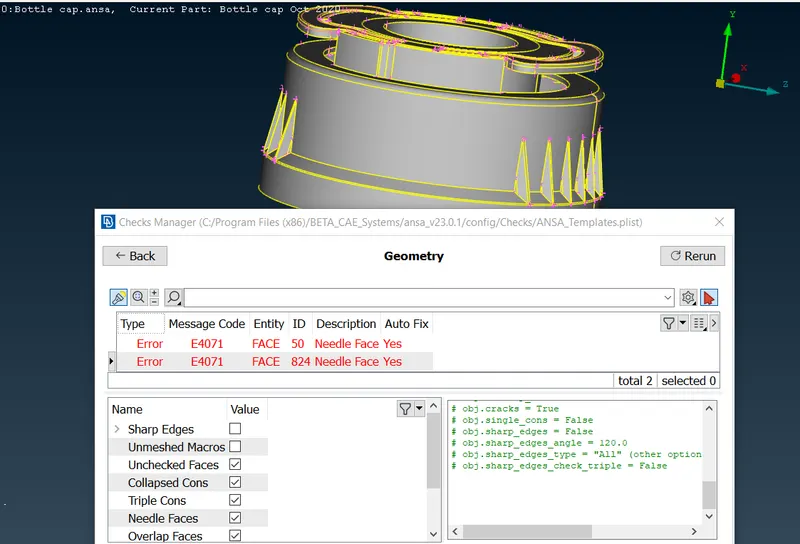
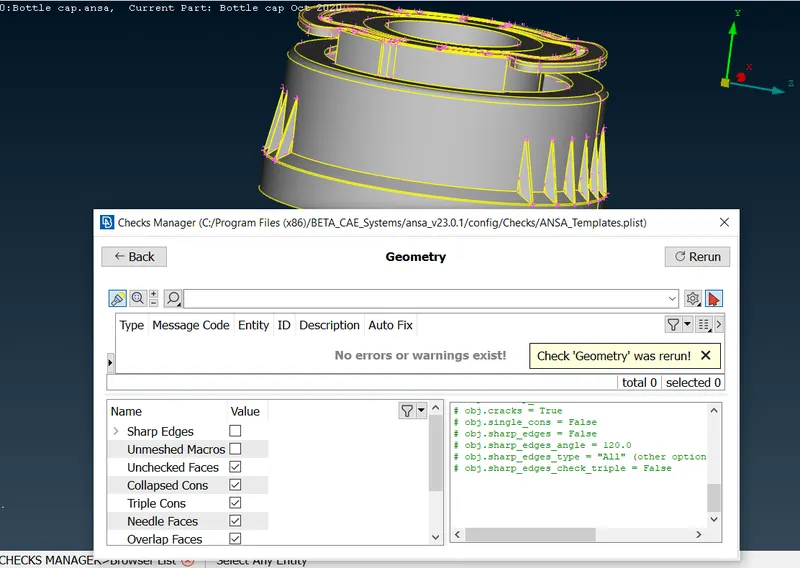
- To fix all generated errors, we need to right click on all selected visible error and then have to click on fix option.
Mid surface extraction
- Different thickness in this bottle cap model, some of the compenent we are going to the curves (middle) option extract the midsurface
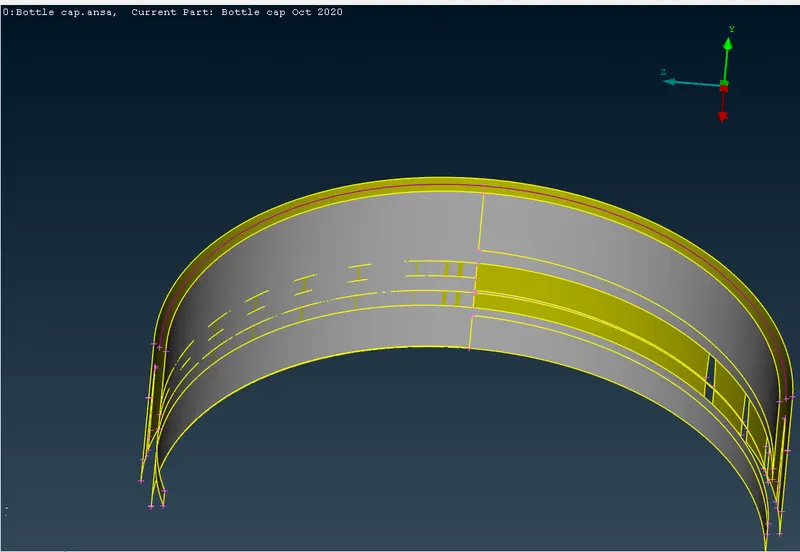
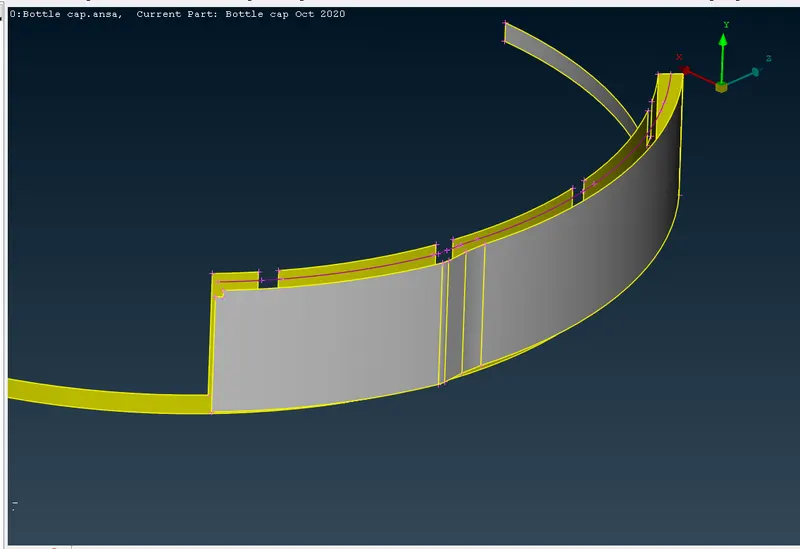
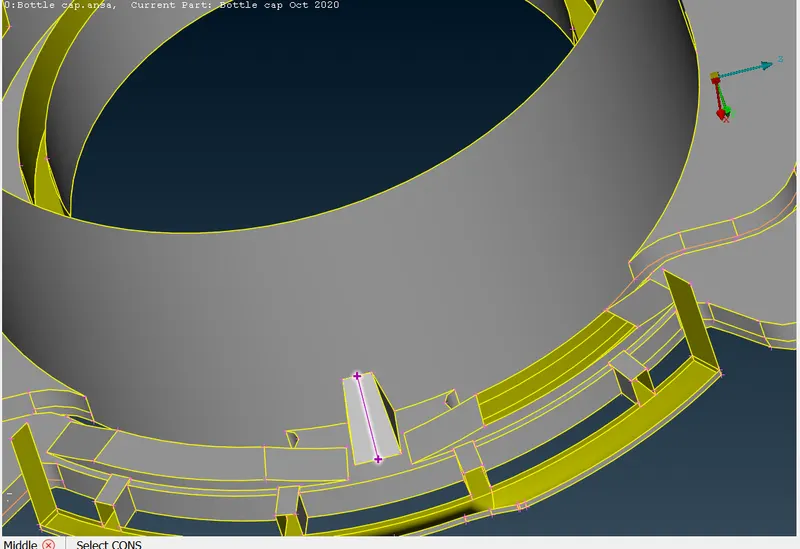
- the bottom inner fins extract the one suraces using curves middle option,
- and use the copy option to rotate the 360 degree, before assume the 'COG' (center of gravity) of the parent geomentry
- they total 12 fins in the bottom surfaces
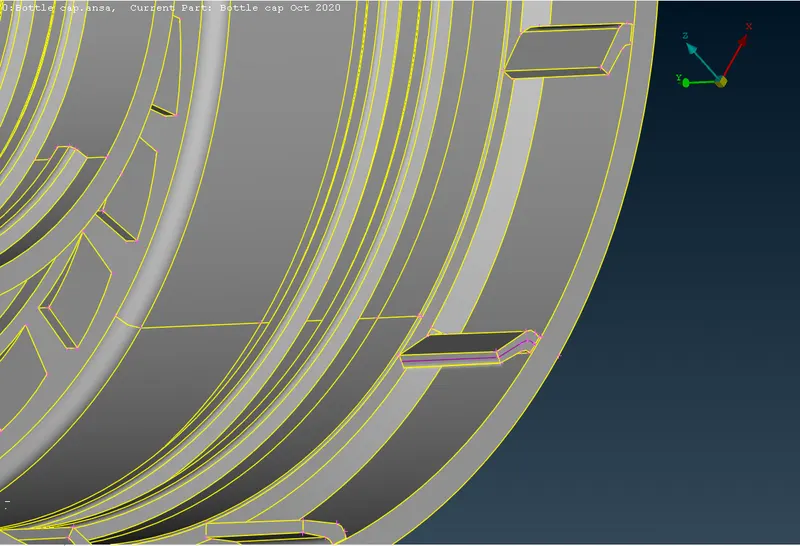
- outer circular fins are midsurface method are using faces (middle) option, after extend it to the surfaces.
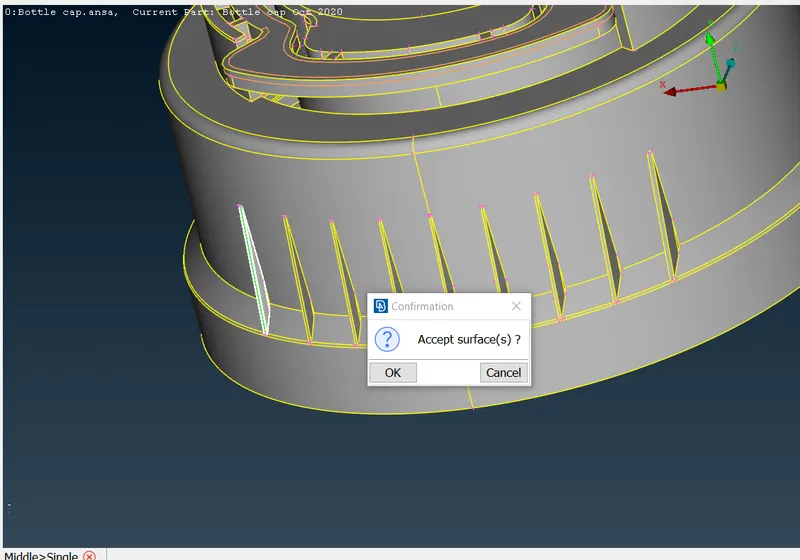
- inner and outer thread using midsurface cures middle option, and project the curves in flat surface .
- and then create the new surface after extend to the other surfaces
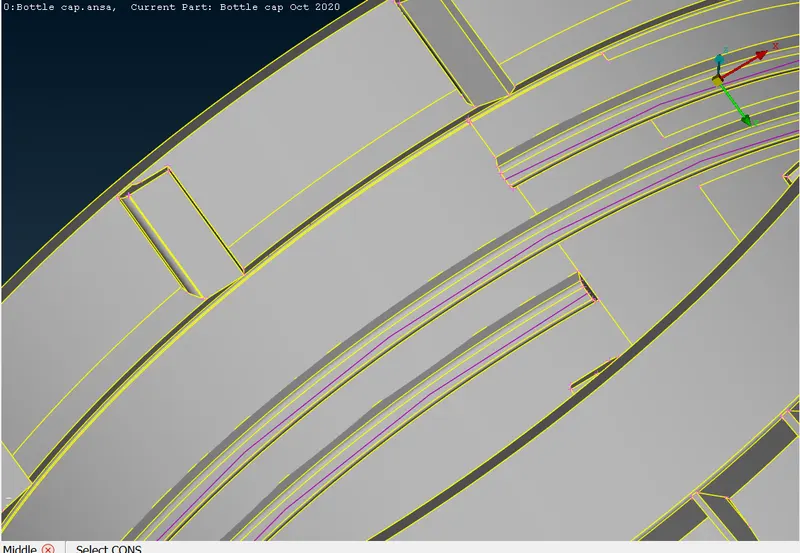
- other components we are using manual midsurface (offset 'faces'), after extract the midsurface and extended to the other surfaces
- after complete the midsurfaces set to mesh parameter and quality parameter.
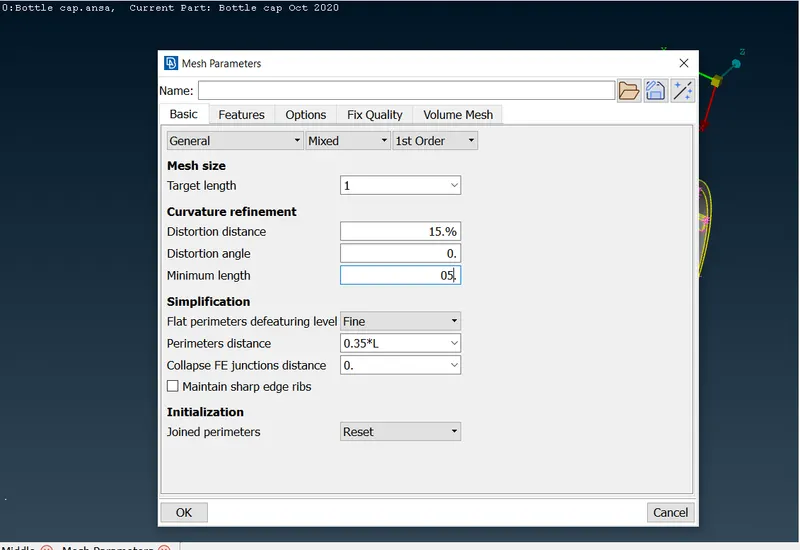
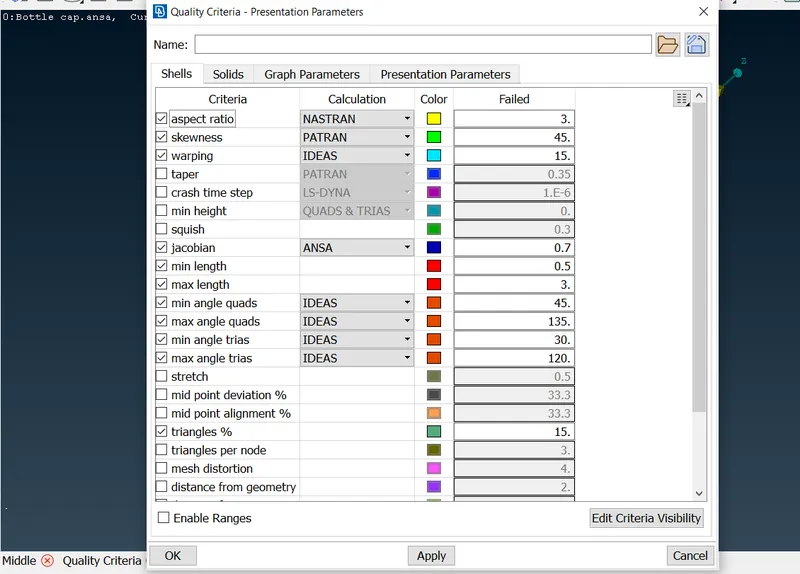
CREATING THE MESH
- Change the topo mode to classic mesh
- and set to the lengths (perimeter & macros)
- Delete the unwanted hotpoints and remove unnecessary constructions
- creating a construction depend our mesh flow
- they are no opposite tiras
- they are no trais touching each other
- they are no trais touching constuction lines and free edges
- they are no rotational quads
- If the Off elements are still present then it should be eliminated by using manual methods. Such as by using Split to reduce and remove the tria’s which can be eliminated.
- The Paste option is used to make the opposite tria’s into a single line.
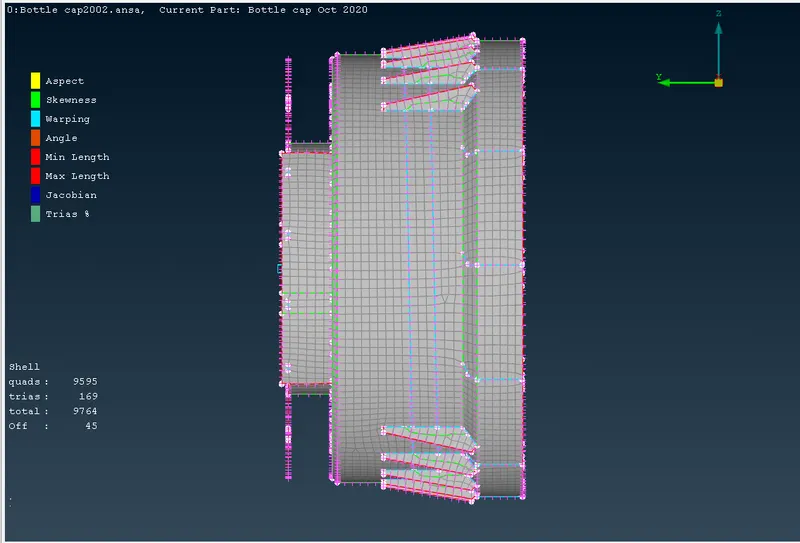
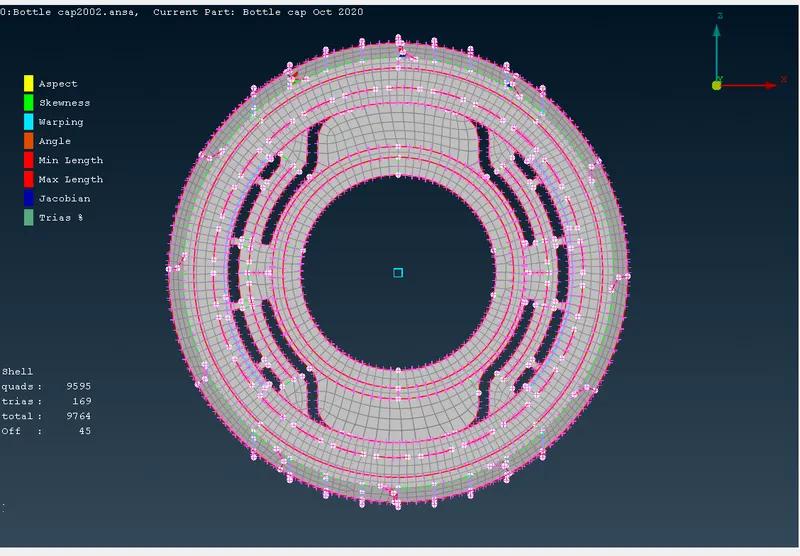
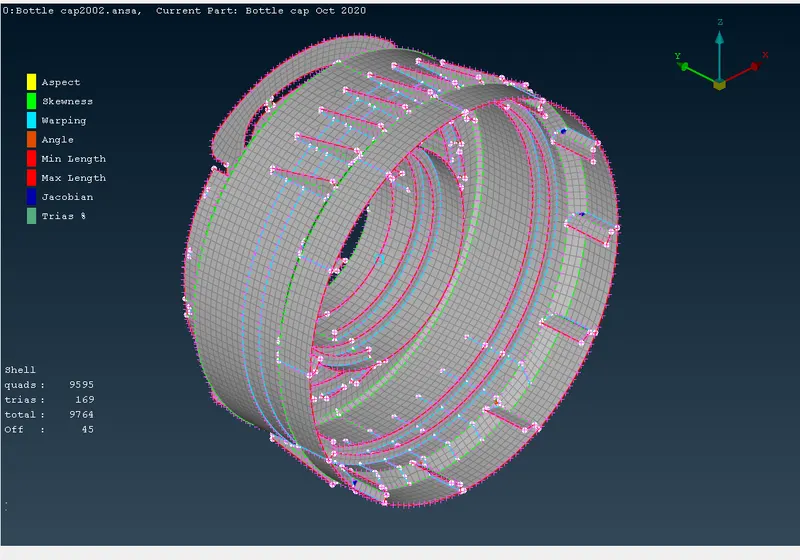
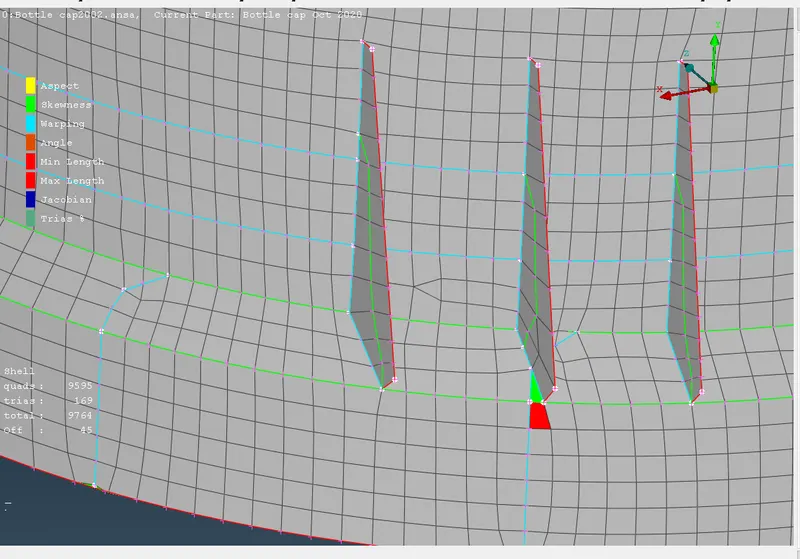
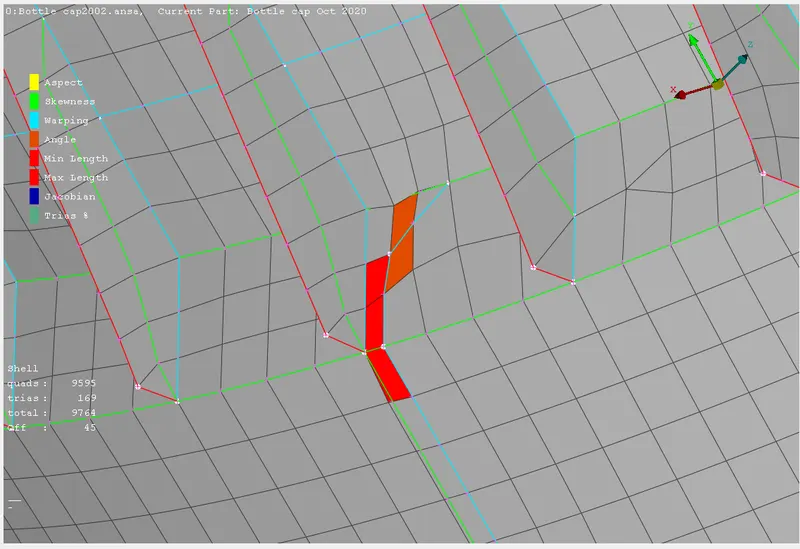
- they are some off elements are presented in my model, because triples are presented in smaller region
- this parent geomentry issues so we are accept the off elements
Adding Thickness to the mesh:
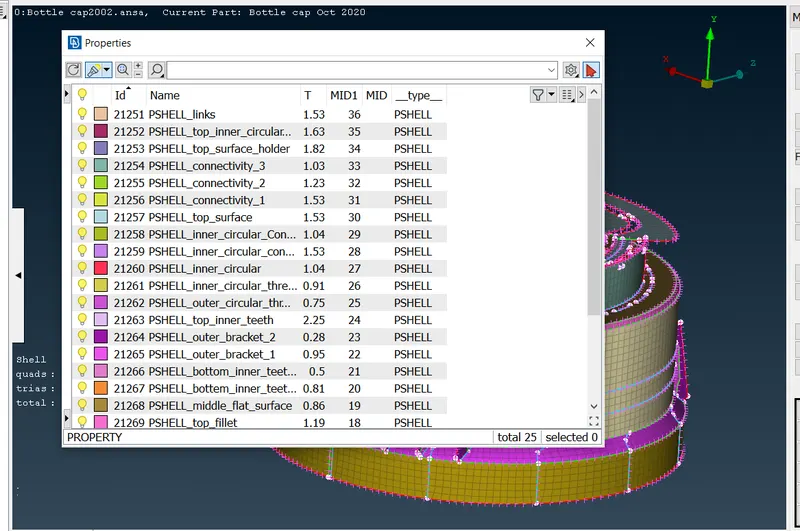
- The thickness of the mesh can be added in the Property icon and by selecting the part to which the thickness needs to be given.
SHELL AS SOLID
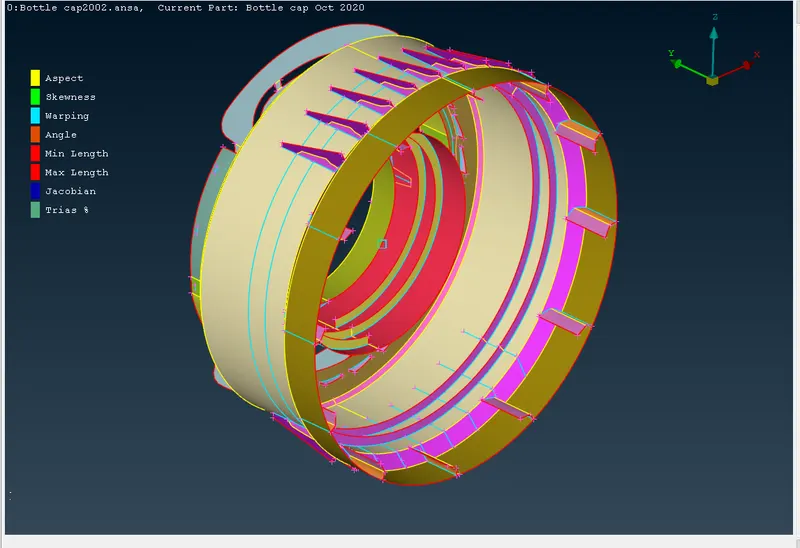
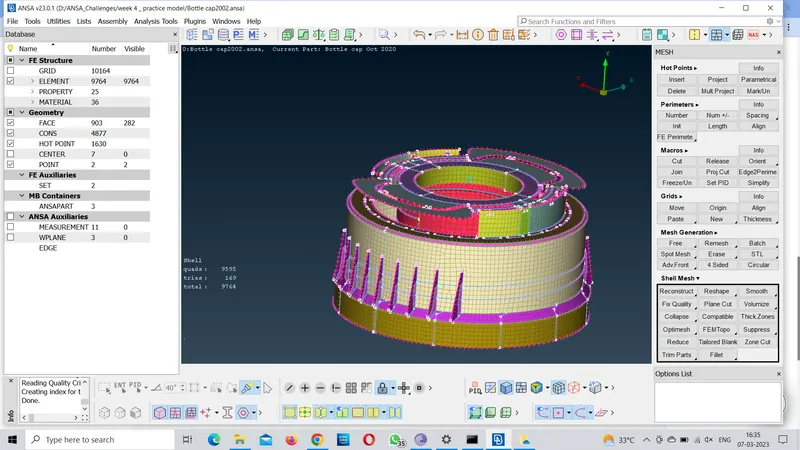
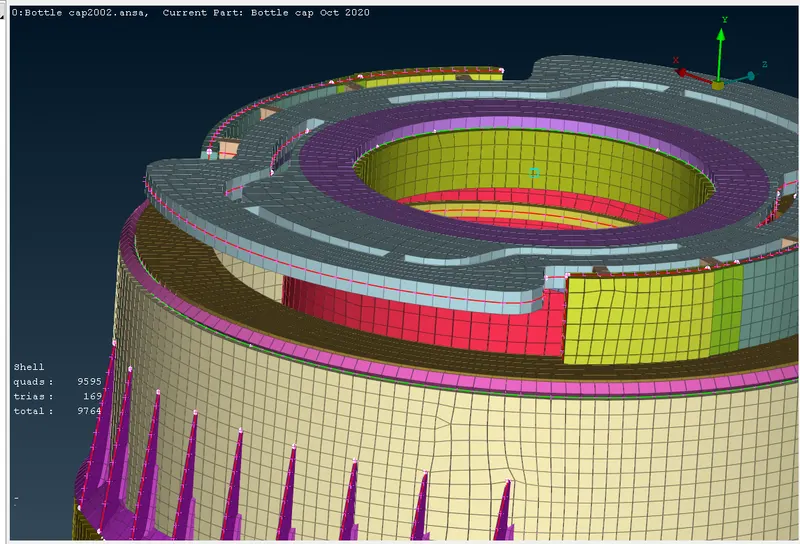
- In order to assign thickness, we have to make sure our thickness value should be in property identity. So to activate thickness at final stage, we have to check draw shell as solid under presentation parameters.
CONCLUSION
- So, preprocessing is done successfully on given component i.e. Bottle Cap model like geometry checkup, mid surface extraction which is followed by meshing operation and then assigning thickness to middle surface.