FE modelling of parallel brackets using HyperMesh
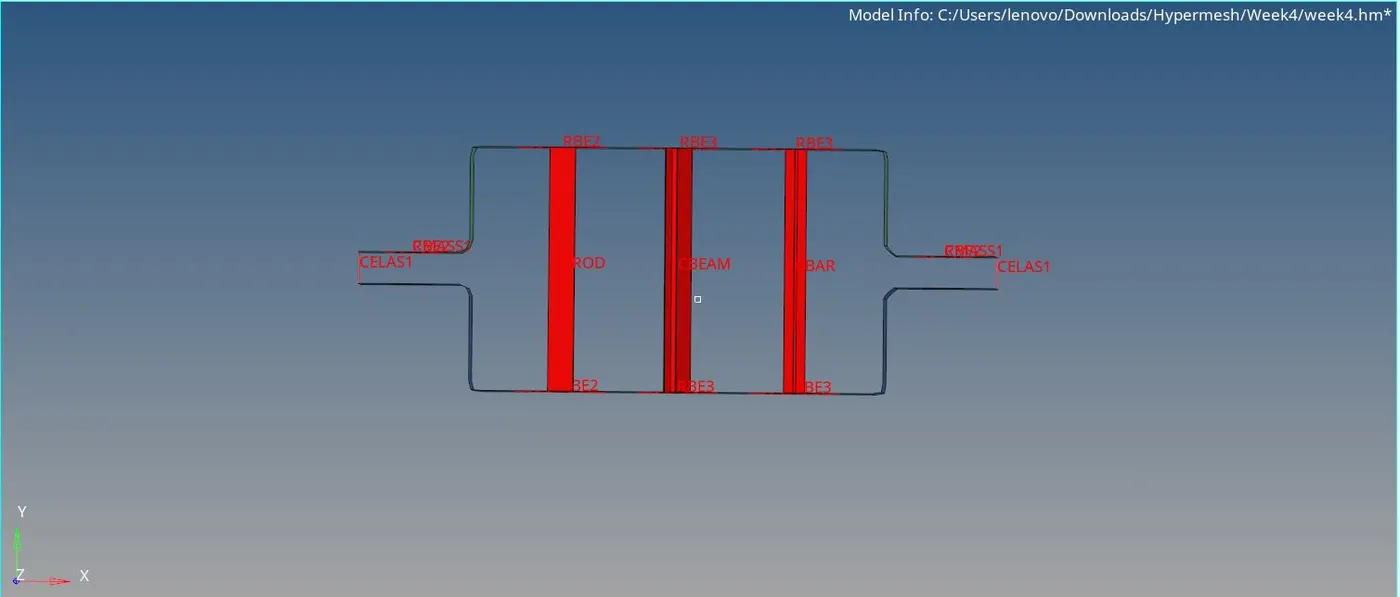
AIM : To create 1D elements on the following component with the specified cross-sections and DOF -
- Rod element (a) : with only translational DOF and RBE2 link
Cross-Section : BOX
a=12 mm; b=10 mm; t= 0.75 mm - Beam element (b) : with all DOF and RBE3 link
Cross-Section : I Section
a= 8 mm; b= 10 mm; c= 8.5 mm; t1= 0.75 mm; t2= 0.6 mm;t3= 0.6 mm - Bar element (c) : with only x and y DOFs With RBE3 link
Cross-section : CROSS
dim1= 5 mm; dim2= 1.2 mm; dim3= 10 mm; dim4= 1.2mm - (d) & (e) apply the mass of magnitude 10 with RBE2 link
- (f) Join the two components with Spring elements.
PROCEDURE :
- The provided CAD model is imported into Hypermesh.
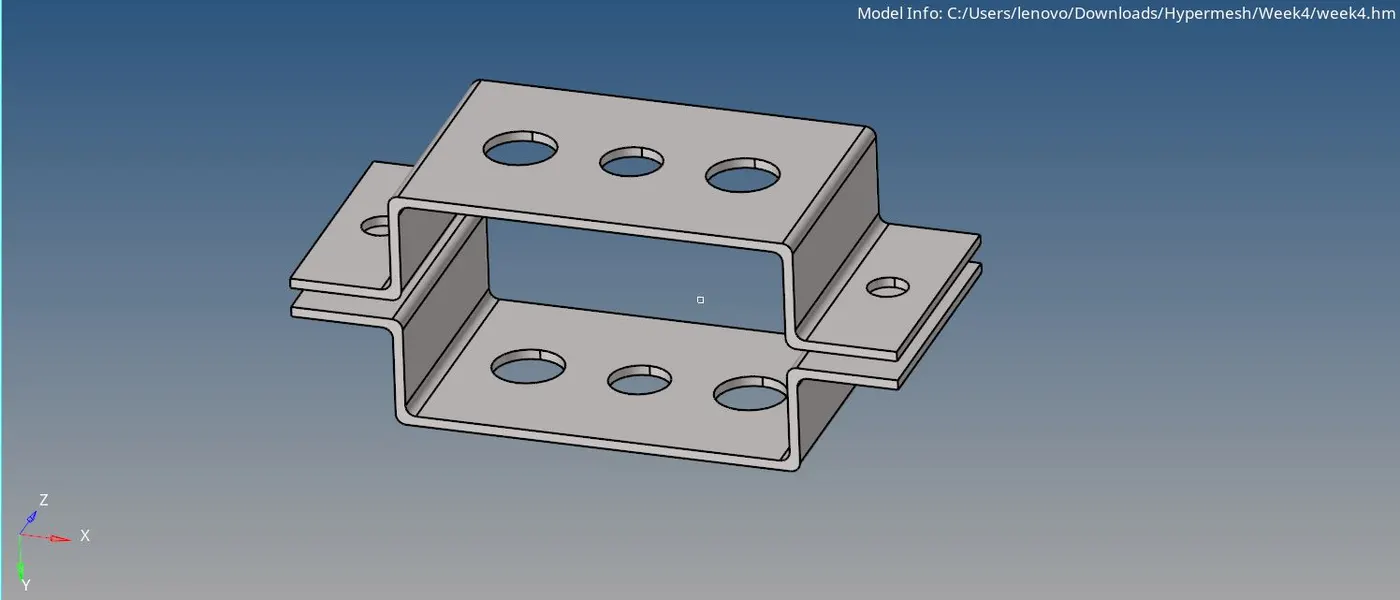
- The model thickness is checked with Geom-Dimensioning.
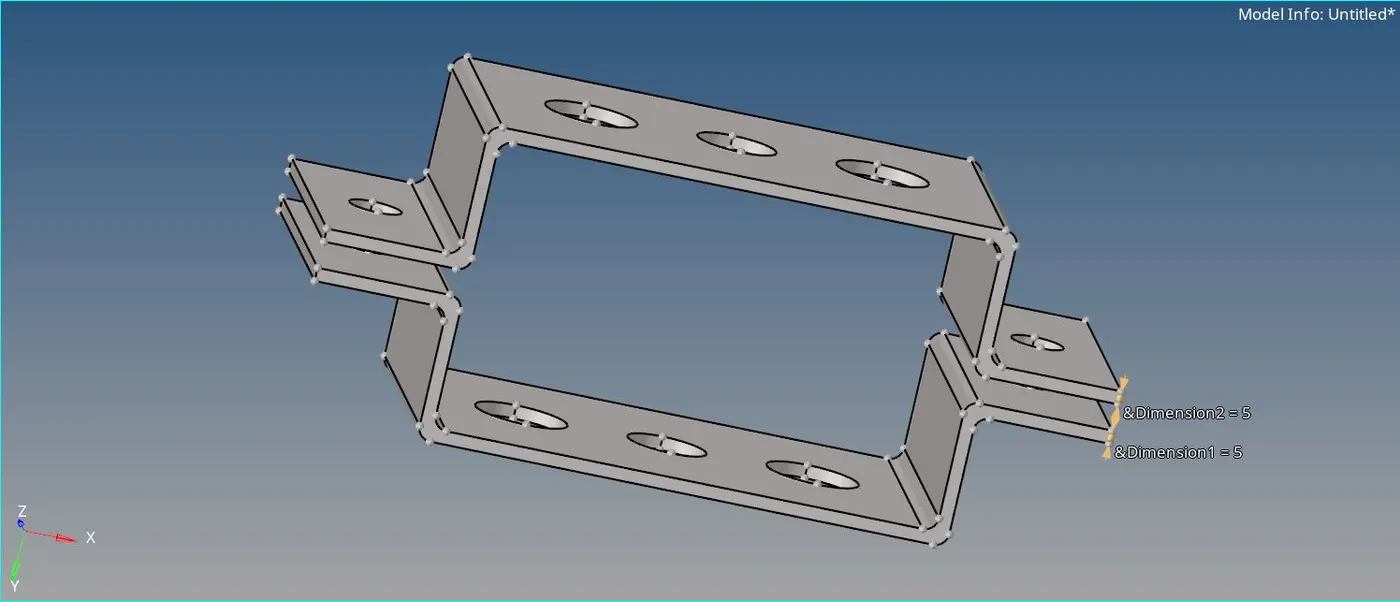
- To deploy the required 1D elements, first we need to mesh the component as the connections of 1D elements can be established with the help of nodes only.
- Therefore, firstly, midsurfacing of the 2 parts is done.
For this, Geom-midsurface command is used.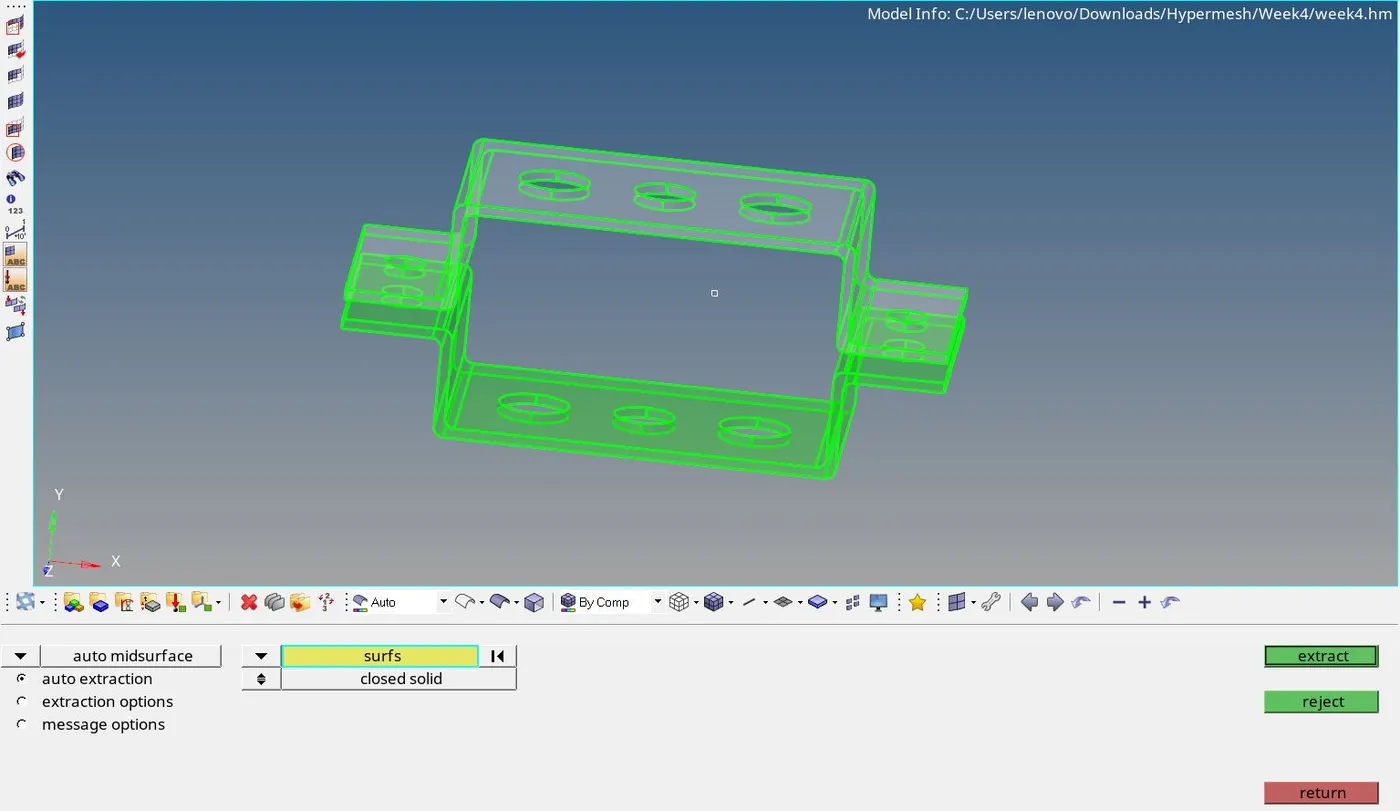
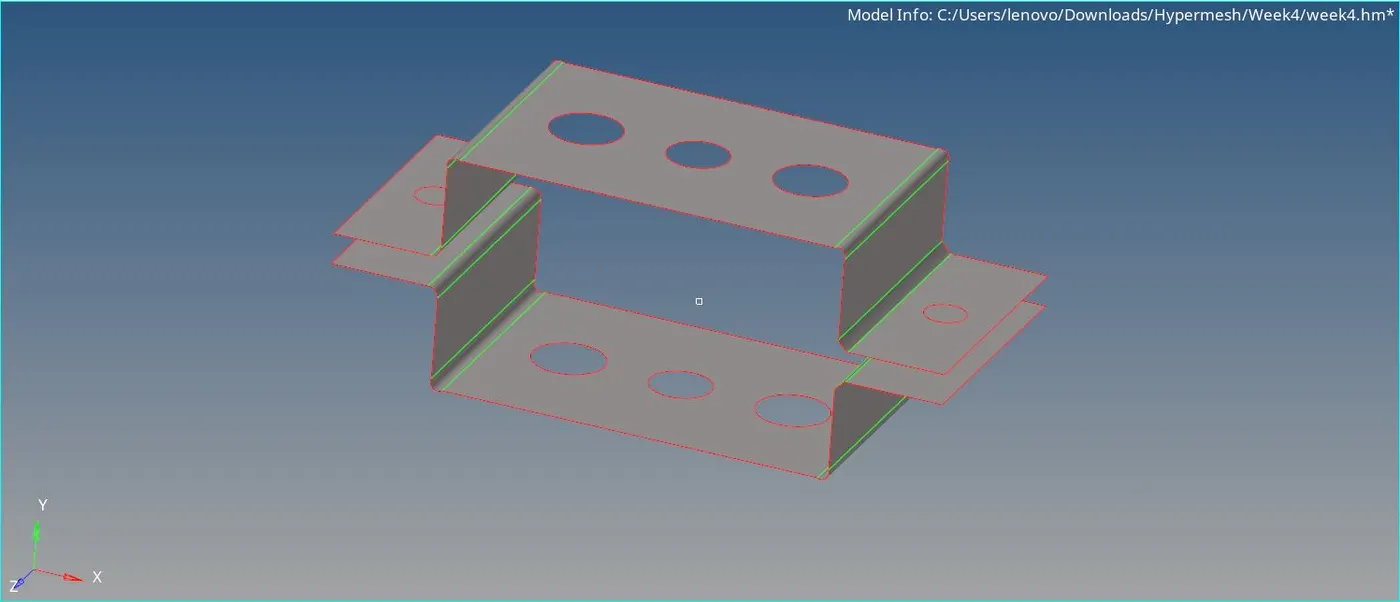
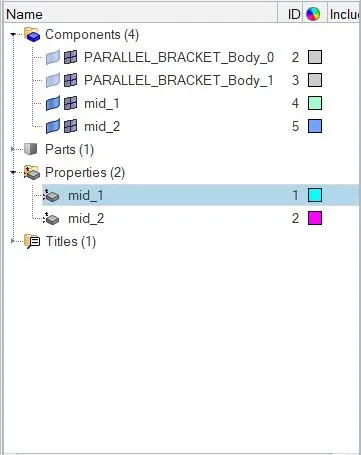
- Now, different components and properties are assigned to each part. Also, Proper thicknesses are provided to each.
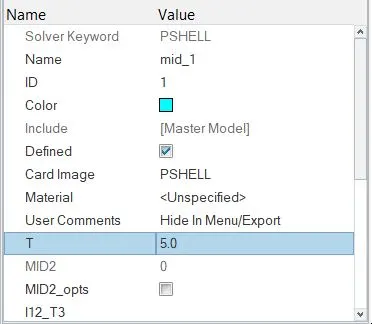
- Before meshing, washer cuts are established around all the holes to capture these holes properly. For this, Washer Split command inside the Quick Edit menu tab is used. 4 mm thick washer splits are established.
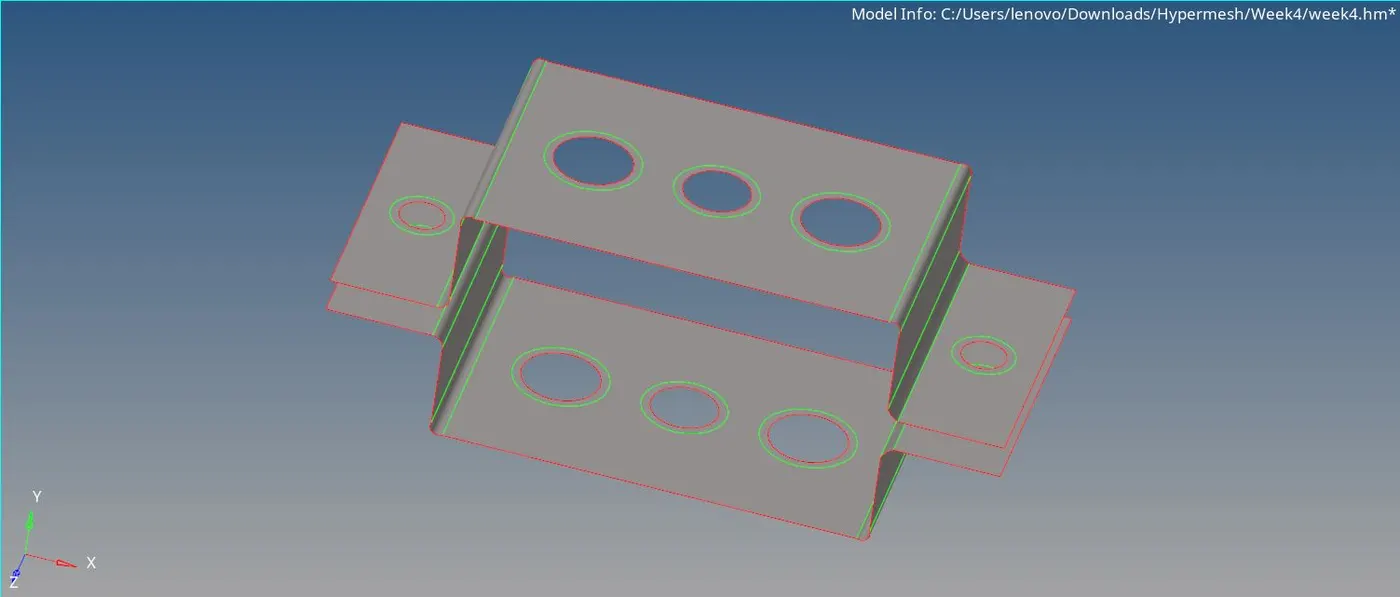

- Now, the component is ready to be meshed.
Accordingly, the 2D mesh is deployed with the help of 2D-automesh command. - Here, the target length of 5 mm is provided for the mesh. Also, mixed mesh type is selected here.
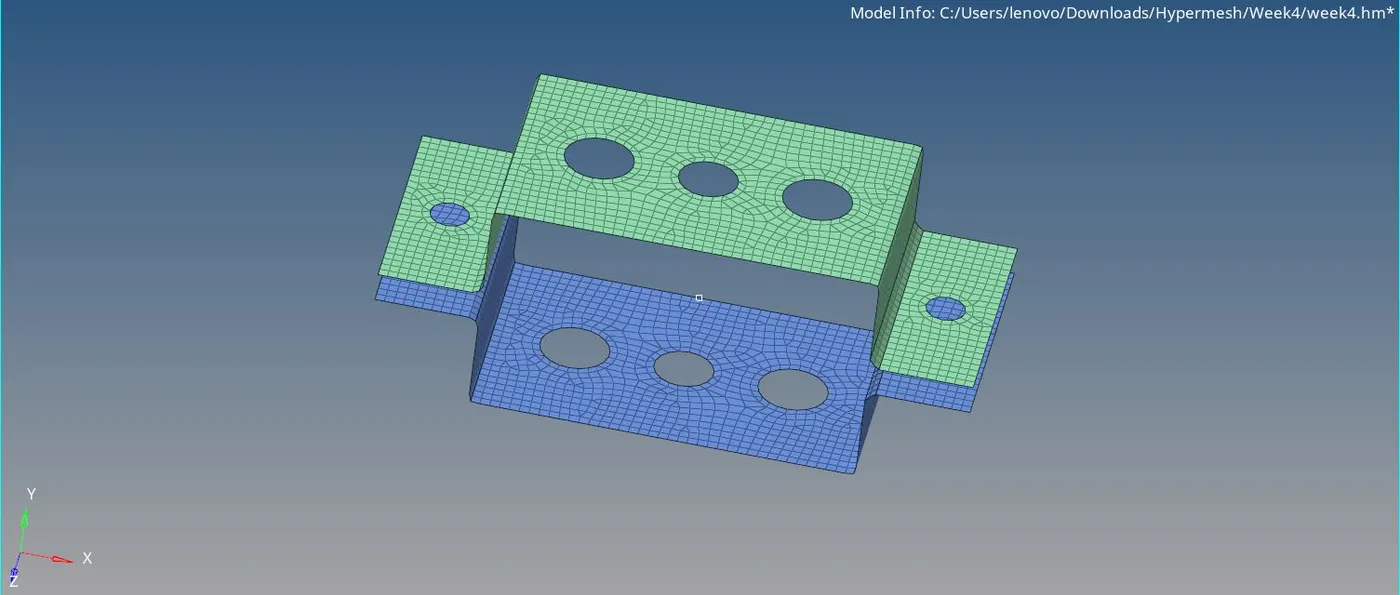

Note : Here, the quality of the mesh is not considered, as we simply need to deploy 1D elements.
- Before establishing the connections, we need to define the required cross-sections in Hypermesh. This is done either in the HyperBeam or Optistruct window.
- For this, 1D-HyperBeam command is used, inside the Standard Sections option.
- Accordingly the required 3 cross-sections are created.
BOX - Section :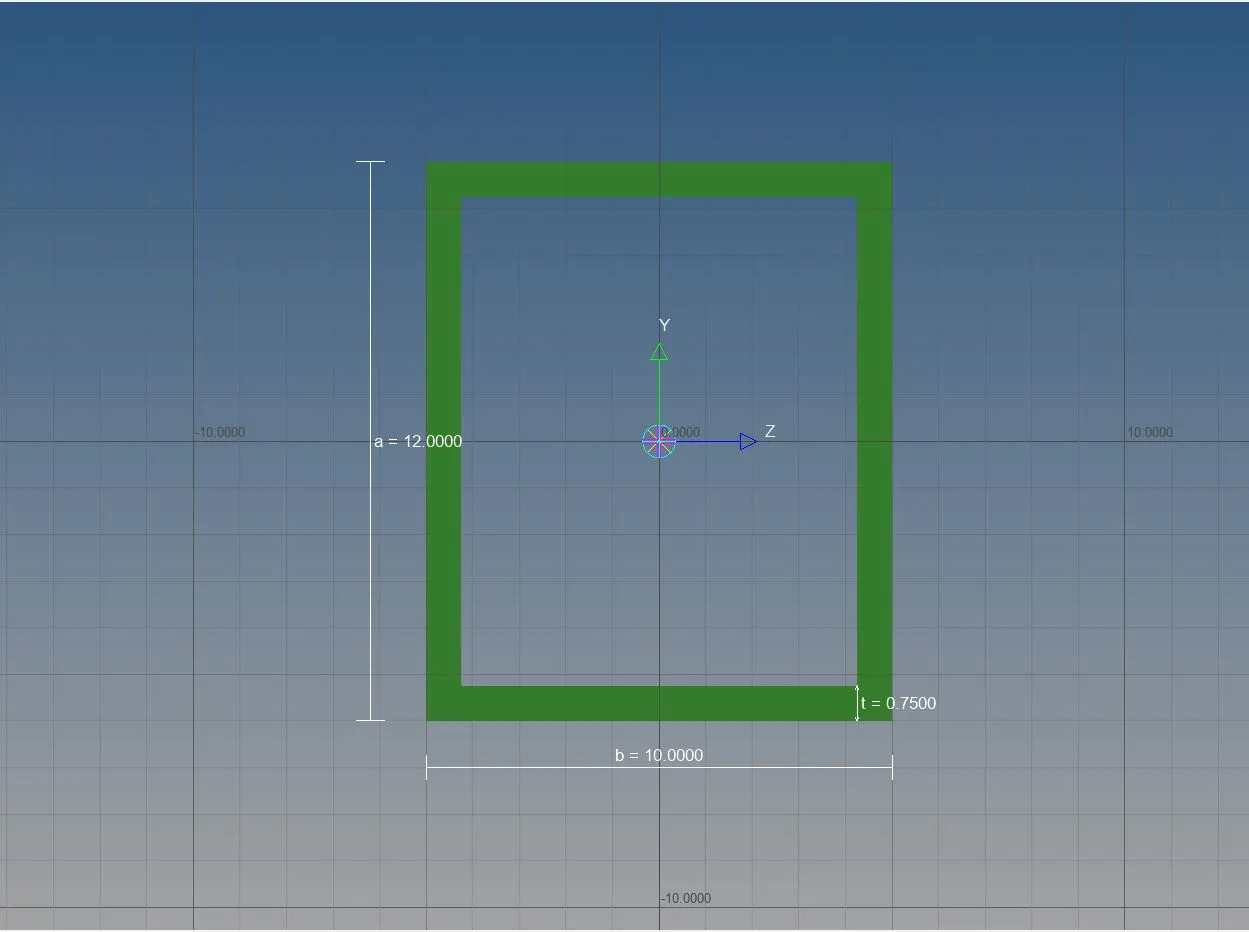
I - Section :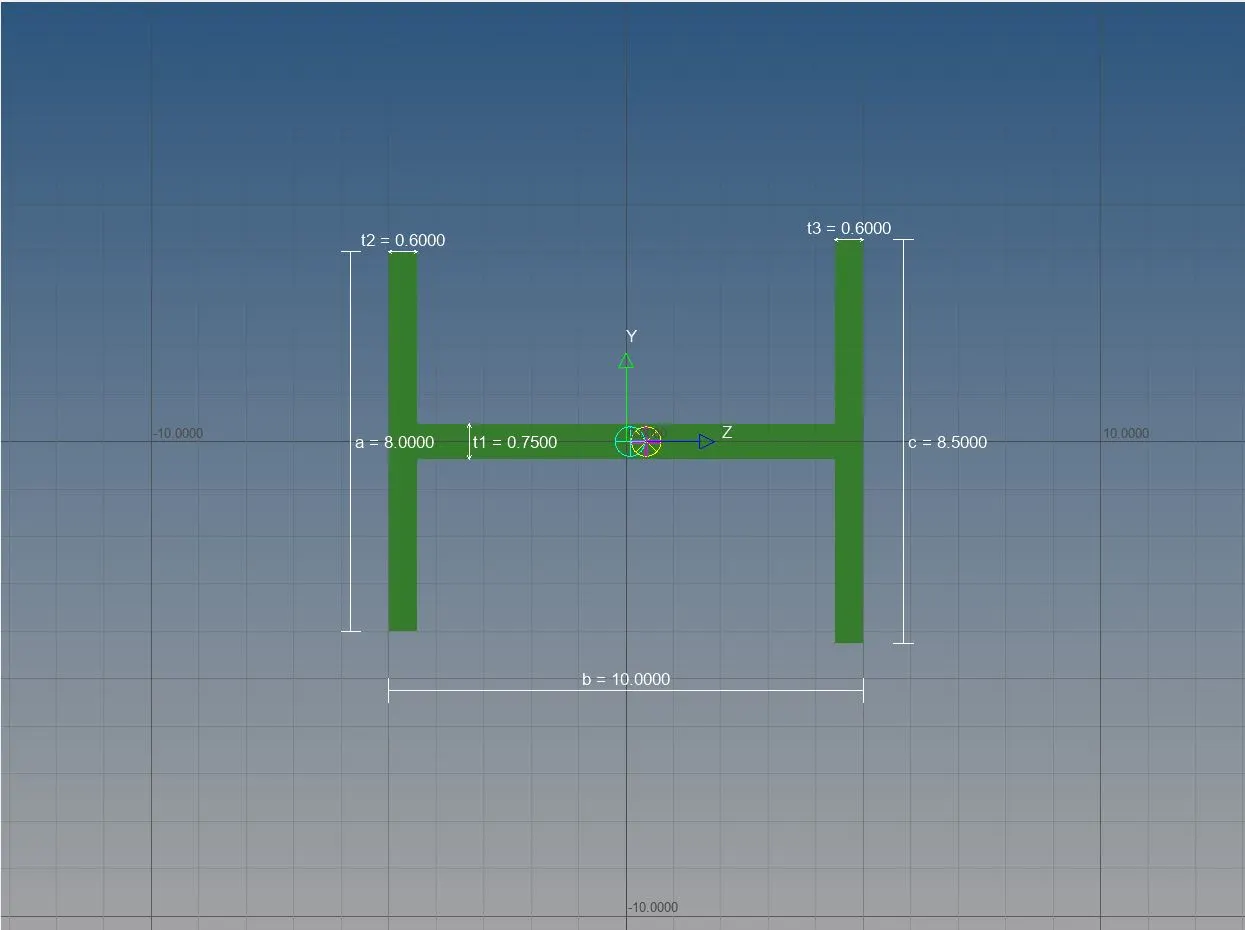
CROSS - Section :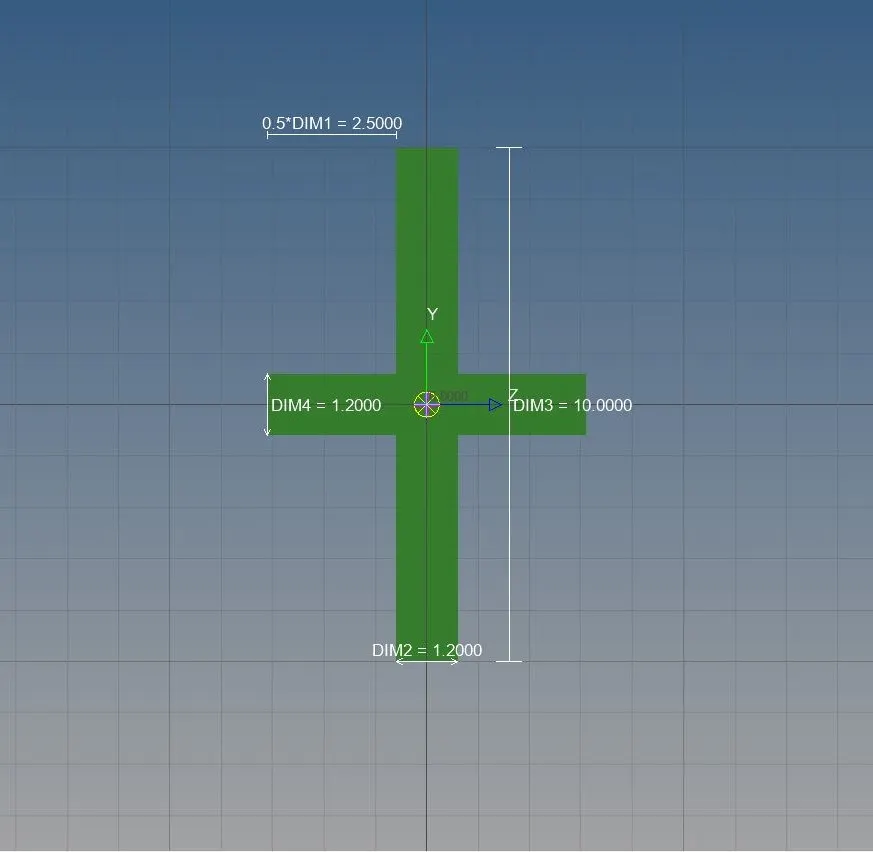
- New properties for each of these 1D elements are created. The Cross-Sections are linked with the corresponding Properties.
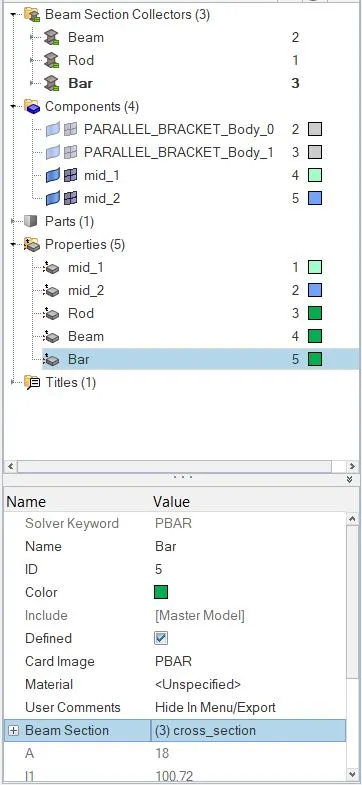
- Now, the required RBE2 and RBE3 elements are deployed with the help of 1D-Rigids command.
- Here, proper degrees of freedom are provided. The ticked DOFs correspond to those in which the component is restricted to move.

Thus, at position a, only 1,2 and 3 DOFs are ticked. This means, that the component is restricted to have translational motion along x, y and z directions. - Similarly, RBE3 elements are deployed at positions b and c with required DOFs.
- Now, at position a, rod element is placed. This is done with 1D-rods command. The element type chosen is CROD and the rod property is provided which has been created earlier.
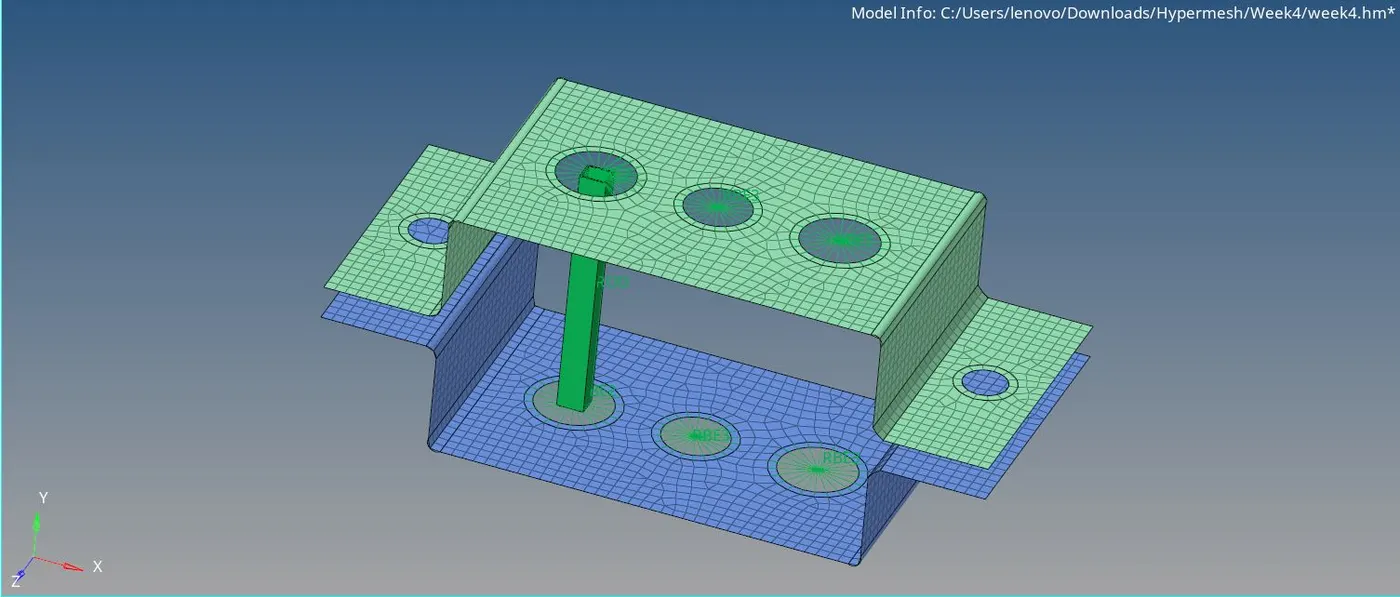

- Similarly, at positions b and c, beam and bar elements are placed with 1D-bars command. The corresponding properties are added and the element types for beam and bar element used are CBEAM & CBAR respectively.
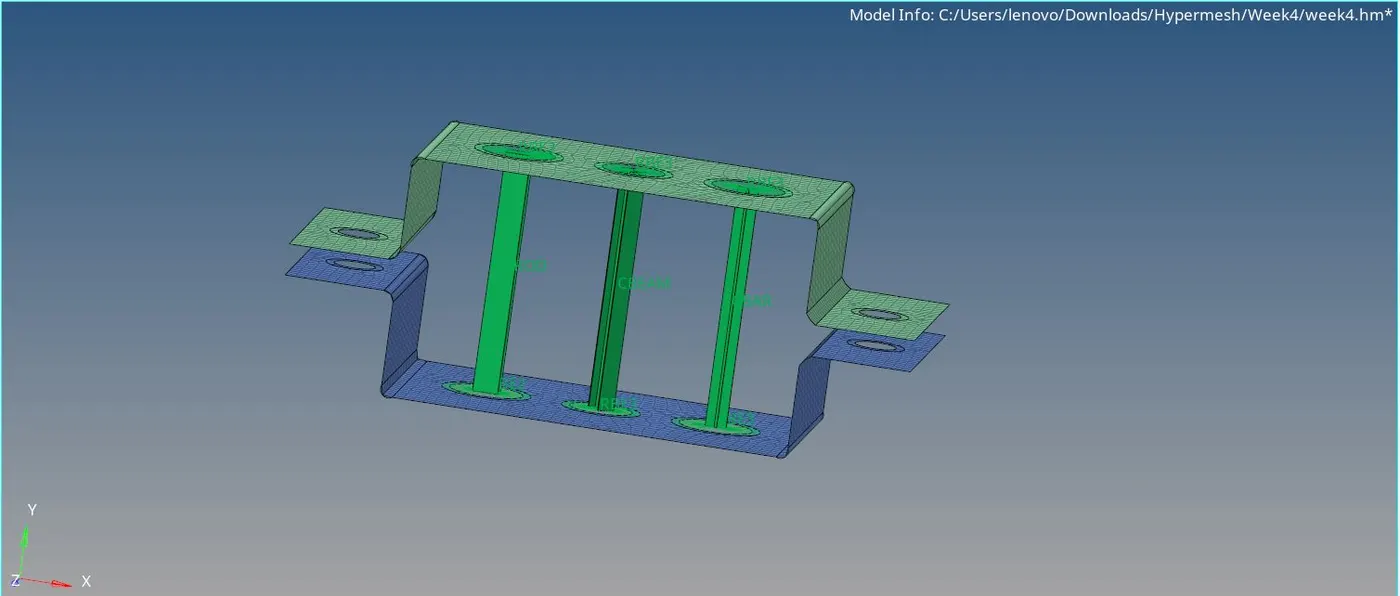

- Also, at positions d and e, RBE2 elements are deployed. Mass is added with the help of 1D-masses command. The mass is added at the central node.

- To join the 2 parts with spring elements, 1D-springs command is used. Here, the element typee chosen is CELAS1. This type corrresponds to the elastic nature of the spring.
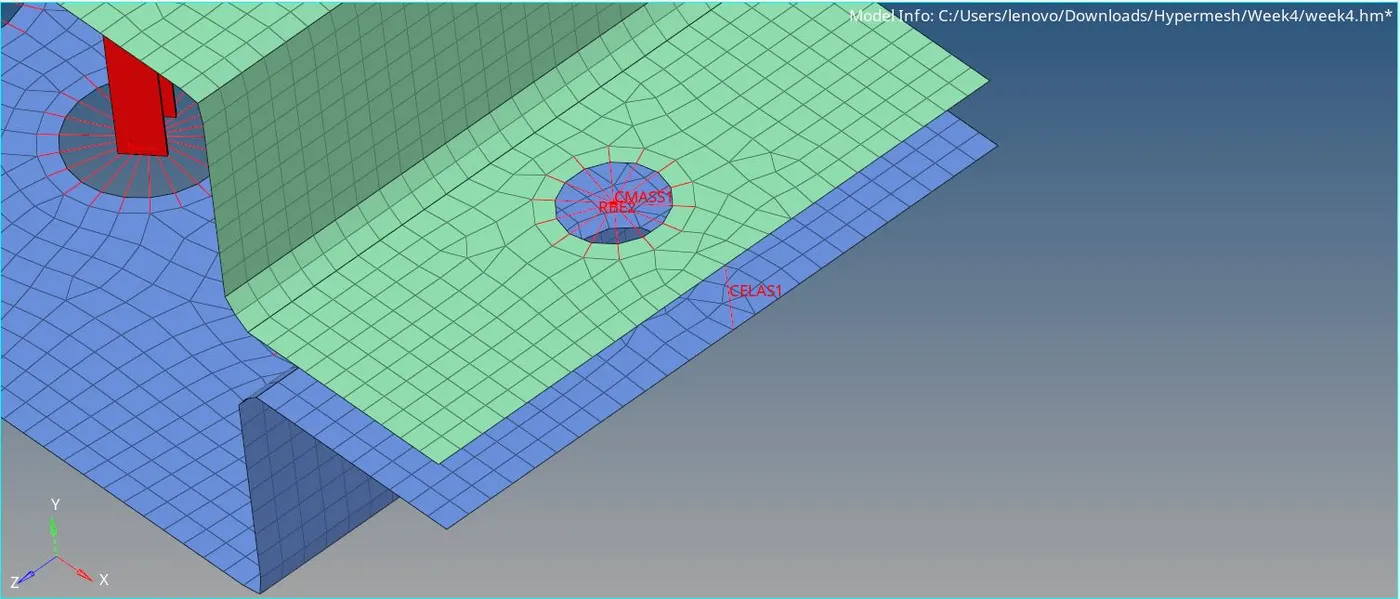
- Shown below is the final outlook of the model after establishing all the 1D element connections -