Meshing of Bottle Cap in ANSA
Objective:
- To extract the midsurface and mesh the bottle cap component provided in the challenge according to the quality criteria in "ANSA".
Introduction:
- The quality criteria according to which the model has to be meshed is as follows.
|
S.No |
Quality Criteria |
Value |
|
1 |
Target/Average length |
1 |
|
2 |
Minimum Length |
0.5 |
|
3 |
Maximum Length |
3 |
|
4 |
Aspect |
3 |
|
5 |
Warpage |
15 |
|
6 |
Skewness |
45 |
|
7 |
Jacobian |
0.7 |
|
8 |
Minimum Quad Angle |
45 |
|
9 |
Maximum Quad Angle |
135 |
|
10 |
Minimum Tria Angle |
30 |
|
11 |
Maximum Tria Angle |
120 |
|
10 |
Tria Percentage |
15 |
- The model had a complicated geometry. Therefore, auto midsurface was not feasible. The midsurface of the model was extracted manually using options like offset, curves middle, project, etc.
- Later, the meshing was done for each separately for each surface to achieve a better quality and mesh flow.
- Components like ribs that were trapezoidal were meshed and then the thickness was applied to the elements in a reducing manner.
Procedure:
- The image below shows the main part as provided in the challenge.
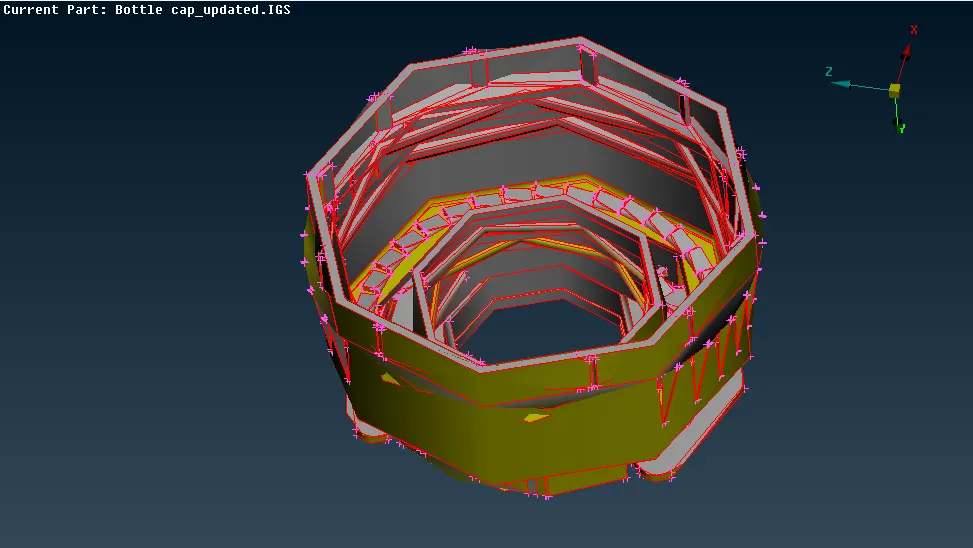
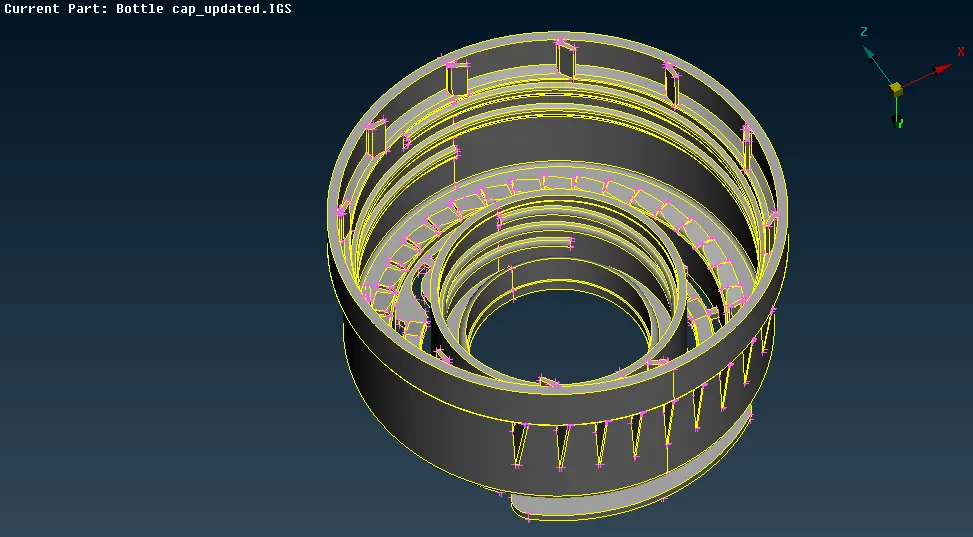
- As seen, the geometry of the component does not seem to be proper and it is hard to judge the model. Therefore, the perimeter of the component was made finer. The length of the perimeter was changed to 1mm, which made the geometry much finer and easy to understand the component. This was done from the ‘mesh’ module, under the ‘perimeters’ tab, in the ‘length>perimeter’. Later the ‘topo’ command was applied to the model. The image below shows the finer geometry.
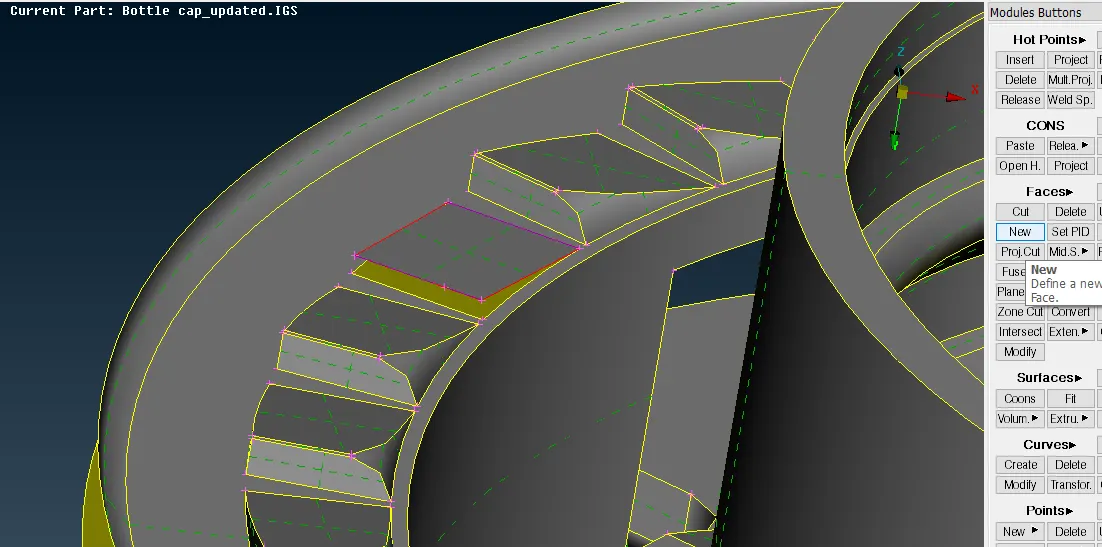
- After changing the perimeter, the midsurface was extracted. The trapezoidal threads in the inner portion of the cap were mid surface. Since a trapezoidal surface cannot be midsurfaced, one of the cons from the portion attached to the base was projected on the bottom surface.
- Later, a middle curve was extracted from the cons in the front area of the thread, and a new face was created between the con and the curve using ‘faces>new’ from the ‘topo’ mode. After creating this, instead of creating 35 more such faces individually, the face which has been created can be replicated at all the remaining 35 faces. The image shows the midsurface extracted out of one thread.
- This is done by using the ‘rotate’ command in the ‘transform>copy’ option. An axis around which the faces are to be replicated is defined by two points at different heights. These two points were created using the ‘on COG’ option in the ‘points’ tab under the ‘topo’ mode. Two concentric circles at different heights were selected for defining the points as seen in the image below.
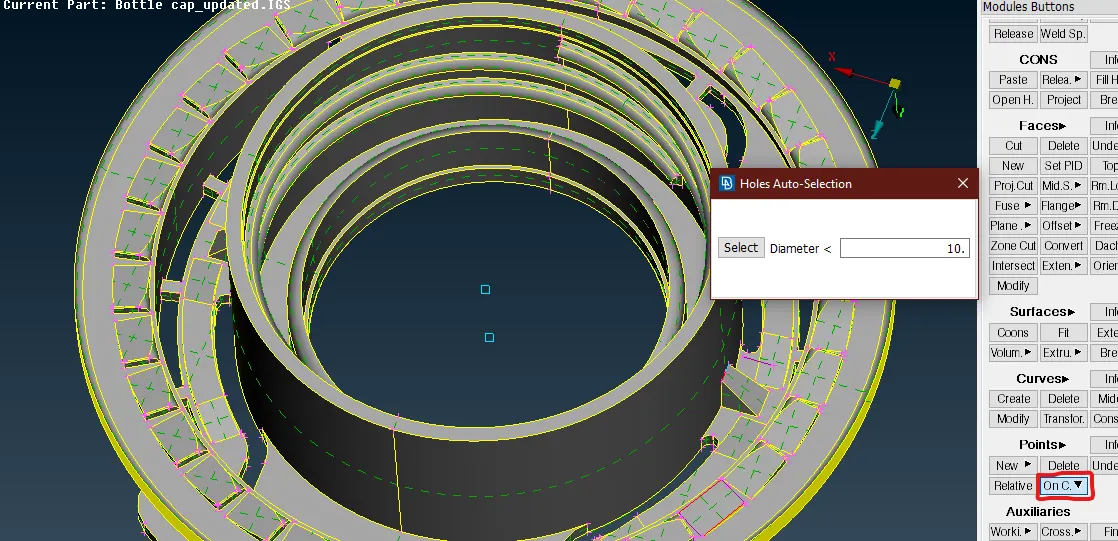
- Later in the rotate command, these points were selected as ‘X’ and 'dX’. The steps were set as 35 since the total threads were 36 and we already had created one. The angle between each face was kept as 10o (360o/36 faces).
- After creating the midsurface for these trapezoidal threads, the midsurface for the threads on the inner face was extracted. For this, the ‘middle’ option in the ‘curves’ tab was used. A middle curve was extracted from the cons on the larger side of the thread. While using the ‘cons2curve’ option, the con on the outer side of the thread was turned into a curve.
- Using, ‘new’ face option, a face was created from the ‘coons’ command in between the two curves. The image below shows the threads. Similarly, the midsurface for the upper threads was also extracted.
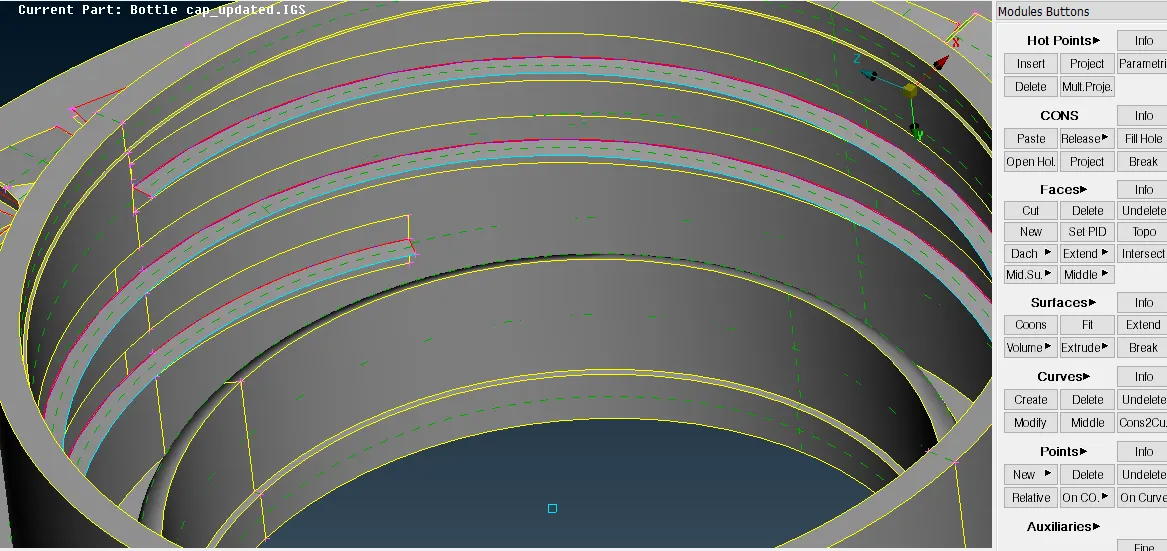
- Later, all the other connected faces were midsurfaced individually. Using the ‘extend’ command, all these mid surfaces were connected according to their parent geometry. Cuts were made wherever necessary to get a good midsurface and mesh.
- After completing the operation for all the areas, ribs on the outer area of the component were surfaced. For this operation, the ‘middle’ command from the ‘faces’ tab under the ‘topo’ mode was used. The middle face was extracted for all the ribs that were extracted and extended to their target surfaces. The image below shows the midsurface for the ribs.
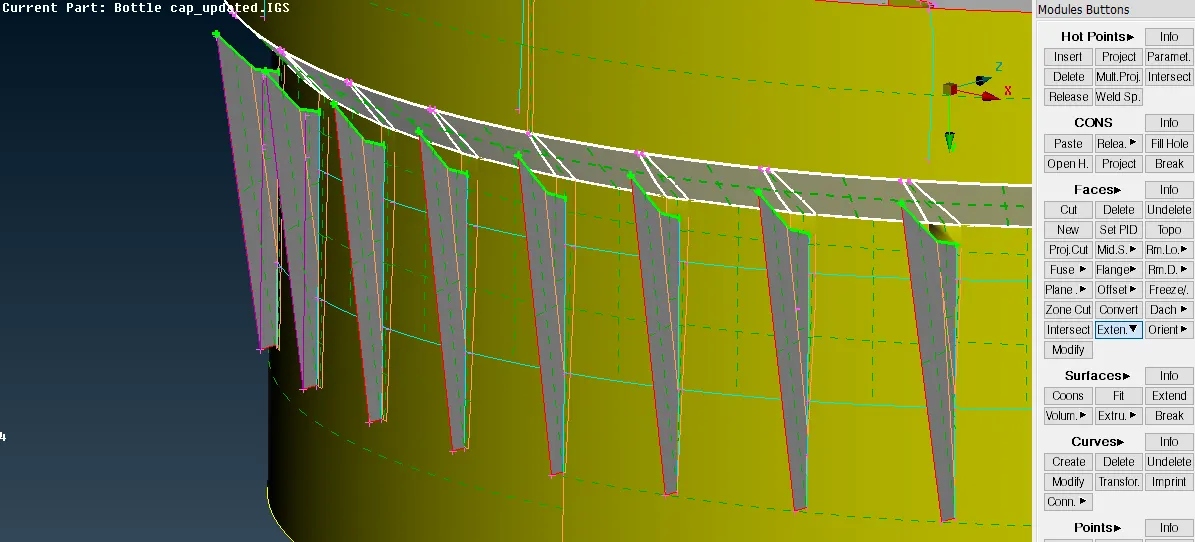
- After creating the mid surfaces for all the areas, all the unnecessary curves were deleted. ‘Geometry check’ operation was performed on the model from the ‘checks’ manager. All the problematic areas were fixed. The image below shows the final midsurface of the model.
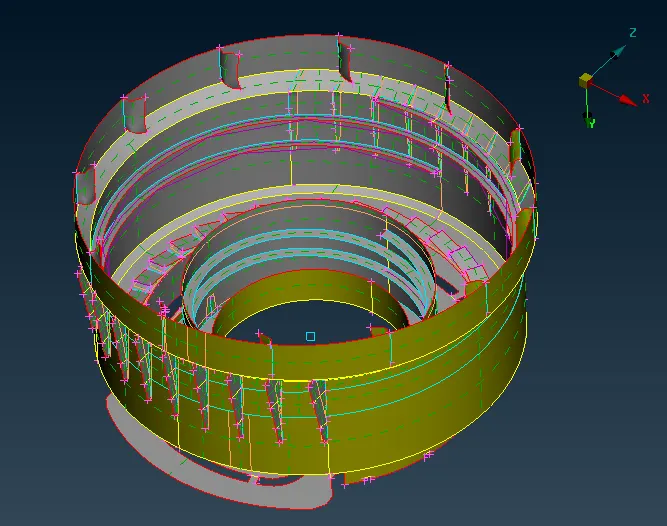
- Later, the thickness was applied to all the surfaces, except for the tapered ones like the ribs which did not have a constant thickness. Separate properties were created for each of the faces according to their thicknesses.
- Before proceeding to meshing of the components, the quality criteria were entered in the ‘quality parameters’. The parameters were saved to open it again.
- Using the ‘best’ option from the ‘mesh generation’ tab under the ‘mesh’ mode, all the surfaces were meshed individually, one by one to get a good mesh flow and less number of tria elements.
- The tria elements were removed using the commands like ‘split’, ‘swap’, ‘join’ etc. The tria elements are not desirable in the component as they are stiffer as compared to the quad elements, and thus a large number of trias may lead to errors during the analysis.
- To align the mesh with the geometry of the model, the ‘align’ option from the ‘grids’ menu was used. The nodes to align were defined in the ‘source’ nodes, and the two nodes to align with were defined in the ‘target nodes’ section. Along with this, the nodes were also aligned with the CONs. The image below shows the align option.
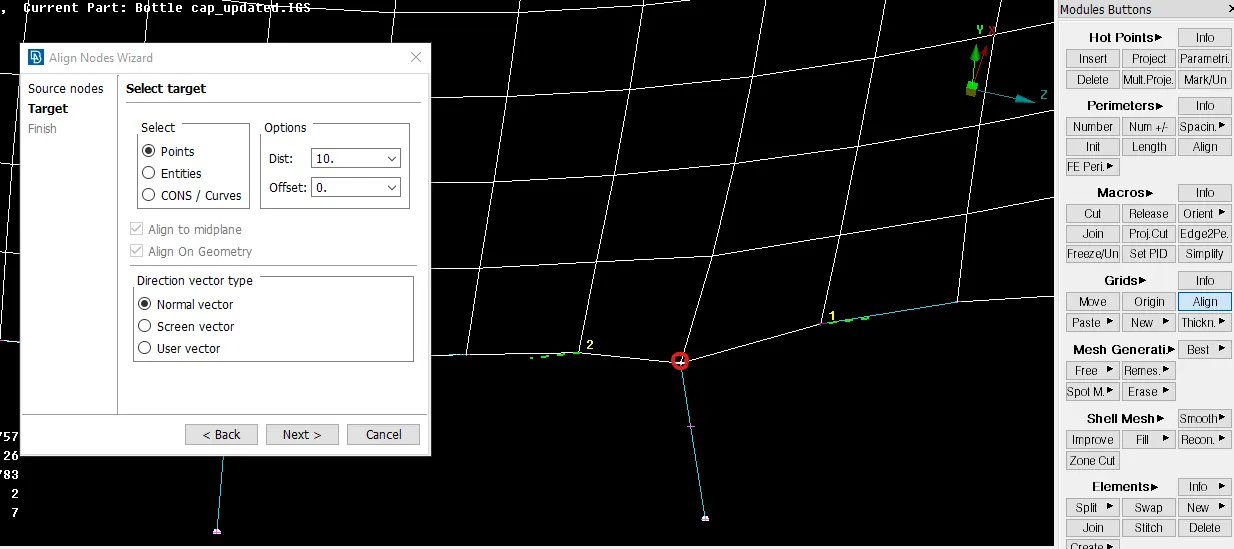
- There was an area near the trapezoidal threads, where triple cons were forming. Due to this, the mesh in that area was failing and also the features in that area could not be ignored. Therefore reconstruction of the mesh was possible only up to a certain limit, after which the failed elements were not getting corrected, and hence the failing elements had to be accepted.
- After clearing the failing elements in all the possible areas, and ensuring all the areas had been meshed, the mesh was finalized. The image below shows the final mesh.
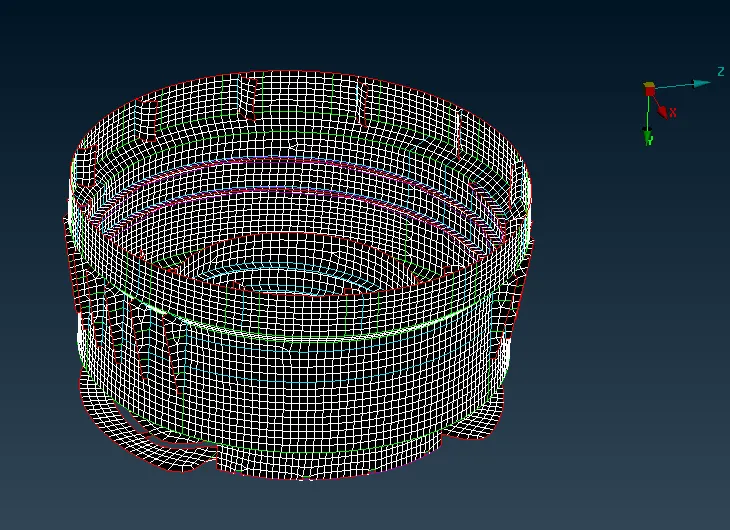
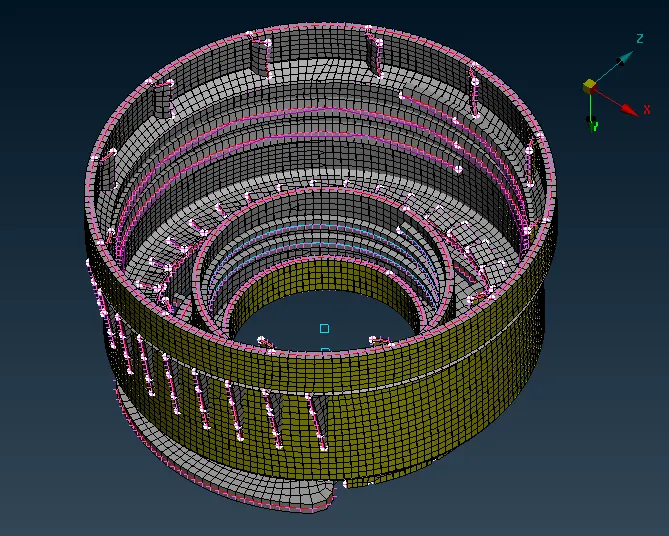
- Later, the thickness was assigned to the ribs after meshing them which were skipped before. The mesh was divided into three parts by using the ‘cut’ option from the ‘macros’ tab. Maximum thickness was applied to the upper portion, the minimum thickness was assigned to the lower portion, while an average thickness was assigned to the middle portion.
- From the ‘presentation parameters’ option, the ‘draw shell as solid’ option was turned on. This enabled the thickness of all the faces as assigned in their respective properties. The image below shows the model along with its thickness.
Result and Conclusion:
- In this challenge, the bottle cap model was midsurfaced and meshed according to the quality criteria provided with almost the best possible mesh flow.
- The geometry of this model was a little bit complex and thus the auto midsurfacing using the ‘midsurf’ option was not possible, and all midsurface for all the faces had to be extracted manually.
- Along with this, various properties were assigned in this model to different surfaces according to the respective thicknesses. After extracting the midsurface and joining all the surfaces, the model was meshed according to the quality criteria.
- Using the ‘hidden’ mode, the model was checked for any failing elements which were cleared by remeshing, reconstructing, and smoothening. Along with these, some manual commands like split and join. Along with this, the mid surfaces for trapezoidal geometry were extracted successfully.
"CAE" "FEA"
GDrive link for model : Bottle Cap model