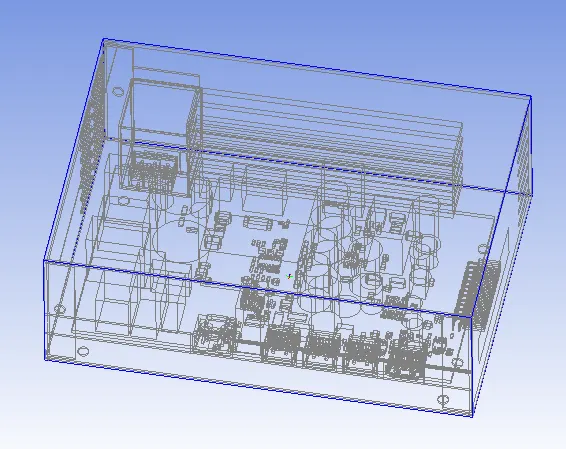
Week 3 - Geometry simplification of an Electronic enclosure assembly
Aim - Geometry simplification of an Electronic enclosure assembly. A CAD model (.stp) is been made by the CAD designer and we need to change it into Icepak model, so that Icepak solver simulation can take place.
Introduction to the challenge - CAD model (.stp) has been given and we'll change it into Icepak object by using the Geometry feature of Ansys Workbench (via Spaceclaim or Design Modular). This will include the importing CAD model, geometry cleanup, converting the model into icepak objects and importing the existing object into Icepak setup/solver.
The process includes :
1. Opening Ansys Workbench and importing the given CAD model (.stp) in Geometry (Spaceclaim).
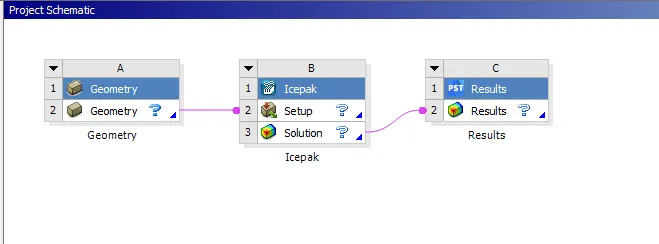
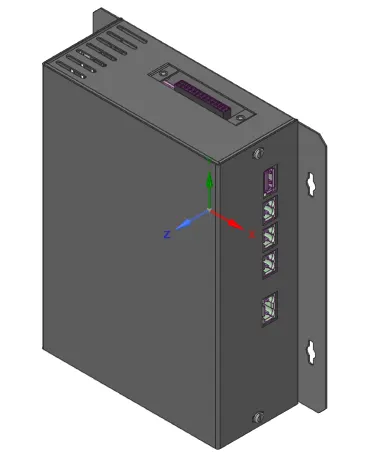
2. Geometry cleanup - This process involves only having those models for which we need to analyze the heat transfer. We will segregate the models in to 4 types as
Focus bodies- main heat transfer analysis bodies. Eg. PCB, heatsink etc.
Necessary bodies - bodies which effects the focus bodies like switches, connectors etc.
Peripheral bodies - bodies may or maybe effect the focus bodies like enclosure.
Dispensible bodies - bodies have no role in heat transfer analysis like screws and we will remove it as geometry cleanup.
Removing the dispensible bodies by using the Split Body command.
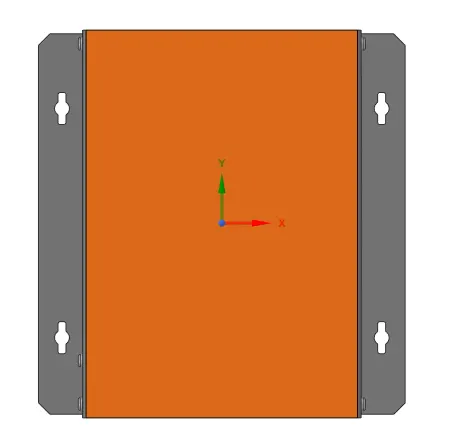
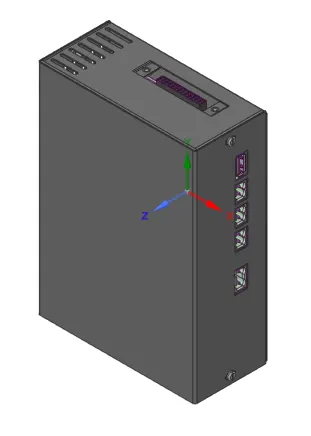
Now removing the round edges as they may interfere in the converting model into icepak object by just selecting it and press Delete button.
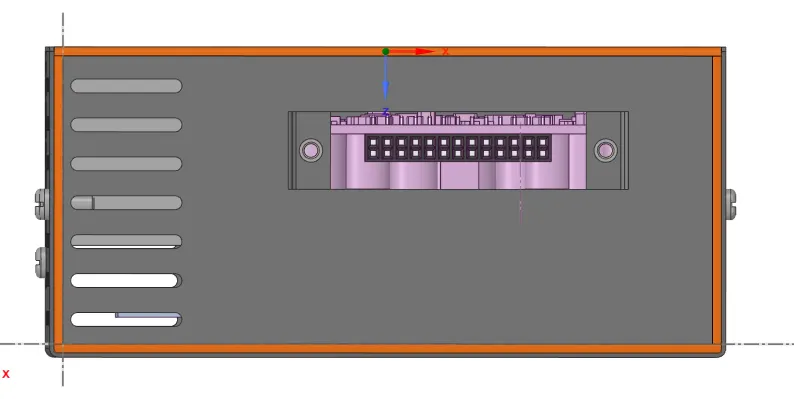
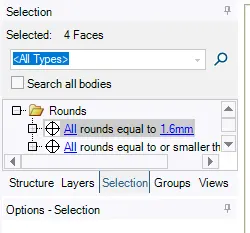
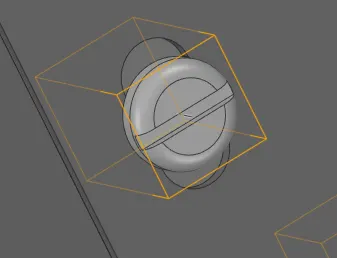
For removing the screws, select one screw and then right click -> Locate in structure tree -> select the similar number which will automatically select the other screws and delete it.
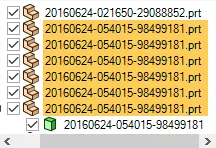
You can use the fill command to close the gaps. 
3. Converting model into Icepak object.
Select the enclosure and hide it or select the pcb and then right click -> open component.
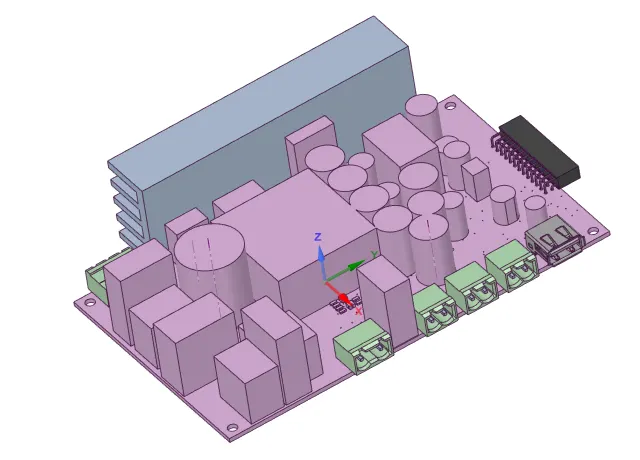
Use Split body command to split the bottom layer or main circuit board so that all other electronic components can then automatically be taken as Icepak object.
Some will not convert automatically due to geometric issues like
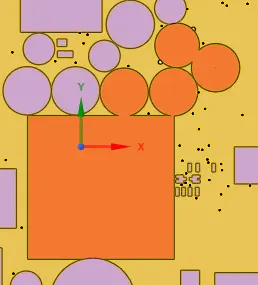
For these objects use Split Body command extensively, to seperate body from each other and came out as an individual component.
These components can then be converted into Icepak objects by using bounding box, cuboid/cylinder, polygon fit, directly taking the CAD model by appropriate quality.
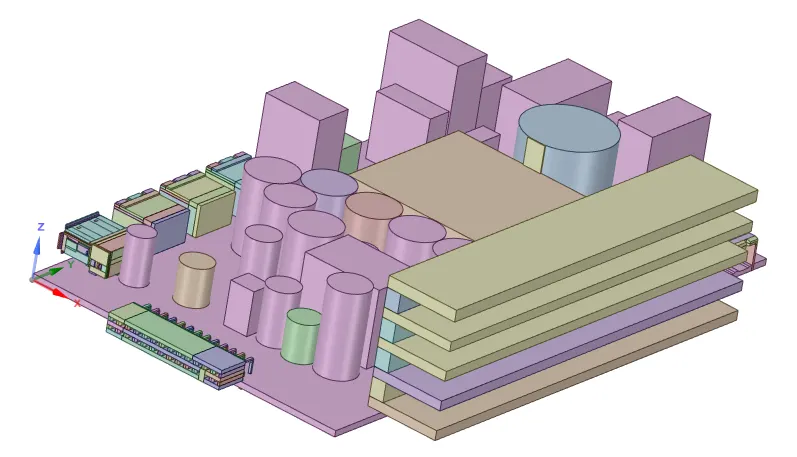
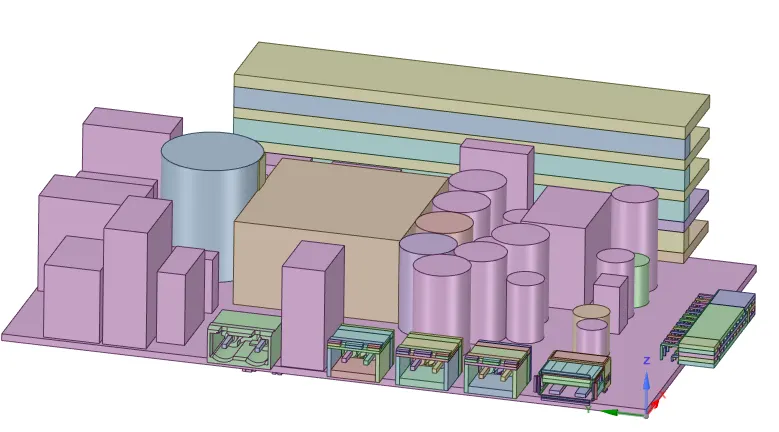
Now convert the enclosure into Icepak model by using the aforementioned above options.
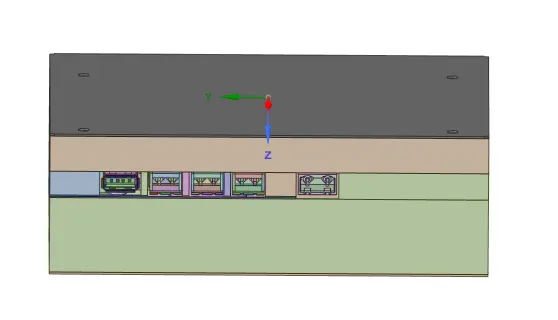
4. Import the object into Icepak
Save the object by giving the IcepakProject file extension.
Open the Icepak setup and see the updated icepak objects.