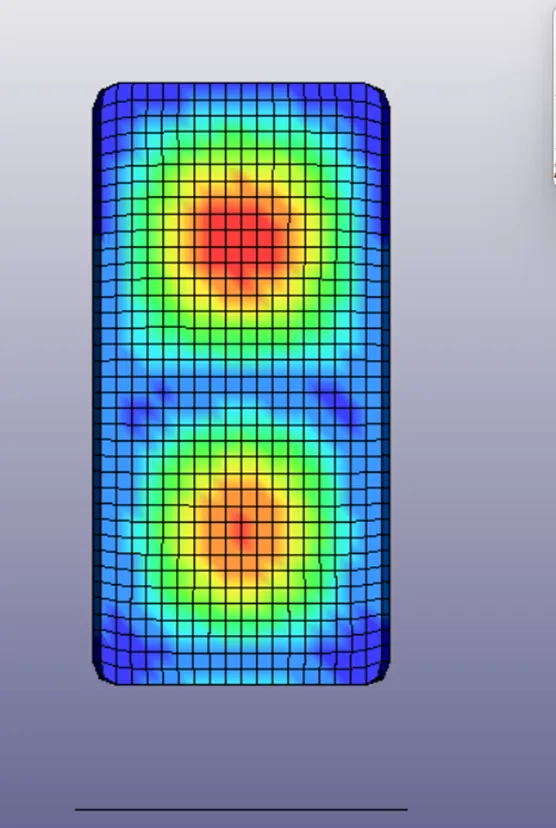
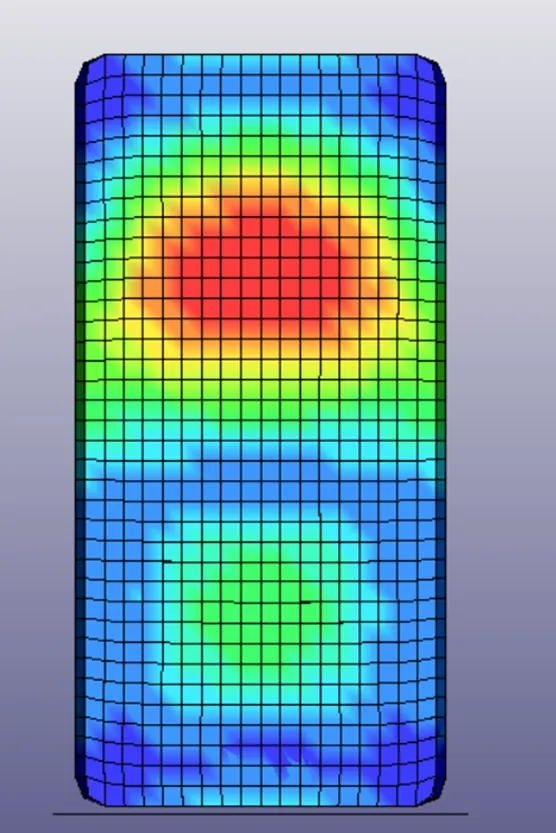
Week - 3 Drop test Challenge
Week - 3 Drop test Challenge
Aim:
To create a proper rigid wall or a solid surface mimicking ground.
To create a complete simulation file from this to perform a drop test.
Procedure:
To open the .k file and save as new file name without space in between letters like Drop_Test_onlymesh (1).
Now we solve this in rigid wall.
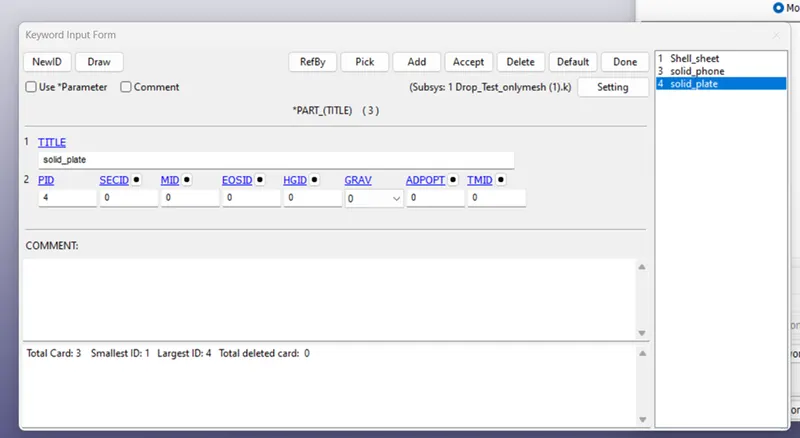
To assign part name;
Go to keyword manager – select part-change title name.
To create rigid wall
Go to model and part- select create entity – select rigid wall- create planar in 3nds type -select 3 points (xyz) in the model and apply.
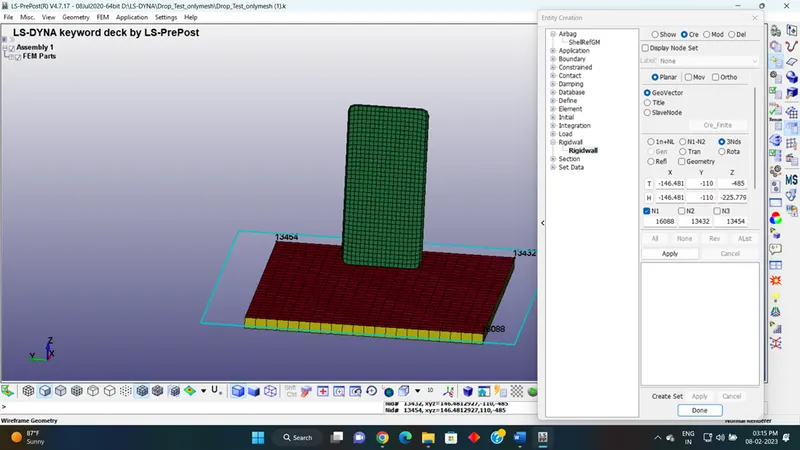
Now rigid wall was created.
- create material
Go to keyword manager – select elastic material card- fill material properties.
(RO: =Mass density., E: =Young's modulus., PR: =Poisson's ratio. MID: =Material identification. A unique number has to be used.)
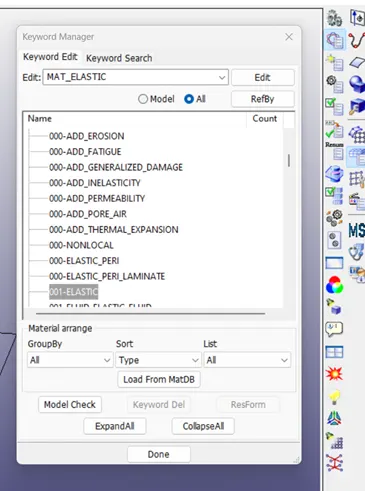
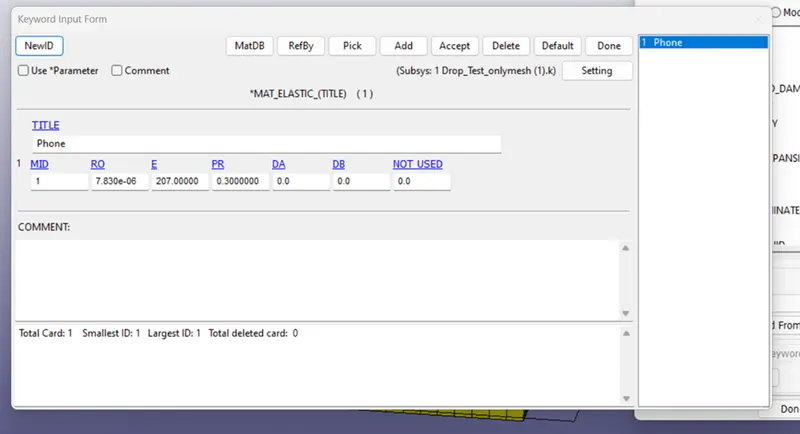
- create section-
Go to keyword manager-select solid – give SECID-and ELFORM
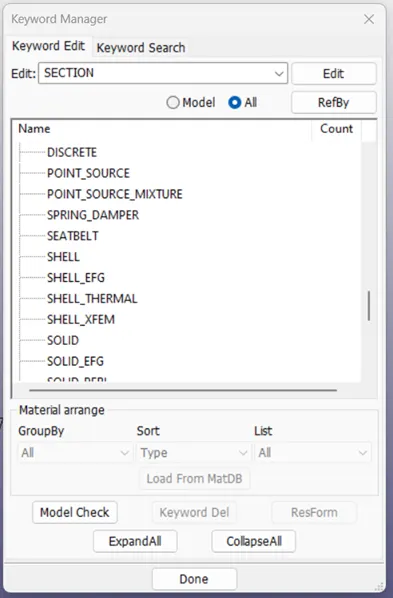
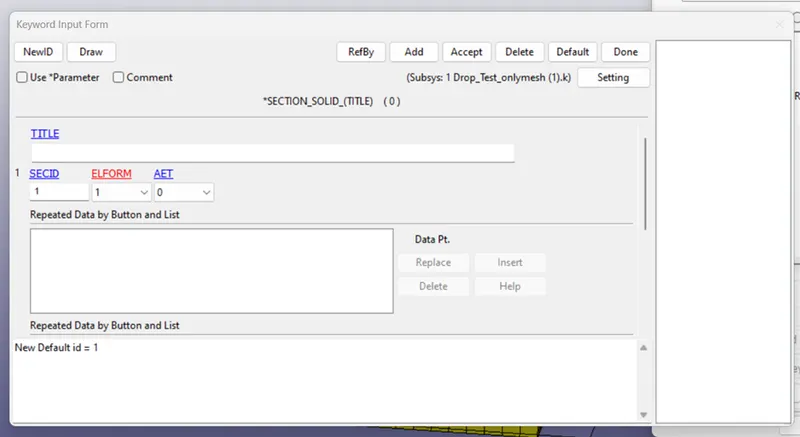
- create contact-
Go to keyword manager-select AUTOMATIC_SINGLE_SURFACE
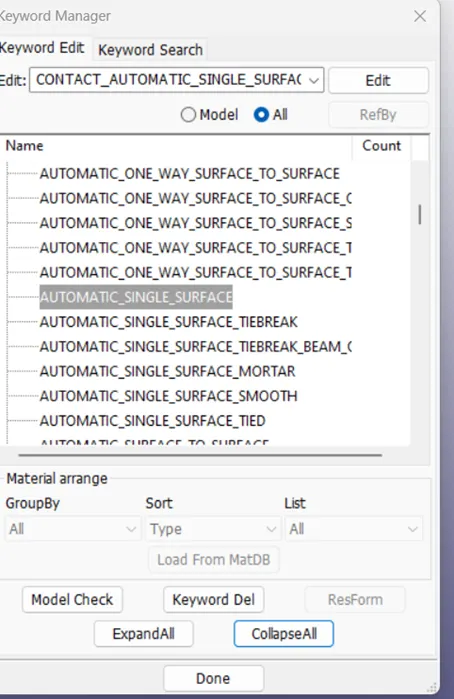
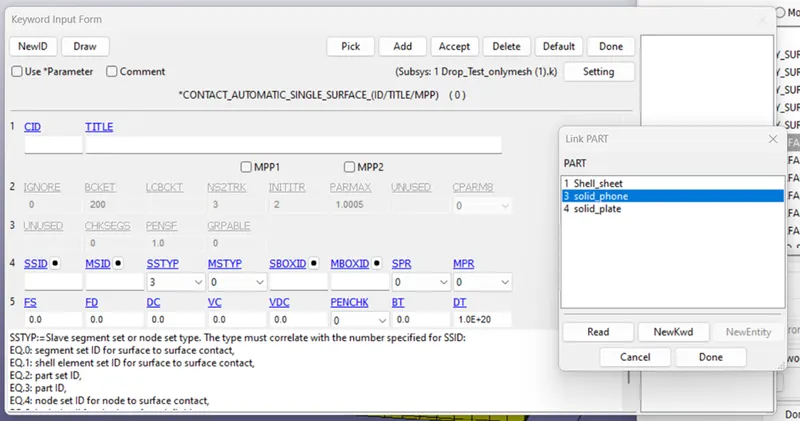
select AUTOMATIC_SINGLE_SURFACE-select SSTYP(3)-select SSID(solid_phone)
- create control-
Go to keyword manager-select Termination-enter ENDTIM (Termination time)
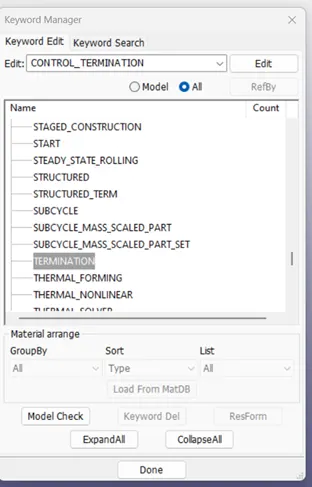
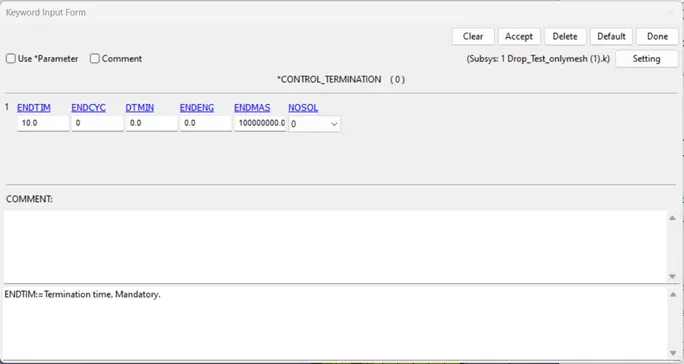
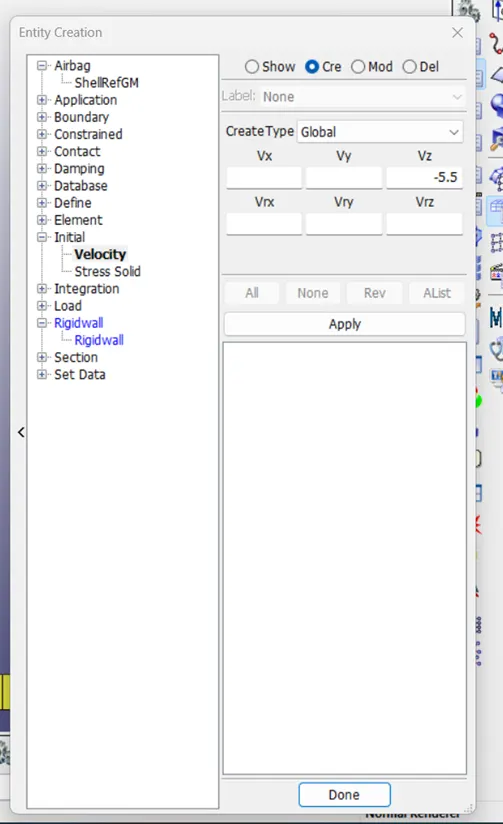
- apply velocity;
Calculate velocity of the part. Before measure distance between rigid wall and part
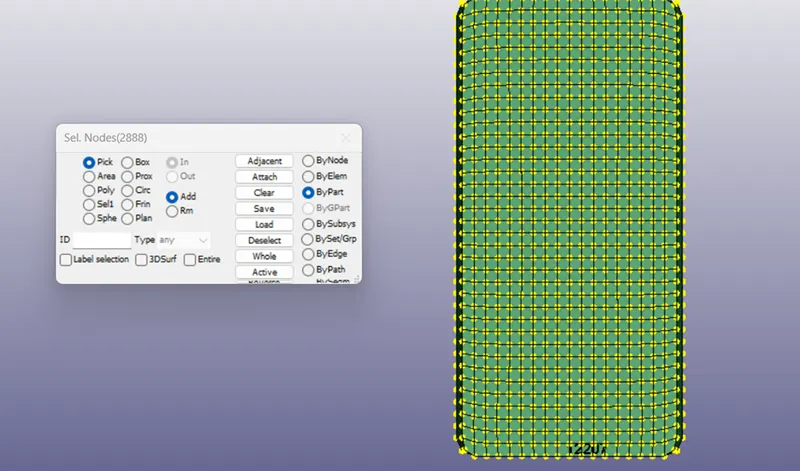
Goto model and part- select INITIAL-select velocity-create Vz direction -select part-apply .
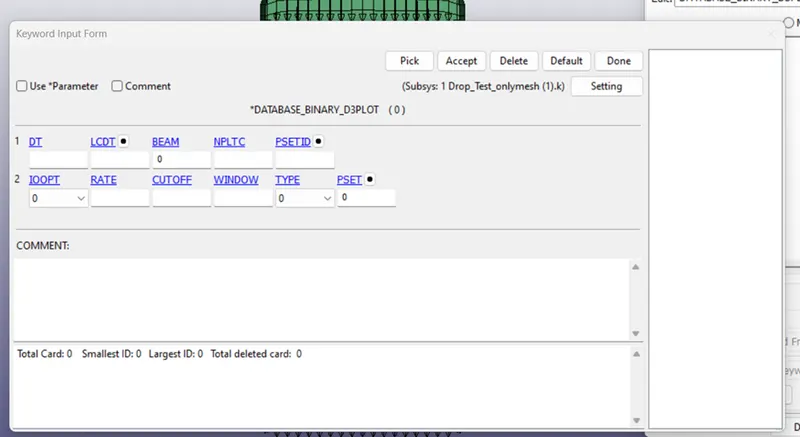
- create DATA BASE-
Go to keyword manager-select DATABASE-Select BINARY_D3PLOT-enter DT value
8.check model error and clear.
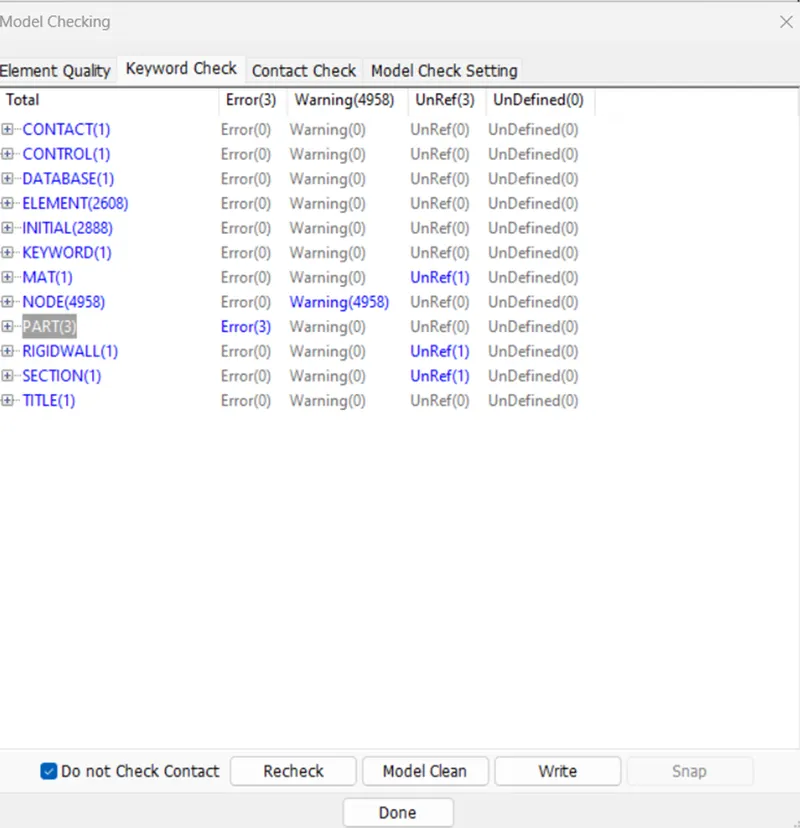
9.save as the .k file and run LS DYNA.
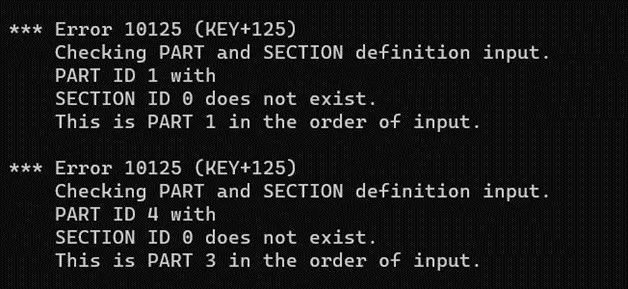
10.clear below error and run again.
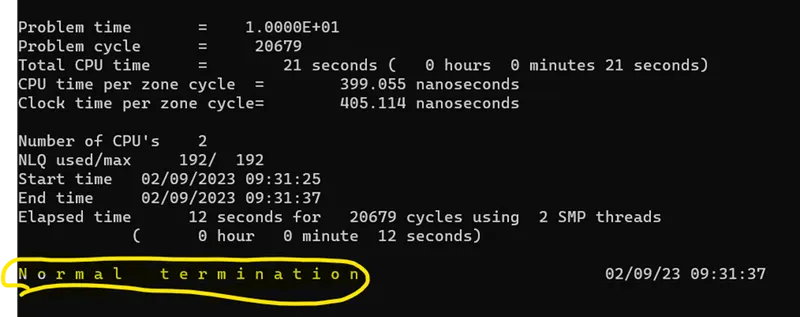
11.LS dyna Run and complete susses.
12.Check D3plot.