Week - 3 Drop test Challenge
AIM: To set up the solver deck file for the Mobile drop case.
ABSTRACT: In this assignment, we are going to study the case of the mobile drop situation. This will be done by setting up the keyword necessary to mimic the actual condition. we will also assign the initial velocity card and set boundary conditions and extract results from the output files(D3plots & ASCII files)
PROCEDURE:
IMPORT THE MODEL
First we have to import the model into ls dyna environment to do so we have to goto >> files >> open >> select file with the name having name.k Extention
Here the mesh model provided is of cell phone and ground
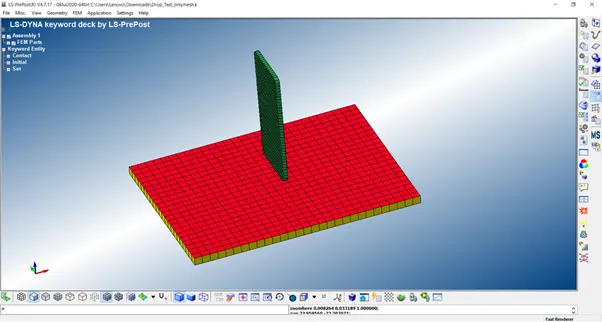
For this model we are going to perform explicit analysis of cell phone falling on the ground , we are assuming the time taken for a cell phone to hit the ground will be of around 1 millisecond
For any analysis to run in ls dyna there are few important steps that have to be considered below is the methodology of this analysis but this similar methodology can be use with other analysis.
- Deciding the method of analysis
- Defining boundary condition : that is restricting the model in the co ordinate system
- Application of initial velocity , pressure , force , acceleration
- Defining contact between interacting component
- Giving part definition for each component with the help of section id , and material id
- Providing termination time for the simulation
- And giving output request from the database
Here we are performing explicit analysis ,
We can see here that there are three parts are available here cell phone solid, ground shell , ground solid we don’t need all three components we can keep only solid cell phone and ground shell.
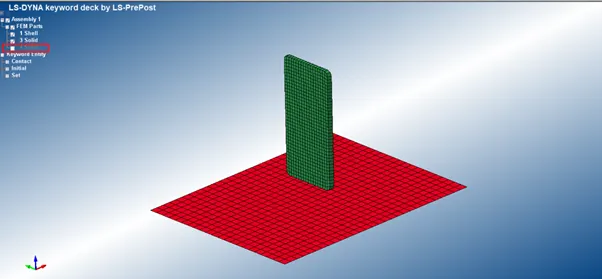
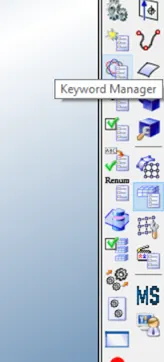
Now we have to open key word manager which is available at right side of the screen as shown below.
By default keyword manager has following keywords
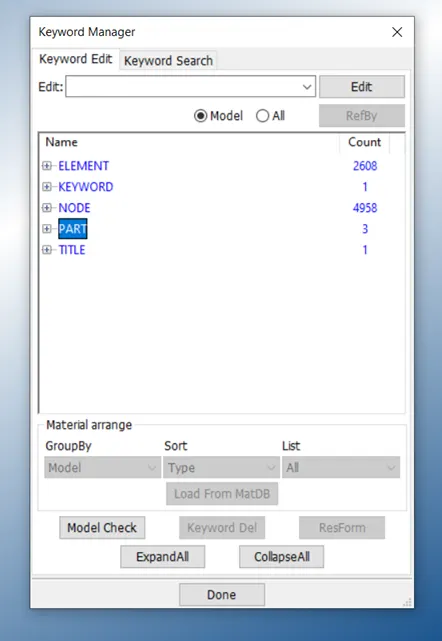
As we have to create boundary we need to create boundary card to do so goto ALL available on top of this window >> in here select BOUNDARY from the list >> in boundary there will be multiple boundary methods select SPC_SET .
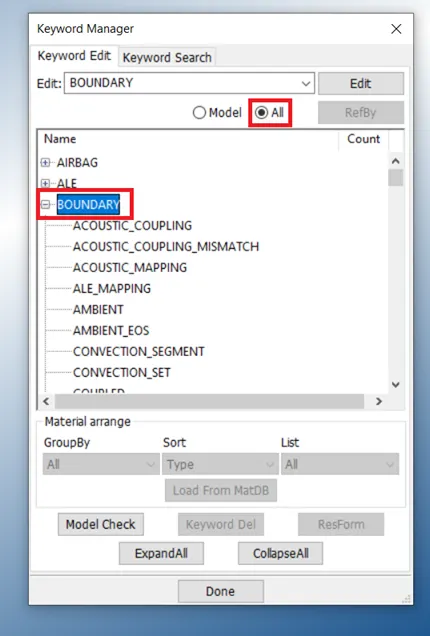
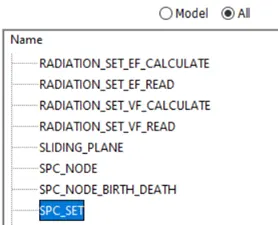
To open spc set panel we have to double click it ,it will open this panel
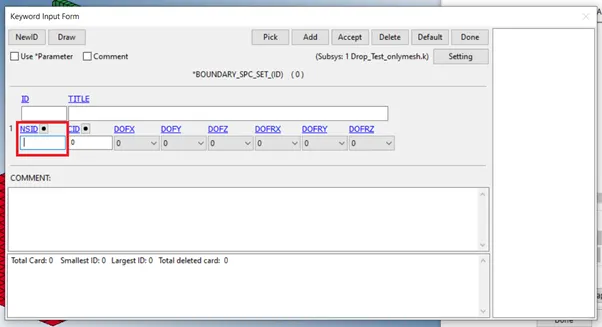
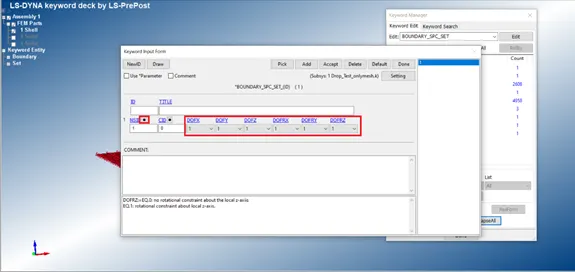
In this panel we will require Node Set I D (NSID) ,which we need to create from SET , fpr now accept this panel and click done .
To create node set id goto create entity available on right if the screen
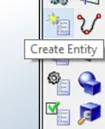
As we only need to restrict ground plate , for this purpose we are creating only ground set for now
In here goto sets >> node set >> pick the ground nodes by area >> name the set by appropriate name >> apply >> done
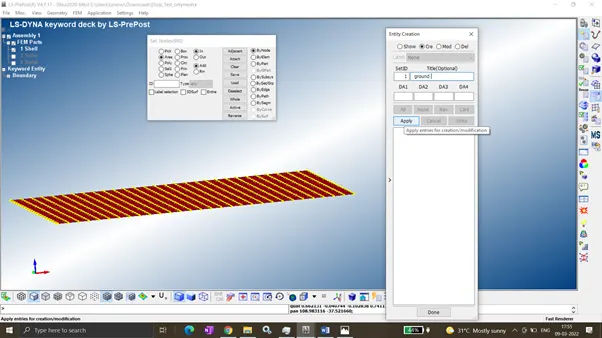
Now in keyword manager we can see new set is been created , now we can assign this node set to SPC_SET
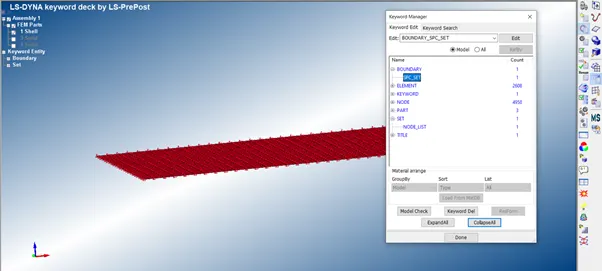
In this panel select NSID by clicking on black dot highlighted in below picture , and restrict the respective DOF by selecting 1 from their list
Name the id >> accept >> done
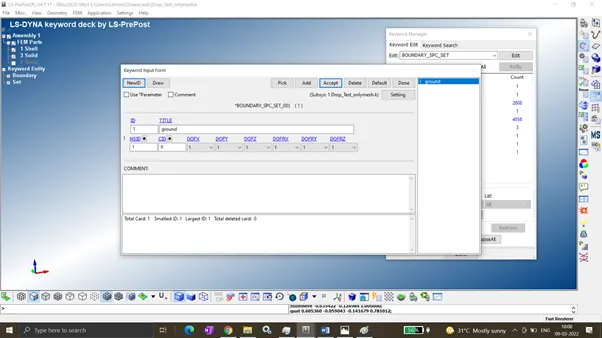
This completes our boundary condition
APPLYING OF INITIAL VELOCITY
For applying initial velocity we need to know velocity , which we need to calculate we know V=D/T
We already assumed time for phone to hit the ground that is 1 milisecond ,and distance can be measure from ls dyna
To measure goto right of the screen click MS box as highlighted in picture by red , then click on the measure highlighted in green
It will pop up one window for measure select N1 and N2 for measuring distance
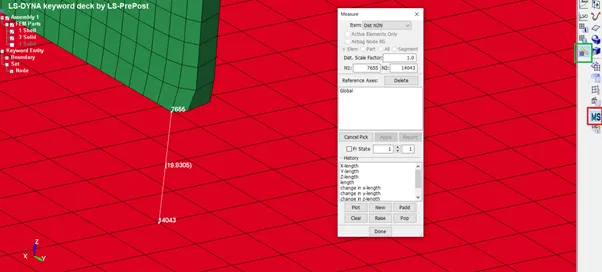
We can approximate above distance as 20 mm
And now as we need unit system in (kg mm ms ) the velocity will be V = 20/1 mm/ms therefore velocity is 20 mm/ms
For initial velocity panel we need NSID for phone which can be created as shown below
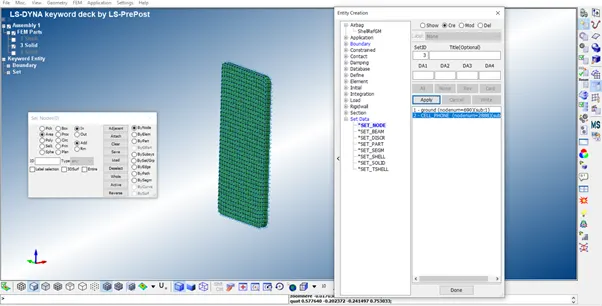
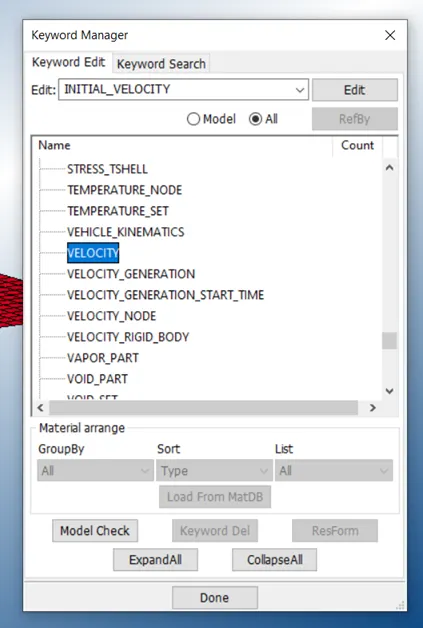
Now goto keyword manager >> initial >> velocity
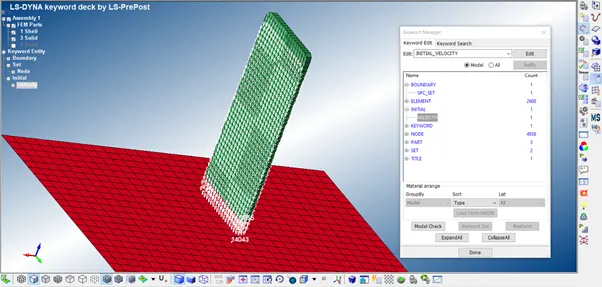
Open velocity panel select cell phone NSID and enter velocity in negative Z direction as shown below.
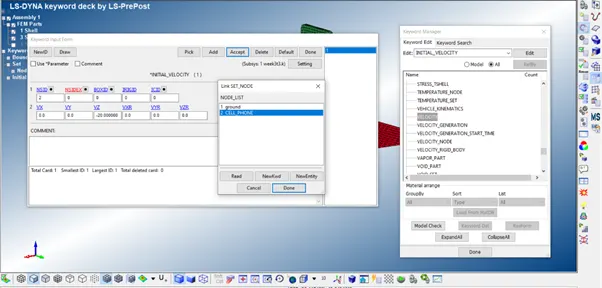
In below picture we can see velocity is been applied
CONTACT DEFINATION
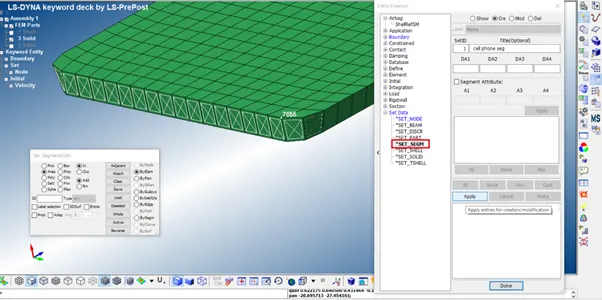
For defining contact we are gonna need SETS for now we are creating sets of segment to do so go to create entity >> sets >> set segm >> select some element which are coming in contact from phone.as shown.
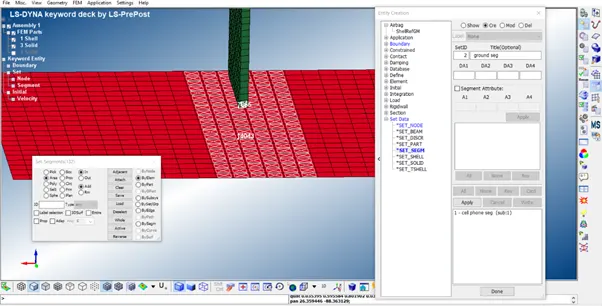
Similarly create segment for ground as well below.
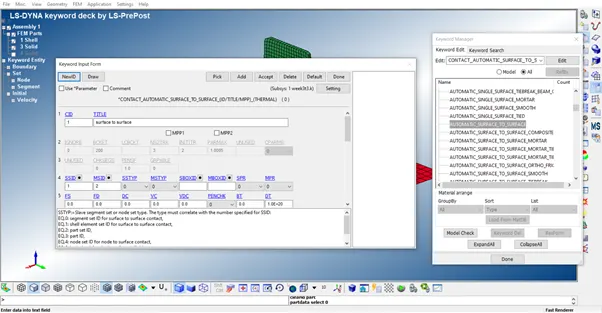
Now goto keyword manager >> all >> contact >> automatic surface to surface >> enter the title >> contact id number >> select slave set id as cell phone segment set >> select master set id as ground segment set created earlier >> slave set type as 0 as we have use set segment >> master set type as 0>> accept >> done
Note : slave should be the one who’s is to be analysed,
DEFINING PART
For defining part we need to create section and material id’s
1.Section:
For cell phone we are creating solid section with ELFORM 2 (fully integrated elform ) to do so goto keyword manager >> all >> section >> solid
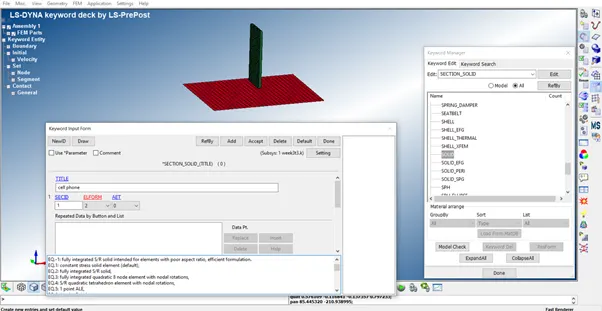
For ground we are creating shell section for which we need to provide elform as 2, section id as 2, and thickness as 2
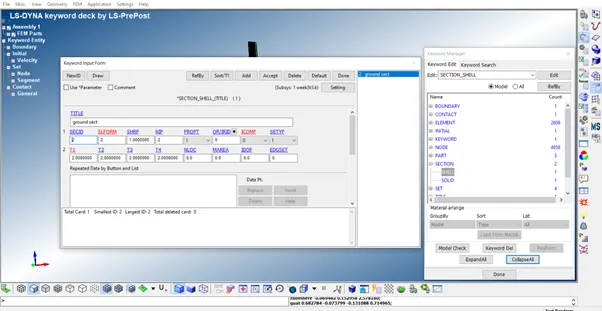
2.material ID :
Ketword manager >> all >> MAT>>001 ELASTIC
Create two materal card one is for phone and other is for ground , for phone we are using polycarbonate material , for its property we are using (kg mm ms ) unit system therefor for density we accept value as kg/mm3 and for youngs modulus we take Gpa as unit, poisions ration is unitless value (for unit consistacy use ls dyna unit consistency table )
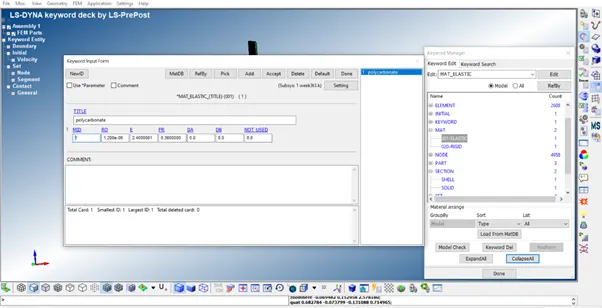
Similarly for concrete ground keyword manager >> all >>MAT>> 020 RIGID. And in panel enter the density ,youngs modulus in the unit mention above ,
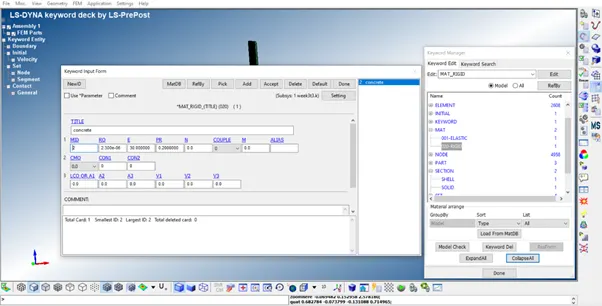
Now goto keyword manger >> model >> part . there will be already created parts available
Note: we have only kept two part that is solid phone and shell ground ,and deleted solid ground
By default there will be two part card created automatically , now we have to change there names and assign appropriate names , IDs, section and material
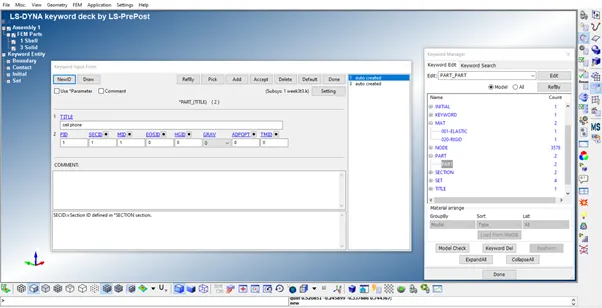
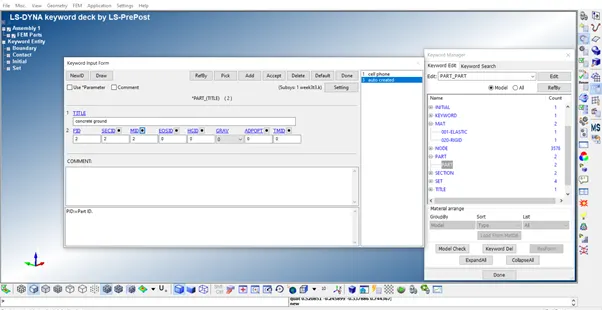
Once this is done do accept >> done .
CREATE CONTROL CARD:
To do this goto keyword manager >> all >> control >> termination.
Termination card is one of the most important card withought which simulation is not gonna run .earlier we have assume end time as 1 milisecond for phone to fall on ground , here we are gonna increase some time so that we can get to see effects of impact on phone after hitting the ground.
We are using 1.5 milisecond as end time.
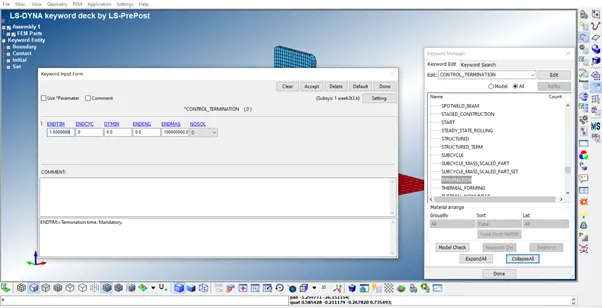
DATABASE:
Database is an output request card we request different outputs from solver
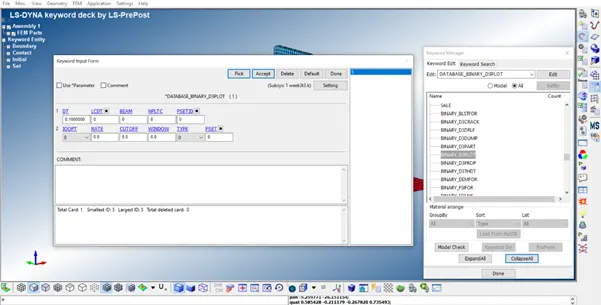
Here we are requesting from ASCII_option >> ELOUT dt = 0.5 , GLSTAT dt=0.5, MATSUM dt=0.5 , RCFORCE dt=0.5
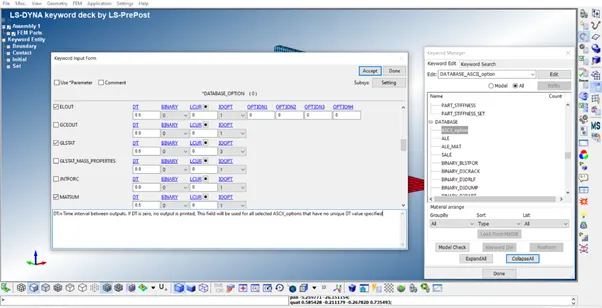
Another card we are using is DATABASE>> BINARY_D3PLOT at dt 0.1000000 which will plot graphs at every 0.1000000 milisecond
RUN THE MODEL
Before running the model take care of model to be saved in separate file
To run the model goto File>> run LS DYNA ,a window will appear click the highlighted button
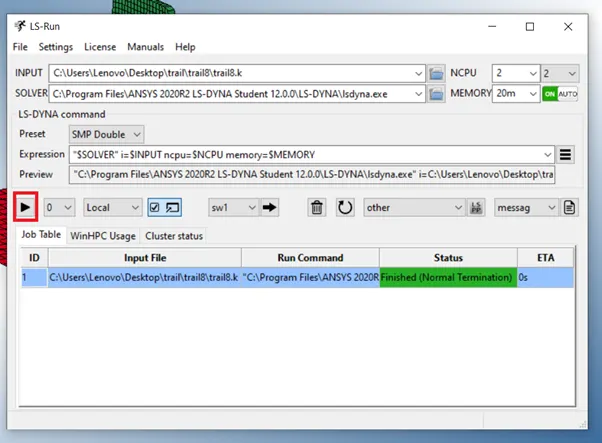
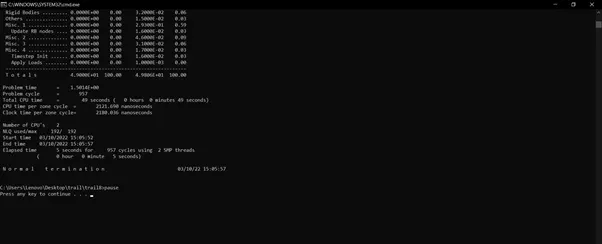
Once it is showed as Normal termination click any button of keyboard to end this window
Again go to ls run window select D3PLOT and click lspp button
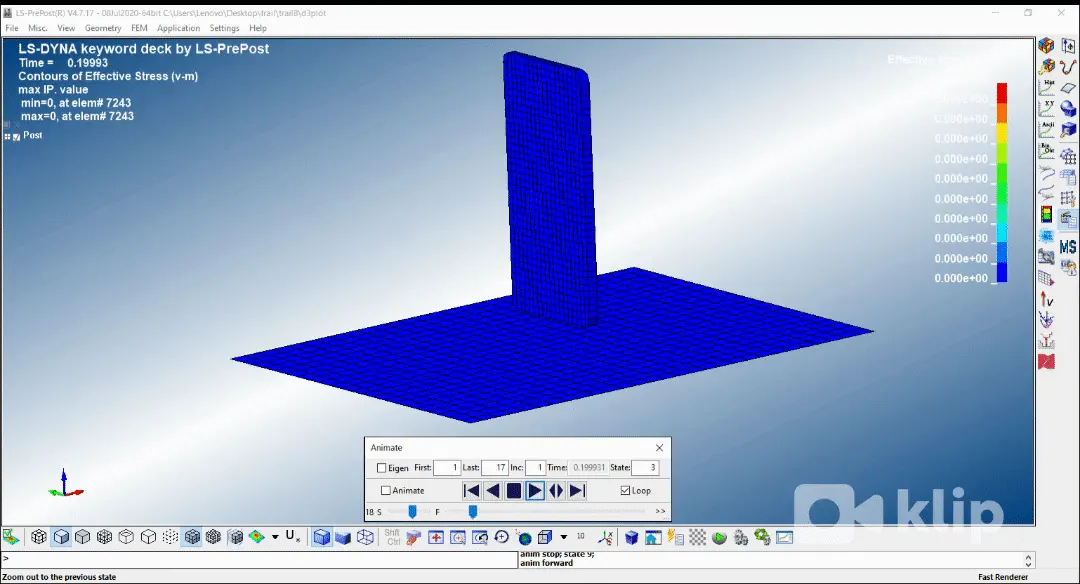
Note: for this model we have mismatched section and part creation ,so we correct them and then run again .
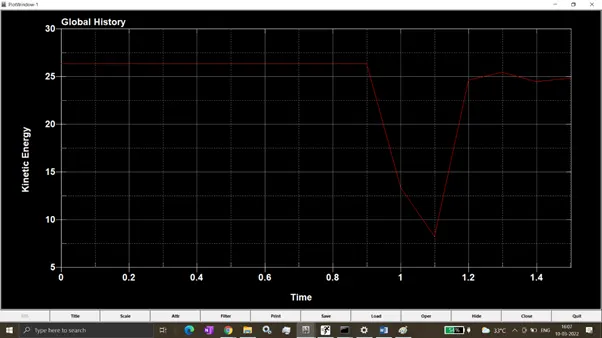
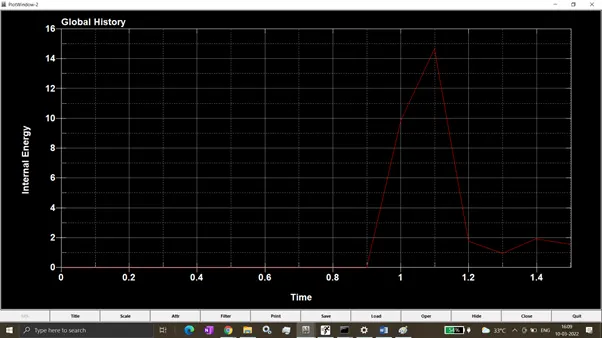
From below graph we can see that at around 0.9 ms hits the ground and around 1.1 ms kinetic energy is at its lowest value and internal energy at its highest.
CONCLUSION:
After completing this assignment we can conclude that the procedure is very similar for setting up the solver deck file. From the run out file, we can conclude the values of the stress and location. Also with help of time history plots, we can have the idea of how the energy is converted from one form to another.With this, we can have a clear view of the behavior of the impact between the phone and the ground.
LEARNING OUTCOME:
- Setup of the solver deck input file
- post processing of the output file and animation/plots capturing