Week 3 - 2D meshing for sheet metal
AIM:
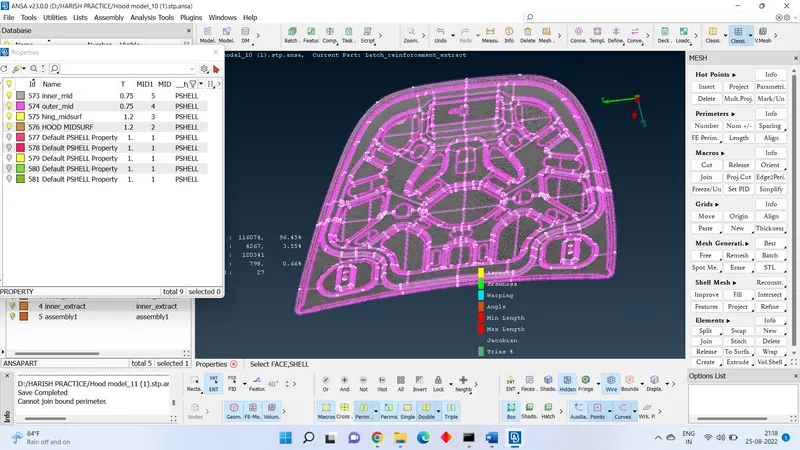
Meshing the mid surface with the given element quality criteria for the given hood model by taking the mid surface for all the components after checking the geometrical errors.
AIM:
1. Meshing the mid surface with the given element quality criteria for the given hood model by taking the mid surface for all the components after checking the geometrical errors.
2.Check the number of parts in the given model. For checking the number of parts in given model just go to Database and double click on the ANSAPARTS.
3.Here we can do meshing to each individual part by selecting the particular one.
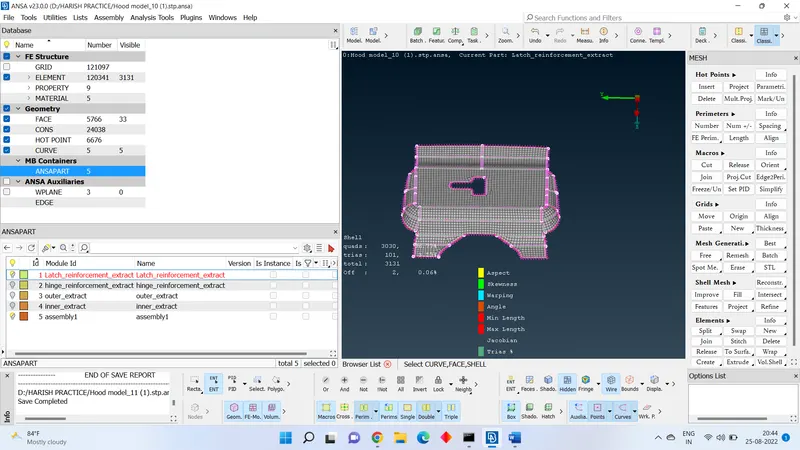
4.Before meshing the whole component, we have to go for GEOMETRY CHECK each part to check geometrical errors. For geometry check go TOOL BAR > CHECK > GEOMETRY.
5.Now we select one part from the model we do mesh and go next part.
6.Select the one part which is latch from the model. First, we do mesh for this part
7.Now it is always better to check the given part is weather uniform thickness or not. For that go to MEASUREMENT > NODES.
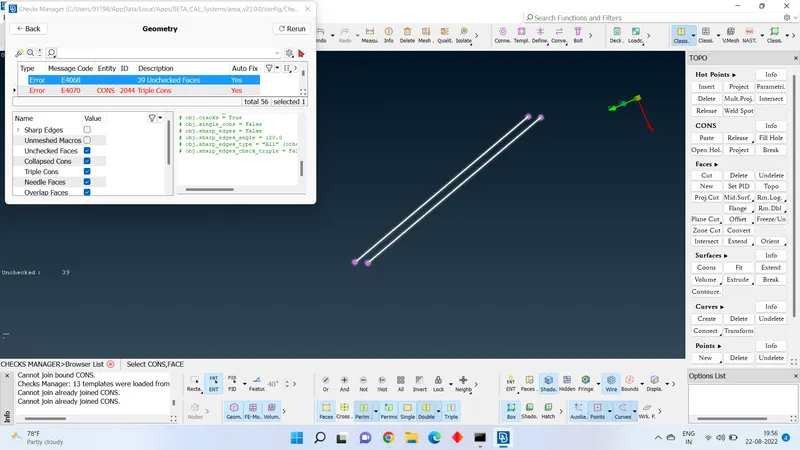
8.Now we perform the geometry check to find if any errors present or not. For that go to TOOL BAR > CHECK > GEOMETRY.
9.If error is present, we have two option to fix that error. One is select all and click on fix and next one is fix error one by one with manual fixing. According to get good experience in handling the error go with second option.
10.For that select one of error and right click on it. Then click on SHOW ONLY.
11Here we can only error. We can to go with deleting the unwanted face, Cons and needle faces. Perform TOPOLOGY.
12.Repeat this process for every error or if we understand how to deal with the error, we can go with AUTO FIX.
13.For auto fix, select all errors and right click on it, select FIX.
14.Now extract the midplane form the part. For extracting go to TOPO MODULE >FACE >OFFSET>SELECT THE FACE. It shows the direction of midplane need to extract give the proper length extract middle of part thickness, here which is -1.2/2 (0.6)
.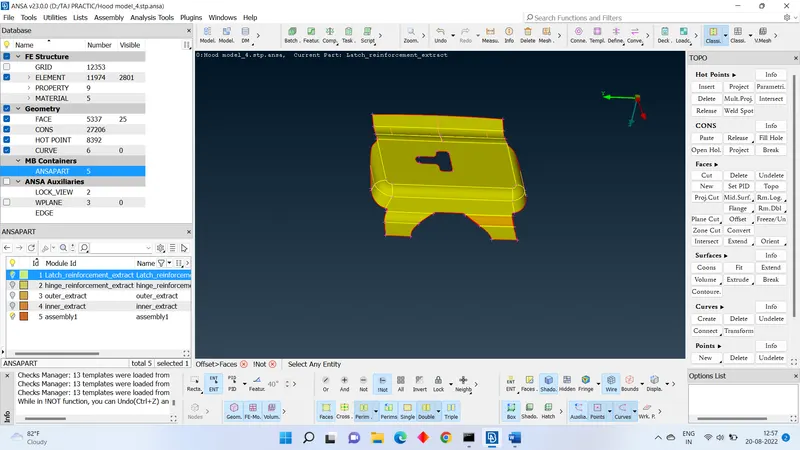
15.After extracting the midplane from the part give property.
16.For giving property go to PSHELL from the tool bar. Pshell dialogue box will open, click on empty space in box and select NEW > PSHELL > PSHELL.
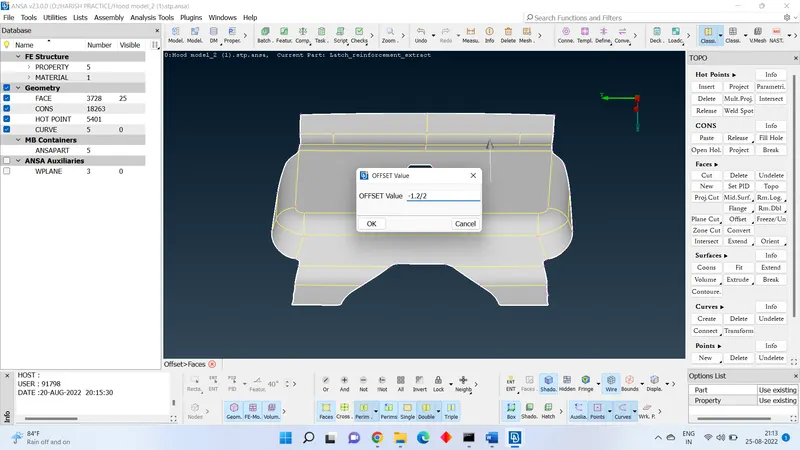
17.Here we give name for midplane and give thickness of part is equal to 1.2 click on ok.
18.In PSHELL we can see new part which we given previously. Now right click on that part APPLY> SELECT THE TOTAL ENTITY.
19.Once again go for Geometry check and fix the errors if any.
20.Now we need to set length between two nodes for according the element length required. For that go MESH MODULE > PERIMETERS > LENGTH > SELECT PART.
21.Now we have to give mesh quality according to the given in the problem. For that press F11.
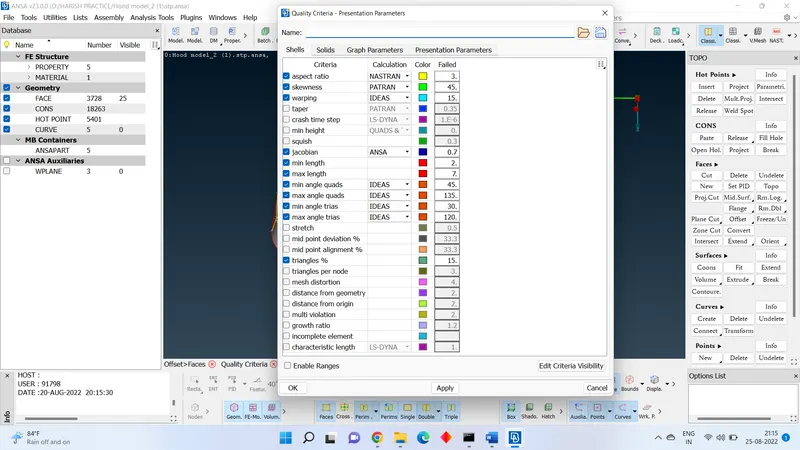
22.Now feed the quality criteria as given and enable the % ELEMENTS and provide fine.
23.Now we can go for mesh. Always better to use the best mesh. For that go MESH MODULE > MESH GENERATION > BEST > SELECT FACE.
24.Start meshing face by face. always go for complicated shapes first then easier face.
25.After meshing we cannot see meshing quality error directly on screen for that we have go to HIDDEN MODE.
26.Here we can differently color of error. Each color will represent the specific quality error.
27.To solve these type errors, we can use different option like RECONSTRUCTION, IMPROVE, SMOOTH FROM SHELL MESH. We can use some special types of options also to solve quality errors like SPLIT, SWAP AND JOIN FROM THE ELEMENT TAB.
28.Repeat this step for all the parts in the mode.
LEARNING OUTCOMES:
- Cleaning of Geometry and Topology.
- Manual mid surfacing and short cut mi surfacing.
- Understanding the concept of meshing quality.
- How to deal with meshing of complicated shapes.
- How to use many tools in the ANSA Software
CONCLUSION:
By the end of this challenge, I came to know how to use all commands and tools in the ANSA Software. Geometry cleanup and mid surfacing in different methods and how to deal with meshing and meshing quality. How to solve the problem in less time with direct tools in the ANSA.