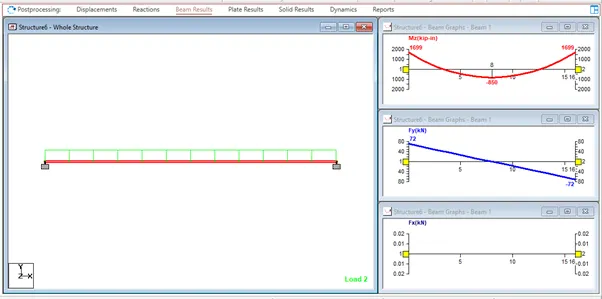
Week 2 Challenge
Que :- 1. 1. How will you assign Circular section to column?
Ans :-
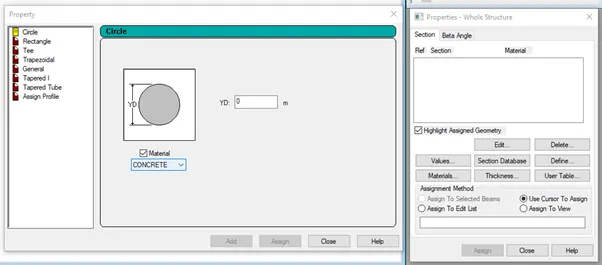
Go to properties in that select define property select circle and give the radius for the member and assign the defined circle to the
member created
Que :- 1. 2. How will you assign Unit system to a .std model file?
Ans :-
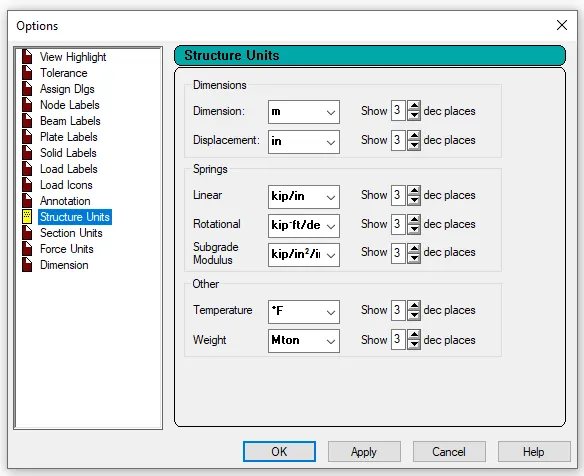
While creating a model go to unit system and assign the units
Go to geometry in that’s elect input units and assign the units
Go to view menu in that select display options in that select structure units

Que :- 1. 3. What are the parameters to be specified while using “Bay Frame” option?
Ans :-
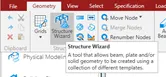
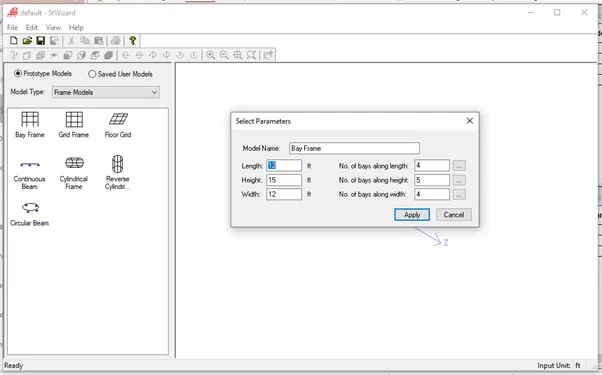
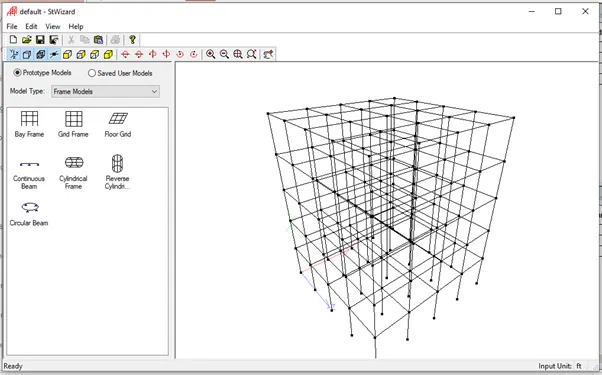
Go to geometry tab in that select structural wizard in that select frame model in that select bay frame
Give the parameters like length, height, width, No. of bays along length, No. of bays along height and No. of bays along width
Que :- 1. 4. Name few codal standards incorporated in STAAD Pro software.
Ans :- Euro code, ACI, IS code
Que :- 1. 5. How will you specify the design compressive strength for a RCC section?
Ans :-
In design select materials as concrete and select the code and then go to define parameters and select FC then specify the
value
Que :- 2. 1. State the “Input” steps involved in RCC design.
Ans :-
Steps involved in RCC design are
Geometry
Properties
Materials
Specification
Support
Loading and Load combinations
Analysis
Design

Que :- 2. 2. Explain the difference between Fixed and Enforced support condition in STAADPro.
Ans :-
When the fixed type of support is specified, for those degrees of freedom which are to be treated as fully restrained, STAAD
assumes the displacements to be known quantities whose value is zero. Hence, these degrees of freedom are not considered
for the stiffness matrix and their value is not calculated
When the enforced type of support is specified, for those degrees of freedom which are to be treated as restrained, STAAD
assign a spring with a spring stiffness – translational stiff springs for translational restraints and rotational stiff springs for
rotational restraints. Those degrees of freedom which are free to displace are assigned springs of zero stiffness. Hence for all
the 6 degrees of freedom at such supports, the displacements are calculated. The one which have a stiff spring with end up
having a negligible displacement and those with zero stiffness springs will have a displacement based on the structure
geometry, properties and loading
Que :- 3. 1. Explain the steps involved in analysis of a model using STAAD Pro sequentially.
Ans :-
Read or study drawings (Plan/Elevation/Section)
Input Geometry
Input Properties
Input Specifications/Constants/Supports
Run analysis
Specify analysis type
Input design standards
Input load and load combinations
Verify results
Design
Represent design as document and drawing
Que :- 3. 2. Explain the two ways in which a structural framework/model can be created in STAAD Pro software.
Ans :-
Node by node method
Grid method
Structural wizard method
Que :- 3. 3. Elaborate the different support conditions in STAAD Pro.
Ans :-
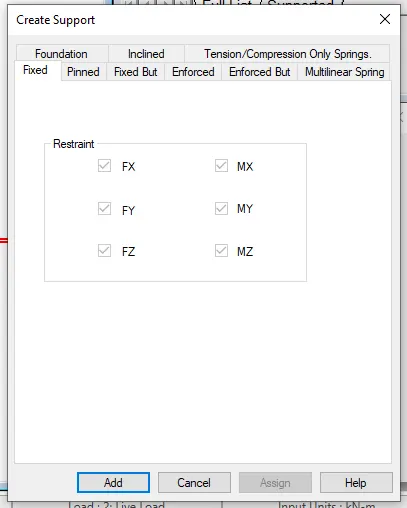
Fixed support
Pinned support
Fixed but support
Enforced support
Enforced but support
Multilinear spring support
Foundation support
Inclined support
Tension/Compression Only Springs support
Que :- 3. 4. How will you extract the stress distribution for a staircase slab?
Ans :-
Create the staircase by using the nodes in the geometry panel
After creating the nodes assign the plate elements as the slab property after that define load cases and calculate the area load
acting on the staircase and apply load cases and load combination to the staircase slab and then create a mesh on the plate
element
After that run the analysis and go to post processing mode and click on plate result option in that select stress distribution
result and choose the stress type accordingly and that stress distribution result is displayed
Maximum and minimum stress values are displaced
Que :- 3. 5. Explain the different ways to view SFD & BMD in STAAD Pro.
Ans :-
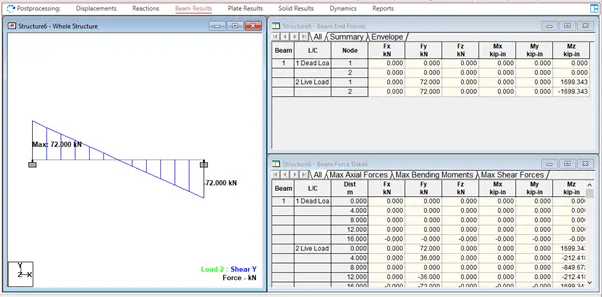
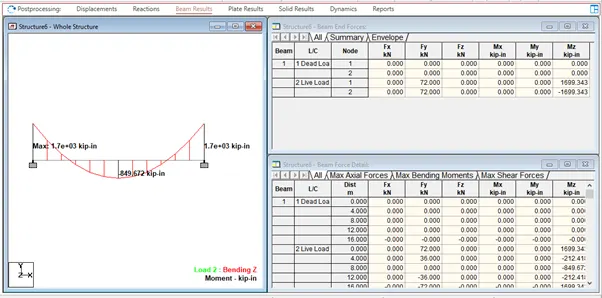
After completing the design and running the analysis software will provide the BMD and SFD
After the analysis click on Post processing mode and click OK
Go to deflection command and click on beam result
In reaction command click the beam deflection
Practical
1. Analyze the following structural elements and validate the results
A. Simply Supported Beam
a. A Simply supported beam with two point loads symmetrically placed
b. Span L = 20m
c. Load P = 50kN each
d. Both P located at 5m from each support
Ans :-
Open the new STADD.Pro file
Create the nodes in geometry tab as per the question
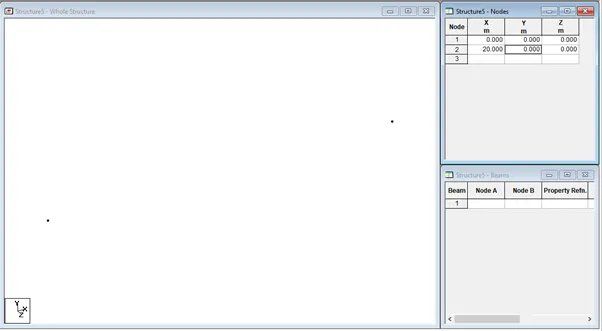
Go to geomerty tab select add beam and draw the beam by usinf beam cursor

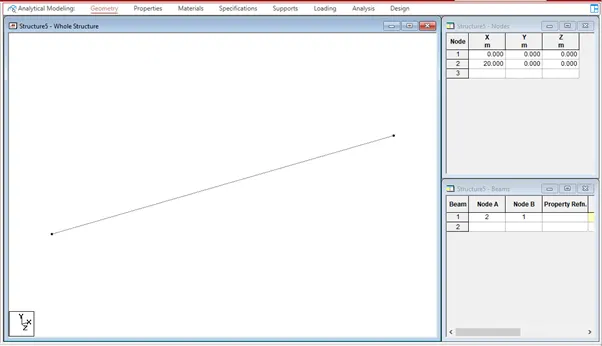
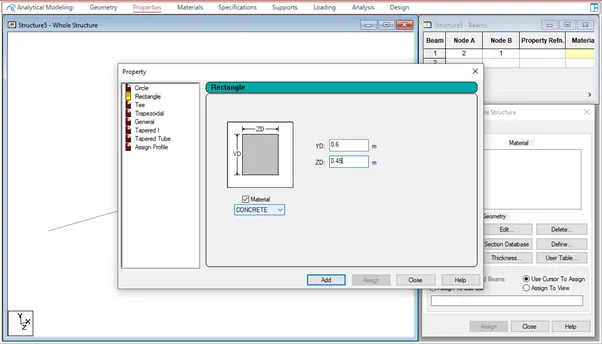
Go to properties tab and select define and give the rectagular dimensions for the beam
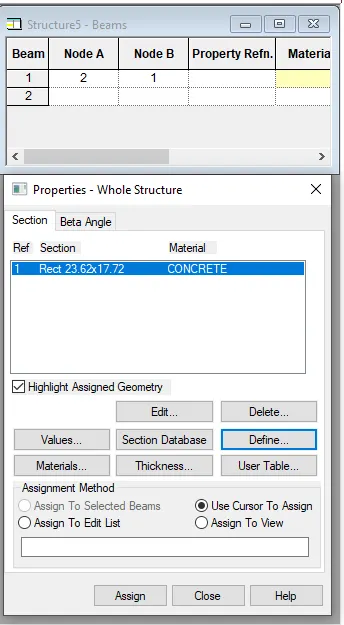
Select the created beam and assign the rectangular property to the beam
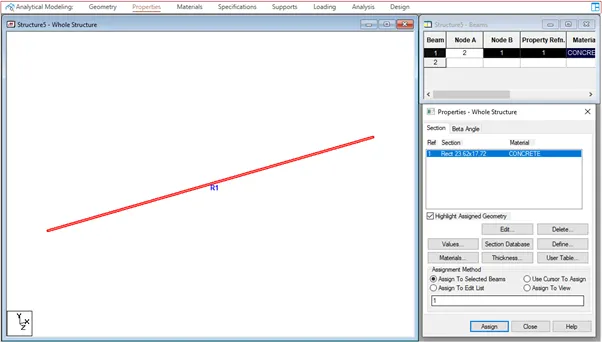
Go to material tab give the materialas concrete
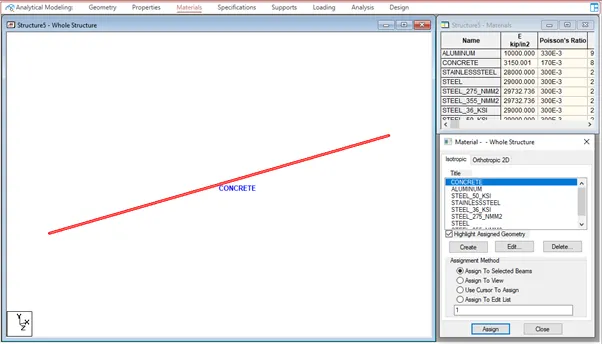
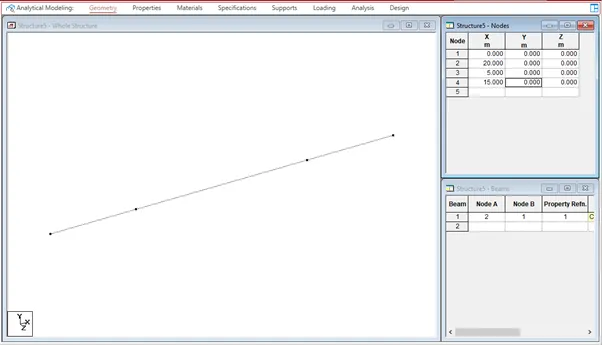
As per the question load P is located at 5m from each support
Go to geometry tab and add nodes at 5m and 15m
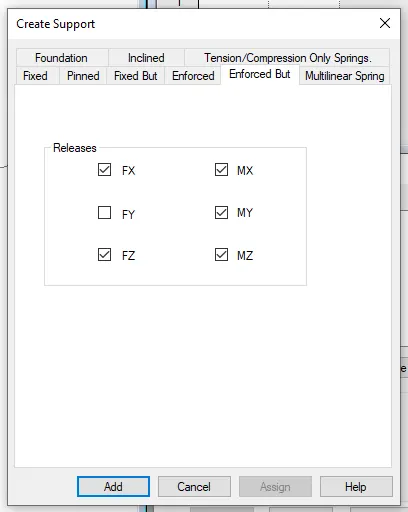
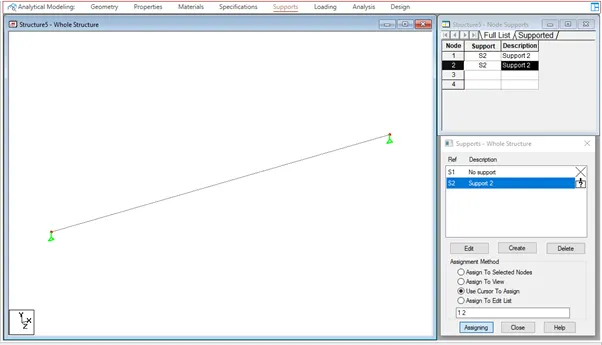
Go to support tab and create a enforced but supportand click on add and add the support to the beam using node cursor
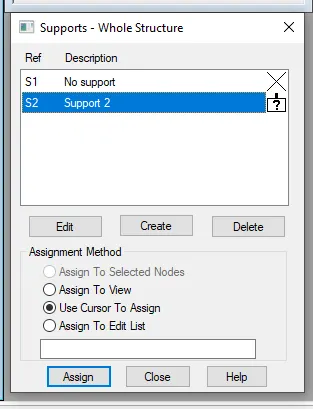
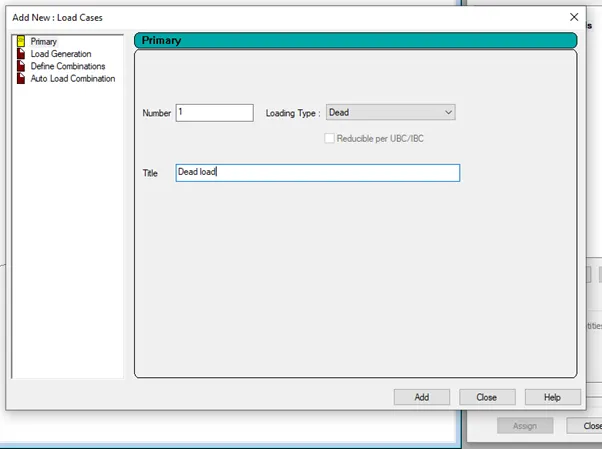
Go to loading tab add the load cases
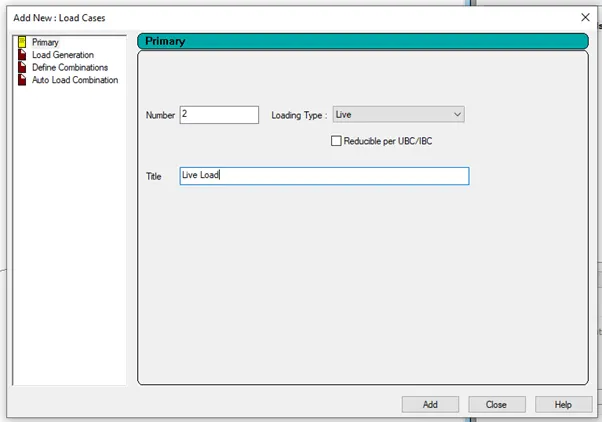
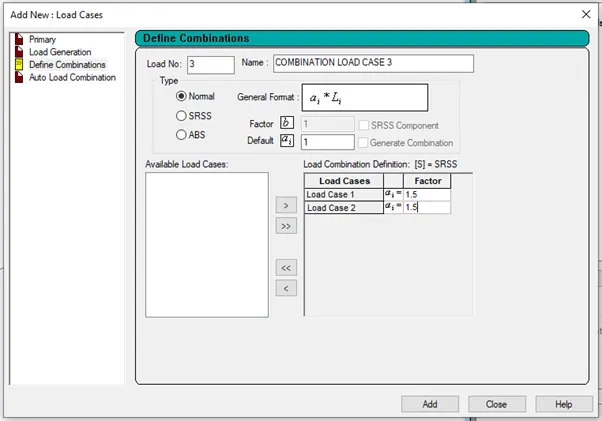
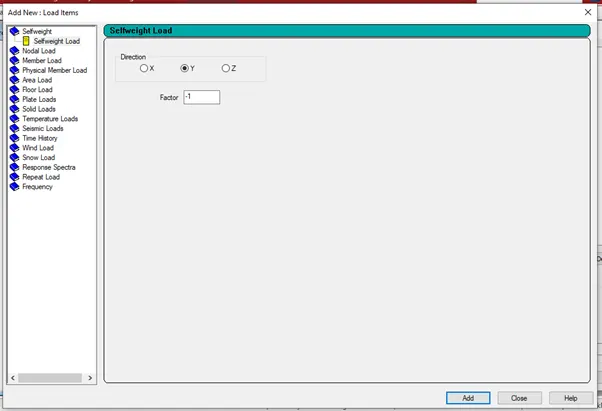
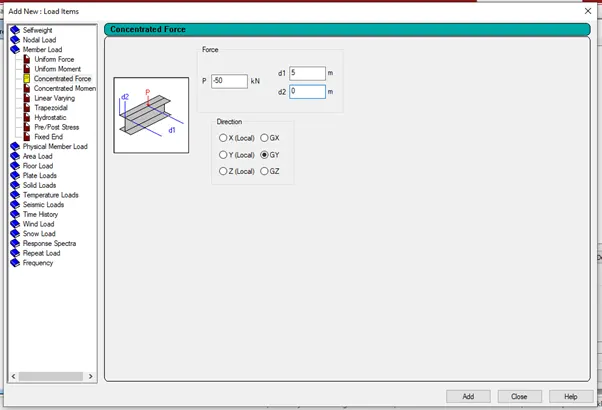
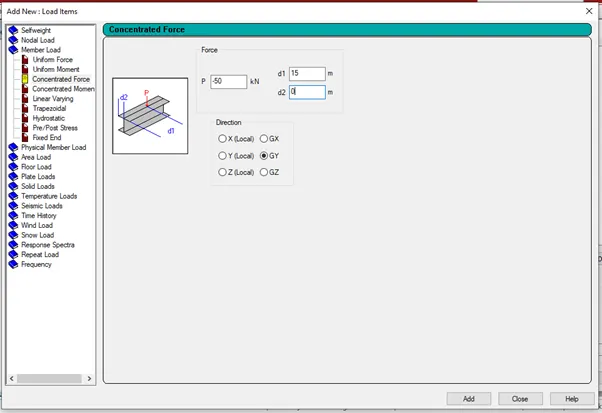
Assign the loads to the beam using use cursor to assign
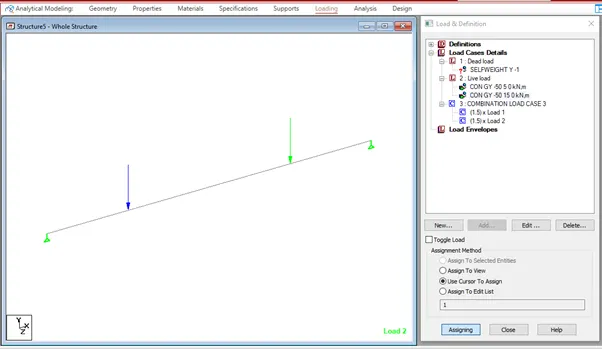
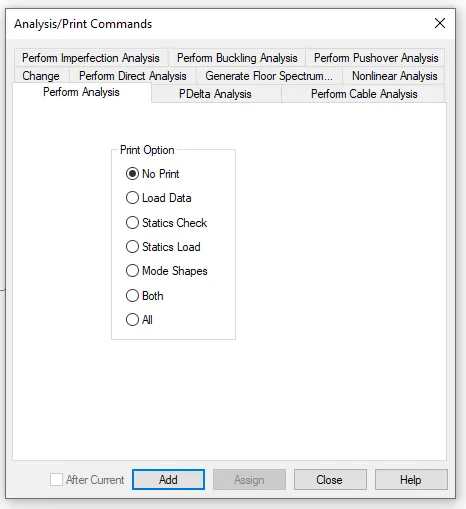
Go to analysis tab and select analysis command and do perform analysis

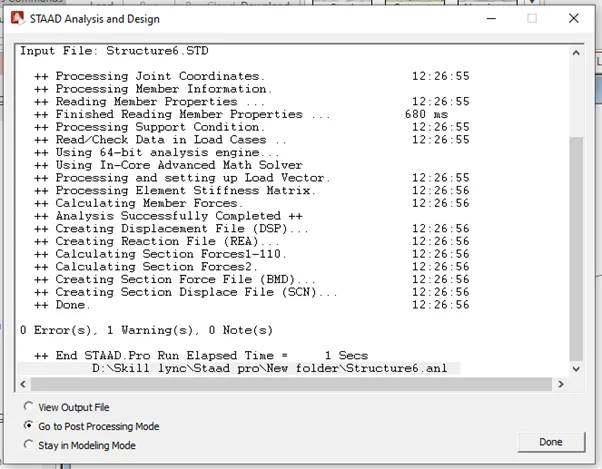
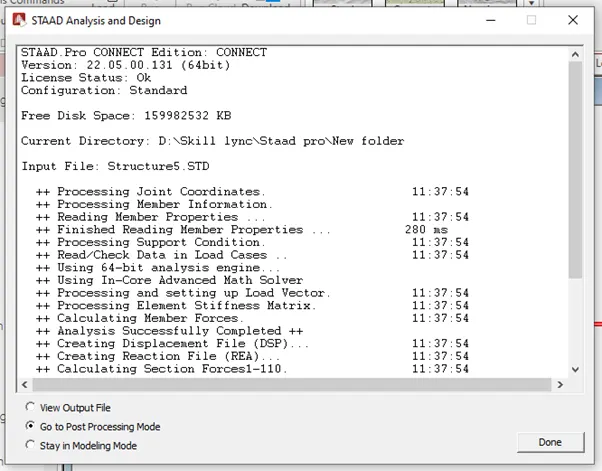
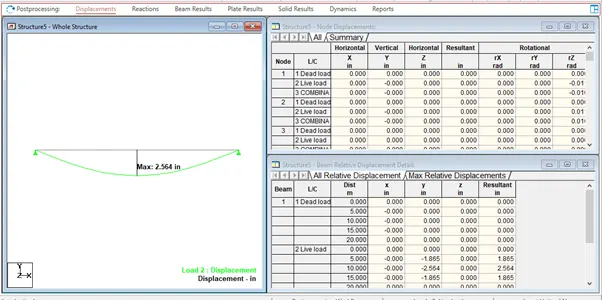
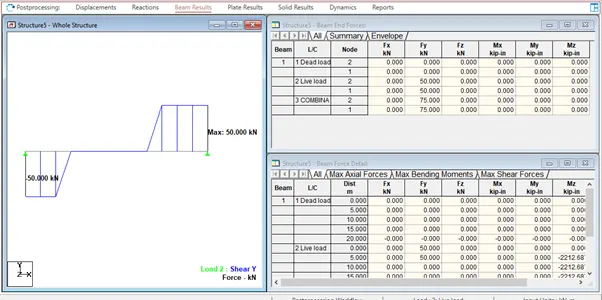
Run the analyis

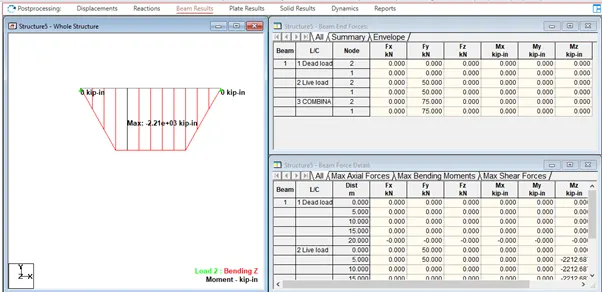
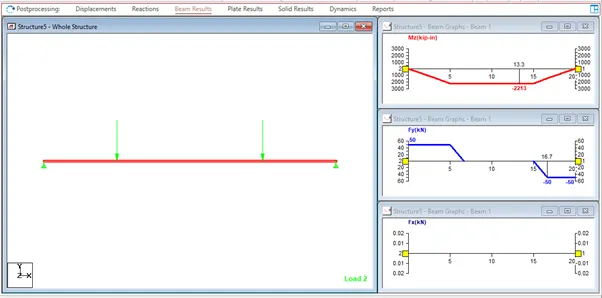
B.Fixed Beam
a. Span L = 16m
b. Uniformly Distributed Load w=9kN/m
Ans :-
Open the new STADD.Pro file
Create the nodes in geometry tab as per the question
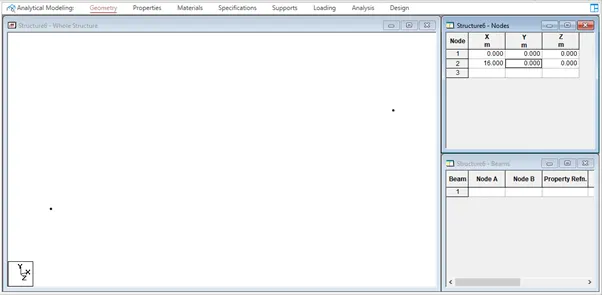
Go to geomerty tab select add beam and draw the beam by usinf beam cursor

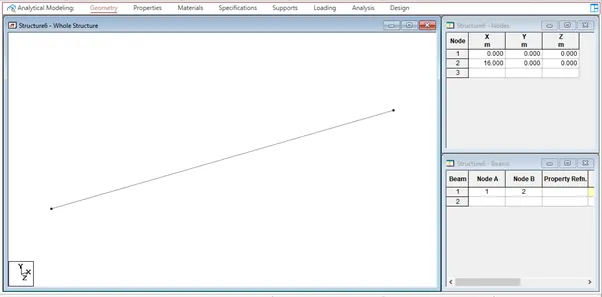
Go to properties tab and select define and give the rectagular dimensions for the beam
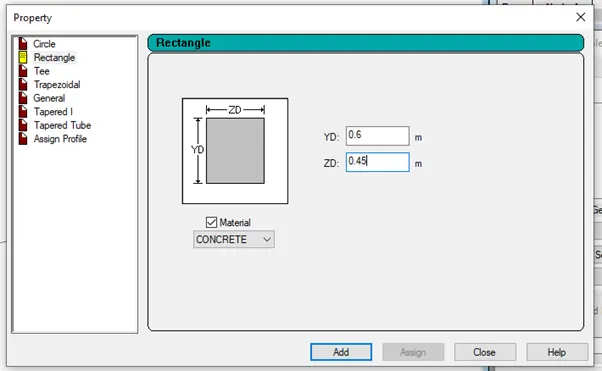
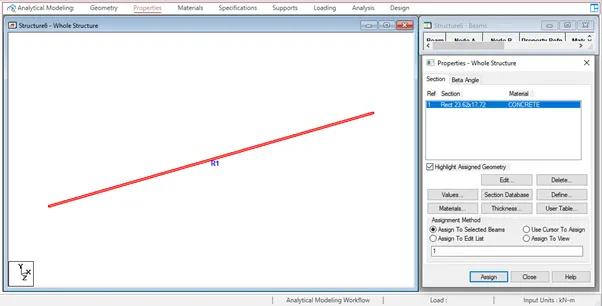
Select the created beam and assign the rectangular property to the beam
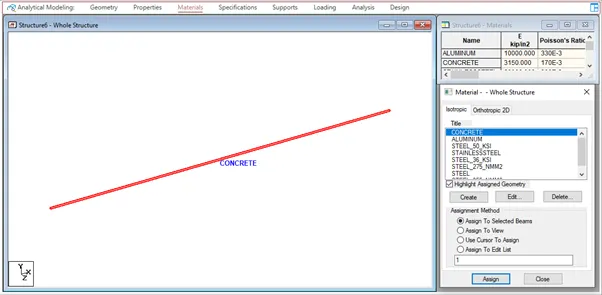
Go to material tab give the materialas concrete
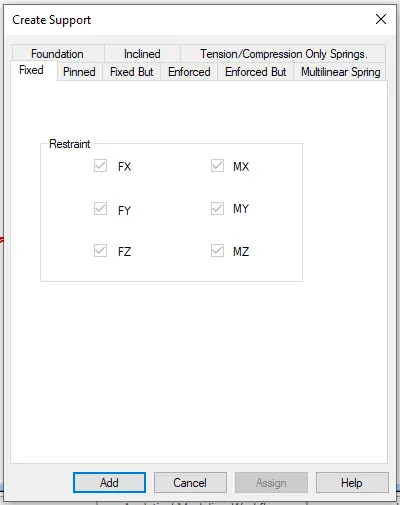
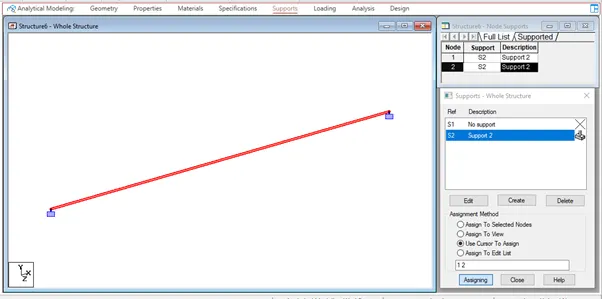
Go to support tab and create a fixed support and click on add and add the support to the beam using node cursor
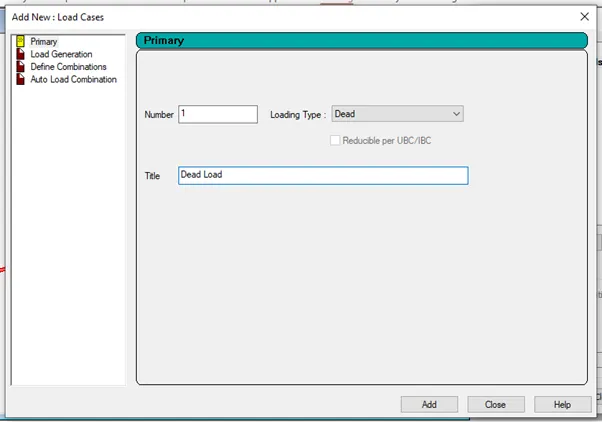
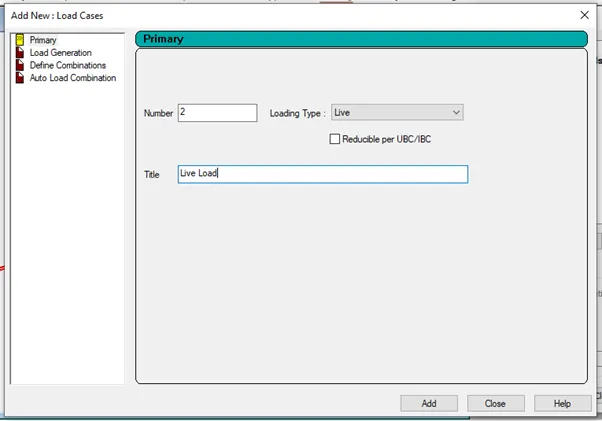
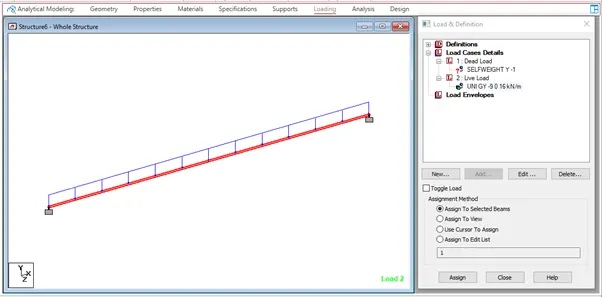
Go to loading tab add the load cases
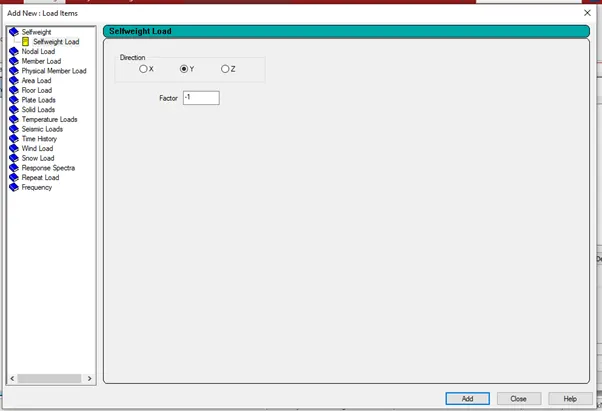
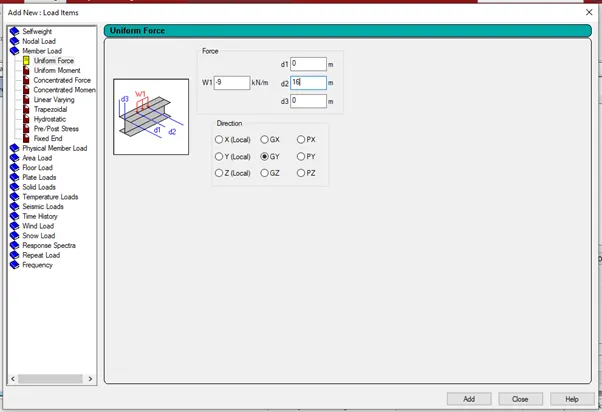
Assign the loads to the beam using Assign to selected beam
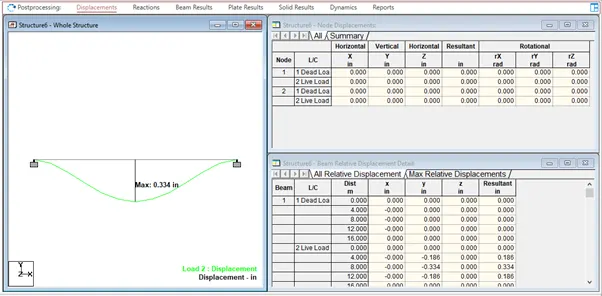
Go to analysis tab and select analysis command and do perform analysis

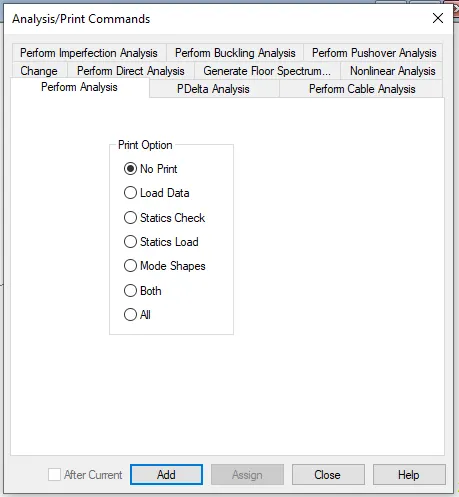
Run the analyis