Week 12:Project 2-Meshing of Rear Wheel Holder challenge
Aim :-
To generate mesh on the given rear wheel holder & assign thickness and material to the same.
Quality Criteria :-
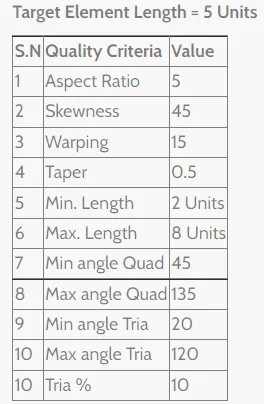
Procedure :-
1. Import the given geometry to hypermesh.
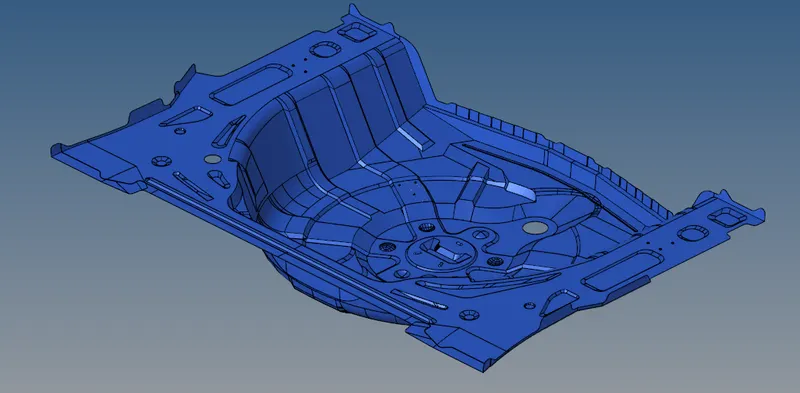
Fig 1 :- Import CAD File
2. Check for open surfaces & geomerty to be cleaned.
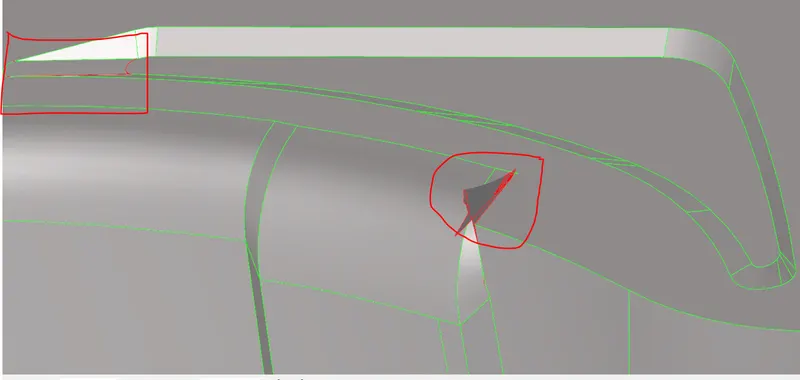
Fig 2.1 :- Improper Geometry
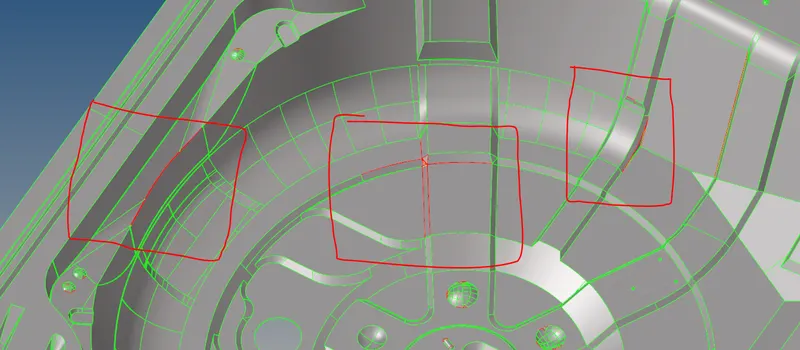
Fig 2.2 :- Free Edges
3. Clean the geometry using Geometry->Quick Edit->Filler/Toggle/Split surf->OK.
Defeature the buttons shown in the below snap & toggle the circles using the above instructions.
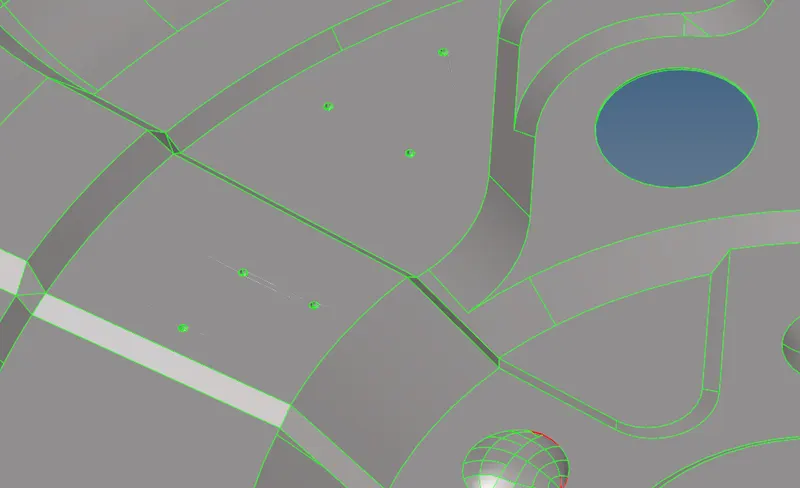
Fig 3.1 :- Surface with Bottons
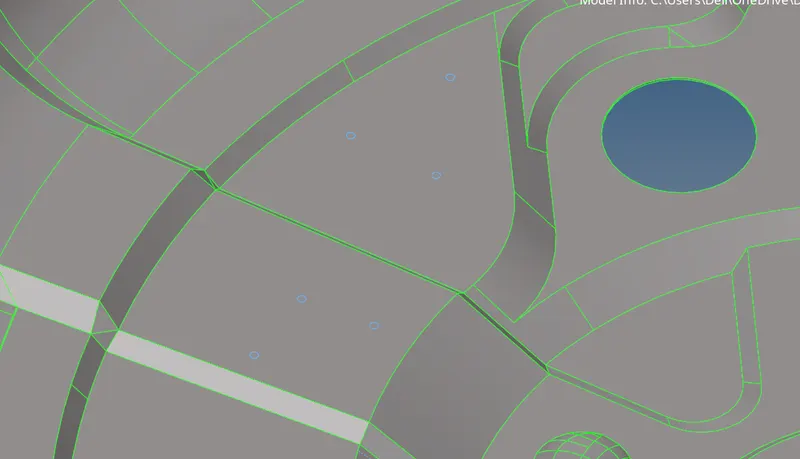
Fig 3.2 :- Surface without Bottons
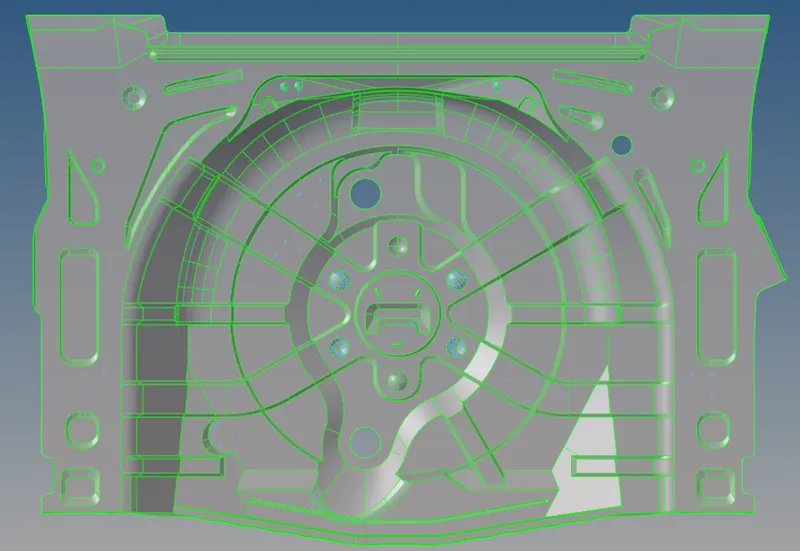
Fig 3.3 :- Clean Geometry
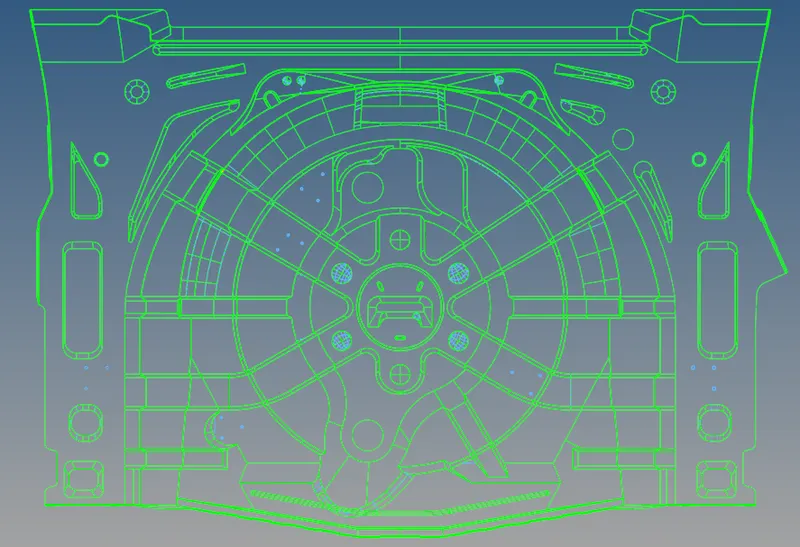
Fig 3.4 :- Wireframe View of Clean Geometry
4. Extract the midsurface of the geometry using Geometry->Midsurface->Auto midsurface->Select Surface->Extract.
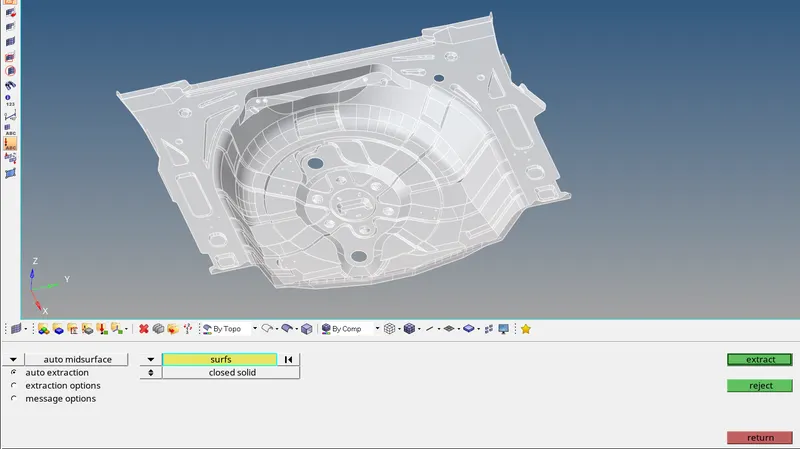
Fig 4.1 :- Midsurface Extraction
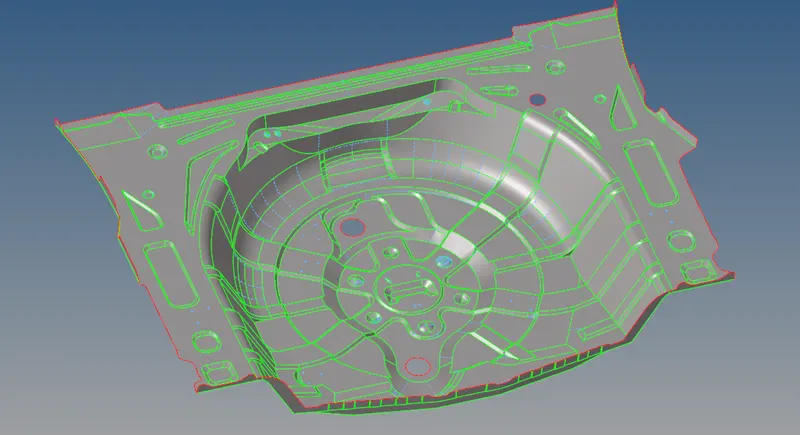
Fig 4.2 :- Midsurface Extracted
5. Create parameter & Criteria file for batch meshing.
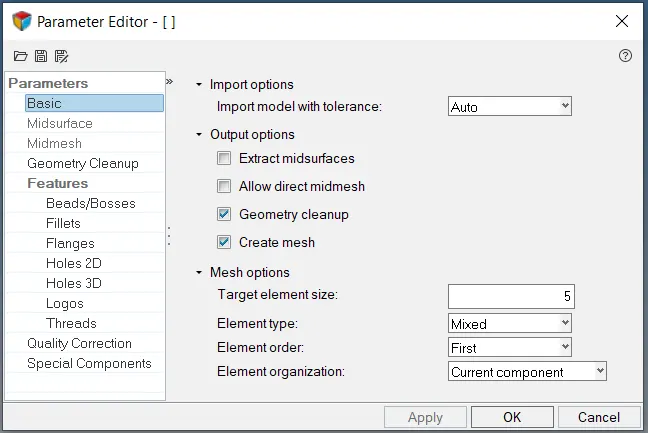
Fig 5.1 :- Parameter File Setting
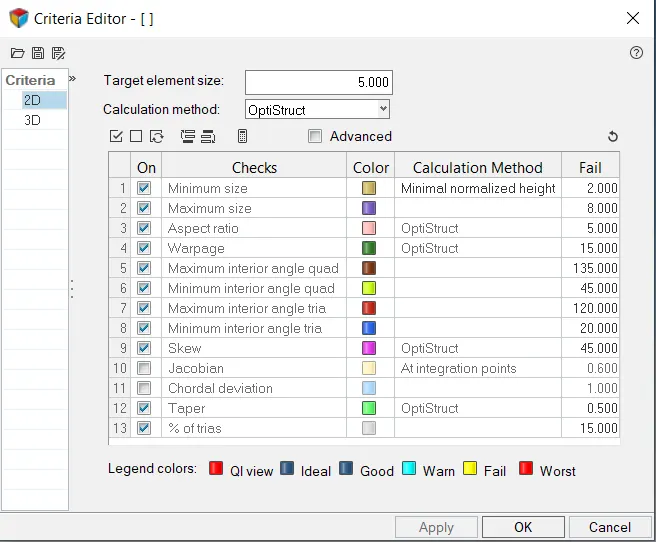
Fig 5.2 :- Criteria File Setting
6. Once the files are created, perform match meshing using 2D->Automesh->Batch mesh->Select Parameter & Criteria Files->Select the mid surface->Mesh.
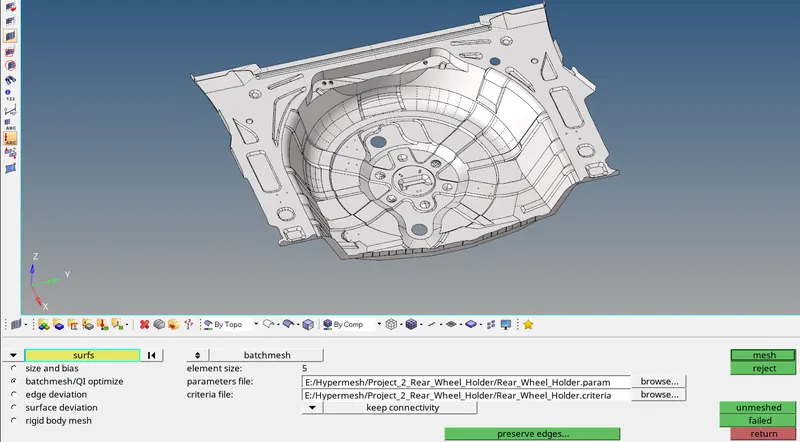
Fig 6.1 :- Batch Meshing in Progress
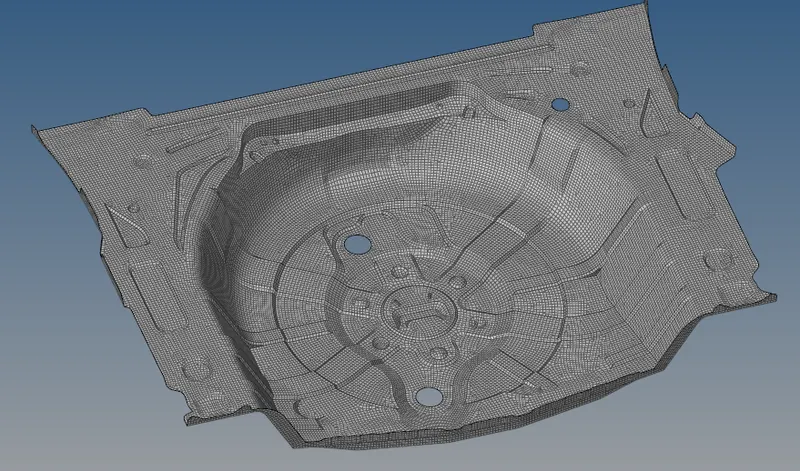
Fig 6.2 :- Mesh Created on the surface
7. Clear all the quality issues to have clean elements in mesh.
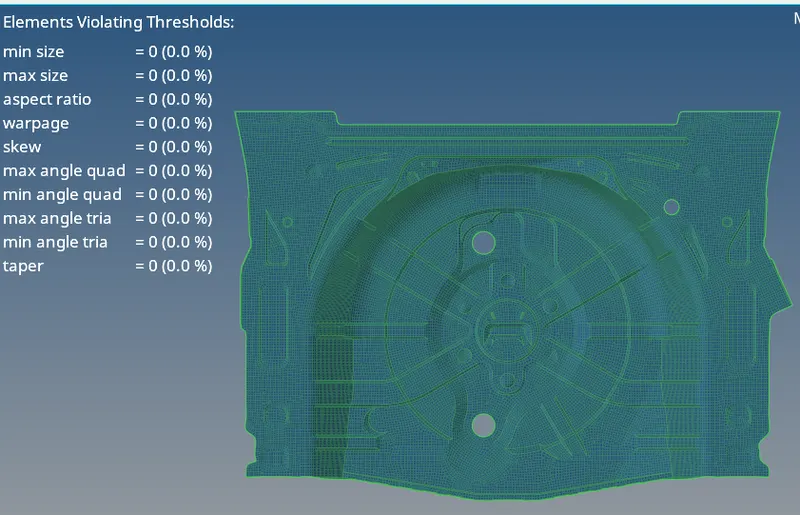
Fig 7 :- Quality Mesh
8. Create property & a material card as shown in the below snap.
The thickness of the given component is 0.75 units.
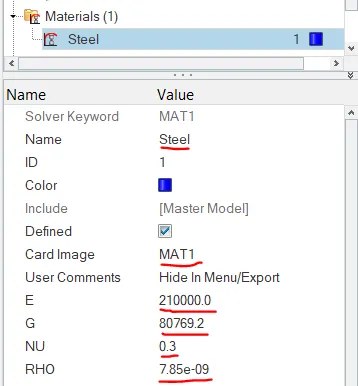
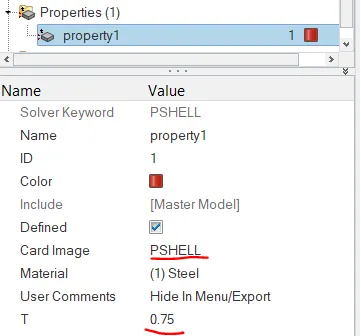
Material Card Property Card
9. Assign the property & material to the model.
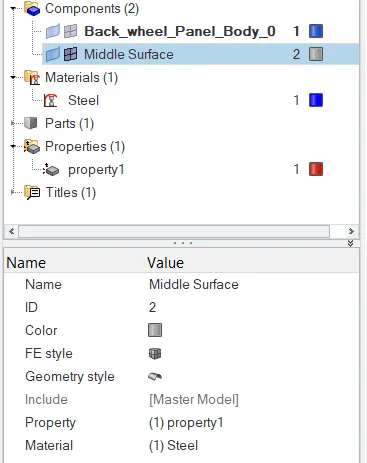
Final View :-
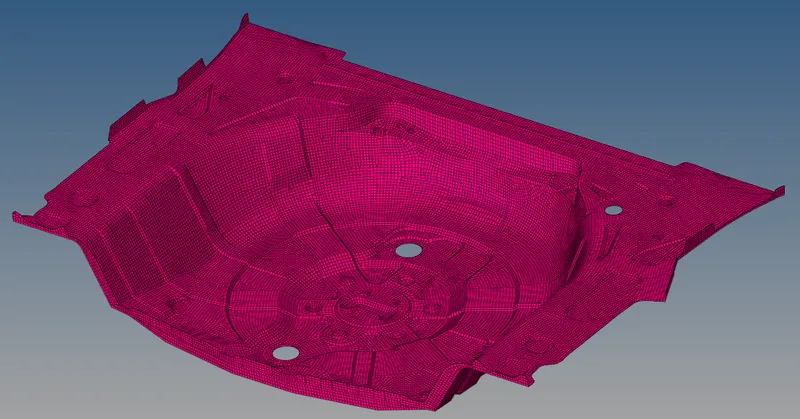
Result :-
2D meshing is created on the extracted mid surface of the given model, thickness and material are assigned to the model, mesh elements are free from quality issues.