FE modelling of car side-door trim panel using HyperMesh
AIM : To mesh the given CAD model as per required mesh element size.
OBJECTIVES :
- To extract the midsurfaces of all the individual parts.
- To perform geometry clean-up on the midsurfaces.
- To deploy 2D mesh on each midsurface as per the required element size.
- To improve the mesh according to the required quality criteria and minimise tria element concentration.
THEORY :
Car Door Trim Panel :
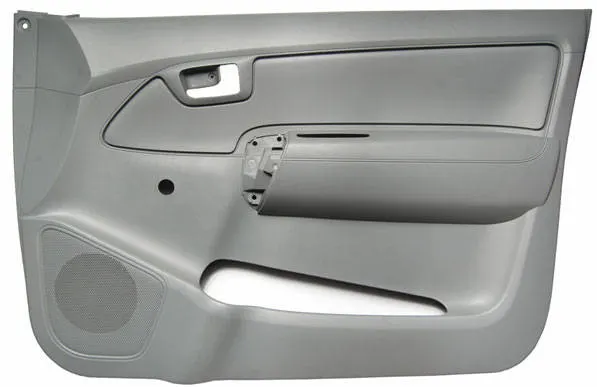
IT is an interior component attached to the inner side of the door. This product does more than merely improve the appearance of the vehicle interior. Rather, it is a vital module component that creates a more comfortable interior by providing a variety of accouterments and functions.
The door trim panel has an upper surface which is angled down towards the exterior of the vehicle.
The door assembly further includes a sail trim sub-assembly having a first trim panel and a second trim panel. The first trim panel includes a first surface and the second trim panel includes a second surface. The first trim panel is mounted to the vehicle door frame behind the interior trim panel. A bracket is further provided on the first trim panel adapted to accept the second trim panel. The first surface of the first trim panel and the second surface of the second trim panel are co-planar to give the same or similar appearance of a one piece trim panel assembly. The second trim panel acts as a cover to allow all three surfaces of the first trim panel, the second trim panel, and the vehicle door interior trim panel to rest flush with one another to create a cohesive look.
PROCEDURE :
- The CAD model is imported in Hypermesh.
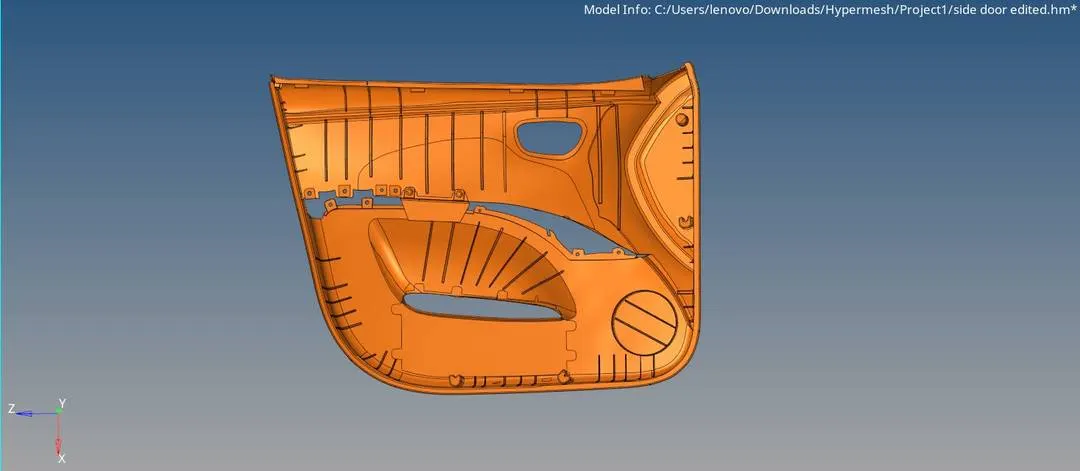
- First of all, all the solids are deleted. This is done because we are going to perform 2D mesh over the model by extracting the midsurface.
- The thickness of each of the parts is measured at different positions by using Geom - Distance or Geom - Dimensioning command.
This is to check if the model is of uniform thickness (sheet-metal) or not (plastic).
Also, this thickness will be added while defining the property for the midsurfaces later on. - Since, this is a plastic component, this is not uniformly thick.
Therefore, different PIDs will have to be assigned to each of the parts.
One such rib with variable thickness is shown below.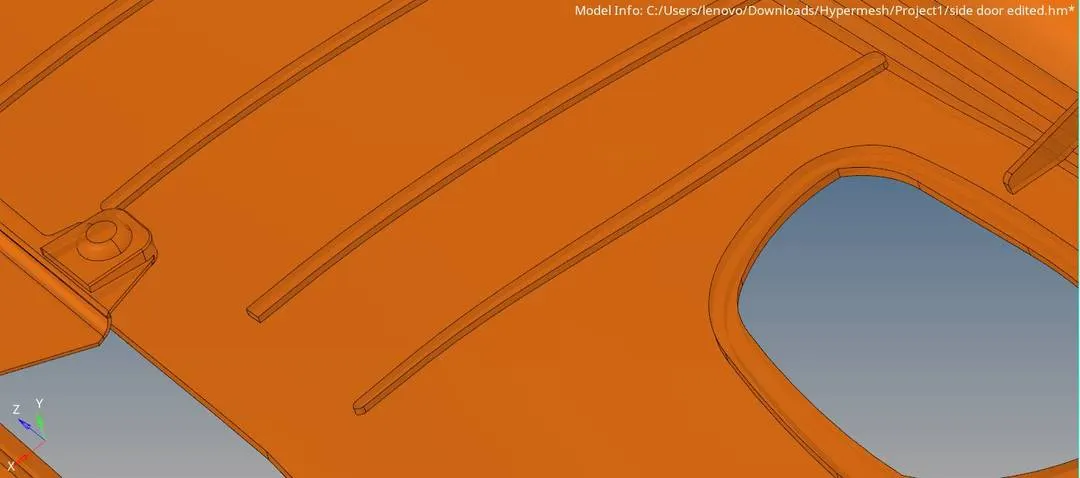
(1) Extracting the midsurface -
- Since, a surface is missing in the parent CAD, the automesh command will not work in this case.
Therefore, all the surfaces are midsurfaced manually by using the surface edit - offset command.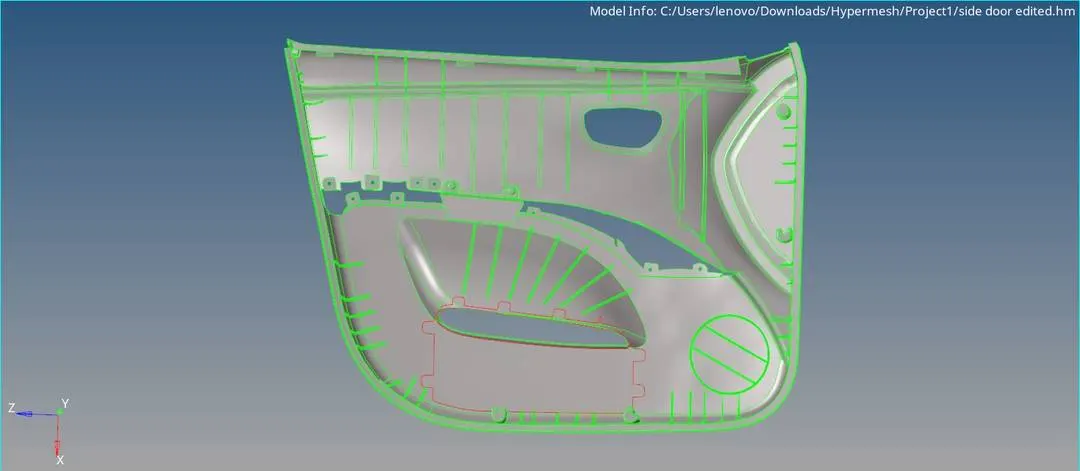
- To ensure proper connectivity, the adjacent surfaces are stitched together by using the toggle command.
- Features such as fillets, which are smaller than the minimum length criteria for the mesh, are defeatured usign the Geom - defeature - surf fillets command.
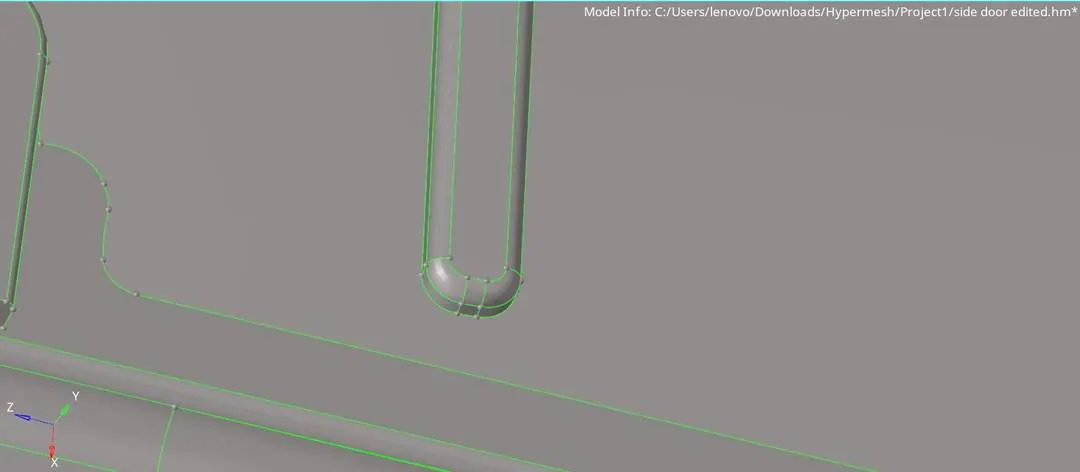
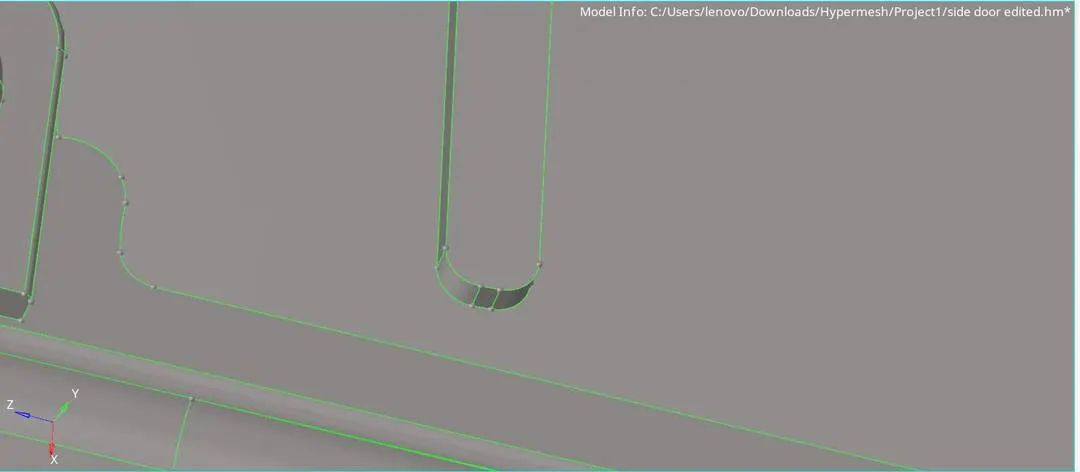
If these are not defeatured, it can stand as a hindrance while creating the midsurfaces and also will mess up the mesh. - After generating the midsurfaces, the first thing done is assigning properties to each individual parts. Proper thicknesses are assigned to each part in their property tabs.
This is done so that the midsurface, despite being a 2D geometry, will represent its respective 3D parent geometry.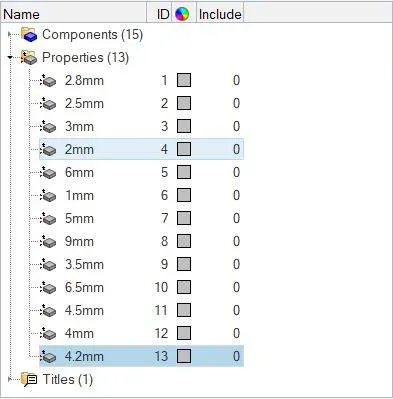
- Ribs with variable thicknesses are properties with their average thickness.
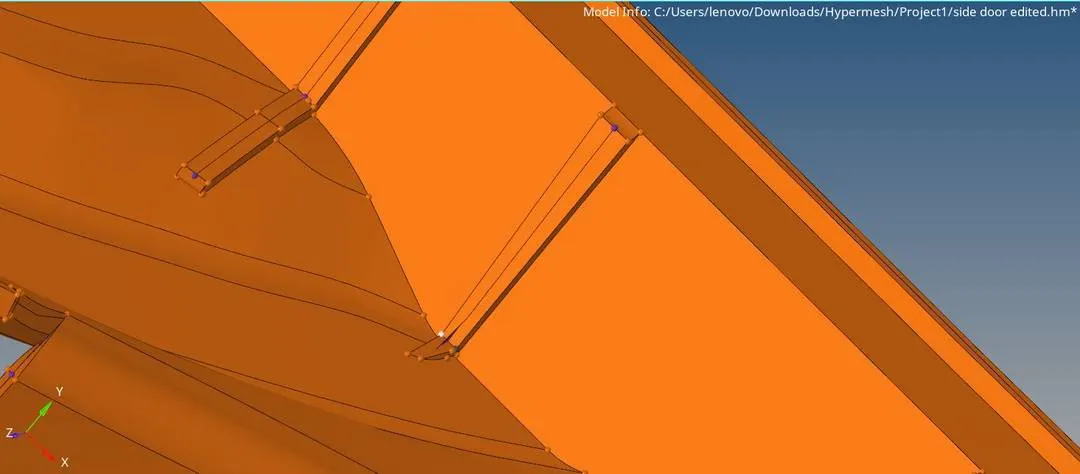
(2) Geometry clean-up -
- Now, the midsurface geometry needs to be cleaned up before meshing.
- For this, Hypermesh provides an automatic tool. However, here a manual geometry cleanup is performed.
- Accordingly, the surfaces are checked for any inconsistencies or irregularities by changing into different visibilty modes.
Unnecessary edges are tracked and deleted using the Tool - edges command. - Toggle edges command is used where adjacent faces were not stitched properly.
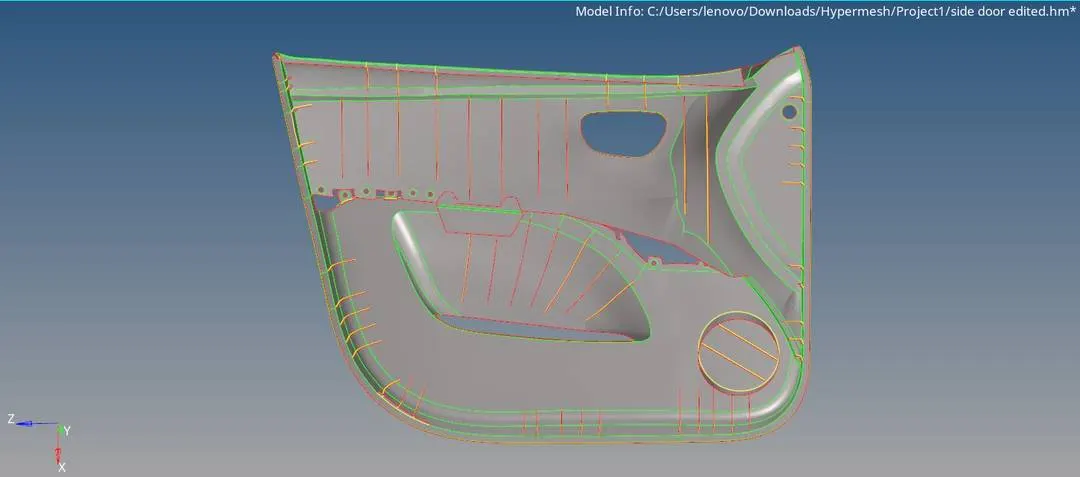
- A proper geometry would result in the follwing visibilty in Topo mode -
Red edge - where only one face is attached (outer periphery or holes).
Green edge - where 2 surfaces are connected.
Yellow edge - where more than 2 surfaces are connected. - After the cleanup, defeaturing is done. This is essentially the removal of unnecessary cons/lines. This is done with the help of quick edit - toggle command.
The purpose of doing this is, this reduces the complexity of the mesh afterwards. - Unnecessary points are removed using the quick edit - add/remove point command.
If not removed, these will act as nodes while the mesh is deployed and will eventually lead to a quality failure of lots of elements. - Also, unnecessary close cons are suppressed by using the toggle command.
- While doing this, the lines capturing the features such as curvatures or fillets should not be removed.
- The ribs are properly extended upto the base surface.
This can be done by using any one of the below losted methods -
1) - Using the surface edit - extend command.
2) - By first projecting the edge line over the base surface and then manually creating a surface in between.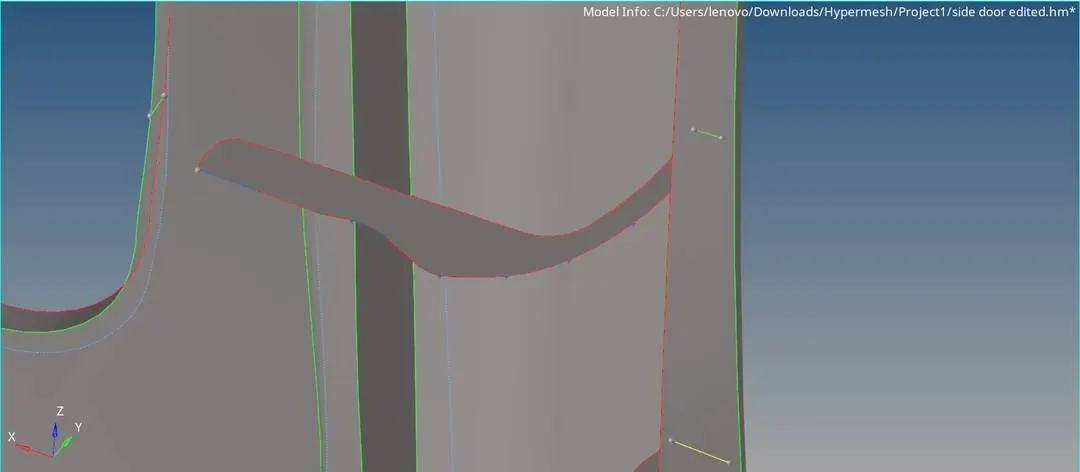
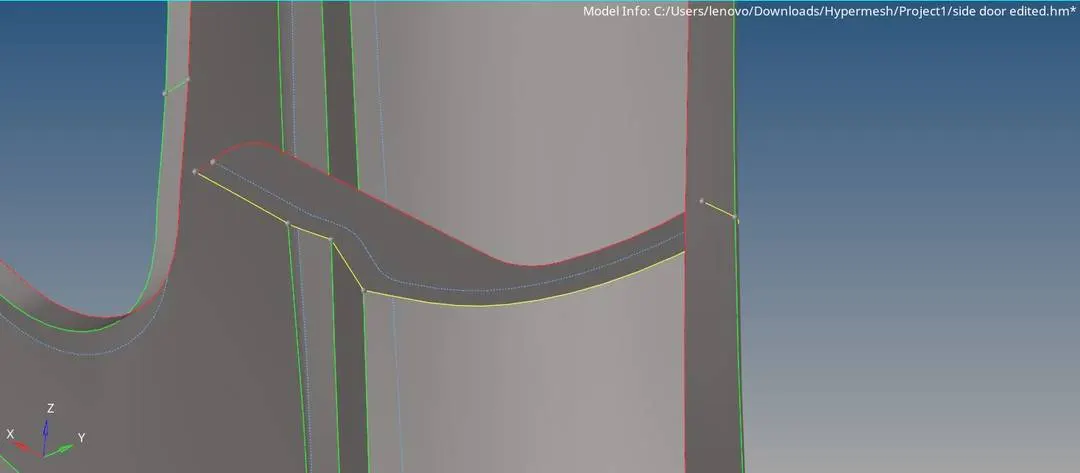
Improper connectivity does not allow proper load transfer from one part to the other. - There's actually a third way to do this -
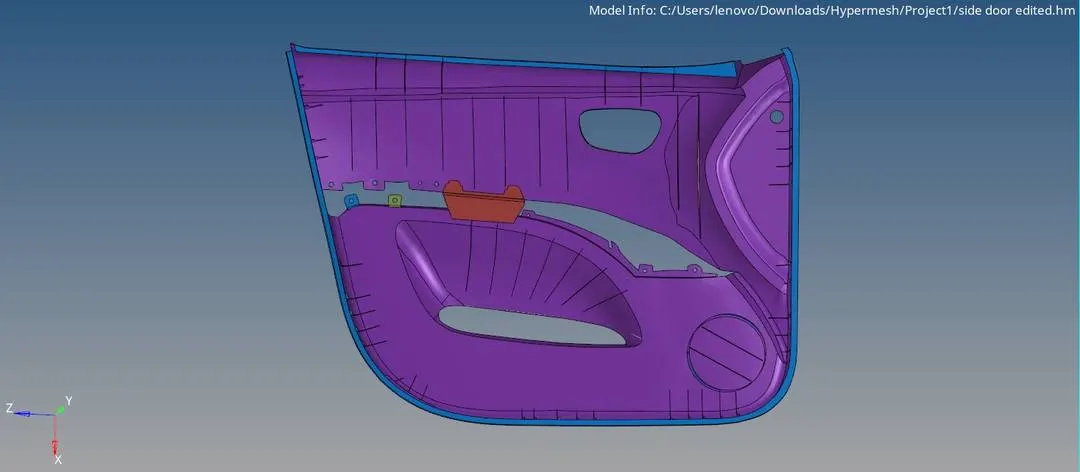
A midline can be created by using the two upper edges and then projecting it onto the base surface. Now a surface can be created in between these two edges. Hence, no need to extend any surface as the complete rib has already been modelled. - Finally, a fine midsurface is available.
(3) Meshing -
- Now, the midsurfaces are ready to be meshed.
- Before this the required quality criteria is provided in the preferences - criteria file settings.
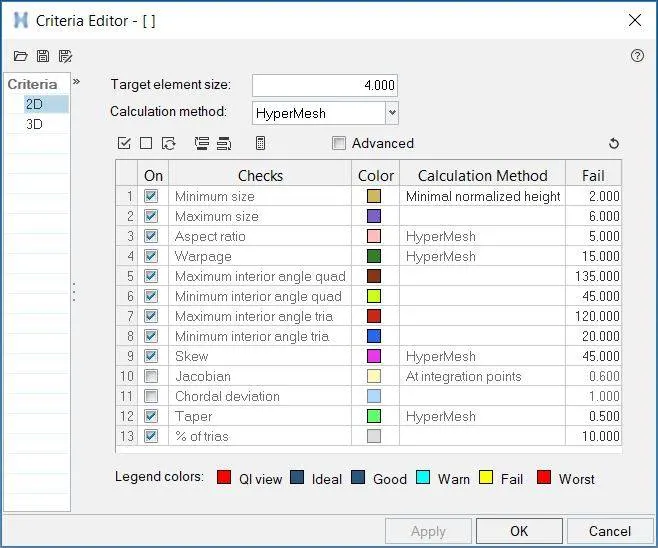
- Here, the mesh is deployed with the help of 2D - automesh command. The element types selected are mixed.
- Washer cuts are established around holes by using the quick edit - washer split command.
This reduces the possiblity of formation fo rotating quads around the hole region.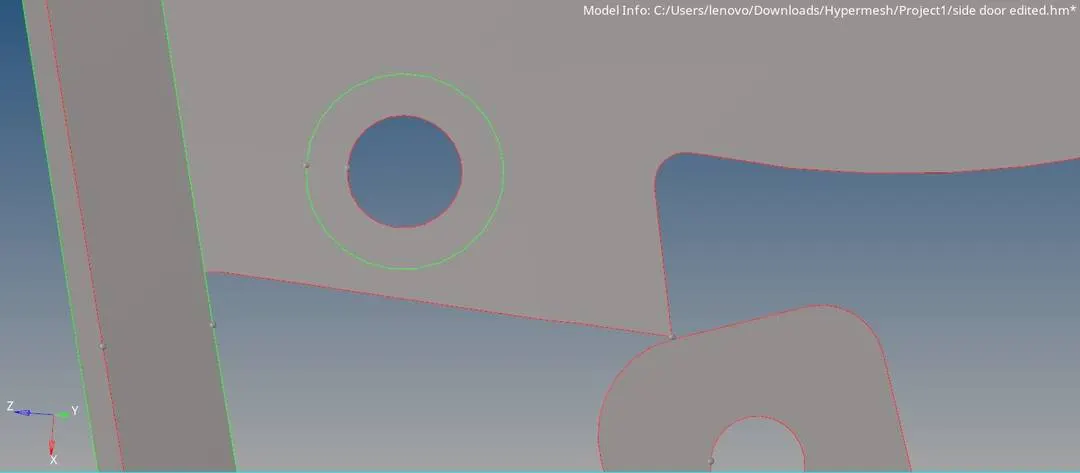
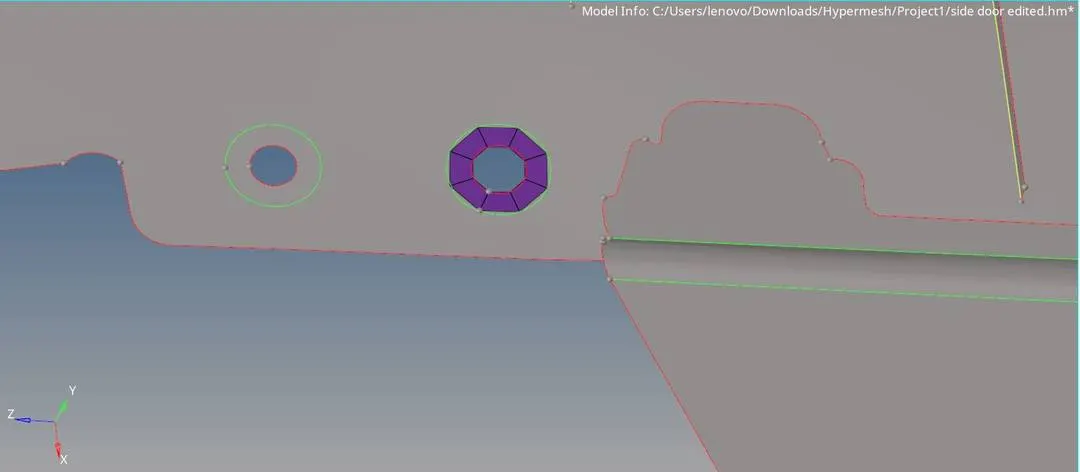
- To ensure better mesh flow, the nodes around the hole are so positioned, that the edge in between remains parallel to the nearby edge.
For this, the Tool - rotate command is used. - Also, cuts are performed at some places to divide the faces into rectangular sections with the help of surface split command. This results in better mesh flow.
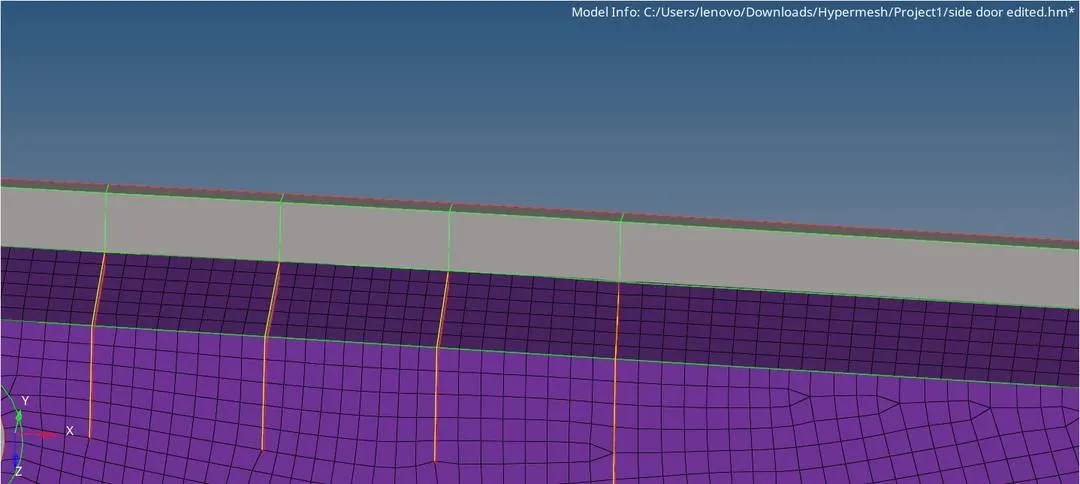
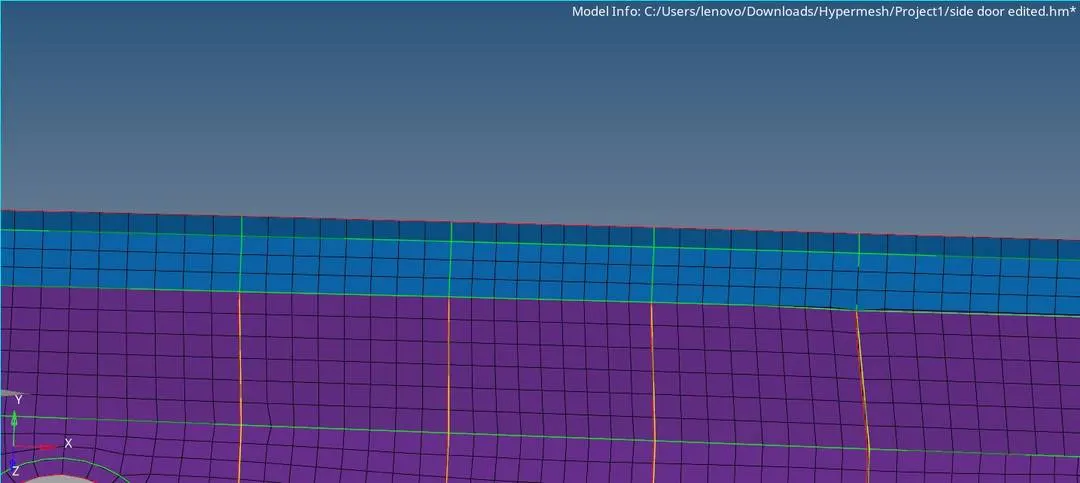
However, these cuts should be suppressed afterwards. The surface edit - untrim command can be used for this purpose.
If done directly, the mesh will get reconstrcuted as per the pre-fed algorithm in Hypermesh. To avoid this, the topology revision option in the 'options' tab should be changed to keep mesh.
This will retain the mesh even after the cut is removed. - After deploying the mesh, improving the mesh flow is very important.
A better mesh flow will result in higher accuracy of the analysis. - Removing opposite tria elements is the first step in mesh flow improvement.
These opposite trias can be very easily removed by remeshing the region by considering the elements in a rectangular shape as shown below.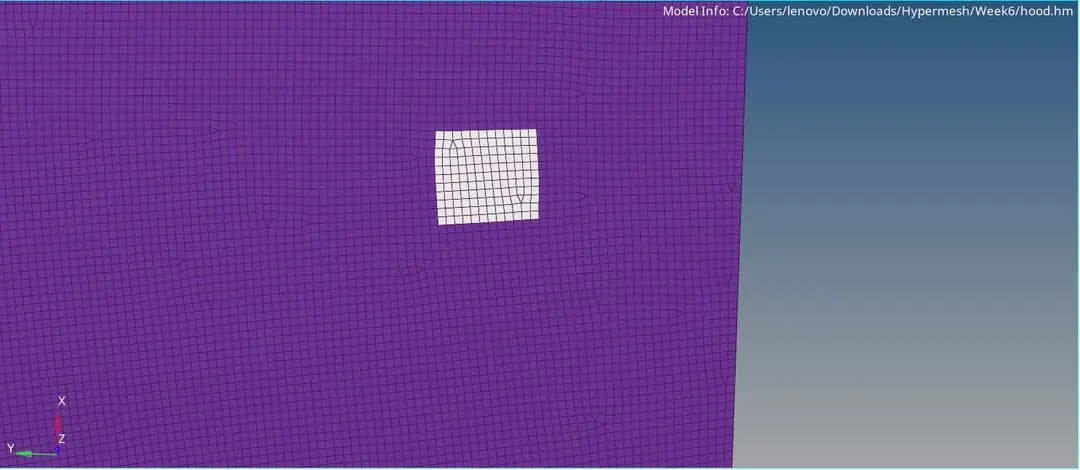
- Similarly, rotating quads are also removed by remeshing upto the nearby free edge.
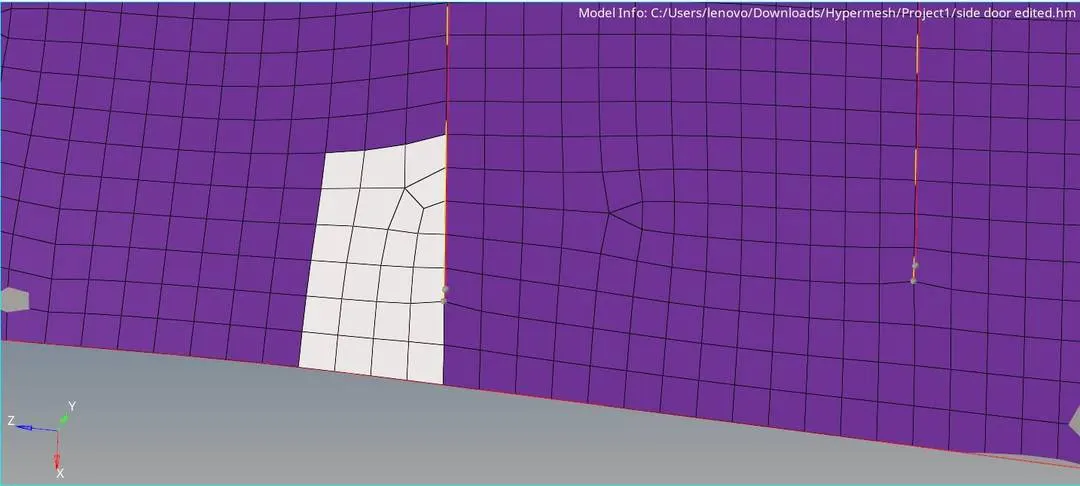
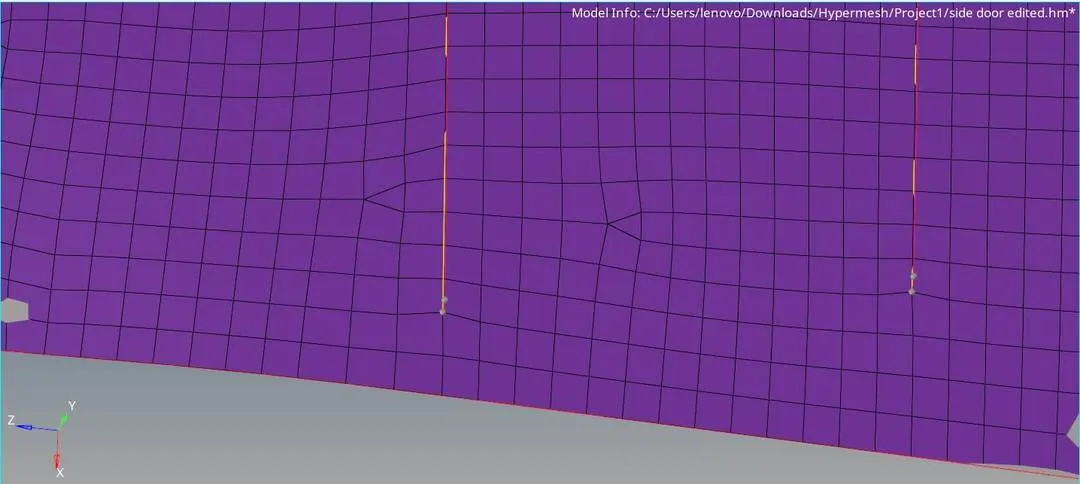
- 2 adjacent trias can be combined into a single quad element using the element edit - combine option.
Similarly, single trias can be dragged out of the periphery using the drag tria elements inside the qualityindex tab. - Also, the overall tria percentage is kept as low as possible.

- While remeshing, sometimes, the nodes tend to change their position from their corresponding edges.
To deal with this, Tool - project command is used. This results in proper geometry capturing.
Also, node edit - align command is used to align the nodes in porper line. - Now, the failed elements as per the provided quality criteria are to be dealt with.
- For this, the cleanup tools in the qualityindex tab is used.
- The elements which are failing can be dealt with by specifically using the check elems command in Tool tab.
- The element optimize command can be used at the failed element region to auto-optimize it.
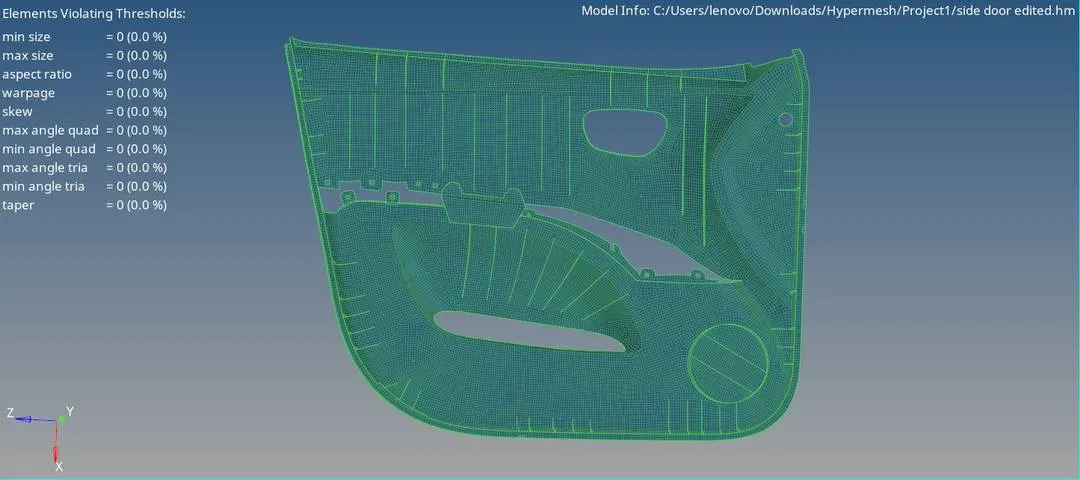
- Now, if some of the elements do not have any connectivity in between them, such elements are connected properly by using the Tool - edges - equivalence command.
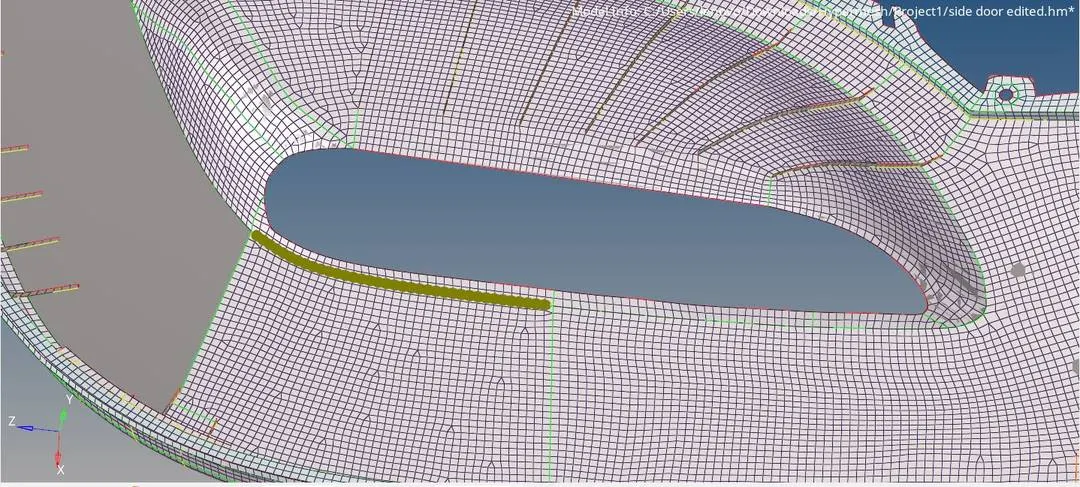
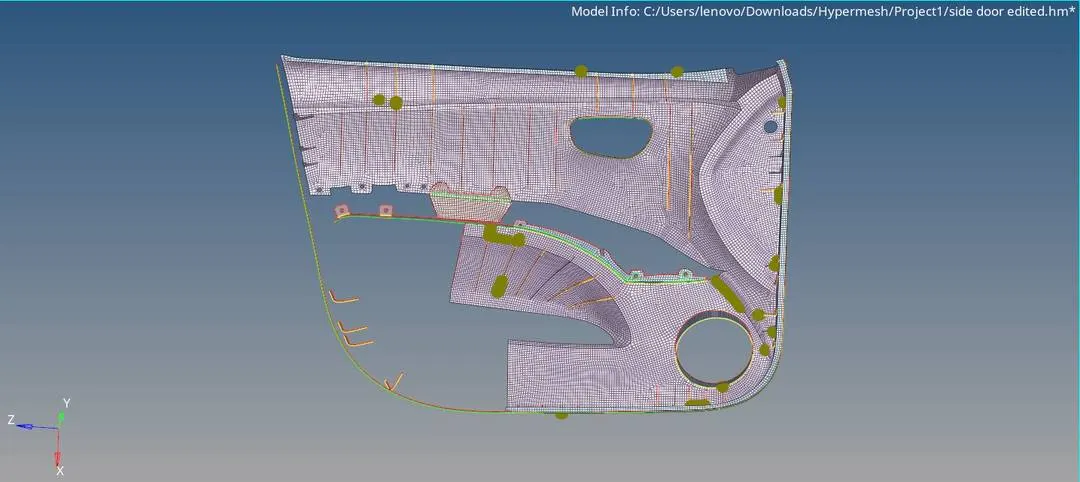
The find edges and delete edges commands are used to deal with the unnecessary edges at those places.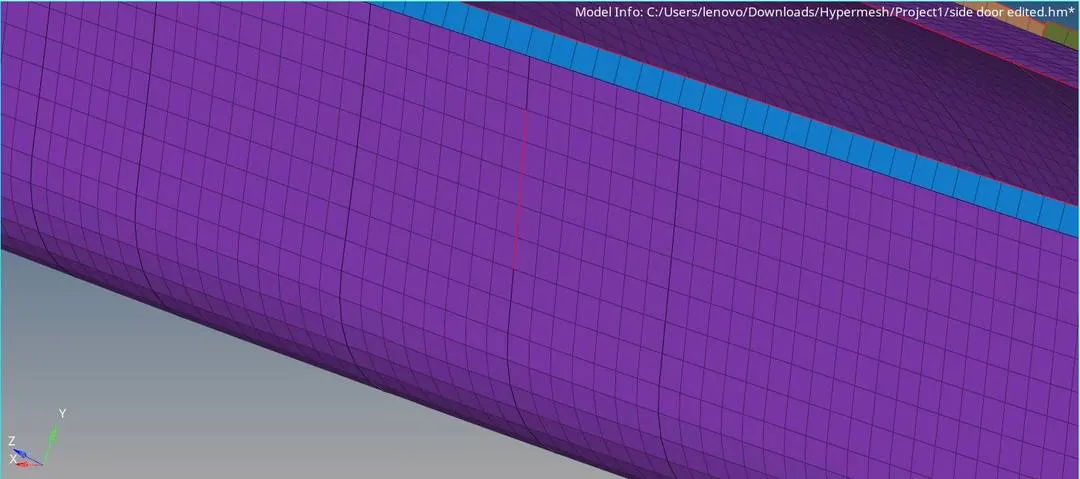
- Thus, a desired mesh with proper flow is achieved.
- Before finalising, the elements normals are checked using the Tool - normals command to see if all the element normals are in the same direction or not.
If any element is having the opposite normal direction, it should be reversed.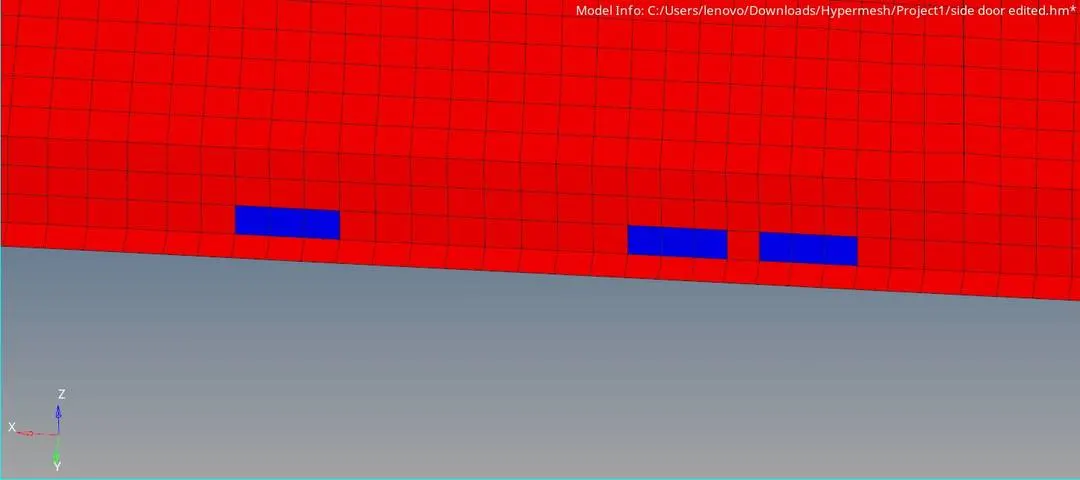
- Finally, the model is checked for any duplicate elements using the Shrink Element option.
If found any, such elements are deleted. - This completes the entire meshing procedure of the side door component.
- The 2D detailed element representation option can now be enabled to visualize the mesh in 3D representation.
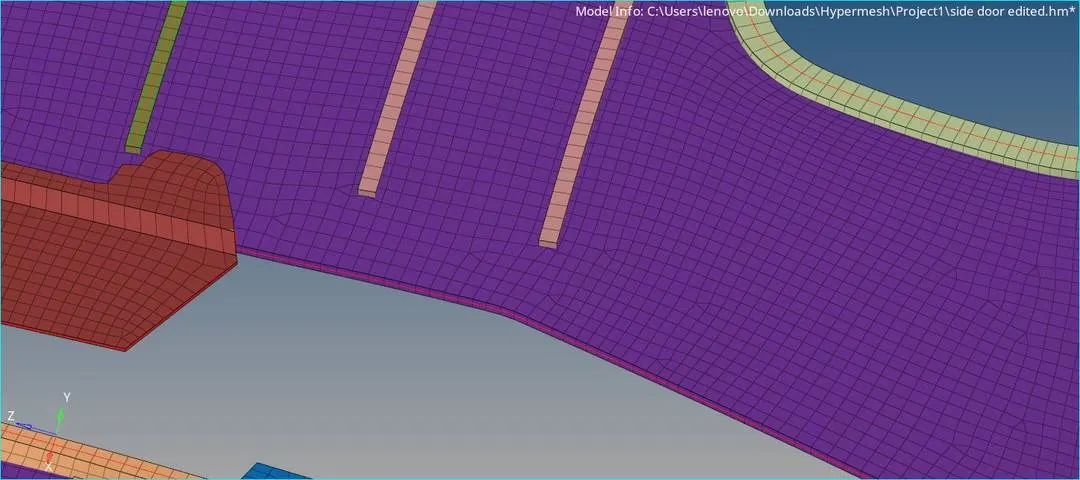
CONCLUSION :
We have succesfully done FE modelling of the given 3D component by extracting the 2D midsurface of it. Also, learnt quite a lot of ineteresting things like
- How to perform manual misurfacing and what role does a midsurface play in FE modelling.
- Plastic components are relatively tougher to model than the normal sheet-metal components. So, how to properly do the Fe modelling of such components.
- How to deploy 2D mesh and improve the flow. Also, how to deal with the off/failed elements.
- What are different types of quality failures in case of 2D meshing.
- How to effectively and quickly model symmetrical parts.
(The model file is attached with the report for reference.)