Week 11- Assembly Workbench
Assembly Workbench:
This workbench is used to create already created catia parts into one complete assembly. We can apply different constraints restricting the degrees of freedom of the individual parts. The following tools were used in the creation of our project.

Manipulation tool:
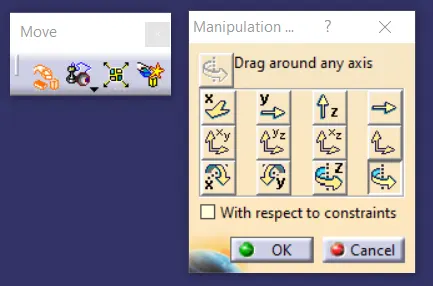
This tool is used to move the parts with respect to axis or relative length. This enables us to get a clear idea on how we want to assemble the parts.
Constraints toolBar:
Fix constraint:
This constraint is used to fix the component with one reference axis or point or plane, etc...After applying this constraint we won't be able to move the part freely.
Coincidence constraint:
This constraint enables us to move the component to coincident with the existing plane or coincidence one axis with another axis, etc...
Distance Constraint:
this enables us to constraint two reference objects with distance as a constraint.
Angular Constraint:
Similar to the distance constraint this enables to create a constraint between two components with angle as a constraint parameter.
Steps followed to create the assemble project :
- All individual CATIA parts are created used part workbench and saved with their names.
- Assembly workbench is opened by using the command Start-->Mechanical Design --> Assembly design.
- We have to import the created parts into the assemble workbench.
- This is done by clicking Existing component tool or we can drag the component from the component window to the assembly workbench window.
- After importing these parts we can reorder the tree also using Graph tree reordering tool available.
- We create a pilot part inside the assemble workbench to form the base part so that we can provide constraints to the parts available.
- Now we give the constraint to define the relationship between the parts. This is done with the constraints tools available.
- The assembly is then saved. The extension of assembly to save is .CATProduct
Drafting:
- Drafting is the process of converting a 3 D model into a 2 D model.
- A new file is open with type as drawing file.
- The extension for the drawing file is .CATDrawing.
- The paper size is also as per our need.
- The title box and outline for the sheet is provided by going to sheet background view. The title block is inserted by Insert --> Drawing --> Frame and Title block.
- We edit the title block as per our need and get back to the working views.
- Now we import the cad drawing using the Projections tool bar.
- We provide necessary scale factors in the property window.
- All the dimensions are provided with the dimension toolbar.
- The file is saved. We can also also export this CATDrawing to pdf format also.
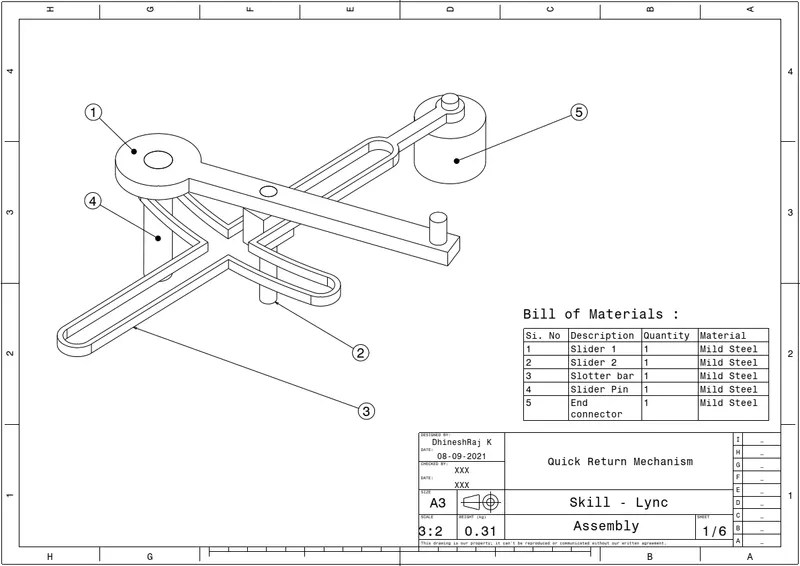
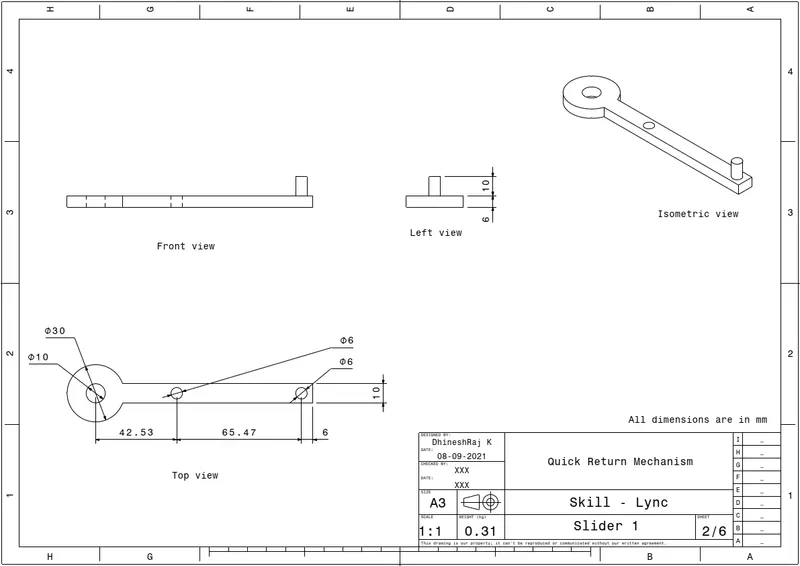
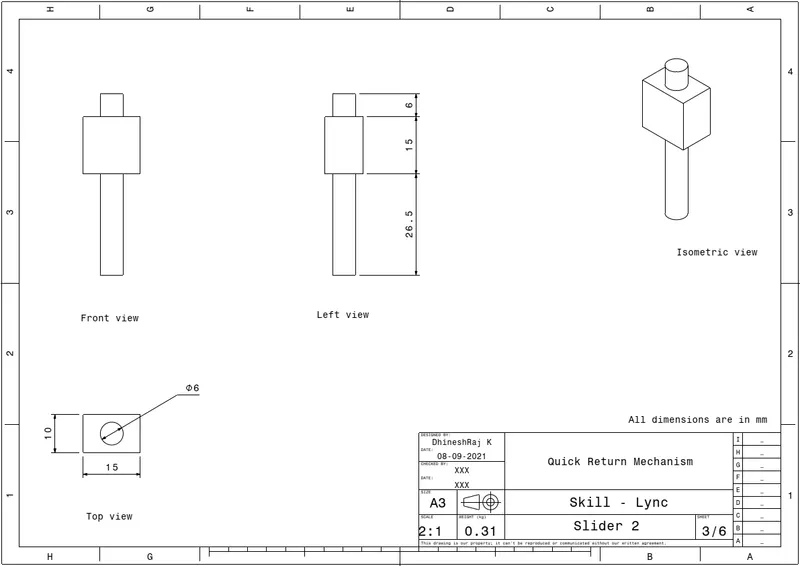
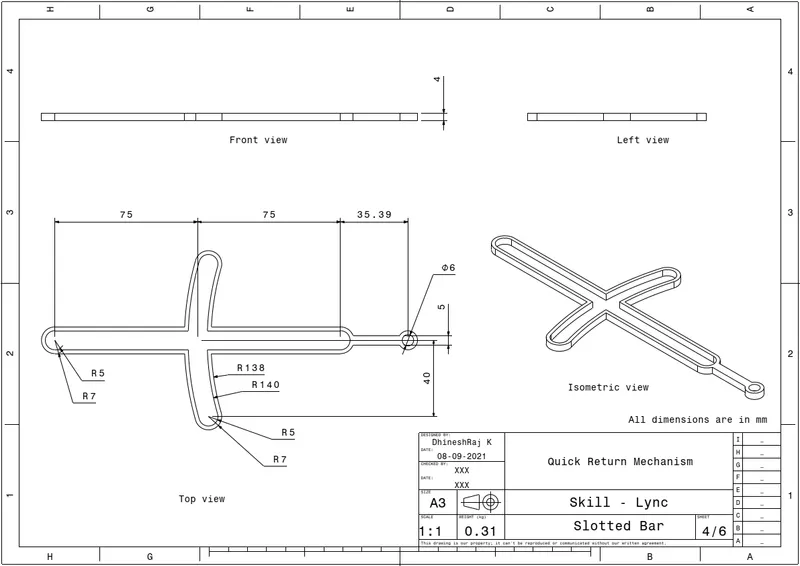
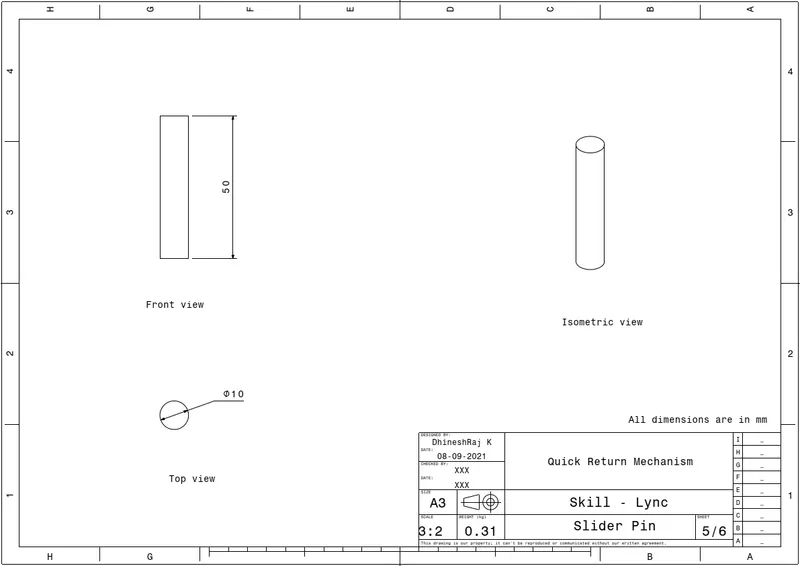
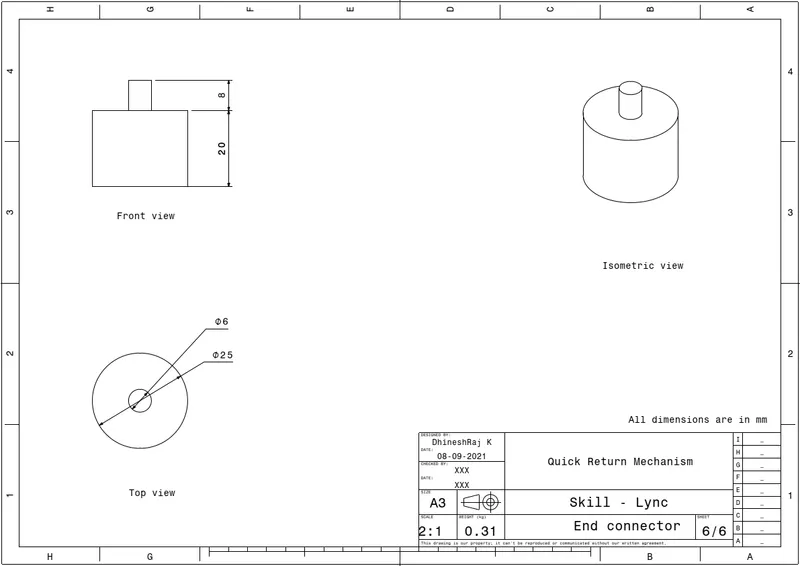
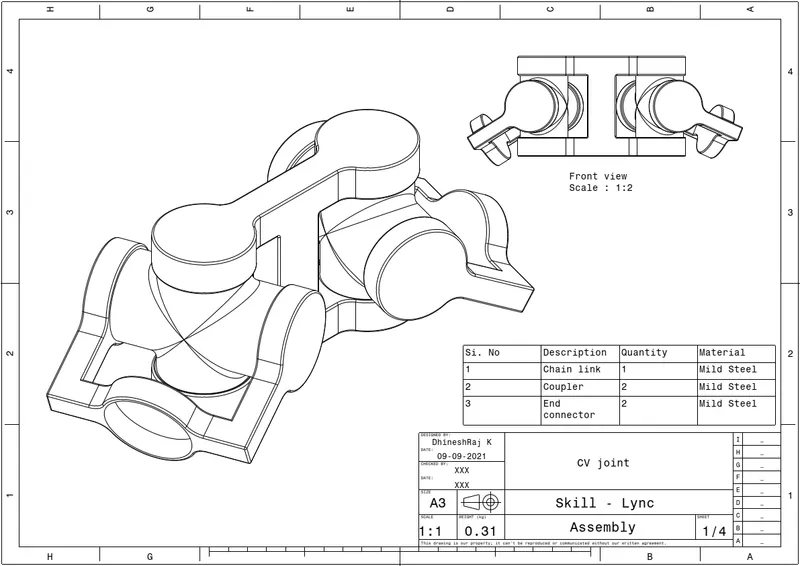
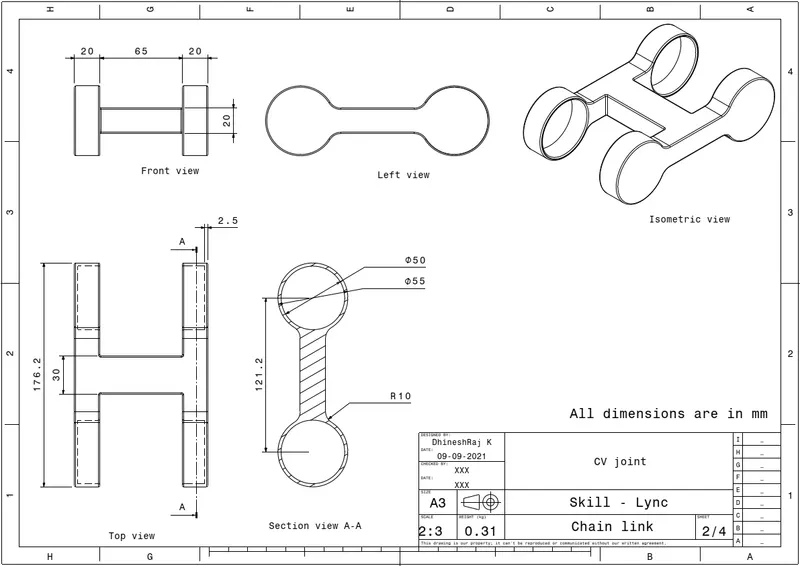
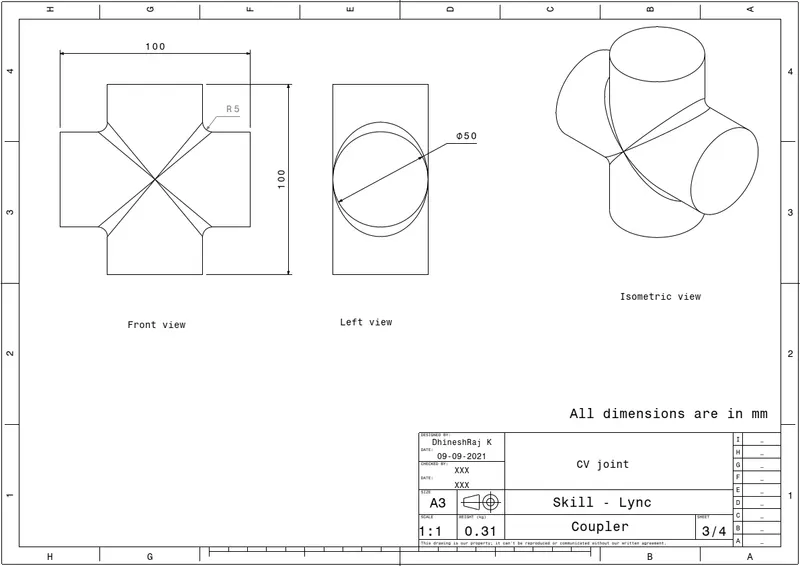
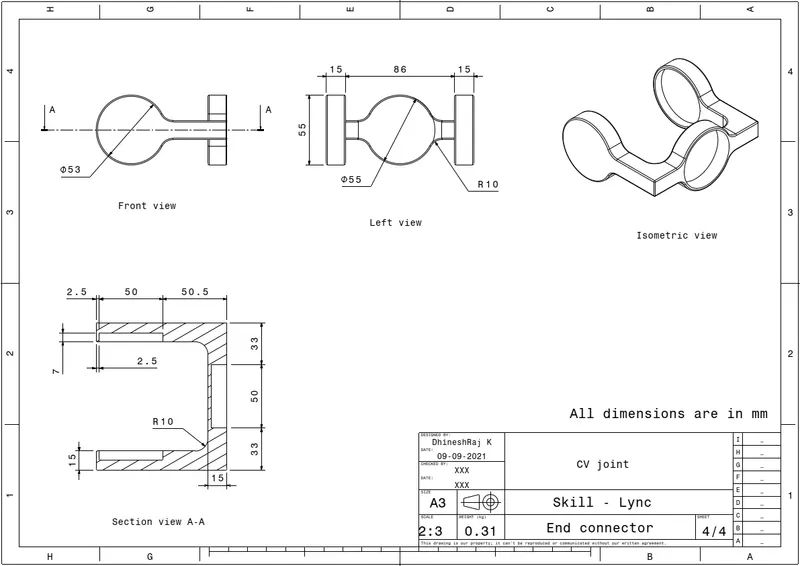
The following are the images or the projects.