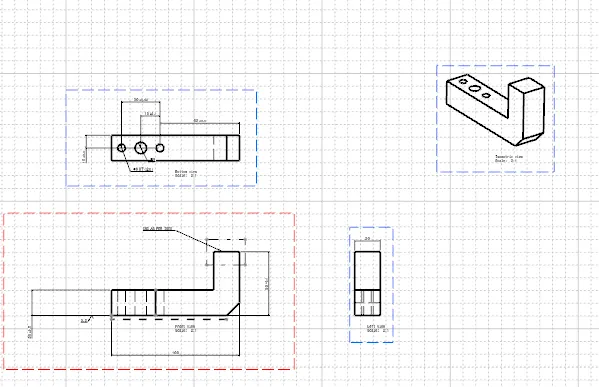
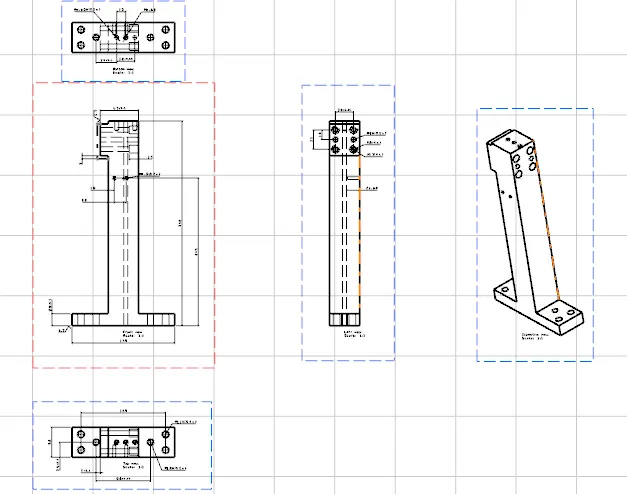
Week 11:- 2D Detailing Challenge 2

Autootive BIW fixture design using Catia v5
Assignment
By Ravi Ahuja
Started with creating new drawing file for each of the Units.
Then Clicked on front view feature from toolbar and then selected the prefereed face of the Pin Unit assembly by first selecting the product of the pin unit from the feature tree.
This imports the front view of the selected assembly on to the sheet.
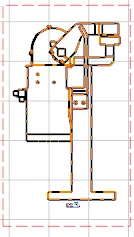
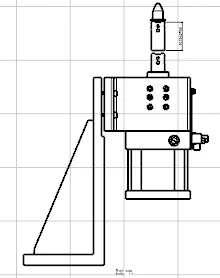
Then I dimesnioned the important and visible comonents in the assembly front view. Then I selected the projection feature from the toolbar and projected the left and the top view of the assemly. Then dimensioned each of the components visible in the assembly.
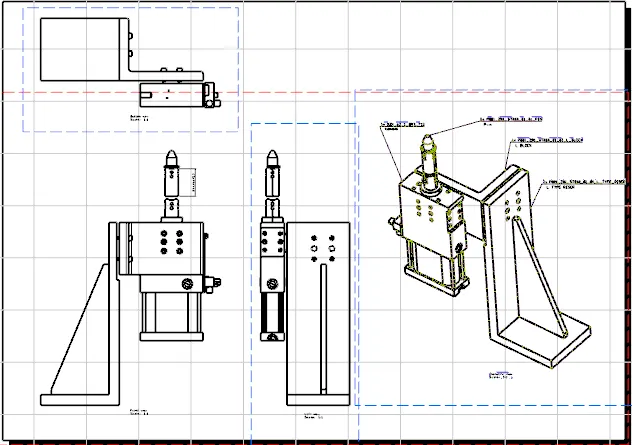
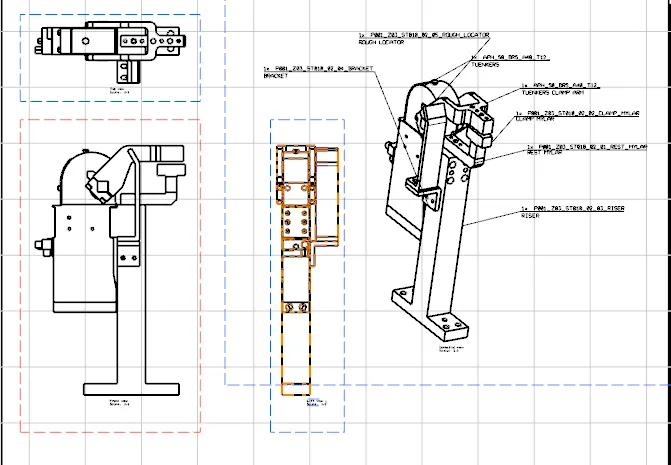
Then I imported the isometric view of hte assemblies by selecting the isometric view feature from the toolbar and then selected the edge parellel to the screen with the view i wanted.
Then i named all the components with quantities used in the assembly with markers.
Then I selected the front view feature and then selected the components from the feature tree and then imported them to the new sheets. Then followed the same procedure for ech of the parts.