Week 1 Challenge
WEEK 1 CHALLENGE
INTRODUCTION:
STAAD is a popular structural analysis application known for analysis, diverse applications of use, interoperability, and time-saving capabilities. STAAD helps structural engineers perform 3D structural analysis and design for both steel and concrete structures.
A physical model created in the structural design software can be transformed into an analytical model for structural analysis. Many design code standards are incorporated into STAAD to make sure that the structural design complies with local regulations.
STAAD.Pro Advanced includes all the modeling, analysis, design and interoperability capabilities of STAAD.Pro, but layers on more advanced analysis, as well as reinforced concrete design and detailing features.
- Nonlinear geometric and cable analysis
- Eigen buckling analysis
- Floor spectrum analysis due to time history loading (seismic design)
- Steady state dynamic performance for vibration design
- Pushover analysis
- Design and detailing of reinforced concrete beams, columns, footings, pile caps, walls, and slabs
- Design reports, material takeoffs, and bill of quantity
- Automated reinforcing drawings, details, and schedules, with customizable settings
1.
1. Write the steps involved to upload a .std file through web mail?
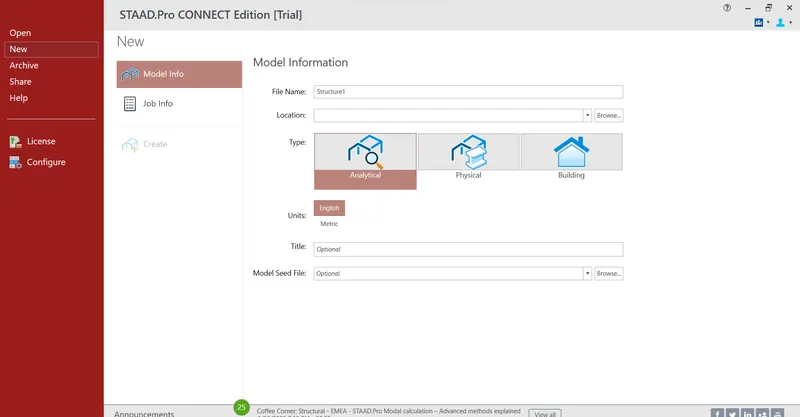
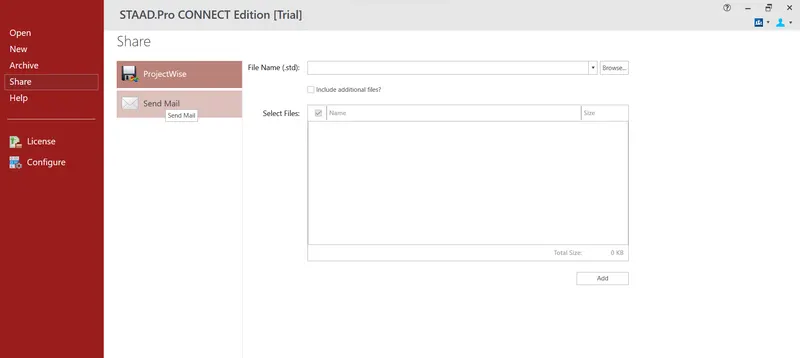
Ans) A .std file can be uploded through web mail involving the following steps
- Intially open the STAAD PRO software
- Next click on the share option and select send mail
- Then, browse for the. Std file and click on send mail.
2. Name the different materials that can be designed using STAAD Pro.
Ans) The materials that are used in STAADPRO designing are as follows
- CONCRETE
- STEEL
- ALUMINIUM
- TIMBER
3. Is it possible to capture images in STAAD Pro? If yes how?
Ans)
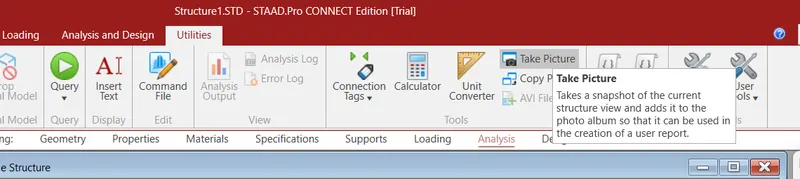
- YES, it is possible to capture images in STAAD Pro.
- We can take pictures of models and structural results in STAADPRO using the take picture command, the command is available in the utility panel with a camera logo.
4. Name the three ways by which you can create a model.
Ans) The three ways by which you can create a model in as STAAD pro are
- Analytical model.
- Physical model.
- Building planner model.
5. Write the steps followed to assign properties in a model.
Ans) The steps followed to assign properties in a model are
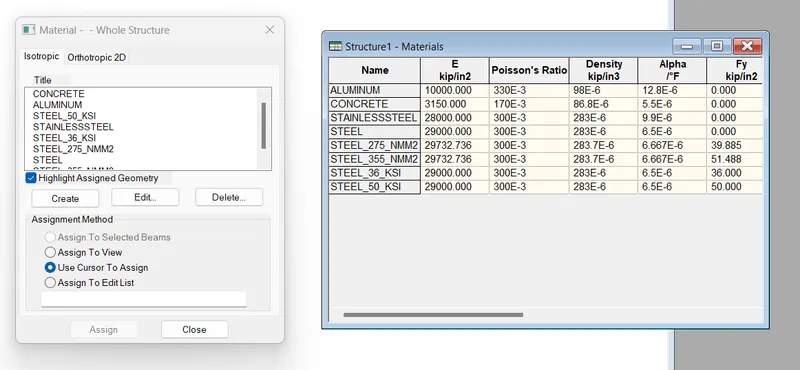
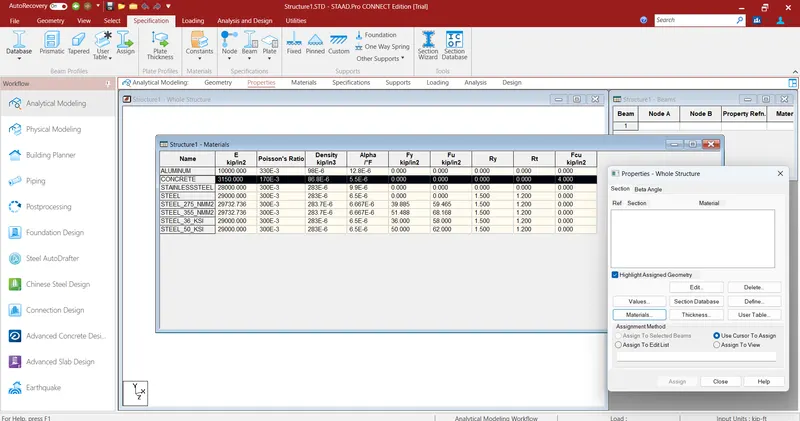
- Go to the properties panel.
- Click on materials.
- Select a desired material from the list
- Concrete / steel / aluminum / stainless steel etc.
- Then check the assignment method based on the preference like use cursor / assign to view etc.,
- After checking the radio button, go ahead and assign the material property to the model.
2.
1. Name any six design parameter involved in RCC design.
Ans)
The six Design parameter involved in RCC design are
- Clear cover
- FC compressive strength of concrete
- FY Tensile Strength of steel
- Max main Dia of bar
- Code of practice
- End conrete design
2. What are the different cursor types available in STAAD Pro?
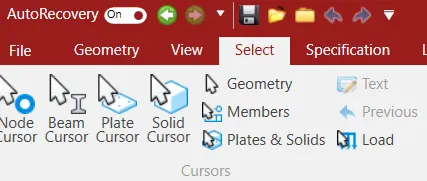
Ans) The are the different cursor types that are available in STAAD Pro :
- Node cursor.
- Plate cursor.
- Beam cursor.
- Plates and Solid cursor.
- Load Edit cursor.
- Solid cursor.
- Physical Member cursor.
- Geometry cursor.
3. How will you generate different views for a model? State the steps involved.
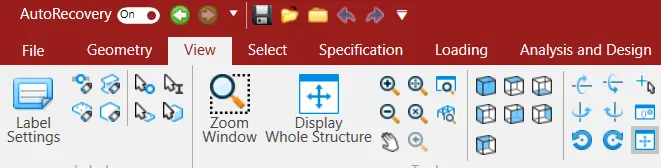
Ans) In the view option in the ribbon bar, we can generate the the following different types of views
- Top view
- Isometric view
- Front view
- Left view
- Right View
- Botttom view
- Back view
- After the design is completed we can click on any view mentioned above and get the views.
4. Explain the procedure to define a “Simply Supported” condition in STAAD Pro
Ans)
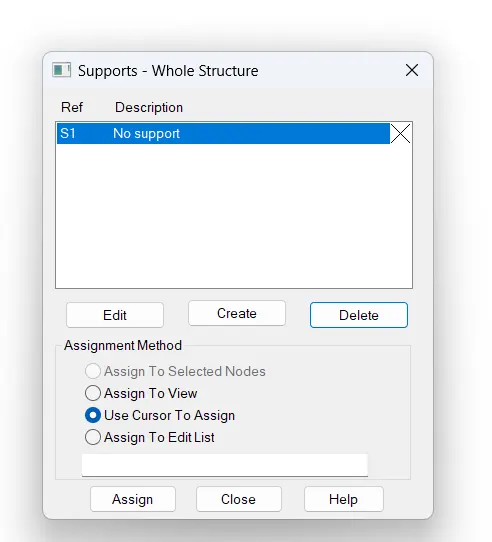
Go to the support command in the tool palet command
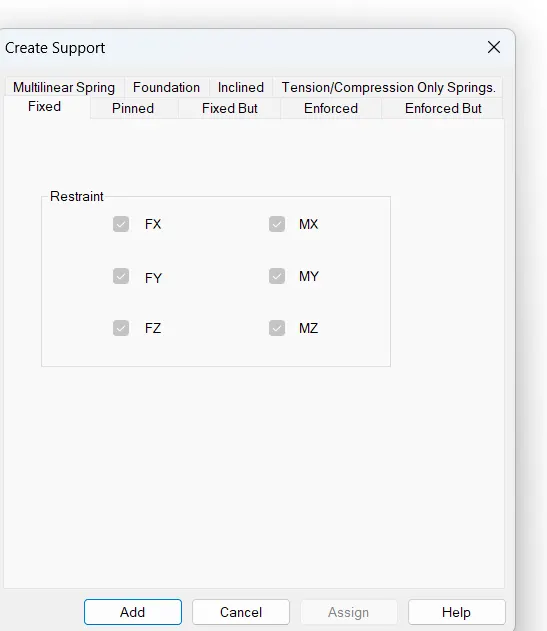
- Click on create support command
- There we can get option like fixed support , pin support , Fixed but, Enforced but support, Cable support, Inclined support
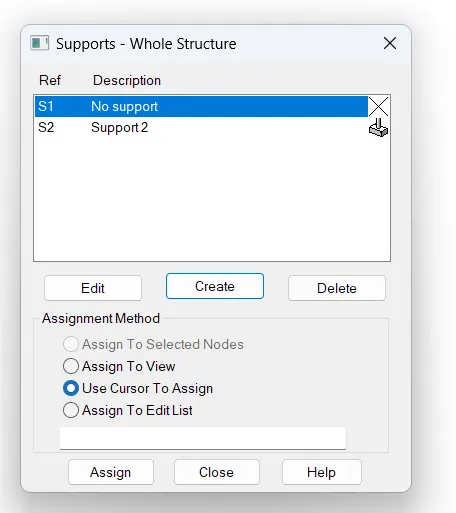
- Click on any support then click on Add
- Then select the support and click on create using any assigning method like use cursor to assign
5. Name any five topics that you will include while creating DBR.
Ans) A DBR is a document that outlines the key points of a proposed engineering project. It is typically used to communicate the project's goals, scope, and requirements to stakeholders. The report should also include a feasibility study and cost analysis.
The five topics to include in the DBR creation are
- Name of the project and the location of the project.
- Structural Layout.
- Introduction to the construction methodology.
- Quality Assurance and Quality Control.
- Budget of the Project.
6. Describe the term “Multi material design” of STAAD Pro.
Ans)
- It is used for 3D model generation, analysis and multi -material design .
- The STAAD .Pro supports several steel , concrete and timber material in a separate member
- This separate member will cordinate and formed in to a structure
3.
1. Name the structure systems in STAAD Pro? Explain each system?
Ans)
A structure can be defined as an assemblage of elements. STAAD.Pro is capable of analyzing and designing structures consisting of frame, plate/shell, and solid elements. Almost any type of structure can be analyzed by STAAD.Pro.
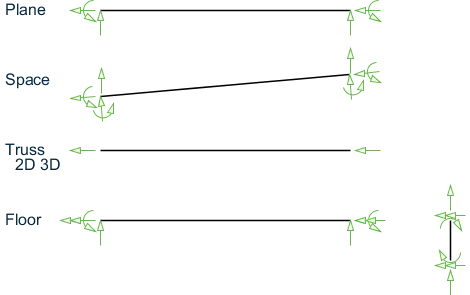
- SPACE - A3D framed structure with loads applied in any plane. This structure type is the most general.
- PLANE - This structure type is bound by a global X-Y coordinate system with loads in the same plane.
- TRUSS - This structure type consists of truss members which can have only axial member forces and no bending in the members.
- FLOOR - A 2D or 3D structure having no horizontal (global X or Z) movement of the structure [FX, FZ, and MY are restrained at every joint]. The floor framing (in global X-Z plane) of a building is an ideal example of a this type of structure. Columns can also be modeled with the floor in a FLOOR structure as long as the structure has no horizontal loading. If there is any horizontal load, it must be analyzed as a SPACE structure.
Specification of the correct structure type reduces the number of equations to be solved during the analysis. This results in a faster and more economic solution for the user. The degrees of freedom associated with frame elements of different types of structures is illustrated in the following figure.
2. Explain the coordinate system adopted in STAAD Pro software.
Ans) The coordinate system that are adopted in STAAD Pro software are X,Y and Z co-ordinates.
Local Coordinate system-
A local coordinate system is associated with each member. Each axis of the local orthogonal coordinate system is also based on the right hand rule.
Global cordinate system -
This coordinate system is a rectangular coordinate system (X, Y, Z) which follows the orthogonal "right hand" rule.
3. Elaborate DBR and its uses.
Ans) DBR stands for Design Brief Report, is a project management document which consist of various informations regarding the construction of the structure. This DBR is a detailed report which tells the minute details of the ongoing construction work. It defines the final stage in the process of defining the Client's requirement for the construction work. This report basically consist of all the major and important structural details that is relevant or we can say that is related to the project like description of the client,site information,special requirements if any,the technical requirements,components required,the project requirements and the other issue related to the construction.
4. Explain the different types of analysis options in STAAD pro.
Ans) The different types of analysis options in STAAD Pro software are:
- Linear Elastic analysis.
- P-Delta analysis.
- Buckling analysis.
- Pushover analysis.
5. Explain the difference between Fixed and Fixed But condition.
Ans)
Fixed condition in the STAAD Pro is the condition where all the degrees of freedom that is horizontal or vertical or moment are fixed or we can say these coditions are restrained we cannot change accordingly. Those condition we can say are the fixed conditions.
For the fixed But condition, we can say that this condition can be customized its end conditions accordingly. In this condition we can change the end condition it is not restrained.We can release some of the required degree of freedom.
PRACTICAL:
1. Create a STAAD Model with the following Specification
a. A beam of span 16m
b. Support : Fixed on one end and Roller support(Horizontal) on the other end
c. A point load of 50 kN at the mid-point
d. Draw SFD and BMD using software
Ans)
AIM: To create a staad model with the give specifications
PROCEDURE:
a)A beam of span 16m
- Initially open the STAAD pro Software and click on New
- Now enter the project details
- Specify a location within the system and enter the units
- Then, click on create to start a new project.
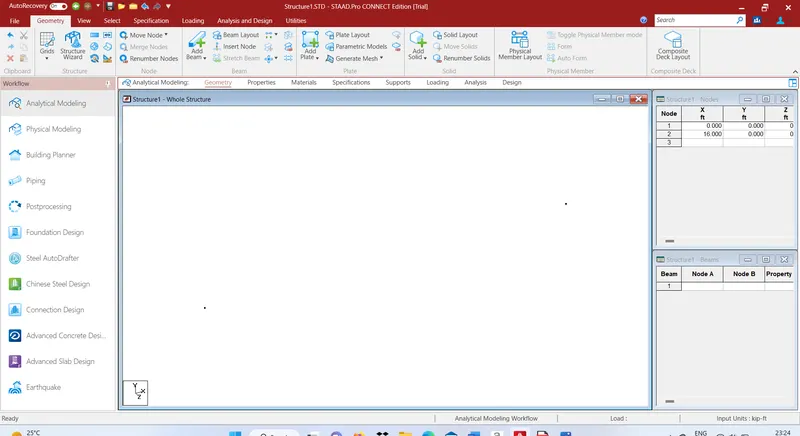
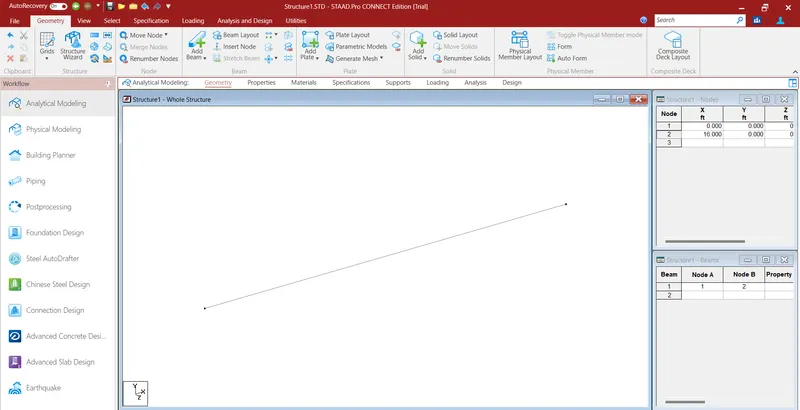
- Now draw the Beam of required Span
- To model the proposed beam, go to geometry and create the first node at X-0, Y-0, and Z-0.
- Then, the second node at X- 16m, Y- 0 and Z- 0.
- Both the ends of the required beams are created
- Now go to add beam select first node and then second to create a beam of the proposed length.
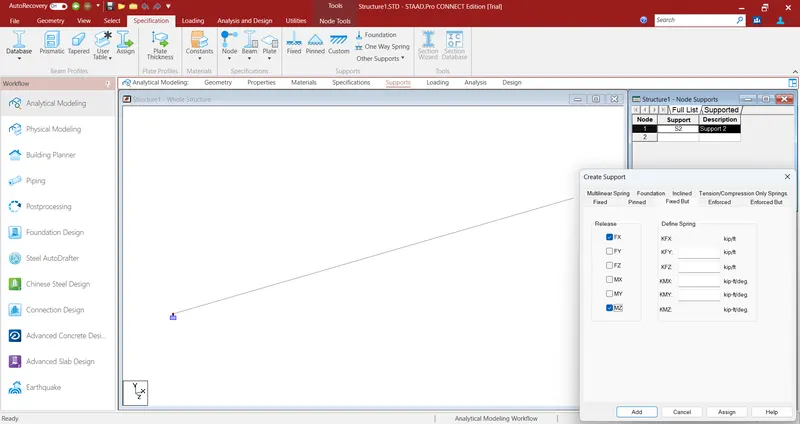
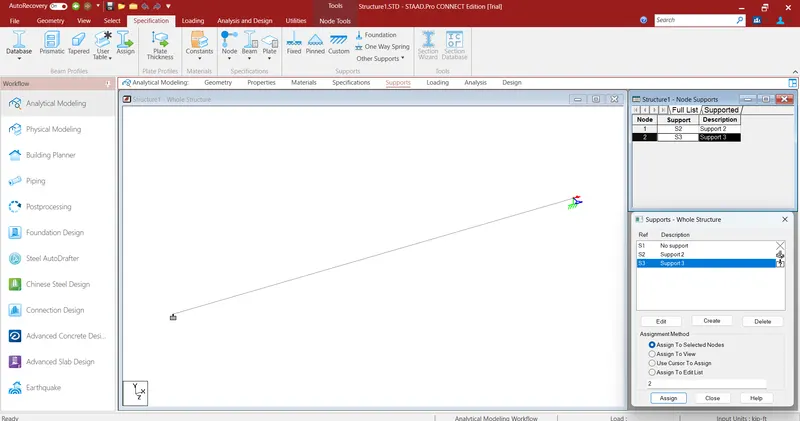
b). Support : Fixed on one end and Roller support(Horizontal) on the other end
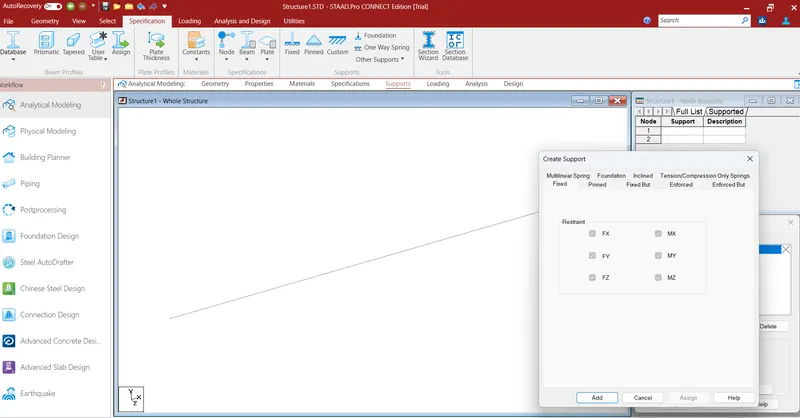
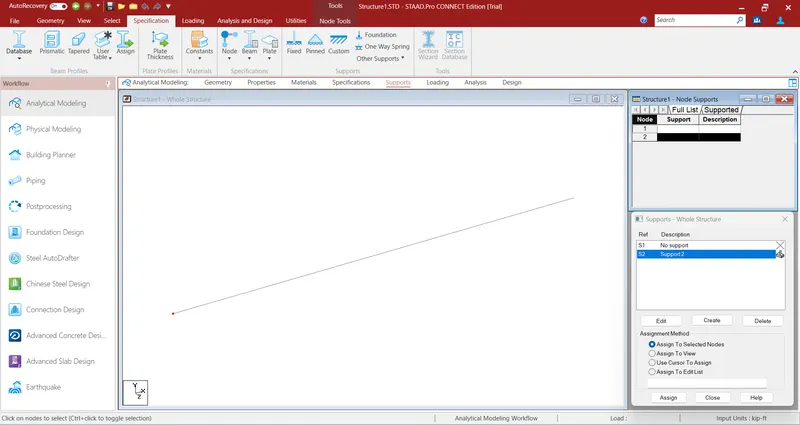
- Go to support -->create -- >fixed -- >add --> select one node --> assign to selected nodes -->enter.
- Similarly, for another node click on create --> fixed but --> add then select the other node -->assign to selected --> then ok.
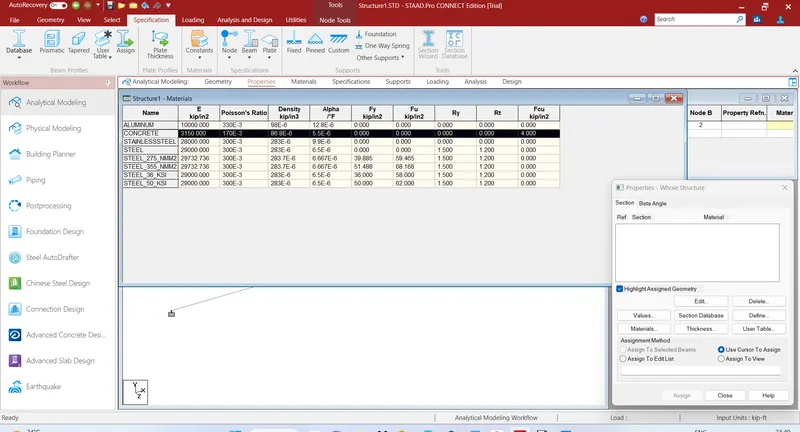
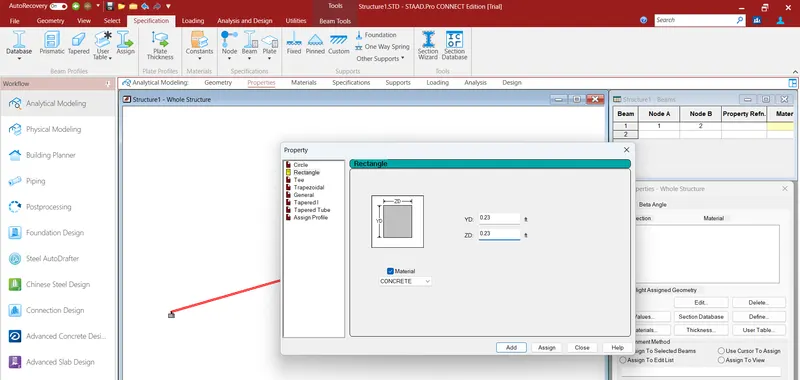
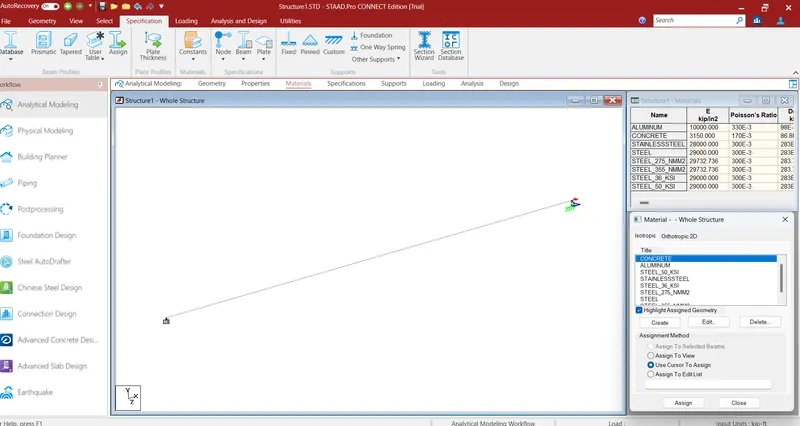
- Next go to properties and add wdith and thickness to the section and assign to the beam
- Assign concrete material to the beam.
c). A point load of 50 kN at the mid-point
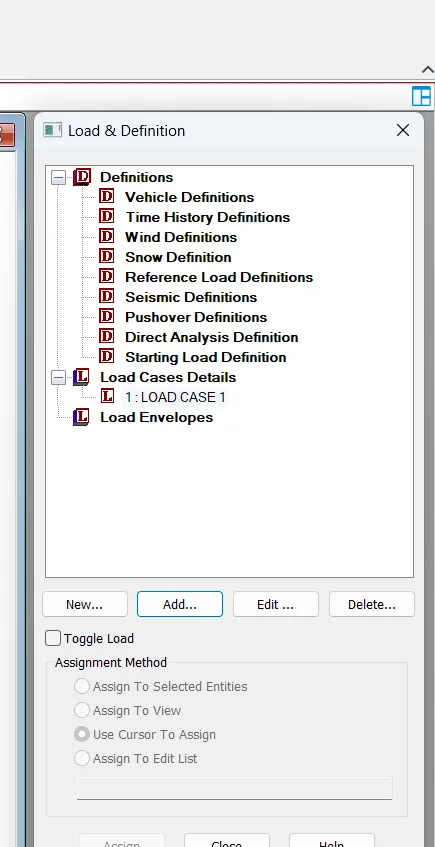
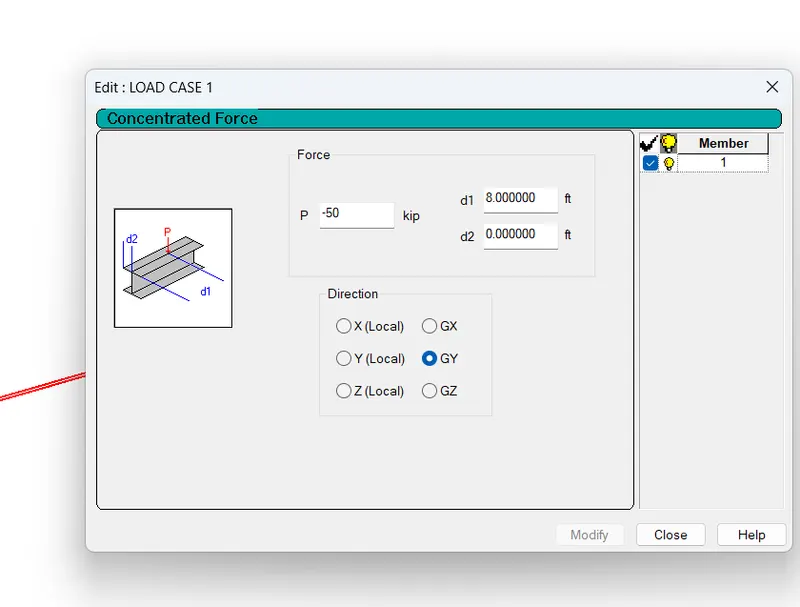
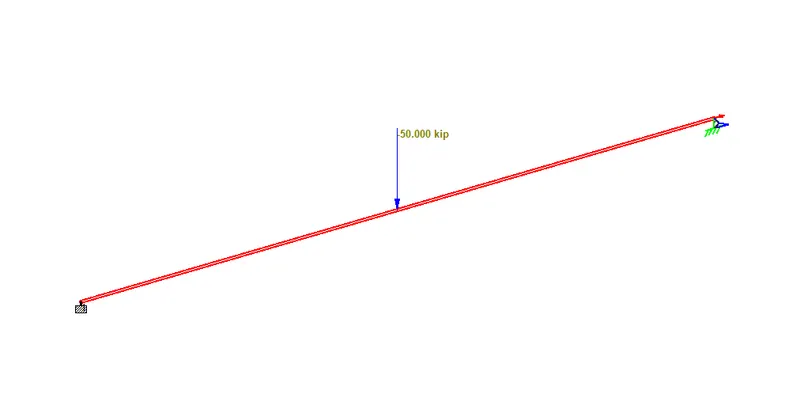
- Go to loads --> Add --> member load --> Globa Y direction --> Force -50KN --> d1-5, d2-5 --> OK.
- Now, select the load and assign to the beam by selecting assign to selected.
RUN THE ANALYSIS:
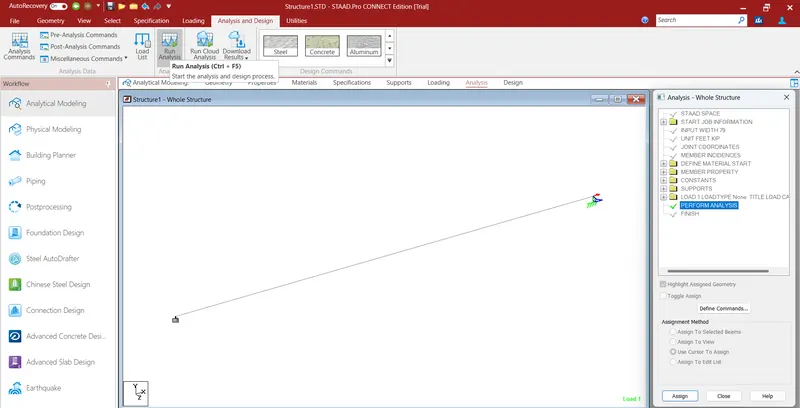
- Go to analysis , select the analysis method that is perform analysis from the design and analysis panel.
- Once you are done with setting up the analysis method, go ahead and run the analysis from the design and analysis panel.
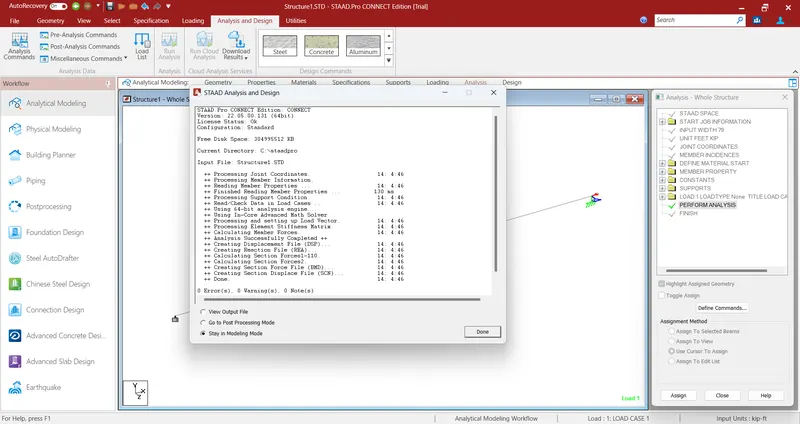
- Wait some time for the analysis to get complete and look for errors and warnings.
- If there are no errors or warning signs upon completion of the analysis, the analysis is completed.
d).Draw SFD and BMD using software
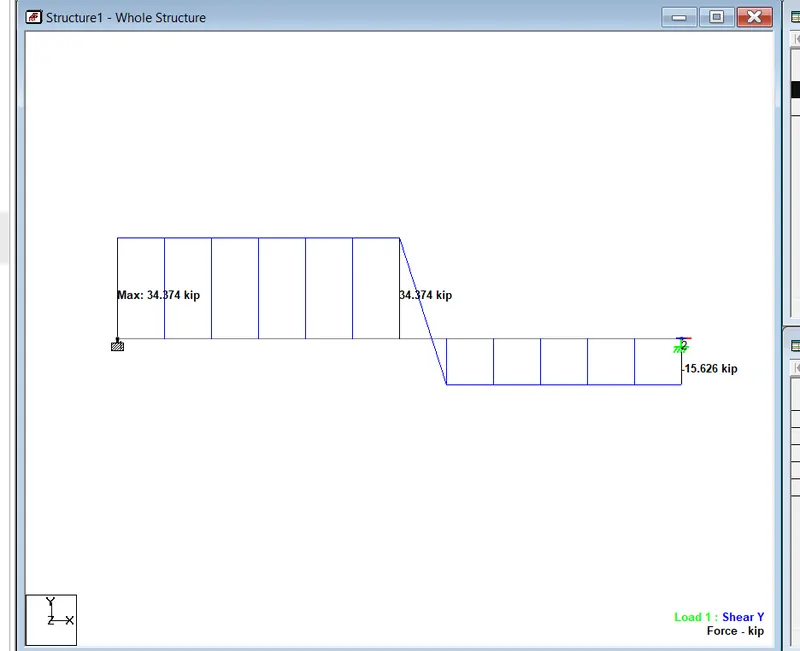
- Now, go to the post-processing mode then select the load cases and click apply.
- Then, all the analysis results will be automatically visible on the staad screen.
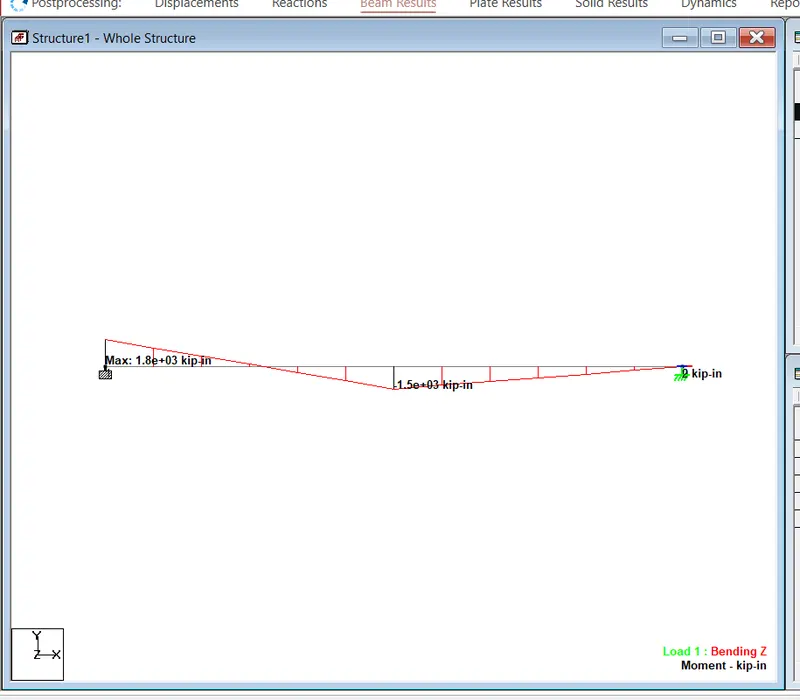
- Select beam results>Mz for bending moment>Fy for shear force diagram.
- Make sure to check the annotate option to view the values along with the diagram
Shear Force Diagram
Bending Moment Diagram