Creating a Floor plan, Footing detail and Isometric view using AutoCad
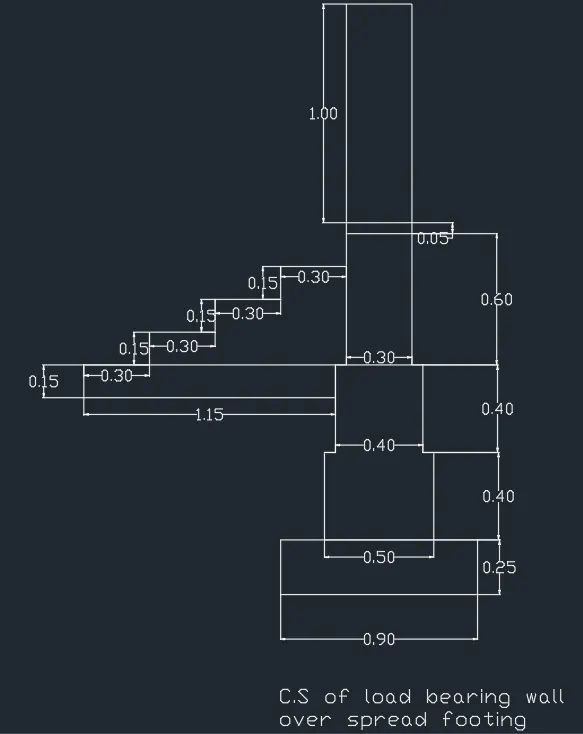
- C1: C.S of load bearing wall over spread footing
Aim: To draw the load bearing wall over spread footing
Tools used: Line, Rectangle, Dimension, Text, Trim.
Procedure:
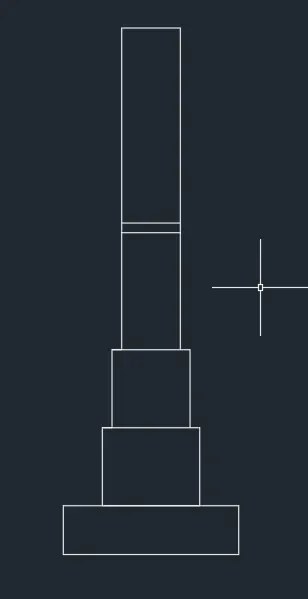
- Create a rectangle by typing ‘REC’ in command box
- Enter the dimensions of rectangle in command box, length= 0.9, width = 0.25

- Create another rectangle by typing ‘REC’ in command box
- Specify first corner point which is 0.2 units from the starting point of the first rectangle
- Enter the length of rectangle as 0.5 units and the width of the rectangle as 0.4 units
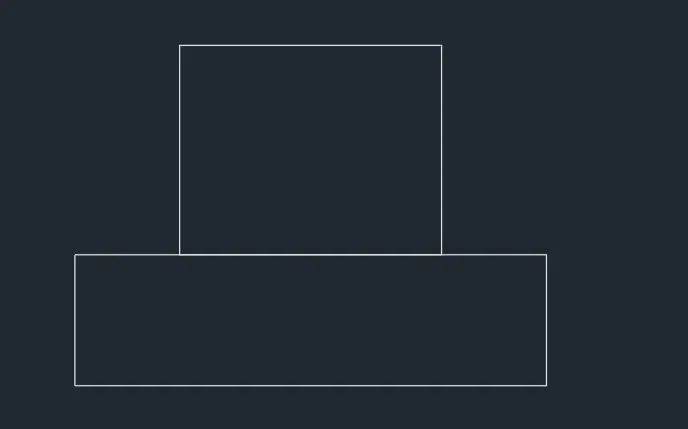
- Create third rectangle by typing ‘REC’ in command box
- Specify first corner point which is 0.05 units from the starting point of the second rectangle
- Enter the length of rectangle as 0.4 units and the width of the rectangle as 0.4 units
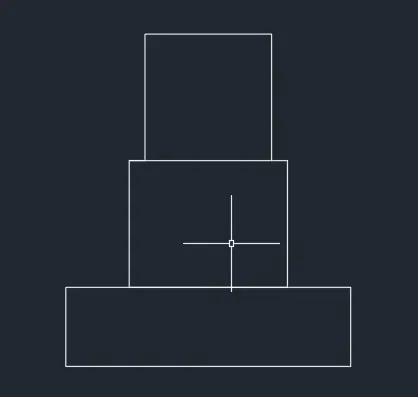
- Create rectangle by typing ‘REC’ in command box
- Specify first corner point which is 0.05 units from the starting point of the third rectangle
- Enter the length of rectangle as 0.3 units and the width of the rectangle as 0.6 units
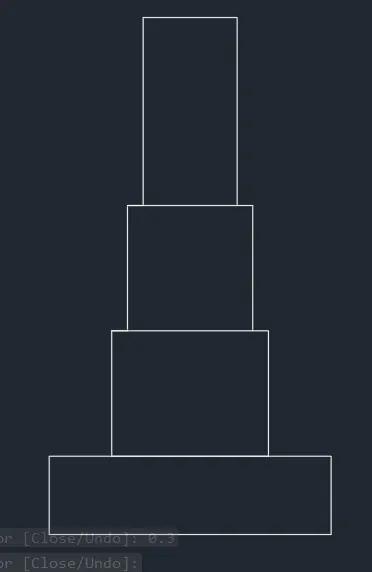
- Create rectangle by typing ‘REC’ in command box
- Specify first corner point from the starting point of the fourth rectangle
- Enter the length of rectangle as 0.3 units and the width of the rectangle as 0.05 units
- Create rectangle by typing ‘REC’ in command box
- Specify first corner point from the starting point of the fifth rectangle
- Enter the length of rectangle as 0.3 units and the width of the rectangle as 1 unit
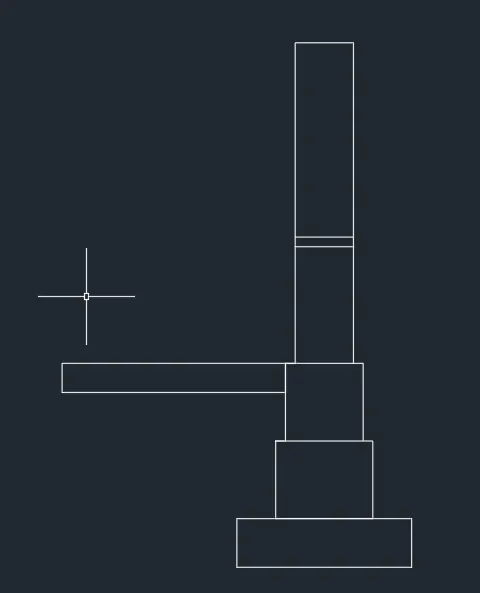
- Create rectangle by typing ‘REC’ in command box
- Specify first corner point from the third rectangle in the negative y direction
- Enter the length of rectangle as 1.15 units and the width of the rectangle as 0.15 units
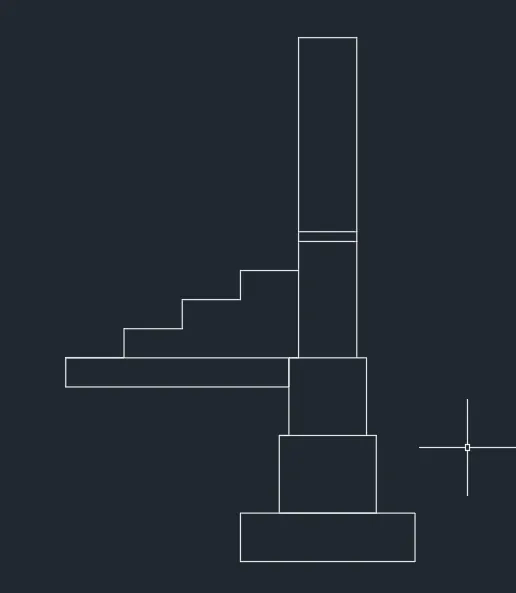
- Select line command and enter the first point as the previous point of rectangle and enter length as 0.3 and height as 0.15
- Repeat this command for two times and join the line
- The final C.S of load bearing wall over spread footing is as follows
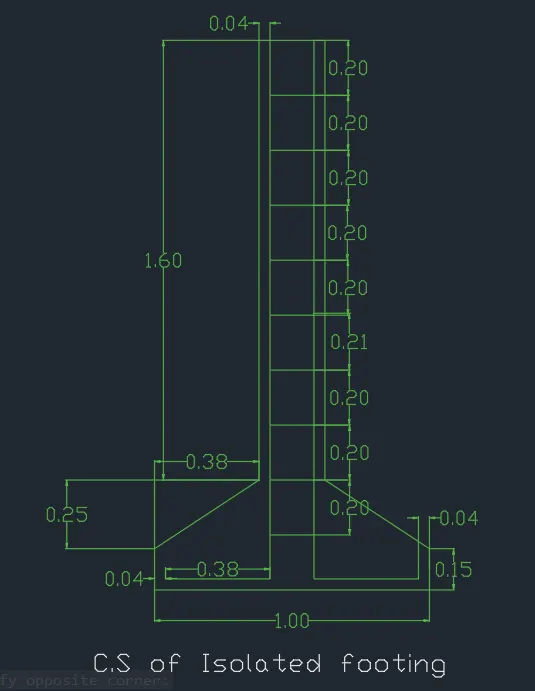
C2: C.S of Isolated footing
Aim: To draw the C.S of Isolated footing
Tools used: Line, Dimension, Text, Trim, offset.
Procedure:
- Draw a line by entering ‘L’ in command box and give 1 unit
- Enter ‘L’ in command box and give the relative coordinates as @0,0.15
- Enter next coordinate as @0.38,0.25
- Enter next coordinate as @0,0.16
- Enter next coordinate as @0.24,0
- Enter next coordinate as @0,-0.16
- Enter next coordinate as @0.38,-0.25
- Next coordinate as @0,-0.15 or close
- Draw an offset with the ‘OFFSET’ command at a distance of 0.04 from the bottom line to upwards
- Select command offset and select the object and give the offset distance as 0.04
- Repeat the same at the right and left bottom end and trim the unwanted lines
- Draw an offset with the ‘OFFSET’ command at a distance of 0.04 from the side line
- Select command offset and select the object and give the offset distance as 0.04
- Repeat the same at the right and left end and trim the unwanted lines
- C.S of Isolated footing is
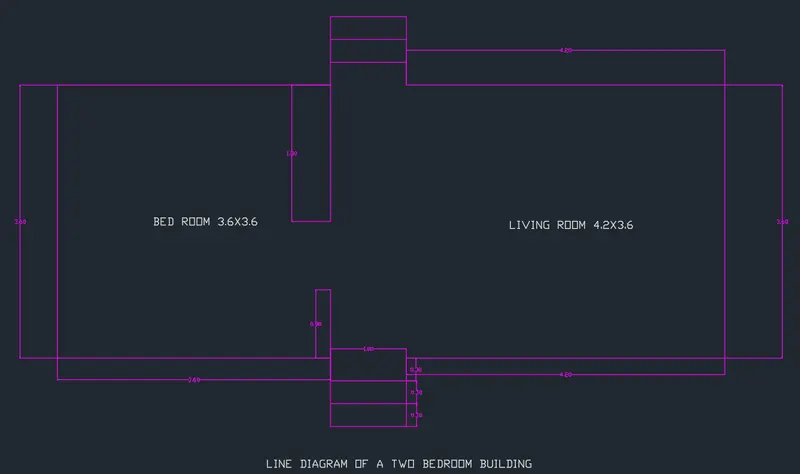
C3: Line diagram of a two-bedroom building
Aim: To draw Line diagram of a two-bedroom building
Tools used: Line, Rectangle, Dimension, Text, Trim, offset.
Procedure:
- Create a rectangle by typing ‘REC’ in command box
- Enter the dimensions of rectangle in command box, length= 8.8, width = 3.6
- Use the command ‘Explode’ and select the rectangle
- Draw an offset by using entering offset in command box
- Specify the distance of 3.6 from left bottom end
- Specify the distance of 4.2 from right bottom end
- Extend the line in the top and bottom
- Draw an offset at a distance of 0.3 and create two offsets.
- Do the same in the top
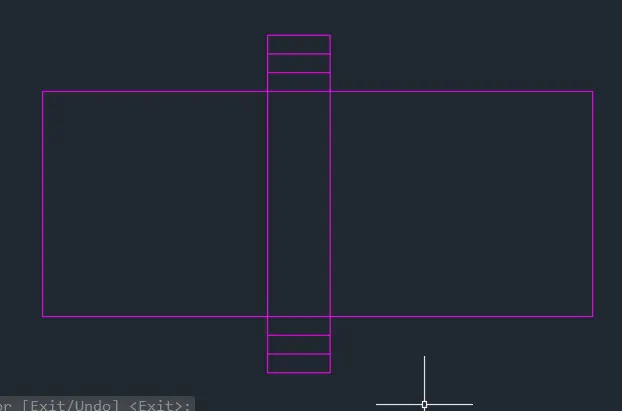
- Trim the unwanted lines
- Using line command draw a line at a distance of 3.2 units from the left bottom end to upwards 0.9 units
- Using line command draw a line at a distance of 3.2 units from the left top end to upwards 1.8 units
- Line diagram of a two-bedroom building is
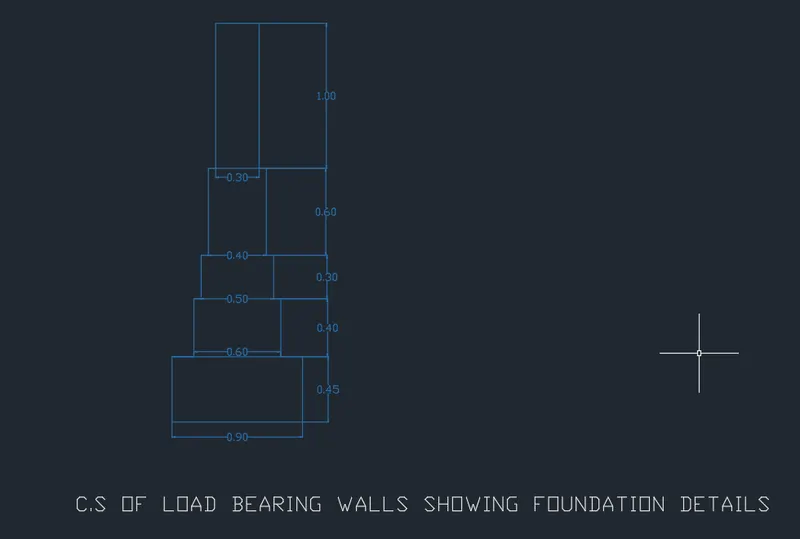
C1: C.S of load bearing showing foundation details
Aim: To draw C.S of load bearing showing foundation details
Tools used: Line, Rectangle, Dimension, Text, Trim.
Procedure:
- Create a rectangle by using ‘REC’ command from command box
- Specify the dimensions of rectangle as length=0.9, width= 0.45
- Create another rectangle from the first corner point which is 0.15 units from the starting point of first rectangle
- Enter length as 0.6 and width as 0.4
- Create another rectangle from the first corner point which is 0.05 units from the starting point of second rectangle
- Enter length as 0.5 and width as 0.3
- Create another rectangle from the first corner point which is 0.05 units from the starting point of third rectangle
- Enter length as 0.4 and width as 0.6
- Create another rectangle from the first corner point which is 0.05 units from the starting point of fourth rectangle
- Enter length as 0.3 and width as 1
- Erase the unwanted line by ‘TRIM’ option.
- C.S of load bearing showing foundation details is
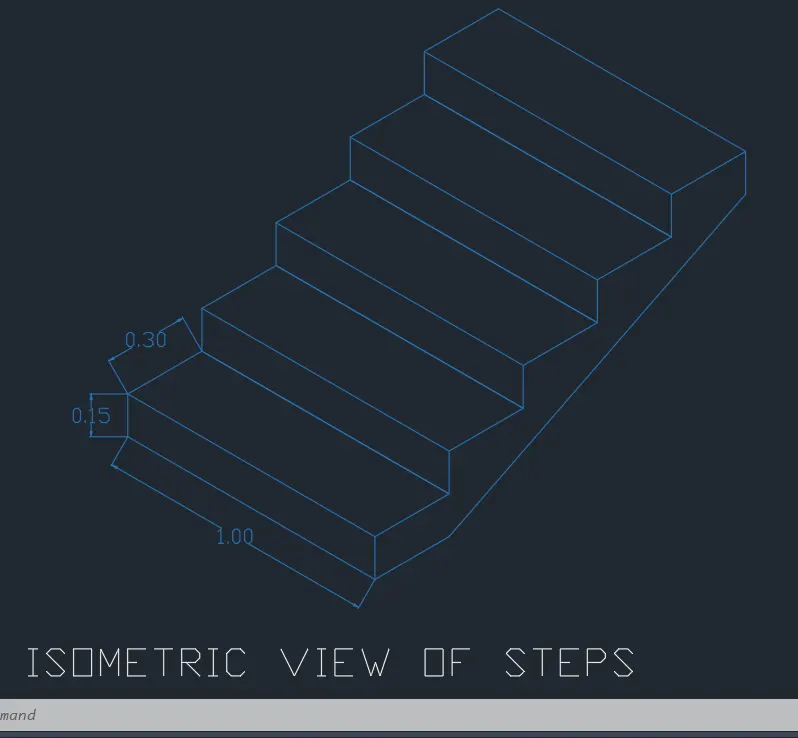
C5: ISOMETRIC VIEW OF STEPS
Aim: To draw isometric view of steps
Tools used: Line, Isometric plane, copy.
Procedure:
- On the isometric view by entering F5
- Make sure Ortho mode is on
- From the isometric drafting select iso-plane left
- Enter command ‘I’ and move the cursor to –ve x direction and give 1 unit
- Moving the cursor to y direction, give 0.15 units
- Move the cursor to the +x direction, give 1 unit and cursor to –y direction, give 0.15 units
- Change the isometric drafting to iso-plane top
- Move the cursor back and give 0.3 units from the last drawn point
- Move the cursor to the right direction and give 1 unit
- Move the cursor to the front and give 0.3 units
- Change the isometric drafting to iso-plane right
- Ortho off and copy the object drawn
- Command ‘CO’ and specify the base point and place it to new point
- Copy the object 4 times and steps are formed
- With iso-plane right join the two ends
- Isometric view of steps is
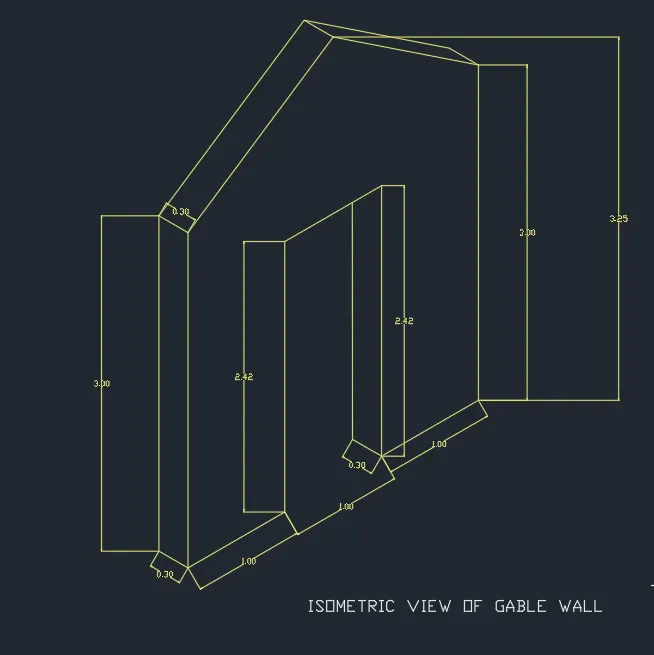
C6: ISOMETRIC VIEW OF GABLE WALL
Aim: To draw isometric view of Gable wall
Tools used: Line, Isometric plane, Trim.
Procedure:
- On the isometric view by entering F5
- Make sure Ortho mode is on
- From the isometric drafting select iso-plane left
- Give command ‘I’ and moving the cursor to the right give 1 unit
- Pointing cursor upwards give 3 units
- Draw 0.3 units to left and 3 units to downwards 0.3 units to the left
- Using isometric right, draw a line upwards of 2.42 units from the end point of step 1
- Draw 1 unit towards right and 2.42 units downwards
- Using isometric left again, draw a line of 0.3 units to left side and draw a line which intersects the top line
- Using isometric right, draw a line of 1 unit to right side and 3 units upwards
- Draw a line at @1.5 from starting point and extend line 4 units upwards I.e., total 3.25 units from bottom
- With ortho off, draw a line between corner of left side and the projected line in step 4
- Draw it to the other side also till it meets the right corner
- Draw a vertical line with ortho on @0.3 and join the vertical line using line from left and right end same as in the step 5 remove unwanted lines by using lines by using trim
- Isometric view of Gable wall