Usage of Navigation tool , Timeliner and Clash Detection test using Naviswork
Ans 1:-
Aim:-To use the architecture/structure project file developed earlier and export it to Navisworks
Procedure :
- Open the 3d view of building go to file and click on export and select NIWIS
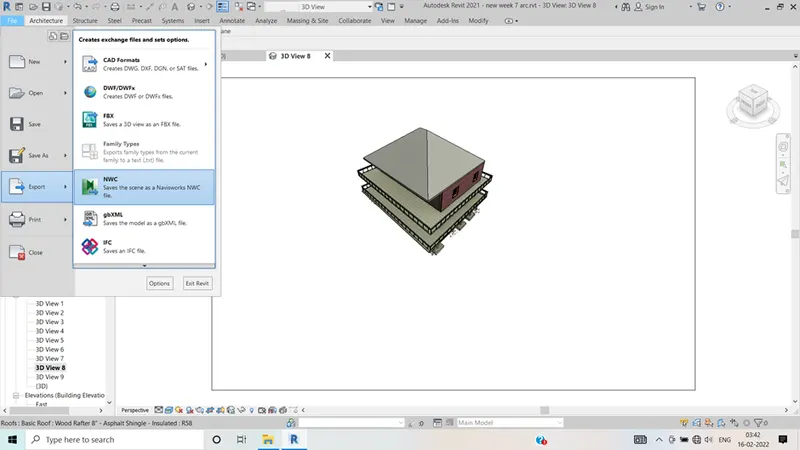 Save the file as niwis file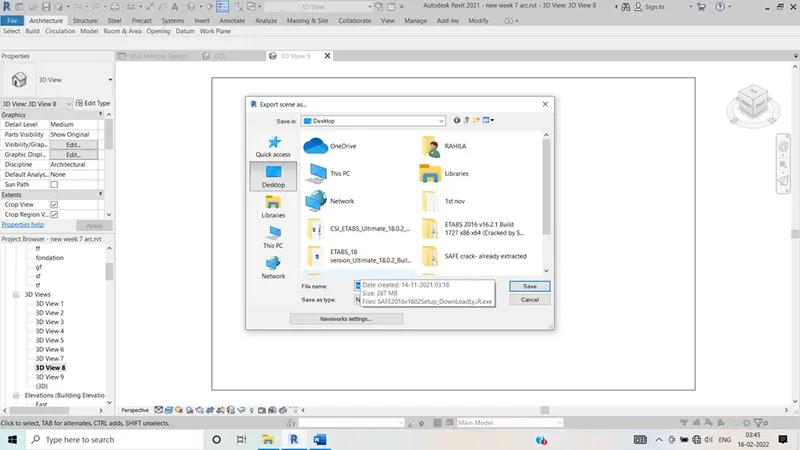
- Open the navis manager software in order to import the file from the revit.
Ans 2:-
Aim:-to use the navigate tool to walk around the model and walk through the model and to record the moving as animation in Navis works
Procedure:-
- Open the navis work software
- Open the file from the revit
- Once the file is opened
- To make the walkthrough this model just use scroll button of mouse
- Go to view point tab in that we can see the walk through option click on it
- If we want to record the walk use the record option and hence we can start recoding and using cursor we can walk inside the model
- And save the animation videos
- We can use the pan tool as well
- Click the stop option in order to stop recording and save view point option.
- Go to animation tab and we can see the recorded videos
- This video can be exported in the system
Ans 3:-
Aim:- to use the navigate tool to realism feature to walk through the model and record the moving as animations
Procedure:-
- Open the navis work software
- Open the file from the revit
- Once the file is opened
- Go to view point tab there we can find the realism option click the third person we can see the person appearing in the screen
- Click the save view point option and rename the video click walk option
- By using mouse cursor the same walk can be recorded. Click on the stop option to stop the recording
- And save the video
- Go to animation tab and we can see the recorded videos
- This video can be exported in the system
Ans 4:-
Aim:- To embed both the structural and architectural files and to run the clash detection test
Procedure:-
- Export both the Architecture and structural models into the navis software
- Then open the navis software and open the file nwc file
- Use the append option in order to combine both structural and Architectural model
- Under the home tab select the clash detective option a dialog box will appear
- Click add test option
- And add the test name
- Since we have to do clash detection between the structural and Architectural select both the models
- Chose the surface options and choose run test
- Then we can see the number of clashes
- We have to provide the status of test
Ans 5:- Aim:- to use the time liner feature in Navisworks to prepare a schedule of a project developed in previous weeks
Procedure:
- Open the navis work and import the architectural model from the revit
- Under the home tab clock the time liner
- Enable the select tree option
- Go to add task option and named the task
- Then add the planned and scheduled dates
- Add the names of the task and similarly add the planned and scheduled dates
- Add the tasks one by one
- We can see the animation video of all the tasks
- Hence we can saved the video in the local computer also.