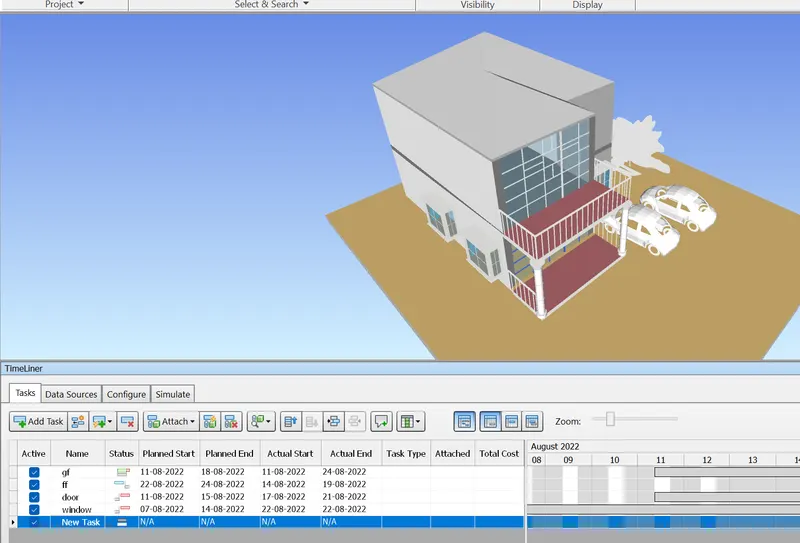
Usage of Navigation tool , Timeliner and Clash Detection test using Naviswork
1
Aim
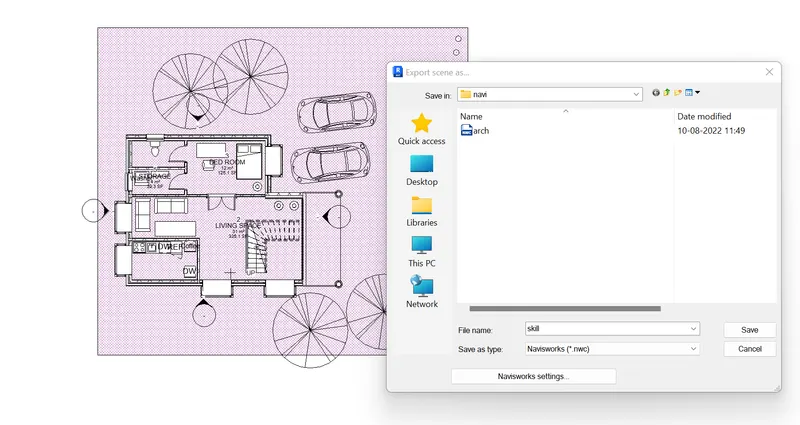
To save the architectural nd structural model to the navisworks
Procedure
Open the architectural project in the revit and then click the export-nwc-create the folder- file type in nwc- and then save the architectural file
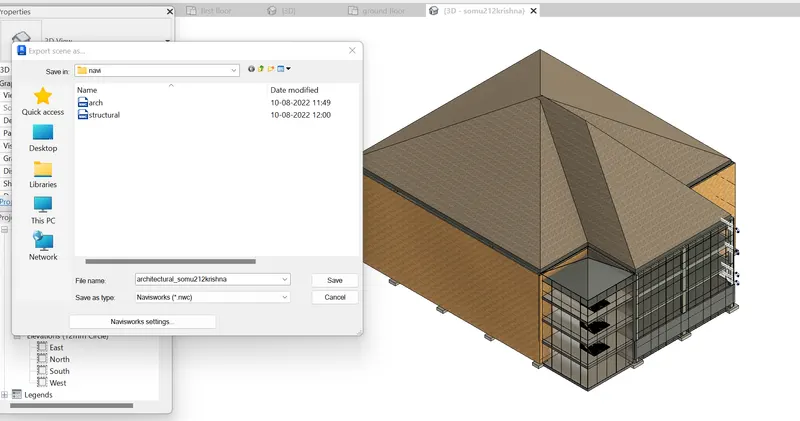
Same process for the structural file export-nwc-create the folder- file type in nwc- and then save the structural file
2
Aim
To walk around the model in rooms and record the moving s animation in the nasworks file
Procedure
At first import the file to the navis project
Open the project in the revit and then export the file into the navis work and then save the file as the .nwc
Open the navis software and then open the saved file
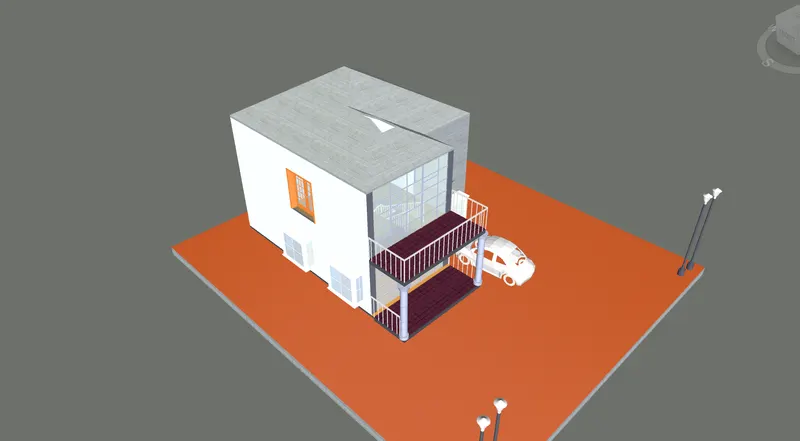
Open the imported file in the navis software and then walk through the building
In the ribbon toolbar viewpoint is the option is available by clicking that walk through is the option is available
By entering the walkthrough save the file name and then walk through the model
If we want to change the view by using the pan tool we have to change the walkthrough direction
And then if we want to save the walk through file save the file and then import it
3
Aim
By using the realism feature to walkthrough the model
Procedure
To design the model in the revit and then export into the navis work and te=hen by opening the fie we have to apply the realism
To apply realism open the view point and then click the realism object inthe ribbon
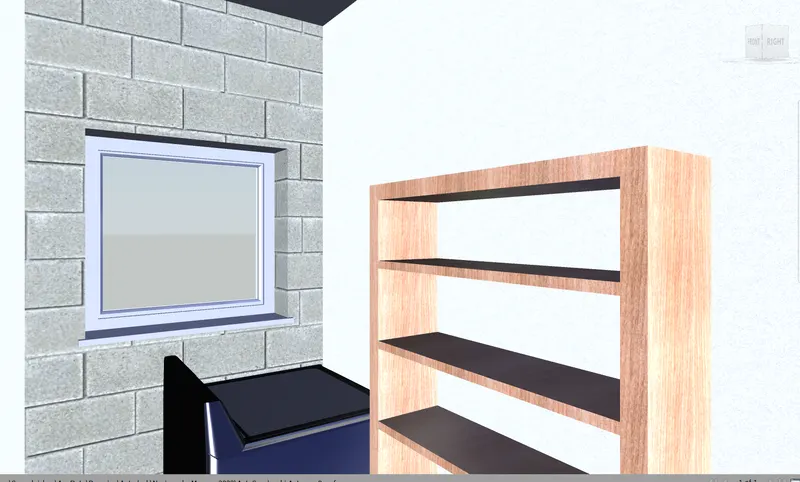
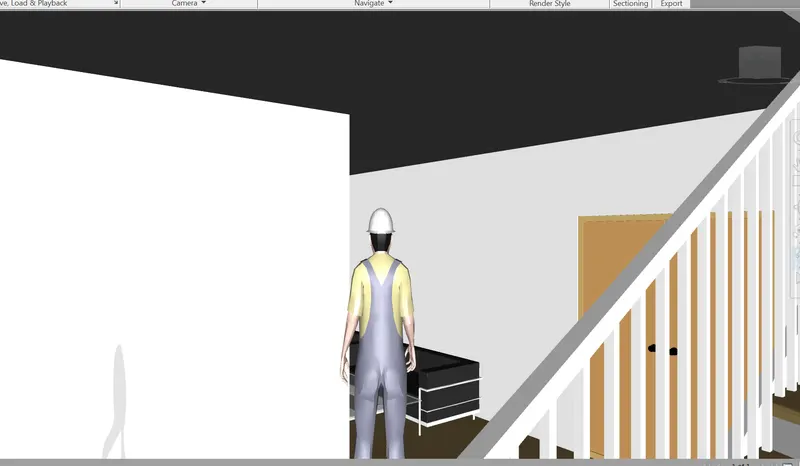
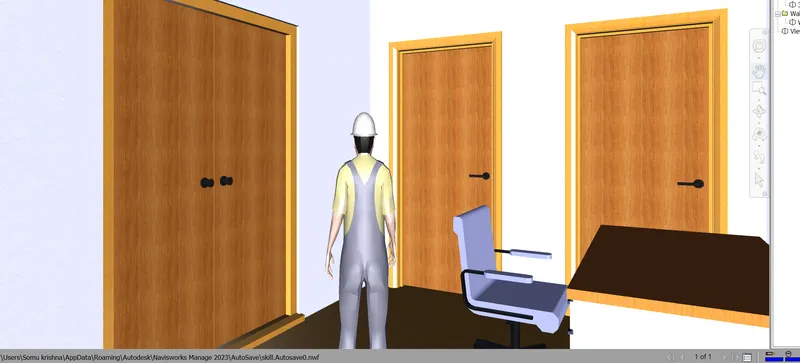
After using the realism pan and zoom into the structure and enter into the room by using the realism
Walkthrough the entire model by using the realism and then save the view by using the save walkthrough in the ribbon toolbar
After saving the model by applying the export option to save the model
4
Aim
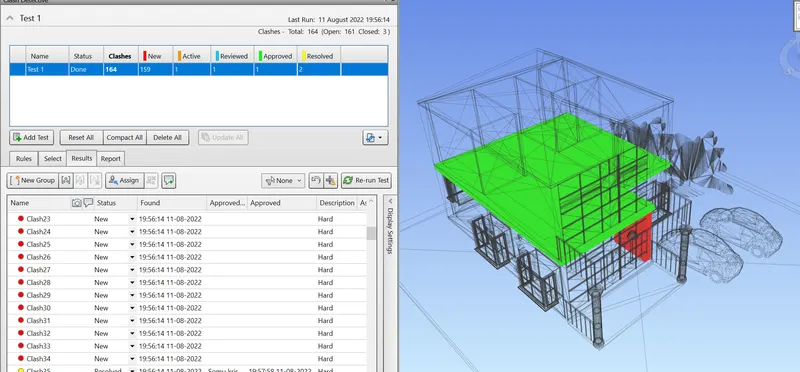
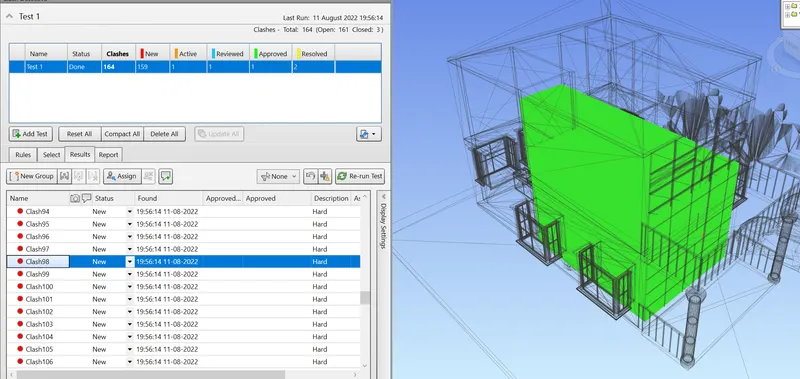
To create the structural and then the architectural file and then to clash detection in the navis work
Procedure
To run the analysis odf the structural and then the architecural model by using the clash in the navis work
At first import the file to the navis project
Open the project in the revit and then export the file into the navis work and then save the file as the .nwc
Open the navis software and then open the saved file
Open the imported file in the navis software and then walk through the building
In the ribbon toolbar viewpoint is the option is available by clicking that walk through is the option is available
By entering the walkthrough save the file name and then walk through the model
If we want to change the view by using the pan tool we have to change the walkthrough direction
And then if we want to save the walk through file save the file and then import it
5
Aim
By using the timeliner feature in navisworks prepare a schedule for the project and the adding the reasonable assumptions
Procedure
To run the analysis odf the structural and then the architecural model by using the clash in the navis work
At first import the file to the navis project
Open the project in the revit and then export the file into the navis work and then save the file as the .nwc
Open the navis software and then open the saved file
Open the imported file in the navis software and then walk through the building
In the ribbon toolbar viewpoint is the option is available by clicking that walk through is the option is available
By entering the walkthrough save the file name and then walk through the model
If we want to change the view by using the pan tool we have to change the walkthrough direction
And then if we want to save the walk through file save the file and then import it
By using the timeliner we have to create the start date and end date for the project
We have to lod the list of parameter and then the process is shown in the outlet