To plan a structural layout and to create grids using TSD
1. Summarize the user interface in TSD with the for the following items: -
Project Workspace – How to access and usage
It provides the information of the model, loading. Here we can see levels and design parameters.
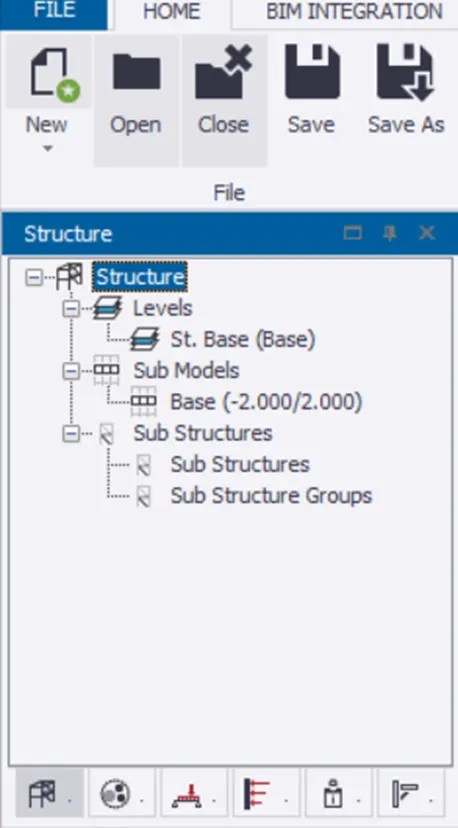
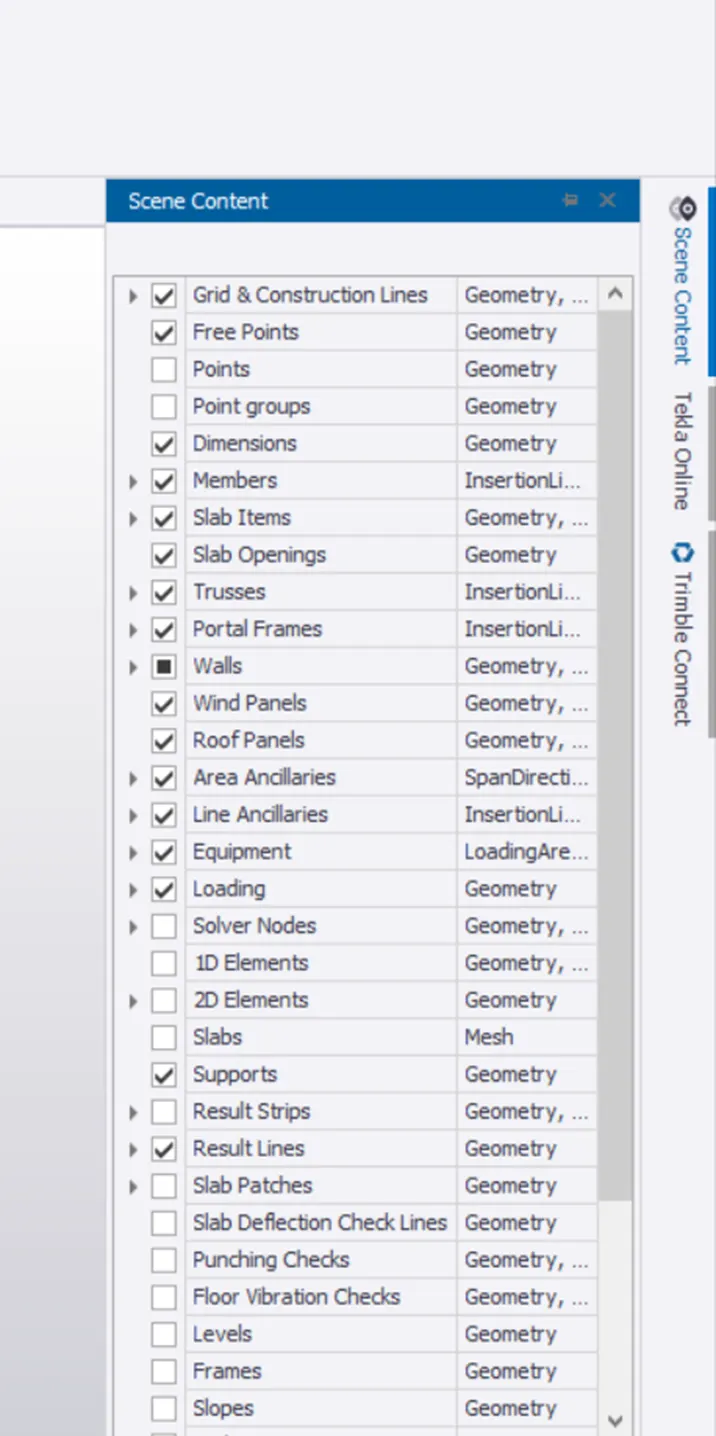
Scene Content – Demonstrate the use of scene content
Scee content, here we can filter the views of the members which can be displayed In the model.
To access this go to top right area of the model are and click on the scene content option
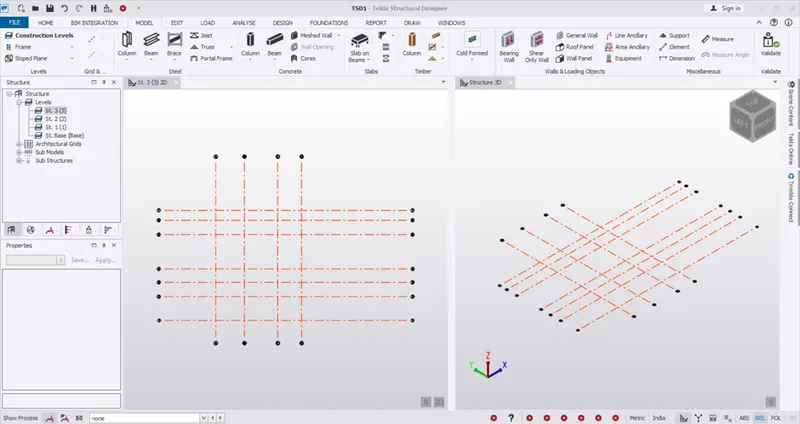
Create two scene views
Click o model name ad select new vertical ta group
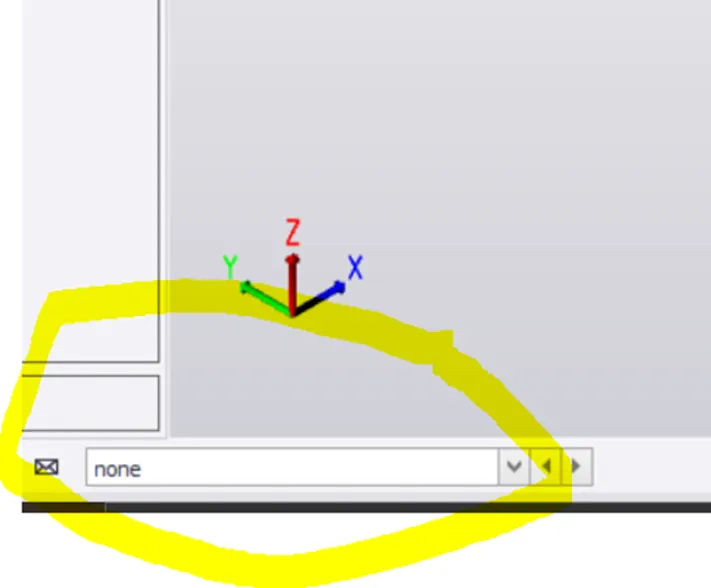
Loading drop list- How to access
This is used to view the loading we have inserted, it is accessible near left bottom corner of the window
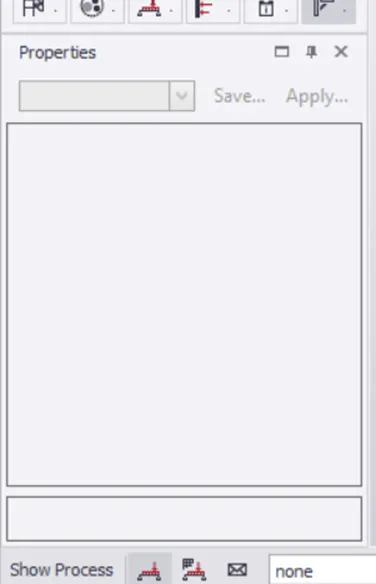
Properties windows – how to access and usage
Go to widows and click on Properties windows
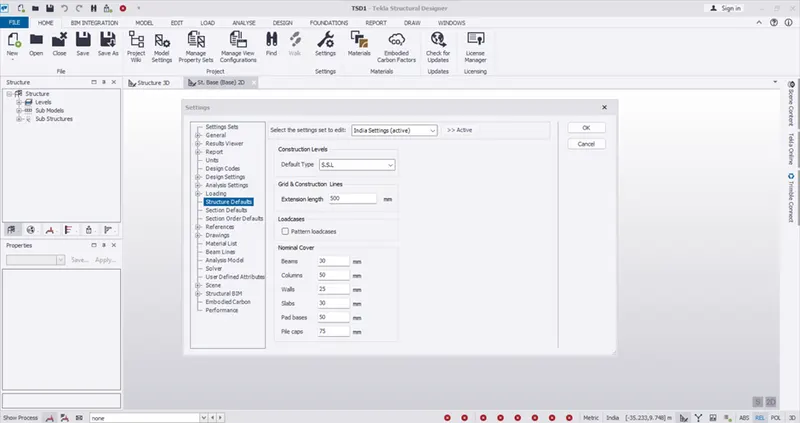
2. Create a new file in TSD and set up the settings for a steel building to have member grade FE410 and concrete grade of M30 as per IS codes. The covers for the members to be as per the following input: -
MEMBERS
IN CONTACT WITH GROUND
Column 50mm
Slab 30mm
Pile cap 75mm
Foundation 50mm
ABOVE GROUND
column 40mm
slab 25mm
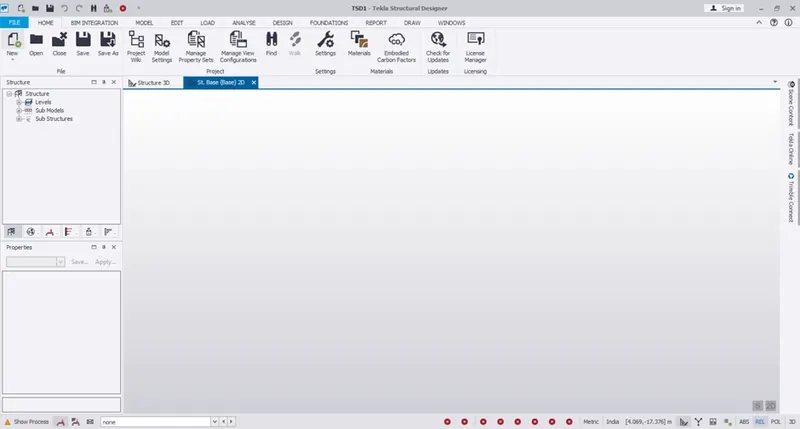
• Open new file
•
• open setting
• As pic below
•
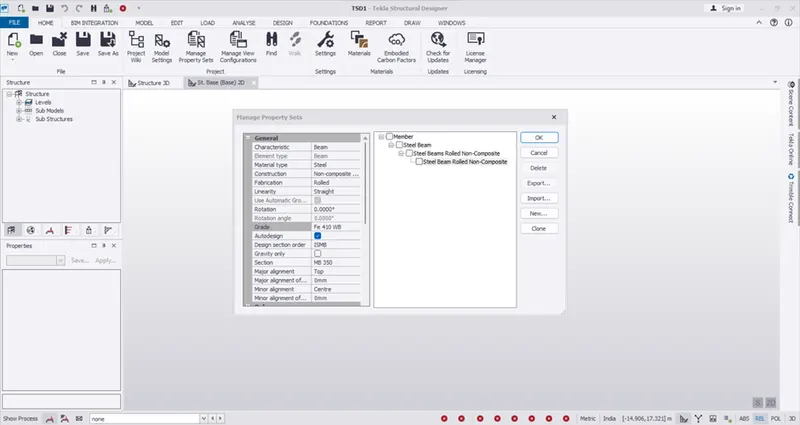
• I property sets select new and add the details as the picture below
•
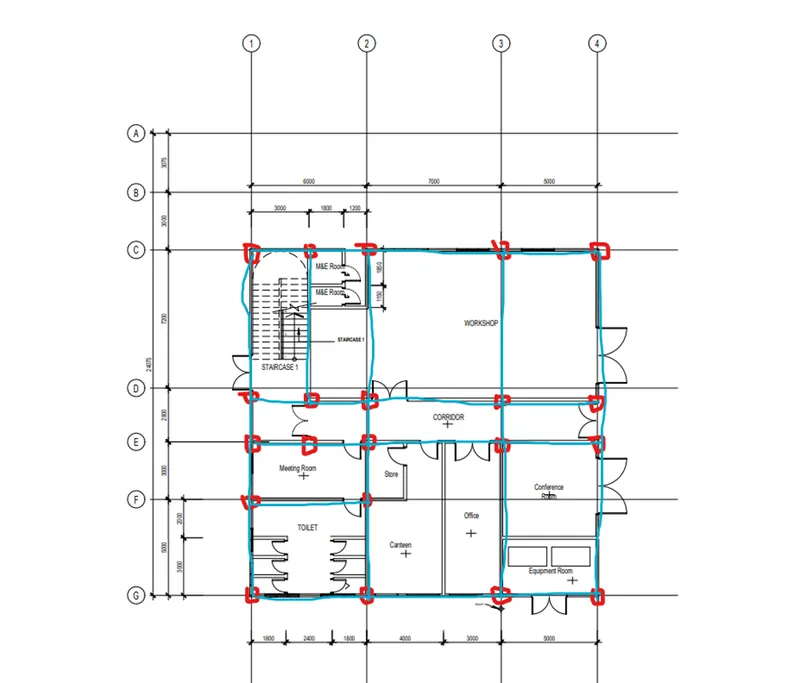
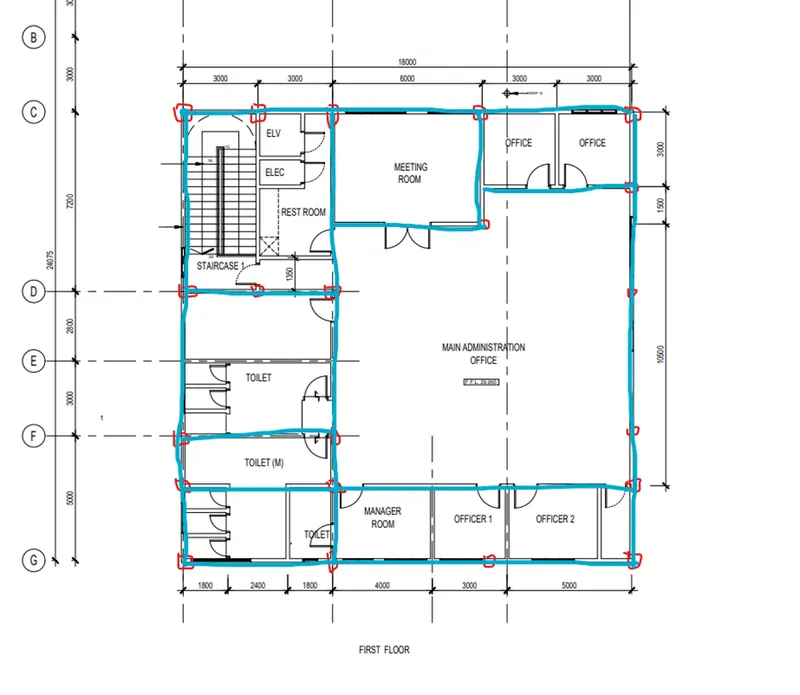
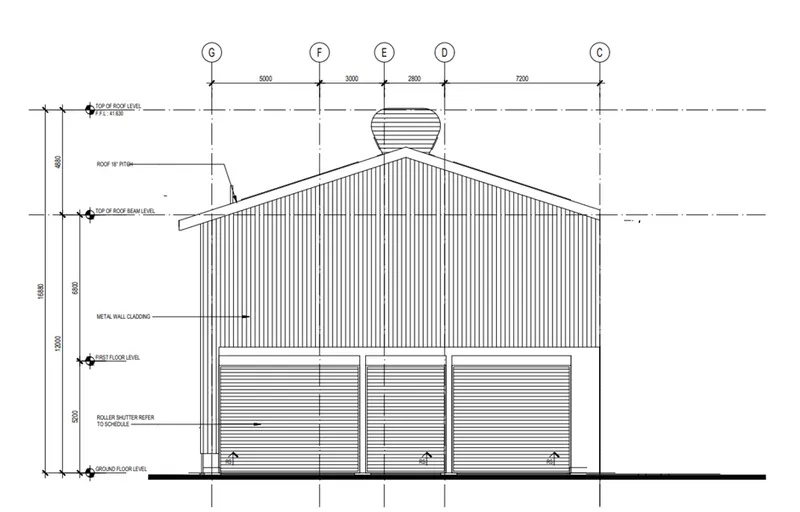
3. With reference to the input drawing as per Attachment 1, 1.1, and 1.2 and study the steel building plan and summarize your understanding of the plan. Based on your study assume and explain the location of columns and beam and develop a hand sketch for each plan
• 1
•
• 1.1
•
• 1.2
•
• Here red lies are columns
• Lue are main beams
• And provide secondary beams for all main beams
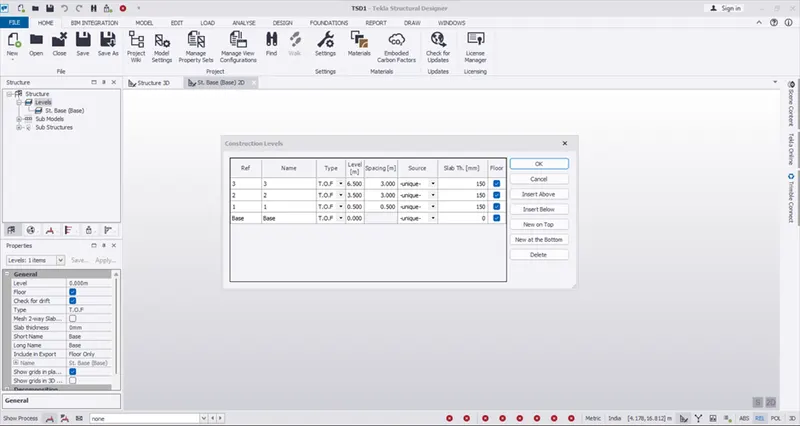
4. Model grid lines and construction levels as per Attachment 1. 1.1 and 1.2. All dimensions are in mm
The base level to be 500mm below ground level.
• open new file
• In browser right click o levels
• Ad select construction levels
• Ad input the values as below pic
•
• Go to model ta
• Select the grid optio
• Draw grid
•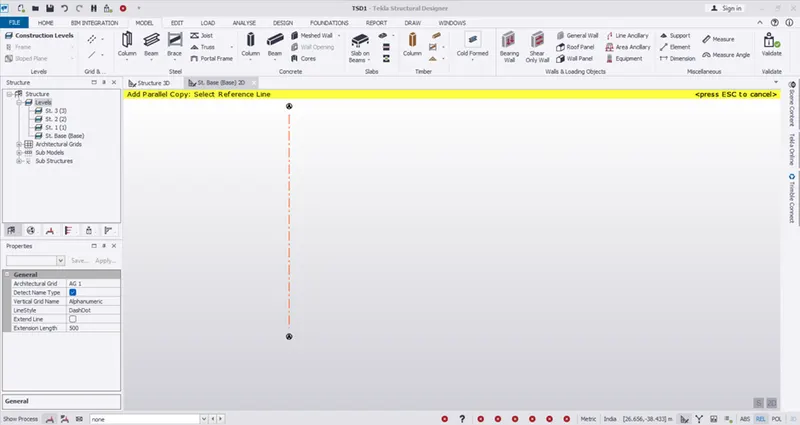
• Select the parallel grid for quick
• Similar to the other direction