To calculate dead and live load for industrial steel structures and to apply them using TSD
- Calculate dead load in design report based on IS code and apply dead load on the model
- Finishes of 50mm
- Slab as per design
- Brickwall 150mm thickness
- Roofing load based on purlin size
- Ceiling loading 0f 0.3KN per sq m
A) Aim:- To calculate dead load in design report based on IS code and apply dead load on the model:-
- Finishes of 50mm
- slab as per design
- Brickwall 150mm thickness
- Roofing load based on purlin size
- ceilling loading of 0.3KN per sqm.
INTRODUCTION:- Dead load are normally the weight of the structural member which includes the weight of the slab, beam,column.roof ,etc that are permanenetly avaliable in the structure.
Procedure:-
- Open the TEKLA STRUCTURAL DESIGN software in which the previous modelling is done.
- Open a new file in MS EXCEL for calculation of dead load and live load.
- Go to Load tab, select load cases from ribbon tab.
- A Loading window appears on the screen.
- Under load cases, we need to define self weight with and without slab load, dead load, live load, seismic load and wind load. Click on ADD to dead load after self weight, similarly add on live load etc. Click on ok.
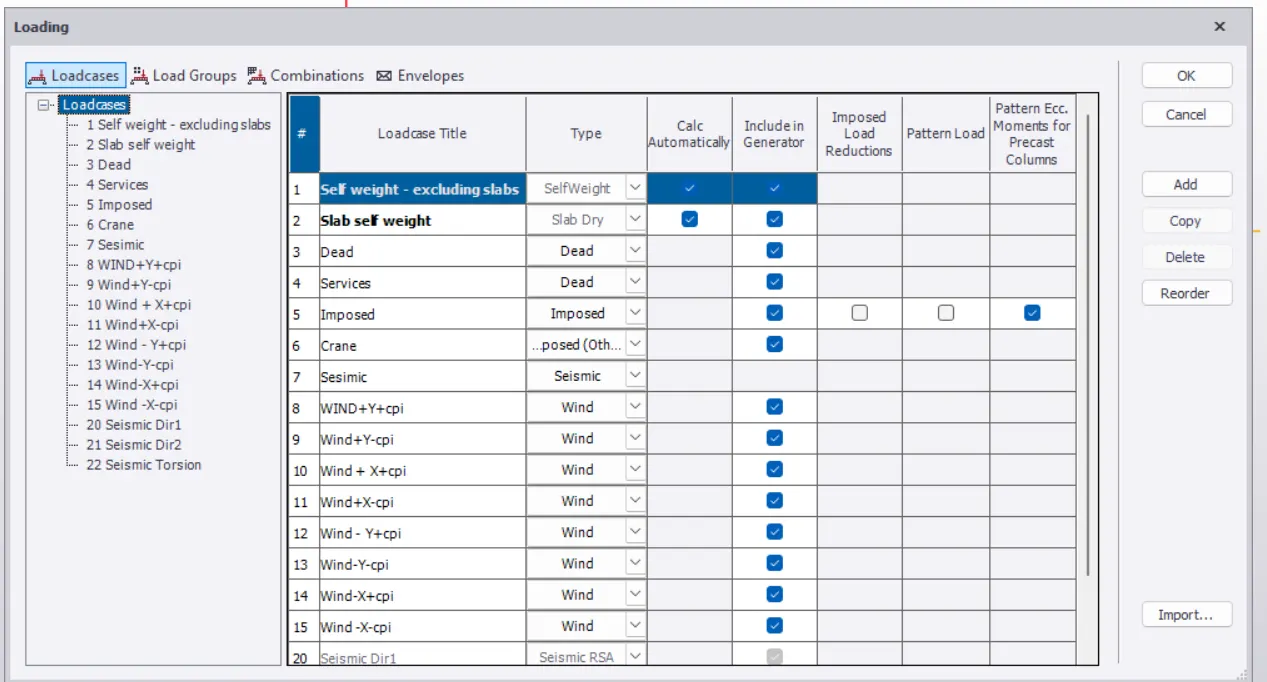
- Selecting load combinations in loding window. Select GENERATE.
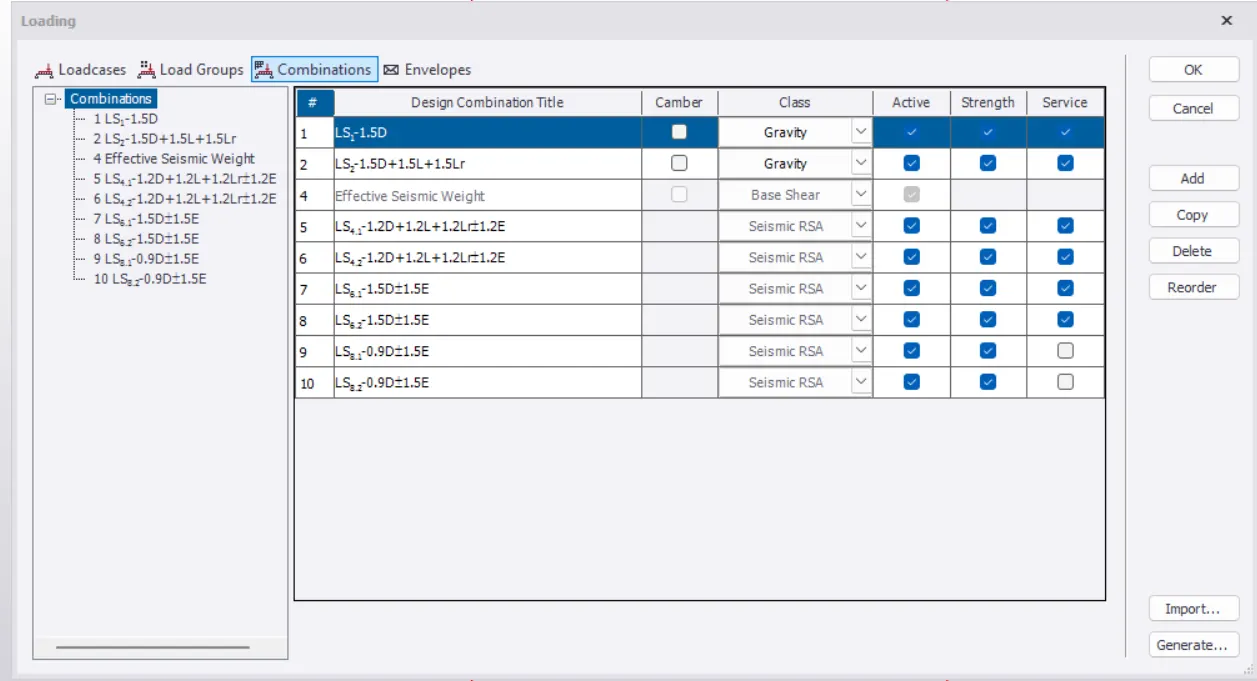
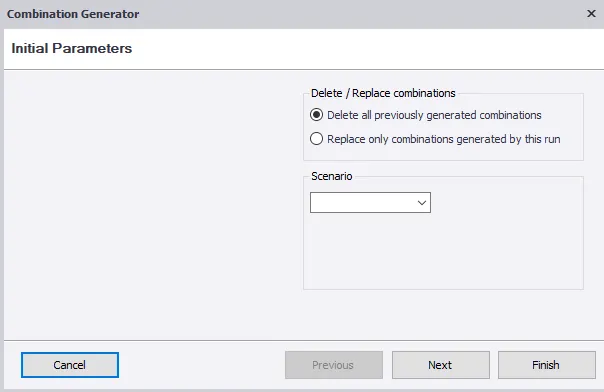
- To set intial parameters under combination generator opt for DELATE ALL PERVIOUSLY GENERATED COMBINATIONS. Click on NEXT.
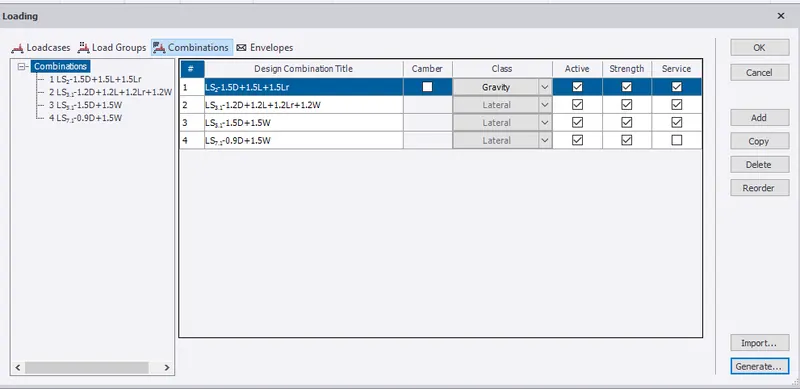
- A list of load combinations appears on the window as shown below. Click on NEXT.
- Next, a list of service load appears as shown. Click on NEXT.
- Combinations are generated. Click on FINISH.
- Load combination are generated.Click on ok.
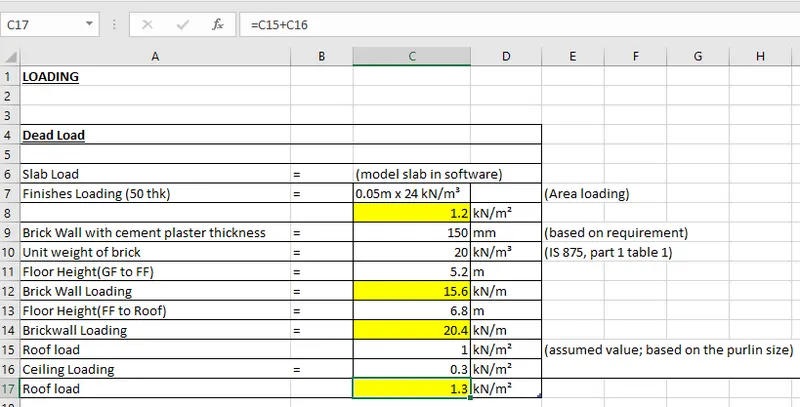
- Data for dead load is calculated and inputed in MS EXCEL as shown below.
- Dead load of the slab is automatically designed by software and applyied to the beam.
- Given, floor finish of 50m thick which is provided of both ground floor and first floor. Therefore, load =thickness of floor finish x density of concrete. i.e,0.05nx24
- KN (/m^3) =1.2k(N/m^2)
- Given, brickwall thickness is 150mm.
- in IS875(part 1, table1), unit weight is shown below , which ranges around 15.7 to 24.5KN/m^2. Therefore, overhere unit weight of brick is taken as 20KN/m^2.
- Therefore, brickwall loading = unit weight of brick x brickwall thickness x floor height.
- For eg:- brick loading for ground floor = 20x 0.15 x 5.2 = 15.6KN/m.
- Similarly, for first floor brick loading = 20x 0.15x6.8 = 20.4KN/m.
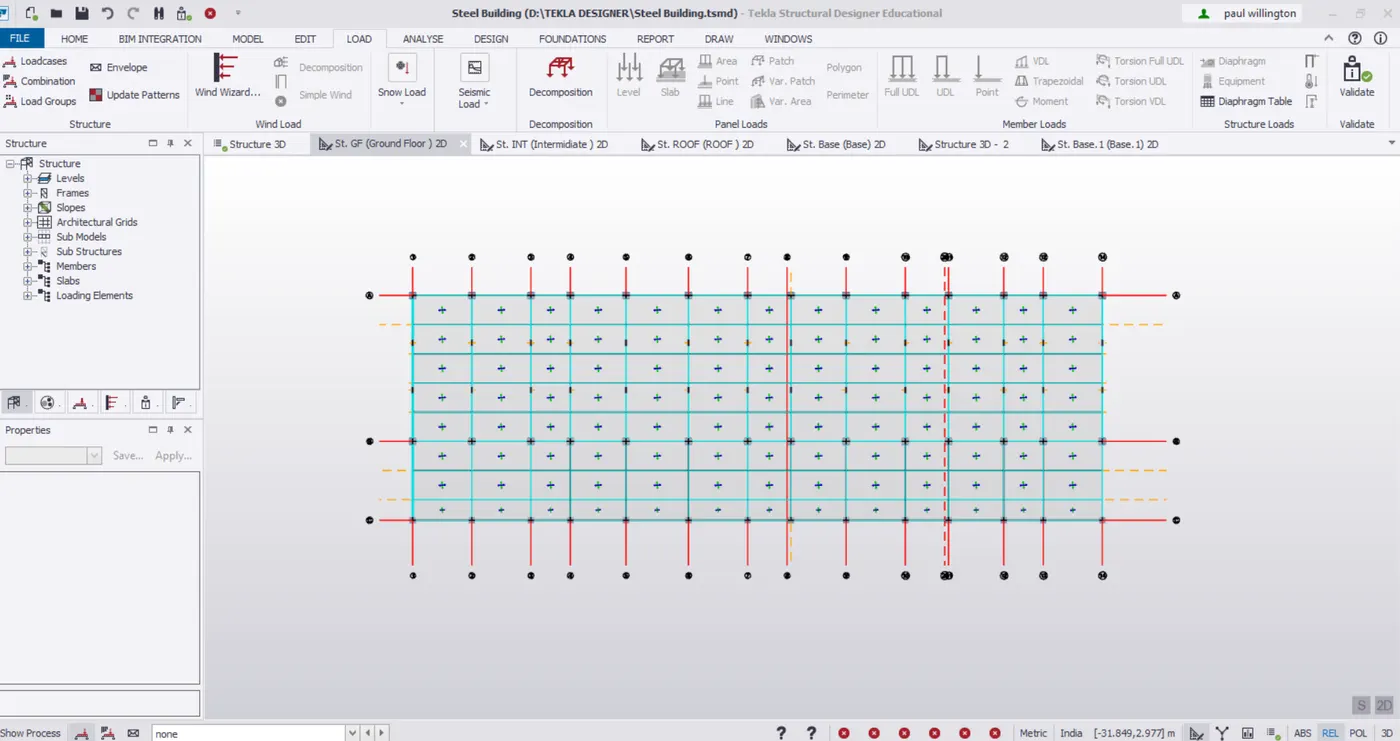
- In ground floor, select DEAD LOAD from loadcase.
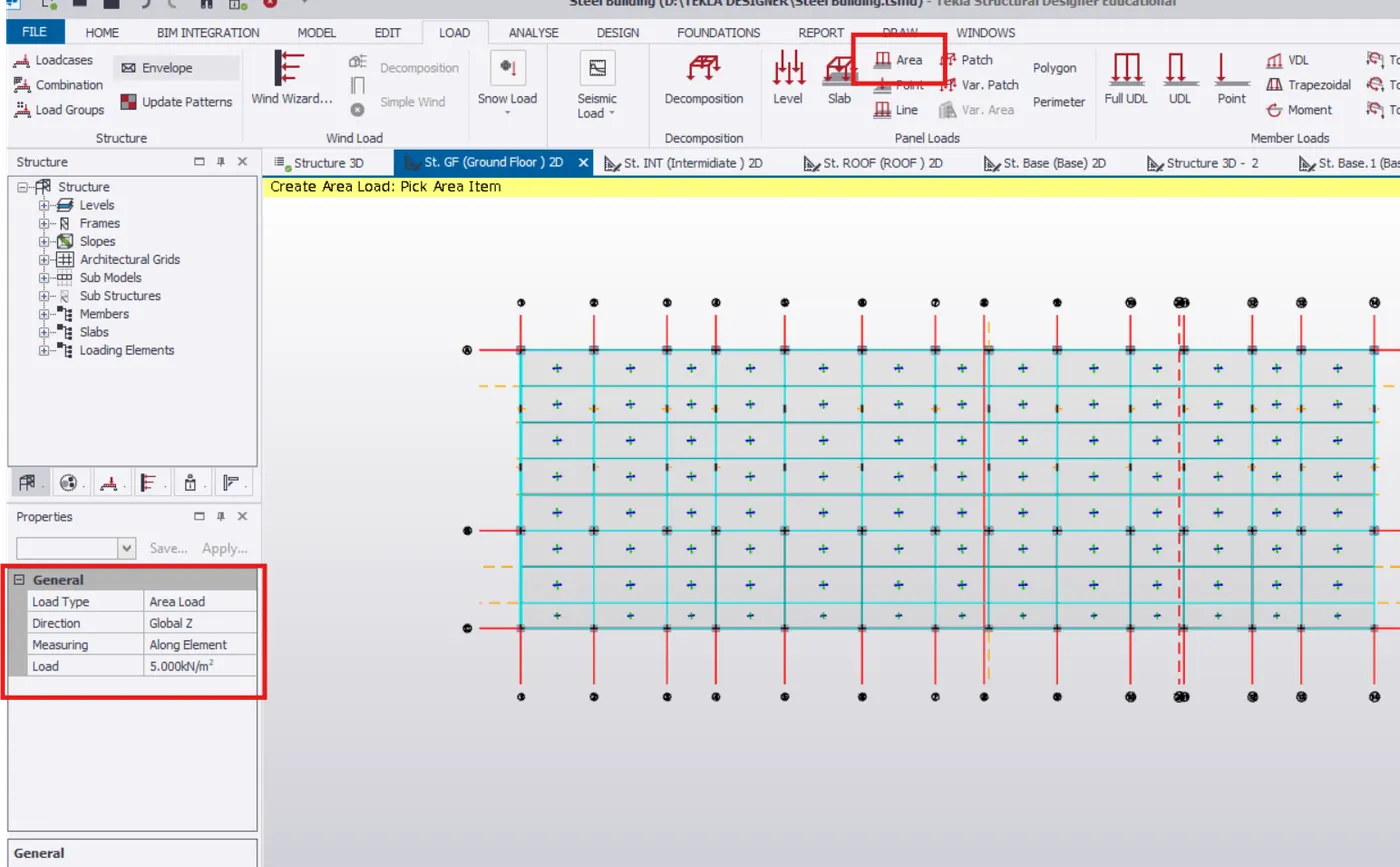
- Under LOAD tab, selec AREA load from ribbon tab.
- In property window provide loading intensity of 1.2KN/m^2 for floor finish.
- Pick each area where area loading has to be provided.
- Finally, floor finish load is applied on ground floor.
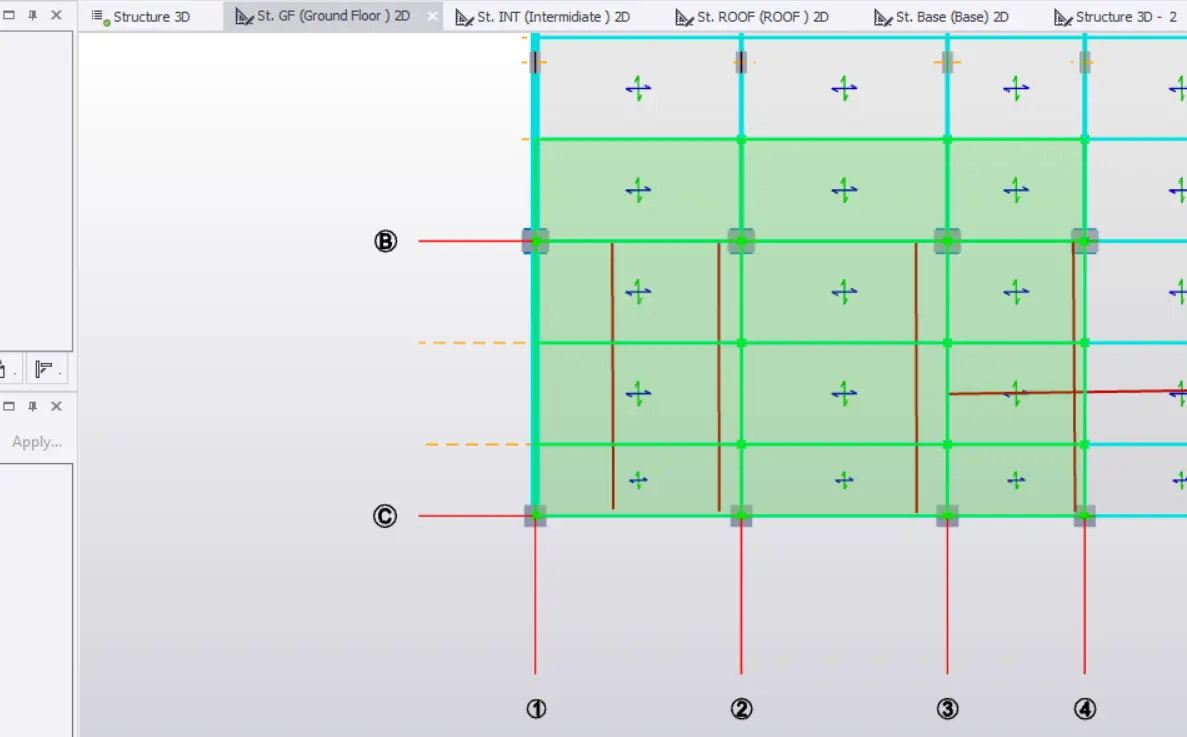
Validate the model. Hence , no error.
- Check the dead load(floor finished) in 3D view.
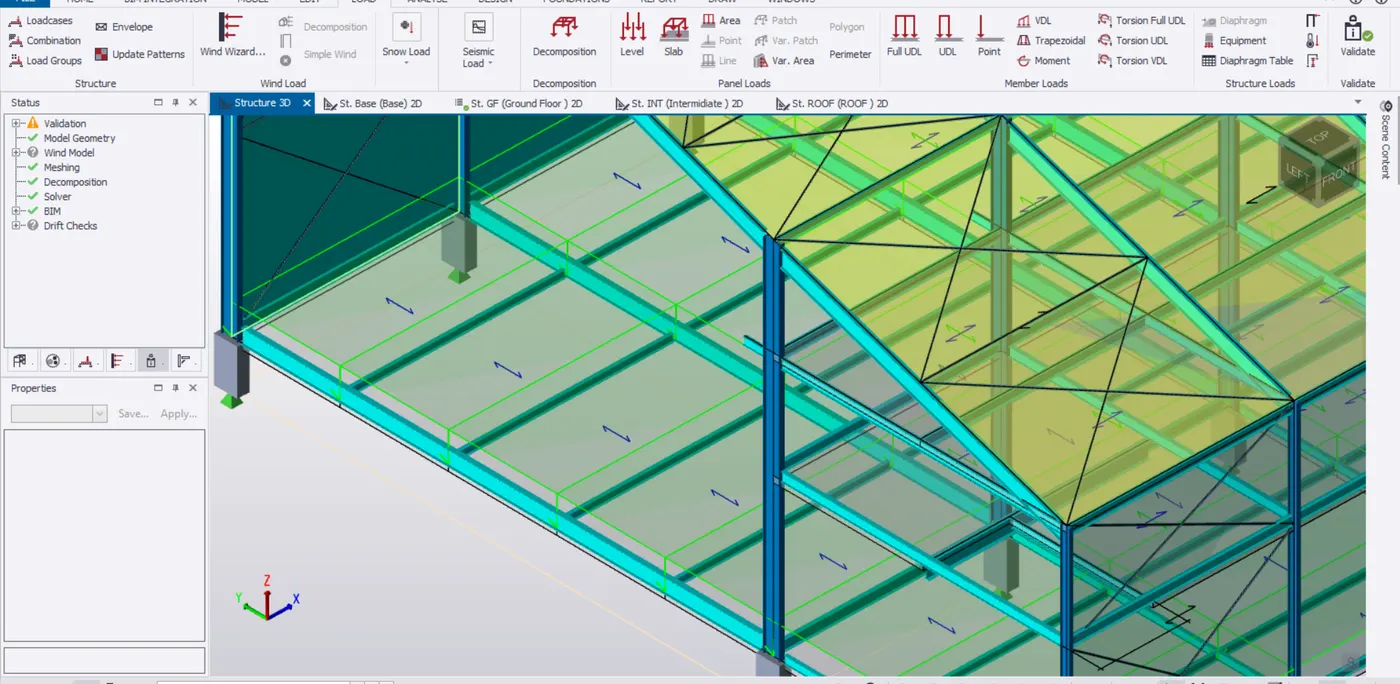
- Similarly, go to first floor to apply the floor finish load by selecting dead load in the loadcase.
- Select AREA LOAD in ribbbon tab. Specify load intensity of 1.2KN/m^2.
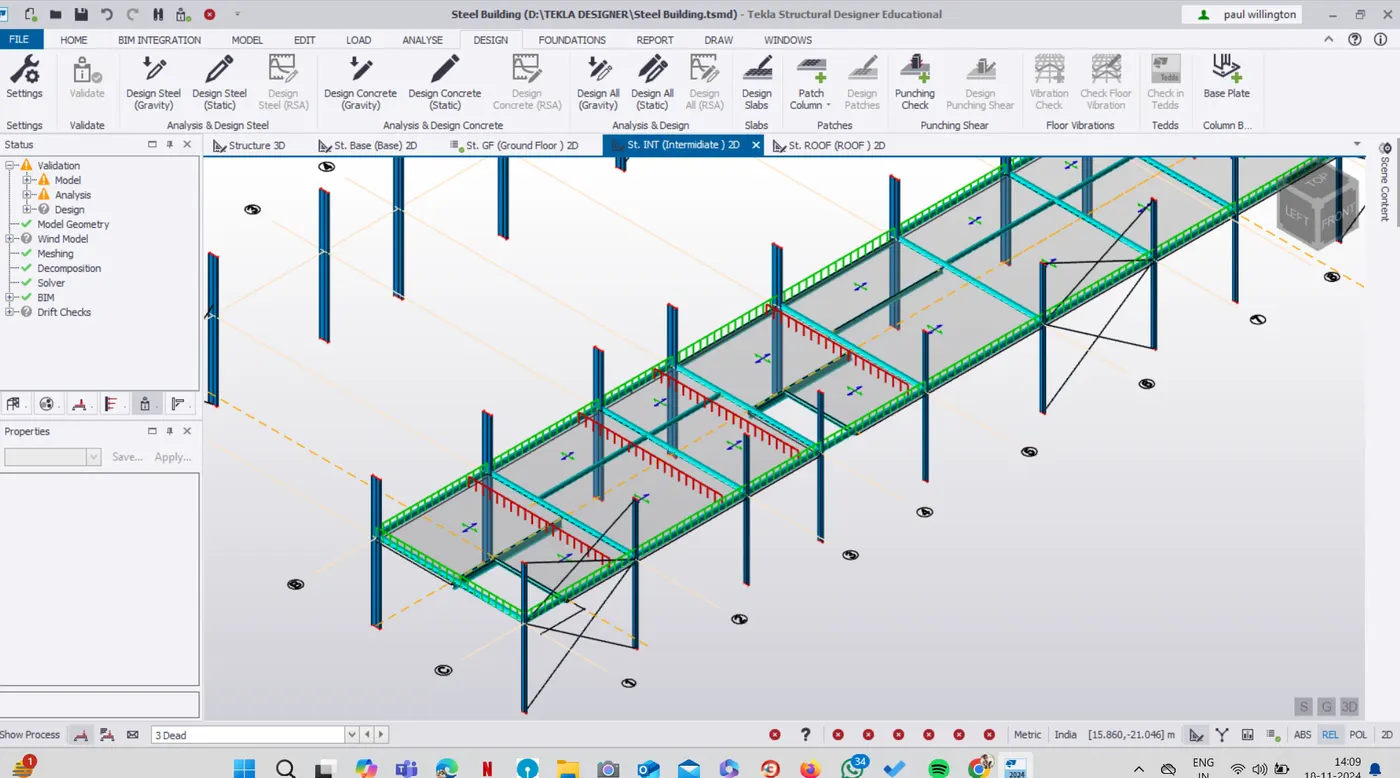
- Pick the area to apply floor finish.
- Similarly, apply the floor finish load in top of beam level by selecting dead load in the loadcase.
- Select AREA LOAD in ribbon tab. Specifiy load intensity of 1.2KN/m^2.
- Pick the area to apply floor finish.
- Validate the model in 3D view and also, check the floor finishes applied.
- To apply full brick wall load on outer wall of the ground floor.
- Selecting FULL UDL in ribbon Window. LOad type is member load. Change load intensity to 15.6KN/m
- Pick the member to create loading position.
- 3D view of the outer brickwall is shown below.
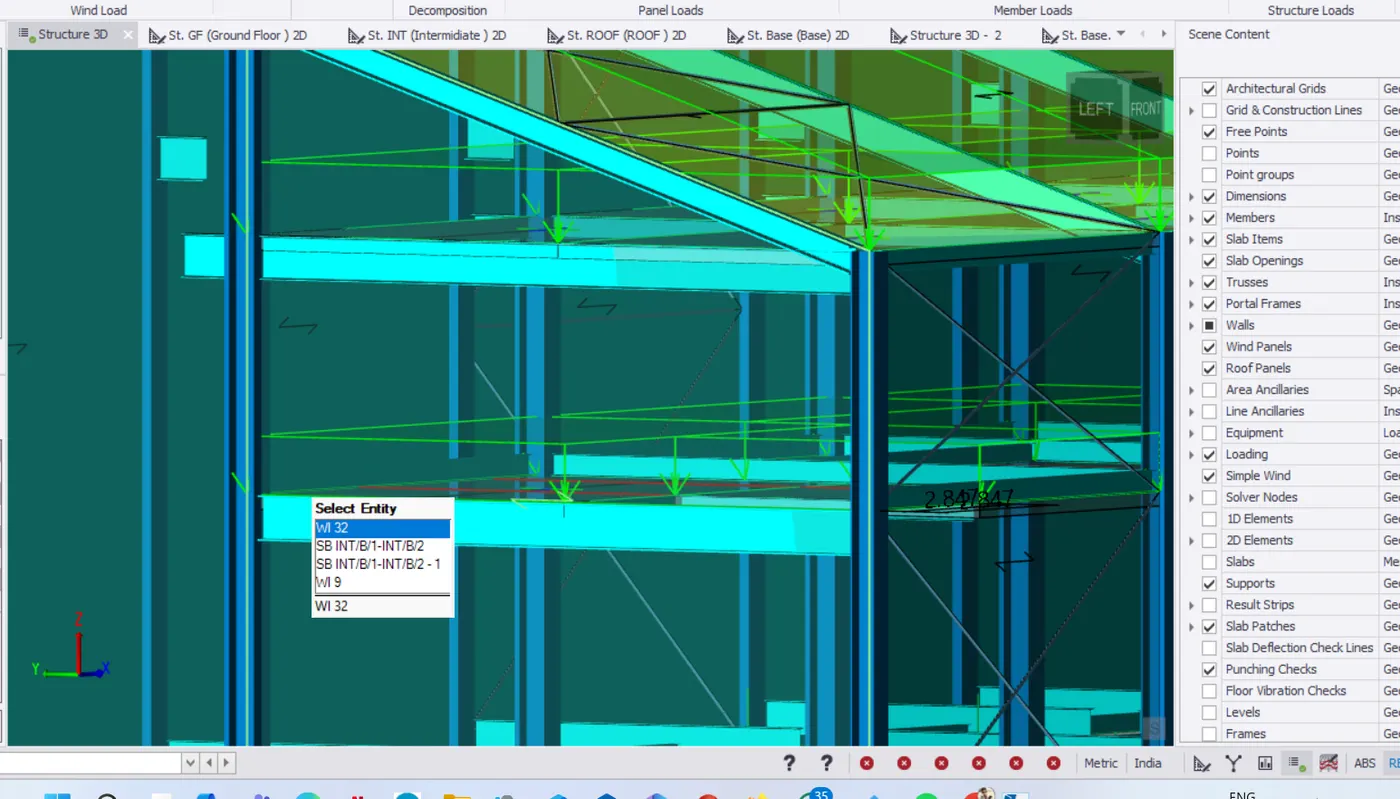
- Staircase brickwall is applied at 3m from grid line. So, pick a full UDL at an intensity of 15.6N/m.
- Similarly, refer ground floor plan to apply brickwall load grid line 1 and 2 also between c and D as shown below.
- Apply line load from loadcase and specify load intensity of 15.6KN/m.
- On validating, no error found.
- Similary, refer ground floor plan to apply brickwall load as per requirement and lastly validate to check any error in loading.
- Similary, go to the first floor to create brickwall load on the outer and inner wall.
- In the first floor, apply the full lenght UDL of 20.4KN/m at position shown below.
- Also, apply brickwall load for staircase of 20.4KN/m
- Next,apply line load for brickwall wich is away from member by selecting line load from loadinng ribbon tab.
- set line load of 20.4KN/m for brickwall load.
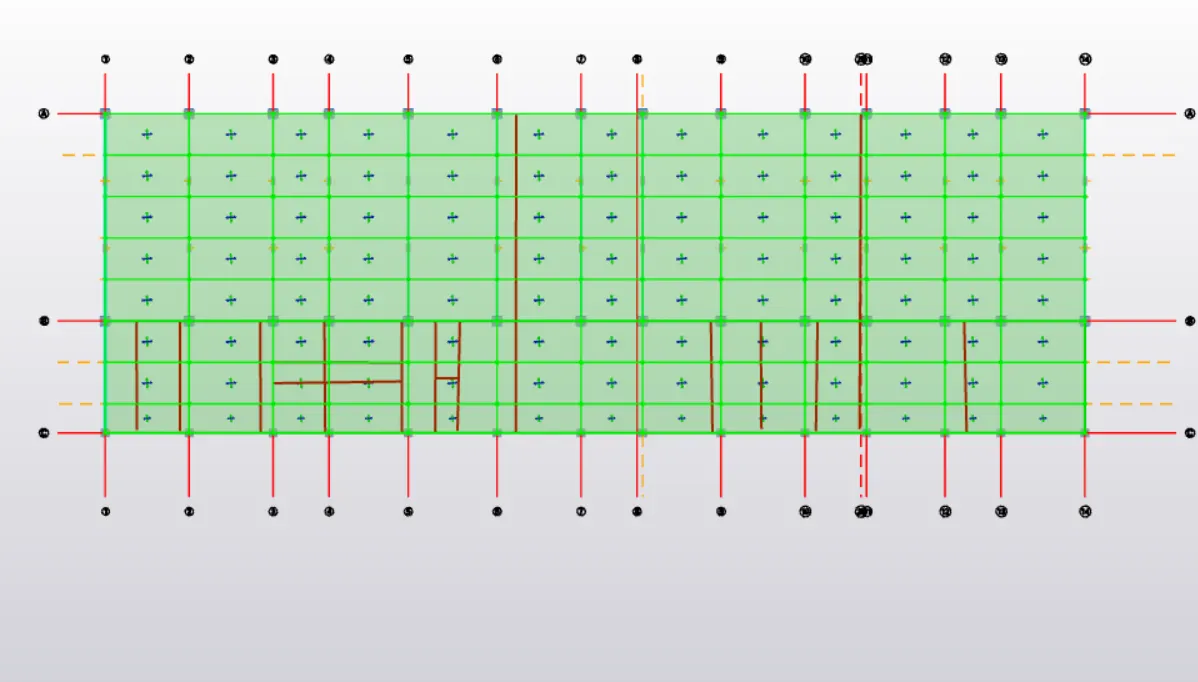
- For example, to create brickwall load for meeting room, selecting line load, pick the reference point and specifiy the distance from reference (i.e, start point and end point) which mention the brickwall length.(marked in red)
- Similarly, created brick wall load (i.e, picking line load) at different load.
- Brickwall load between grid line C and D is created.
- Similarly, brick wall load at various locations are created.
- Finally, brick wall load in the first wall is created as plan drawing and no error found on validation.
ROOF LOADING:-
- Go to 3D scene view.
- Trun off the slab items, wall panel from the scene content for better view of roof load.
- Chane loadcase to DEAD. Go to loding tab, select area load in ribbon tab.
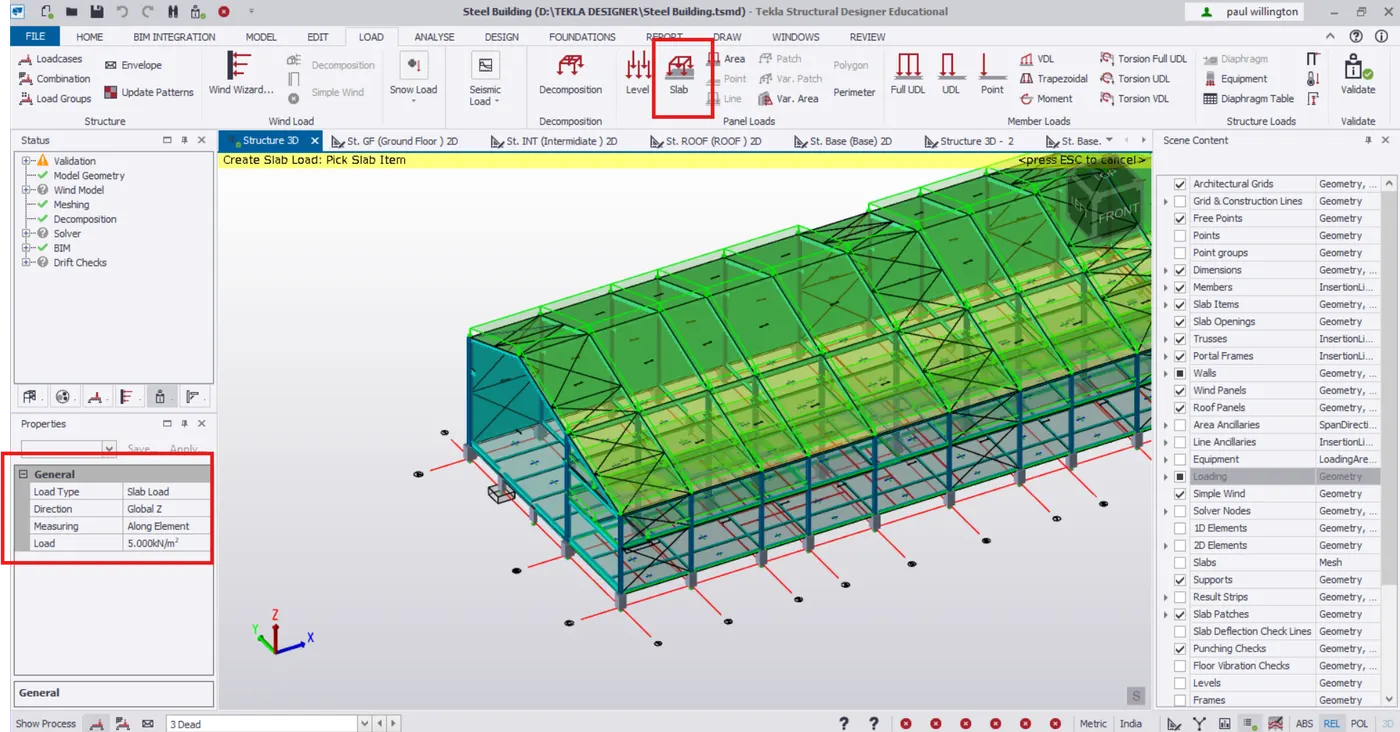
- Change load intensity to 1.3KN/m^2 (i.e, total roof load= ceiling load+purlin load=0.3+1 = 1.3KN/m^2
- Given, ceilling load = 0.3KN/m^2
- To create roof load, pick the roof panel.
- Simentanously, pick rest of the roof panel
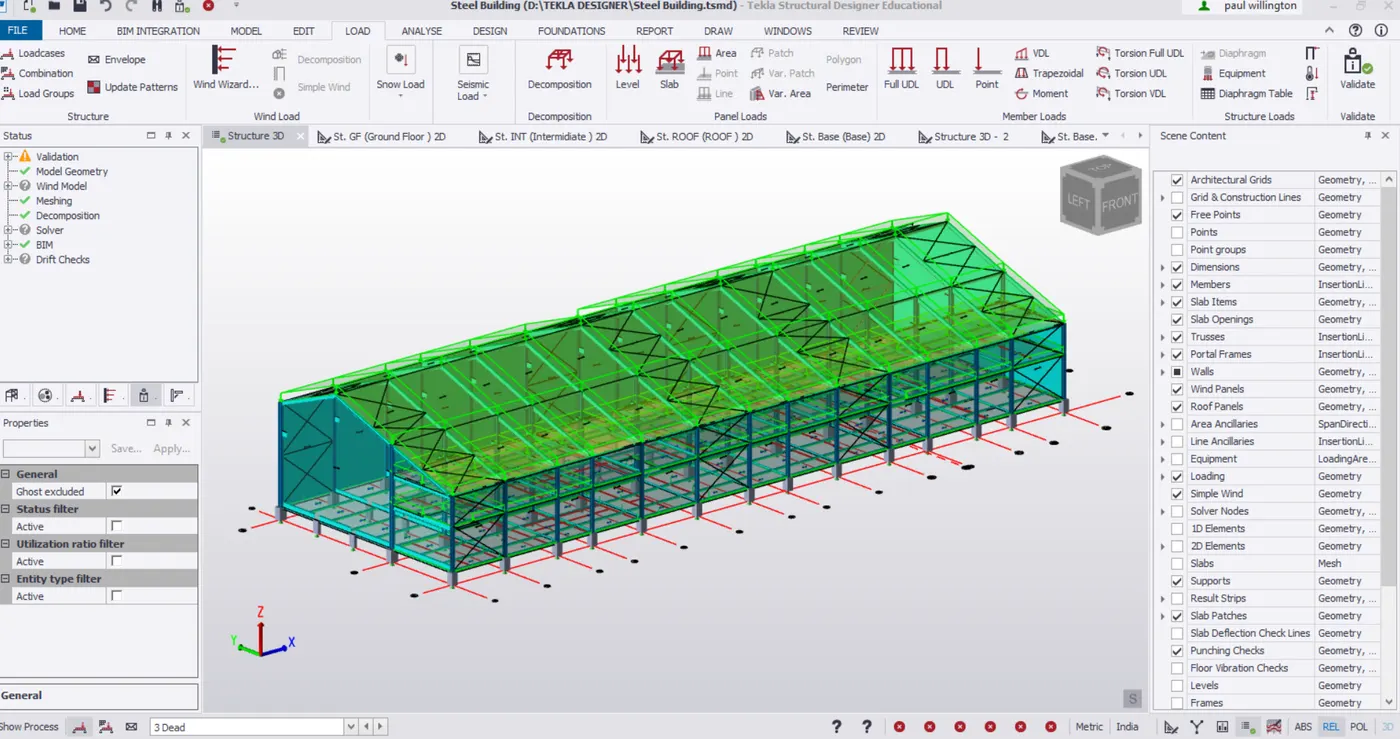
RESULT:- Hence, dead load is calculated as per IS 875 part1 and applied to the model as shown below.Calculate live load in design report based on IS code and apply live load on the model
2. Calculate live load in design report based on IS code and apply live load on the model
- Assume the loading based on IS 875
- Roof loading
- Consider equipment loading as 5KN per sq m
AIM:- To calculate live load in design report based on IS code and apply live load on the model
- Assume the loading based on IS 875
- Roof loading
- Consider equipment loading as 5KN per sq m
INTRODUCTION:- Live load are usually due to the weight of the occupant or weight of anything that is moving or varing. Code refered for live load IS 875, part table 1 for industrial building.Also refer Table 2 for living load on roof.
PROCEDURE:-
- Firstly, study the floor plan its room arrangements, etc
- Next, input the live Load values of each room requirement in MS excel as per requirement as refered fro IS 875, part 2 1987.
- Given, equipment load= 5KN/m^2
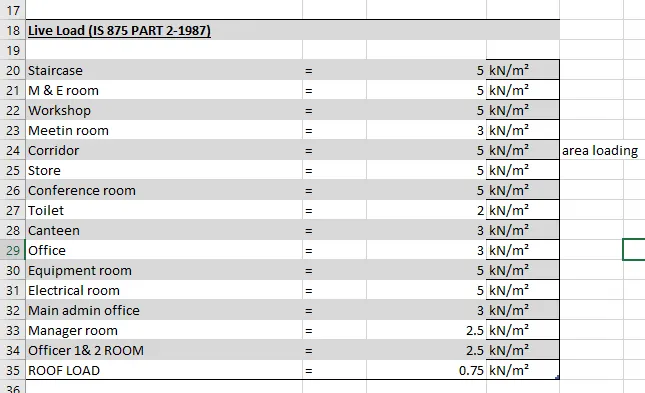
- Let's consider ground floor in the software , change the loadcase to IMPOSED.
- Select to area load in ribbon tab under LOAD tab.
- change the load intensity to 5KN/m^2 for staircase as mentioned in the table above.
- Pick the area where area load is to be created.
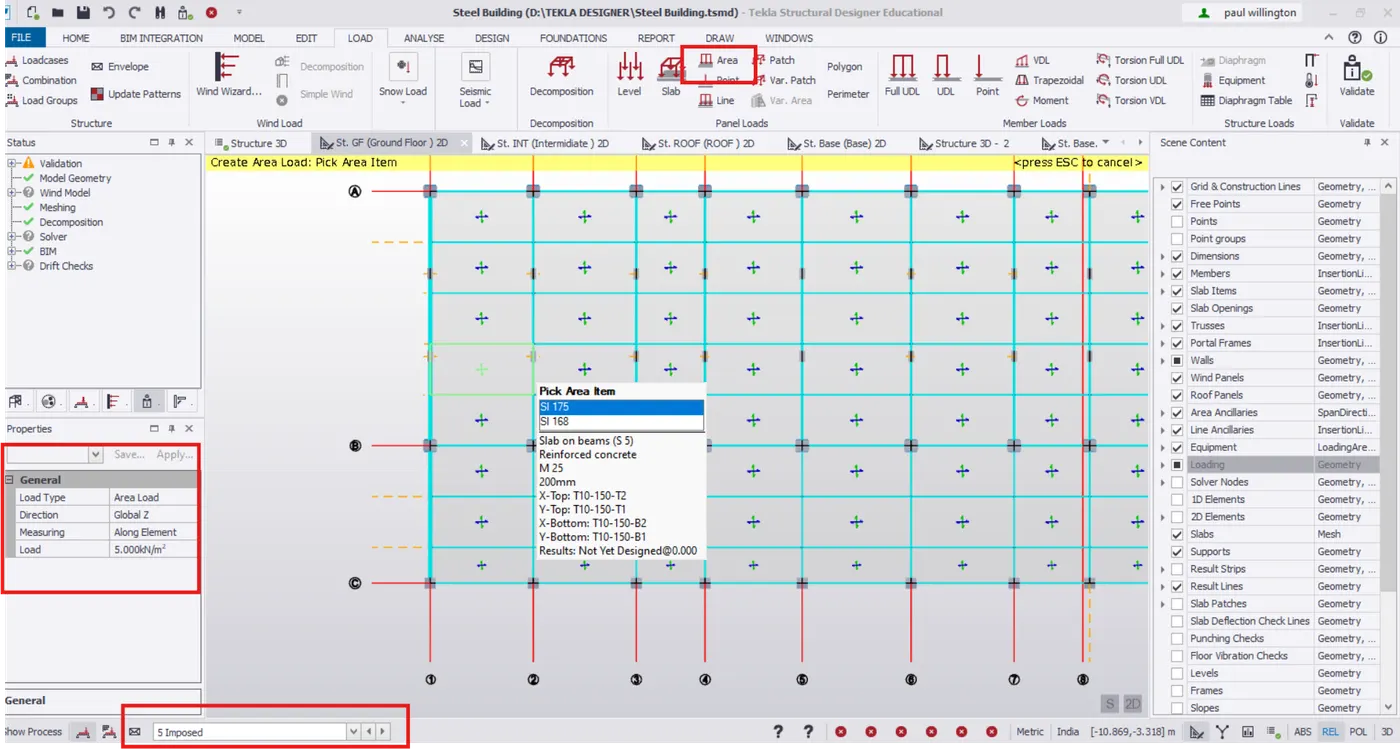
- Continue with some loading in workshop area as well.
- Since the office area has a live load of 3 KN/m^2, we will provide 5KN/m^2 due to existance corridor in that particular area.
- Since the toilet area has a live load 2KN/m^2, we will change load intensity to 2KN/m^2 in propert window
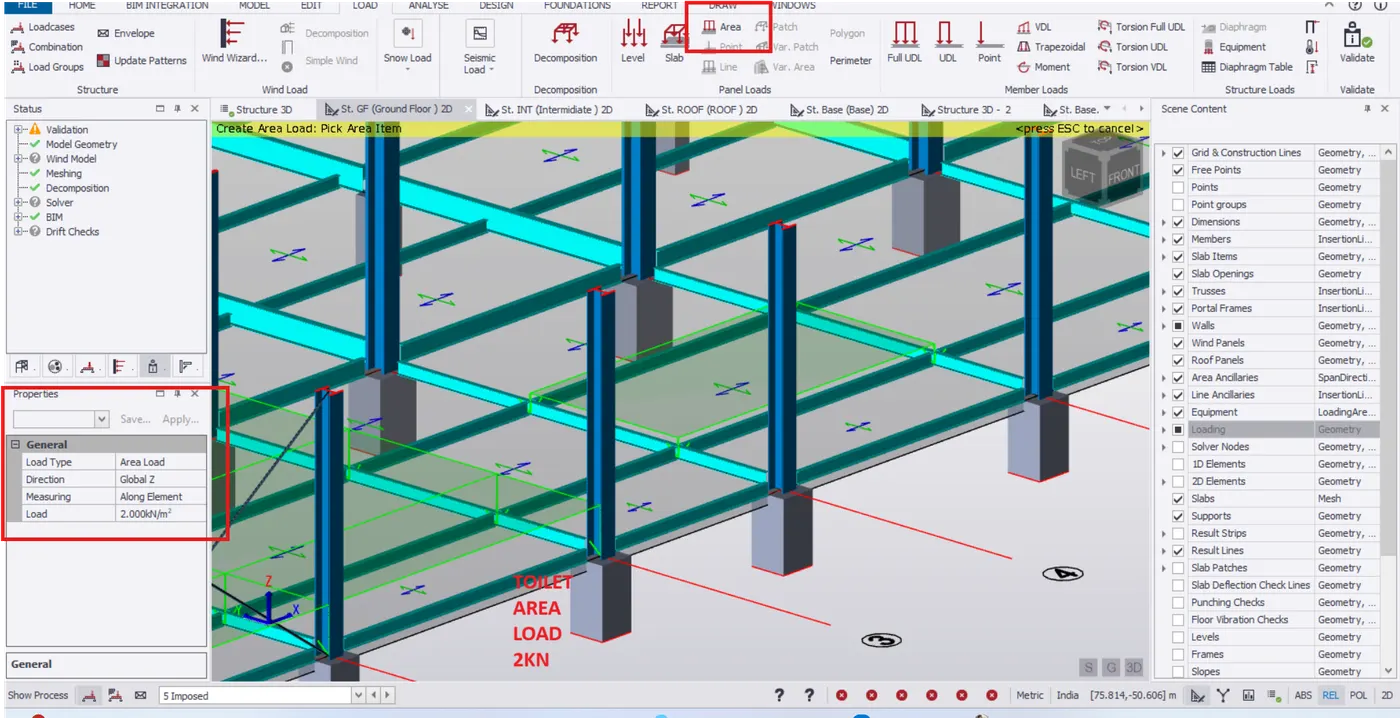
- Similary, change load tp 3 KN/m^2 for canteen and office area.
- Similarly, continue doing in the first floor as well.
- Change to imposed load in the loading panel.
- Create the area loading with loading intensity of 5KN /m^2 in property window.
- Pick the area to create area load.
- Similary, specify live load area for different slab area with load shown in the table above. we can see the level difference in the loading.
- Validate the model to check any error in the loading.
LIVE LOAD ON ROOF:-
- Go to 3D view in scene view.
- Change to imposed load in loading panel.
- Select area load in loading tab.
- Change load intensity to 0.75KN/m^2 in property widow as per IS 875 part2 table 2.
- Pick the roof panel to apply live load.
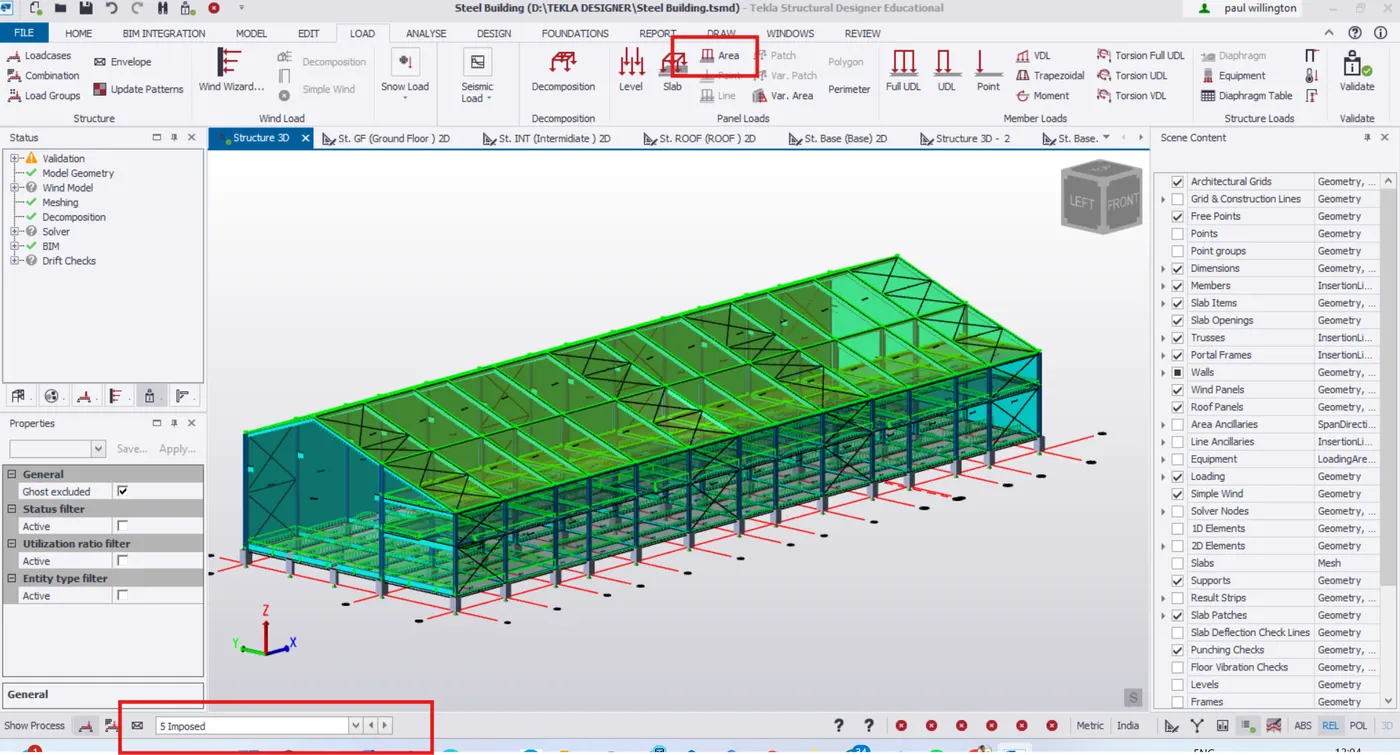
RESULT:- HEnce, Live load is calculated as per IS 875 Part 2 applied to the model as shown below.
- Generate a calculation for 5T crane loading based on following inputs
- Centre to Centre of wheel = 10m
- Weight of crab = 40 KN
- Number of wheels = 4
- Wheel base = 2m
AIM:- To generate a calculation for 5T crane loading based on following inputs
- Centre to center of wheel=10m
- Weight of crab=40KN
- Number of wheels=4
- wheel base=2m
INTRODUCTION:- Crane are manily used in industrial building to lift heavy objects in the workspace for maintaince and frabrication works.Crane frame are provided between two columns.
PROCEDURE:-
- To generate calculations for crane loading,
- The given values.
- Center to center of wheels = 10m
- Weight of crab = 40KN
- Number of wheels on each side =2
- Wheel base = 2m
- Consider
- Crane capacity = 50KN
- Number of wheels on each side =2
- Weight of the crane = 60KN
- c/c distance between two column = 5.5m
- MAX WHEEL LOAD
- Max concentrated load on the crame = crane capacity + weight of crab = 50+40=90KN
- Self weight of crane will act as UDL = 60/10 = 6KN/m
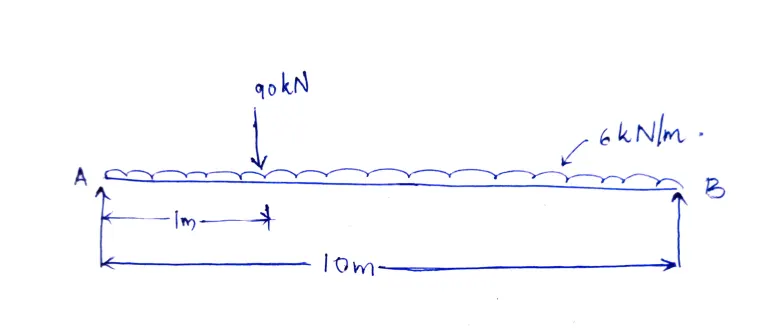
- Taking moment about B
- (6x10x5)+(90x9)=RA=111KN
- RB = 39KN
- Rection from crane grider is distrurbed equally on 2 wheels at the end of crane grider
- Maximum wheel load on each wheels = RA/2 = 111/2= 55.5KN
Maximu Bending Moment
Assume self weight of gantry girder = 1.5KN/m
Assume self weight of rail = 0.3KN/m
Total dead load = self weight of gantry girder+self weight of rail = 1.5+0.3 =1.8KN/m
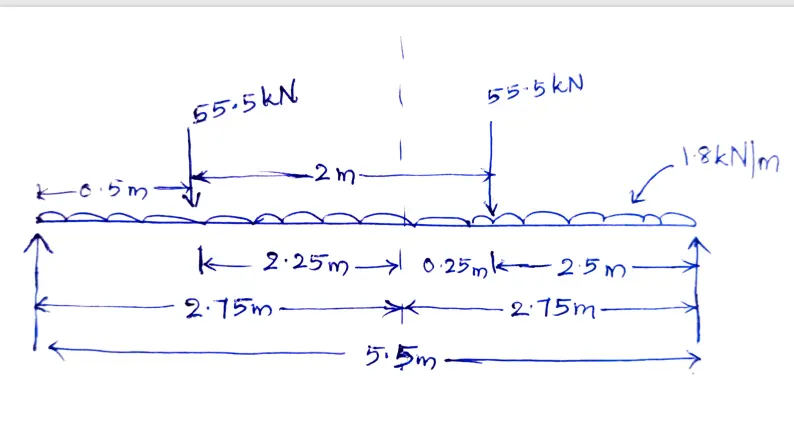
Taking moment at D
RCx 5.5 =(55.5x5)+(55.5x 2.5)
RC = 75.68KN
Taking moment at C
RD x 5.5= (55.5x3)+(55.5 x 0.5)
RD = 35.32KN
Bending Moment (BM)under wheel due to live load =2xRD = 2x 35.32 = 70.64KNm
BM due to impact = 10% increases due to MOT =0.1x 70.64=7.064KNm
BM to live load and impact = 70.64+7.064 = 77.7KNm
BM due to Dead Load = W12/8= (1.8x5.5x5.5)/8 = 6.81KNm
Maximum BM = 77.7+6.81 = 84.5KNm
- Maximum shear Force:-
For max.shear force, one of the wheel should be at the support
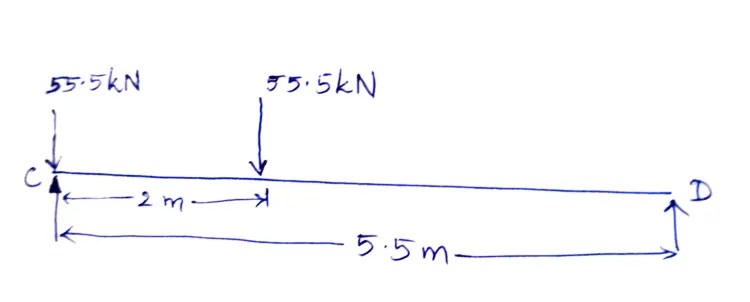
At D, Rc x 5.5=(55.5x5.5)+(55.5x3.5)
RC = 90.8KN
Max.shear force due to wheel load = 90.8KN
- Lateral Force
Lateral force transverse to rail = 5% of weight of crab and weight lifted
=0.05x(40+50)=4.5KN
Lateral force on each wheel = 4.5/2 = 2.25KN
Horizontal reaction due to lateral force by proportion at C
= lateral force x reaction at C due to vertical load/maximum wheel load due to vertical load
= 2.25 x 75.68/55.5 = 3.068KN
At D, load = 4.5-3.068 = 1.432KN
Bending Moment due to lateral force by proportion at C = 2.25x90.8/55.5 = 3.68KNm
RESULT:- Hence, generated a calculation for 5T crane load with given values.