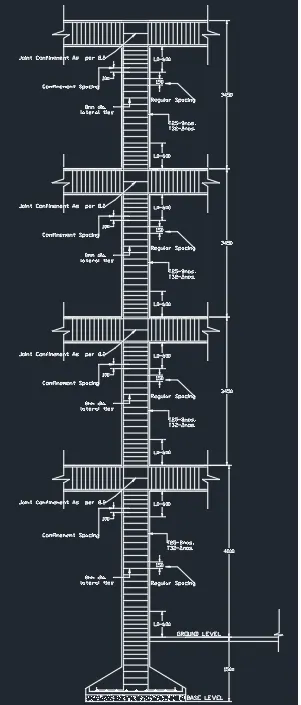
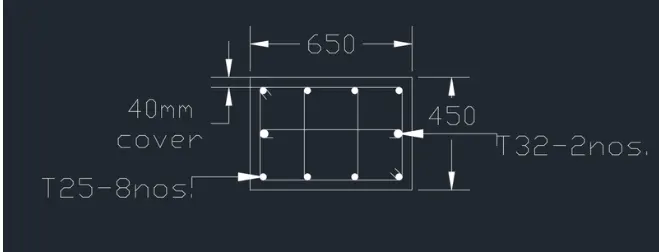
Reinforcement detailing of Columns from ETABS output
COMPLETE STEPWISE PROCEDURE TO DESIGN COLUMNS IN ETABS AND EXECUTED THE DETAILING USING AUTOCAD
Open the model for which you want to Design columns in ETABS
- Doble click on the ETABS shortcut on your desktop or run it from the start menu.
- Wait for it to load till the ETABS opening screen appears on your computer.
- From the ETABS opening screen appears on your computer.
- From the ETABS opening screen go to the open files option avaliable on the left-hand side of the screen.
- Browser for the building model you saved on your local disk.
- Click on open and wait for the model to be run in the software.
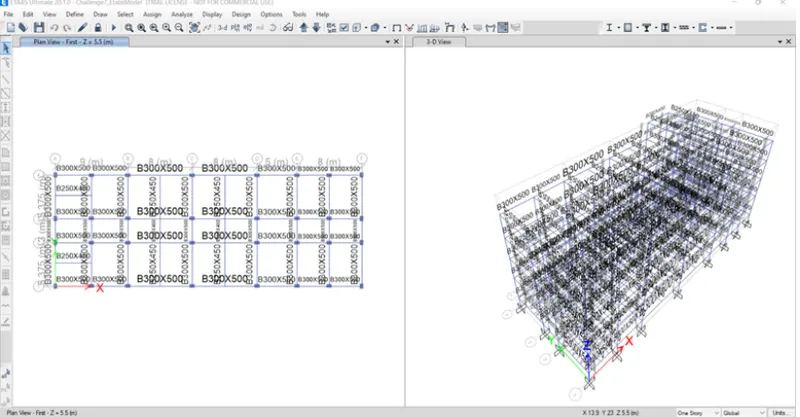
Adjust the view settings
- As we know that ETABS is a 3d analysis tool that procedures execessive result regarding each and every structural member.
- Therfore, we need to seperate the results for the frames we want to design by adjusting the view settings in ETABS.
- And in our case, we need to focus on two columns at grd positions A3 and B3, so we will seperate these two columns on grids positojs A3 andB3 then right -click on your ETABS screen and select the options except the selected columns will be automatically hidden by the software and it will be a lot easier to understand the result for the said columns.
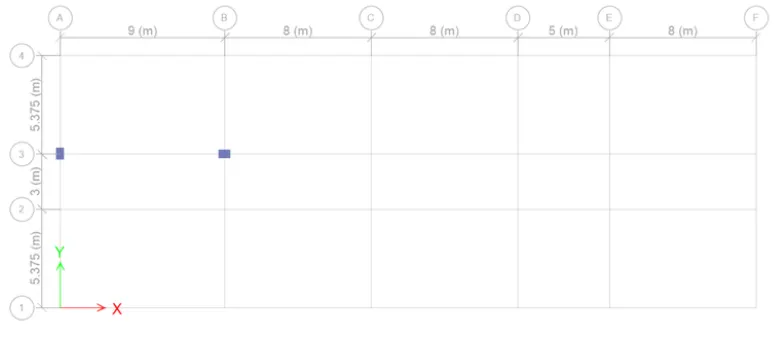
Run the Analysis and Consequently Run the Frame Design
- You can run the analysis by pressing F5 on your keboard or you can also run it by clicking on the play button avaliable on the toll ribbon of ETABS.
- Afetr this, you can go ahead and set the design standards from the frame design drapdown option and then run the frame design.
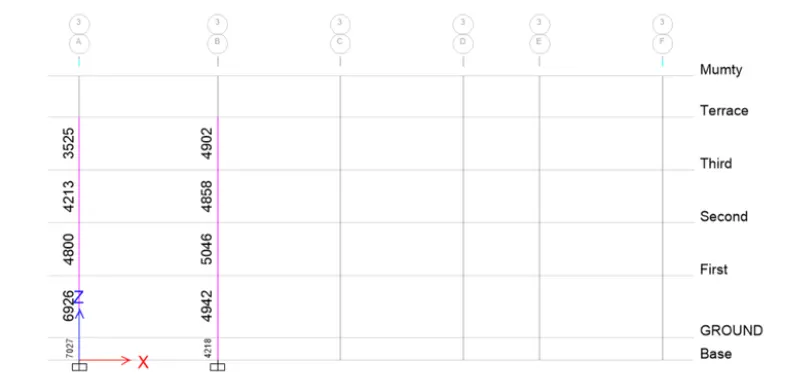
- Once you complete the frame design ETABS will intiially show the amount of longitudinal reinforcement required for the columns.
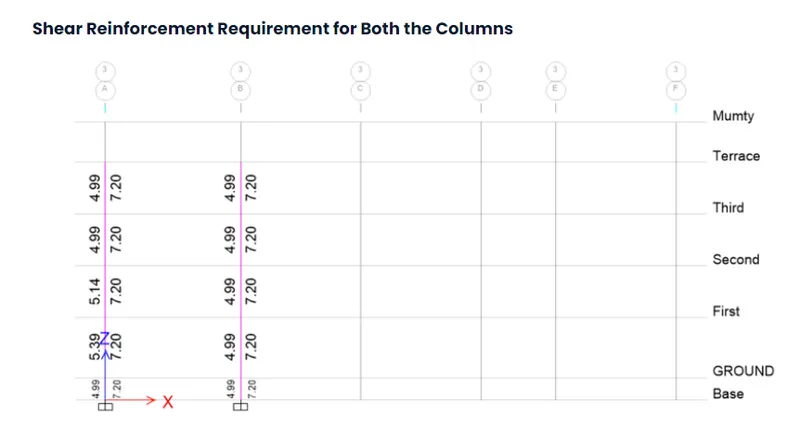
- However, you can display the required results like the shear reinforcement requirement from the display design info option from the same frame design dropdown.
- So, in the same way, the following results for the longitudinal as well as shear reinforcement requirements were obtined from the software as inserted below.
Shear Reinforcement Requirement for Both the columns.
Longitudianal Reinforcement Requirement for Both the columns
Execute the Reinforcement Detailing AutoCad
- Now that we have the amount for which we have to provide the reinforcement, we can go ahead and execute the detailing using the AtoCAD software.
- So, as we know AutoCad is a 2d drawing tool that allows us to draft Architectural as well as Structural details of a building.
- And when it comes to drawing the reinforcement detailing of the structural members, AutoCAD is by far the most efficient tool avaliable to our hands.
- However, we need to carry out certain calculations before drawing the details. Therfore, the calculations followed by the drawing for both of the columns are executed in the following sections
COLUMN A3
Building Base to First Slab
1.Longitudinal Reinfrocement
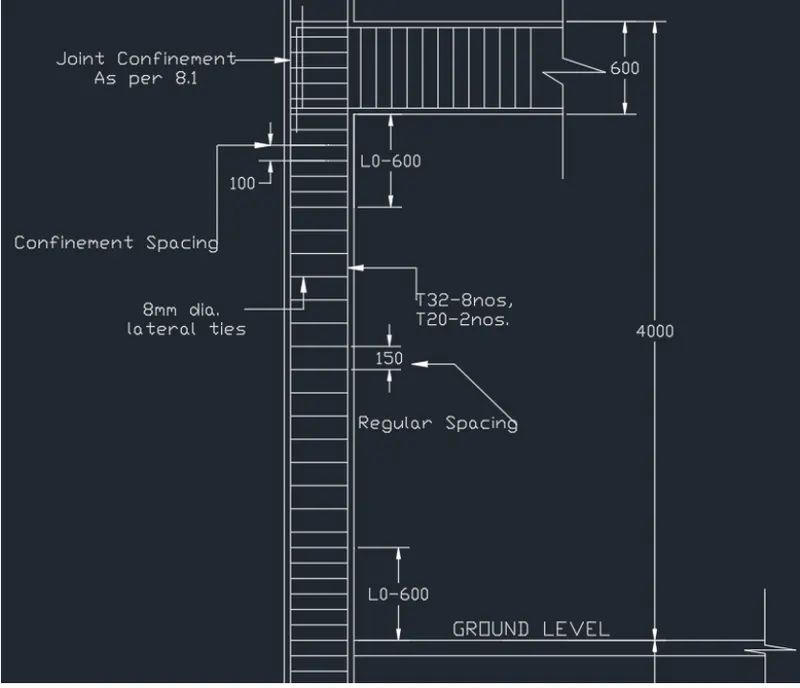
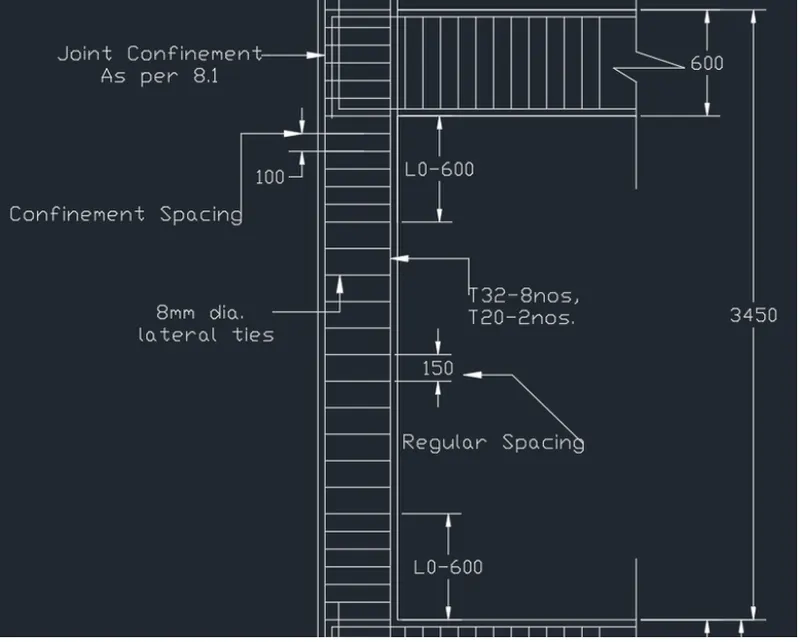
- As obtained from the ETABS ouput, the maximum Ast required is at the base of column and the value for the same is 6926mm^2. Hence, if we provide 8 bars of 32mm dia and 2 bars of 20mm dia.
Ast = 8x 804 + 2x 314 = 7060 > 6926. Hence OK.
2.Shear Reinforcement
- Provide 8mm dia Lateral Ties.
3.Confinement Arrangement
- Lenght of the confinement region (L0) = (i) Larger lateral dimension of the memeber where yeilding occurs
(ii) 1/6 of the clear column span
(iii) 450 mm , whichever is greater
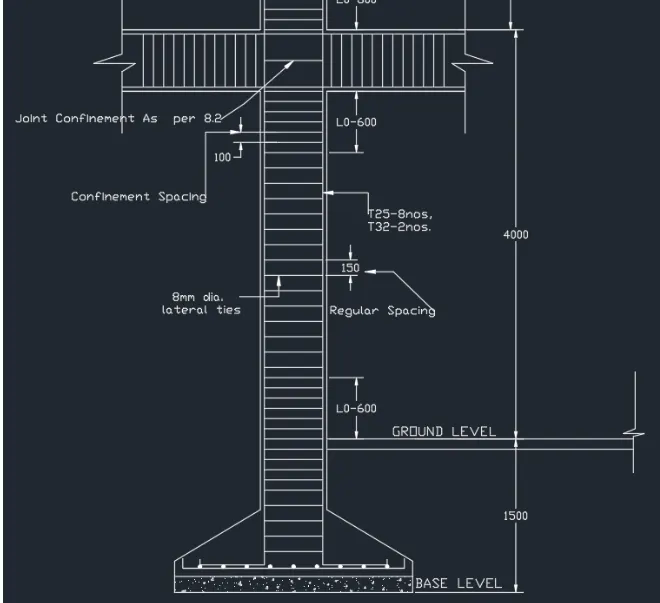
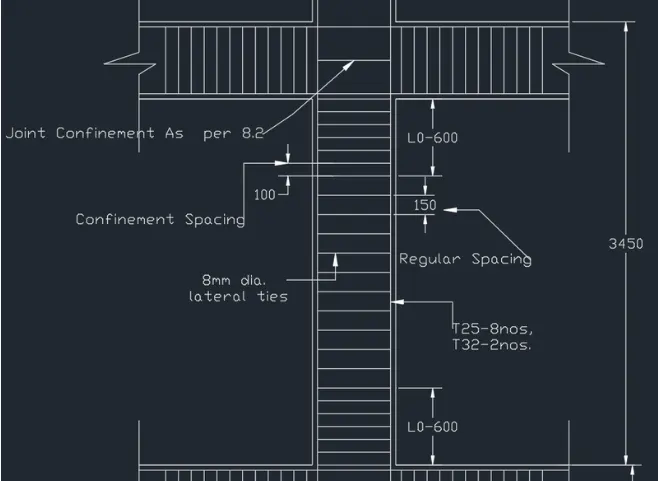
- So, in our case we have the total beam depth of 600mm. Therefore, we shall consider the confinement region upto the 600 mm from beam bottom towards the mid span on either side of the column.
- Shear spacing within the confinement region = (i) 1/4 of the smaller lateral dimension of column
(ii) 6x db
(iii) 100mm, whicever is lesser
- So, 100mm is the least value we got among all three above values. Therefore, provide 100mm c/c spacing within the confinement region = (i) 1/4 of the smaller lateral dimension of column.
- Thus, using the aboove values the following detailed drawing was prepared in AutoCAD for the column height from building upto the first slab.
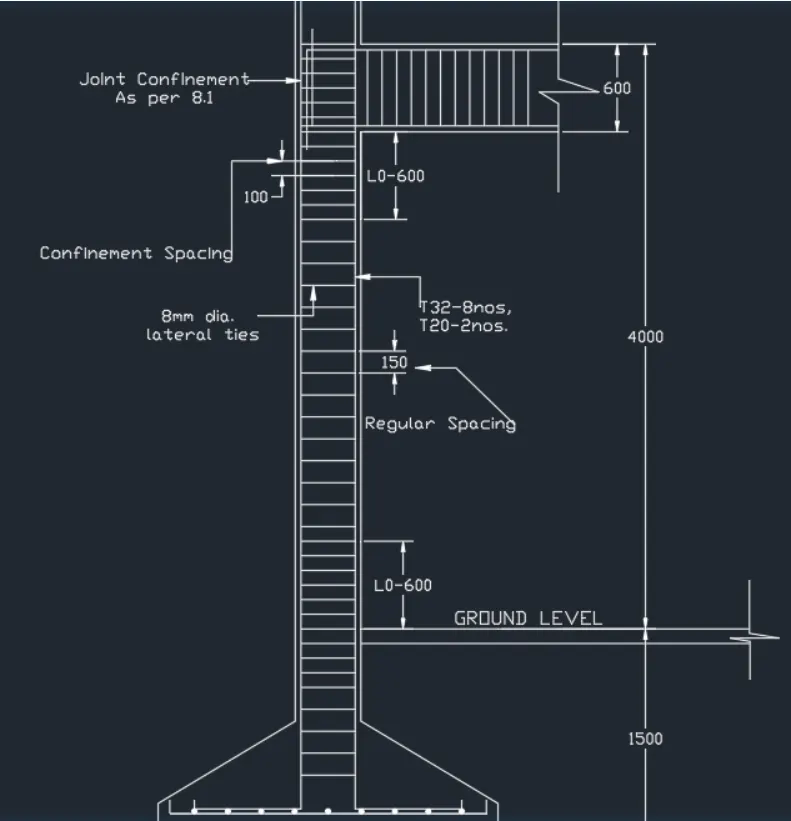
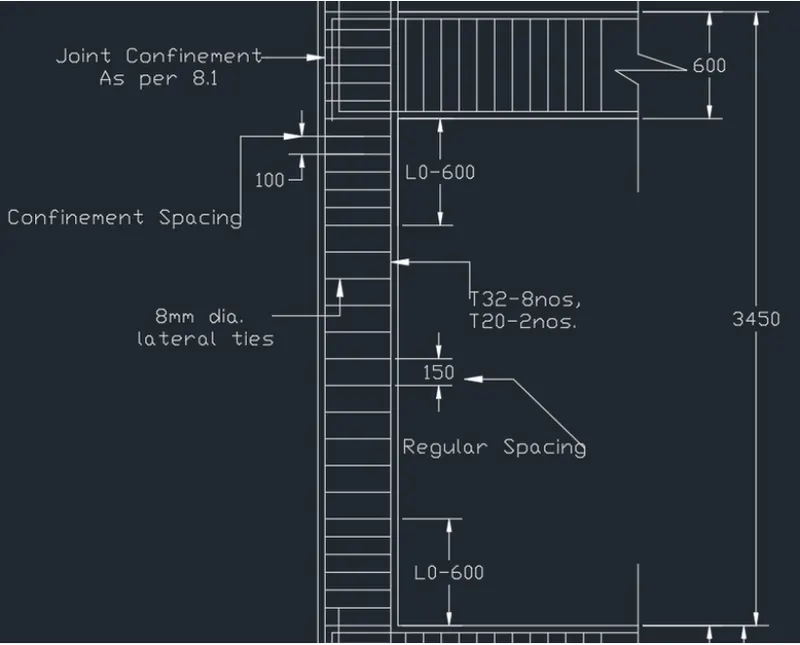
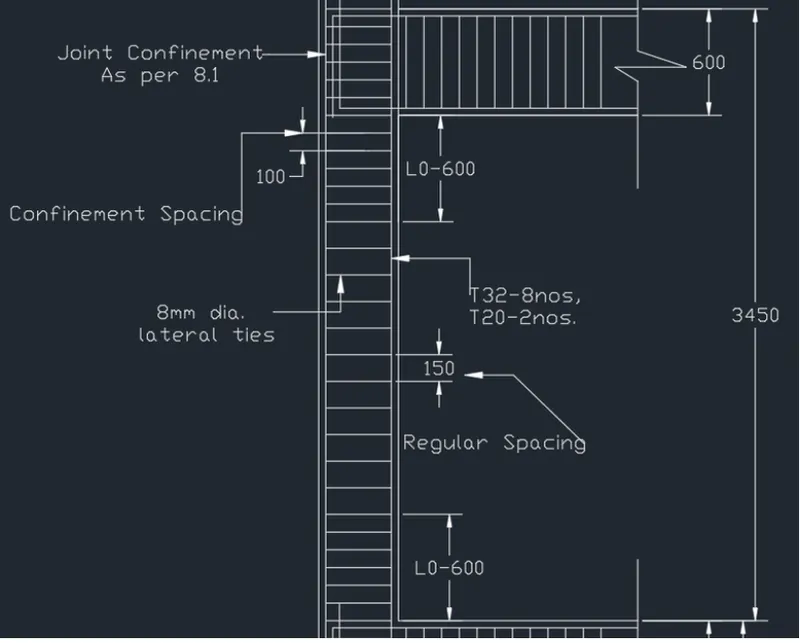
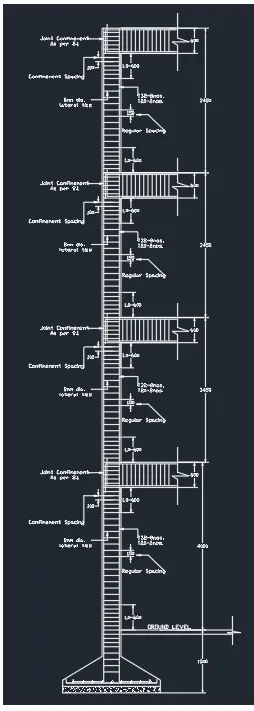
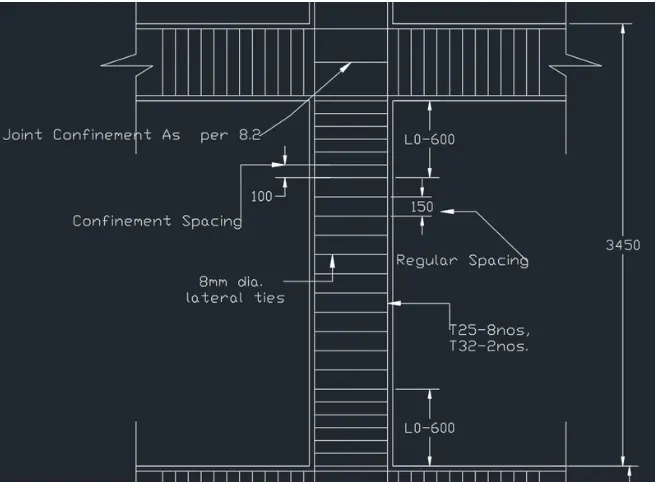
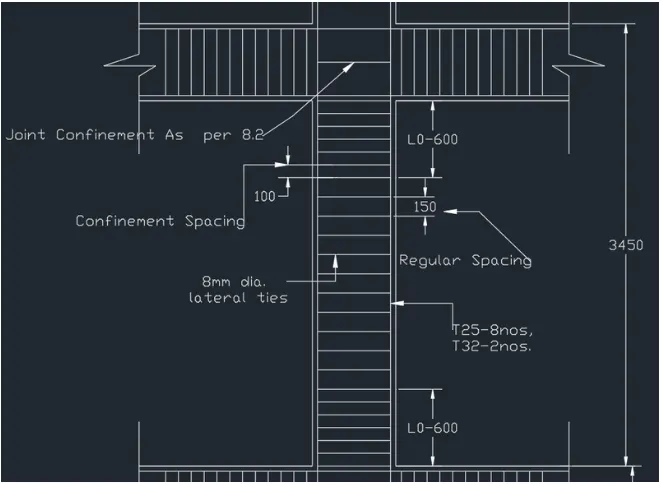
NOTE: The exact procedure as explained above is followed and the remaing column details are executed as inserted in the below sections.
First Floor
Second floor
Third floor
Final ouput
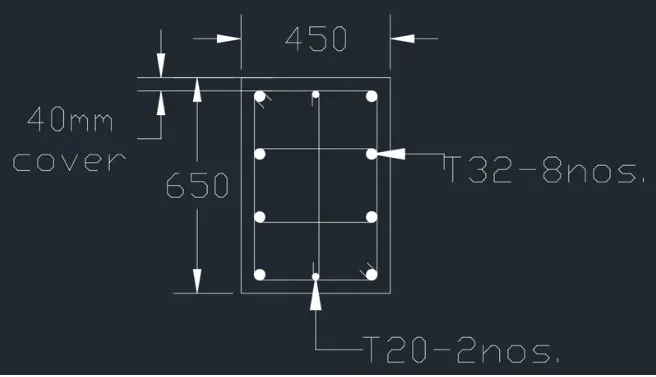
Columnbase3:
Base to first slab:
First floor:
Second floor:
Third floor:
Final result: