Project 2 - V&V SW Analysis II
Question:1
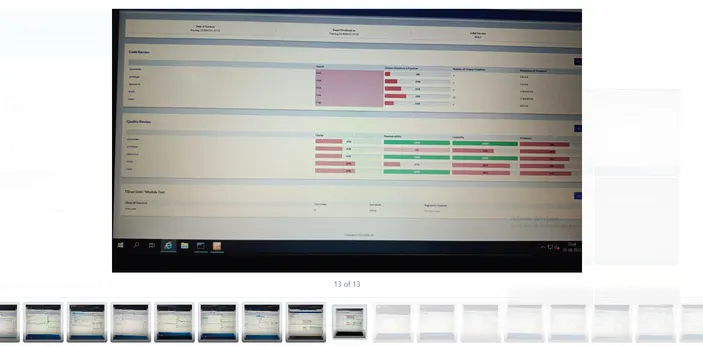
Perform Static Code Review Analysis for “C:\**\LDRA_workarea\Examples\C_Testbed_examples\Testrain\Testrain.c” Generate Code review report and upload them.
Answer:
Steps of Perform Static Code Review Analysis:
- Open the LDRA tool suite and configure it to work with your C project if it's not already set up.
- Load your C code file: "C:**\LDRA_workarea\Examples\C_Testbed_examples\Testrain\Testrain.c" into the LDRA tool.
- Run the code analysis by choosing the appropriate analysis settings and rules. LDRA provides a wide range of rules for static analysis that you can configure according to your project's requirements.
- Once the analysis is complete, you can typically generate a report from the LDRA tool. The specific steps for generating a report may vary depending on your LDRA configuration and version.
- Save the generated code review report in a suitable format (e.g., PDF or HTML).
Question:2
Perform Integration testing by including all the .C files available in the folder location C:\**\LDRA_workarea\Examples\Toolsuite\Cashregister_6.0\ ** A)Create the test cases manually as well as automatically using TBExtreme and upload the reports. B)store the test cases as .tcf file. Upload the location image where the .tcf file is stored.
Perform Integration testing by including all the .C files available in the folder location C:\**\LDRA_workarea\Examples\Toolsuite\Cashregister_6.0\ ** A)Create the test cases manually as well as automatically using TBExtreme and upload the reports. B)store the test cases as .tcf file. Upload the location image where the .tcf file is stored.
Answer:
Steps of Perform Integration testing
- Begin by launching LDRA TBrun.
- In the LDRA application, navigate to the "Source" menu, select "Multiple File," and then choose "Select/Create Set." Here, you can create a new set by giving it a name, adding the system files (e.g., .c files), and confirming your selection.
- Configure your analysis settings by going to "Configure" and selecting "Analysis Configuration Options." In the "Static Options" section, define your settings by finding or creating an example (e.g., "c_tbrun-examples") and selecting the appropriate .c files.
- For macros, go to "Macros" and find or create macros for your project. Typically, you'll choose macros related to your specific example (e.g., "c_tbrun_examples-examples"). Apply your changes and confirm.
- Now, in the "Source" menu, initiate the static analysis by clicking on "Run Static Analysis."
- Once the analysis is complete, access the results in the "Results" section. You will find a Test Manager report, which will be displayed in a web-based format, resembling a PDF document. This report will contain information about your test sequence and the types of tests that were conducted.
These steps should help you navigate through LDRA TBrun and perform a static code analysis while providing a clear summary of the process