Project 2 - V&V SW Analysis II
- Perform Static Code Review Analysis for “C:\**\LDRA_workarea\Examples\C_Testbed_examples\Testrain\Testrain.c” Generate Code review report and upload them.
Answer:
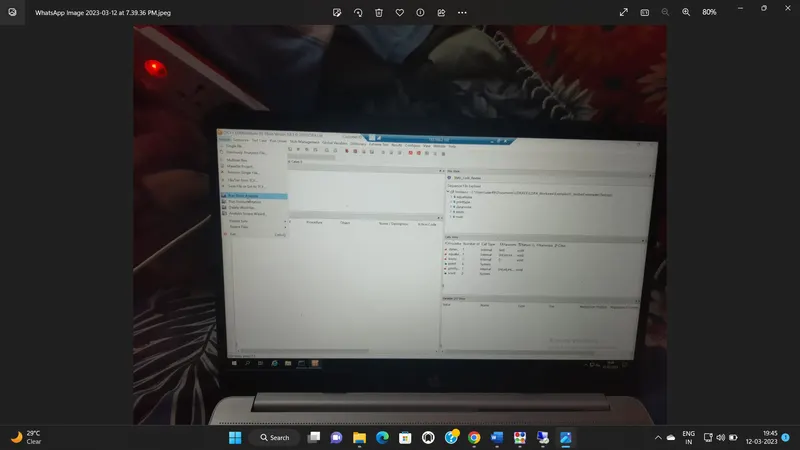
step1: Open the LDRA tool via user35
step2: Source file->Single file select the C:\**\LDRA_workarea\Examples\C_Testbed_examples\Testrain\Testrain.c
step3: Run the static analysis after finish the analysis show the all file contain inside the file.
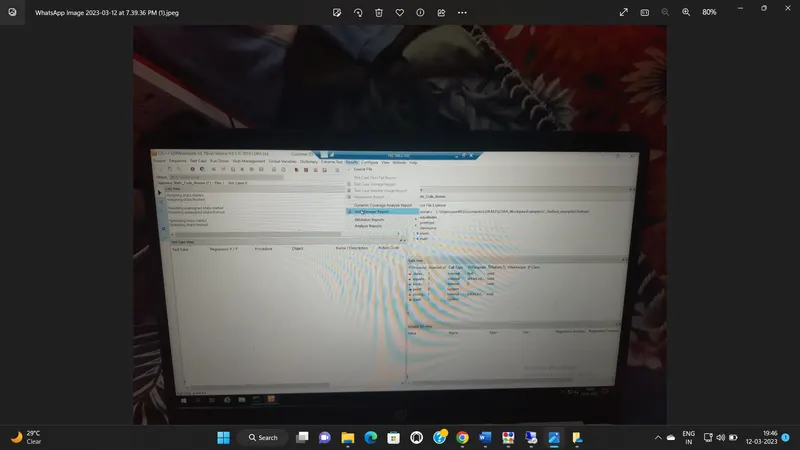
step4: create a sequence Staic_code _review
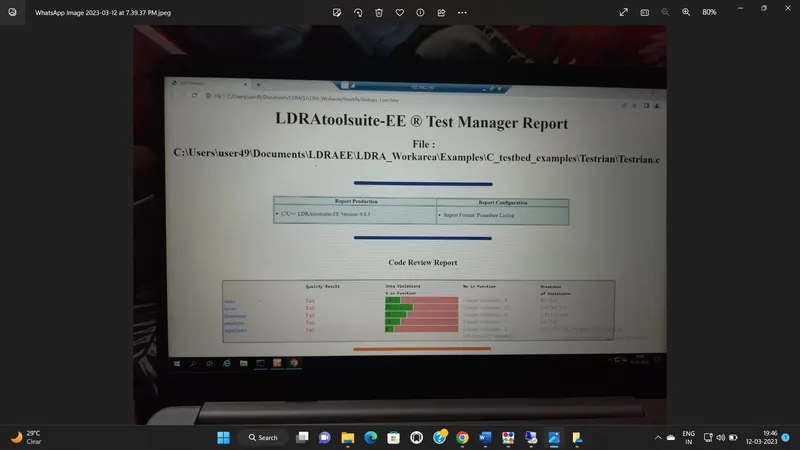
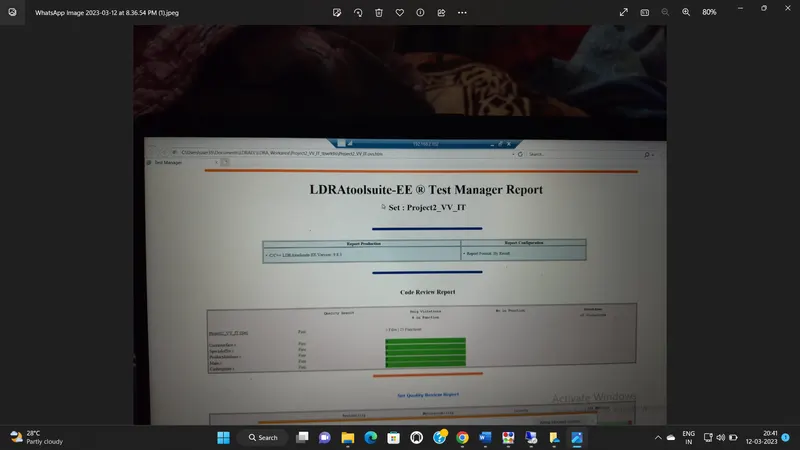
step5: Run the static Analysis and get the report in Test manager Report
REPORT:
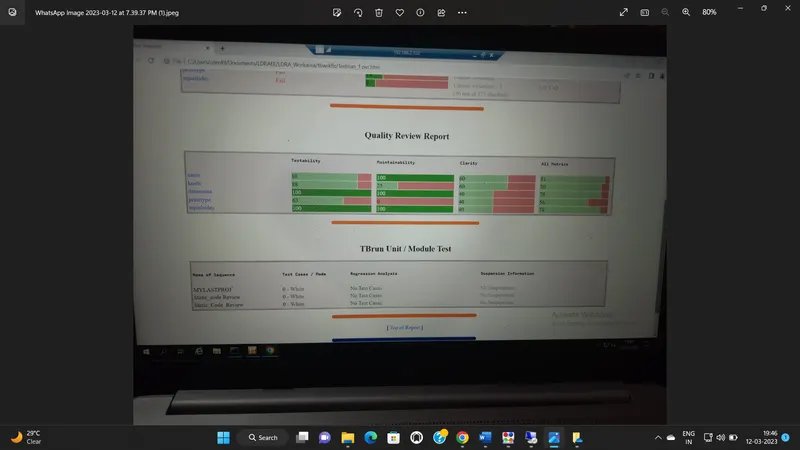
Answer:
step1: Open the LDRA tool via user35
step2: Source file->Multiple file select the -one window open for create a set.Project_VV_IT-> click->system
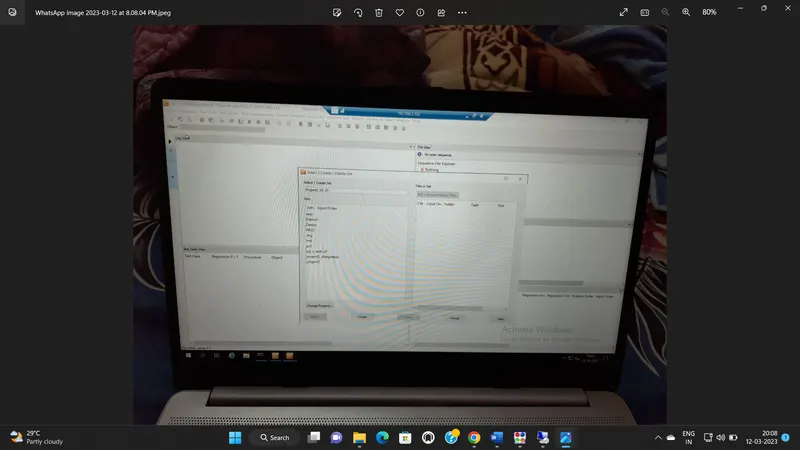
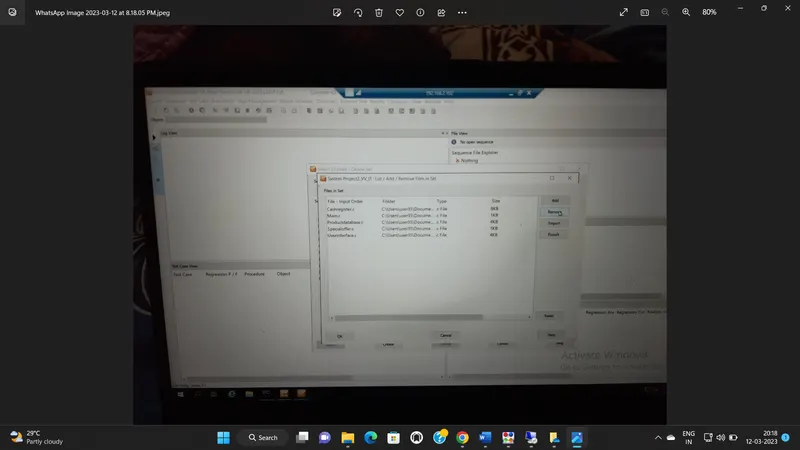
step3: Add file C:\ Users\user10\Documents\LDRAEE\LDRA_Workarea\Examples\Toolsuite\cashregister_5.0\SRC\select all file.
step4:Once open Testbed analysis window opens-->Click no
step5: create sequence as name Project_2_IT. and keep it white box mode.
step6: Run the static analysis
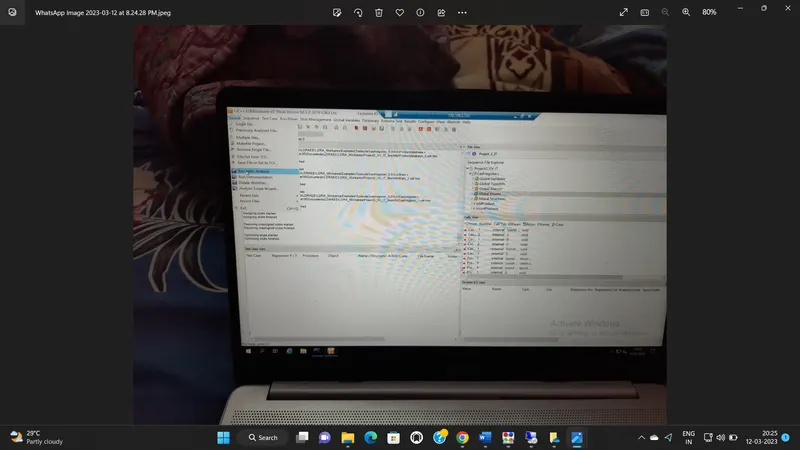
step7: set the path for the file.Go to configure on menu bar-Analysis configure option-select static option.
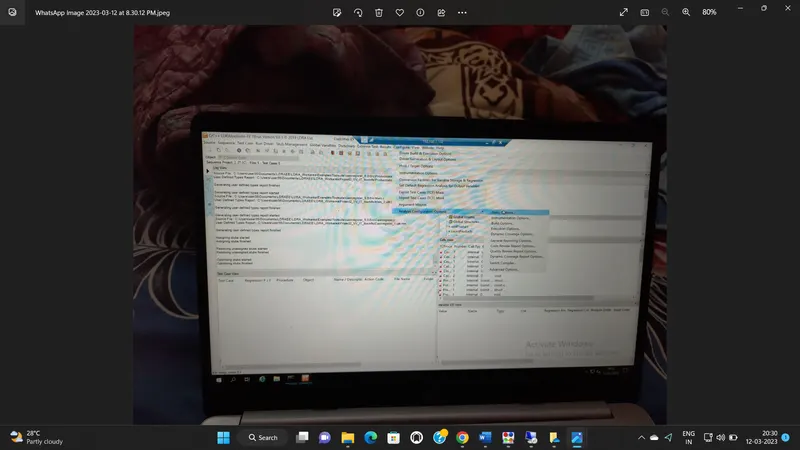
step8: Now click on Find/create button select file LDRAEE\LDRA_Workarea\Examples\Toolsuite\cashregister_5.0\SRC just click on .dat file.
step9: Go to macro- Find/create button select file LDRAEE\LDRA_Workarea\Examples\Toolsuite\cashregister_5.0\SRC just click on .systemsearch file. click on slsect.
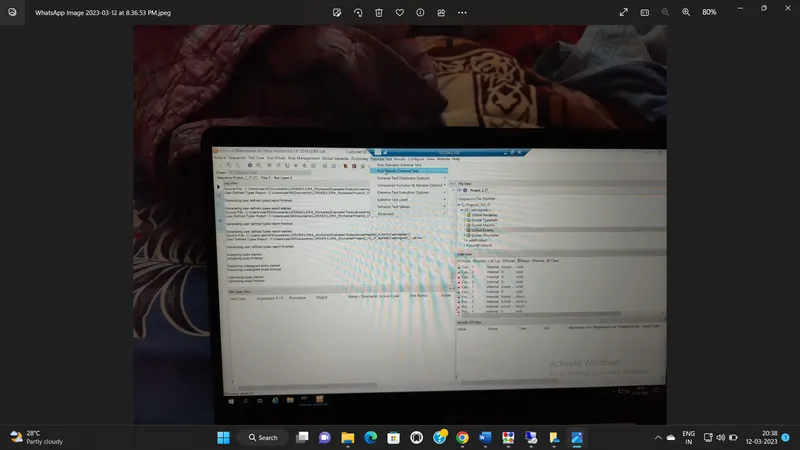
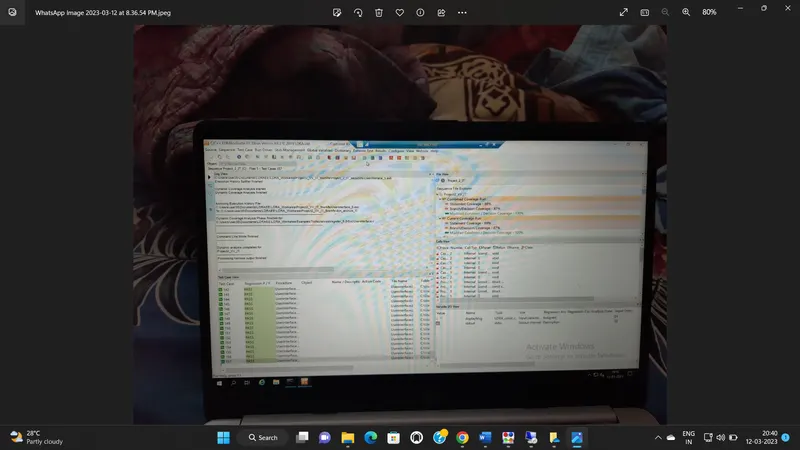
step10: Go to TBextream test-Run tabular extreame test-all the test cases will be created automatically.
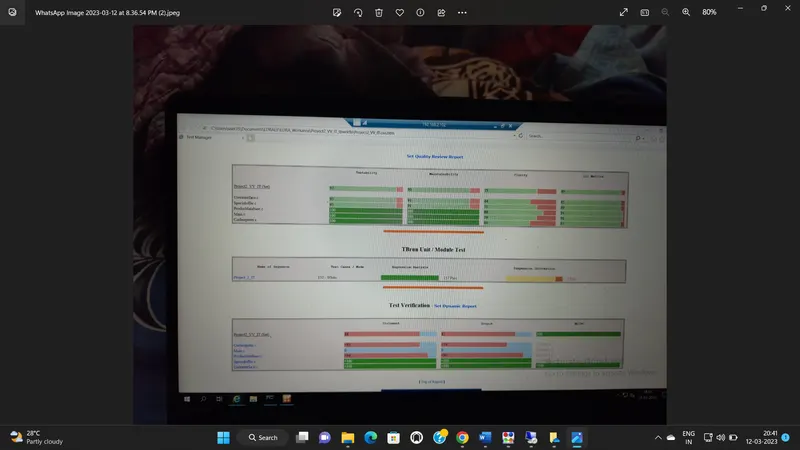
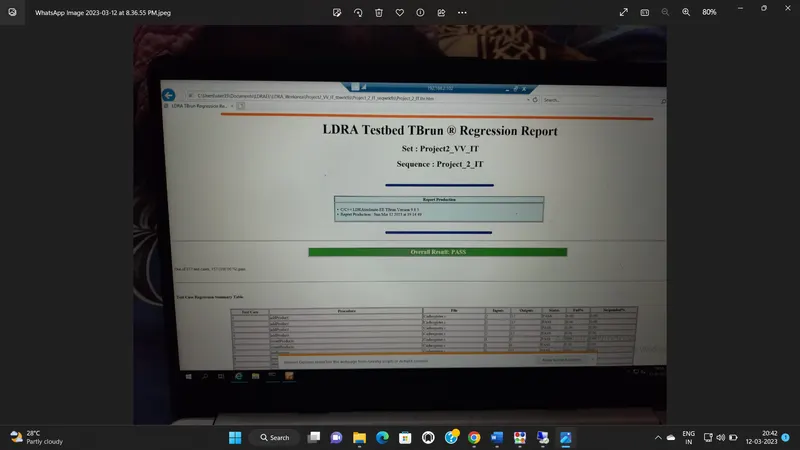
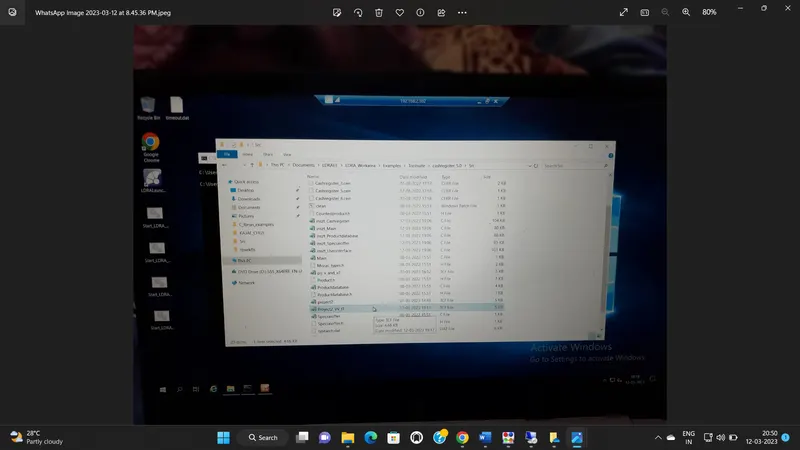
B)Store the test cases as .tcf file. Upload the location image where the .tcf file is stored.
Answer:
step1: select Save file or set to TCF click ok.
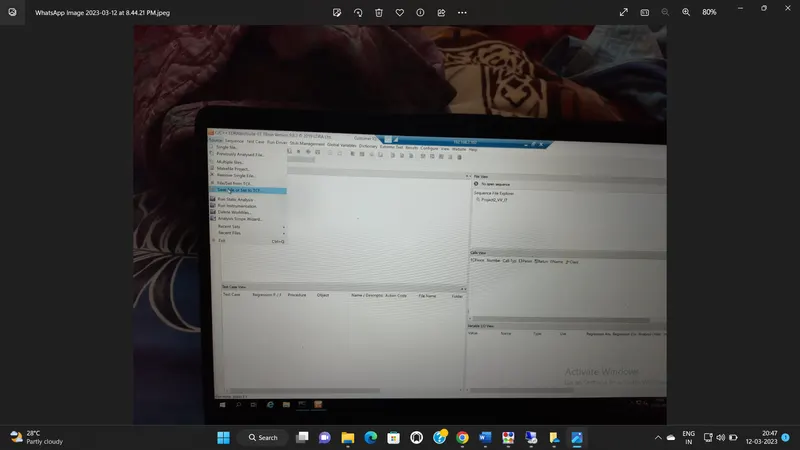
step2: Save folder with LDRAEE\LDRA_Workarea\Examples\Toolsuite\cashregister_5.0\SRC. save .tcf file.
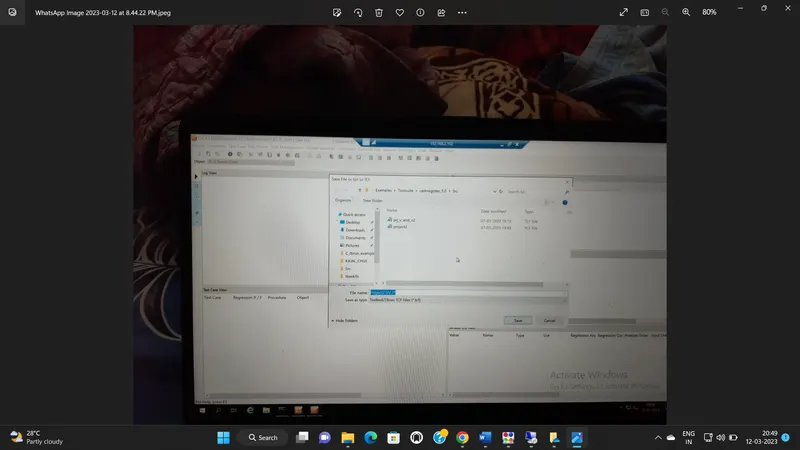
step3: stored location name as Project2_VV_IT