Project 2 - V&V SW Analysis II
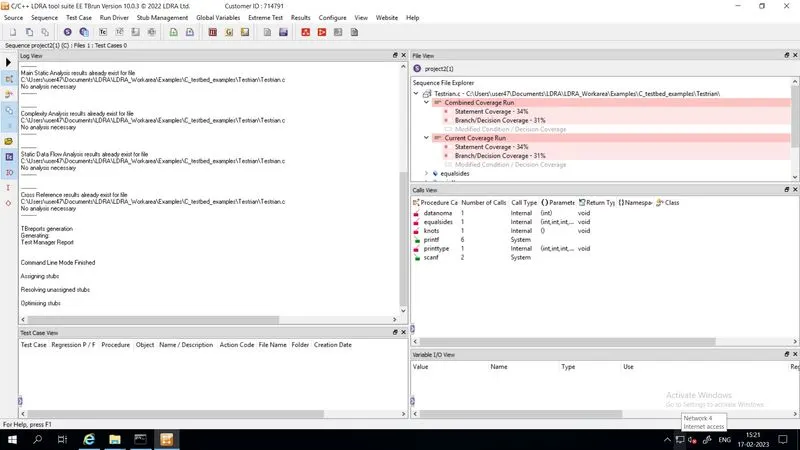
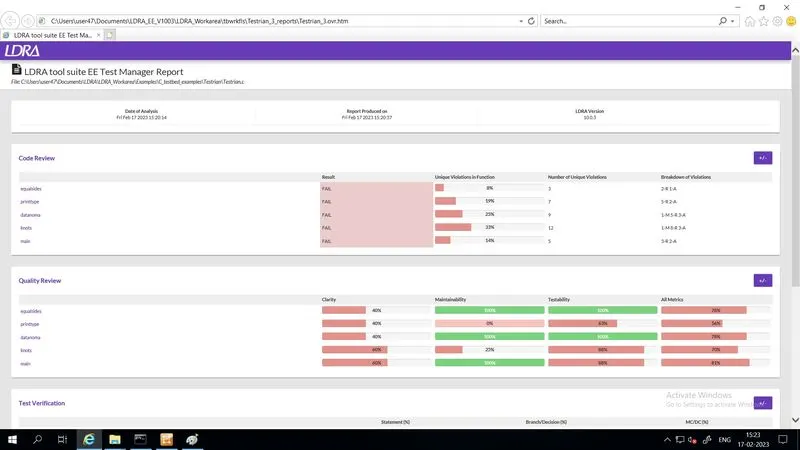
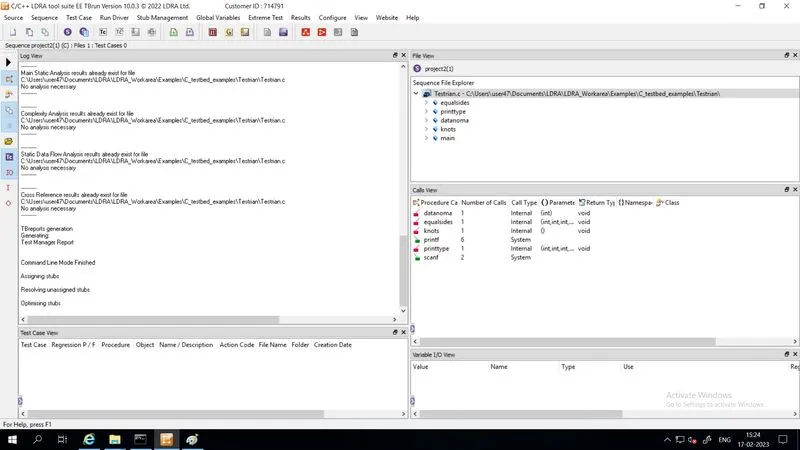
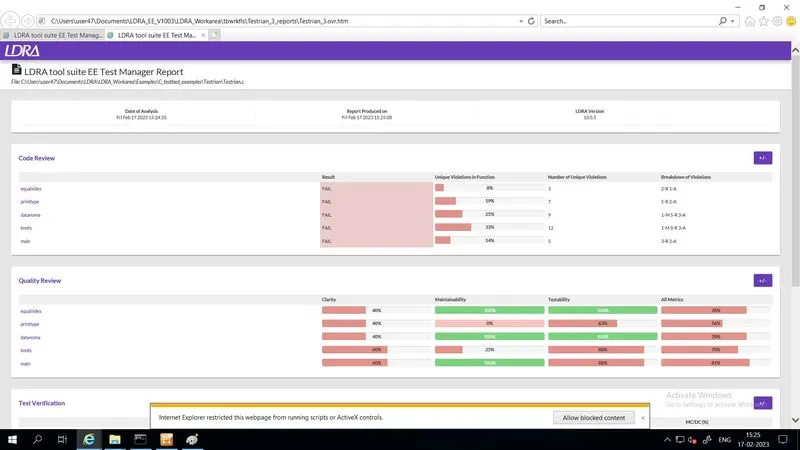
- Perform Static Code Review Analysis for “C:\**\LDRA_workarea\Examples\C_Testbed_examples\Testrain\Testrain.c” Generate Code review report and upload them.
STEPS:
- source-> single file-> load testrain.c
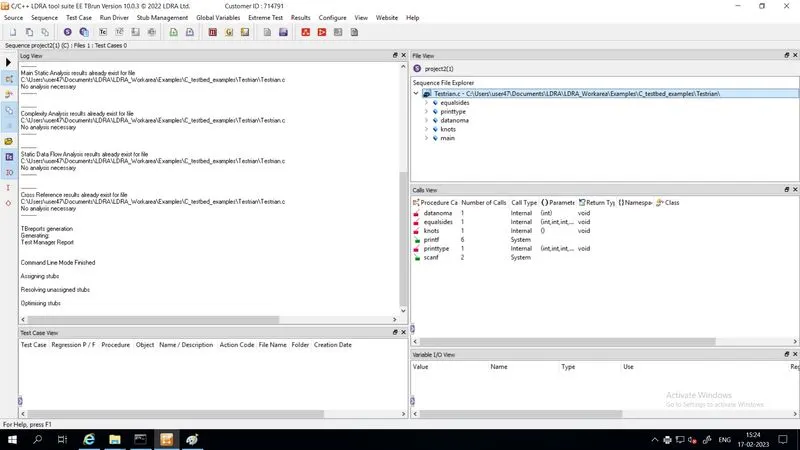
- create a new sequence. (here i have created in the name project2(1).
- keep it in white box mode.
- source->run static analysis
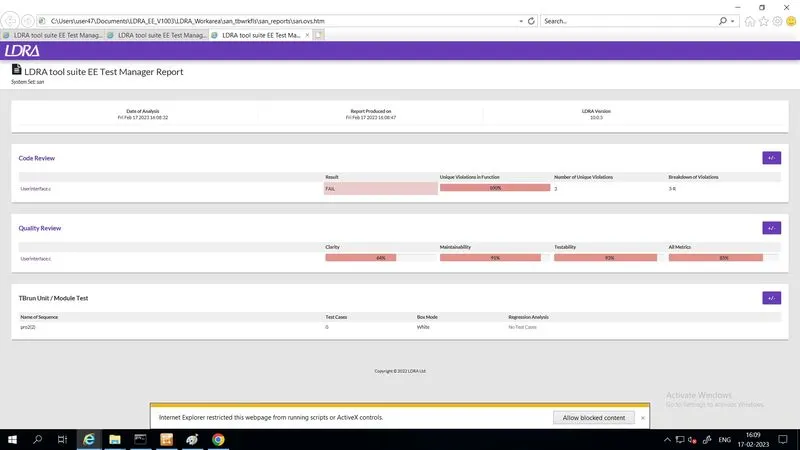
- results->test manager report
- repeat the same procedure for black box testing.
Perform Integration testing by including all the .C files available in the folder location C:\**\LDRA_workarea\Examples\Toolsuite\Cashregister_6.0\ **
STEPS:
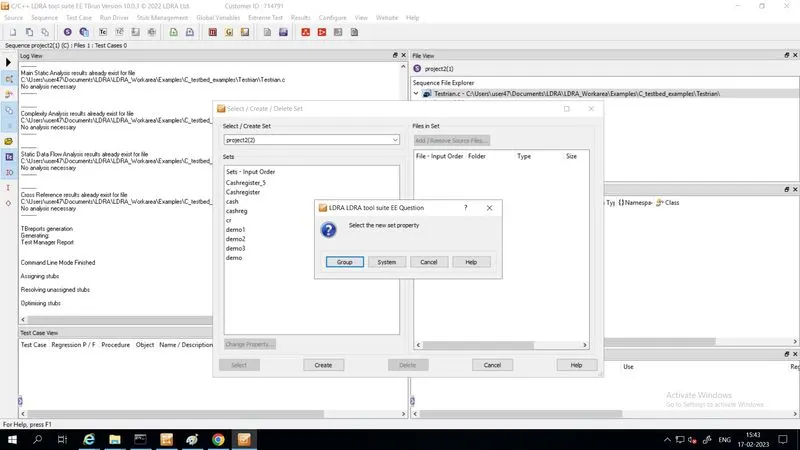
- Write the name of file here and click on Create
- Click on " system "
- Add -> Userinteface.c file and click OK
- From menu bar:
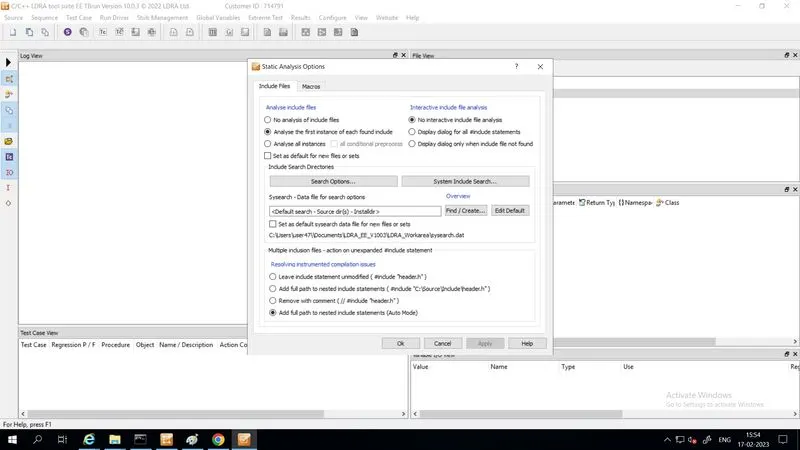
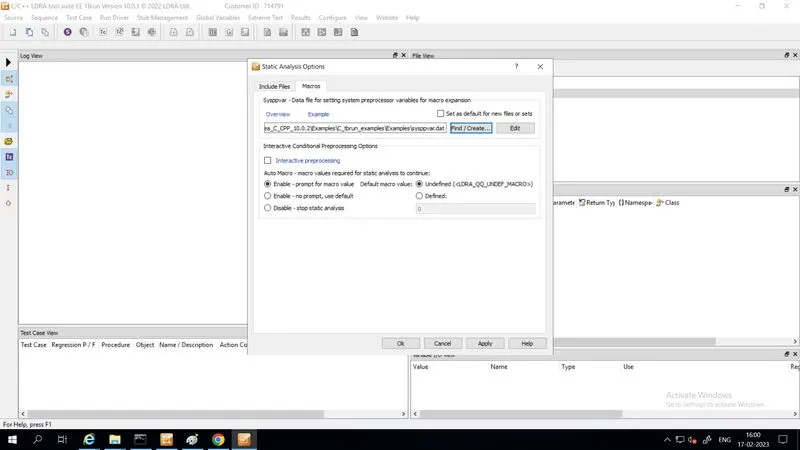
- Configure -> LDRA Testbed Configuration Options -> Static options
- In "include files" select .dat file as shown below
- Similarly select .dat file in "macros"
- From menu bar:
- Sequence -> New
- Sequence name
- From menu bar:
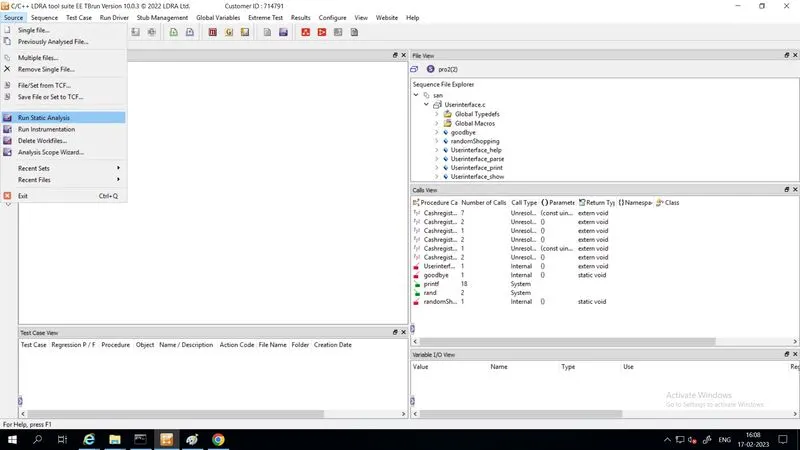
- Source -> Run static analysis
- Generate reports for both " White box " and " Black box "
A)Create the test cases manually as well as automatically using TBExtreme and upload the reports.
STEPS:
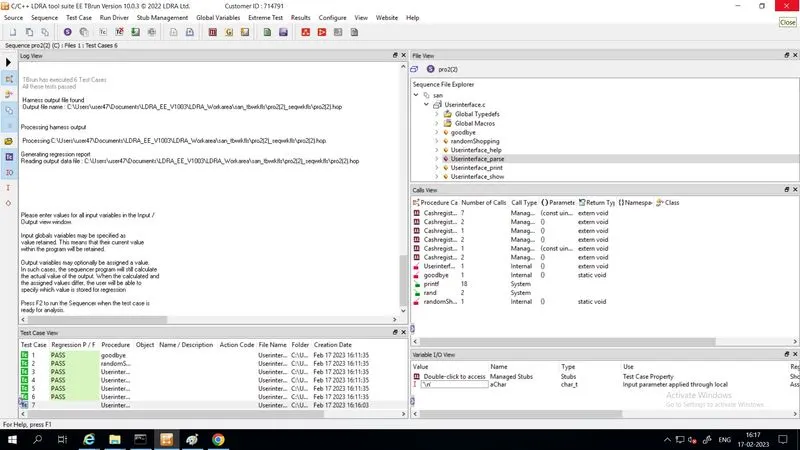
- After creating sequence in above steps, further in black box texting to generate " automatically test cases "
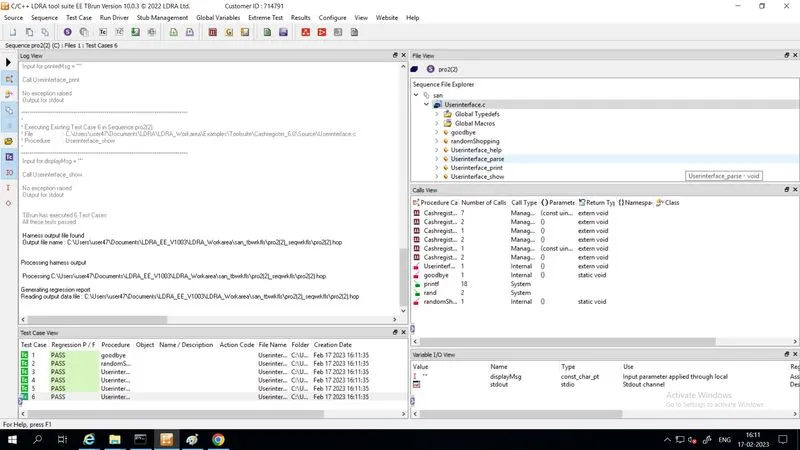
- From menu bar: Extreme test -> Run Tabular Extreme Test
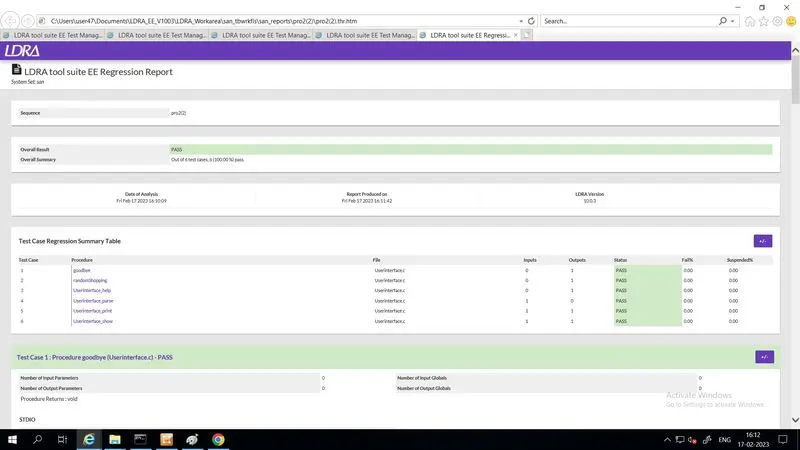
- Total 6 cases are generated
- From menu bar:
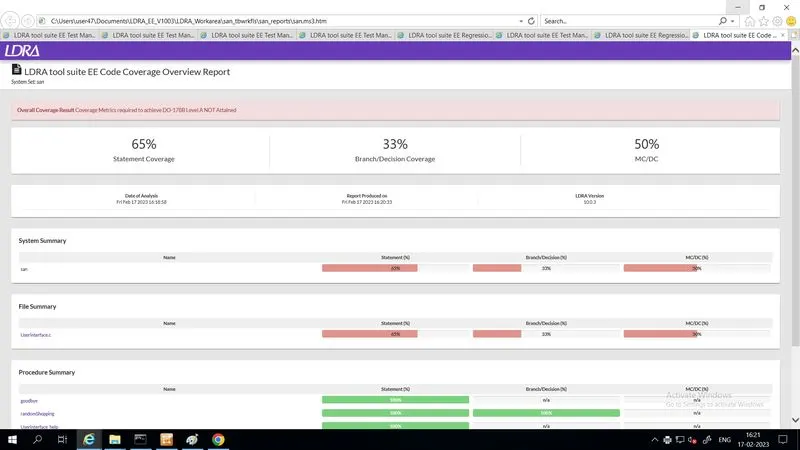
- Results -> Regression report and Test manager report are generated which shown below.
- For manual test case:
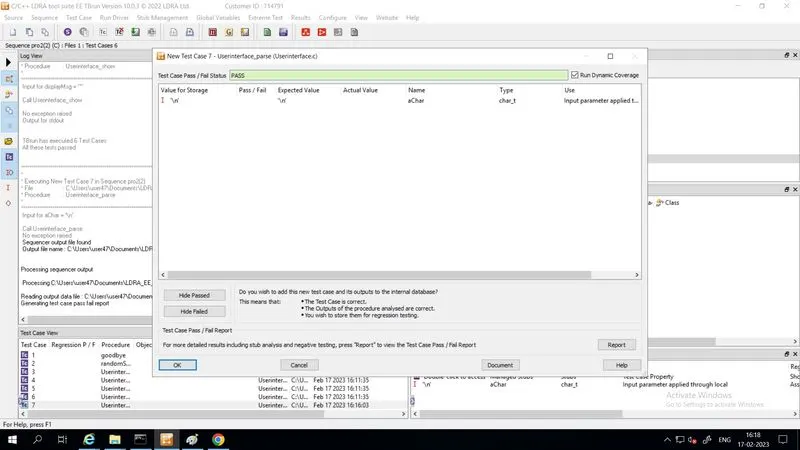
- Right click on any function, below it is shown of example "Userinterface parse" function
- Create new test case -> Enable the mode Repetitions -> Continue -> and again Continue.
- Manually giving input value for the function and then from Run driver respective function is run.
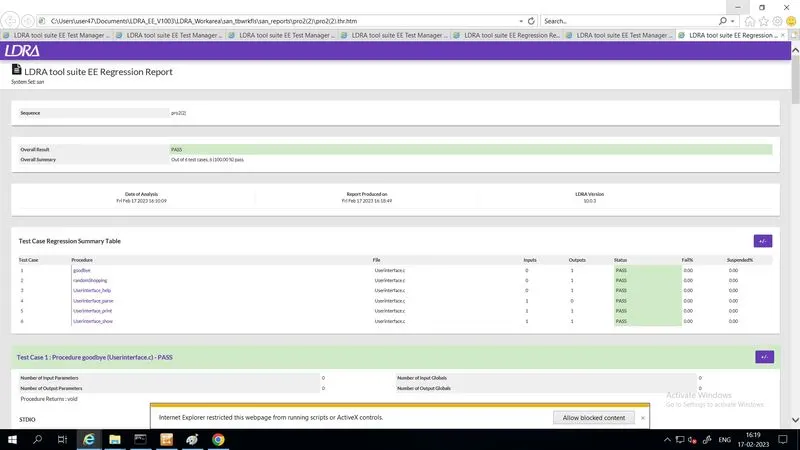
- In similar manner manually entering values for other functions also.
- Generating Regression and Test manager report which is shown below.
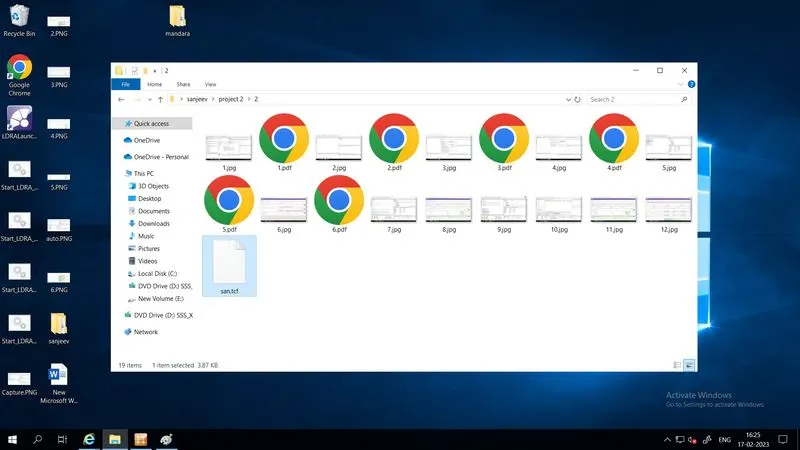
B) store the test cases as .tcf file. Upload the location image where the .tcf file is stored.
STEPS:
- From menu bar:
- Source -> Save File or Set to TCF.