Project 2 - Development of TFT Cluster Speedometer Software Component
Development of TFT Cluster Speedometer Software Component
Cluster Instrument receives the signals from other ECU via CAN bus interface. It also receives commands from the driver via steering wheel buttons. The signals are then processed by the Cluster ECU, after which the Cluster ECU may send the vehicle information to the LCD or light the LEDs and so forth, according to the results. Therefore, the Cluster ECU can be viewed as a carrier of the information flow.
Requirements:
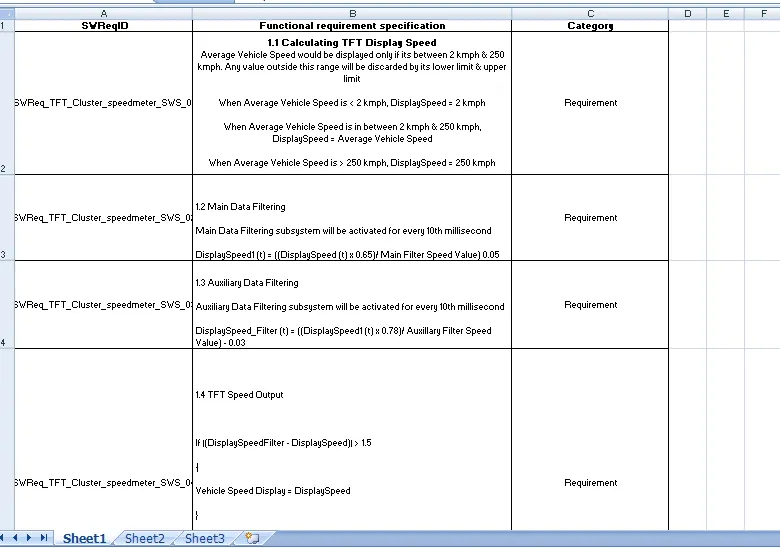
1.1 Calculating TFT Display Speed
|
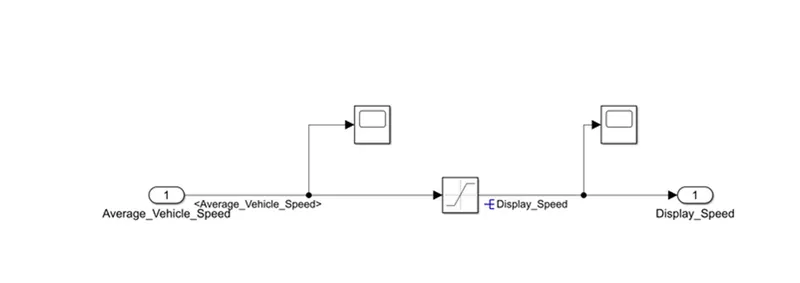
Average Vehicle Speed would be displayed only if its between 2 kmph & 250 kmph. Any value outside this range will be discarded by its lower limit & upper limit |
|
When Average Vehicle Speed is < 2 kmph, DisplaySpeed = 2 kmph |
|
When Average Vehicle Speed is in between 2 kmph & 250 kmph, DisplaySpeed = Average Vehicle Speed |
|
When Average Vehicle Speed is > 250 kmph, DisplaySpeed = 250 kmph |
1.2 Main Data Filtering
|
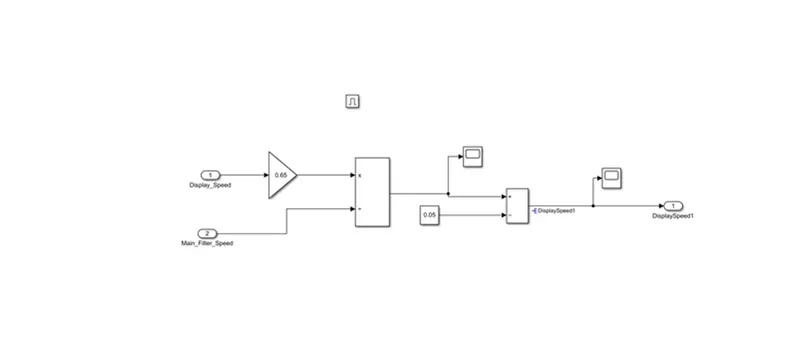
Main Data Filtering subsystem will be activated for every 10th millisecond |
||||||
|
DisplaySpeed1 (t) = ((DisplaySpeed (t) x 0.65)/ Main Filter Speed Value) 0.05 |
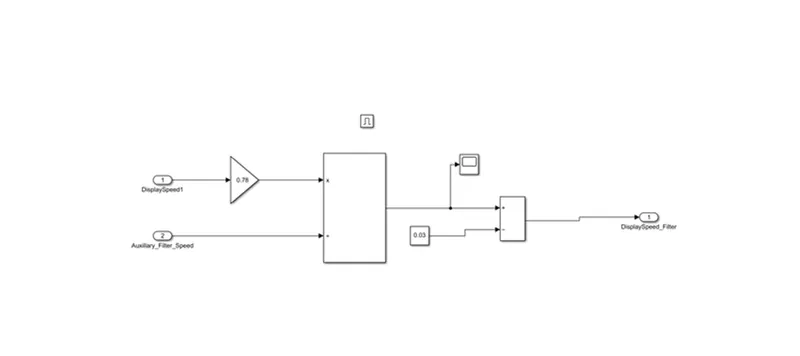
1.3 Auxiliary Data Filtering
|
Auxiliary Data Filtering subsystem will be activated for every 10th millisecond |
|||||||
|
DisplaySpeed_Filter (t) = ((DisplaySpeed1 (t) x 0.78)/ Auxillary Filter Speed Value) - 0.03 |
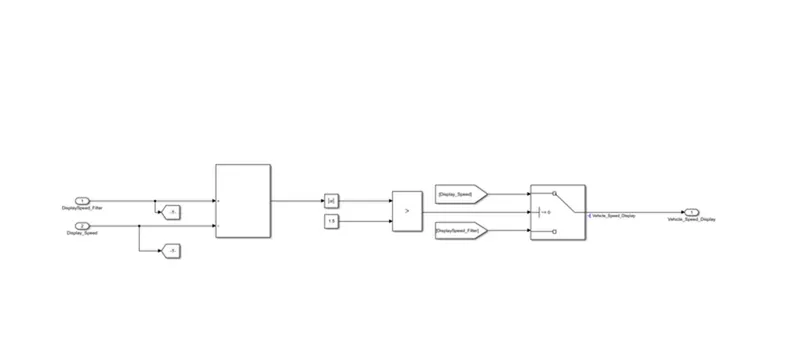
1.4 TFT Speed Output
|
If |(DisplaySpeedFilter - DisplaySpeed)| > 1.5 |
|
{ |
|
Vehicle Speed Display = DisplaySpeed |
|
} |
|
else |
|
{ |
|
Vehicle Speed Display = DisplaySpeed Filter |
|
} |
Answer :
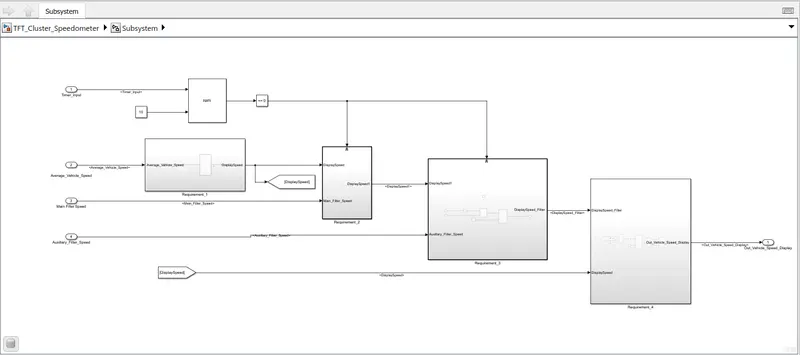
Main Model :
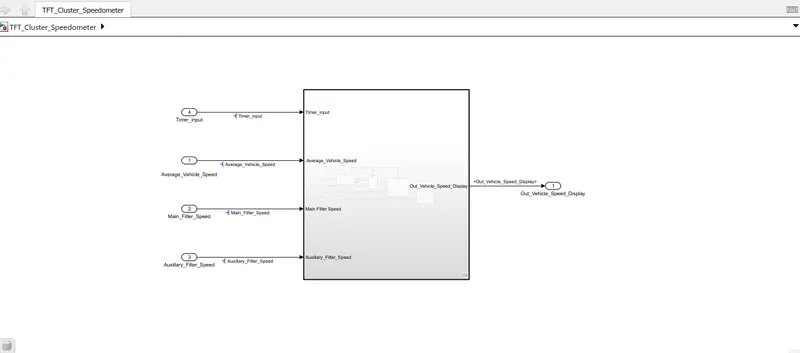
Subsystem_1(Avg-Vehicle Speed)
Subsystem-2(Main_Filter_Speed)
Subsytem-3(Auxiliary Filter Speed)
Substem_4(Final Display)
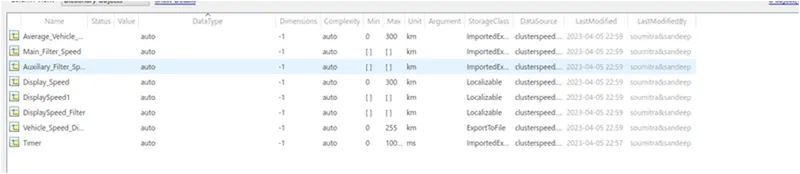
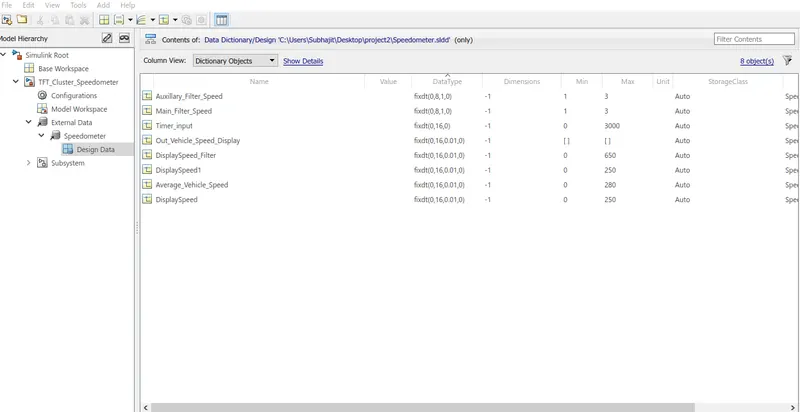
sldd file :
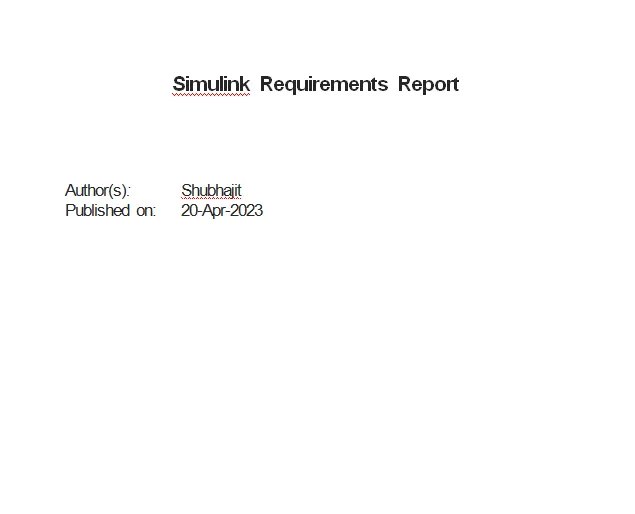
Requirement Tagging:-

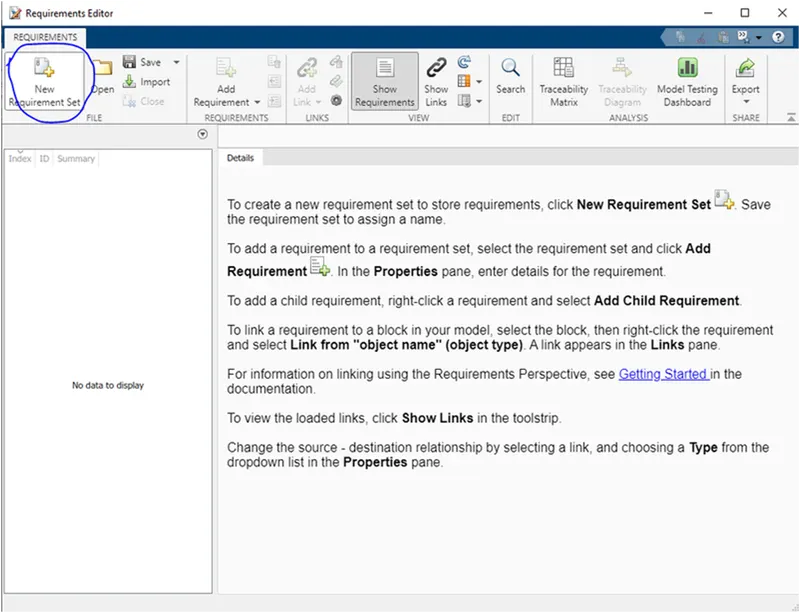

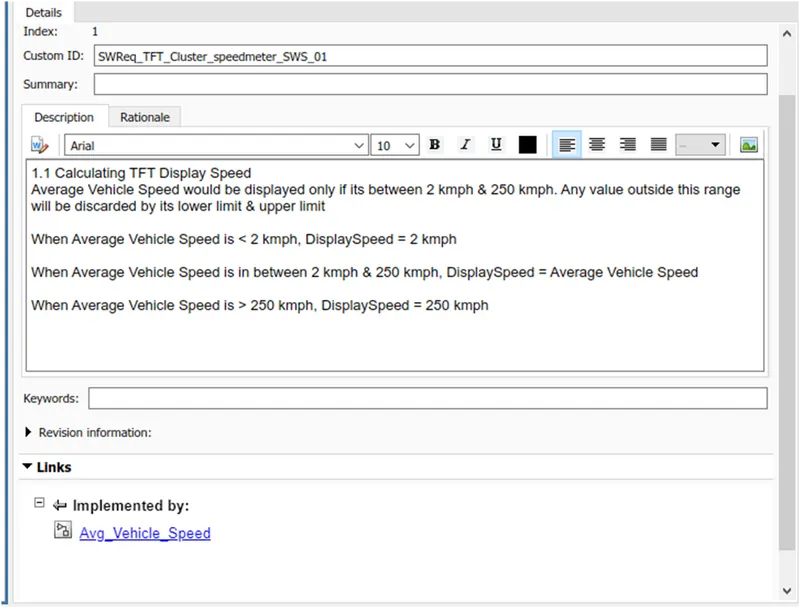
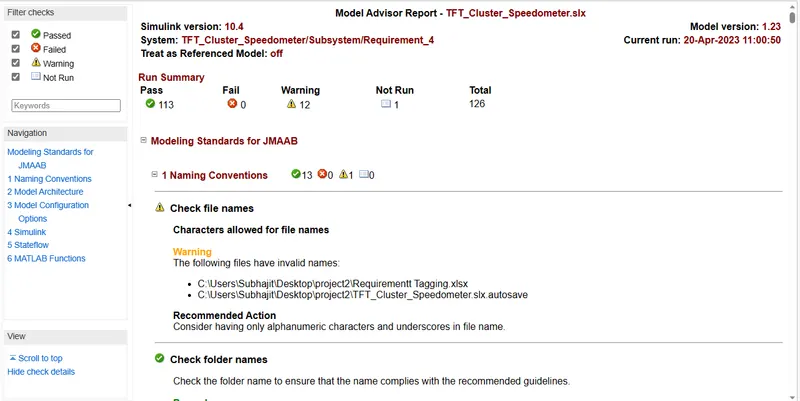
JMAB Check:-
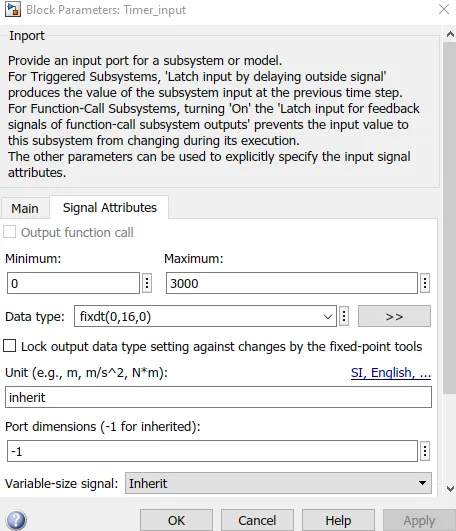
Fixed Point Tool:-

Fixed point change in Port
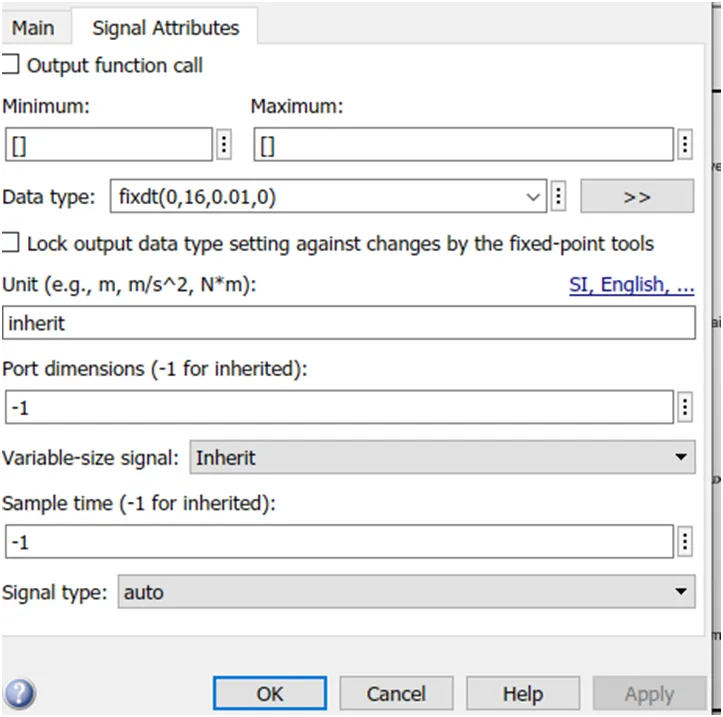
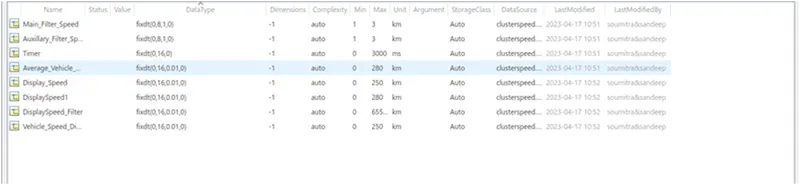
Fixed point change in SLDD :
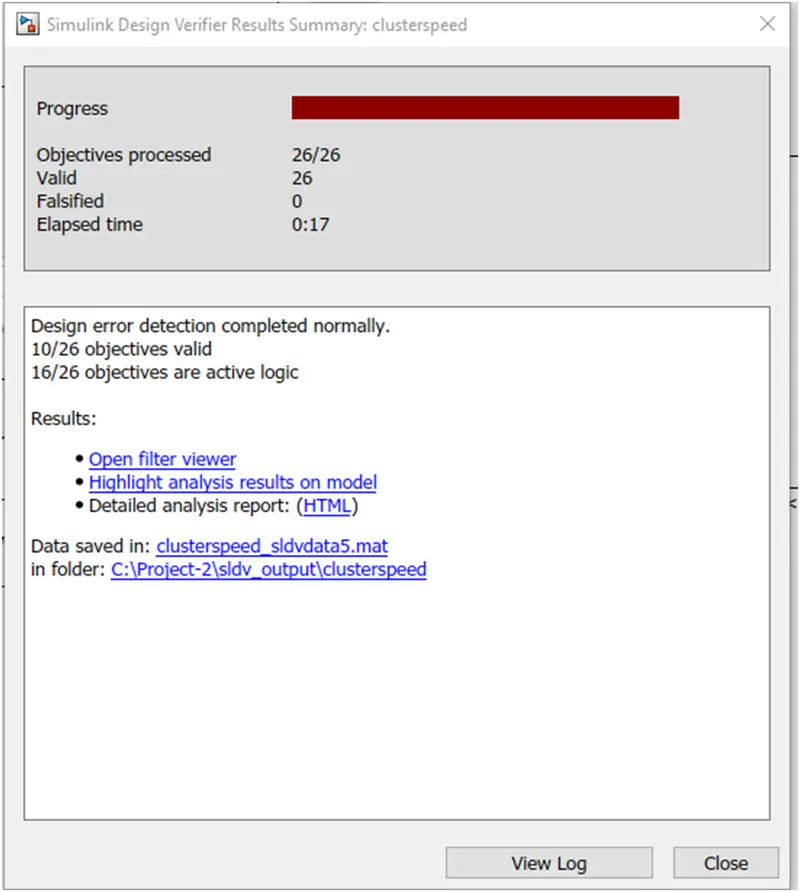
SLDC Design verifier :
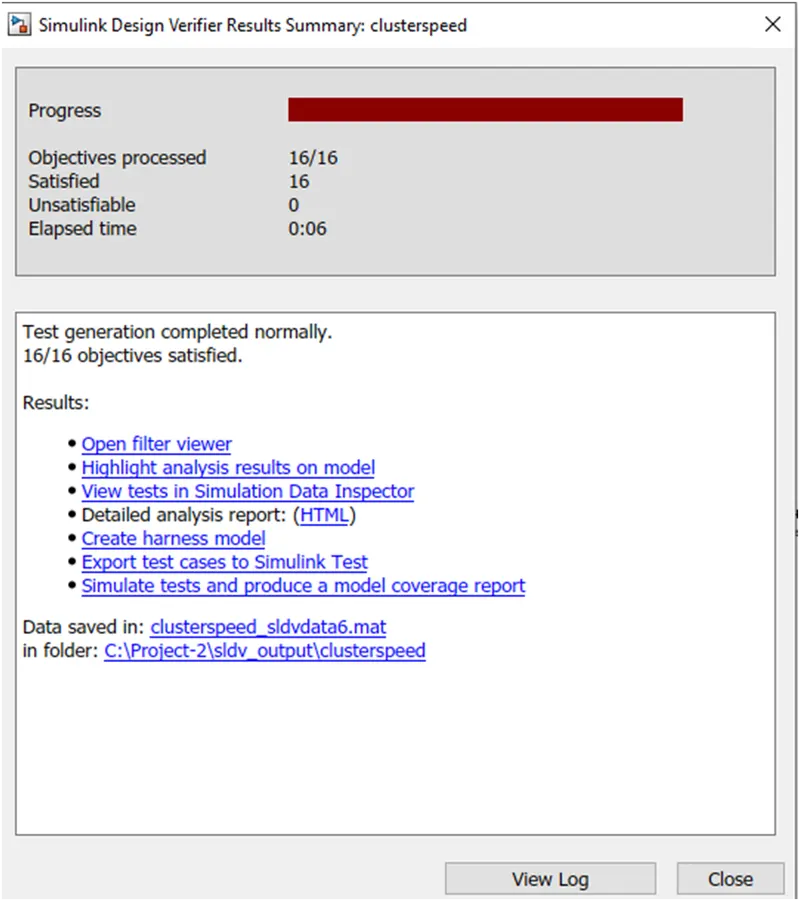
Test Generation
MIL SIL Report
Test cases :
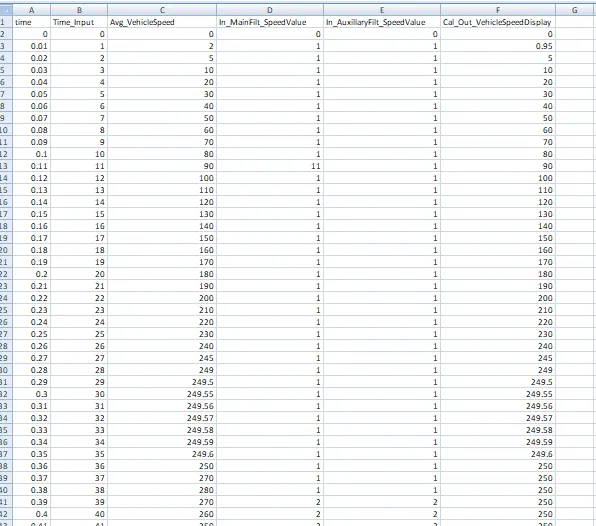
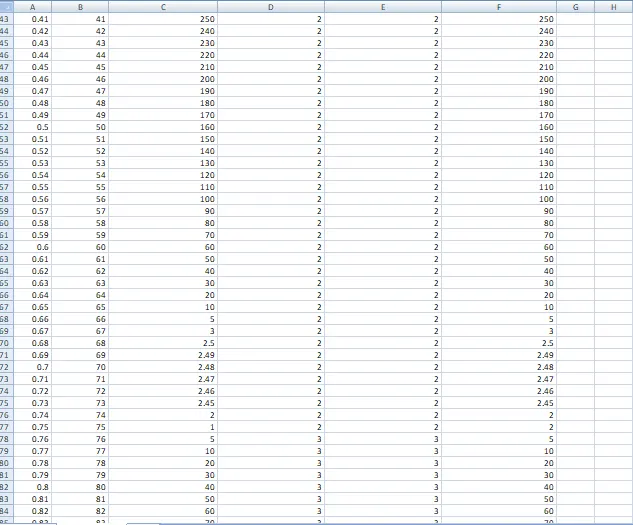
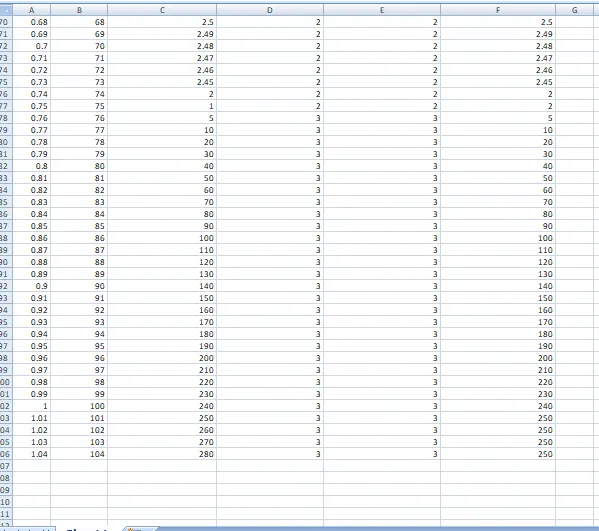
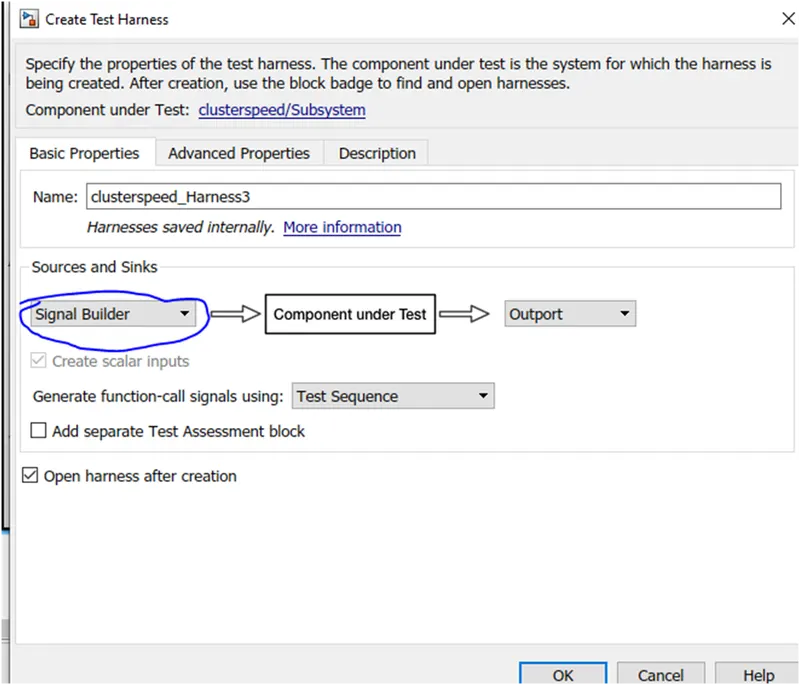
Signal builder output:-
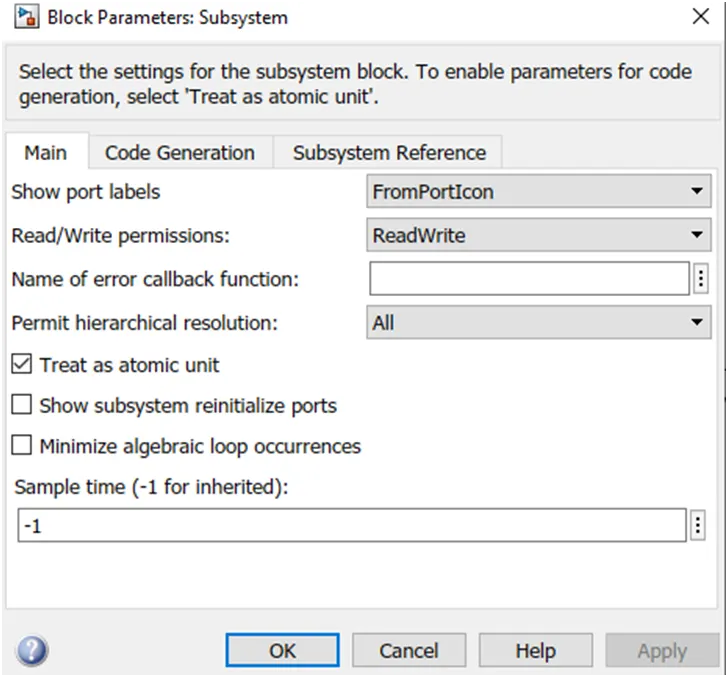
MIL Harness :
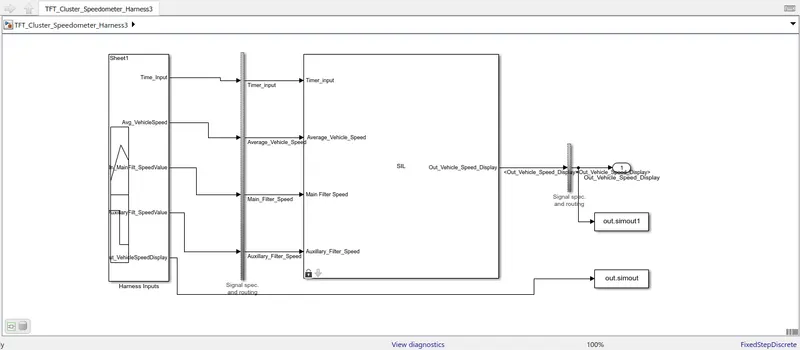
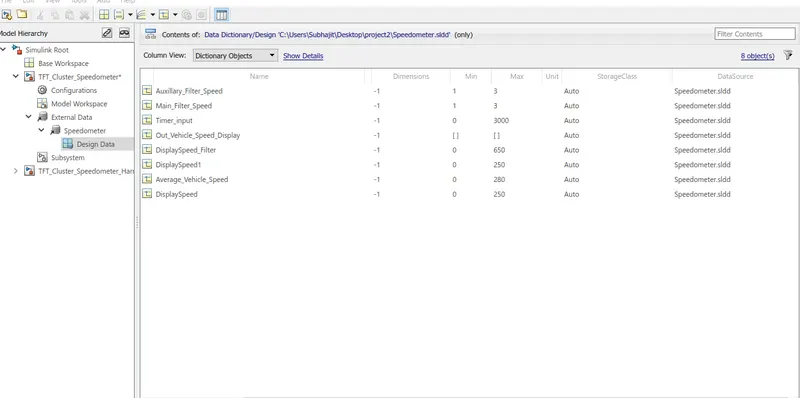
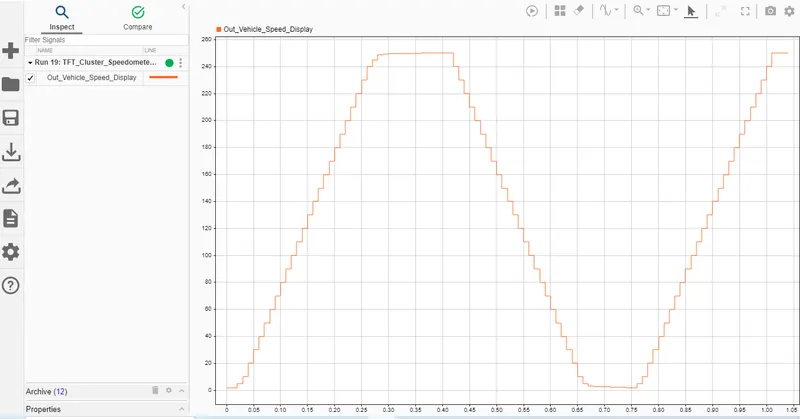
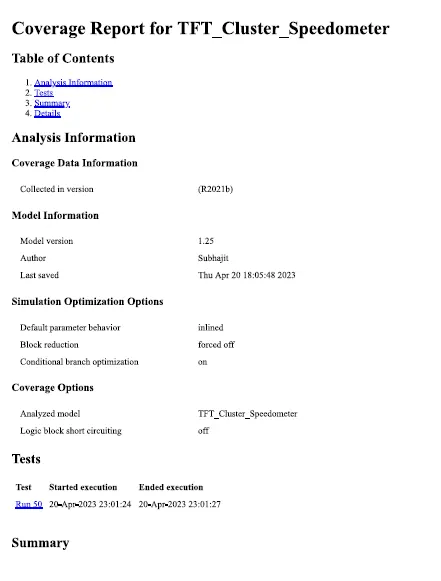
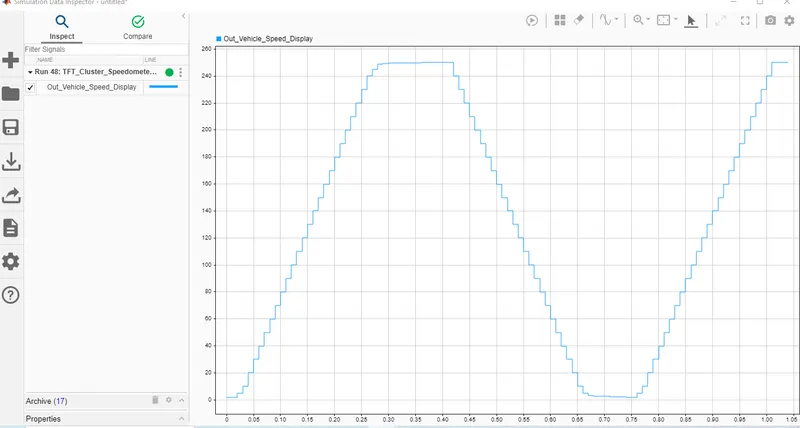
Its impossible to get zero output in scope, so we take the help of data inspector output, where the Harness output nearly matches the model output.
SIL:-
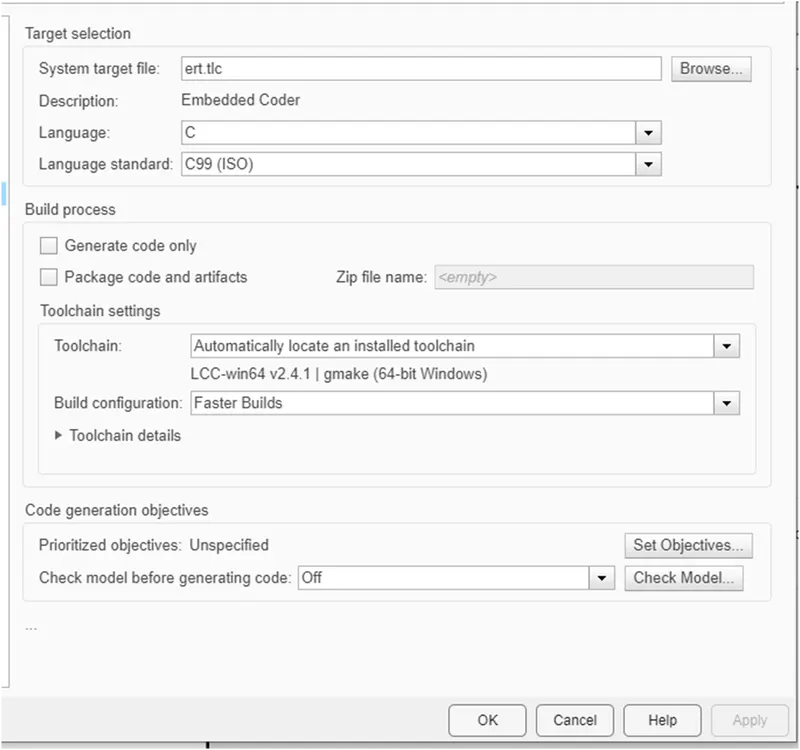
We first then select the solver settings as embedded coder then build the model.


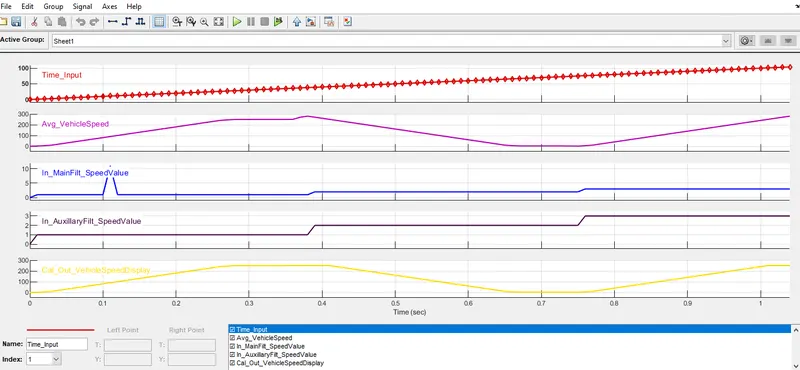
The signal builDER OUTPUT:
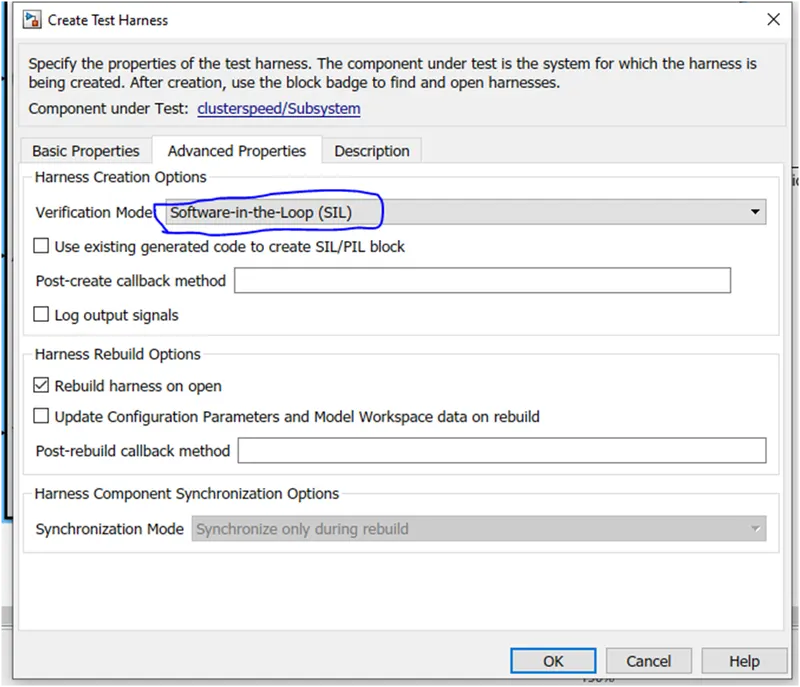
SIL Harness :
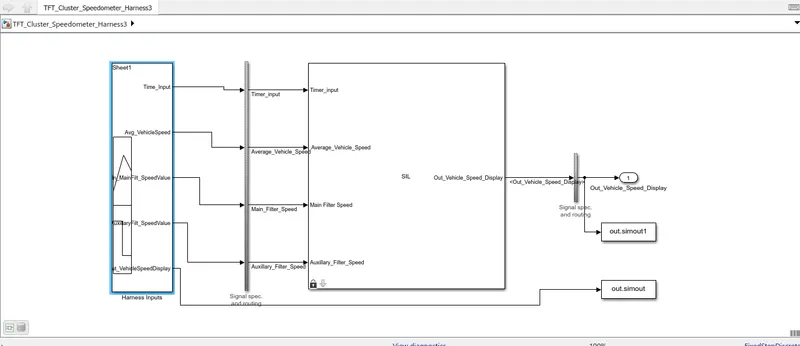
Signal builderoutput :
Data Inspector output :
code generation :
/*
 * File: TFT_Cluster_Speedometer.c
 *
 * Code generated for Simulink model 'TFT_Cluster_Speedometer'.
 *
 * Model version                  : 1.25
 * Simulink Coder version         : 9.6 (R2021b) 14-May-2021
 * C/C++ source code generated on : Thu Apr 20 19:15:17 2023
 *
 * Target selection: ert.tlc
 * Embedded hardware selection: Intel->x86-64 (Windows64)
 * Code generation objectives: Unspecified
 * Validation result: Not run
 */

#include "TFT_Cluster_Speedometer.h"
#include "TFT_Cluster_Speedometer_private.h"

/* Exported data definition */

/* Definition for custom storage class: ExportToFile */
uint16_T Out_Vehicle_Speed_Display;    /* '/Switch' */

/* Definition for custom storage class: Localizable */
static uint16_T DisplaySpeed1;         /* '/Add' */
static uint16_T DisplaySpeed_Filter;   /* '/Add1' */

/* Real-time model */
static RT_MODEL_TFT_Cluster_Speedome_T TFT_Cluster_Speedometer_M_;
RT_MODEL_TFT_Cluster_Speedome_T *const TFT_Cluster_Speedometer_M =
  &TFT_Cluster_Speedometer_M_;
uint32_T div_u32_round(uint32_T numerator, uint32_T denominator)
{
  uint32_T quotient;
  if (denominator == 0U) {
    quotient = MAX_uint32_T;

    /* Divide by zero handler */
  } else {
    uint32_T absNumerator;
    quotient = numerator / denominator;
    absNumerator = numerator % denominator;
    if (absNumerator > 2147483647U) {
      quotient++;
    } else {
      absNumerator <<= 1U;
      if (absNumerator >= denominator) {
        quotient++;
      }
    }
  }

  return quotient;
}

/* Model step function */
void TFT_Cluster_Speedometer_step(void)
{
  /* local block i/o variables */
  uint16_T DisplaySpeed;
  int16_T rtb_Add2;
  uint16_T rtb_Add2_0;
  uint16_T tmp;

  /* Outputs for Atomic SubSystem: '/Subsystem' */
  /* Saturate: '/Saturation' incorporates:
   *  Inport: '/ Average_Vehicle_Speed'
   */
  if (Average_Vehicle_Speed > 25000) {
    /* Saturate: '/Saturation' */
    DisplaySpeed = 25000U;
  } else if (Average_Vehicle_Speed < 200) {
    /* Saturate: '/Saturation' */
    DisplaySpeed = 200U;
  } else {
    /* Saturate: '/Saturation' */
    DisplaySpeed = Average_Vehicle_Speed;
  }

  /* End of Saturate: '/Saturation' */

  /* Outputs for Enabled SubSystem: '/Requirement_3' incorporates:
   *  EnablePort: '/Enable'
   */
  /* Outputs for Enabled SubSystem: '/Requirement_2' incorporates:
   *  EnablePort: '/Enable'
   */
  /* RelationalOperator: '/Compare' incorporates:
   *  Constant: '/Constant'
   *  Inport: '/Timer_input'
   *  Math: '/Rem'
   */
  if ((uint16_T)(Timer_input % 10) == 0) {
    /* Sum: '/Add' incorporates:
     *  Constant: '/Constant'
     *  Gain: '/Gain'
     *  Inport: '/Main_Filter_Speed'
     *  Product: '/Divide'
     *  Saturate: '/Saturation'
     */
    DisplaySpeed1 = (uint16_T)((uint16_T)div_u32_round((((65U * DisplaySpeed) >>
      7) * 41943U) >> 15, Main_Filter_Speed) - 5);

    /* Sum: '/Add1' incorporates:
     *  Constant: '/Constant1'
     *  Gain: '/Gain1'
     *  Inport: '/Auxillary_Filter_Speed'
     *  Product: '/Divide1'
     *  Sum: '/Add'
     */
    DisplaySpeed_Filter = (uint16_T)((uint16_T)(Auxillary_Filter_Speed == 0U ?
      MAX_uint32_T : ((((39U * DisplaySpeed1) >> 6) * 41943U) >> 15) /
      Auxillary_Filter_Speed) - 3);
  }

  /* End of RelationalOperator: '/Compare' */
  /* End of Outputs for SubSystem: '/Requirement_2' */
  /* End of Outputs for SubSystem: '/Requirement_3' */

  /* Sum: '/Add2' incorporates:
   *  Saturate: '/Saturation'
   *  Sum: '/Add1'
   */
  rtb_Add2_0 = DisplaySpeed_Filter;
  if (DisplaySpeed_Filter > 32767) {
    rtb_Add2_0 = 32767U;
  }

  tmp = DisplaySpeed;
  if (DisplaySpeed > 32767) {
    tmp = 32767U;
  }

  rtb_Add2 = (int16_T)(rtb_Add2_0 - tmp);

  /* End of Sum: '/Add2' */

  /* Abs: '/Abs' incorporates:
   *  Sum: '/Add2'
   */
  if (rtb_Add2 < 0) {
    rtb_Add2_0 = (uint16_T)-rtb_Add2;
  } else {
    rtb_Add2_0 = (uint16_T)rtb_Add2;
  }

  /* End of Abs: '/Abs' */

  /* Switch: '/Switch' incorporates:
   *  RelationalOperator: '/Relational Operator'
   */
  if (rtb_Add2_0 > 150) {
    /* Switch: '/Switch' incorporates:
     *  Saturate: '/Saturation'
     */
    Out_Vehicle_Speed_Display = DisplaySpeed;
  } else {
    /* Switch: '/Switch' incorporates:
     *  Sum: '/Add1'
     */
    Out_Vehicle_Speed_Display = DisplaySpeed_Filter;
  }

  /* End of Switch: '/Switch' */
  /* End of Outputs for SubSystem: '/Subsystem' */
}

/* Model initialize function */
void TFT_Cluster_Speedometer_initialize(void)
{
  /* (no initialization code required) */
}

/* Model terminate function */
void TFT_Cluster_Speedometer_terminate(void)
{
  /* (no terminate code required) */
}

/*
 * File trailer for generated code.
 *
 * [EOF]
 */
Polyspace Bug report:-
As we dont have the polyspace licence, only steps to find out the polyspace bug finder report is written below.
Polyspace Bug Finder is a static code analysis tool that can help you identify potential bugs in your MATLAB code. To generate a Polyspace Bug Finder report, you can follow these steps:
- Open MATLAB and navigate to the directory where your code is located.
- Open the Polyspace Bug Finder interface by typing "polyspace" in the MATLAB command window.
- In the Polyspace Bug Finder interface, select "Create New Project" and give your project a name.
- Select "MATLAB" as the programming language for your project.
- In the "Project Settings" window, select the files you want to analyze and specify any additional analysis options.
- Click "Run Analysis" to start the analysis process.
- Once the analysis is complete, Polyspace Bug Finder will generate a report that lists any potential bugs it has identified in your code.
- To view the report, select "View Report" in the Polyspace Bug Finder interface.
- The report will display a list of potential bugs, along with detailed information about each bug and recommendations for how to fix it.
- You can save the report in various formats, such as PDF, HTML, or XML, by selecting "Export Report" in the Polyspace Bug Finder interface.
- Review the report and fix any potential bugs identified by Polyspace Bug Finder to improve the quality and reliability of your MATLAB code.
Polyspace code prover output:-
Polyspace Code Prover is a static analysis tool that can help you verify the absence of run-time errors in your MATLAB code. To generate a Polyspace Code Prover output, you can follow these steps:
- Open MATLAB and navigate to the directory where your code is located.
- Open the Polyspace Code Prover interface by typing "psrun" in the MATLAB command window.
- In the Polyspace Code Prover interface, select "Create New Project" and give your project a name.
- Select "MATLAB" as the programming language for your project.
- In the "Project Settings" window, select the files you want to analyze and specify any additional analysis options.
- Click "Run Analysis" to start the analysis process.
- Once the analysis is complete, Polyspace Code Prover will generate an output that indicates whether your code is free of run-time errors.
- To view the output, select "View Results" in the Polyspace Code Prover interface.
- The output will indicate whether your code is free of run-time errors or if any errors were detected.
- You can save the output in various formats, such as PDF, HTML, or XML, by selecting "Export Results" in the Polyspace Code Prover interface.
- Review the output and address any errors identified by Polyspace Code Prover to ensure the correctness and reliability of your MATLAB code.
Codegeneration report
Baseline Test:-


Now we do requirement tagging and select the model. and then we catch the inputs.
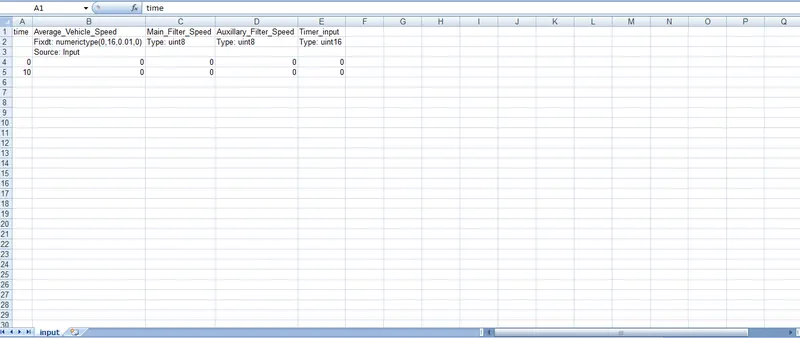
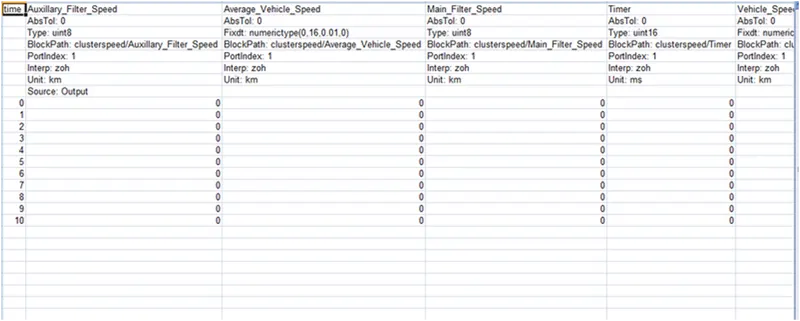
base line outputs:
Now we run the test cases.
Back to Back Test:-