Project 2_Design & Analysis of a Hostel building at Guwahati, Assam
Ans.
Aim:-
To design and analysis of G+3 hostel building in ETABS and Foundation in CSI SAFE
Introduction :-
- The procedure and anaylsis and design of given building will depend on the type of building, its complexity, the number of stories etc.
- First architectural drawings of the building are studied, structurl systems is finalised sizes of structural members are decided and brought to the knowledge of the concerned architect.
- The procedure for structural design will involve some steps which will depend on the type of building and also its complexity and time availabel fr structural desgn.
- Following data is need before designing the structural design:-
- A set of architectural drawings
- Soil investigation report
- Location of place or city in order to decide wind and sesimic load condition
- Data for lifts, water tank on top of the building and roof loadong ad its features.
Procedure :-
- Open ETABS software
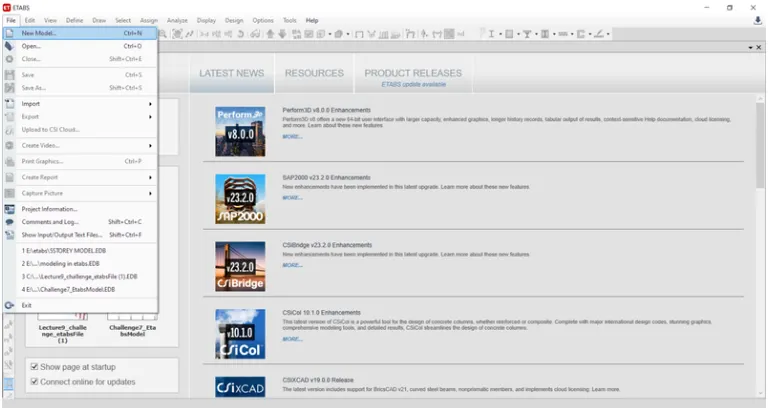
- Click on file option and select new model
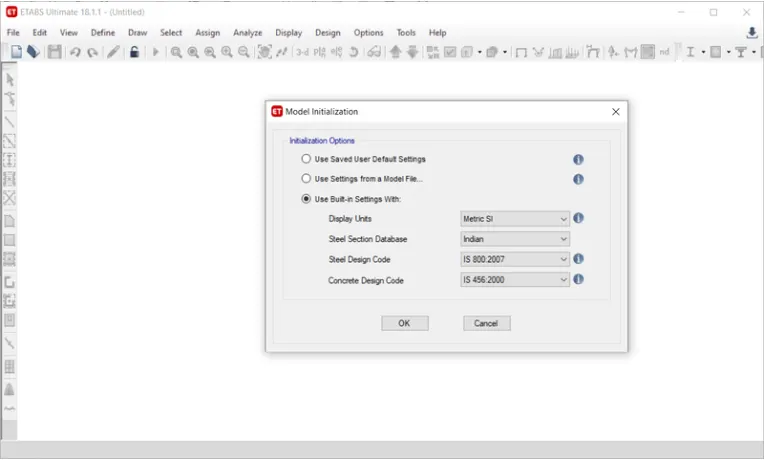
- Use built-in setting as shown below
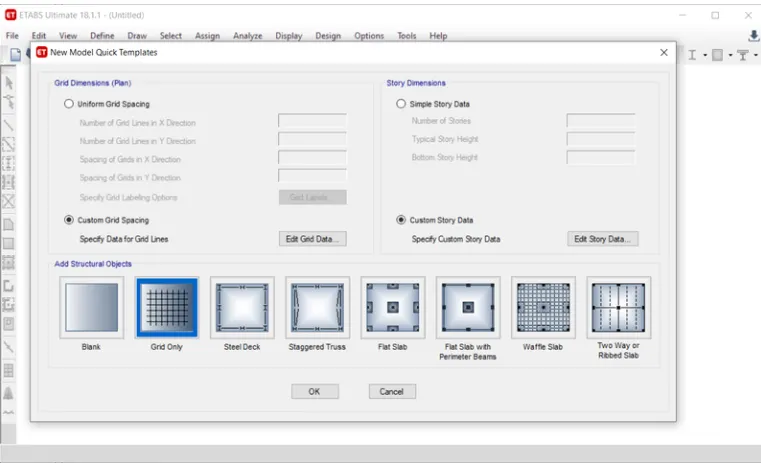
- After setting model, template tab will open, click on grid only and press OK
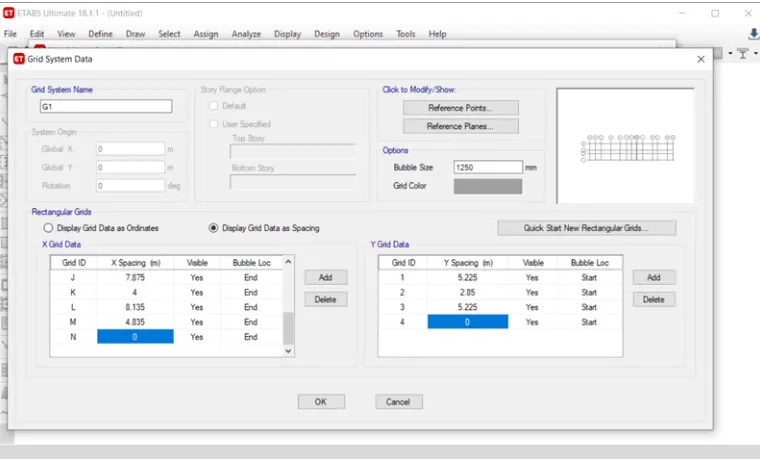
- Do all grid setting as shown below
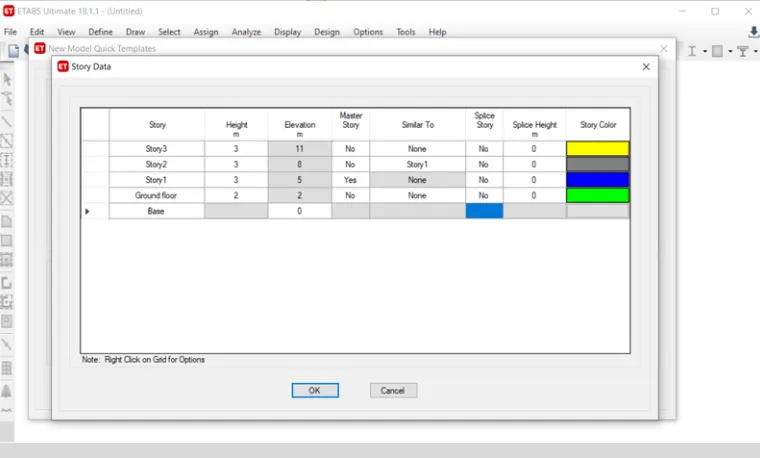
- Add stories upto 3 stories as shown below
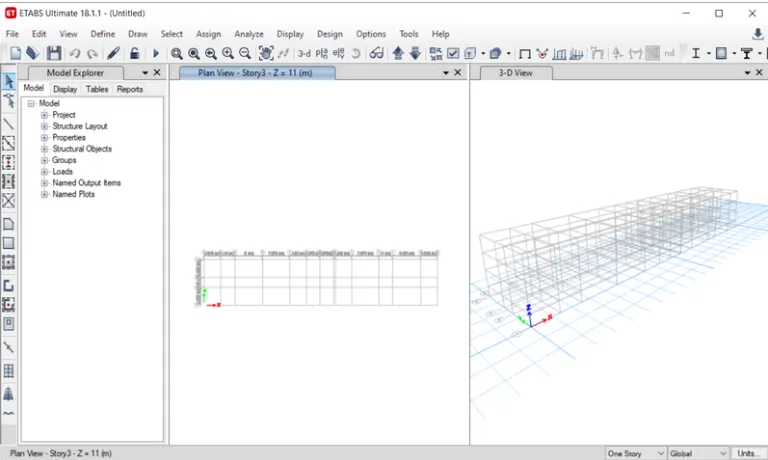
- now, plan view are visible on etabs screen, as shown beow
- Now, open view in 3D view
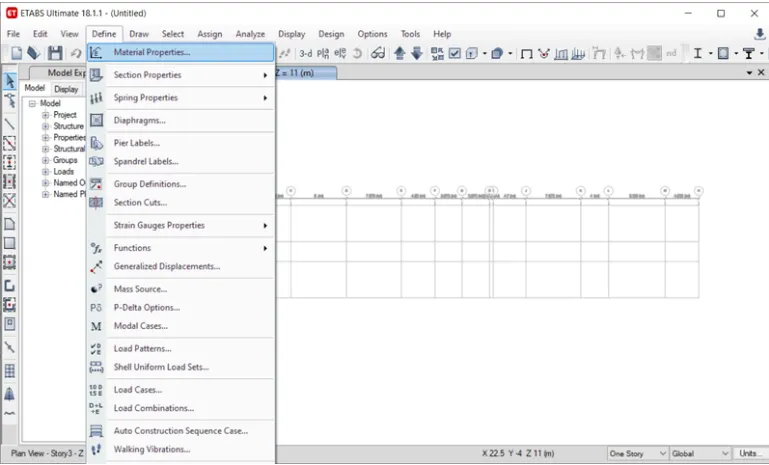
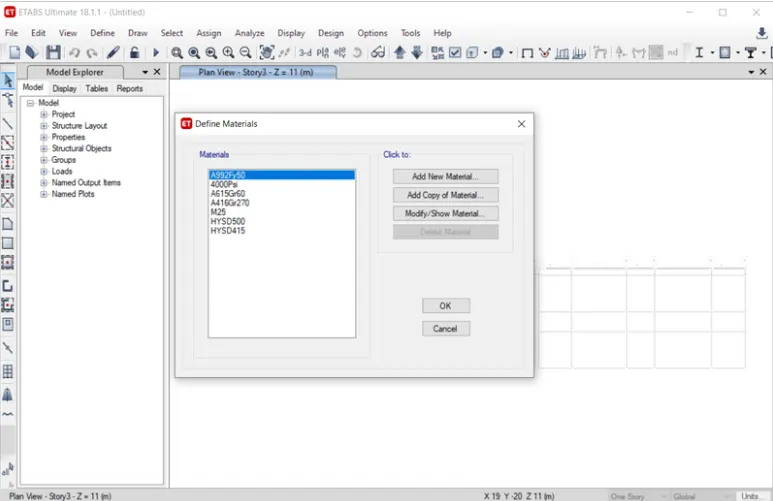
- Open define properties and select material
- After selecting material properties, new tab will appear, add new material
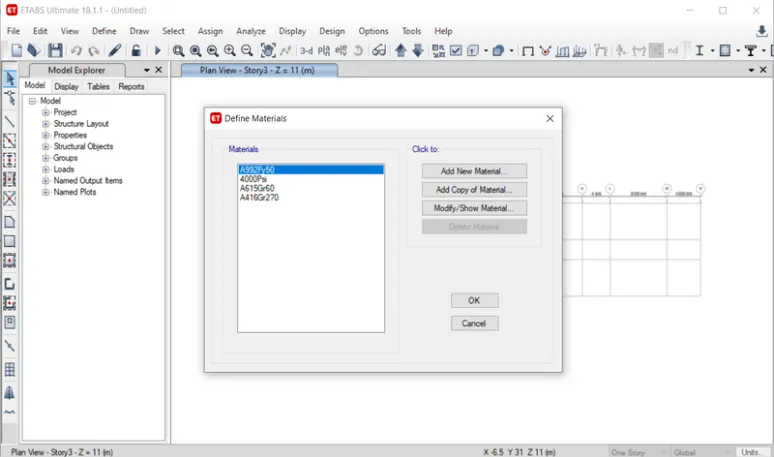
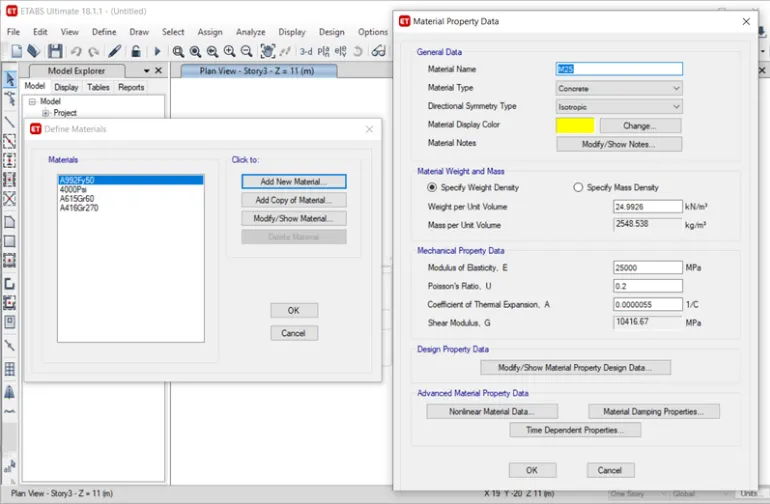
- Now, add maertial type as concrete and grade as M25
- Check materila property data
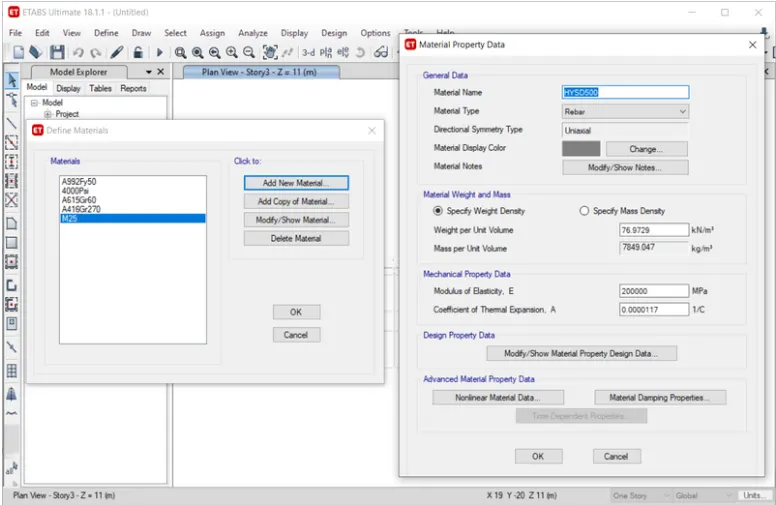
- Add material bar as rebar and grade as HYSD grade 500
- Chcek material property as shown below
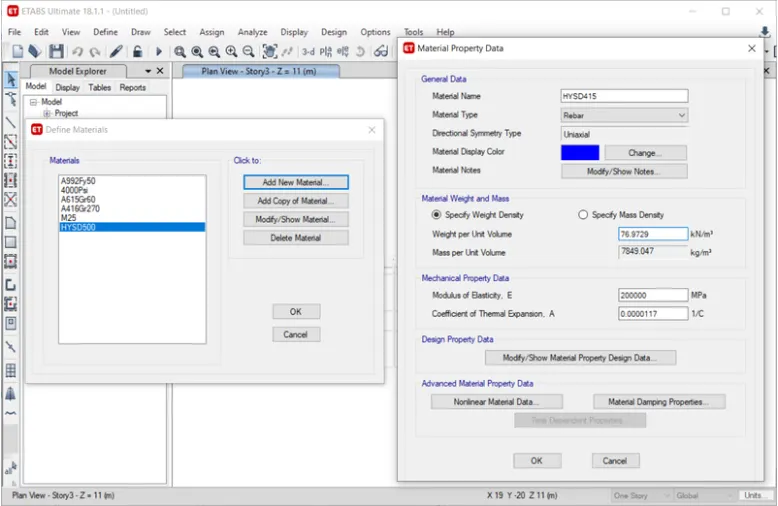
- Add material bar as rebar and grade as HYSD grade 415
- Check material property as shown below
- Material assign is shown below
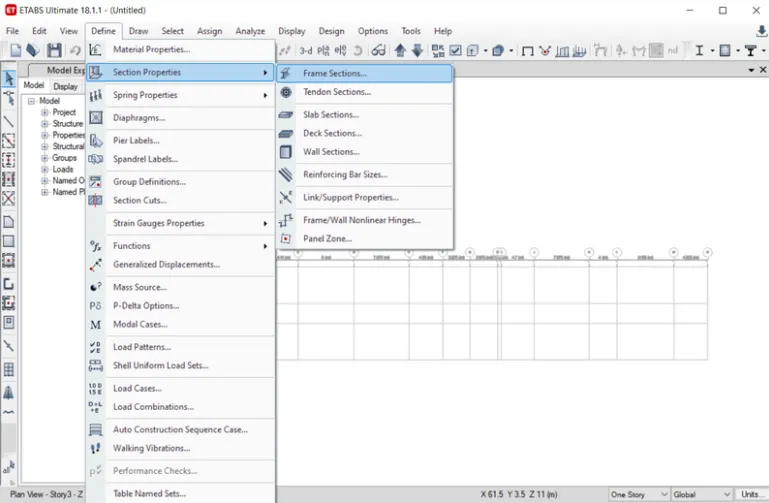
- Select section properties and click frame section
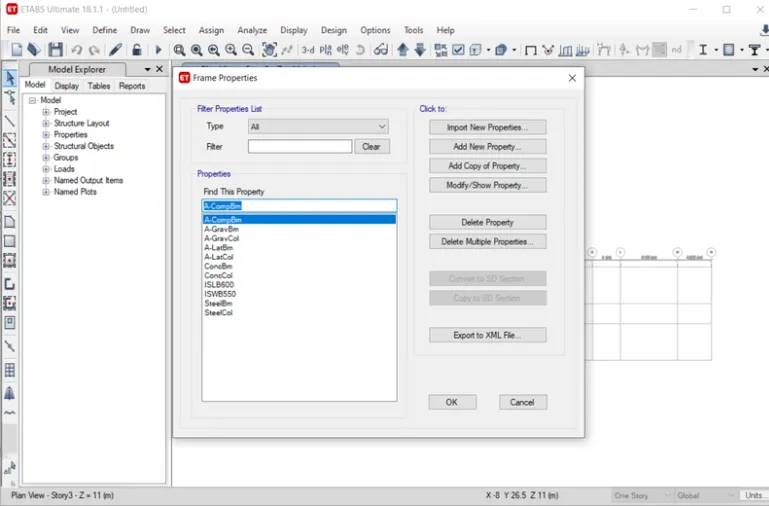
- After selection of frame, new tab will open in that add new property as shown below
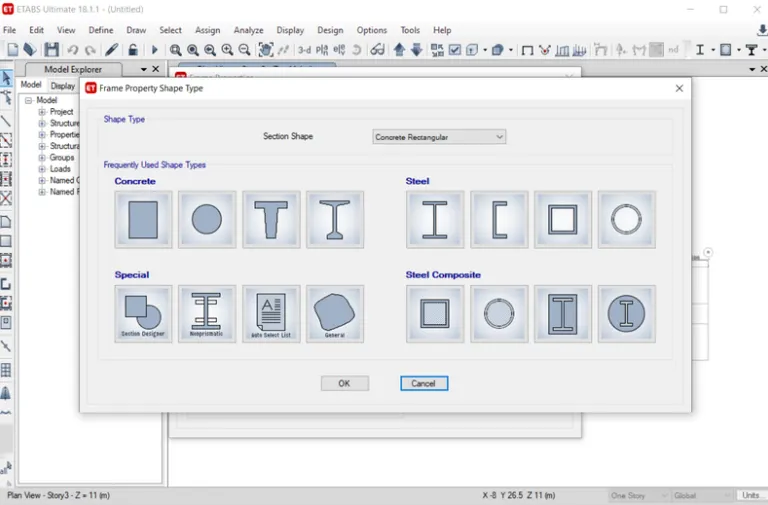
- After slecting add new property, new tab will appear
- In that tab selct rectangular shape tye as concrete
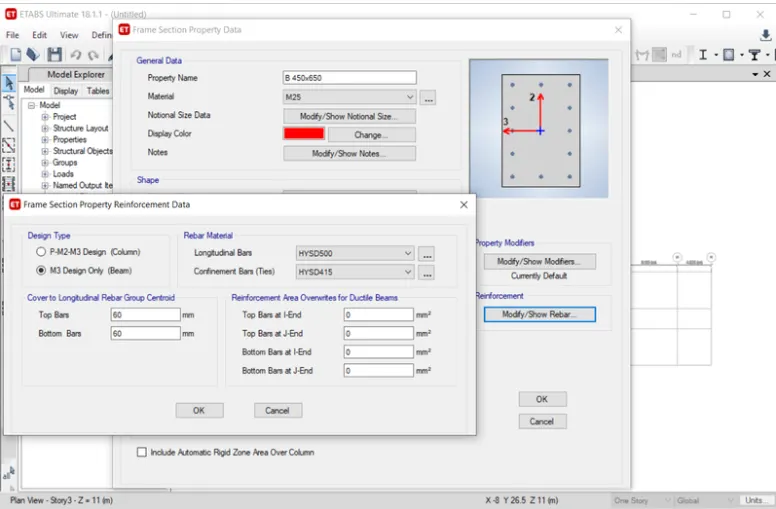
- Next the frame section property data will be visible, in tht add beam size B450X650
- select mdify /show reabr option as shown below
- After selecting the modify/show rebar option, new tab will appear, in that we select the design type as design only
- Select longitudnal bar as HYSD450 and confinemnet bar as HYSD415 grade
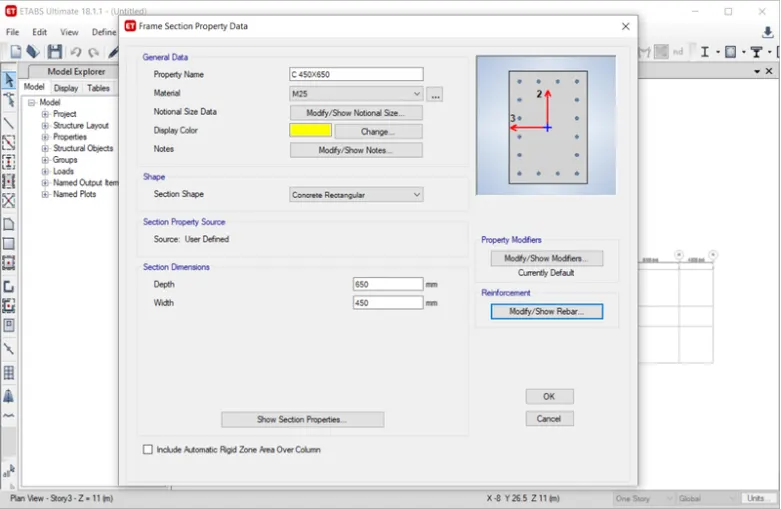
- Add column size as 450X650
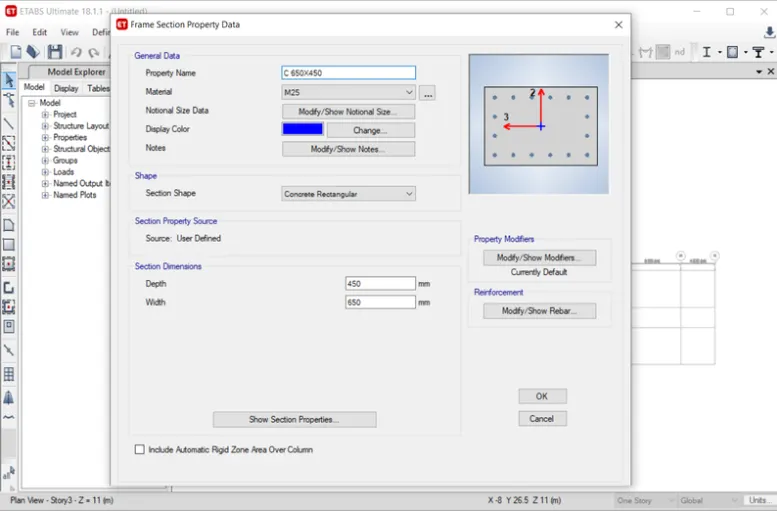
- Again add column 650X450
- Select slab section properties
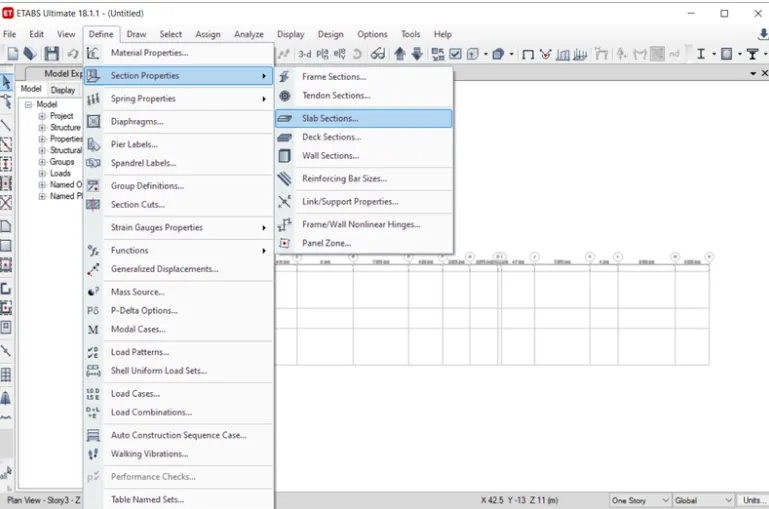
- Slab properties will be visible, in that modify/show property option
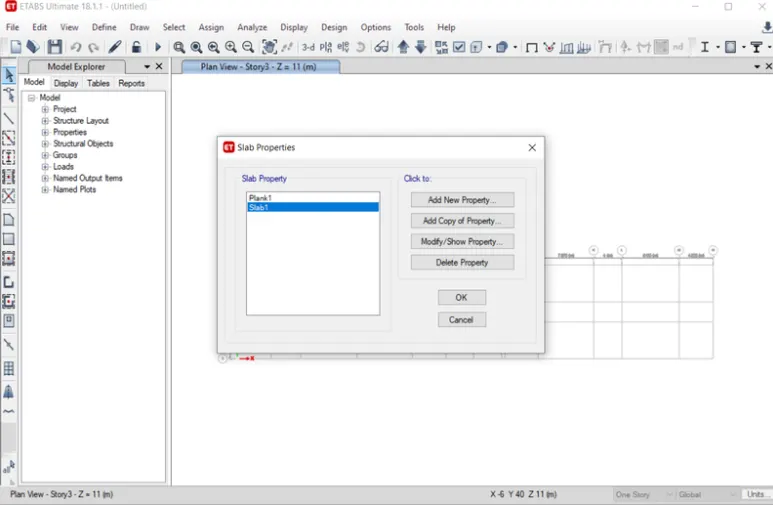
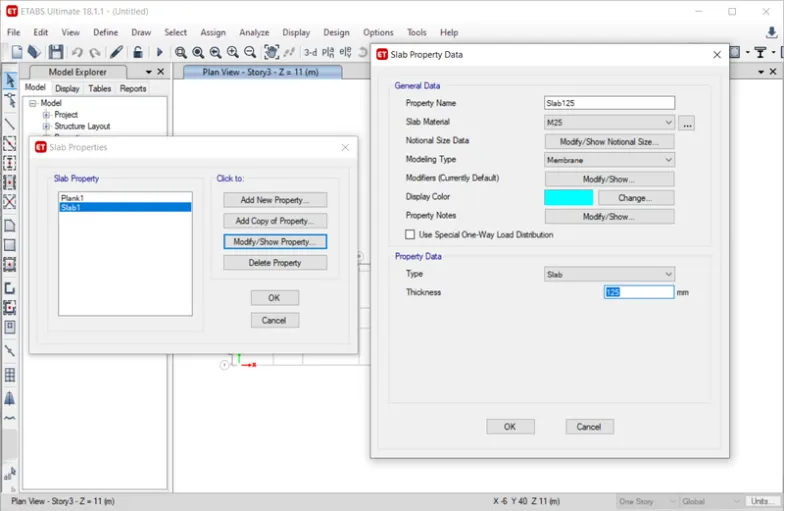
- After selecting the modify/show property option, new tab will appear
- In that we need to put slab name as Slab125, 125 is the thickness of slab
- grade of concrete as M25
- Click Ok
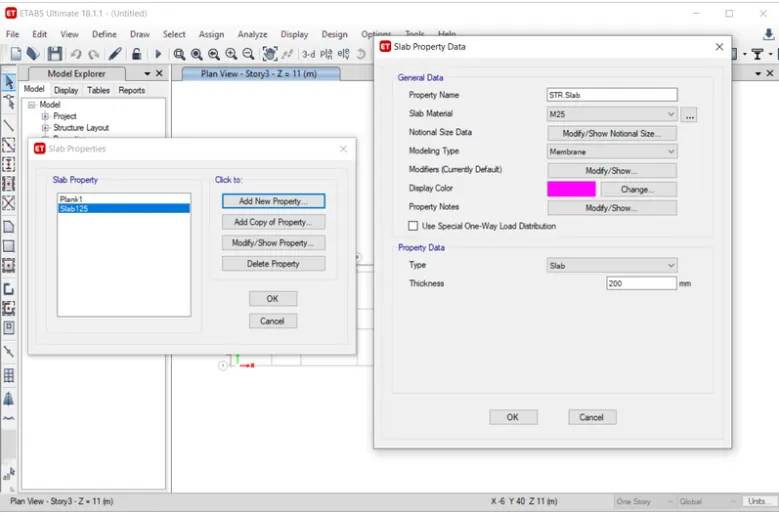
- Now we will take slab thickess seperately for staircase of 200mm
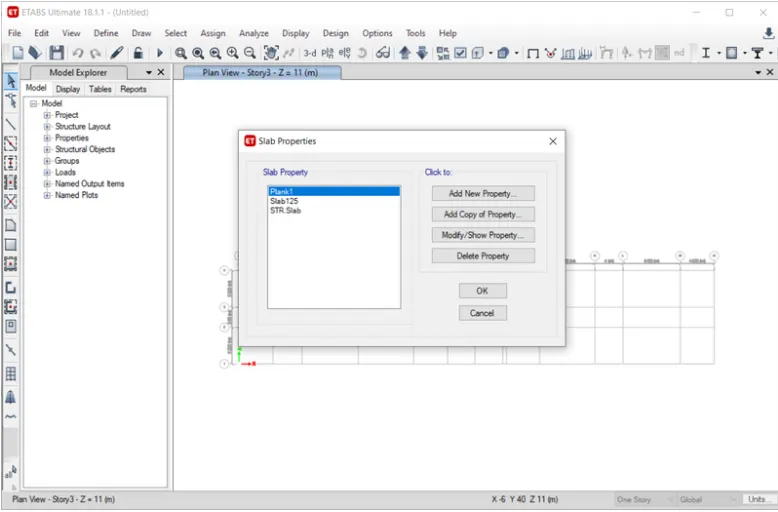
- Assign slab poperties
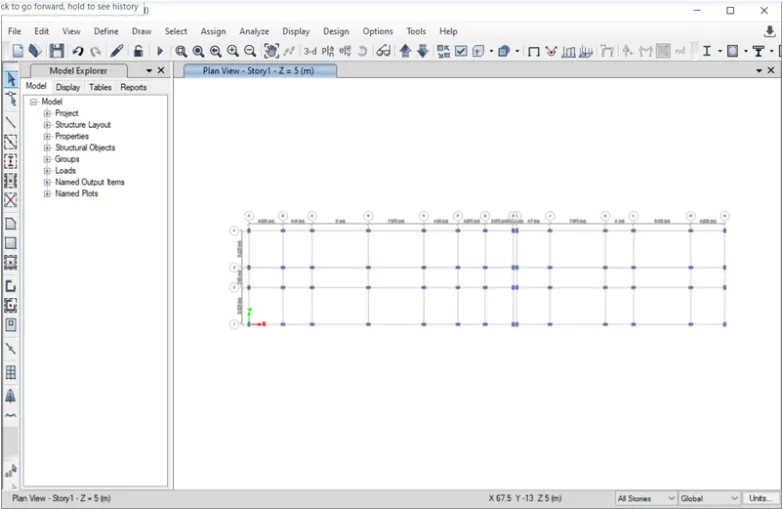
- Add column using quick draw option
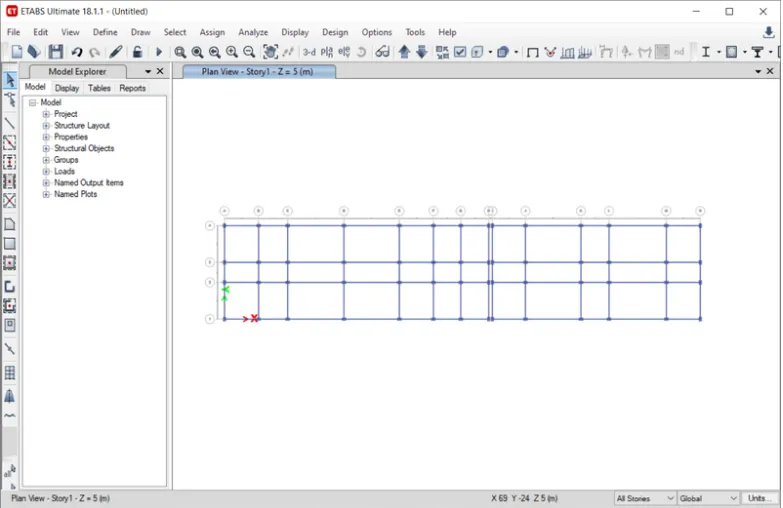
- Add beam using quick draw option
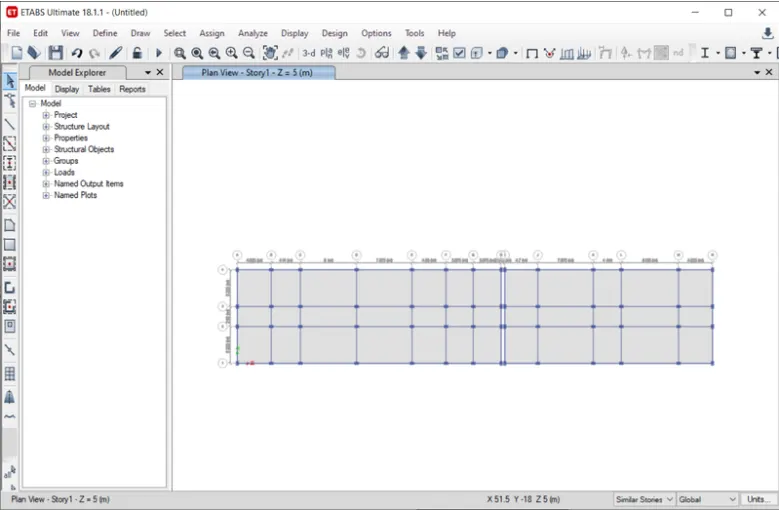
- Add slab using quick draw floor/wall option
- Now go to base plan, and select al base joints
- Select restrained joint option, as shown below
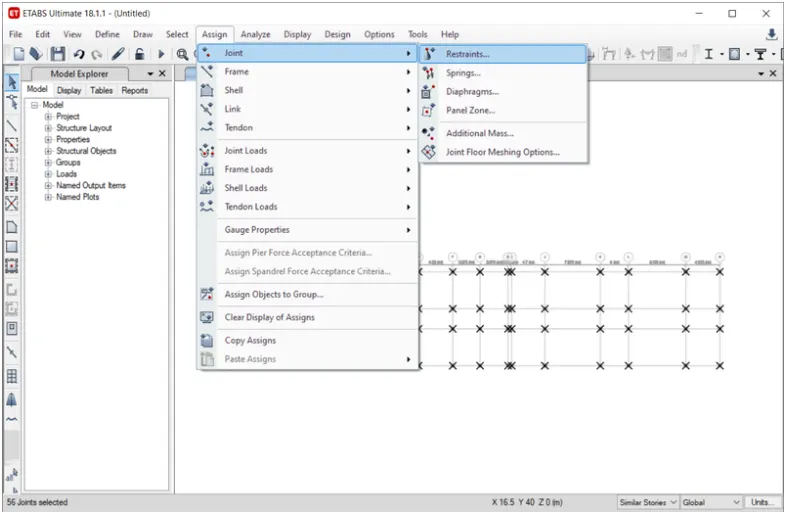
- Fix joint and click on apply, then click close button as shown below
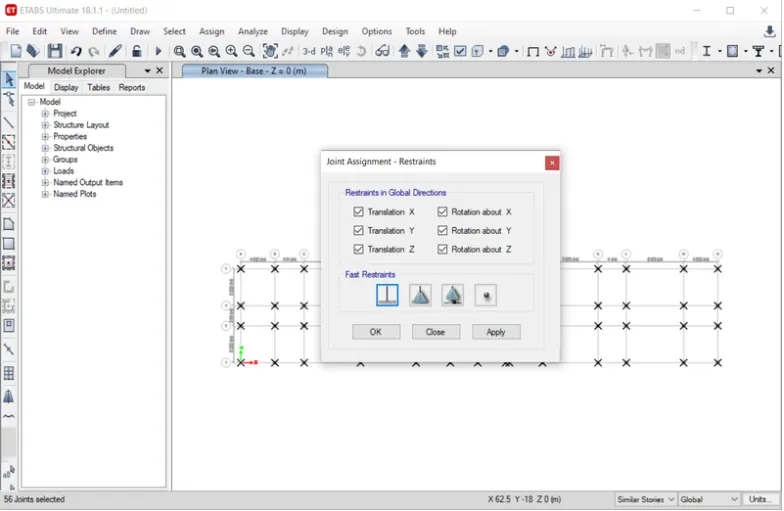
- Select load apattern from define option
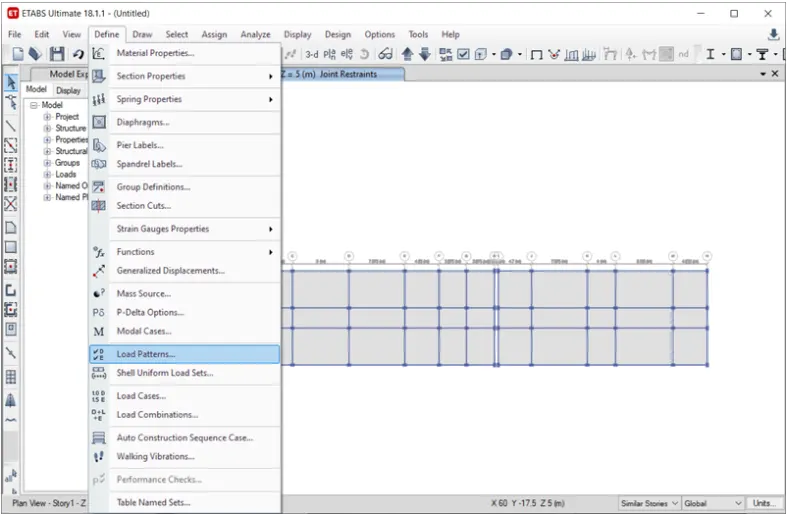
- Now, add dead load, live load,brick load,and earthquake load
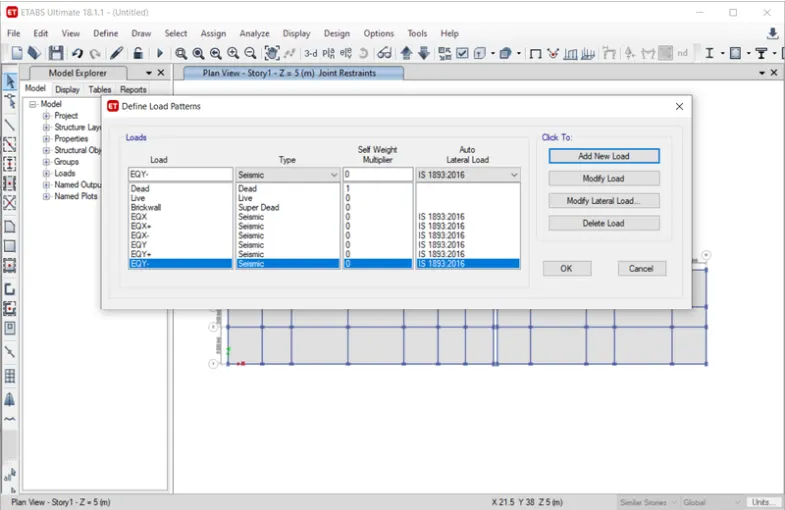
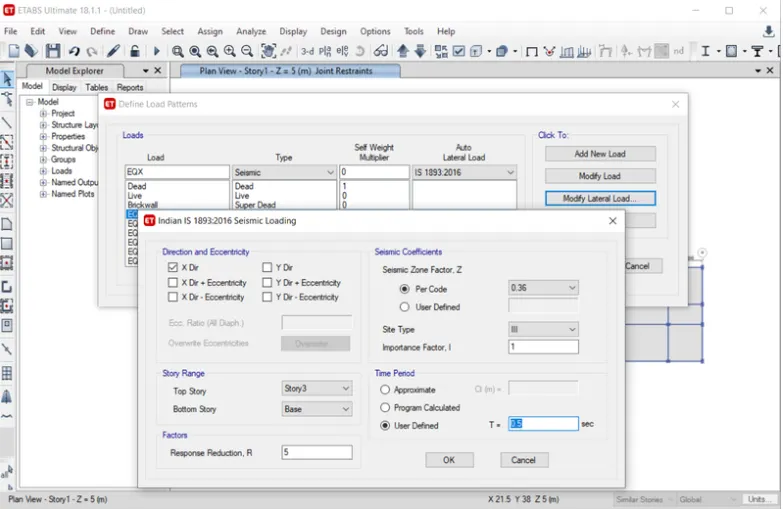
- Selct eqx and click on modify lateral load, new tab will appear
- In that select X direction as per IS-800-2002, sesmic zone factor for Guwahati, Assam is taken as 0.36, as mentioned below
- Slect site type as III
- Click OK
- Similarly, do this for all sesimic load such as eqx+, eqx-, eqy+, eqy- and eqy