Project 2 - Create a report using PowerQuery, Macro VBA, List Functions and Data Validation functions for Data Reporting of Supply Chain Management companies
Project Description:
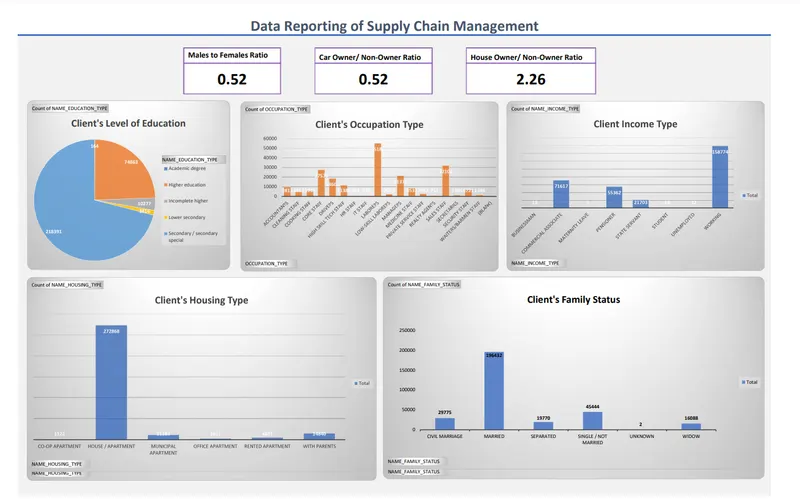
The project is a dashboard that provides insights and analysis based on a dataset of applicants. The dashboard utilizes various features and macros to create pivot charts and present the information in an attractive and user-friendly manner.
The following features are included in the dashboard:
-
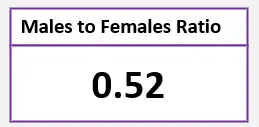
Gender Ratio of Applicants: The dashboard presents a pivot chart showing the distribution of male and female applicants, allowing for a quick assessment of the gender ratio.
-
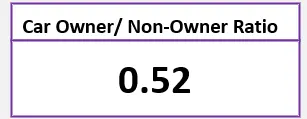
Car Owner/Non-Owner Ratio: A pivot chart displays the ratio of applicants who own a car compared to those who do not.
-
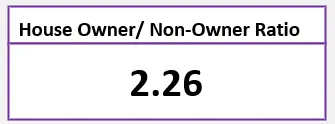
House Owner/Non-Owner Ratio: This feature generates a pivot chart illustrating the proportion of applicants who own a house versus those who do not.
-
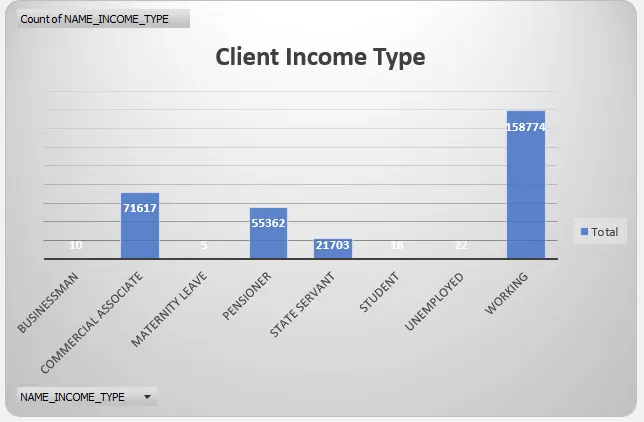
Client Income Type: The dashboard showcases a pivot chart that categorizes applicants based on their income type, enabling the analysis of income distribution among the clients.
-
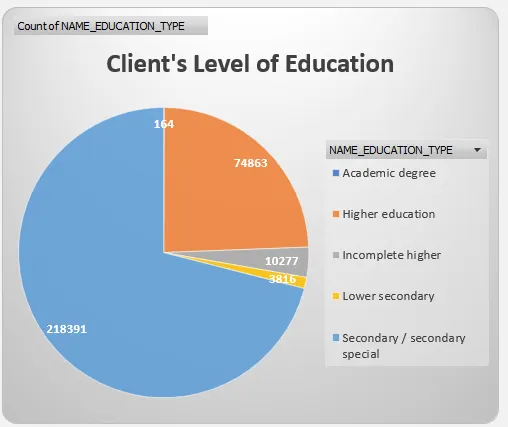
Client's Level of Education: A pivot chart represents the educational background of applicants, providing insights into the level of education among the clients.
-
Client's Housing Type: This feature displays a pivot chart that shows the distribution of clients based on their housing type, such as owning a house.
-
Client's Family Status: A pivot chart presents the family status of the applicants, allowing for an understanding of the family structure among the clients.
-
Client's Occupation Type: This feature generates a pivot chart categorizing applicants based on their occupation type, facilitating analysis of the various occupations among the clients.
Additionally, the project includes separate worksheets for the following deliverables:
-
Data Summary of All Female Clients for Income and Loan Amount: This worksheet utilizes new functions such as unique, sort, and filter functions to summarize the income and loan amount specifically for female clients.
-
Data Summary of All Male Clients for Income and Loan Amount: This worksheet utilizes list functions like dsum and daverage to summarize the income and loan amount specifically for male clients.
-
Data Summary for all Flag Columns: This worksheet uses different variants of the DCOUNT function to summarize data for all flag columns, such as FLAG_DOCUMENT_2, FLAG_DOCUMENT_3, and so on.
Other deliverables include:
-
Conditional Formatting & Freezing Panes Macro: This macro enables conditional formatting to highlight specific data points based on predefined criteria. It also includes freezing panes functionality for better data visibility.
-
VBA Code to Convert Selected Data into PDF: This VBA code allows the user to select data from the applicant's data and convert it into a PDF document, providing a convenient way to export and share data.
-
Spell Checking VBA Code: This VBA code checks for spelling mistakes within the workbook, ensuring the accuracy of the data and enhancing the overall quality of the project.
note : Please copy the entire vba code below the Heading "Macro:"
Results :
attachment : Click here for the attachment
Macro :
Public Sub con_format_freeze()
Dim prompt As String
Dim user_input As String
prompt = "Enter your choice :" & vbCrLf & _
"1. Conditional Formating " & vbCrLf & _
"2. Freeze the Active Cell" & vbCrLf & _
"select a row or a column before running this macro"
user_input = InputBox(prompt)
If user_input = "2" Then
freeze
ElseIf user_input = "1" Then
cond_format
End If
End Sub
Sub cond_format()
'
' cond_format Macro
'
'
Selection.FormatConditions.AddTop10
Selection.FormatConditions(Selection.FormatConditions.Count).SetFirstPriority
With Selection.FormatConditions(1)
.TopBottom = xlTop10Top
.Rank = 10
.Percent = False
End With
With Selection.FormatConditions(1).Font
.Color = -16752384
.TintAndShade = 0
End With
With Selection.FormatConditions(1).Interior
.PatternColorIndex = xlAutomatic
.Color = 13561798
.TintAndShade = 0
End With
Selection.FormatConditions(1).StopIfTrue = False
Selection.FormatConditions.AddTop10
Selection.FormatConditions(Selection.FormatConditions.Count).SetFirstPriority
With Selection.FormatConditions(1)
.TopBottom = xlTop10Bottom
.Rank = 10
.Percent = False
End With
With Selection.FormatConditions(1).Font
.Color = -16383844
.TintAndShade = 0
End With
With Selection.FormatConditions(1).Interior
.PatternColorIndex = xlAutomatic
.Color = 13551615
.TintAndShade = 0
End With
Selection.FormatConditions(1).StopIfTrue = False
End Sub
Sub freeze()
ActiveWindow.FreezePanes = True
End Sub
Sub print_selected() Selection.PrintOut Copies:=1, Collate:=True
End Sub
Sub HighlightSpellingMistakes()
Dim cell As Range
Dim spellRange As Range
Dim misspelledWord As Range
Set spellRange = ActiveSheet.UsedRange
For Each cell In spellRange
If Not IsEmpty(cell.Value) And VarType(cell.Value) = vbString Then
If Not Application.CheckSpelling(word:=cell.Value) Then
cell.Interior.Color = RGB(255, 255, 0)
End If
End If
Next cell
MsgBox "Spell-check completed. Spelling mistakes highlighted.", vbInformation
End Sub