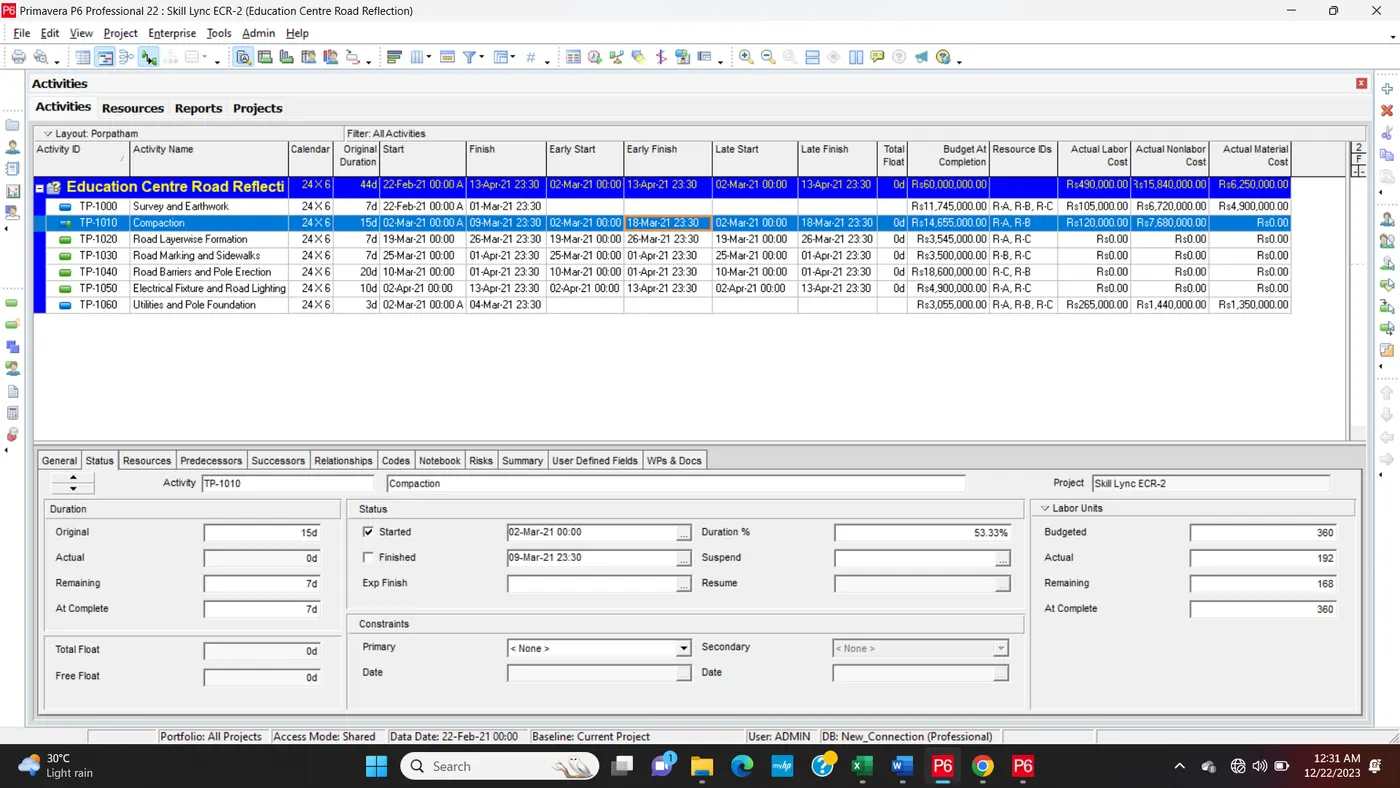
Project 2
First Ready For EPS, OBS, Calender Sheets.
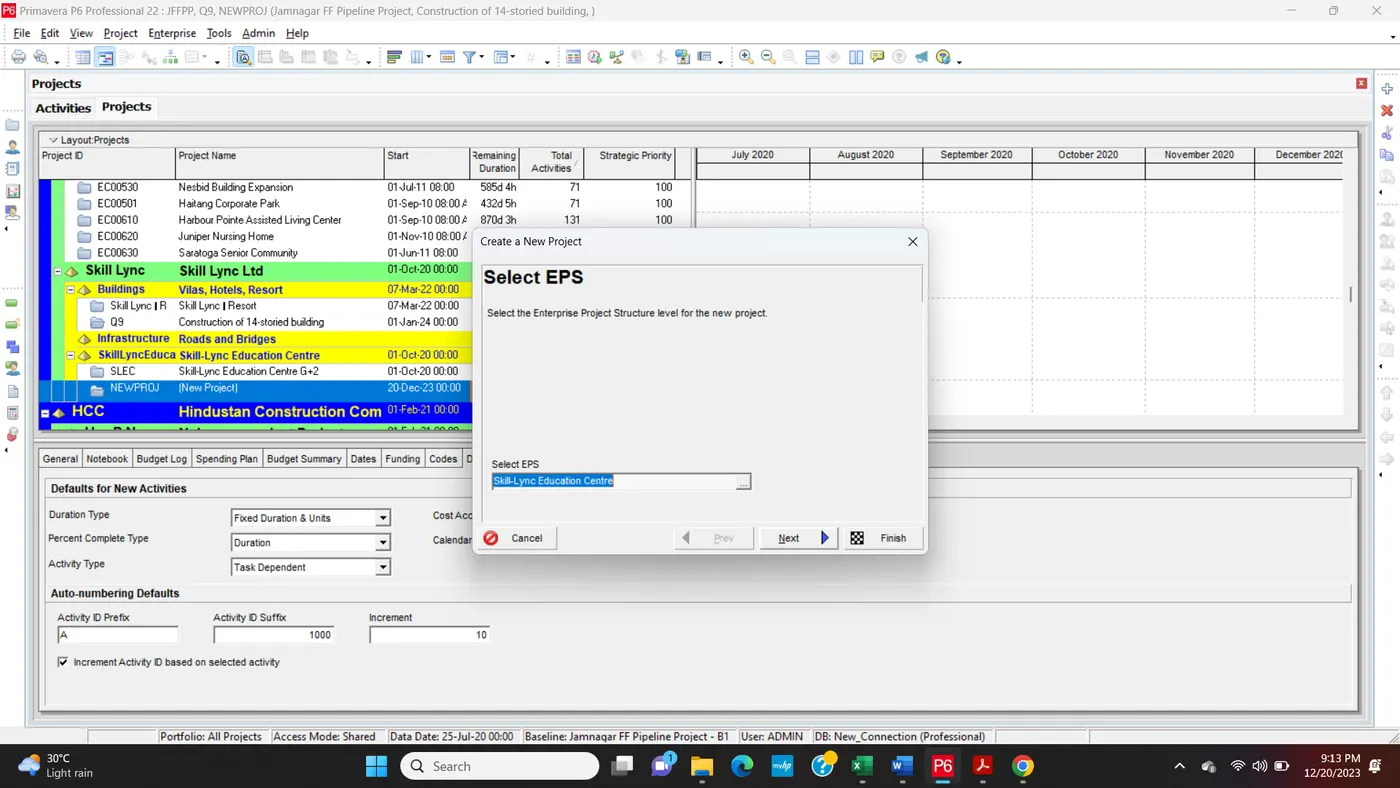
Step1: Select EPS
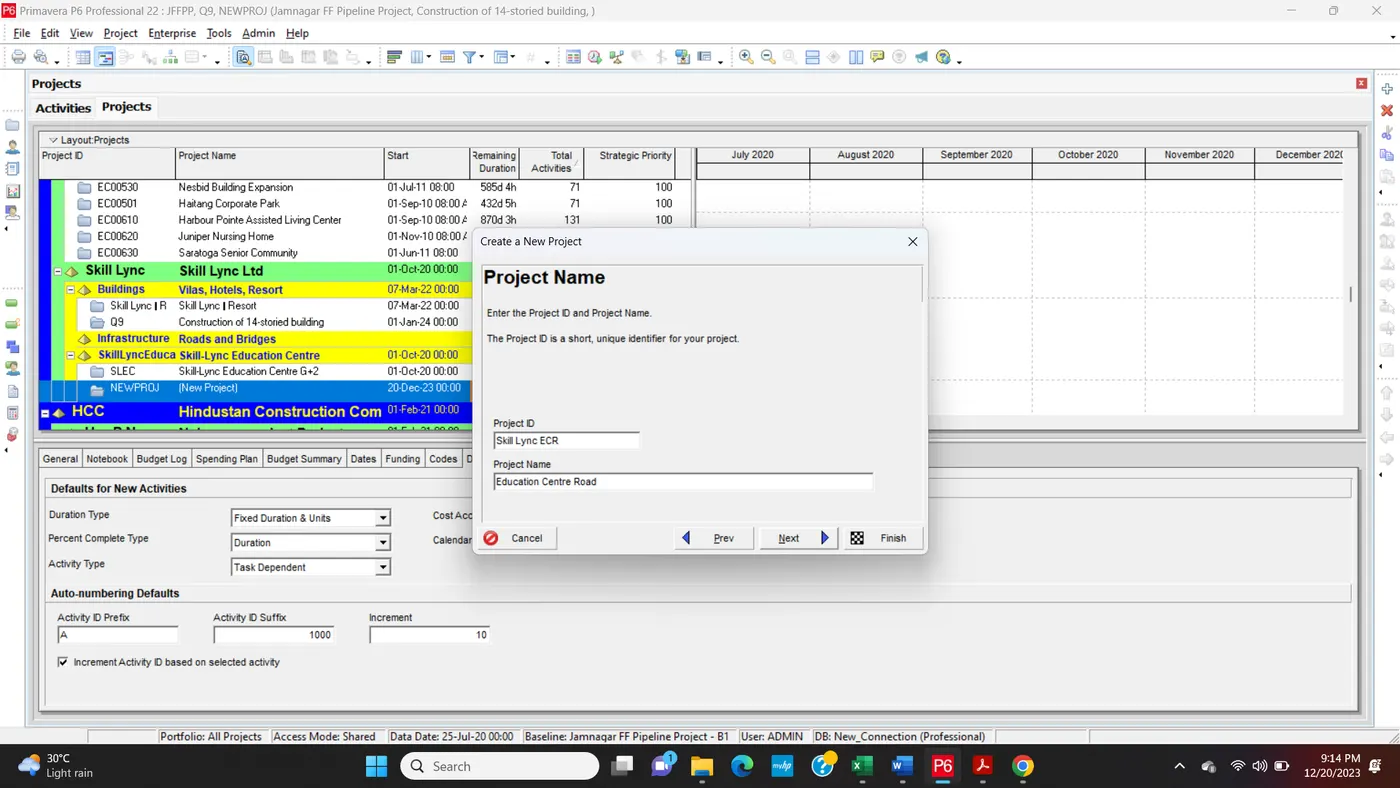
Step2: Create a Project Name and Project ID
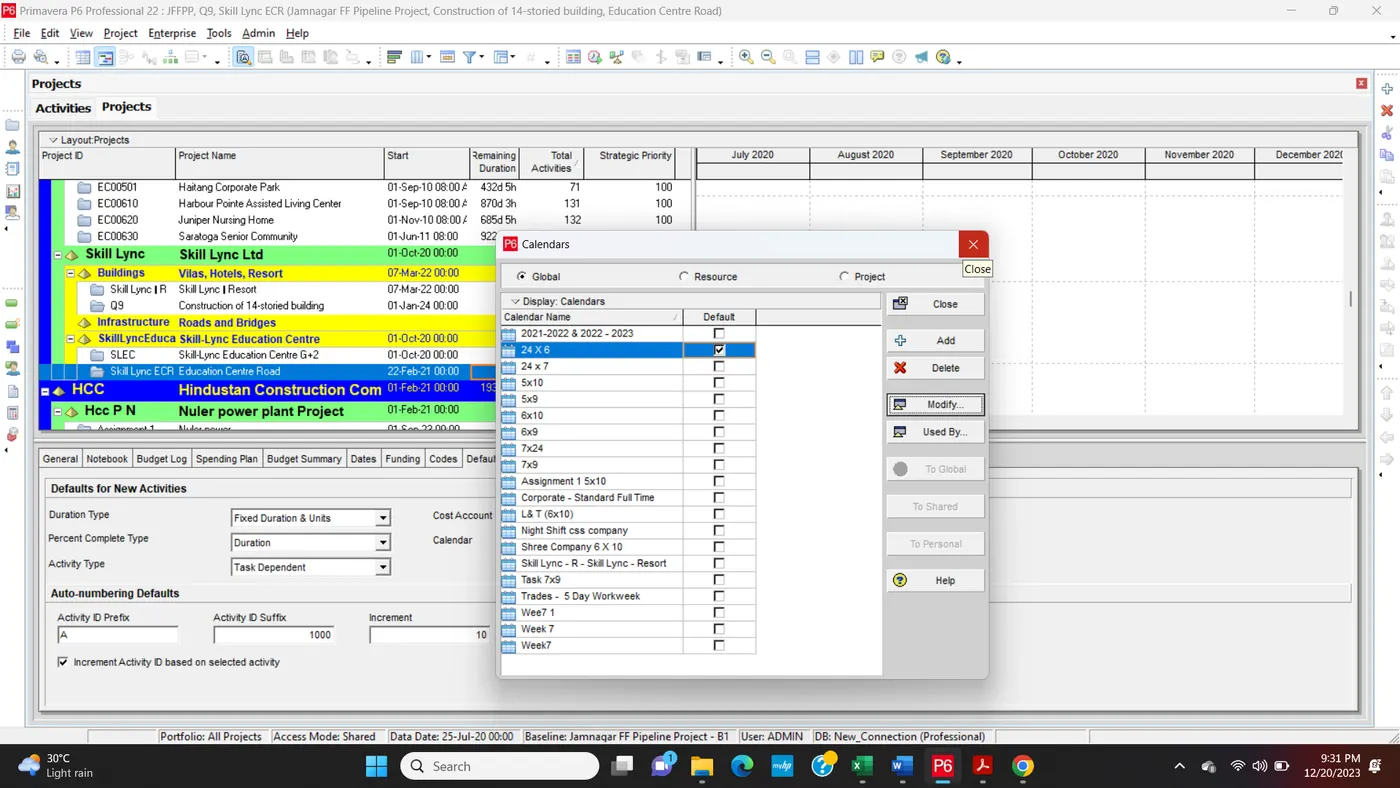
Step3: Create a Calendar 24x6
Step4:
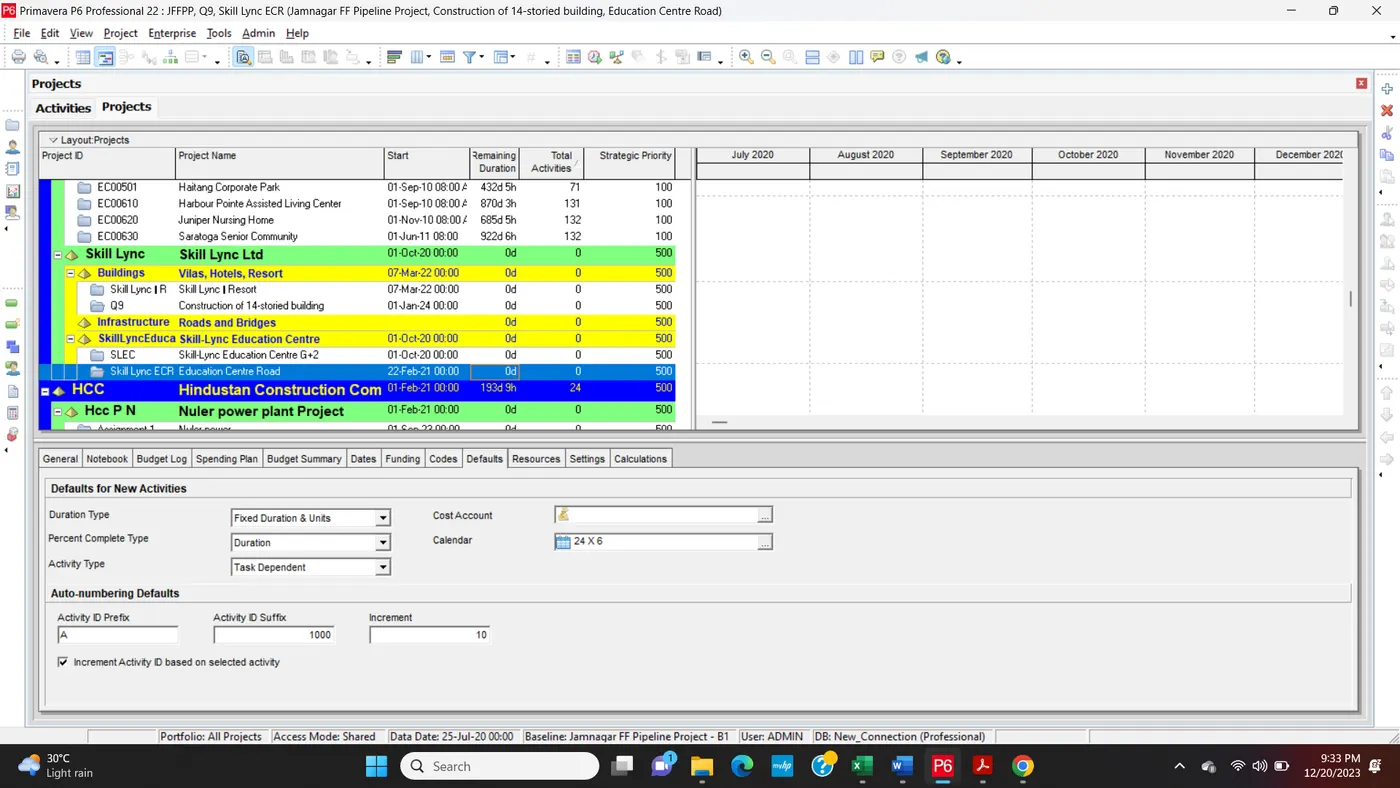
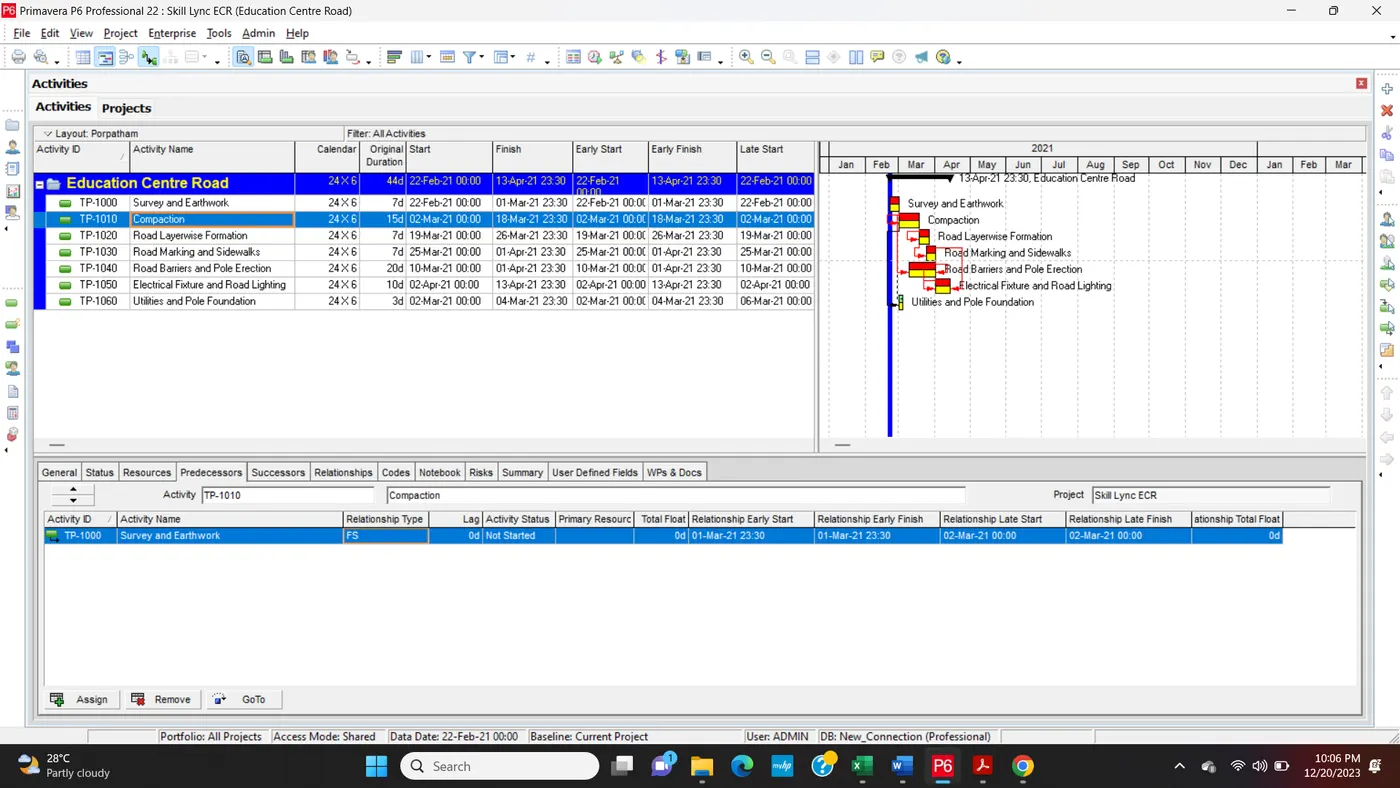
Q1. Develop the project schedule as per the criteria above
Step: Add a Activity name and Activity ID
Q2. Use 3-Tier timescale with Year / Month / Weeks
Step1:
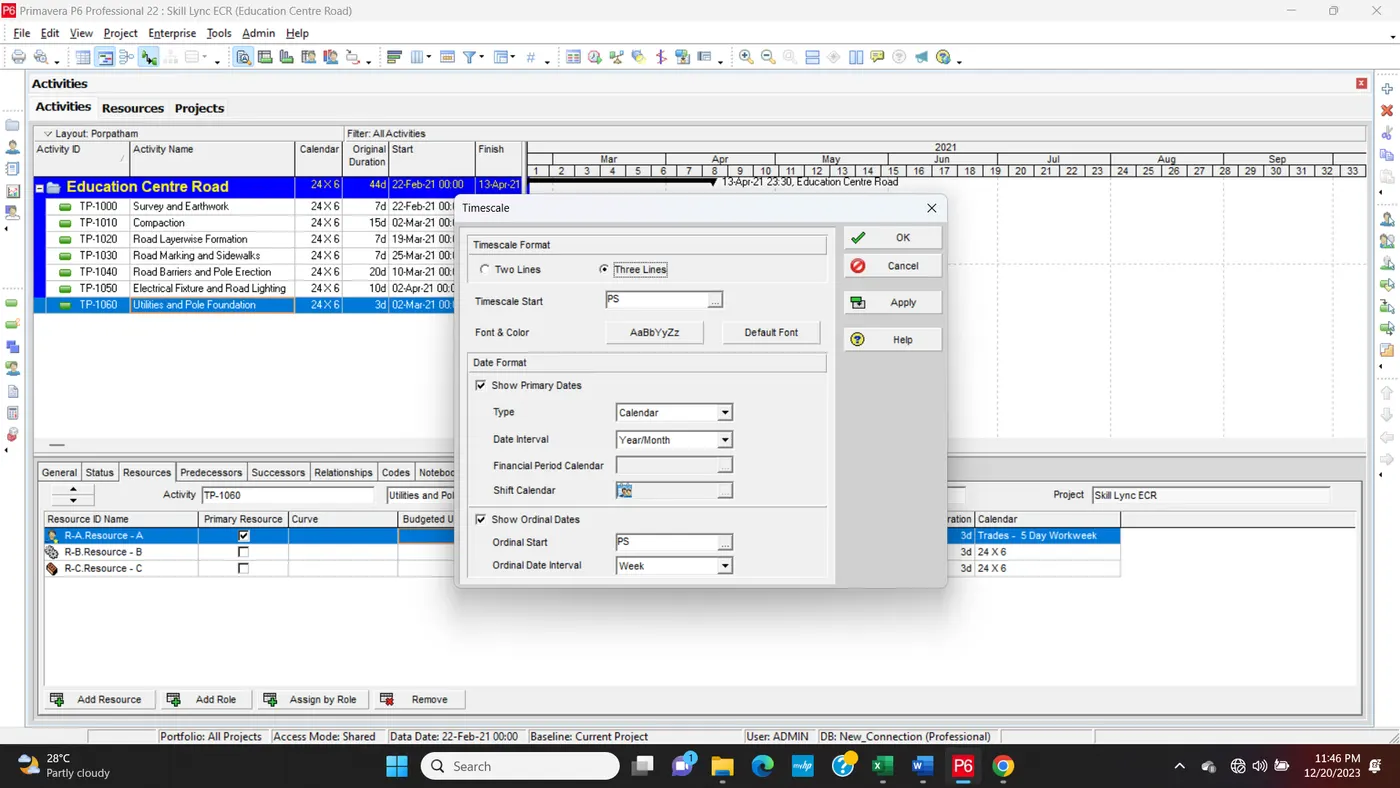
Step2:
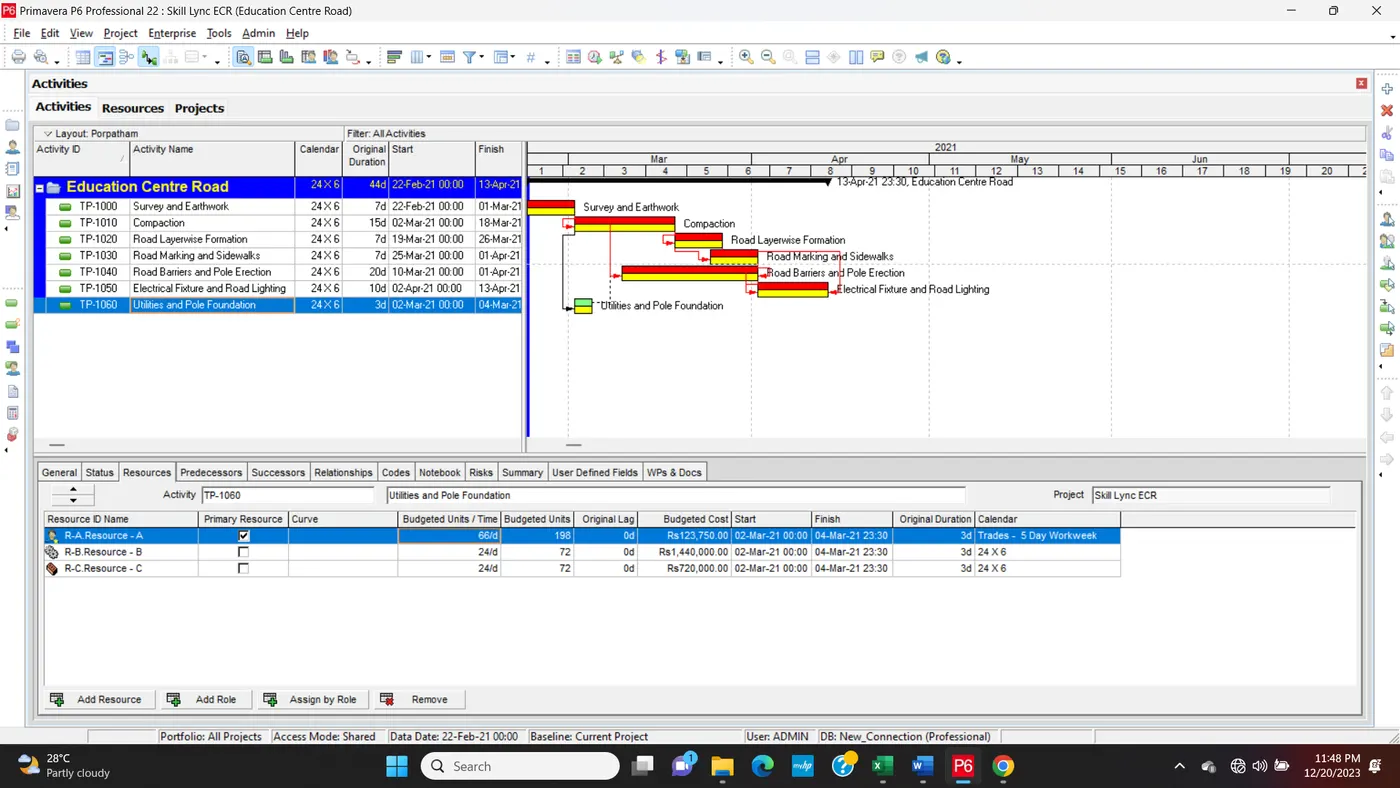
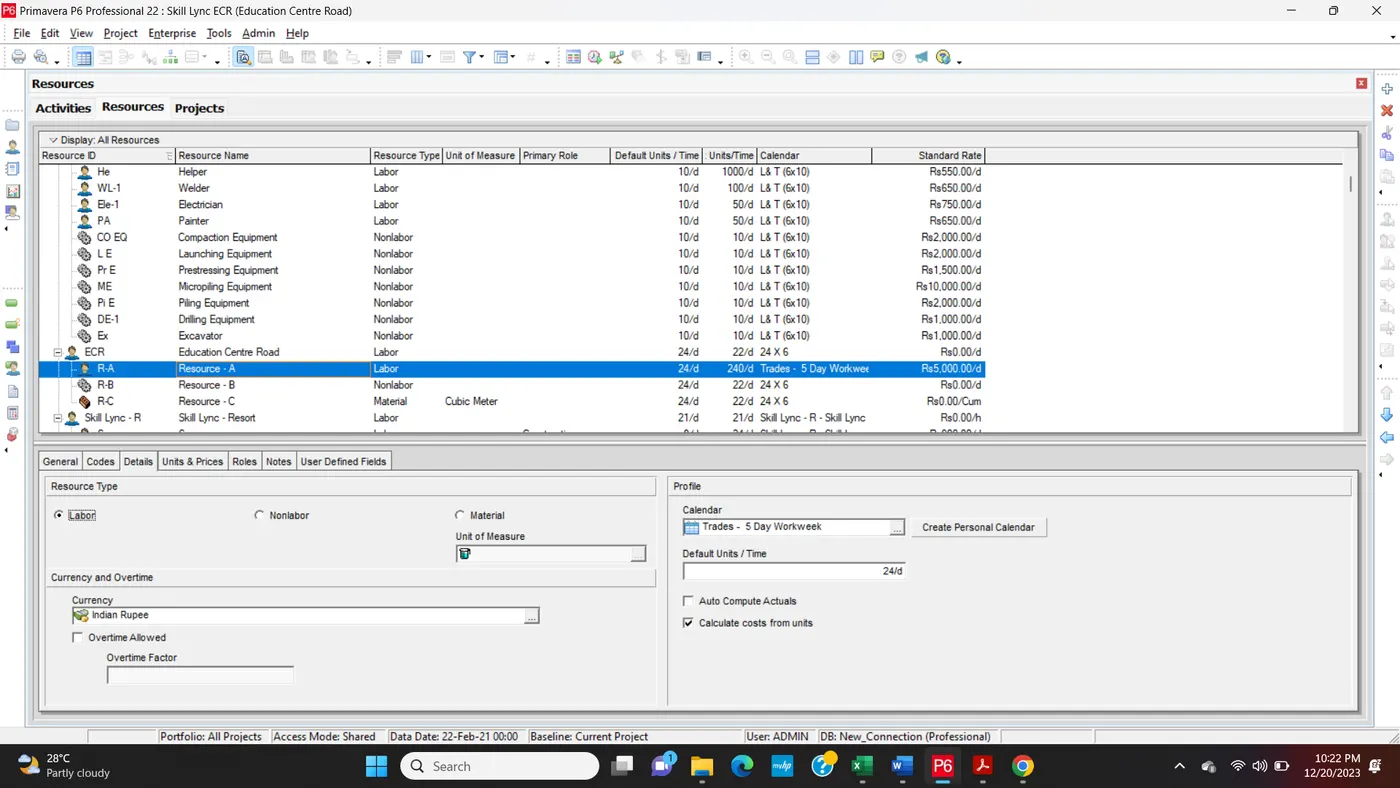
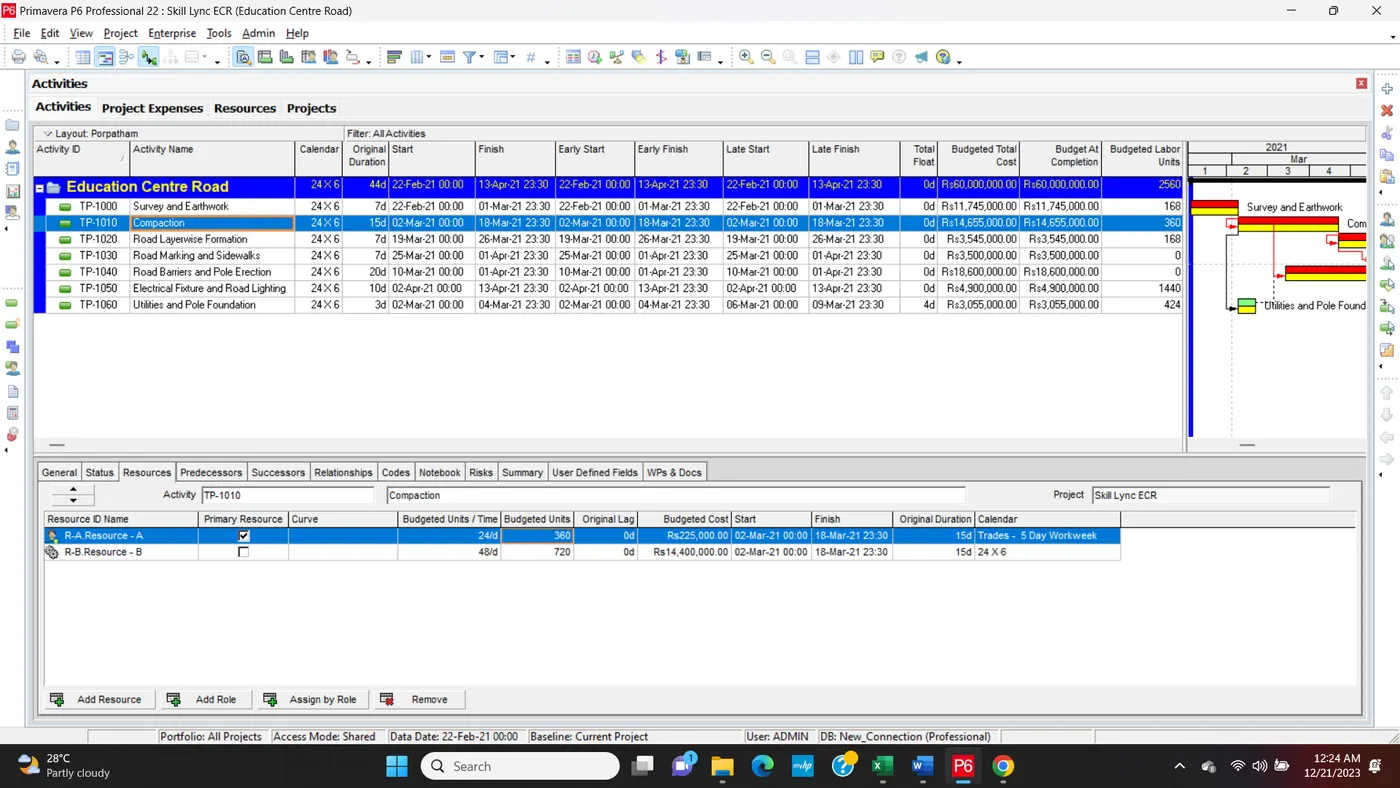
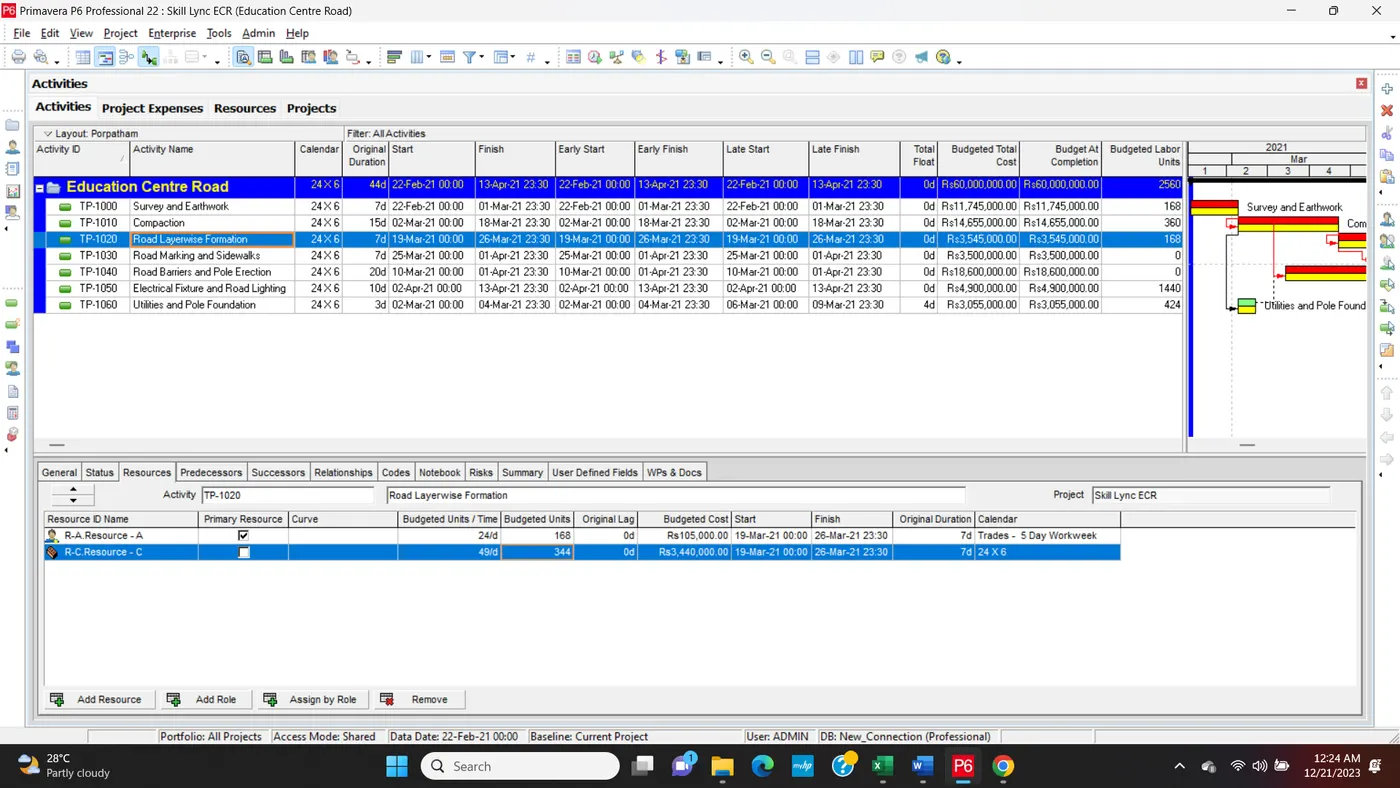
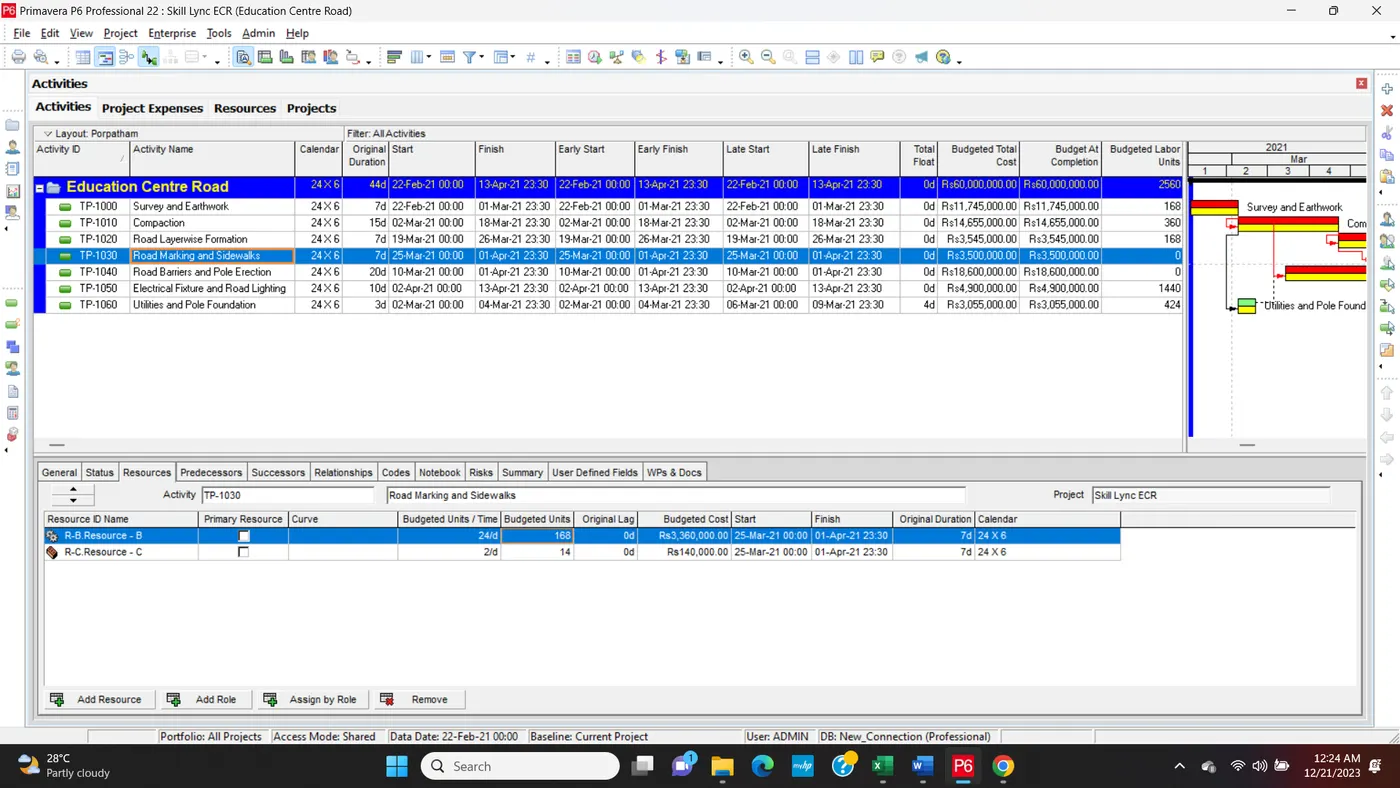
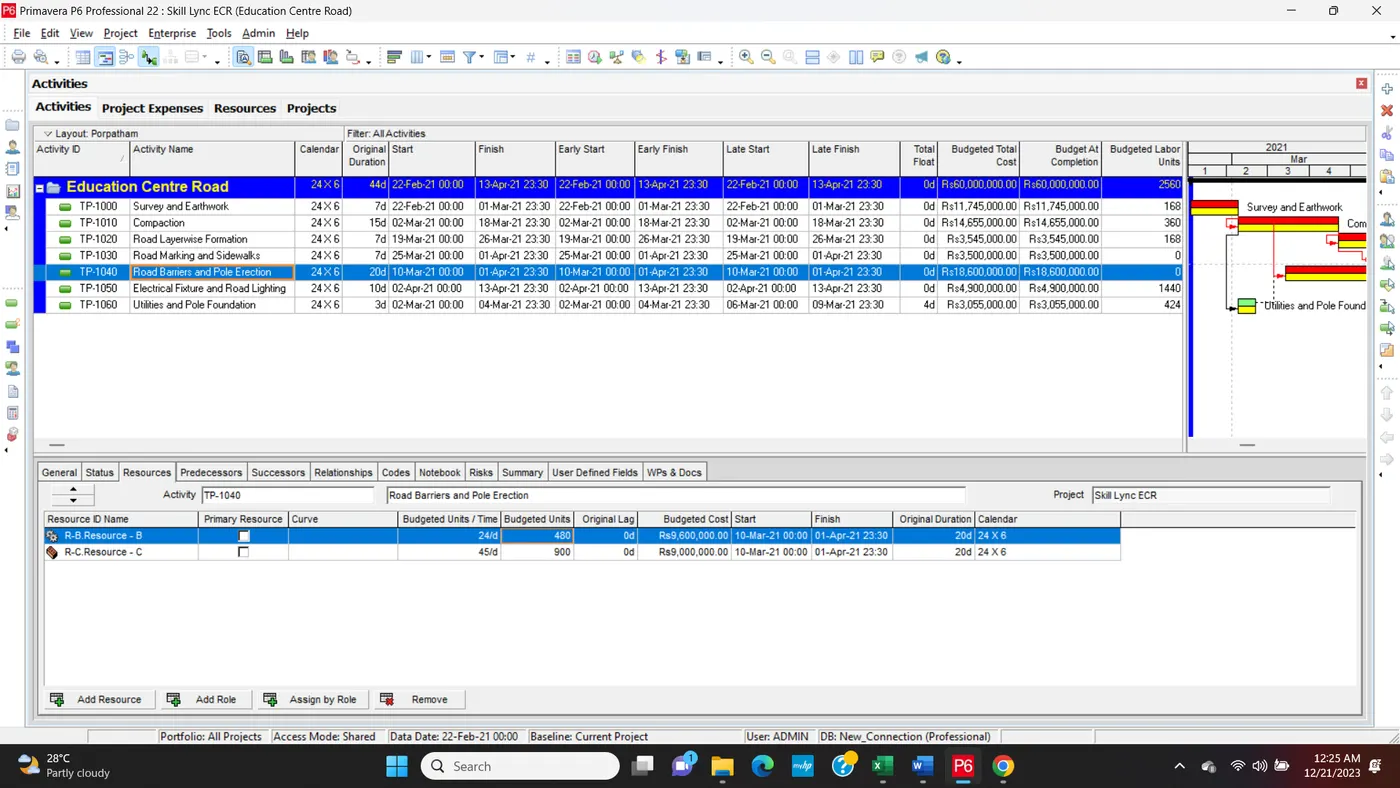
Q3. Define and Add resources
Step1: Add Resource Details, Max Budget unit, Standard Rate
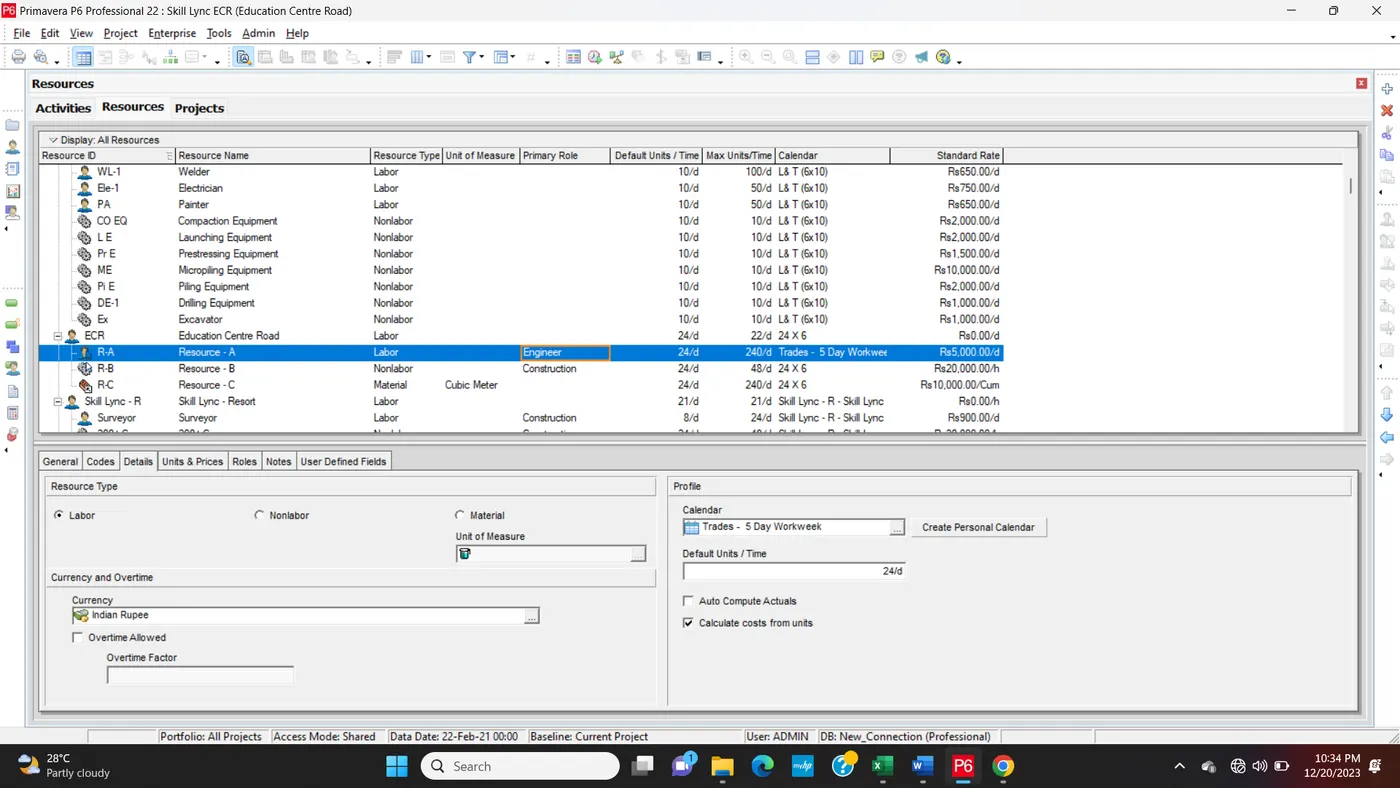
Step2: Assign Role
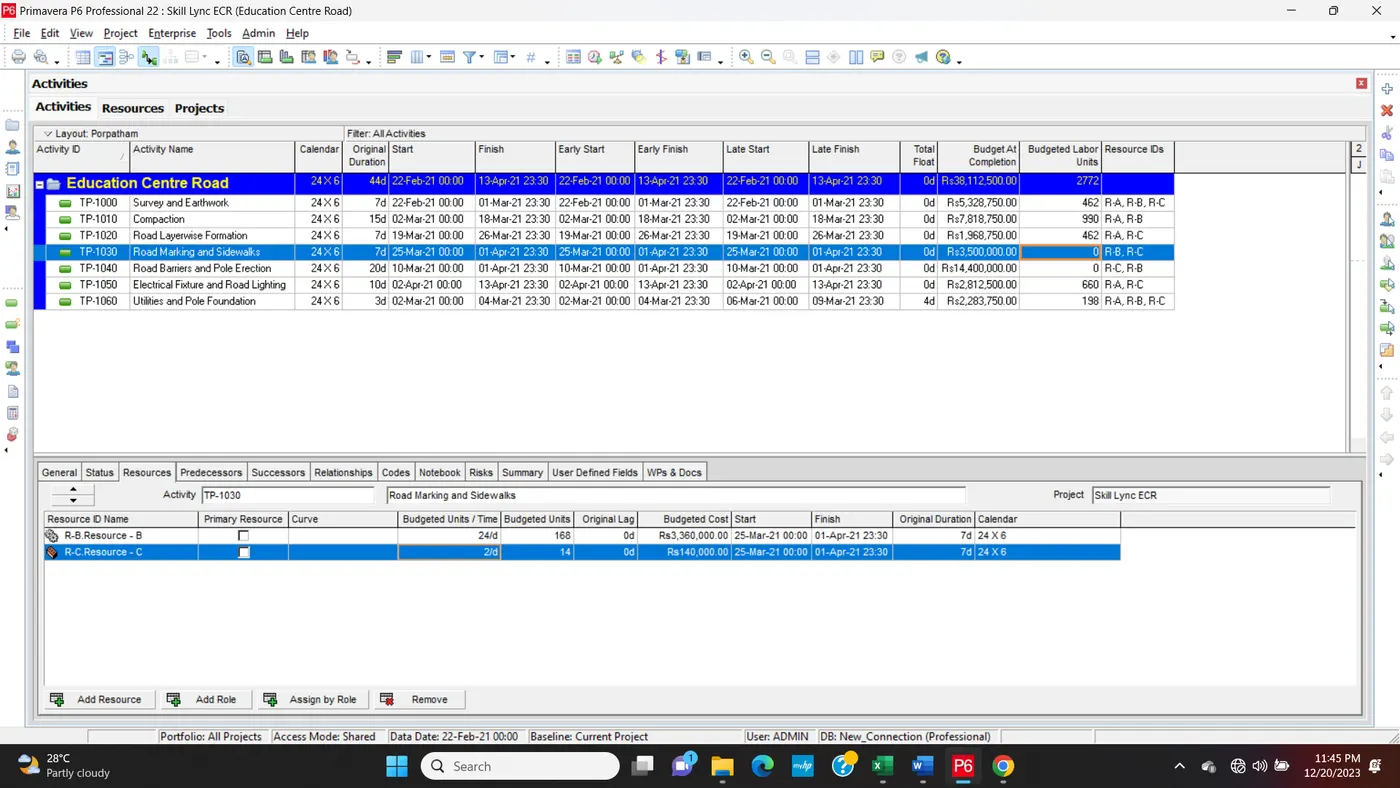
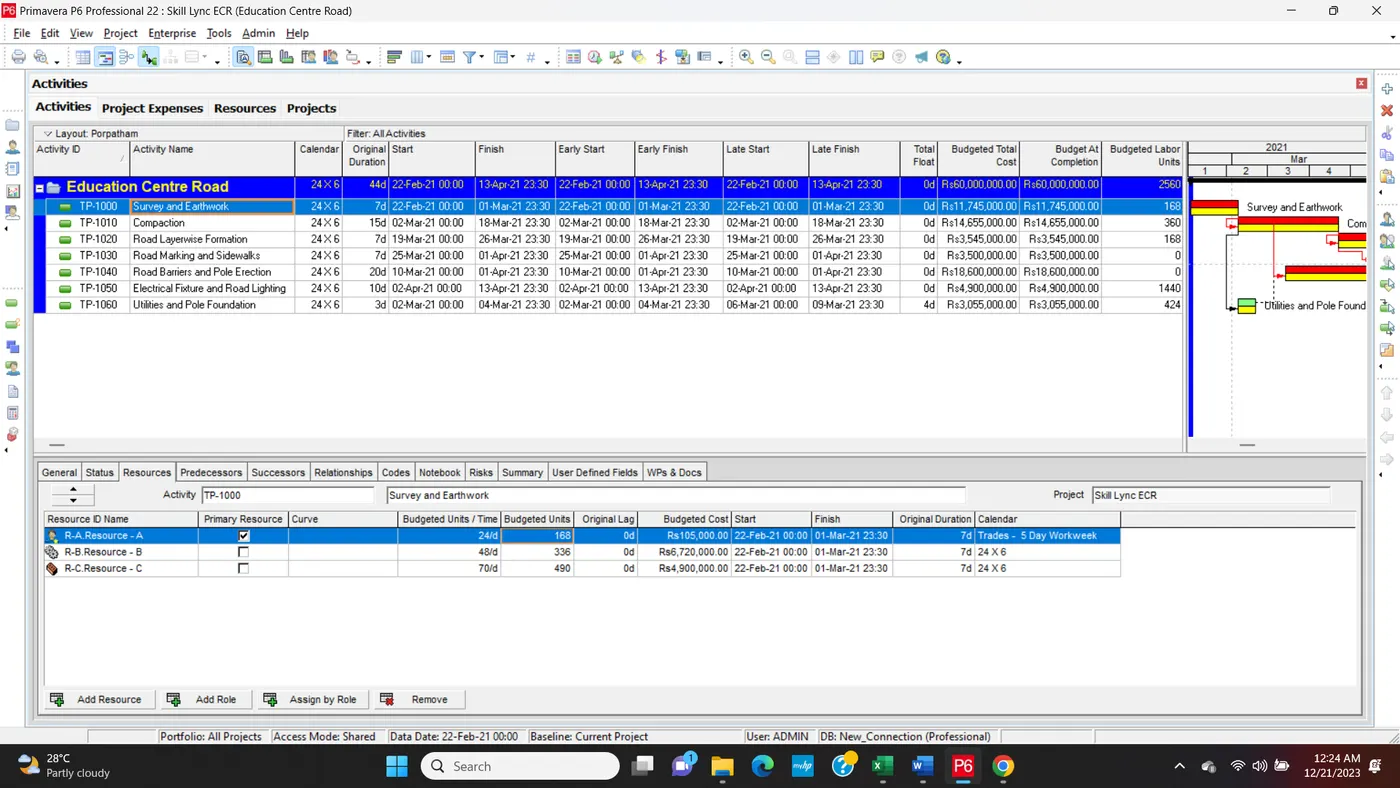
Q4. Add a budget to your project - INR 6 cr.
Step1:
Step2:
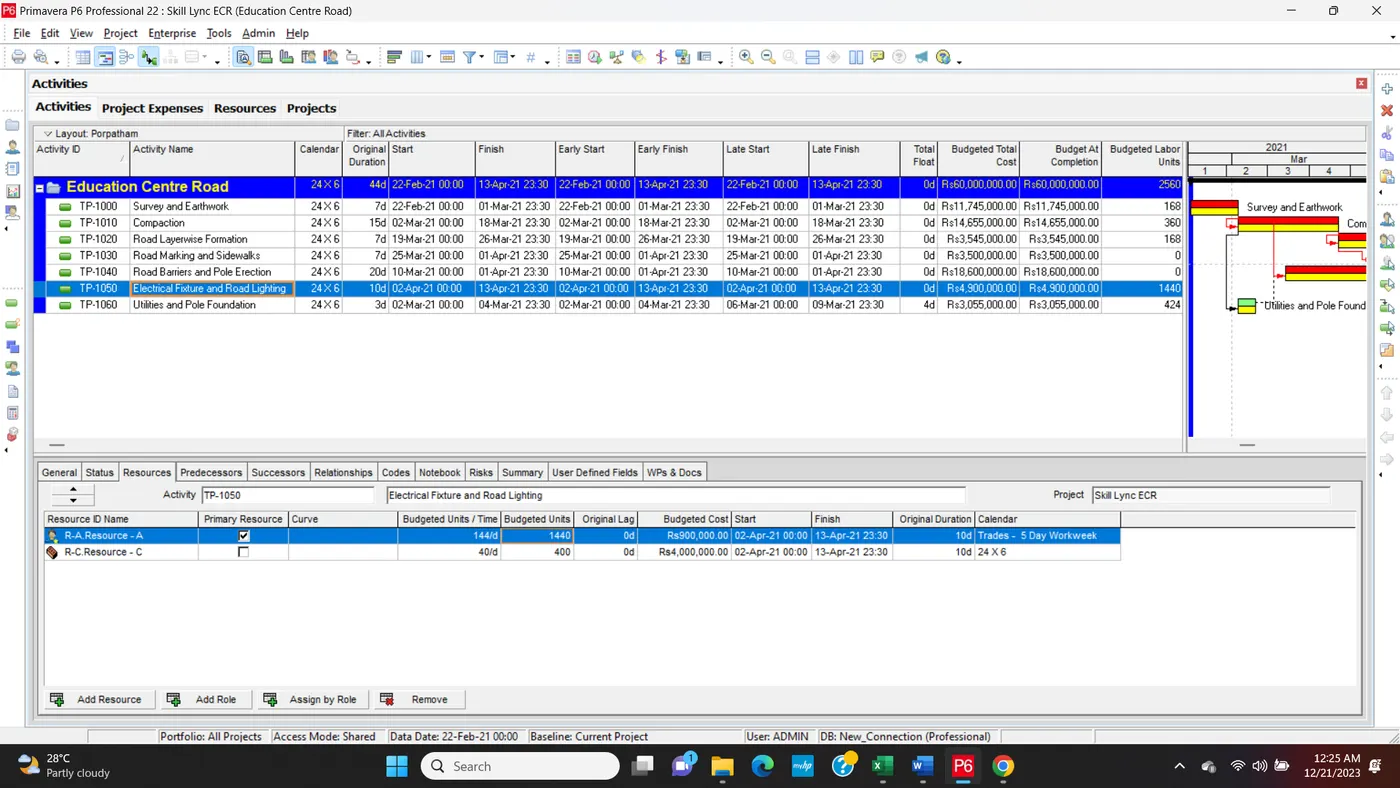
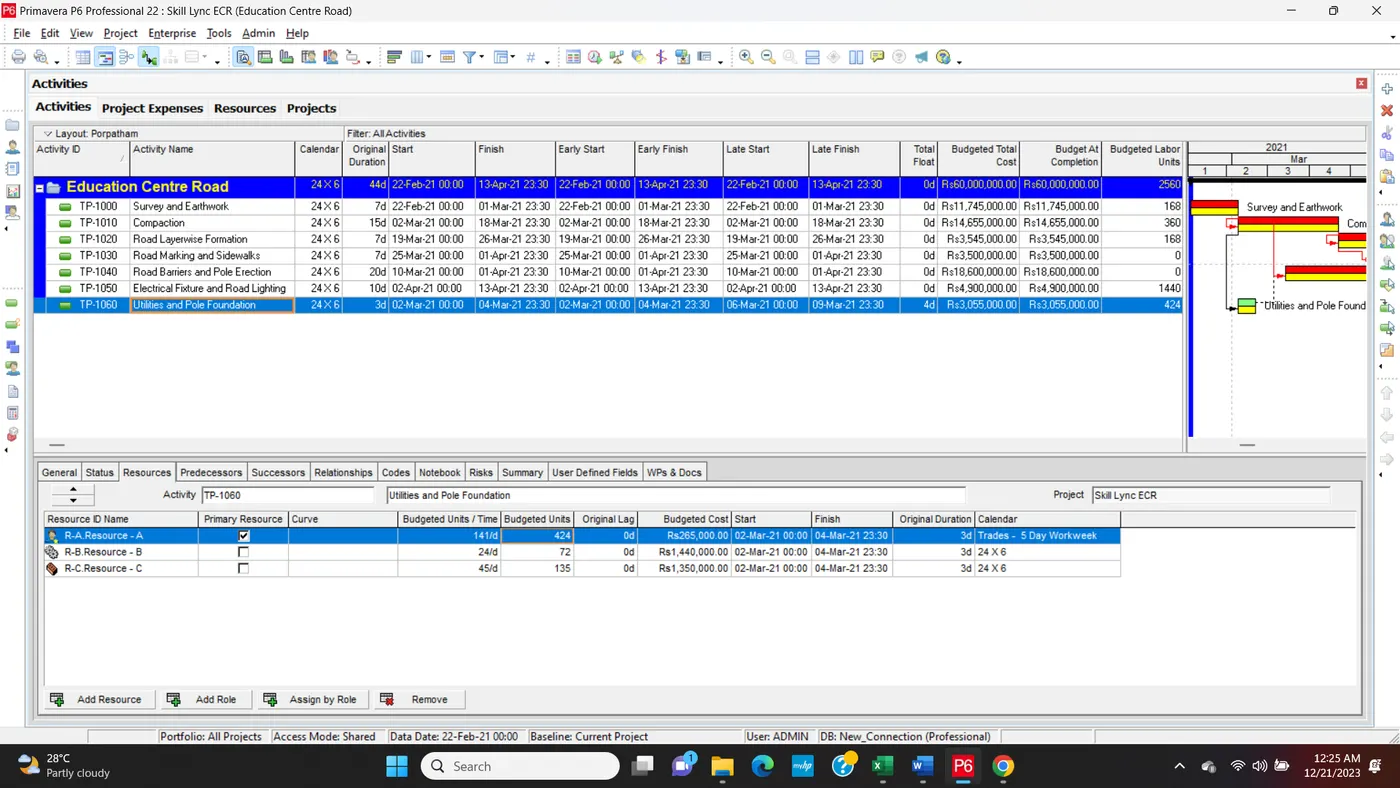
Q5. Assign a baseline to the project
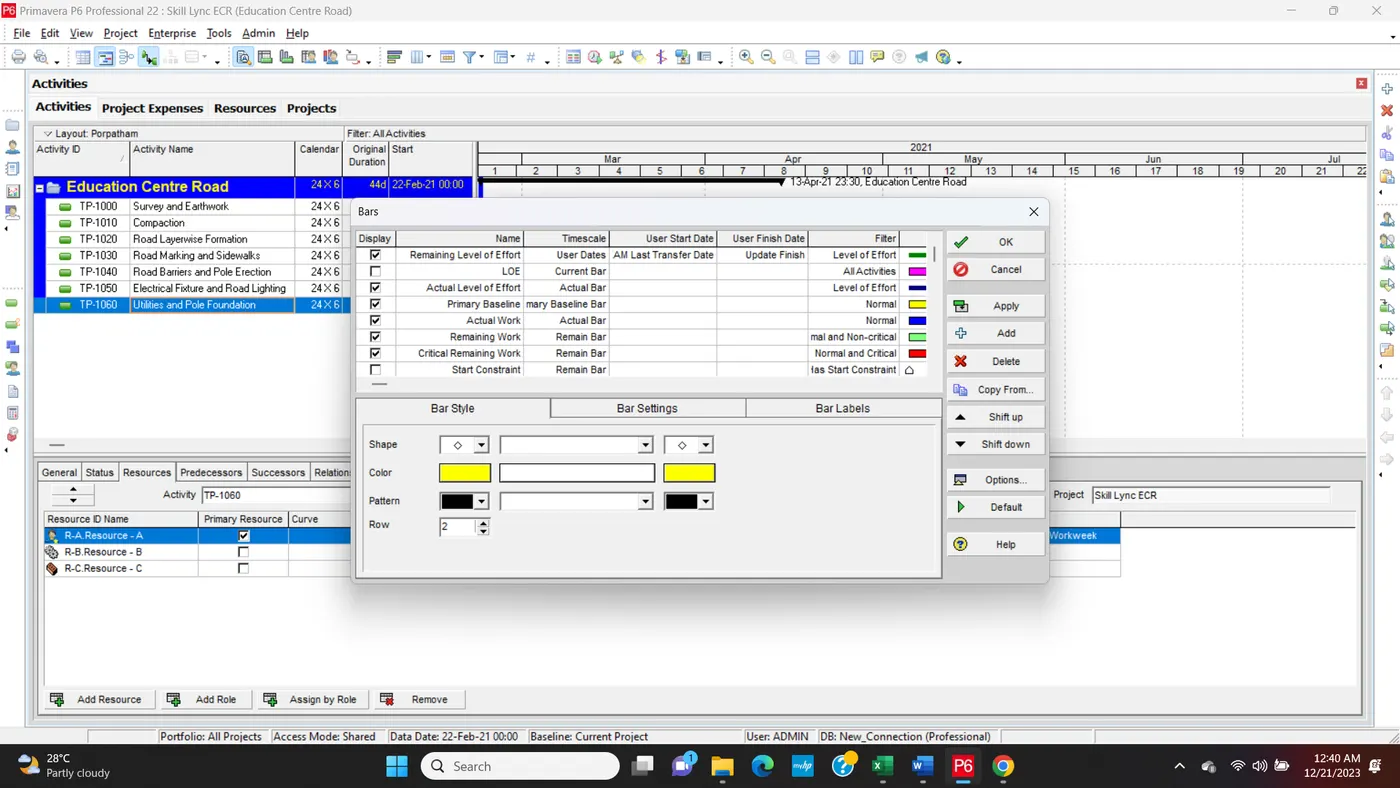
Step 1: Gantt Chart Right-click the Select Bar option.
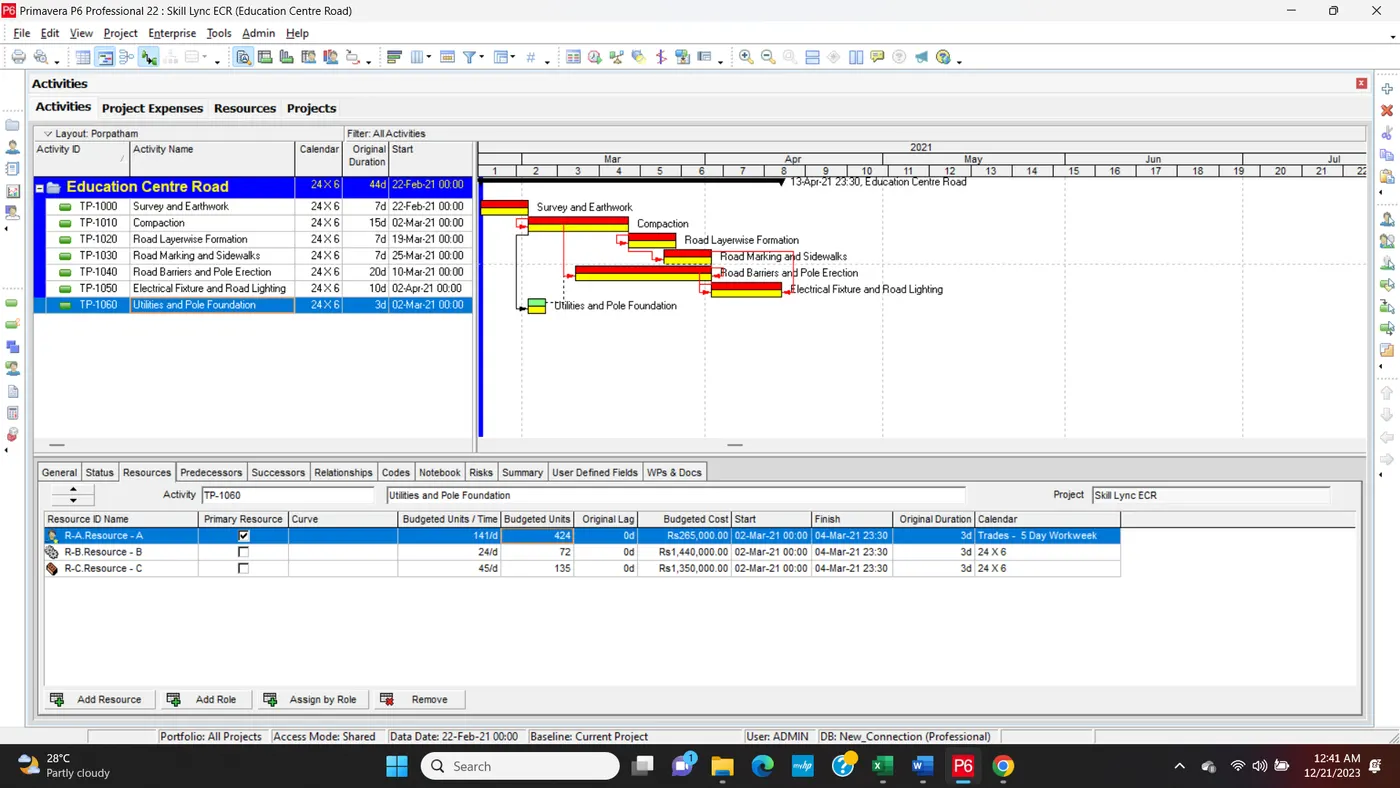
Step2: Final Result Show in Gantt Chart Baseline Bar
Q6. Add the following expense:
Task - 1 - Rs 20,000/- (Item - Fuel)
Task - 2 - Rs 30,000 /- (Item - Maintenance)
Step1: Go Project > Expense > + add Items
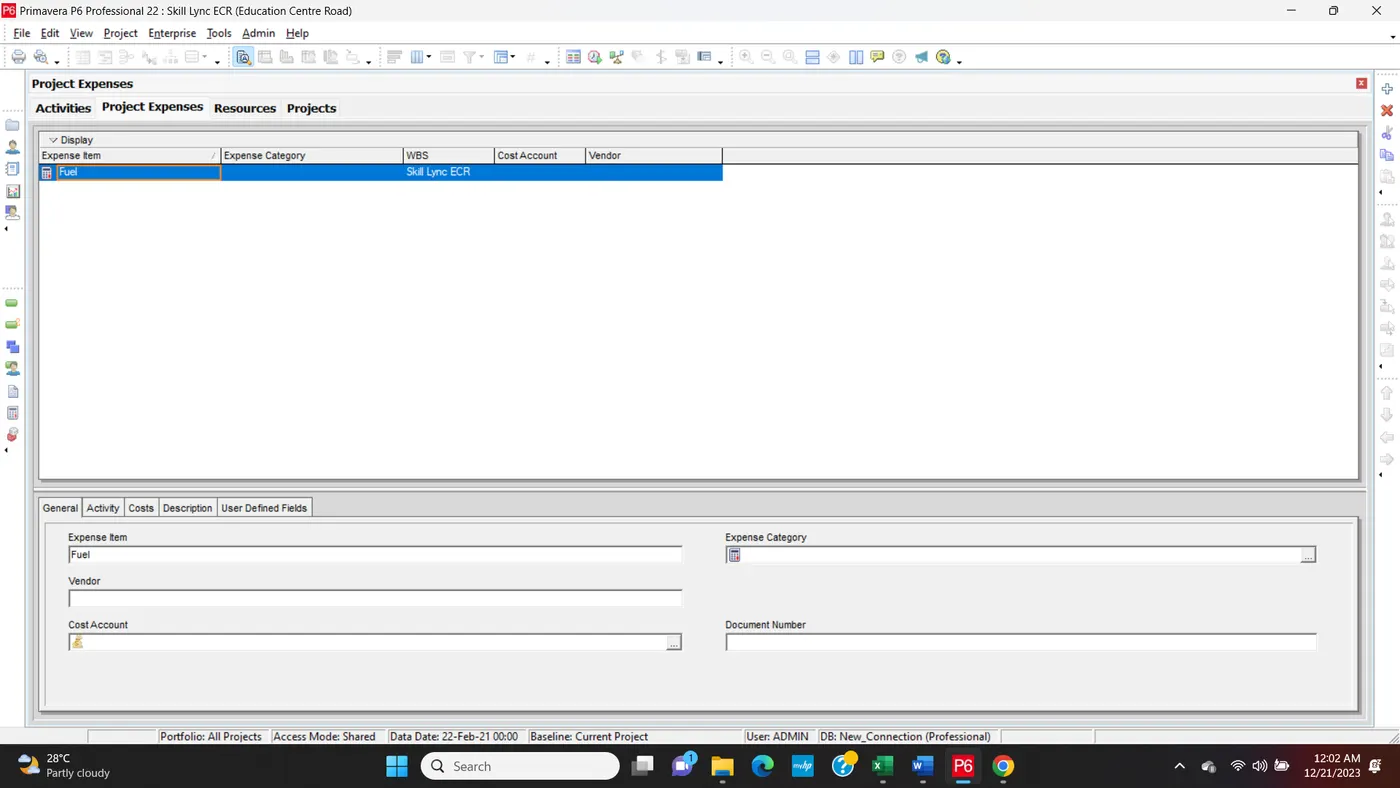
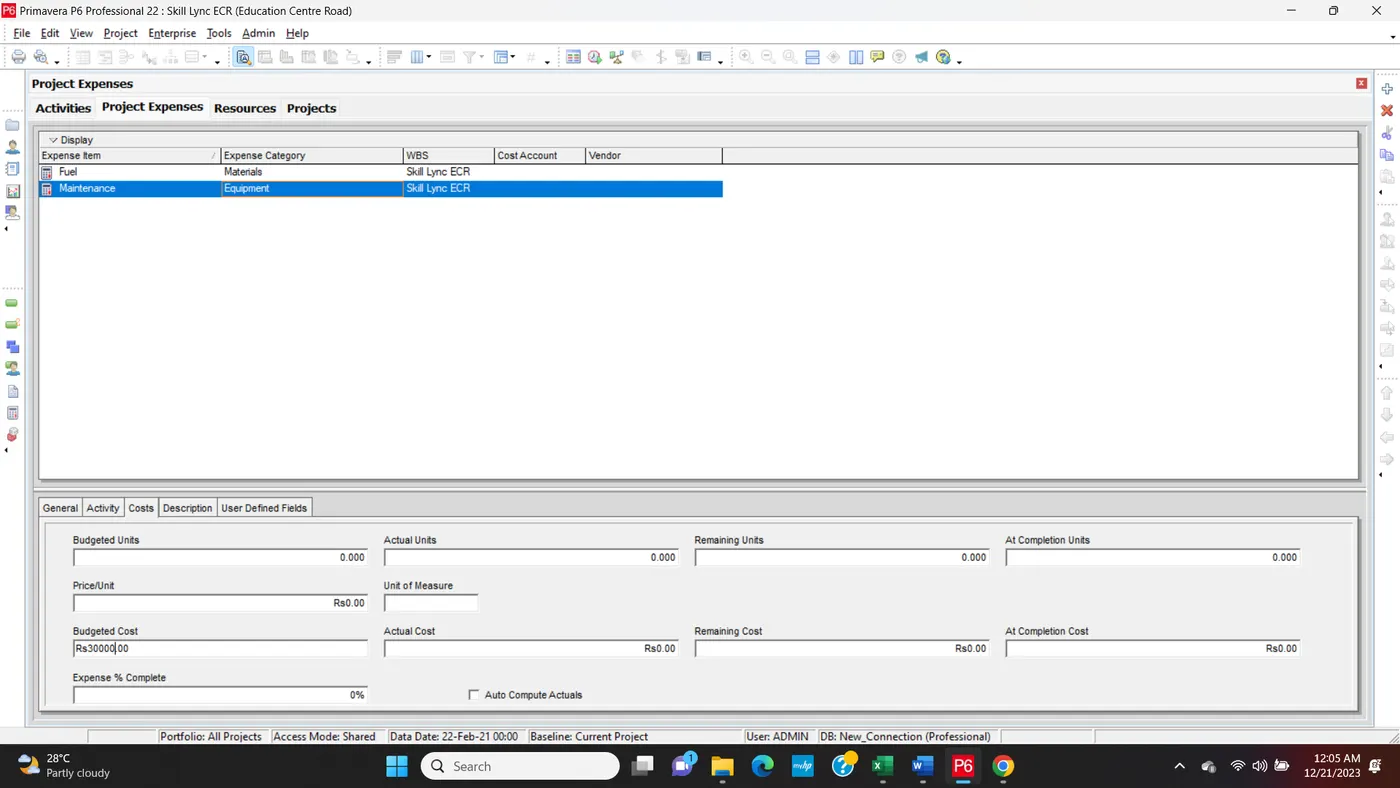
Step2: Final add Expense Cost
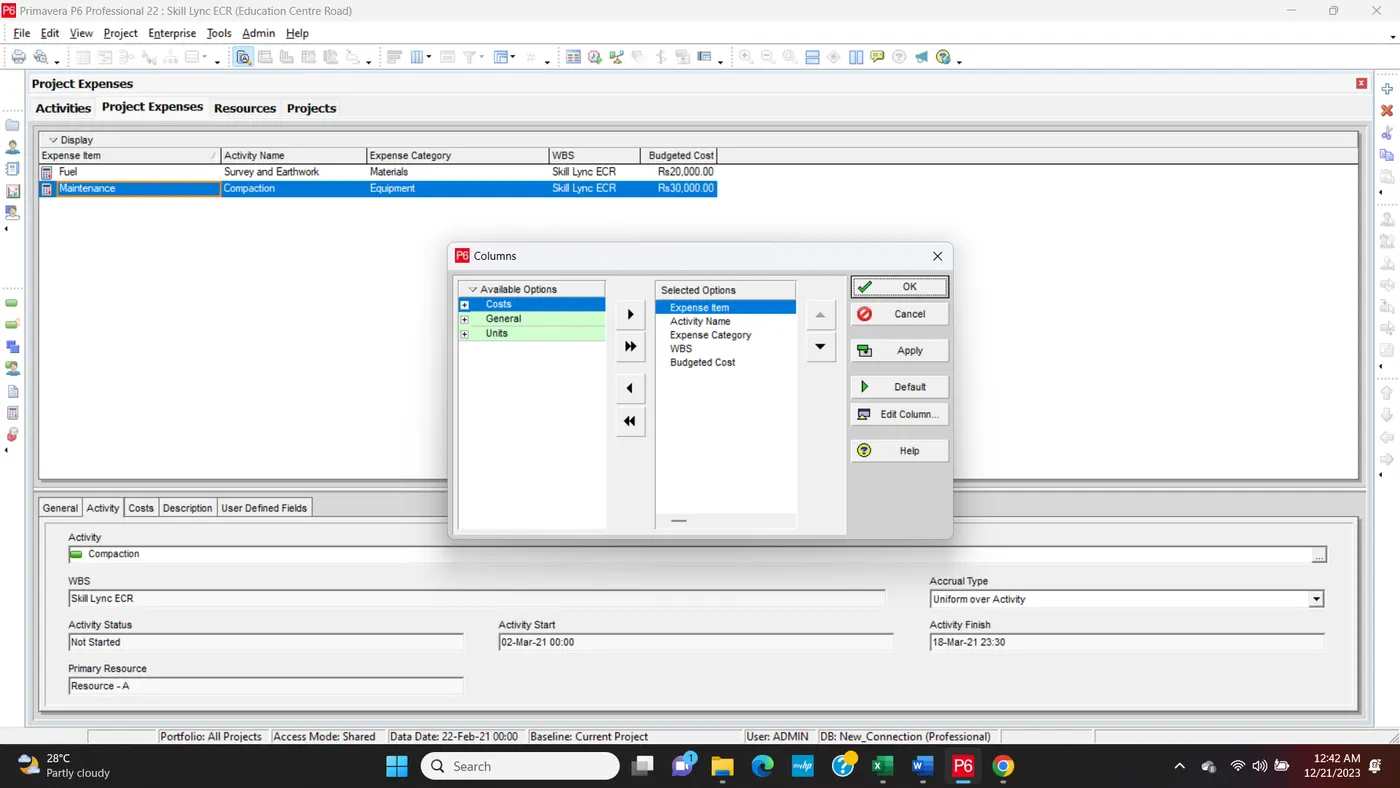
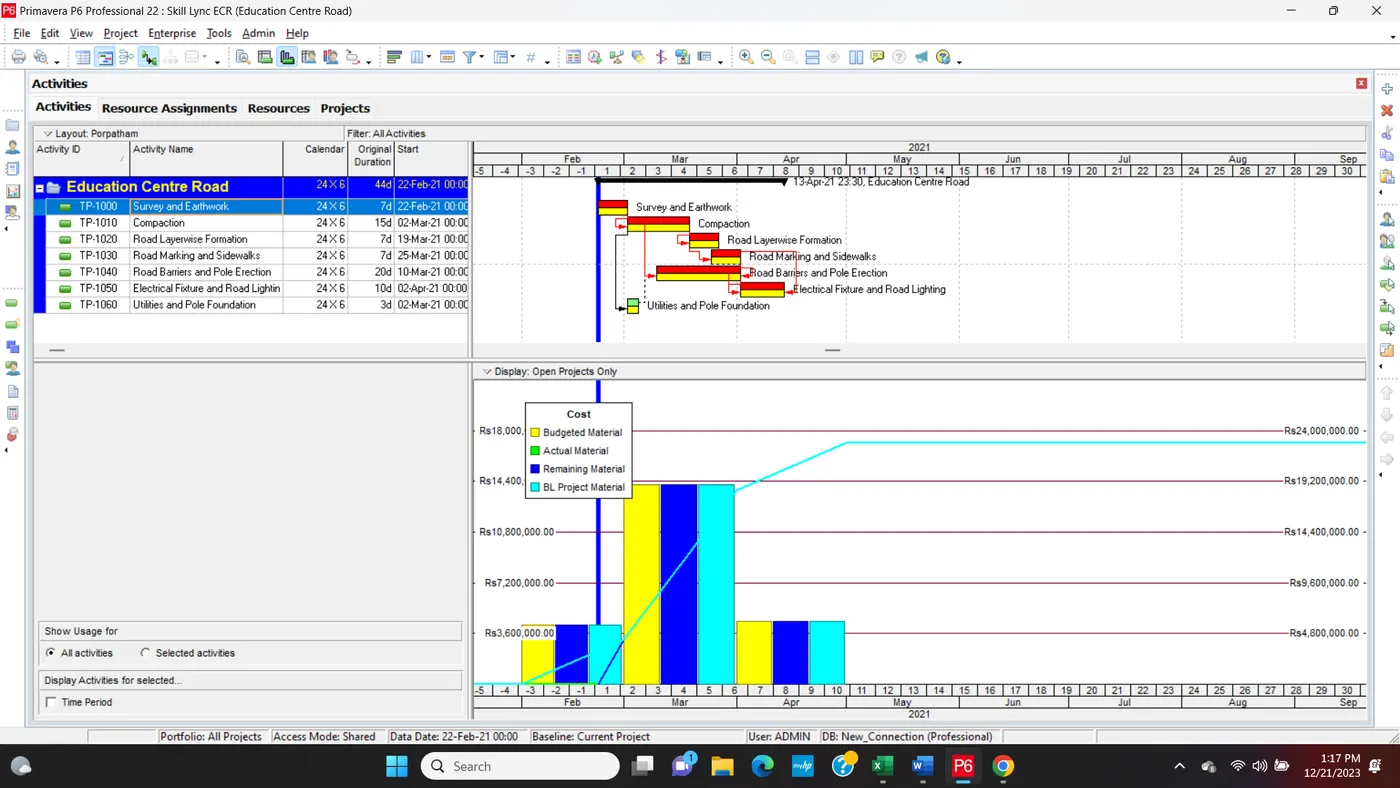
Q7. Generate material resource cost curve
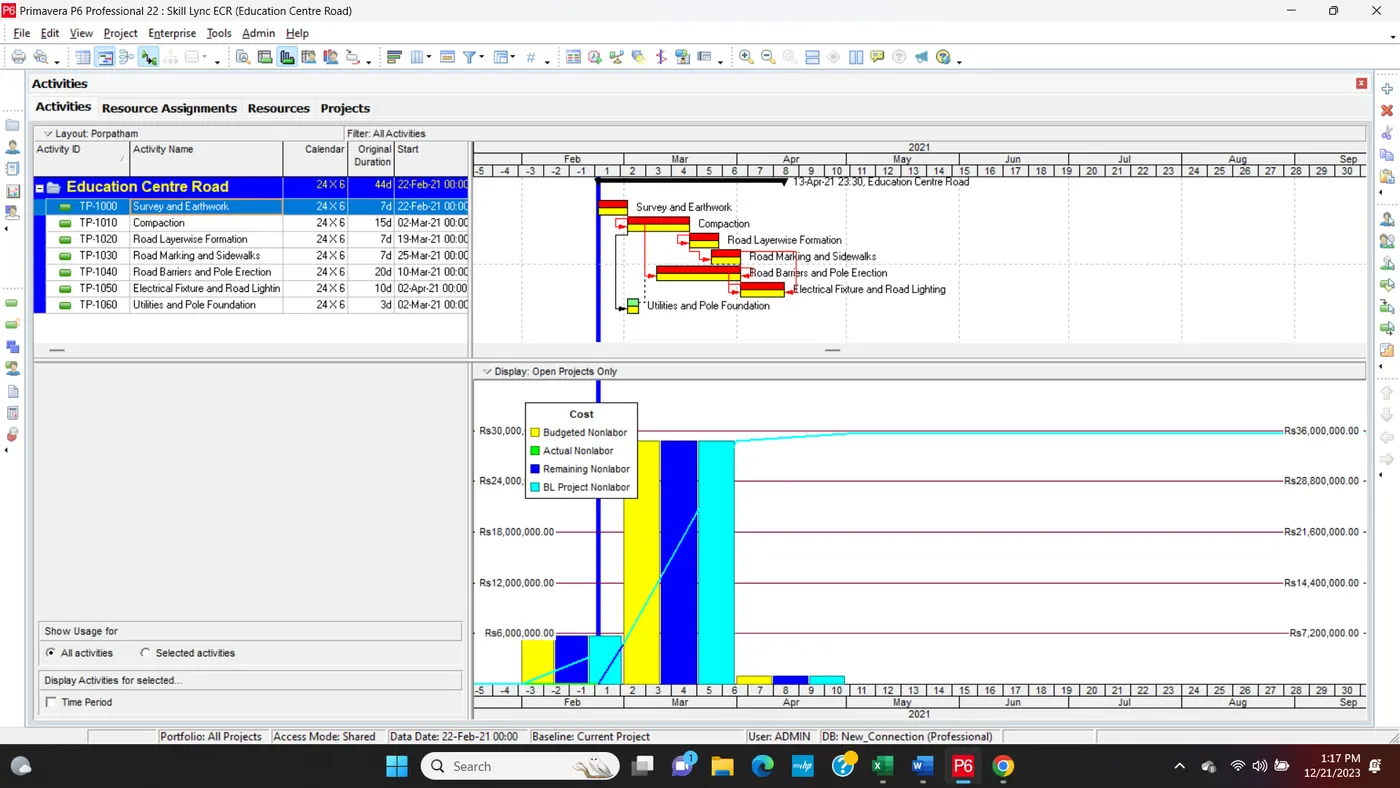
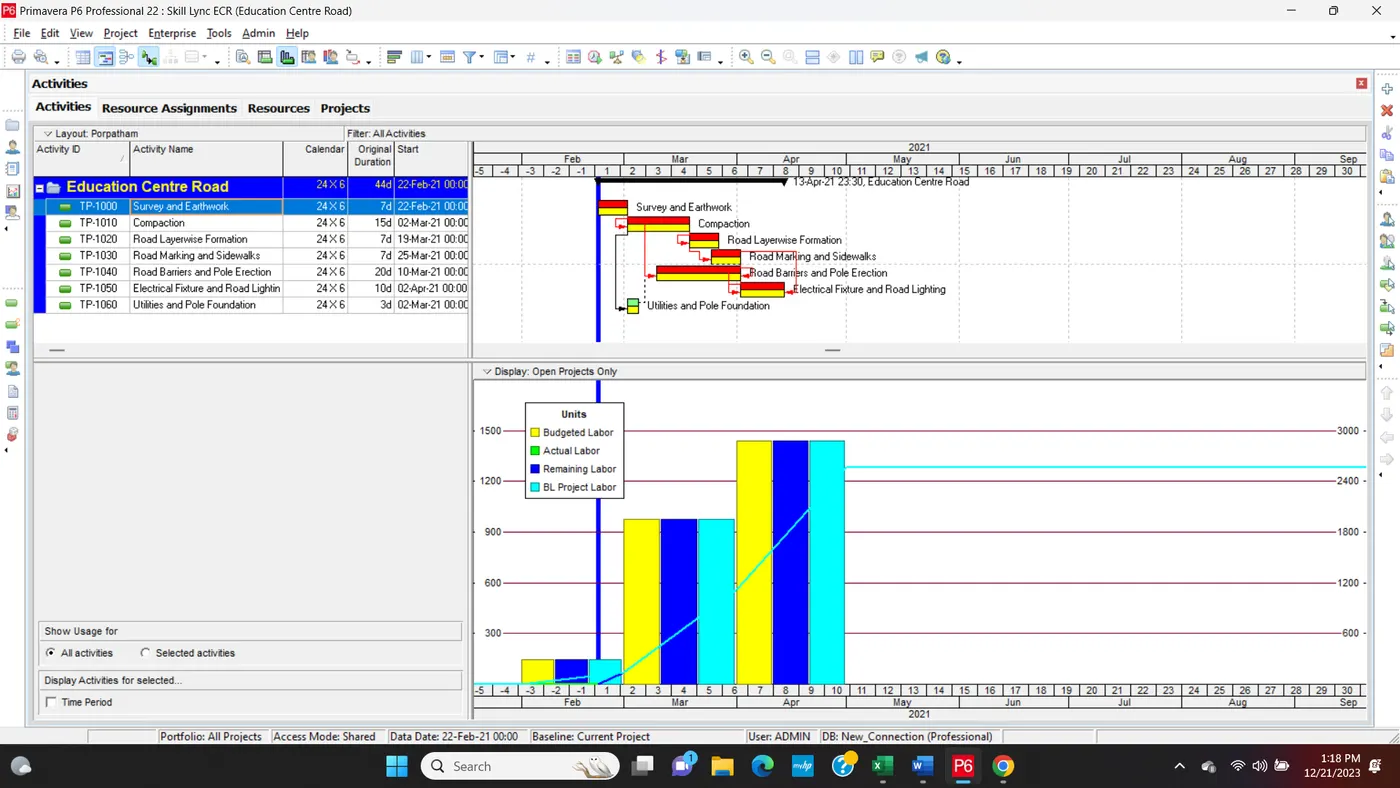
Step1: Go to View > Show Bottom > Activity Usage Profile Click
Labor Cost
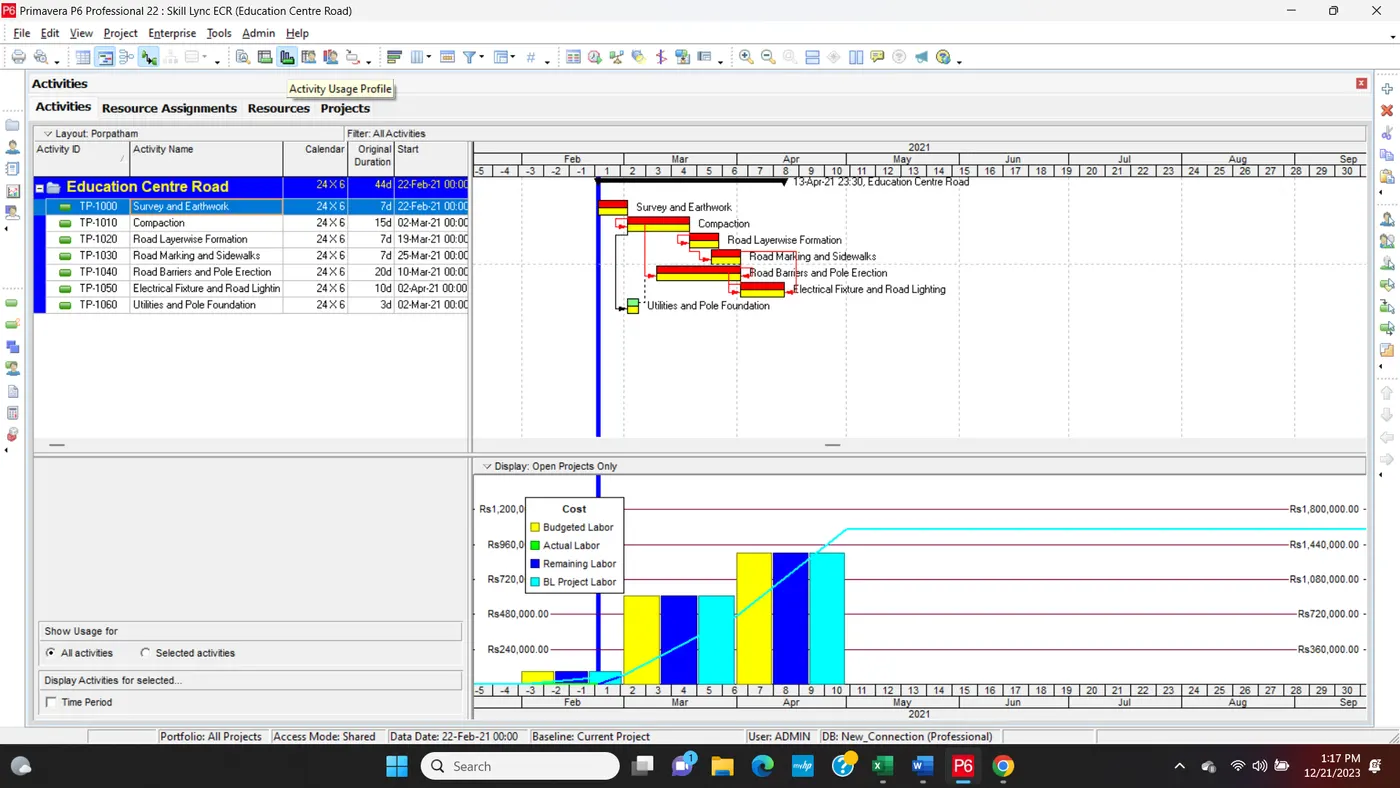
Material Cost Curve
Non Labor Cost Curve
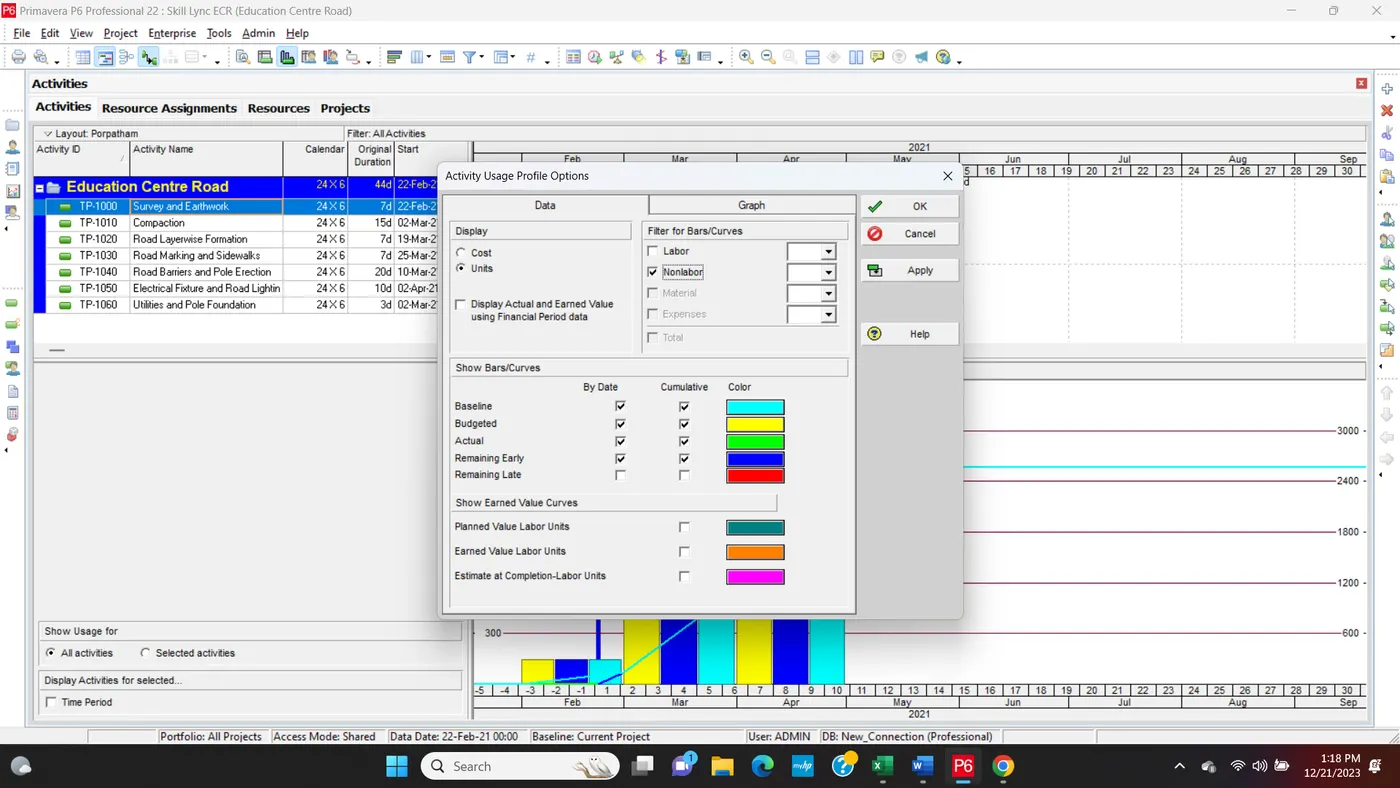
Labour Units
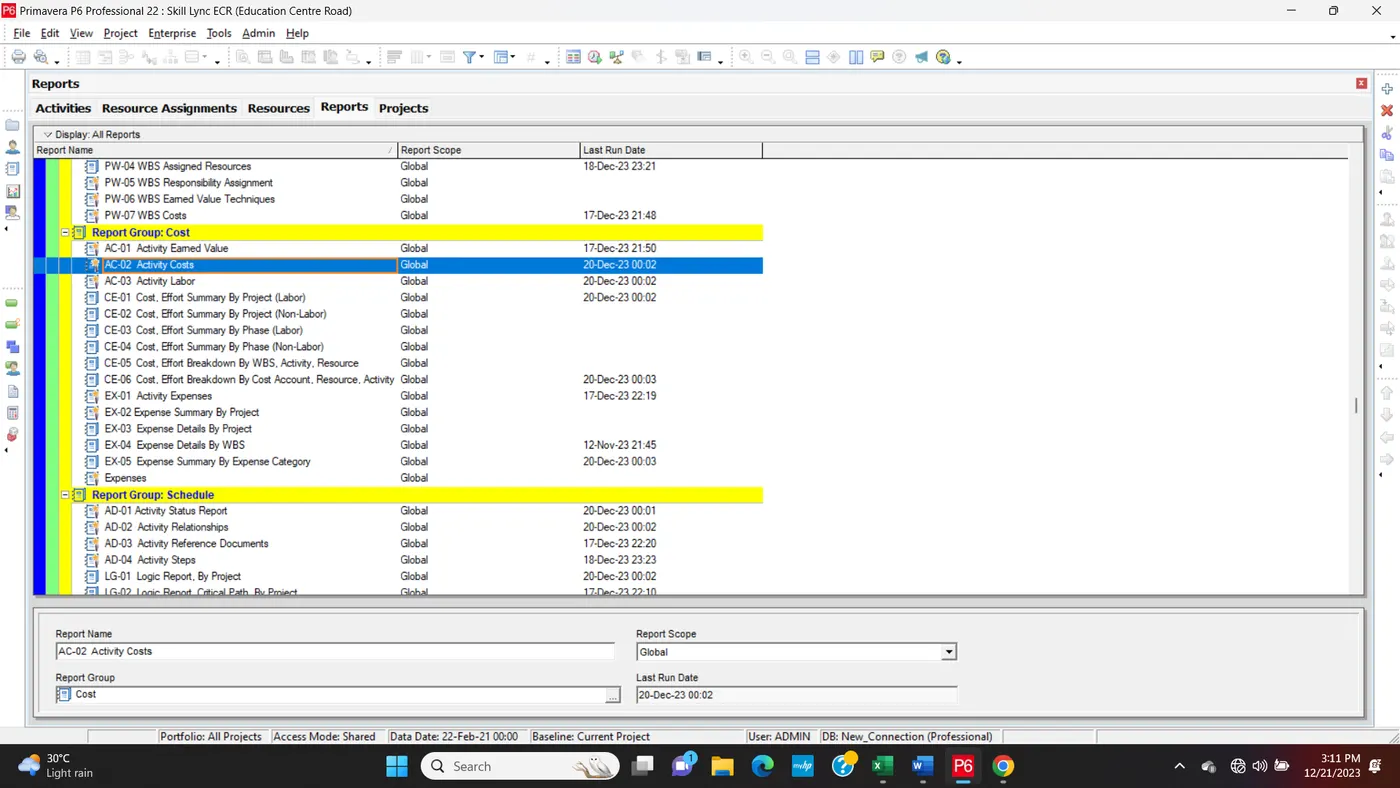
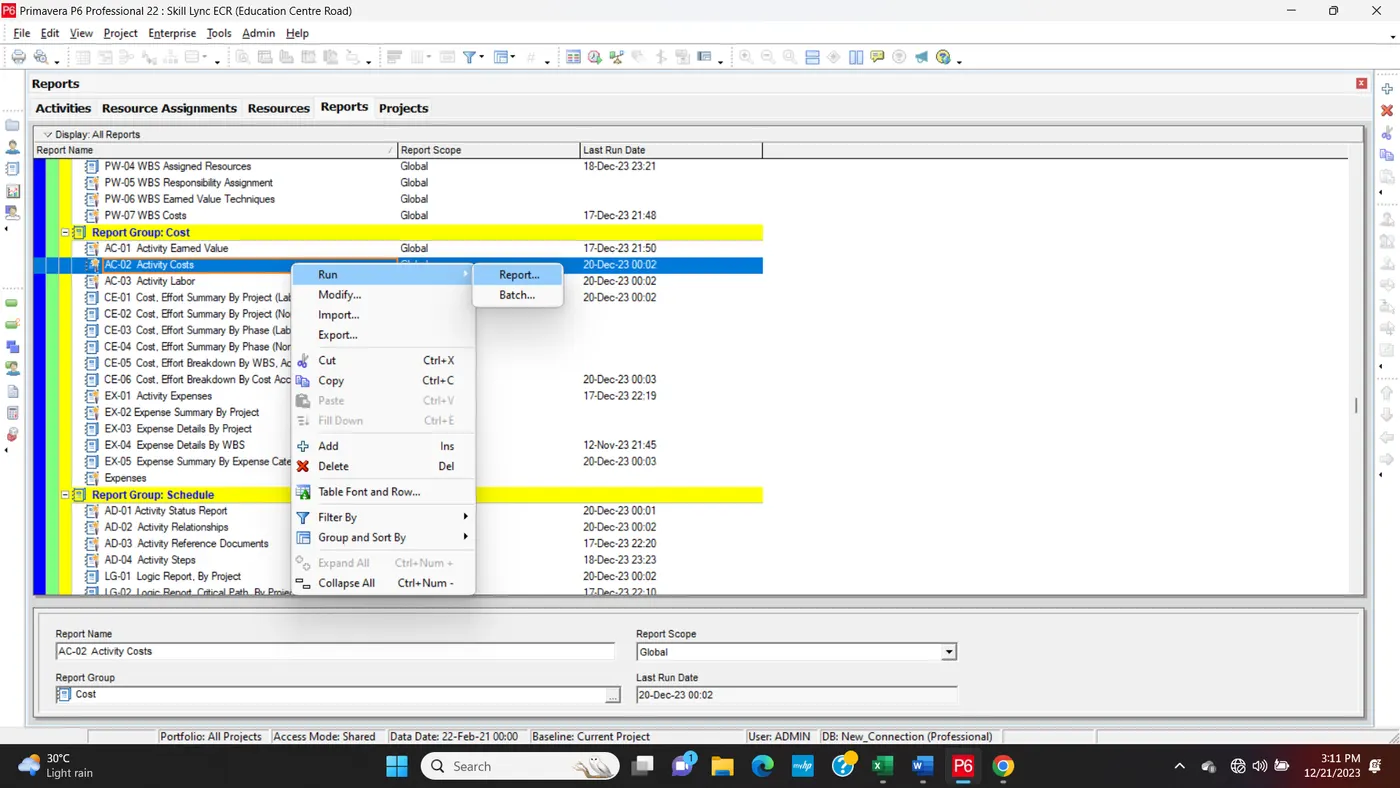
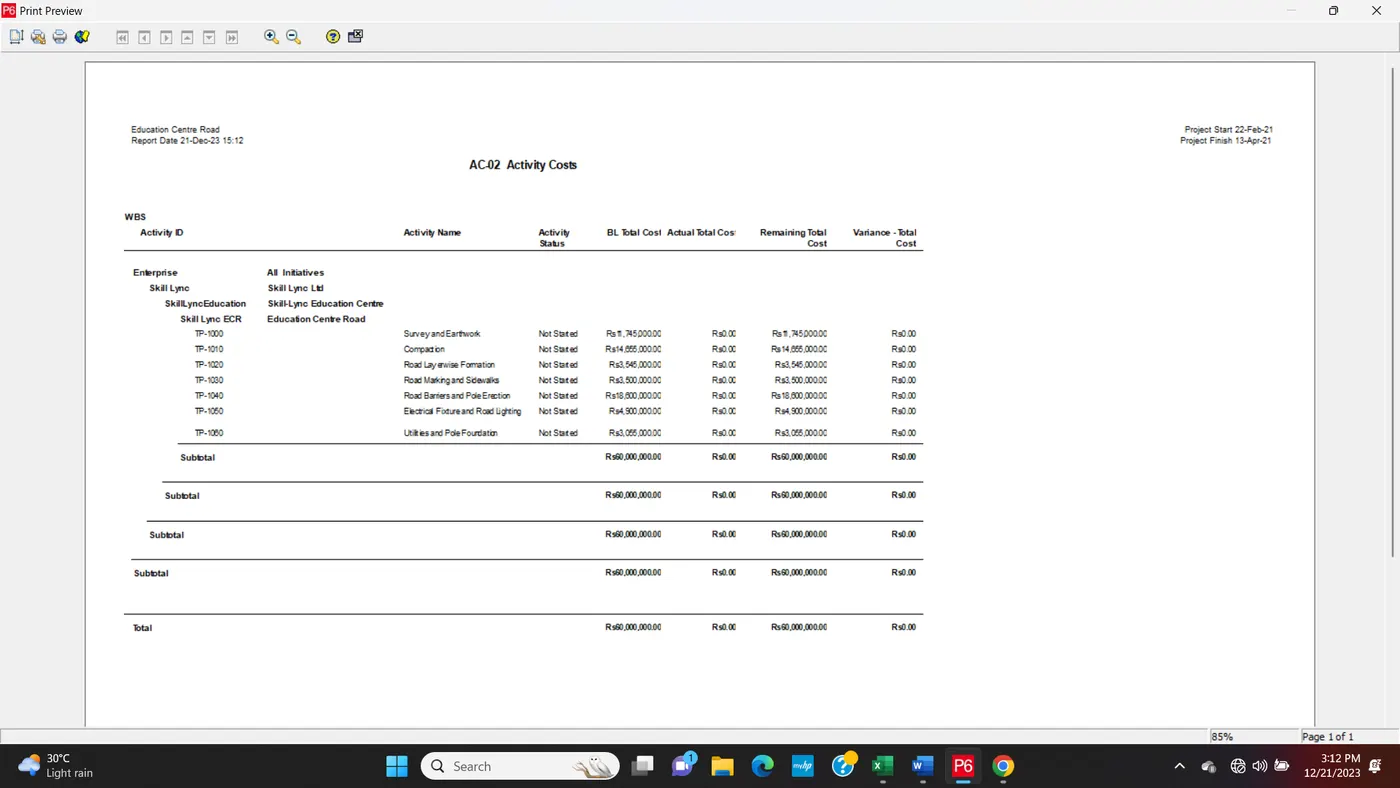
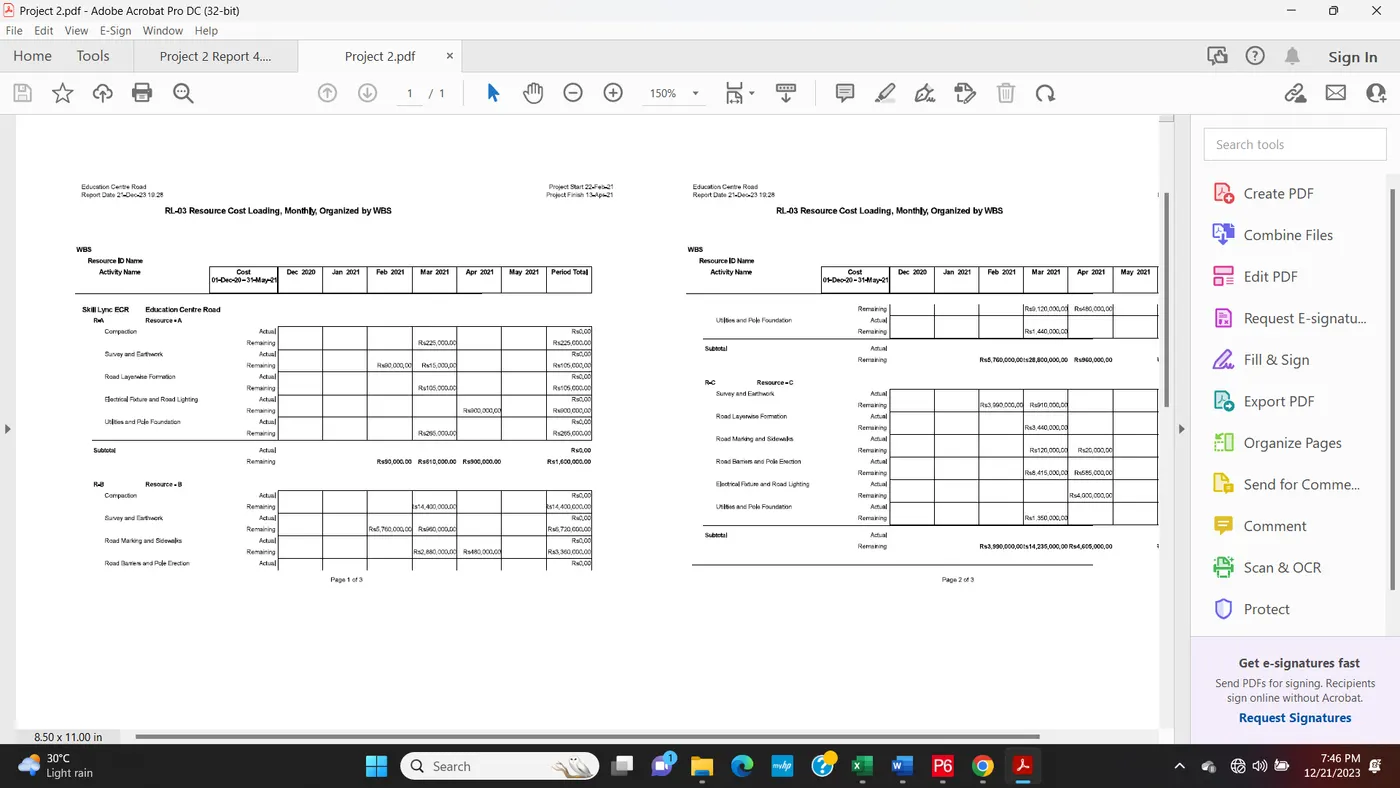
Q8. Generate an activity-wise cost report
Step1:
Step2:
Step3:
Step4:
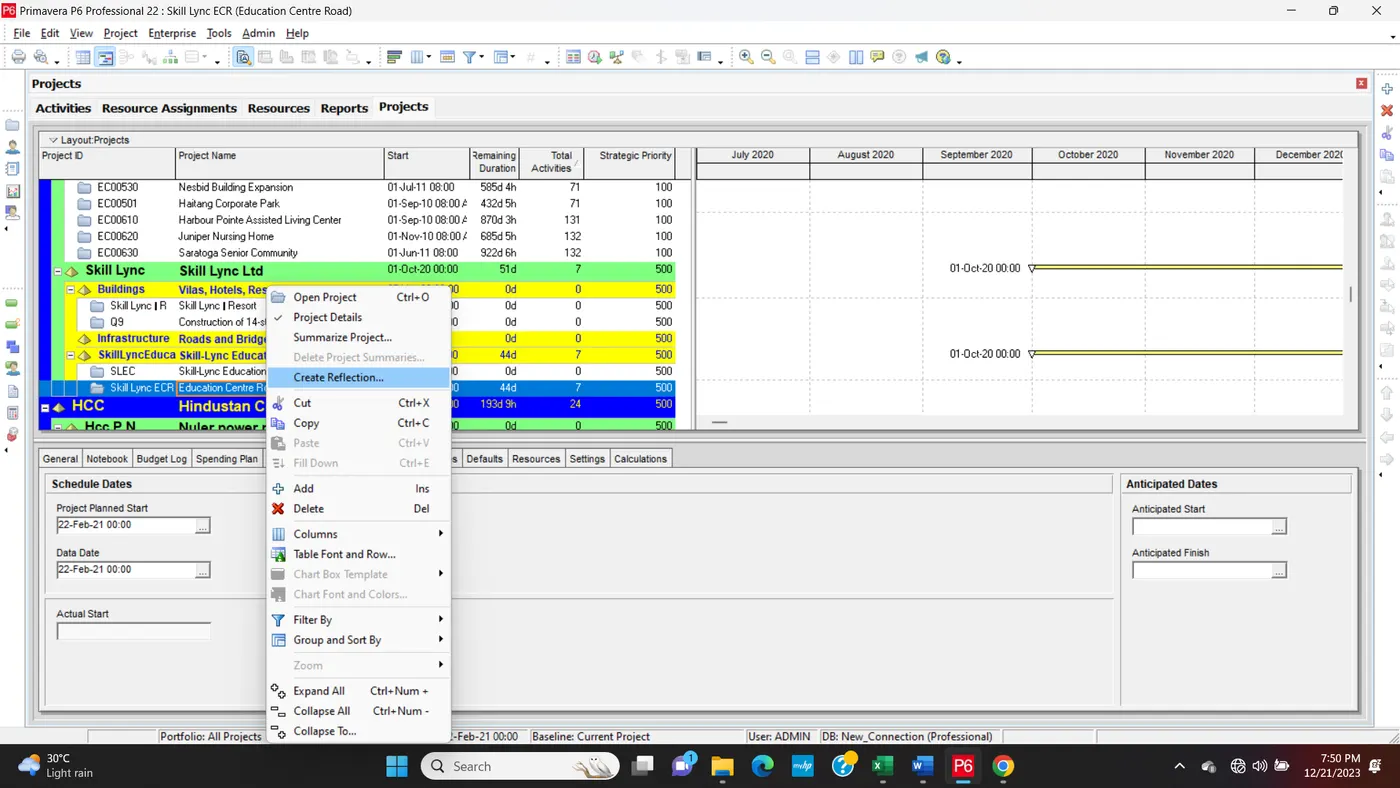
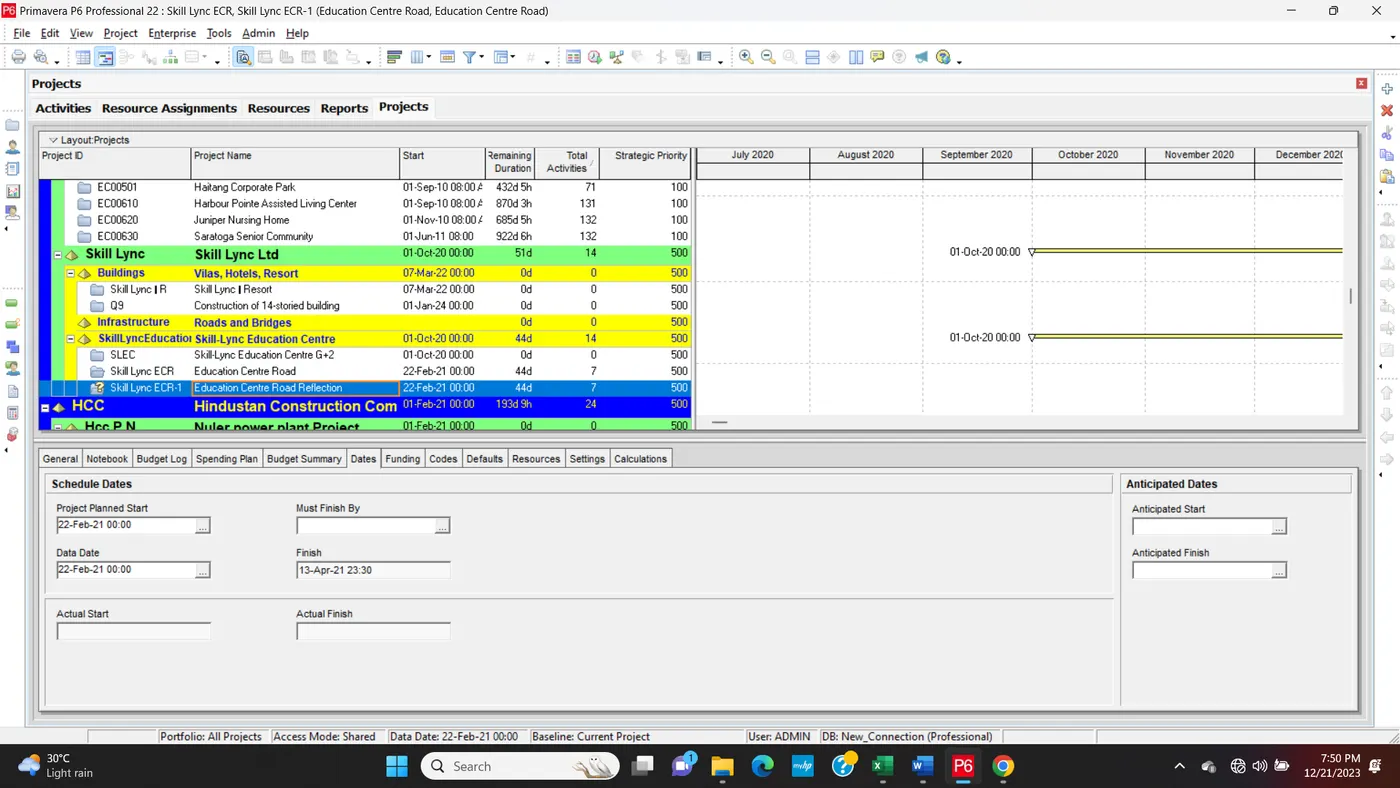
Q9. Create a reflection
Step1: Goto Enterprise > Select Project > Select Project Name > Right Click > Craete Reflection
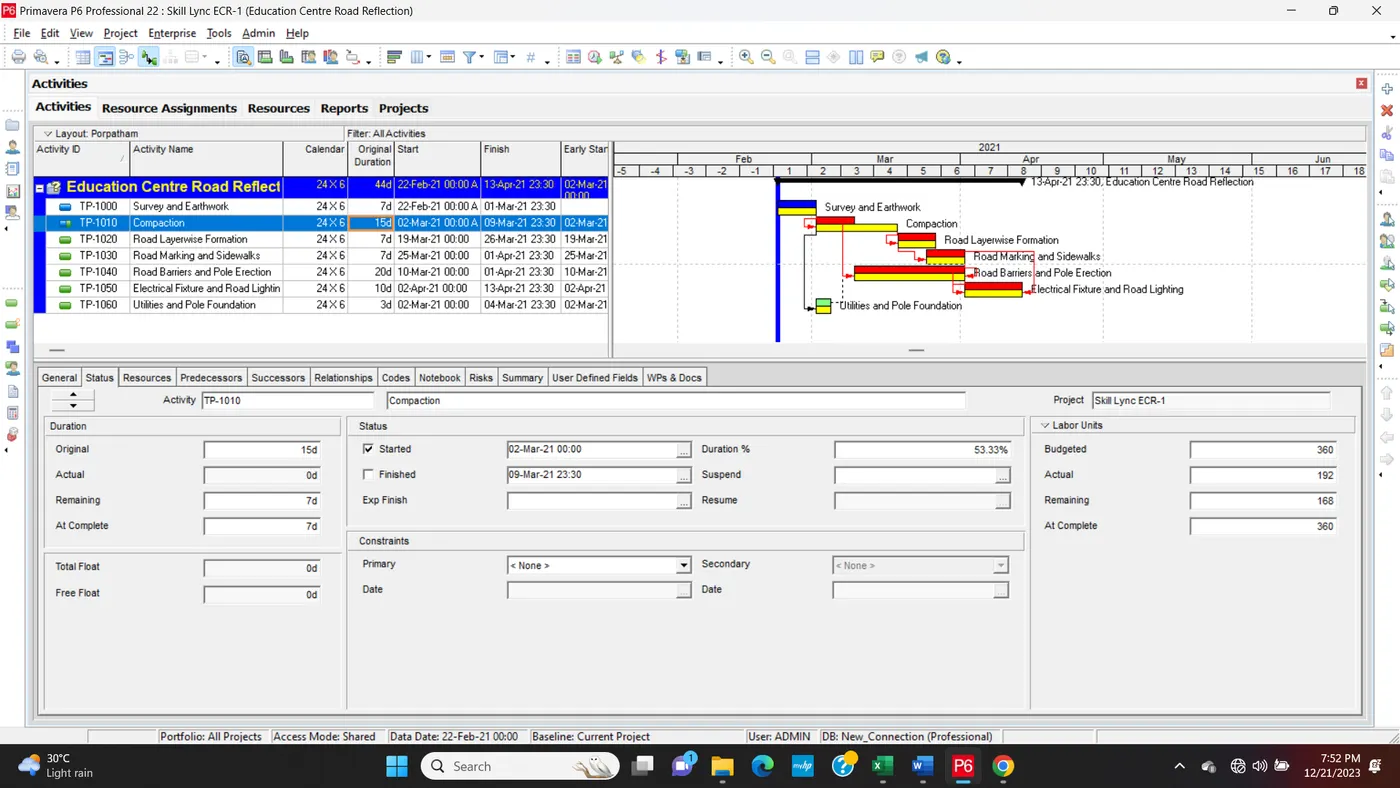
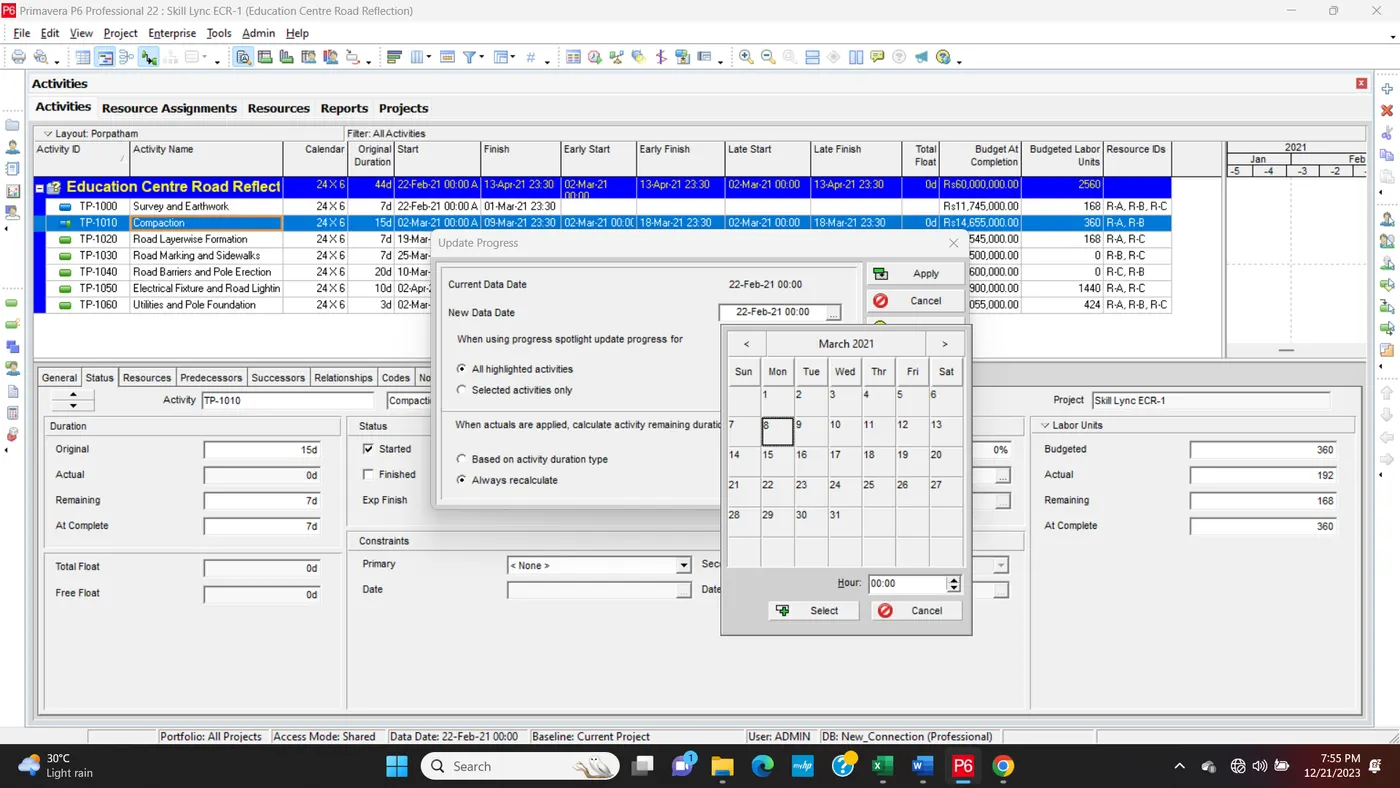
Q10. In the reflection, auto update the project at 15 days from start
Step1:
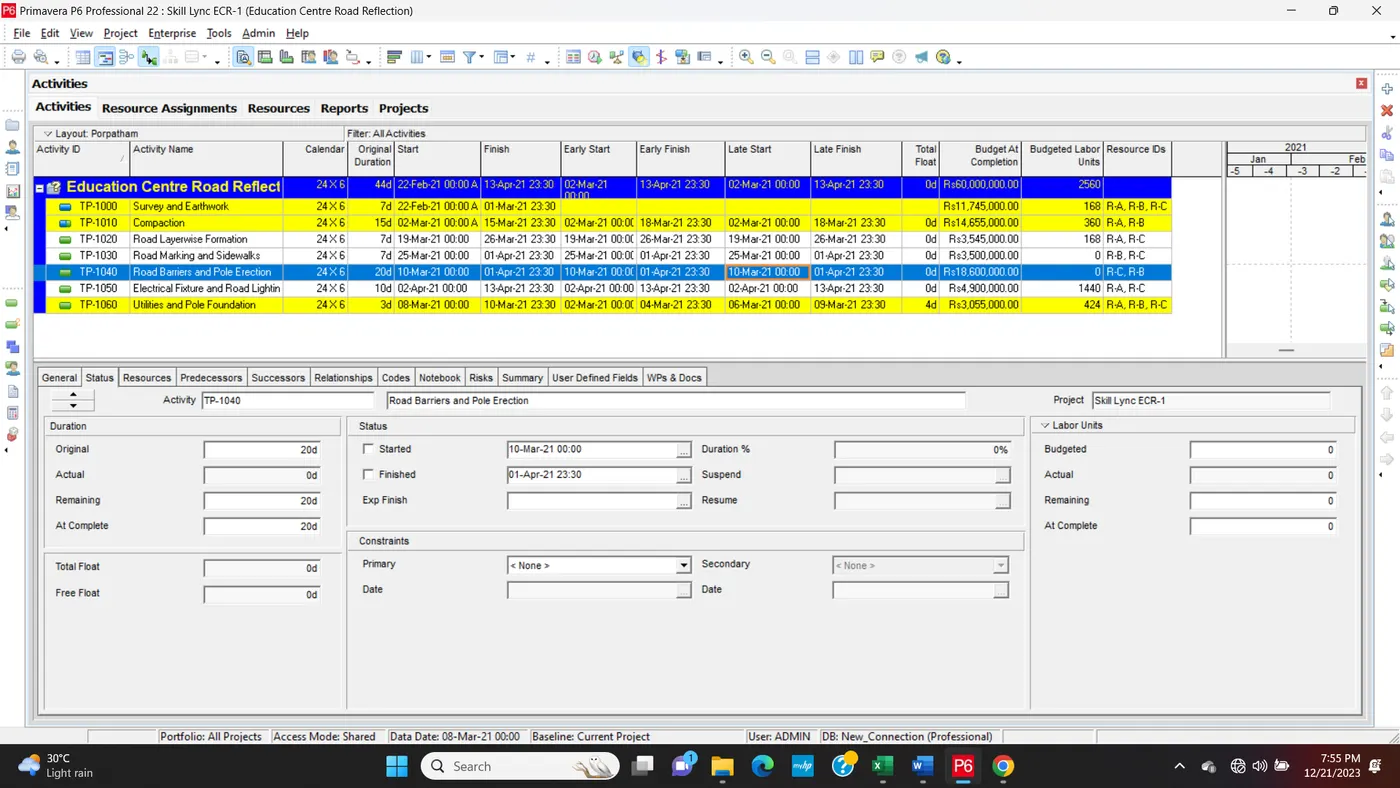
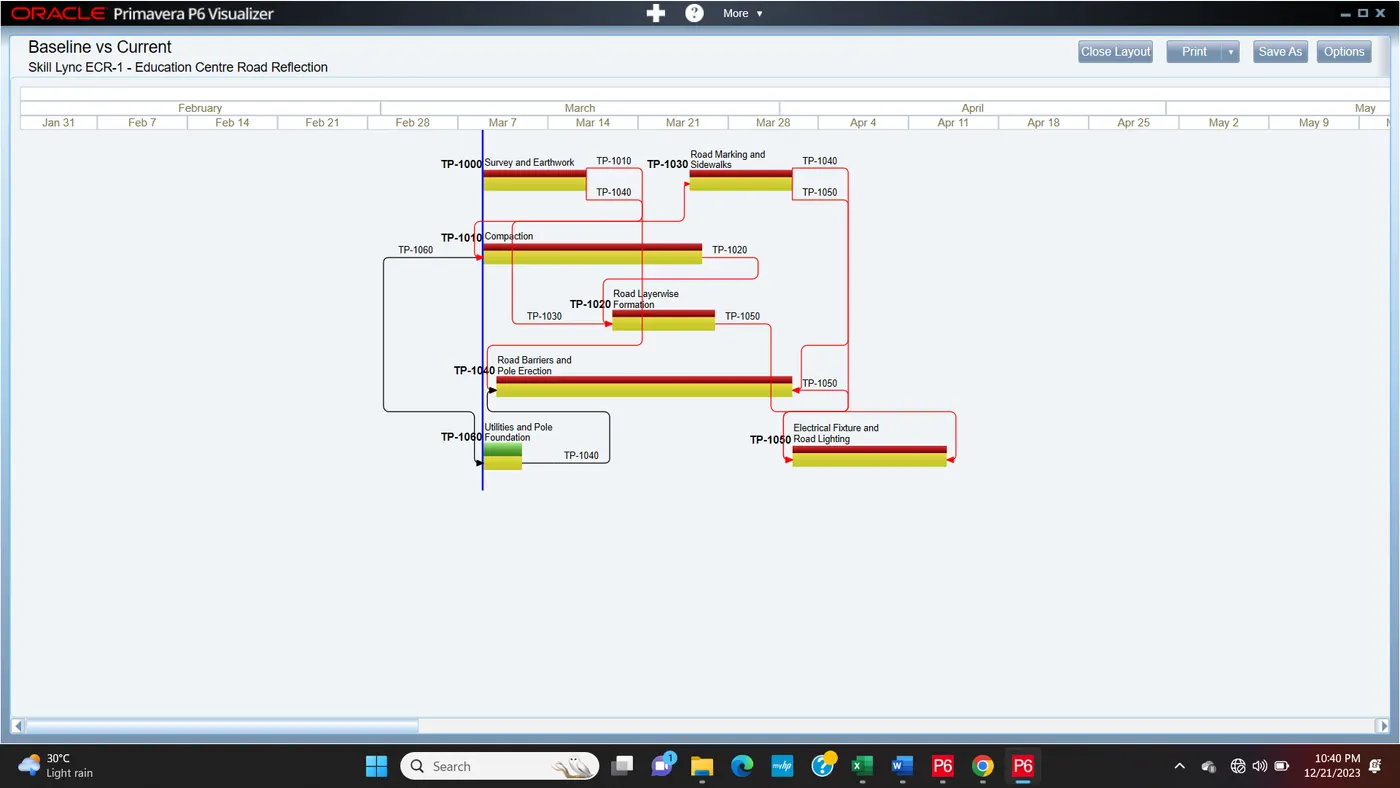
Q11. Open a TSLD view of the project in Visualizer
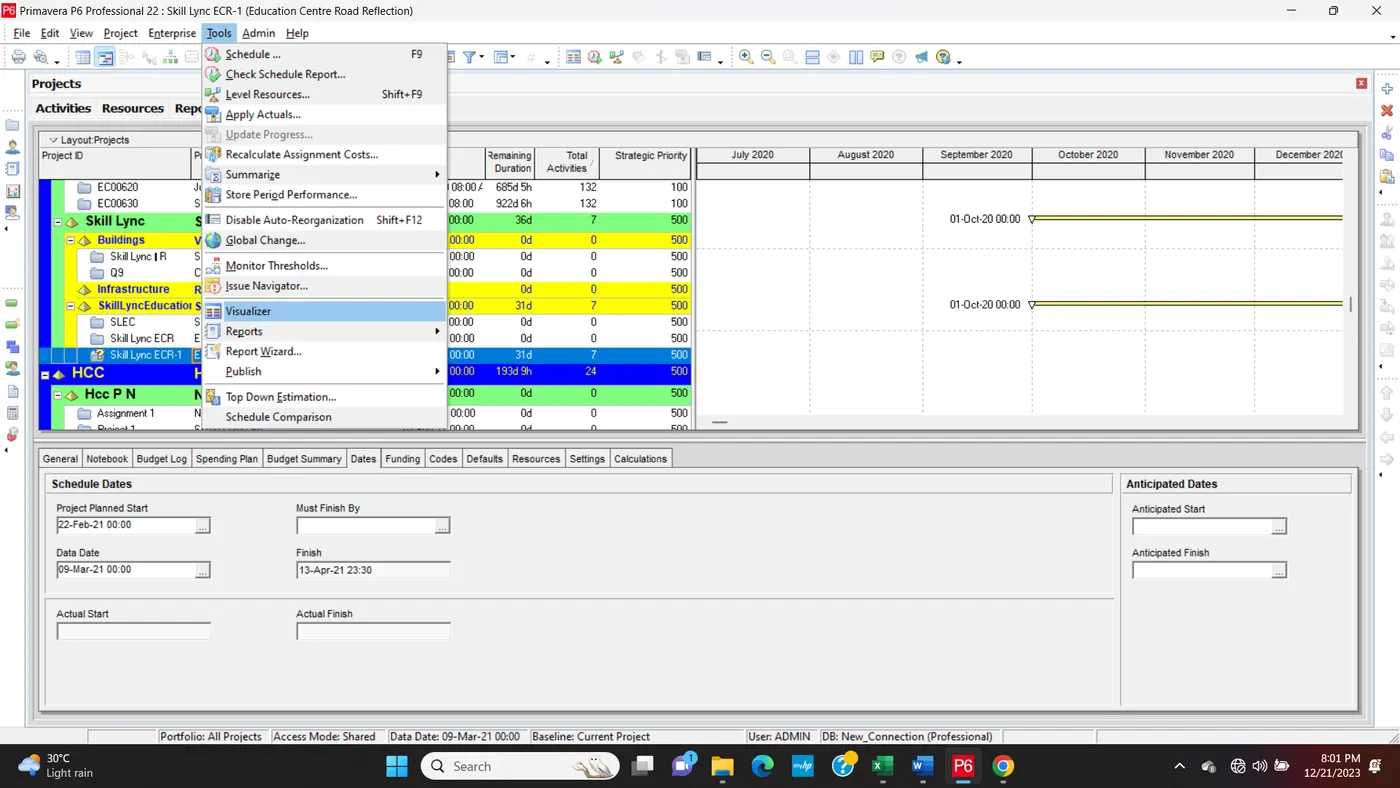
Step1: Goto Tools > Visualizer
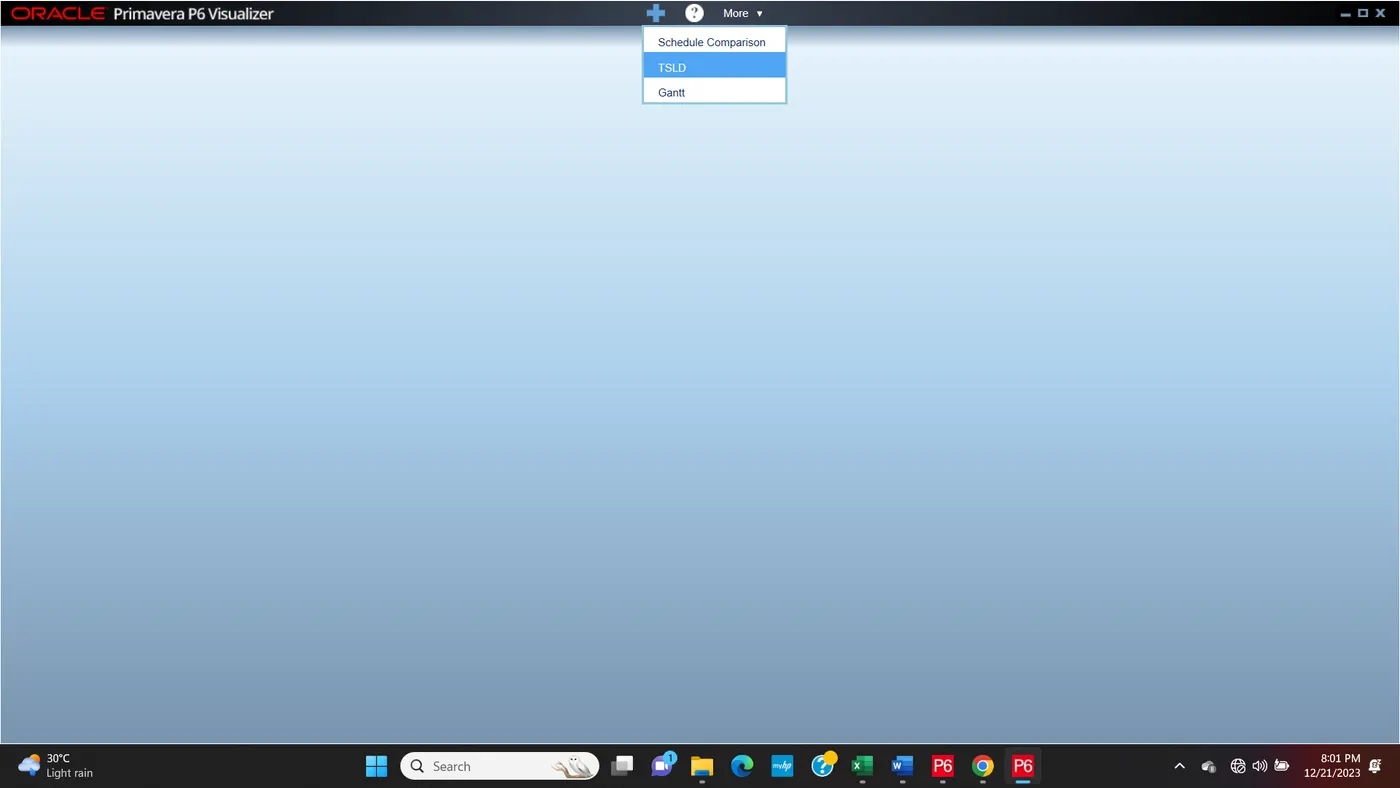
Step2: Visualizer > Select TSLD >
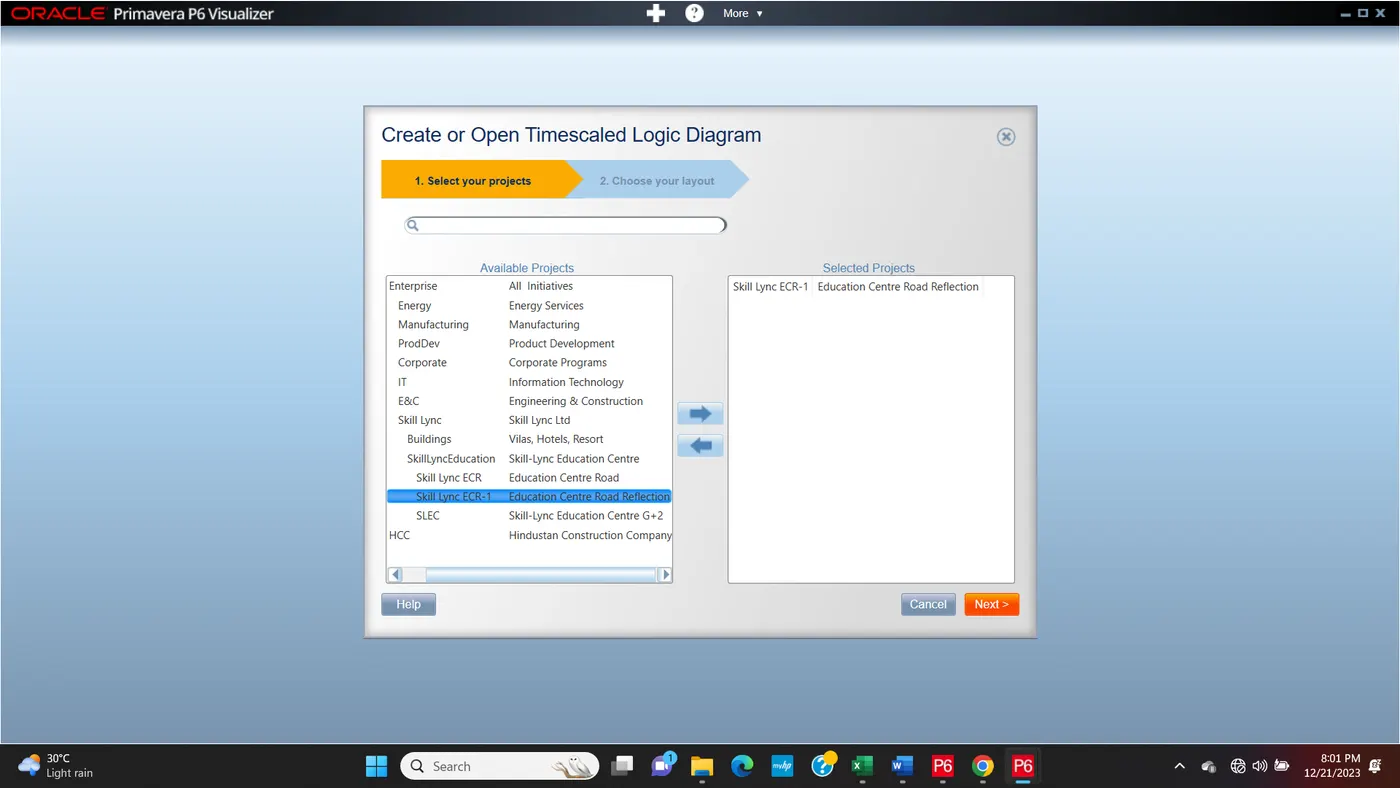
Step3: After Click TSLD > Select Current Project > Choose layout
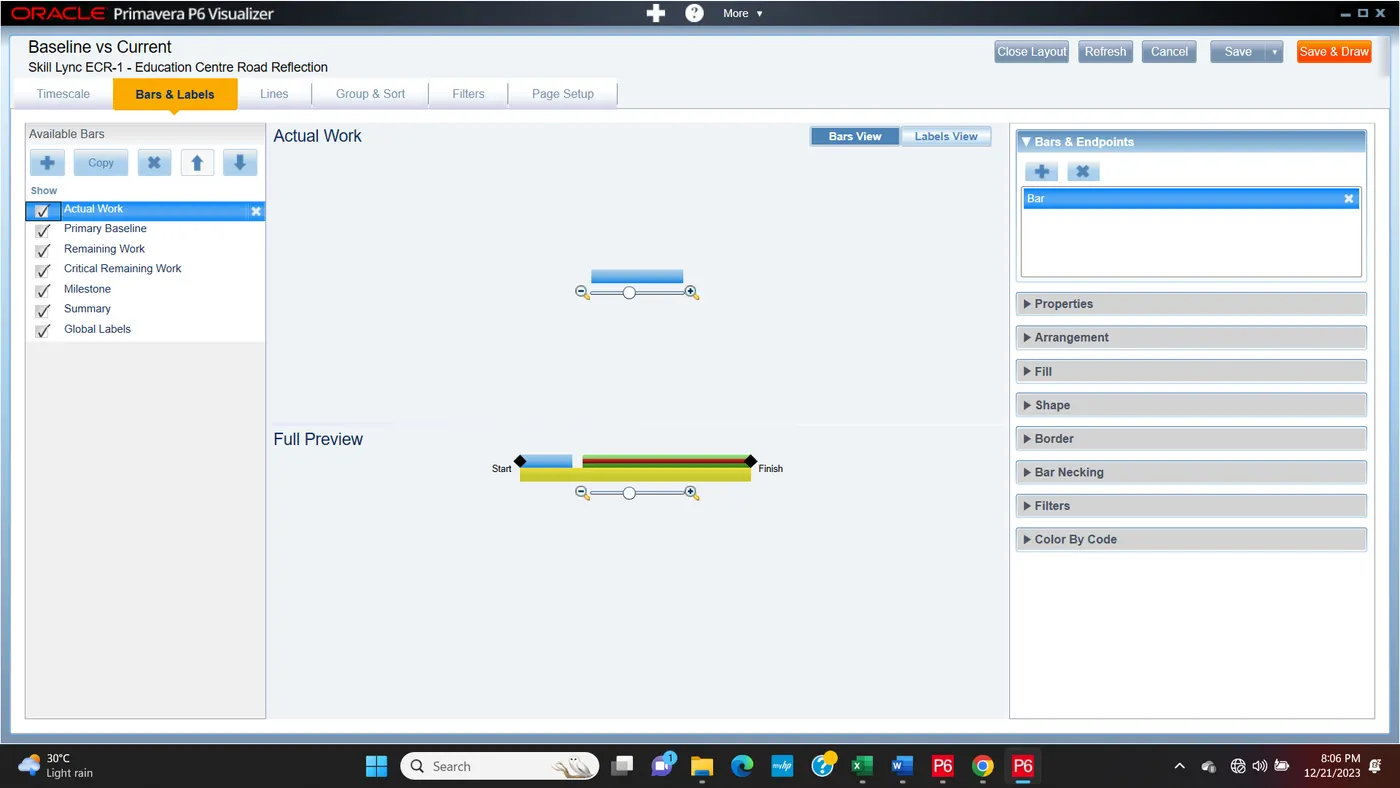
Step4: Final of TSLD project
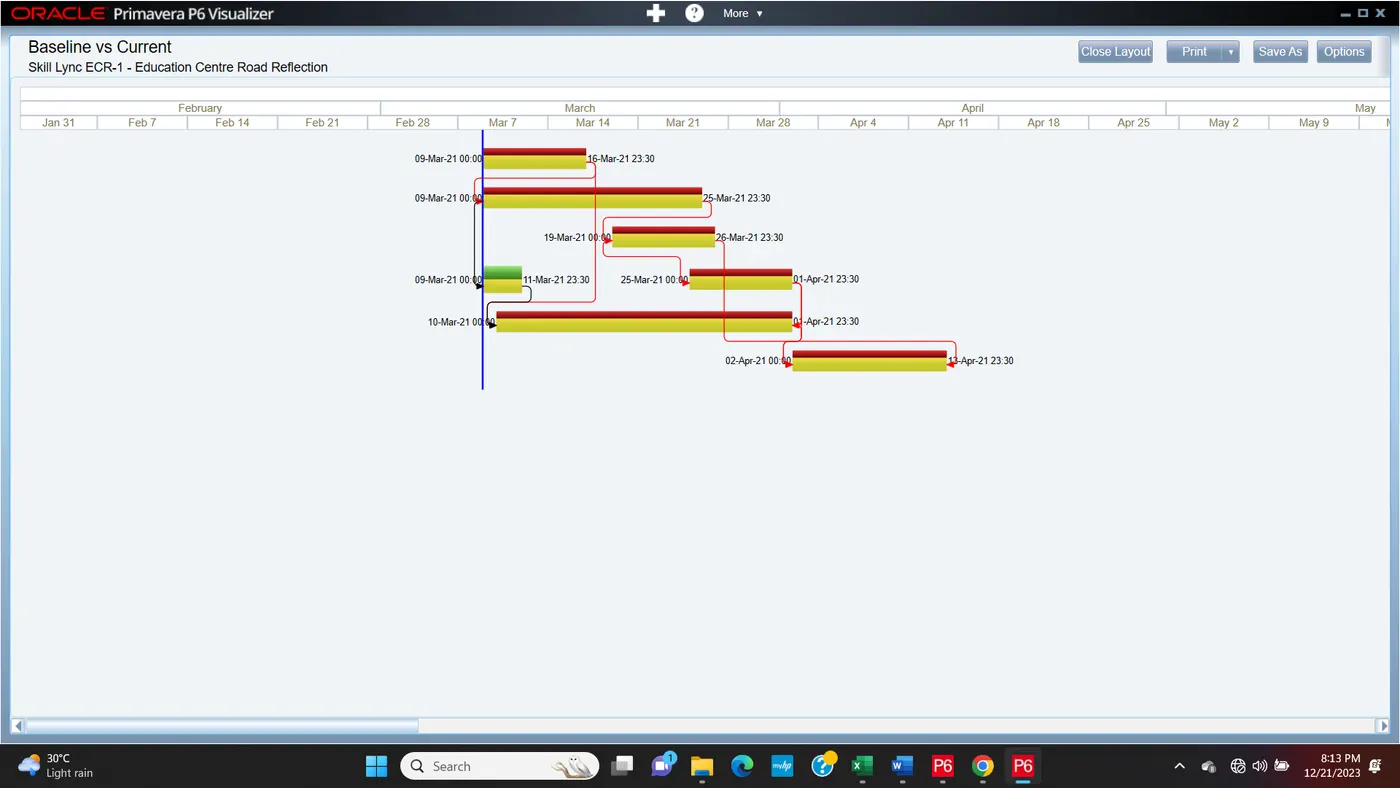
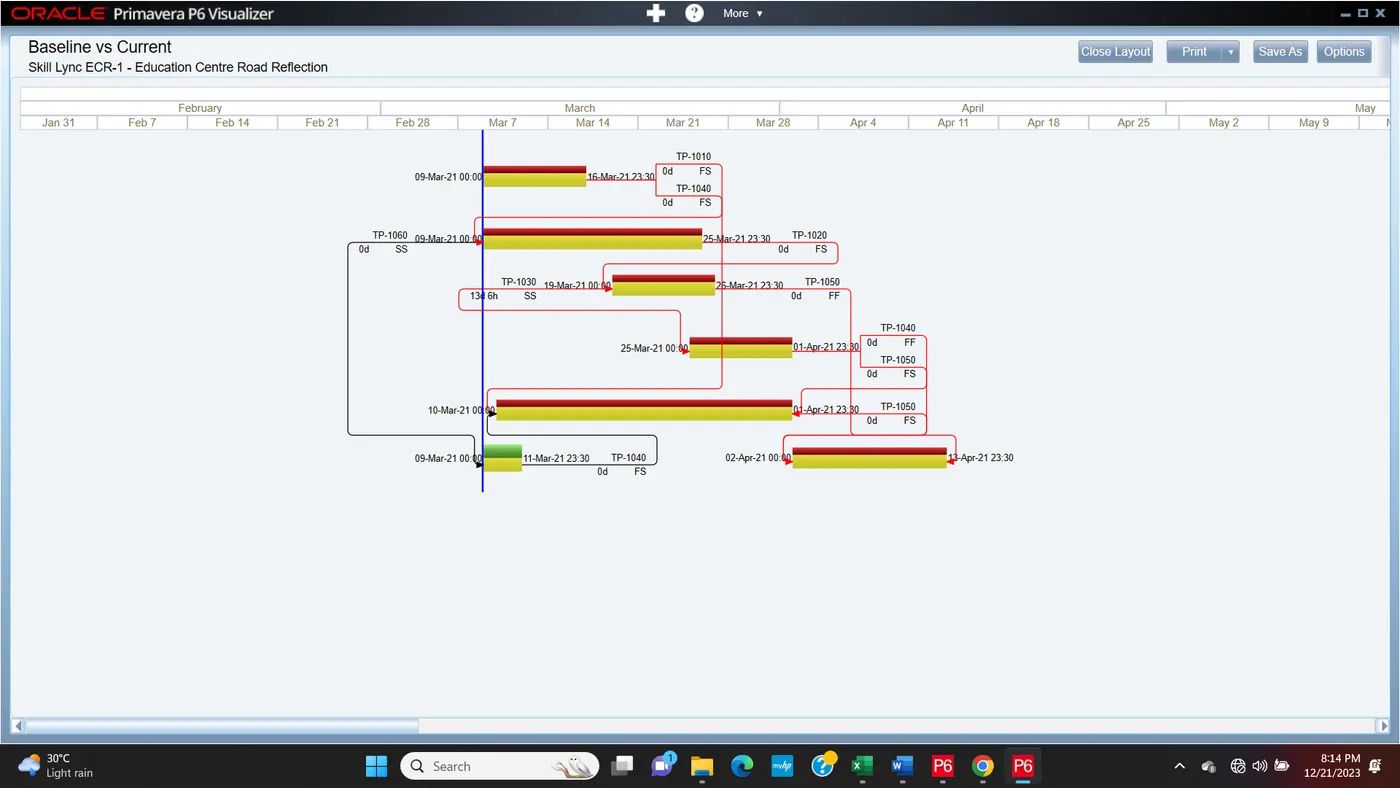
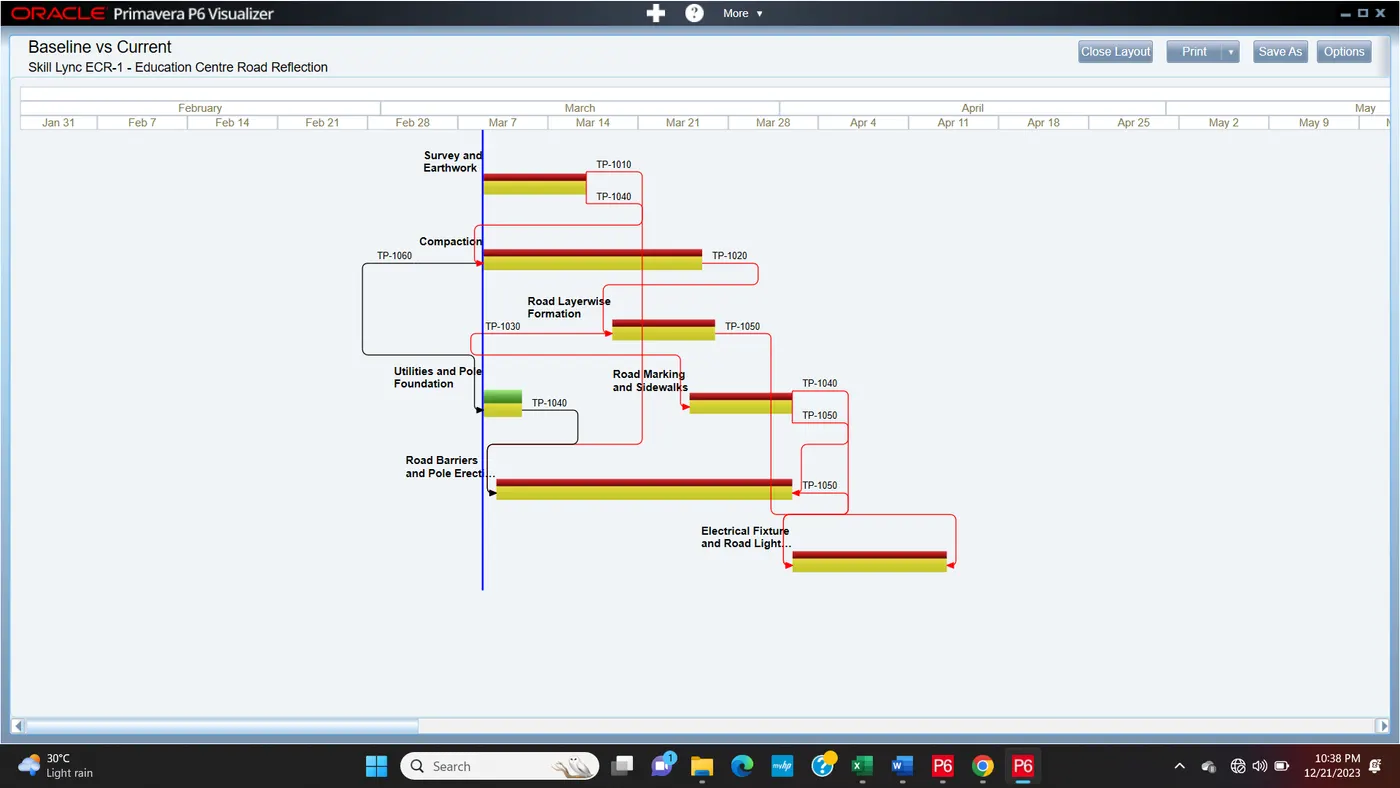
Activity Network Diagram
 .
.
Q12. Add curtains up-to first 15 days of the project.
Step1:
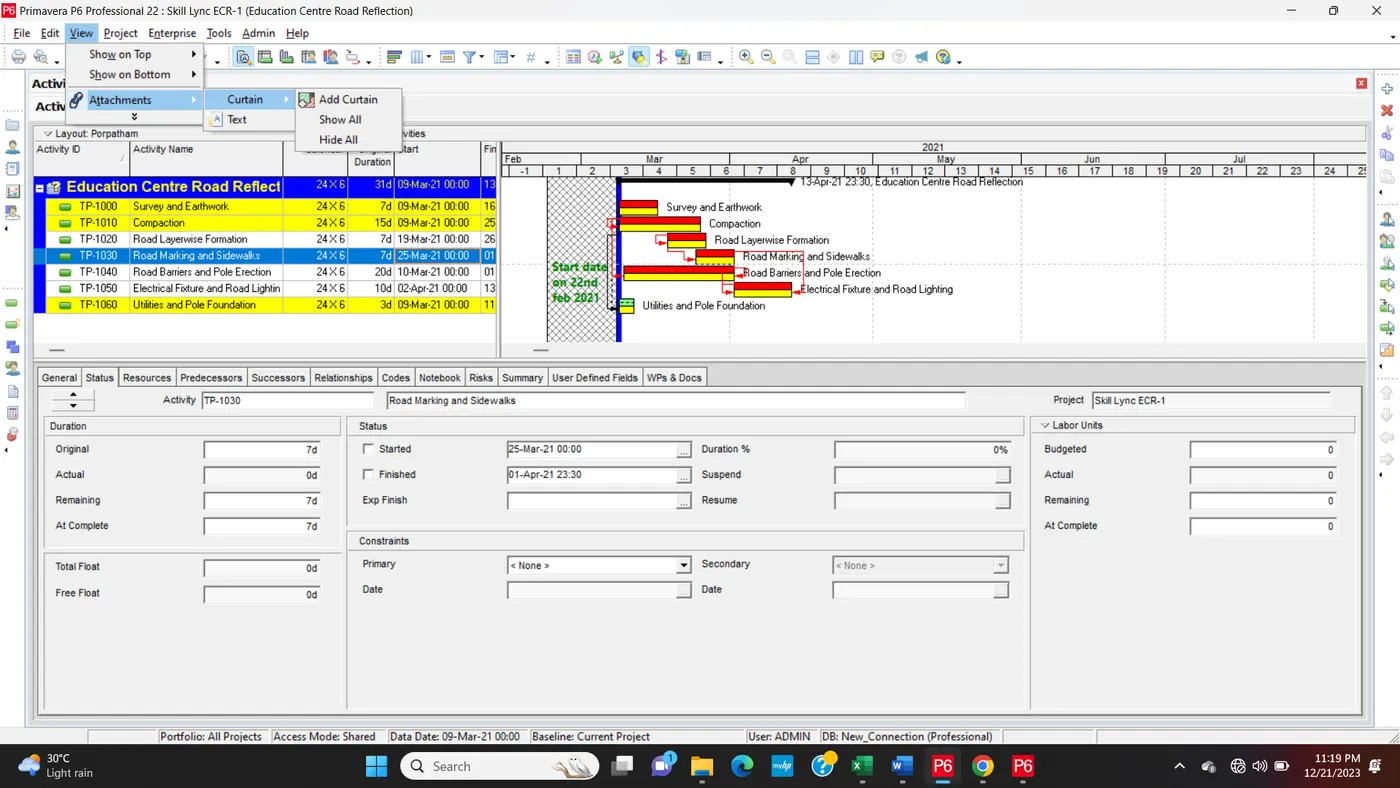
Step2:
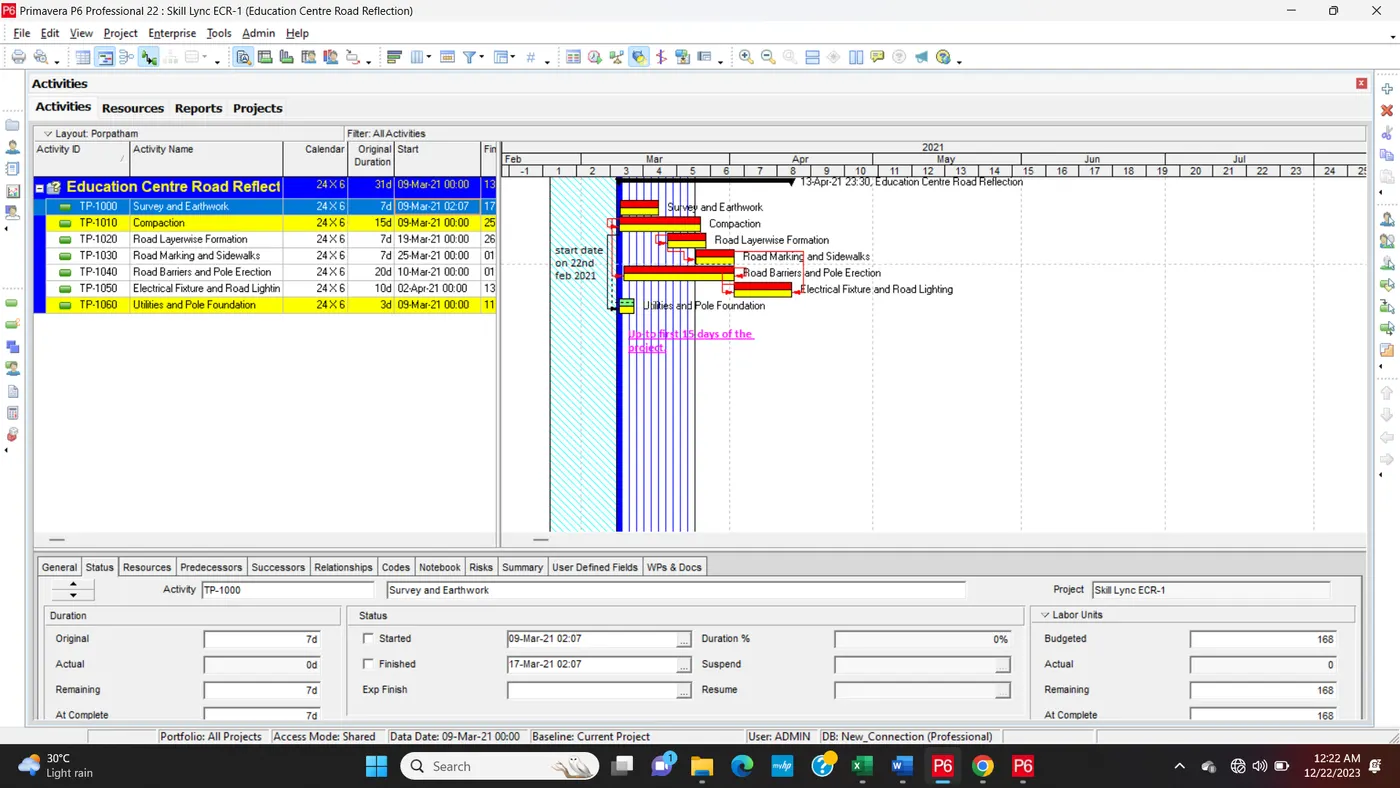
Step3:
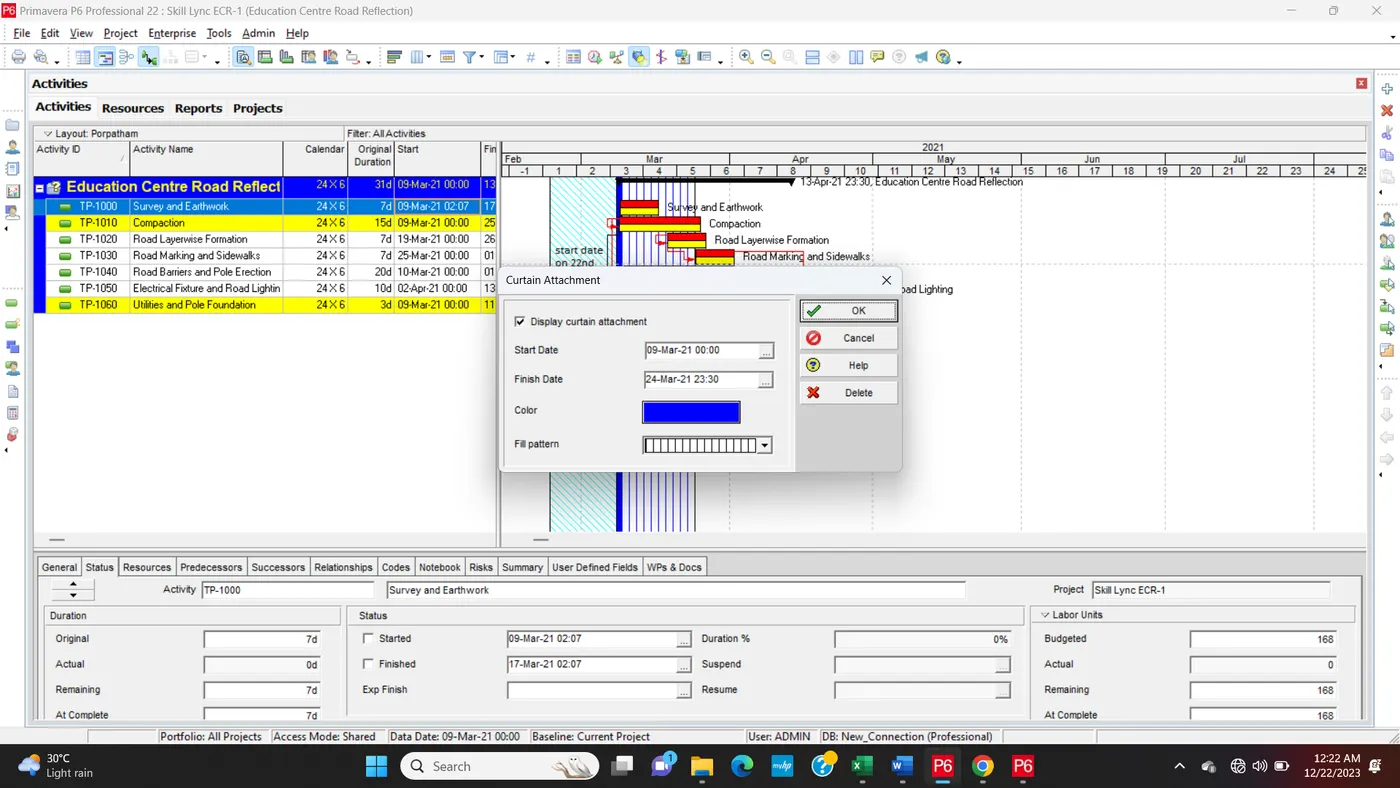
Step4:
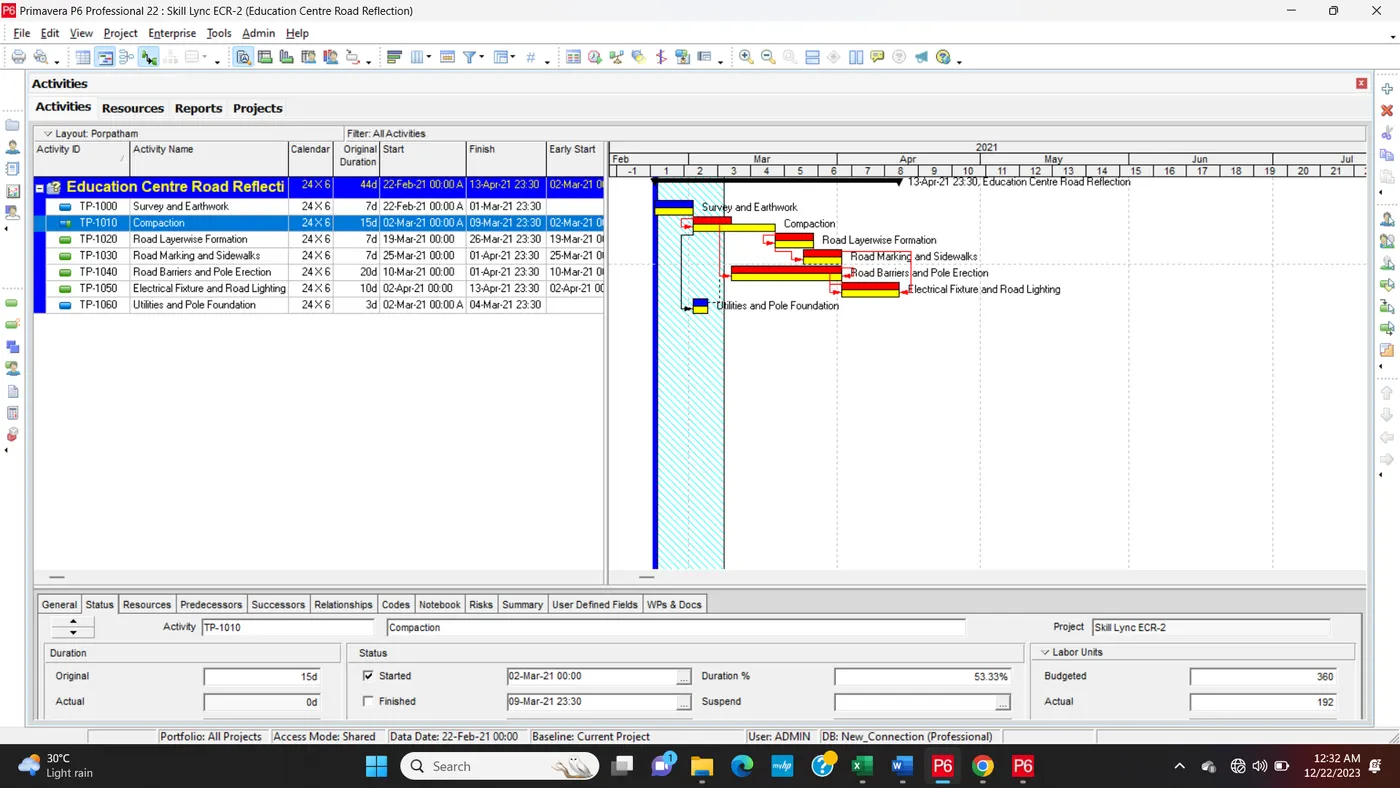
Q13. Find out the actual cost for labour, non-labour and material cost of the updated schedule
Step1:
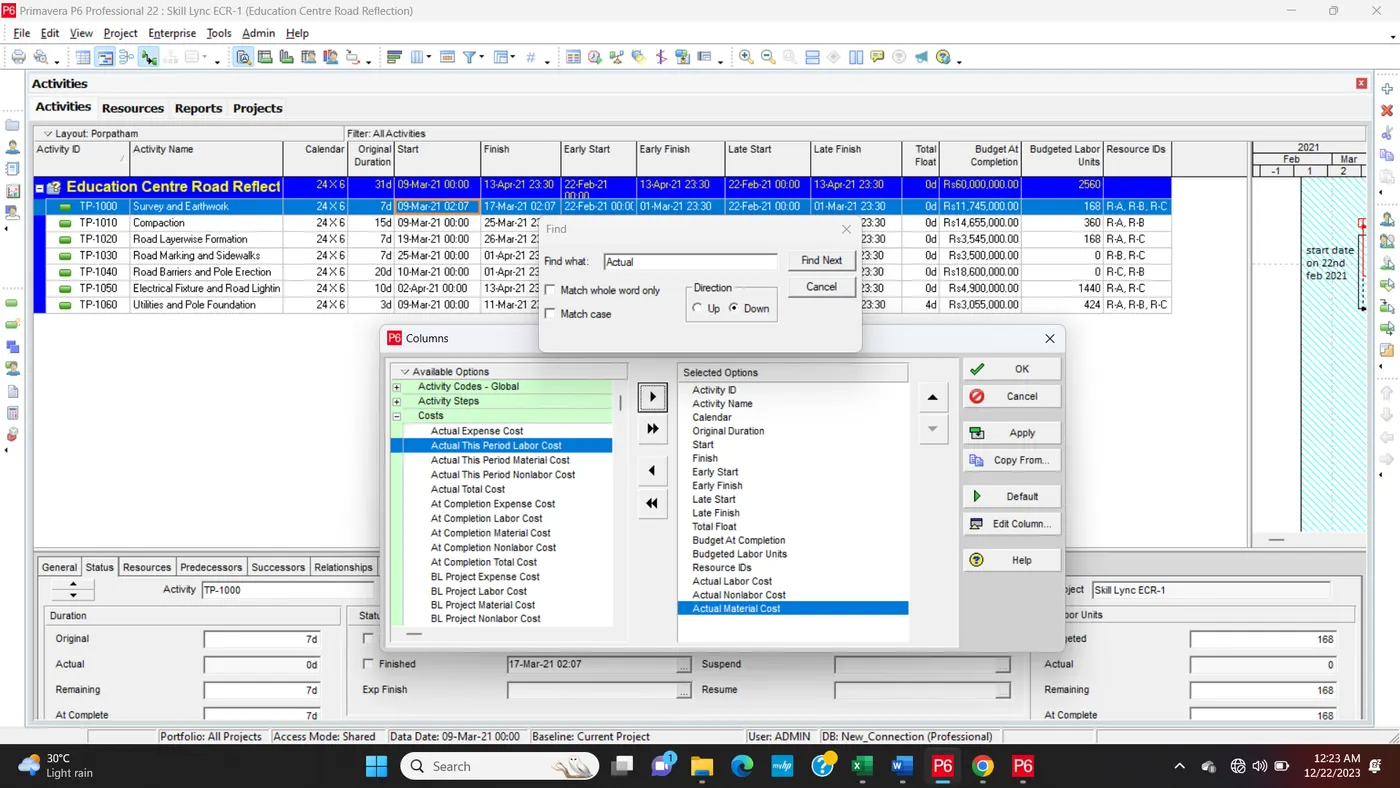
Step2:
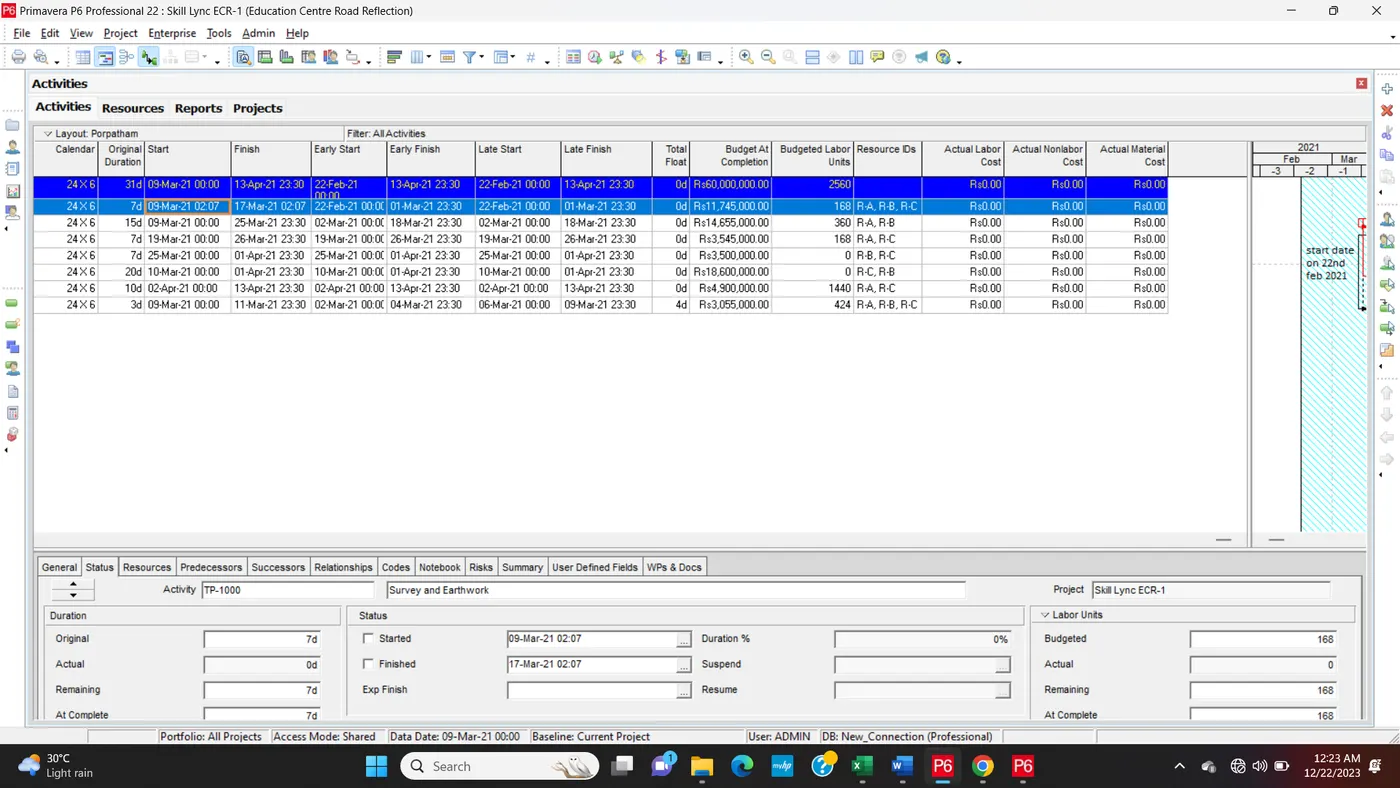
Step3: