Project 1 - Wiper control system and Vehicle speed calculation for ABS using Wheel Speed sensor
Q1.>
Main Model
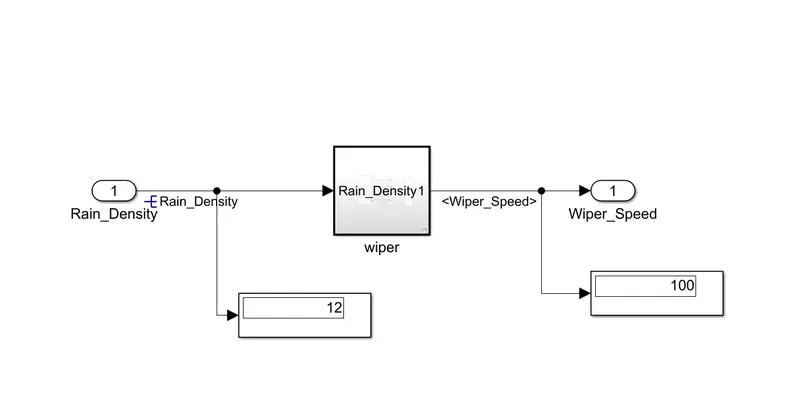
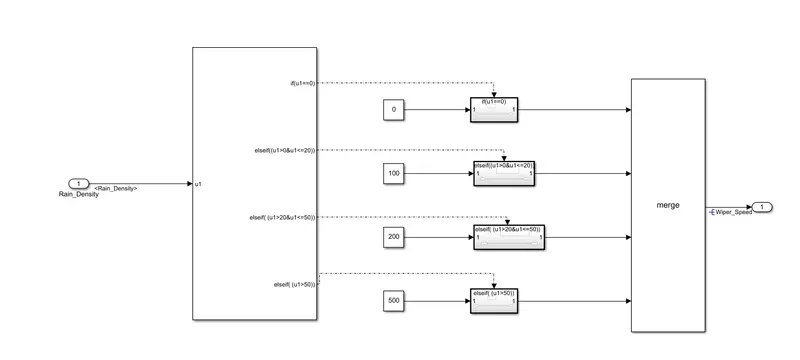
sldd file

Requirement Tagging
Click on requirement Manager

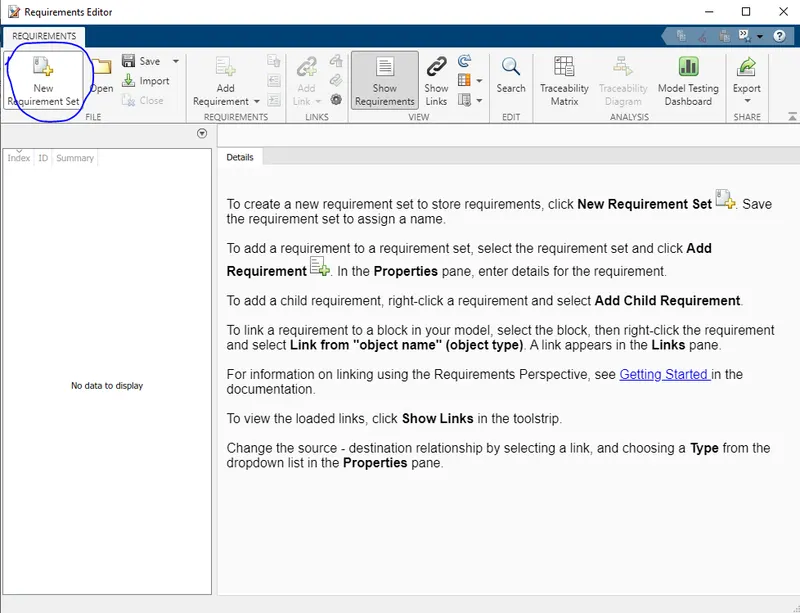


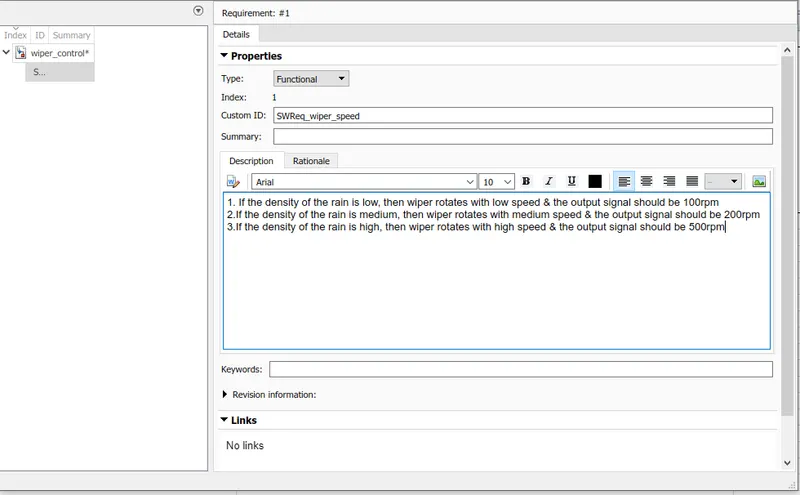

We can see the requirement tagging in model
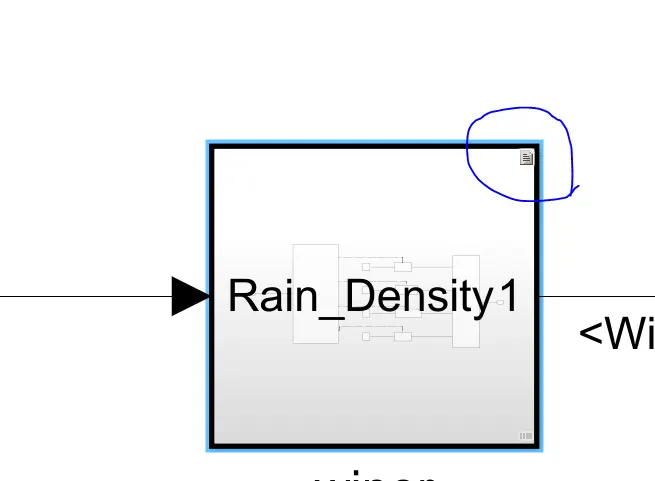
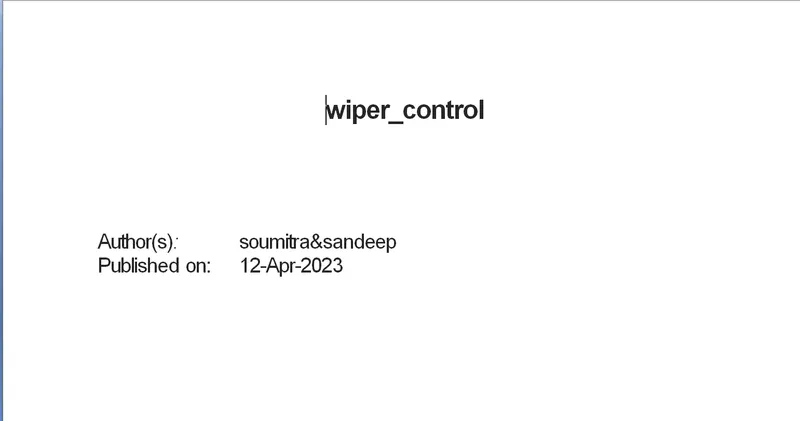
Report
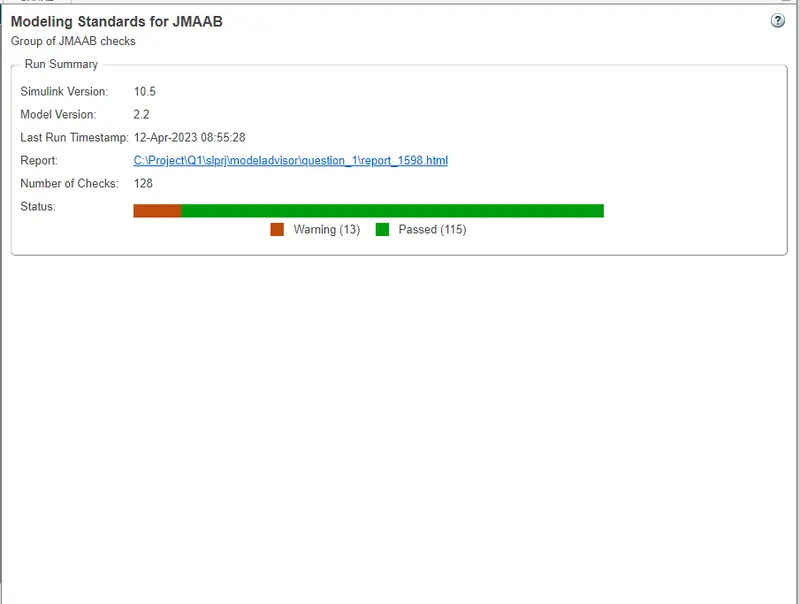
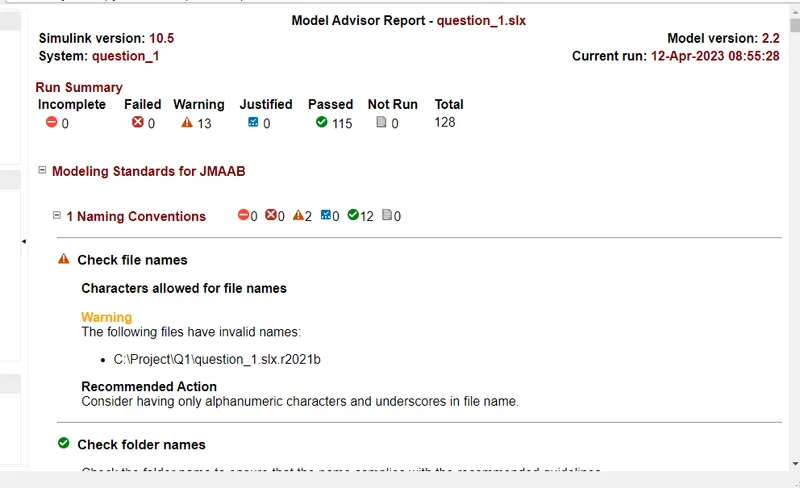
JMAAB Check
Fixed point tool:

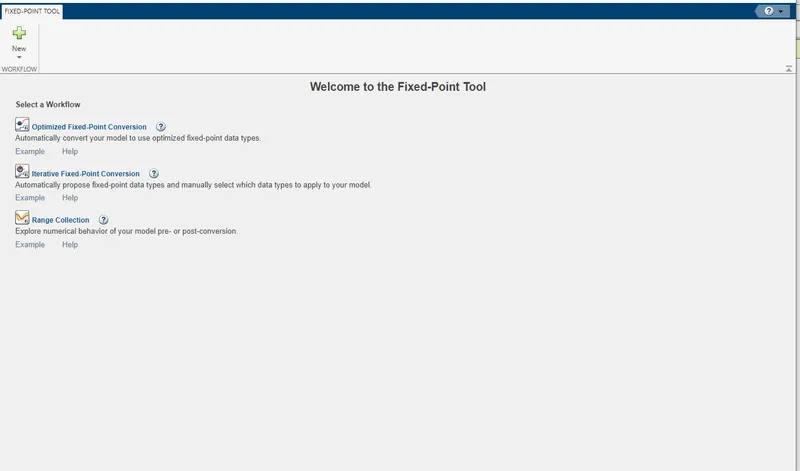
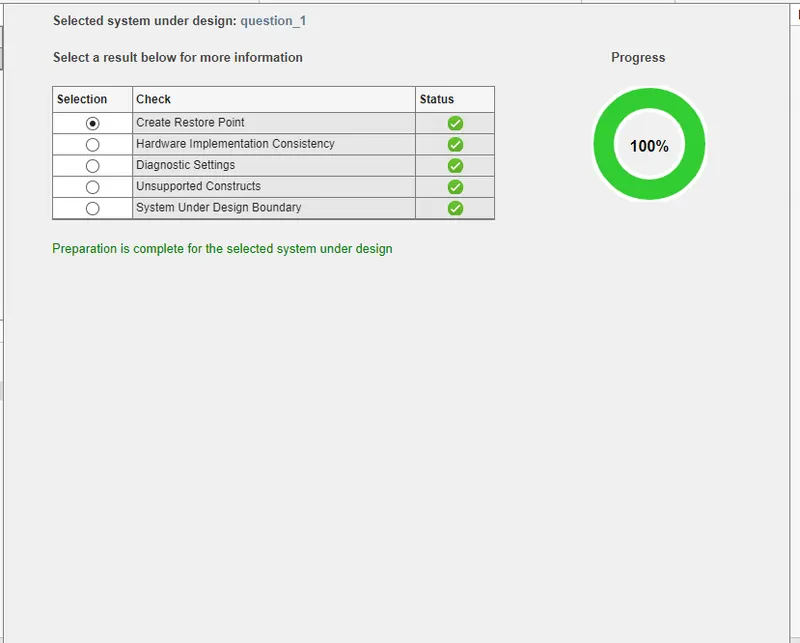
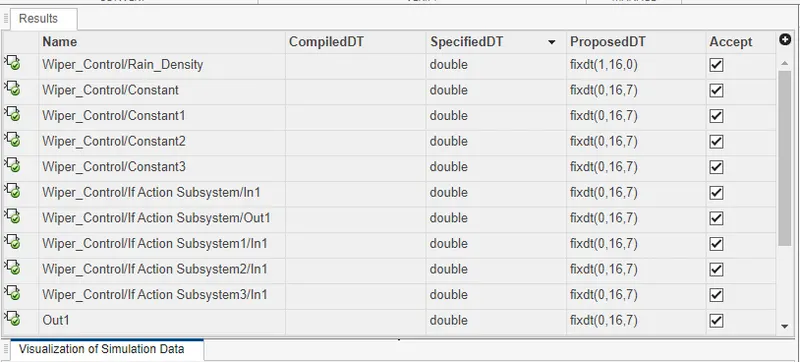
Now we click on propose data type data type-> apply data type-> Simulate with embedded type.

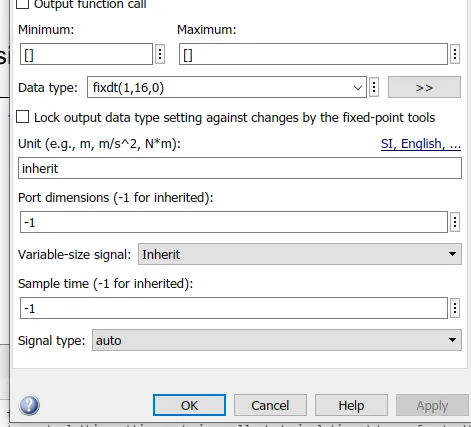
We can see the inport data type has changed to fixed data type.
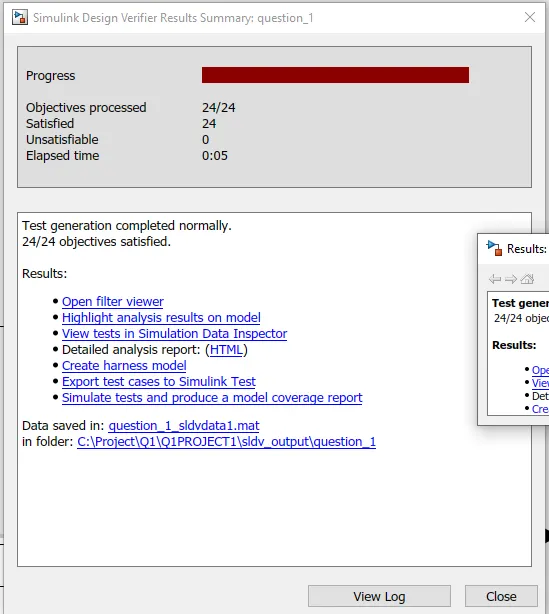
SLDV Report and Analysis

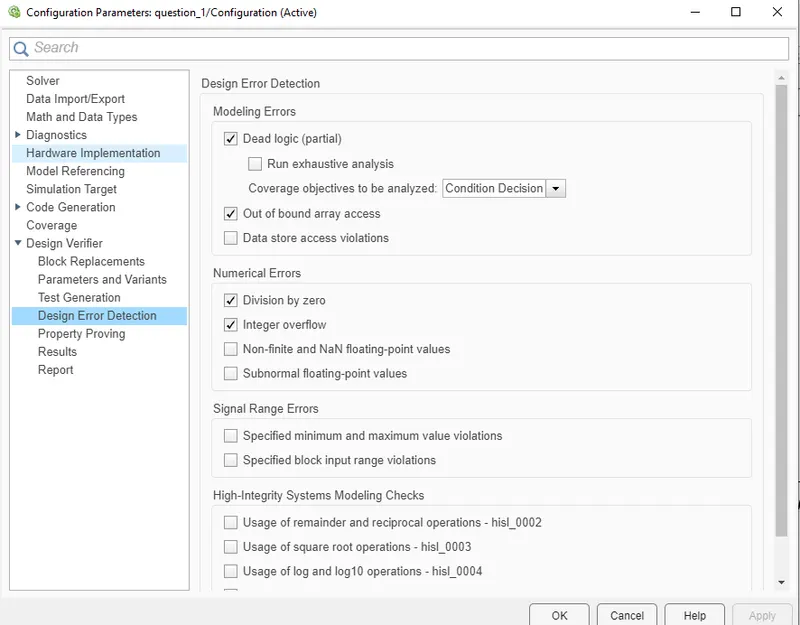
Now select on Dead Logic.
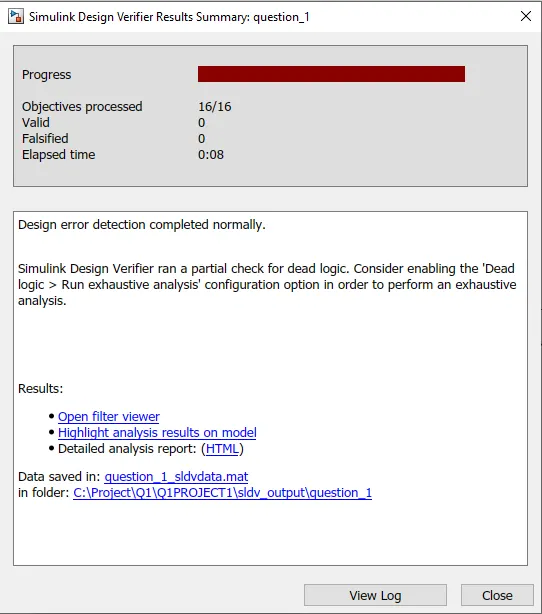
Click on Run button , which gives design verifier as compatible.
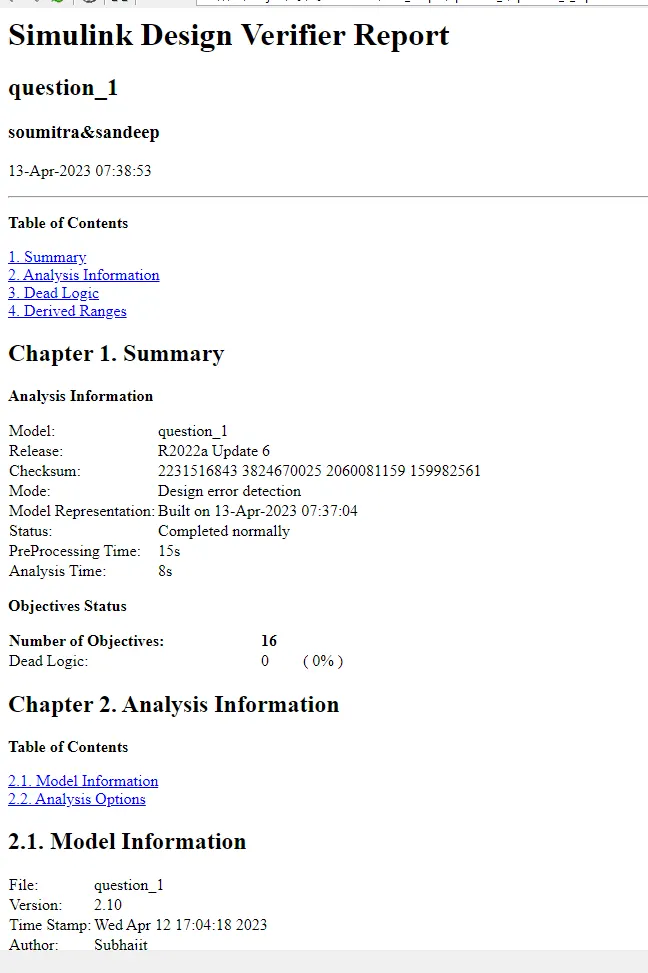
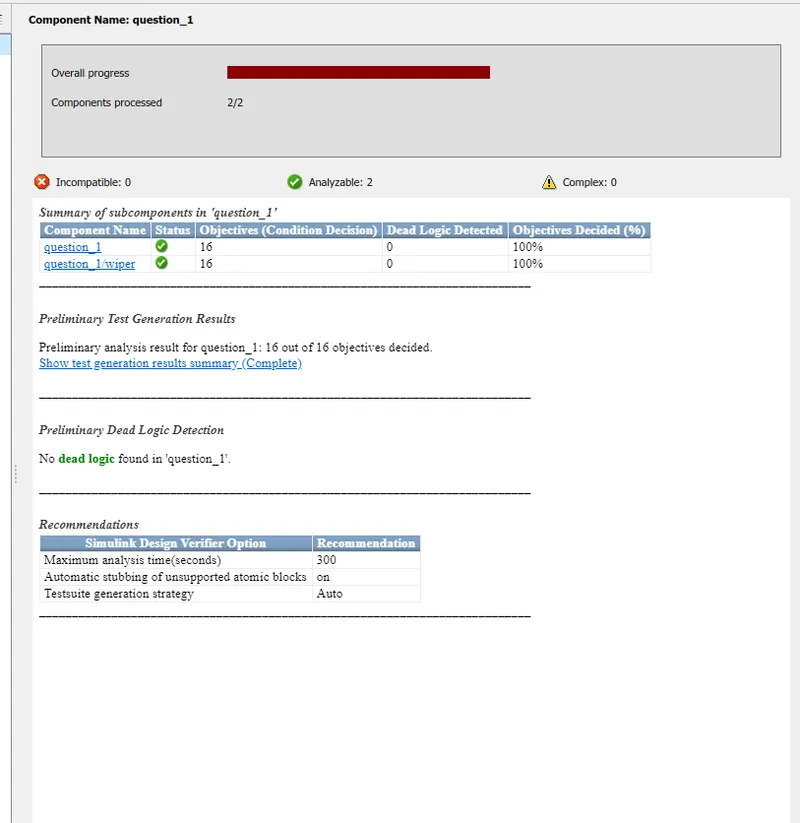
Now select test generation mode.

Advisor Report
Now go to settings and select MCDC Coverage. then click on Run.
MIL &SIL Testing
Test cases
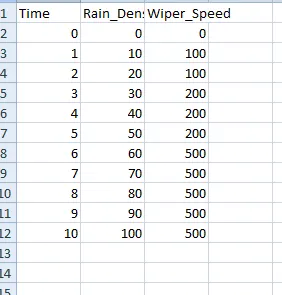
Now go to Test harness and create one test harness by selecting Import as signal builder.
MIL Harness
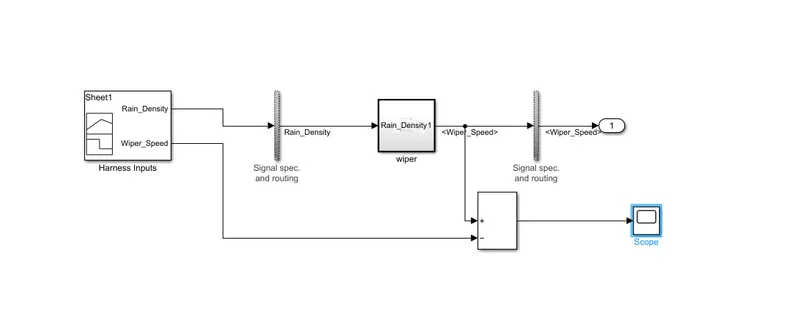
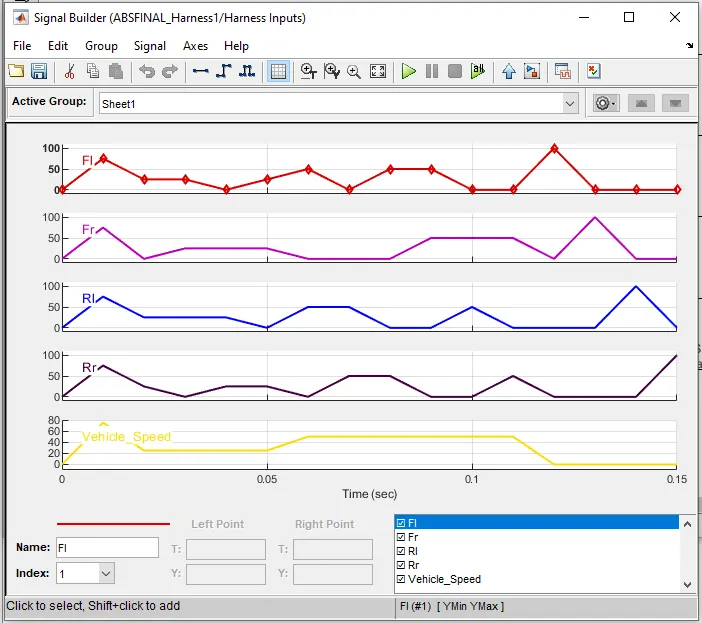
Signal builder output
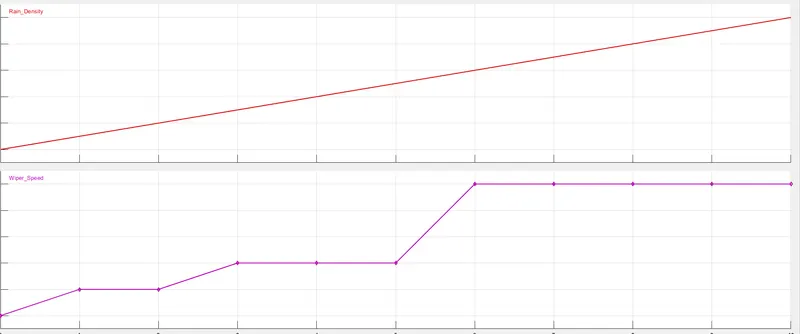
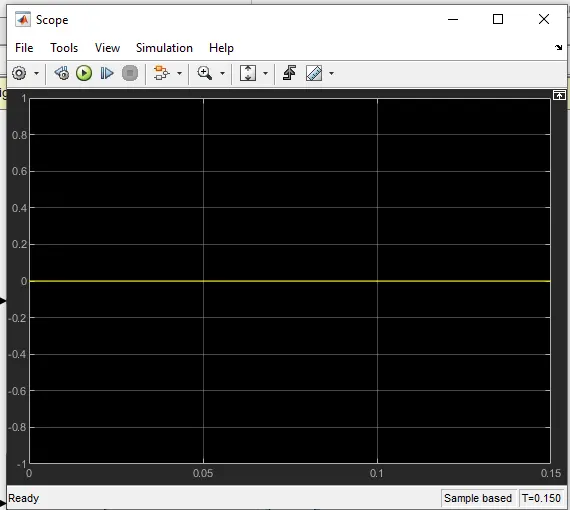
scope output
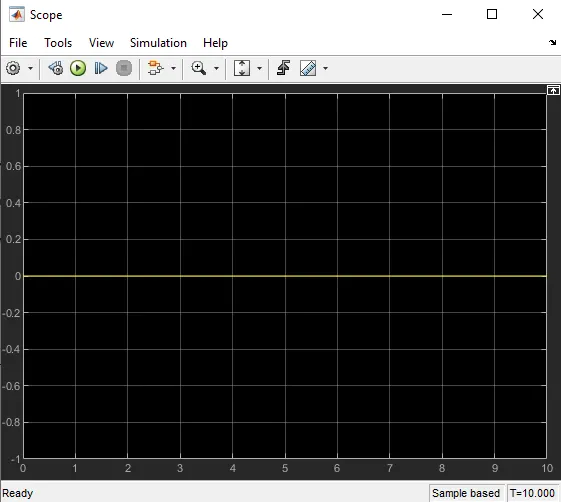
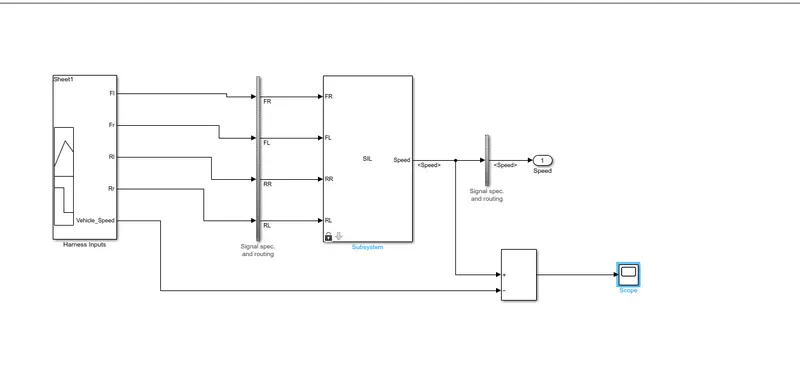
SIL Harness.
At first Build the model , and generate .mex file. to Build the model. now select the coding option as embedded coder.
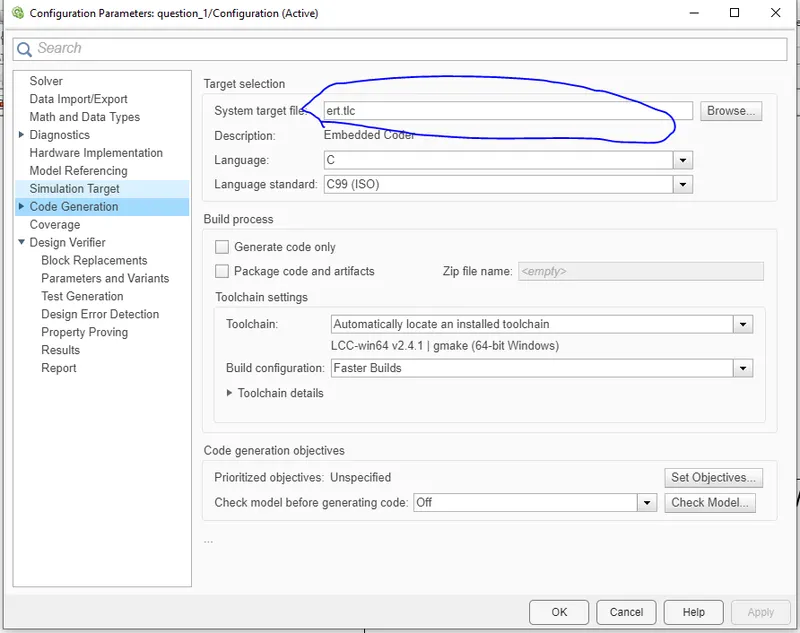

Now click on Build.it will create a .MEX File.

Now go to Test harness and select SIL Testing. which create the SIL Test harness .
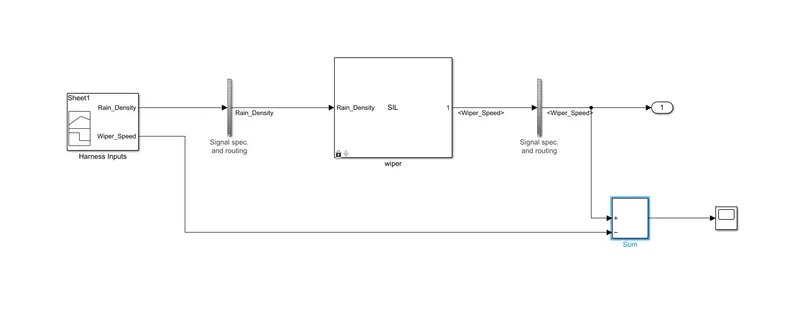
Scope output
Poly_Space Bug Finder and AUTO CODE Generation
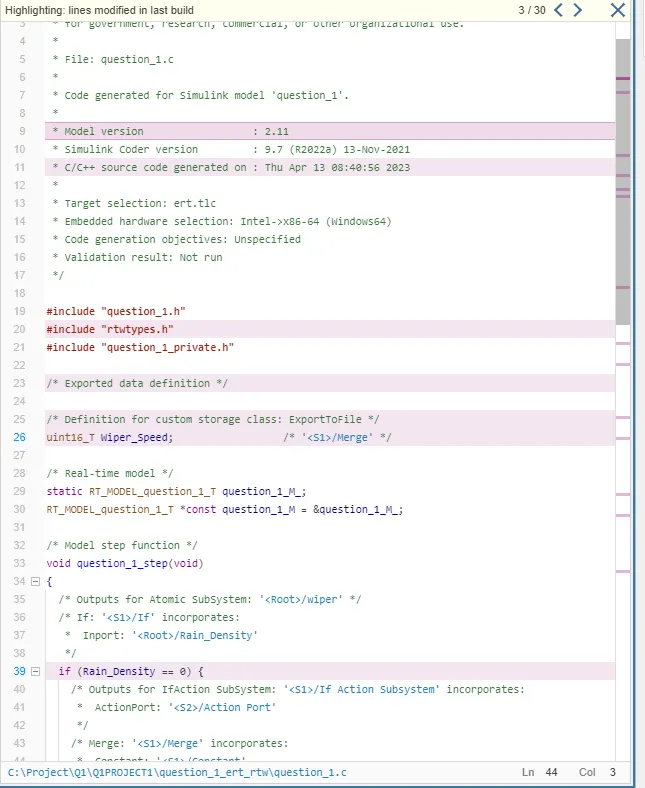
Polyspace Bug report:-
As we dont have the polyspace licence, only steps to find out the polyspace bug finder report is written below.
Polyspace Bug Finder is a static code analysis tool that can help you identify potential bugs in your MATLAB code. To generate a Polyspace Bug Finder report, you can follow these steps:
-
Open MATLAB and navigate to the directory where your code is located.
-
Open the Polyspace Bug Finder interface by typing "polyspace" in the MATLAB command window.
-
In the Polyspace Bug Finder interface, select "Create New Project" and give your project a name.
-
Select "MATLAB" as the programming language for your project.
-
In the "Project Settings" window, select the files you want to analyze and specify any additional analysis options.
-
Click "Run Analysis" to start the analysis process.
-
Once the analysis is complete, Polyspace Bug Finder will generate a report that lists any potential bugs it has identified in your code.
-
To view the report, select "View Report" in the Polyspace Bug Finder interface.
-
The report will display a list of potential bugs, along with detailed information about each bug and recommendations for how to fix it.
-
You can save the report in various formats, such as PDF, HTML, or XML, by selecting "Export Report" in the Polyspace Bug Finder interface.
-
Review the report and fix any potential bugs identified by Polyspace Bug Finder to improve the quality and reliability of your MATLAB code.
Polyspace Code Prover is a static analysis tool that can help you verify the absence of run-time errors in your MATLAB code. To generate a Polyspace Code Prover output, you can follow these steps:
-
Open MATLAB and navigate to the directory where your code is located.
-
Open the Polyspace Code Prover interface by typing "psrun" in the MATLAB command window.
-
In the Polyspace Code Prover interface, select "Create New Project" and give your project a name.
-
Select "MATLAB" as the programming language for your project.
-
In the "Project Settings" window, select the files you want to analyze and specify any additional analysis options.
-
Click "Run Analysis" to start the analysis process.
-
Once the analysis is complete, Polyspace Code Prover will generate an output that indicates whether your code is free of run-time errors.
-
To view the output, select "View Results" in the Polyspace Code Prover interface.
-
The output will indicate whether your code is free of run-time errors or if any errors were detected.
-
You can save the output in various formats, such as PDF, HTML, or XML, by selecting "Export Results" in the Polyspace Code Prover interface.
-
Review the output and address any errors identified by Polyspace Code Prover to ensure the correctness and reliability of your MATLAB code.
Baseline and BacktoBack Test:-
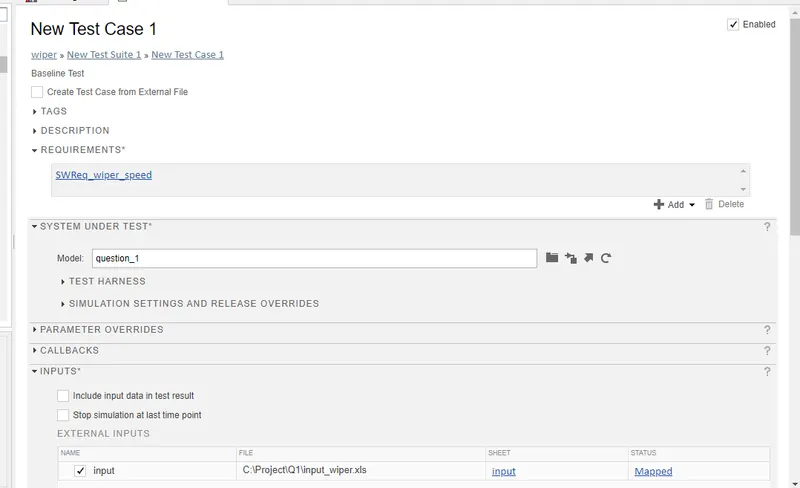
Go to apps and click apps-> simulink test->Test Manager


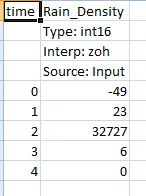
It will create new .mldatx file. where we do the requirement tagging, select the system where we going to perform the test, then select the inputs. where system will by default create one excel file. where we put all the inputs. from Test cases.
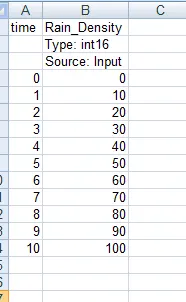
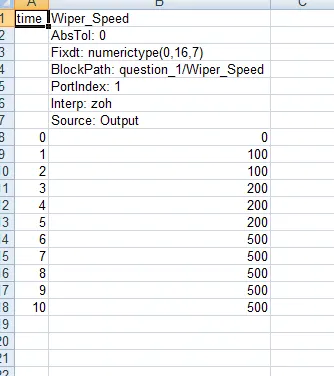
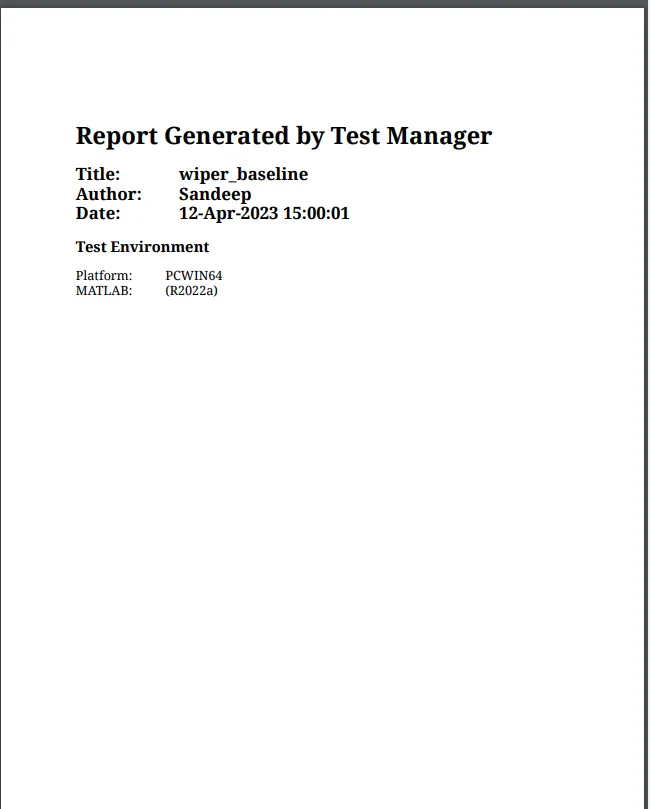
baseline output
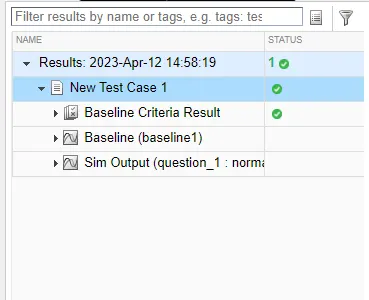
Now we click on Run and it runs successfully
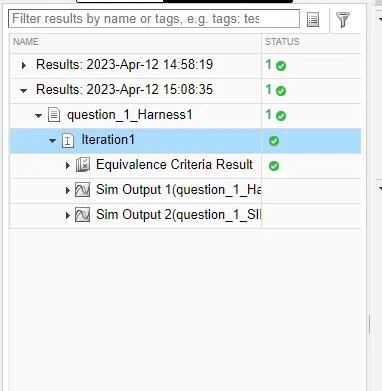
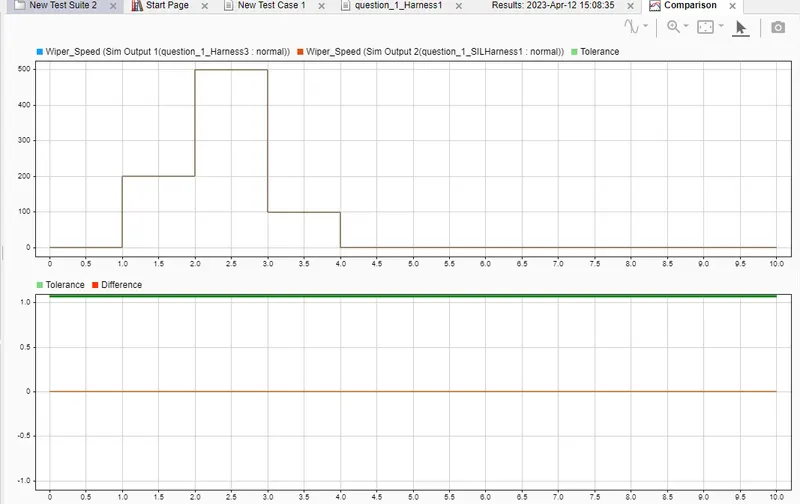
Back to Back Testing:-
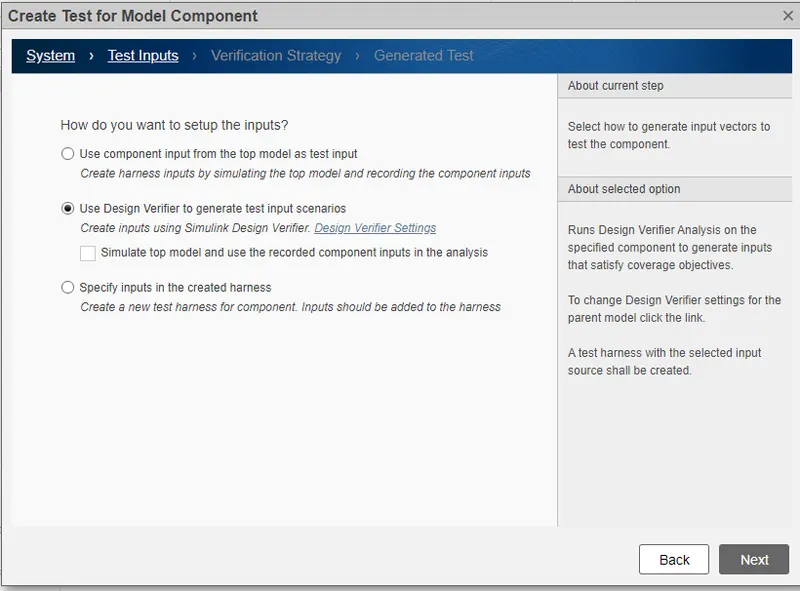
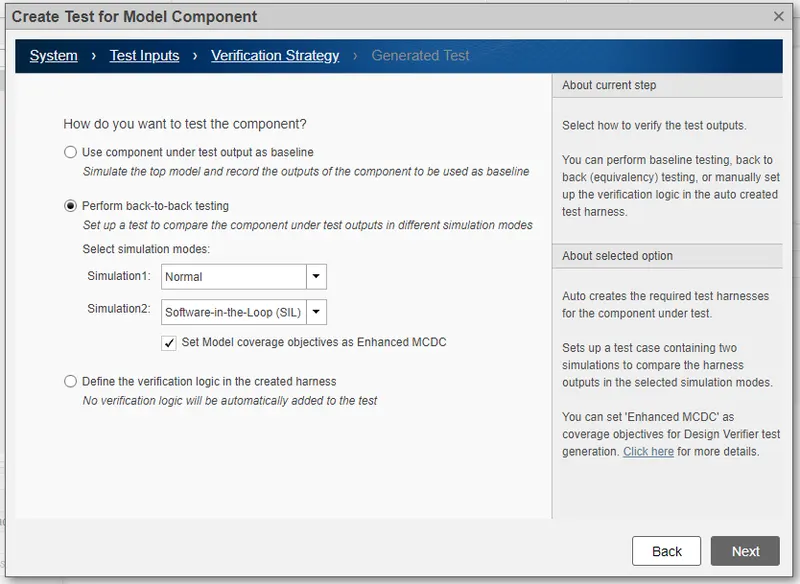
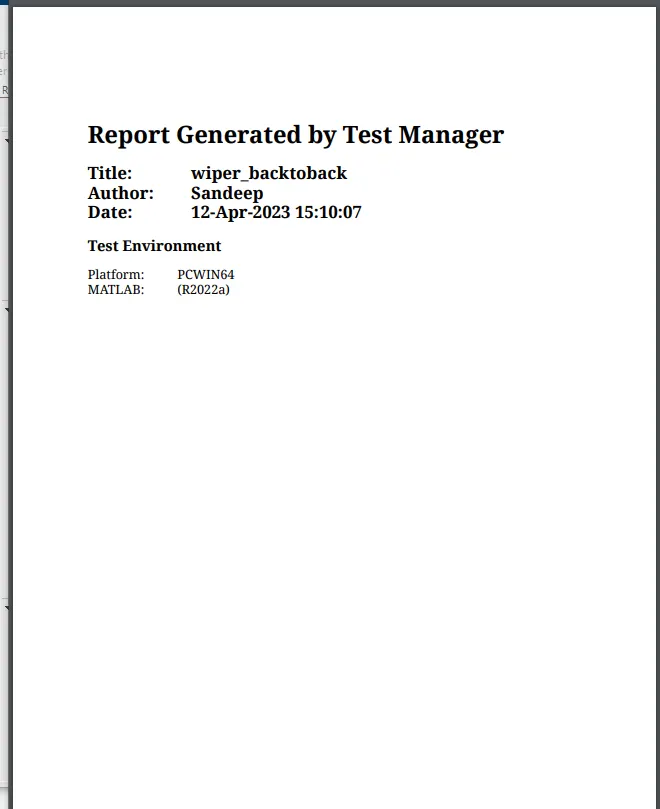
Now run the back-to-back test.
Q.2>
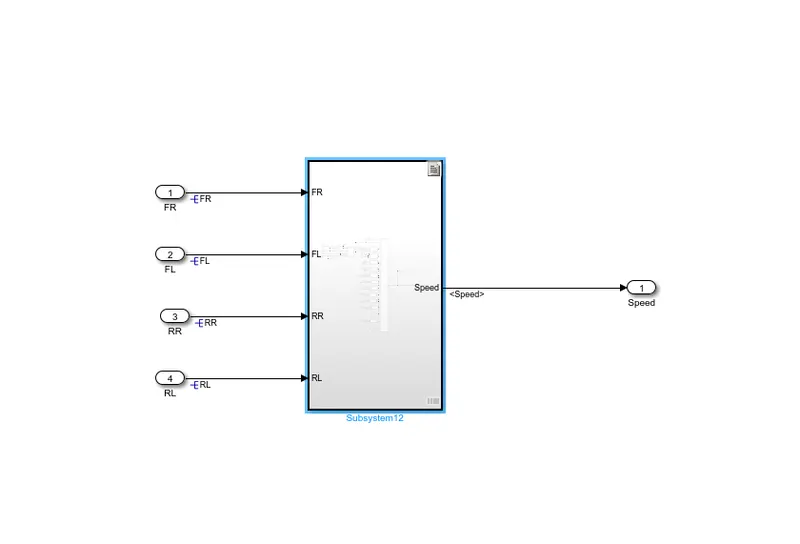
Main model
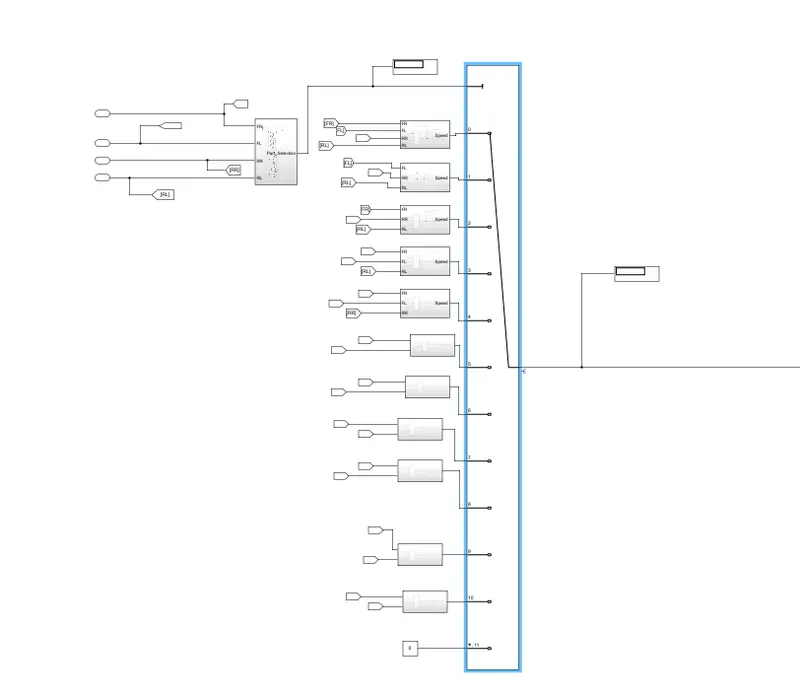
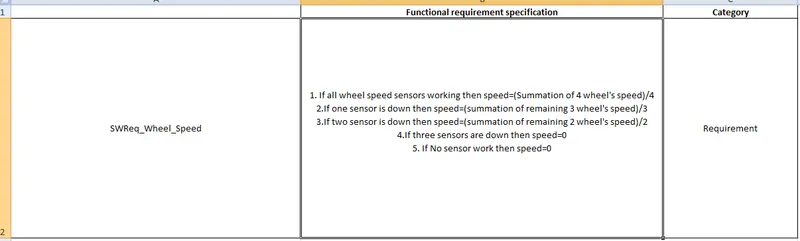
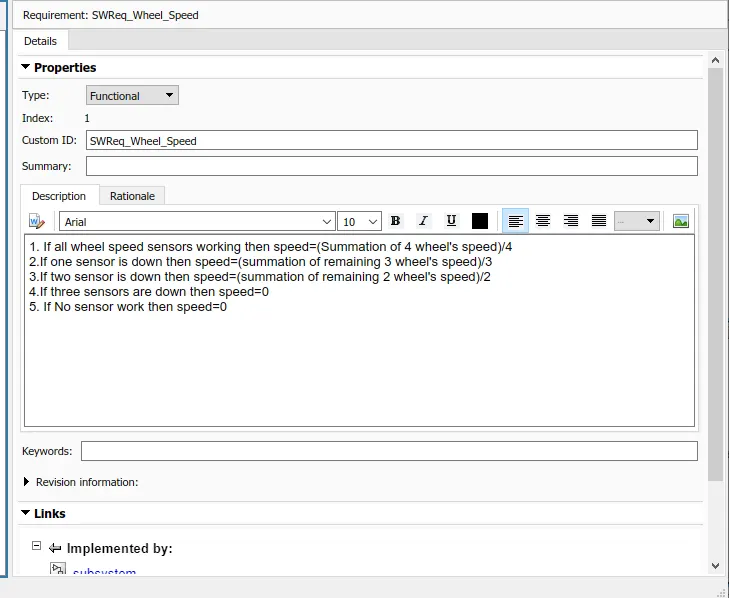
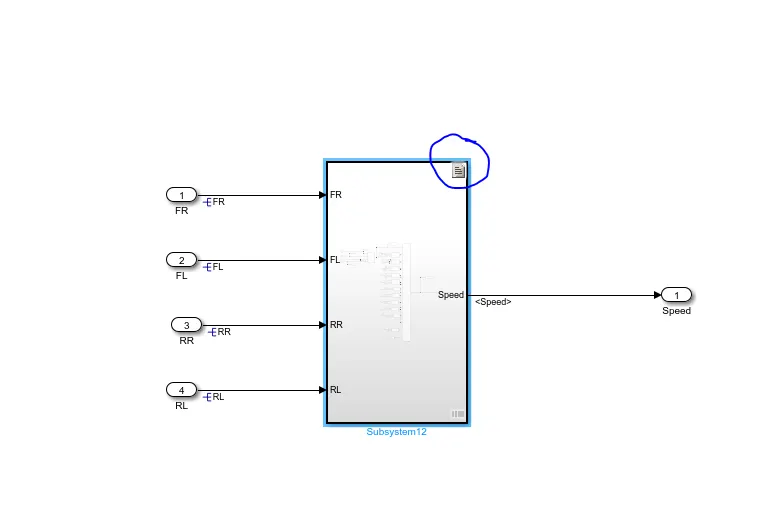
Now do the requirement Tagging procedure is same as previously described.
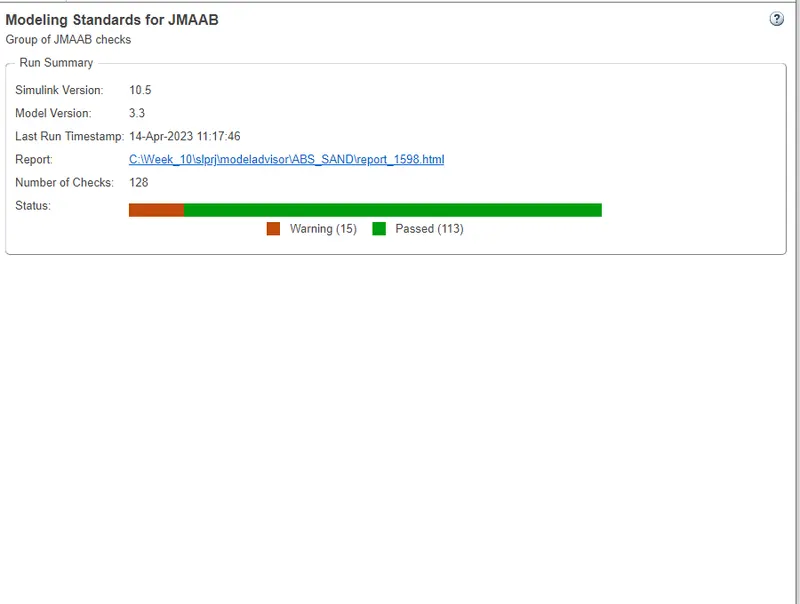
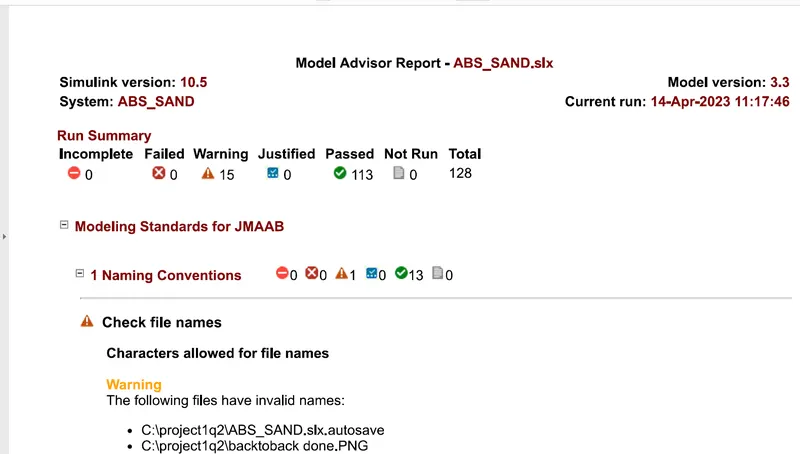
JMAB Report:-
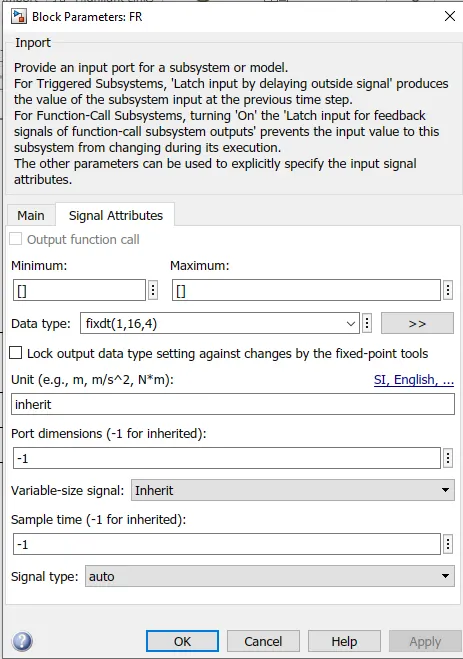
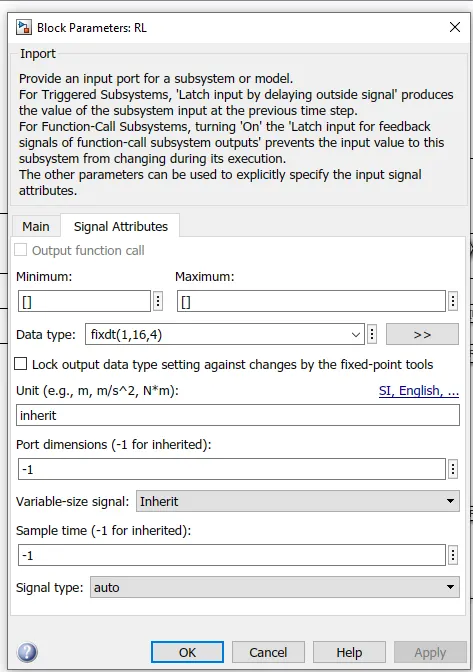
FIXED POINT TOOL:-
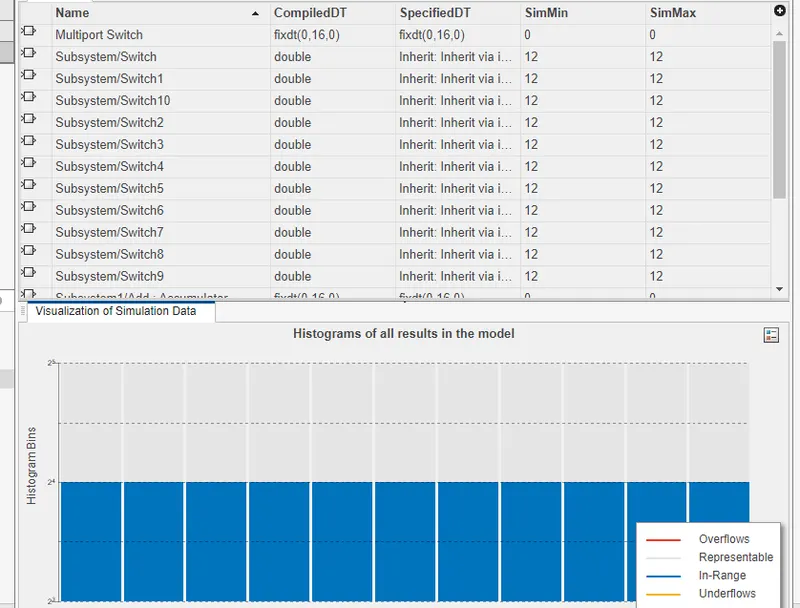
we do the fixed point tool configuration and it's reflected in sldd as well as in model.
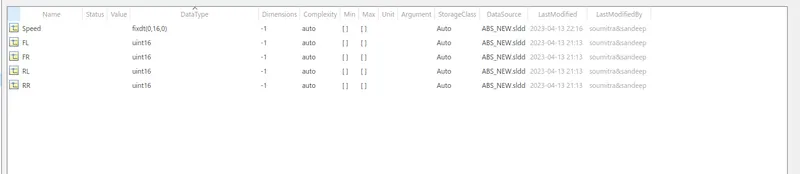
By running this it's reflected on sldd and in blocks.
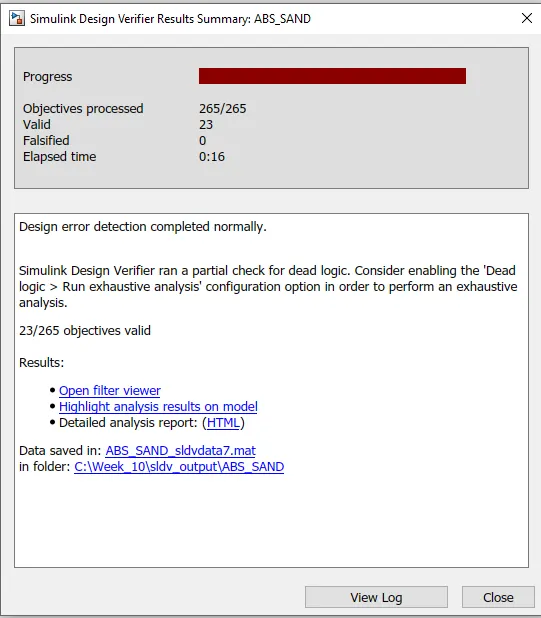
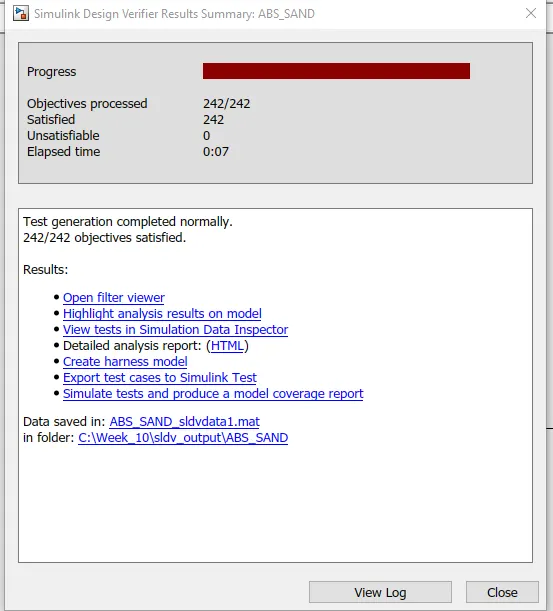
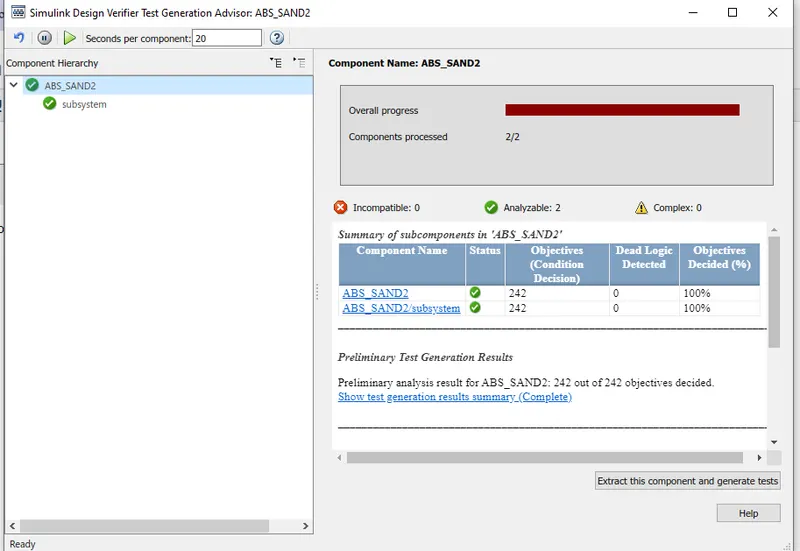
SLDV Design Verifier Report
Advisor Report
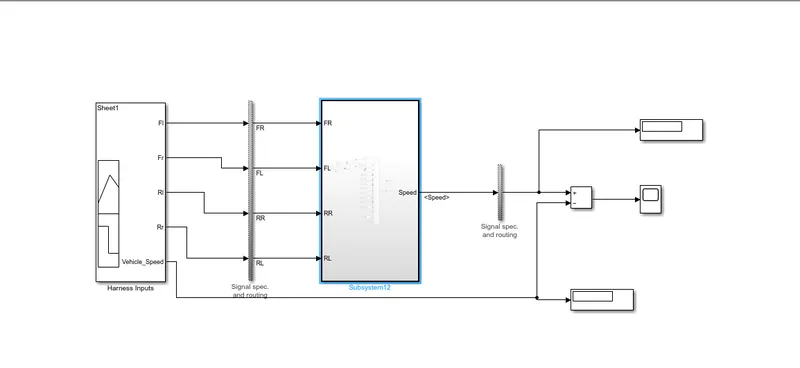
MIL Harness
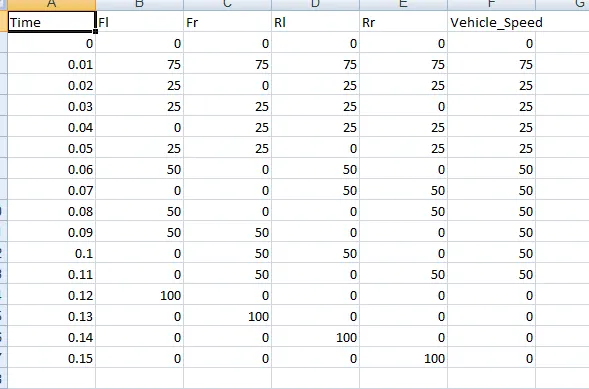
Test cases:-
coverage
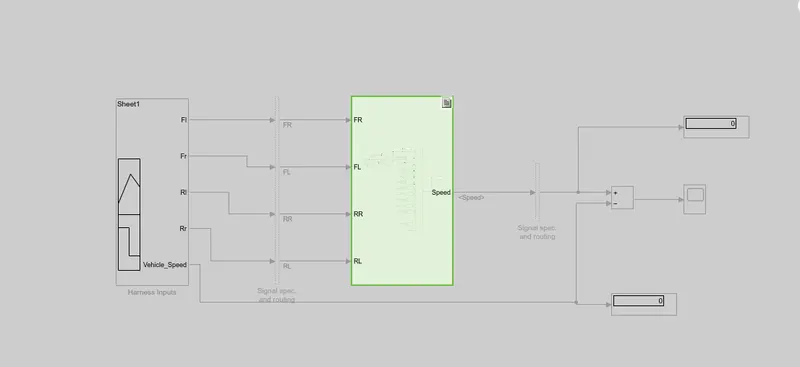
Signal builder
scope
SIL:-
Signal builder output will be same. output of the scope.
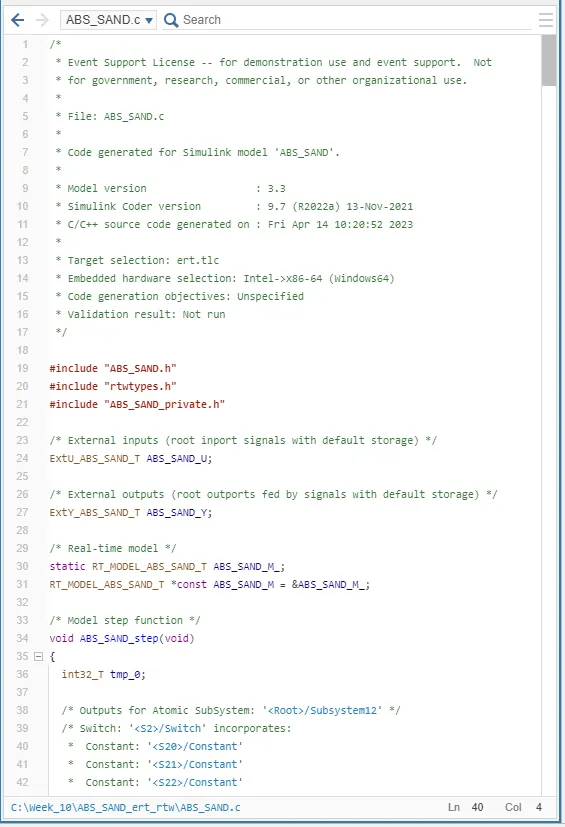
Generated Code:-
Polyspace Bug report:-
As we dont have the polyspace licence, only steps to find out the polyspace bug finder report is written below.
Polyspace Bug Finder is a static code analysis tool that can help you identify potential bugs in your MATLAB code. To generate a Polyspace Bug Finder report, you can follow these steps:
-
Open MATLAB and navigate to the directory where your code is located.
-
Open the Polyspace Bug Finder interface by typing "polyspace" in the MATLAB command window.
-
In the Polyspace Bug Finder interface, select "Create New Project" and give your project a name.
-
Select "MATLAB" as the programming language for your project.
-
In the "Project Settings" window, select the files you want to analyze and specify any additional analysis options.
-
Click "Run Analysis" to start the analysis process.
-
Once the analysis is complete, Polyspace Bug Finder will generate a report that lists any potential bugs it has identified in your code.
-
To view the report, select "View Report" in the Polyspace Bug Finder interface.
-
The report will display a list of potential bugs, along with detailed information about each bug and recommendations for how to fix it.
-
You can save the report in various formats, such as PDF, HTML, or XML, by selecting "Export Report" in the Polyspace Bug Finder interface.
-
Review the report and fix any potential bugs identified by Polyspace Bug Finder to improve the quality and reliability of your MATLAB code.
Polyspace Code Prover is a static analysis tool that can help you verify the absence of run-time errors in your MATLAB code. To generate a Polyspace Code Prover output, you can follow these steps:
-
Open MATLAB and navigate to the directory where your code is located.
-
Open the Polyspace Code Prover interface by typing "psrun" in the MATLAB command window.
-
In the Polyspace Code Prover interface, select "Create New Project" and give your project a name.
-
Select "MATLAB" as the programming language for your project.
-
In the "Project Settings" window, select the files you want to analyze and specify any additional analysis options.
-
Click "Run Analysis" to start the analysis process.
-
Once the analysis is complete, Polyspace Code Prover will generate an output that indicates whether your code is free of run-time errors.
-
To view the output, select "View Results" in the Polyspace Code Prover interface.
-
The output will indicate whether your code is free of run-time errors or if any errors were detected.
-
You can save the output in various formats, such as PDF, HTML, or XML, by selecting "Export Results" in the Polyspace Code Prover interface.
-
Review the output and address any errors identified by Polyspace Code Prover to ensure the correctness and reliability of your MATLAB code.
Baseline and BacktoBackTest
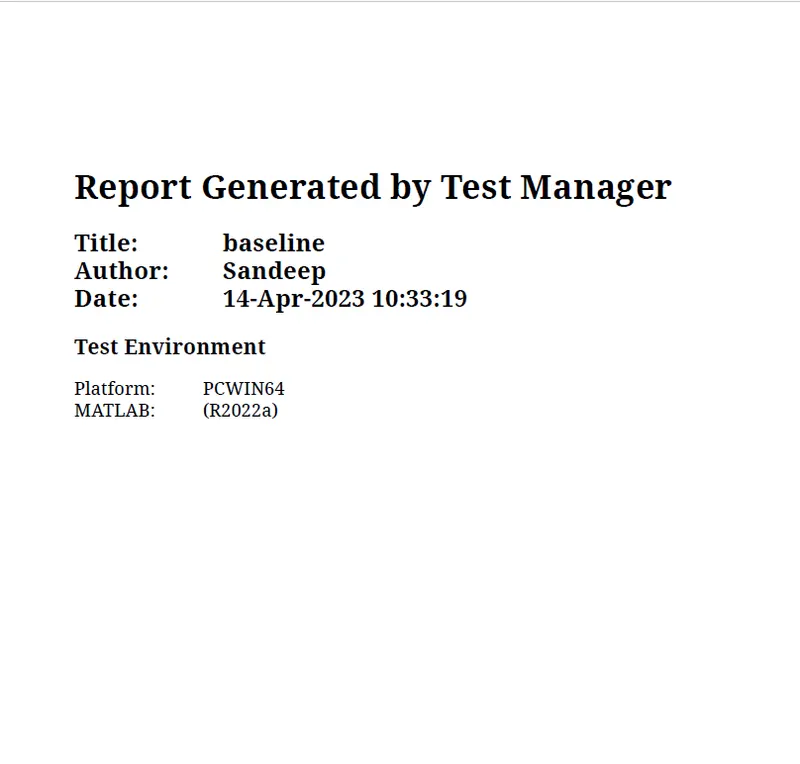
Baseline Test:-
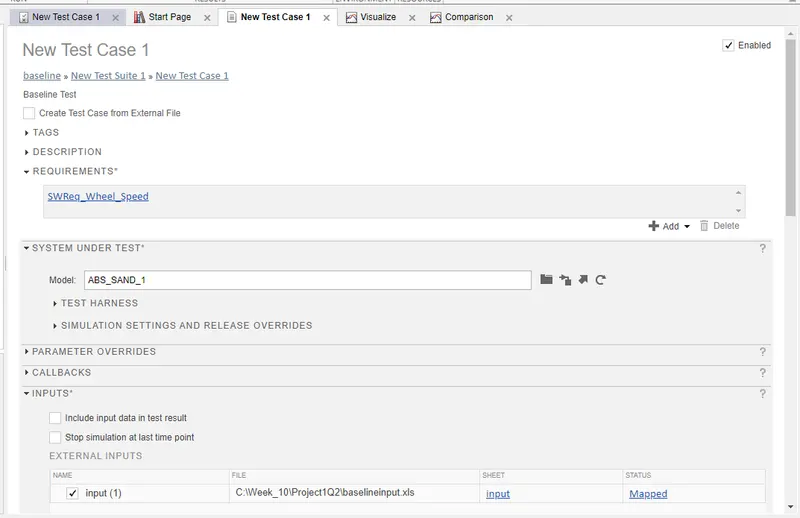
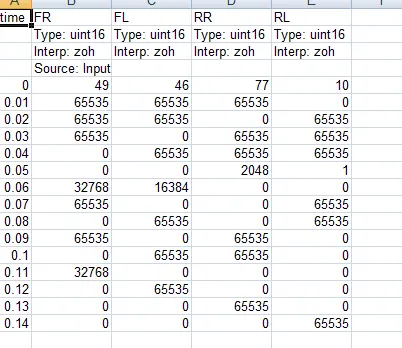
Inputs
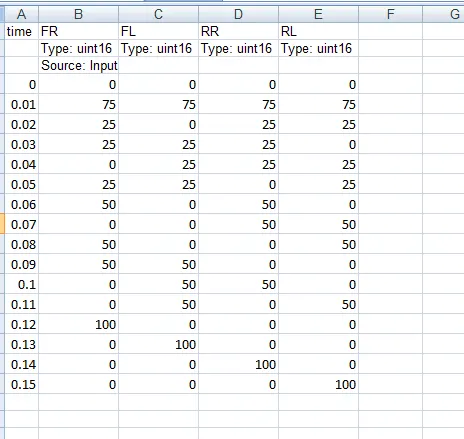
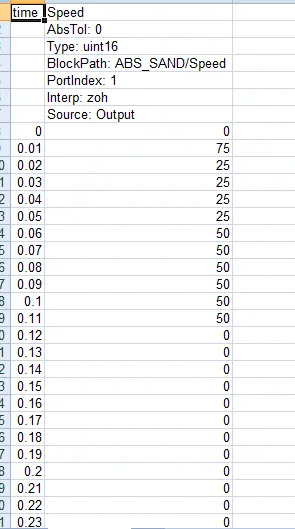
Baseline criteria
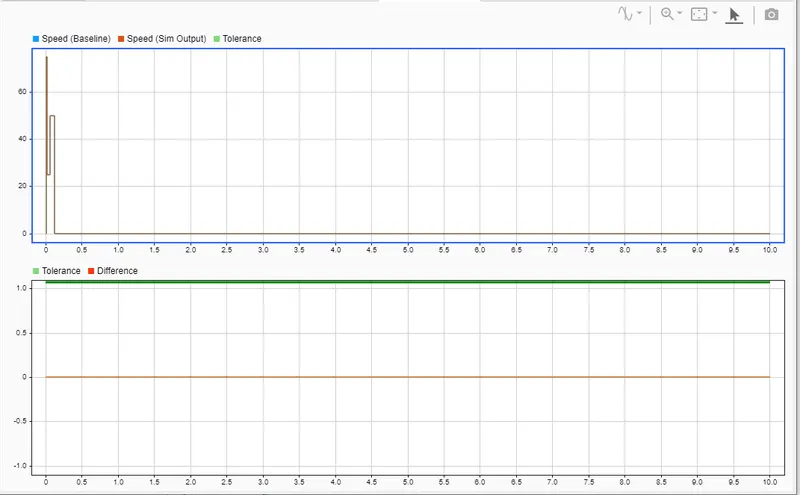
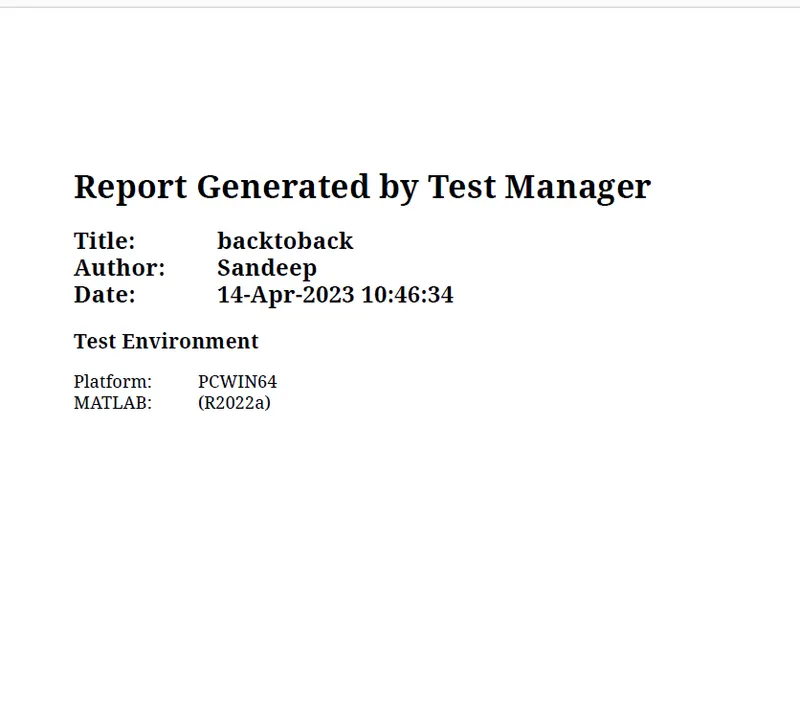
BacktoBack:-
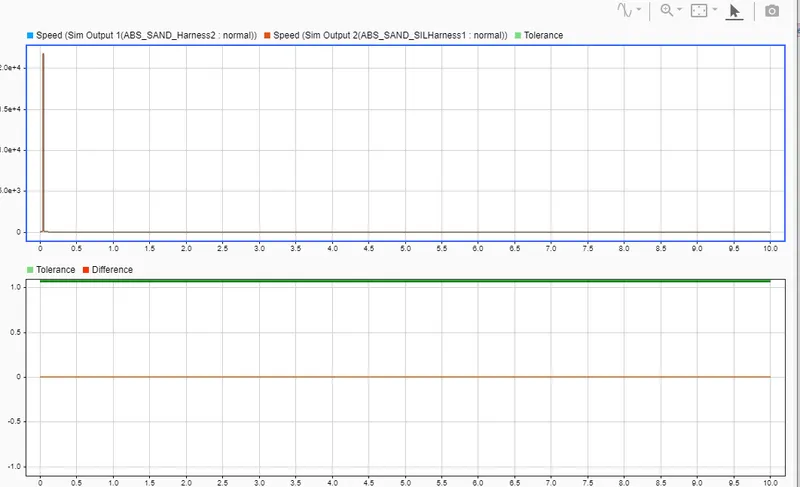
Equivalence criteria
Fixedpoint tool is done separately for Q2. and attached with other folders.