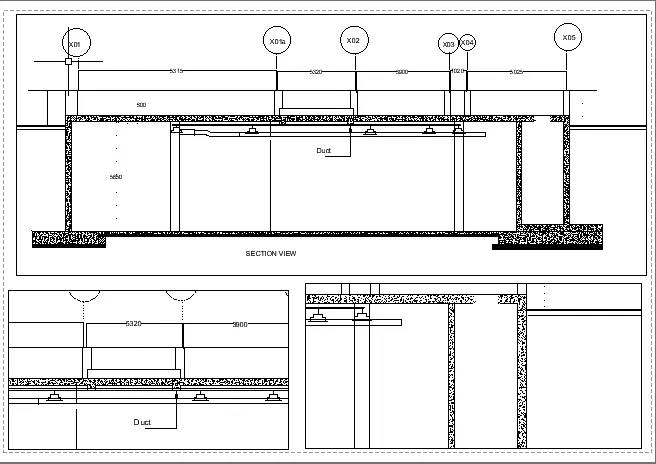
Creation of Multiple viewports, Scaling the drawing and setting in Template in AutoCad
1)
AIM:
To Create a layout of the plan and section A of the project in challenges 7 .
PROCEDURE:
- In the command prompt type units > mm> decimal
- In the command prompt type limax >100,100
- In the command prompt type limits>0,0
- In the command prompt type layout > template>Tutorial arch .m
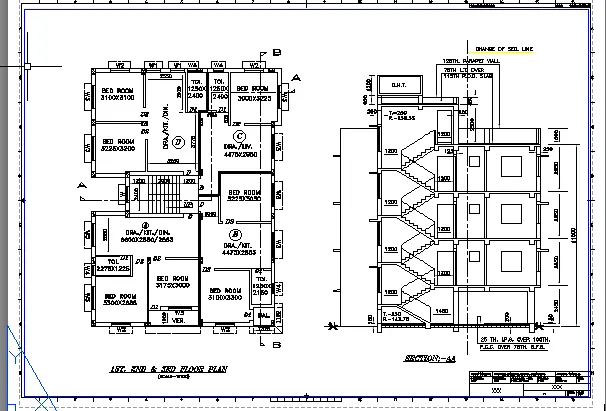
- In the command prompt type Ms to specify the centre of the plot
- Then click on the tittle box to edit the tiitle
- In the command prompt type Mv to add the view
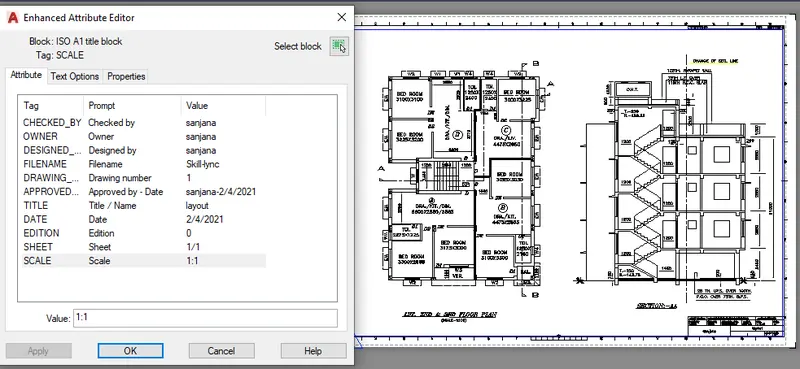
- In the command prompt type ctrl +p to plot it
- In the command prompt type pagesetup
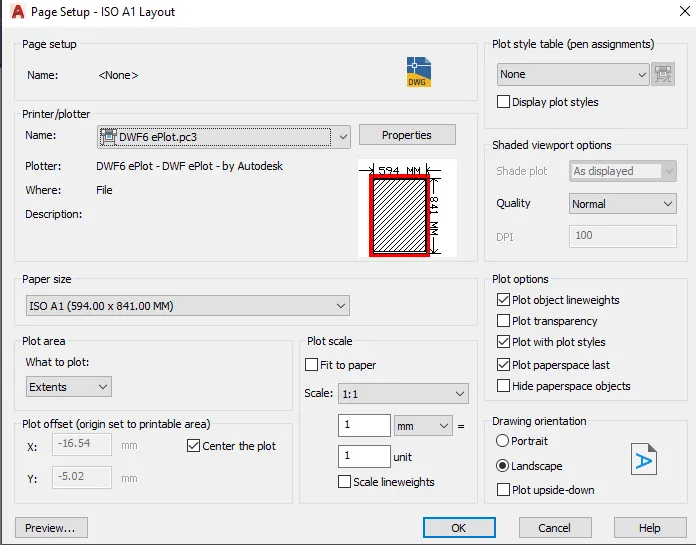
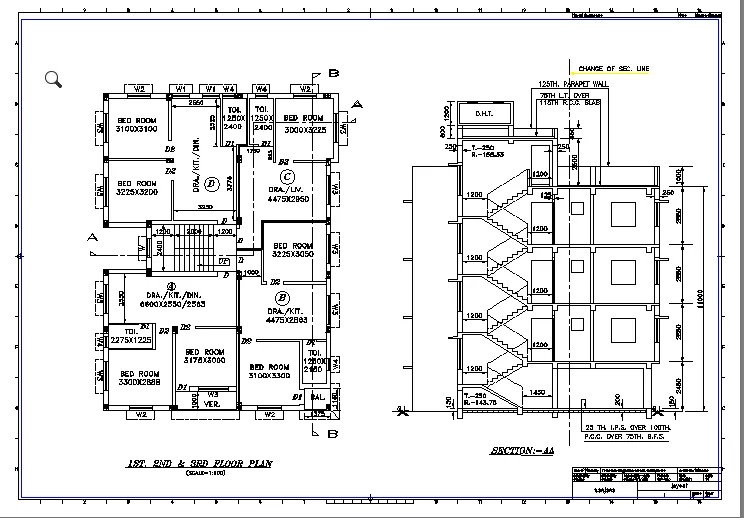
Result:
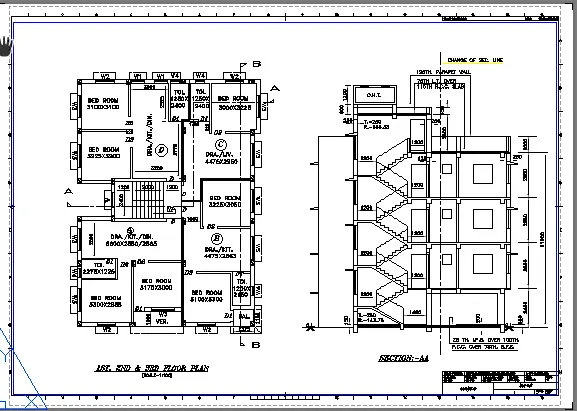
2)
AIM:
To create layout of the kitchen drawn in challenge 9 . Use A4 size page for the layout and take a plot
PROCEDURE:
- In the command prompt type ps and ms to adjust the view
- In the command prompt type pagesetup to make the size to A4 change
- Click on the arrow mark to change the view
Default is the A4 sheet.
With "MV" command create 4 viewports by making the window
Type command "VIEW" in the layout tab , select the required view and click on the viewport where it has to be displayed and lock each viewport.
Select the A11 to A14 cabinet view in the first viewport,zoom and pan to fit in the viewport
Go to paper space ,with Text command type SCALE 1:1
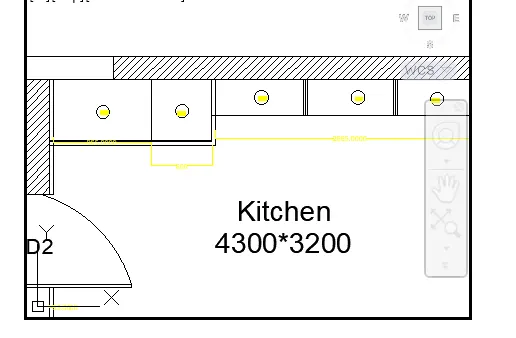
Enter command "MS" click on the second viewport .
Enter the command "VIEW" and select the view name snack counter
Zoom and pan the viewport to make the view fit in the viewport.
Lock the viewport
Go to paper space and with command "T" enter the text SCALE 1:1.
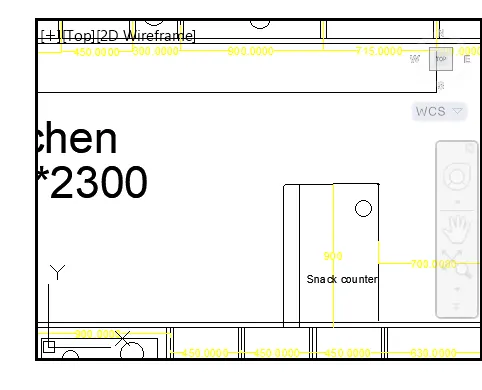
Similary in model space click on third viewport .
Enter the view above counter plan .
Zoom and pan the viewport , so that the drawing fit in it.
Lock the viewport.
Go to paper space and with command "T" enter the text as ABOVE COUNTER PLAN and SCALE 1:2 with text height 150
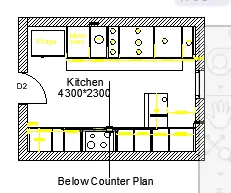
creating plot:
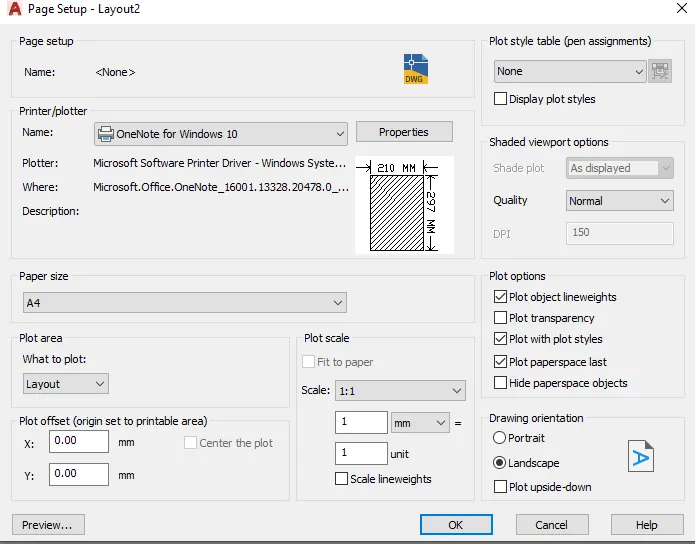
result:
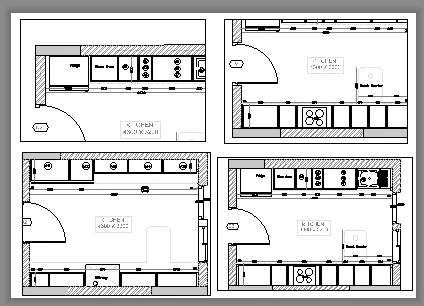
3)
AIM:
To Create layout of the section created in challenges 9
PROCEDURE:
- Open the file in which challenge 9 is created
- go to layout in the command prompt type MV
- change the scale accordingly scale
- in the command prompt using Ms and ps adjust the view accordingly
Set the selected page setup as the current page setup for the current layout.
You cannot set the current layout as the current page setup. Set current is not available for sheetsets.
PLOT COMMAND:
PLOT COMAND is used to plot a drawing to a plotter, printer or file.
Procedure to access:
1. Command: PLOT and press
2. Shortcut key: Ctrl+P
3. Ribbon menu: output > Plot panel> Plot
4. Access from: Menu bar> File> Plot.
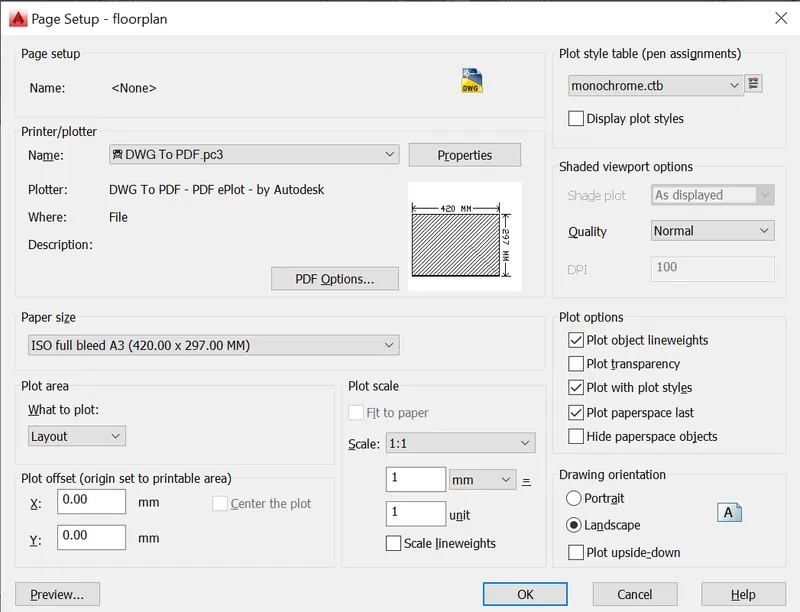
Result: