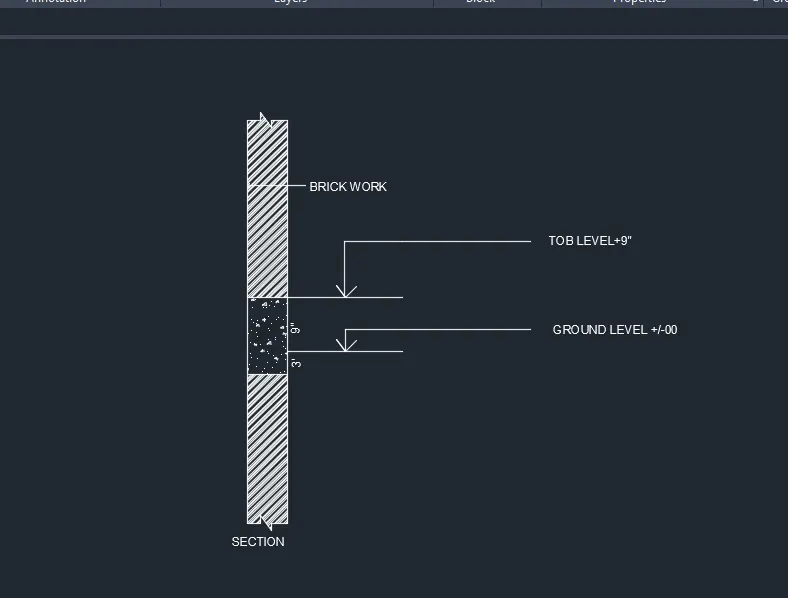
Creation of Column Schedule and Drawing Template using AutoCad
AIM:
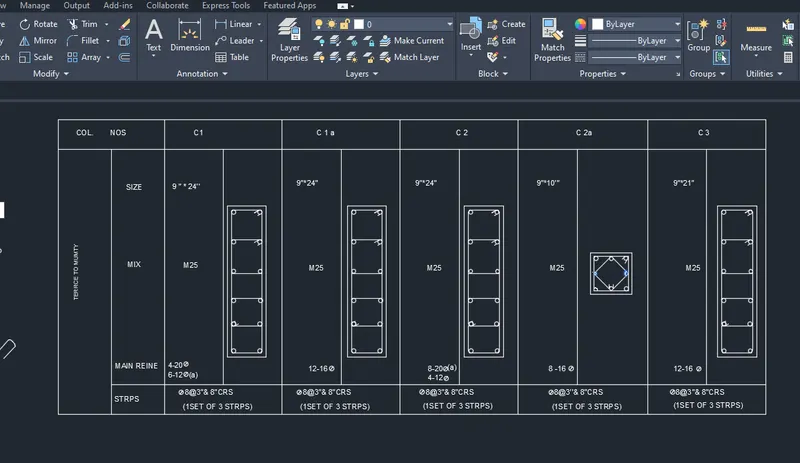
To Create a column schedule
PROCEDURE:
STEP1
- In the command prompt type line to create tables
- In the command prompt type ST (text style) > romans.shx (font name) > 8" (height) > left (justify)
- In the command prompt type text to text the given text in the drawing
- In the command prompt type MTEXT (multiline text) > symbols > to get diameter symbol.
2)
AIM:
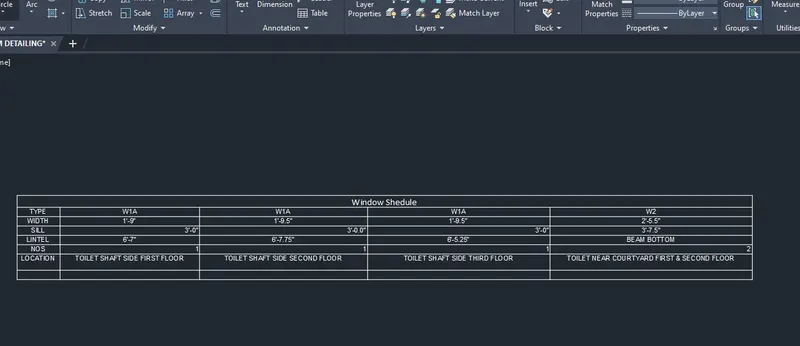
To Create a window schedule
PROCEDURE:
STEP 1:
- In the command prompt type line to create tables
- In the command prompt type ST (text style ) > romans.shx (font name ) > 8" (height ) > center(justify )
- In the command prompt type text to text the given text in the drawing
3)
AIM:
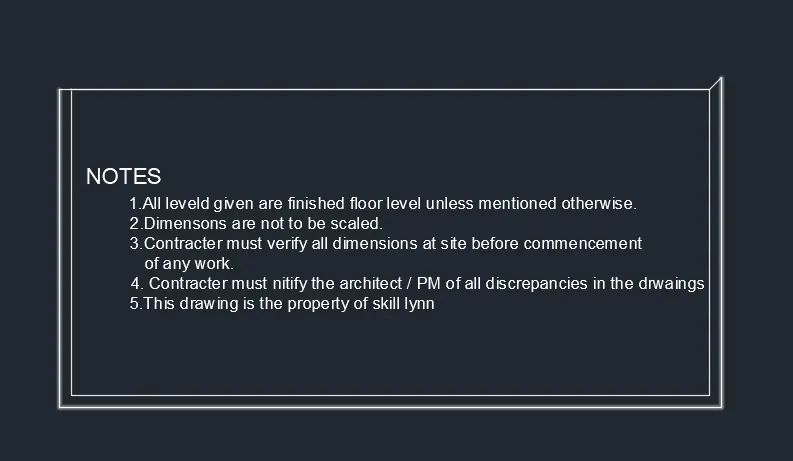
To Create the drawing template
PROCEDURE:
- In the command prompt type line to create tables .
- In the command prompt type ST (text style) > romans.shx (font name) > 8" (height) > left(justify).
- In the command prompt type text to text the given text in the drawing
4)
AIM:
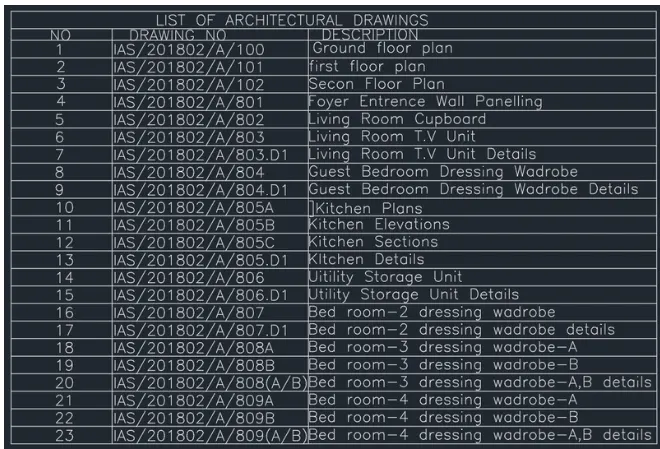
To Create the list of drawing schedule
PROCEDURE:
STEP 1:
- In the command prompt type UNITS > Engineering> Inches .
STEP 2:
- In the command prompt type Line (to create the column) .
- In the command prompt type Text to text the given drawings .
- In the command prompt type HATCH to hatch the given drawings .
PROCEDURE:
STEP 1:
- In the command prompt type UNITS > Engineering> Inches .
STEP 2:
- In the command prompt type Line (to create the column) .
- In the command prompt type Text to text the given drawings .
- In the command prompt type HATCH to hatch the given drawings .