Creating Kitchen layout, Hatching of Architectural elements and sectional view of an Industrial Building in AutoCad
CREATING KITCHEN LAYOUT, HATCHING OF ARCHITECTURAL ELEMENTS AND SECTIONAL VIEW OF AN INDUSTRIAL BUILDING IN AUTOCAD
1. Kitchen Plan:
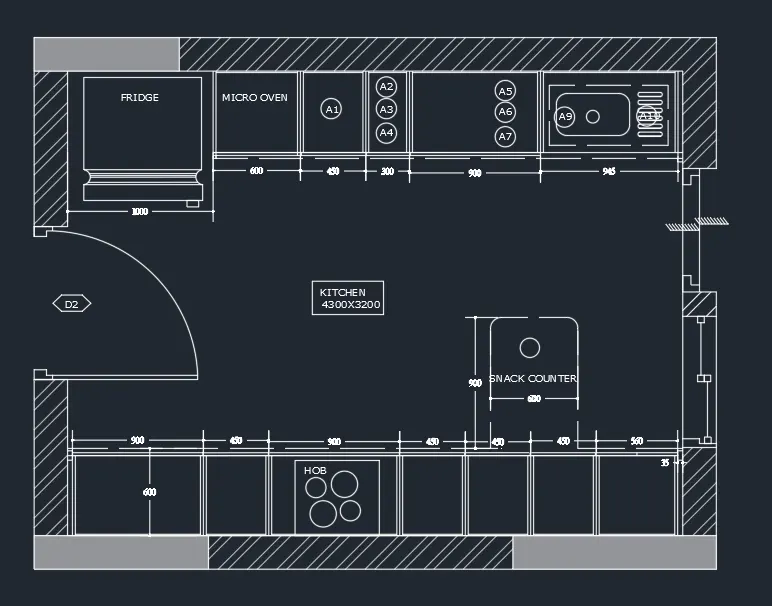
Aim: To craete the kitchen plan and provide appropriate hatch pattern using proper dimensions techniques to dimension the plan
Procedure:
- First set up the units in mm
- Draw a rectangle with given dimensions
- Give offset and draw an inner rectangle and draw required lines with dimensions
- Give offset and draw all cabinets
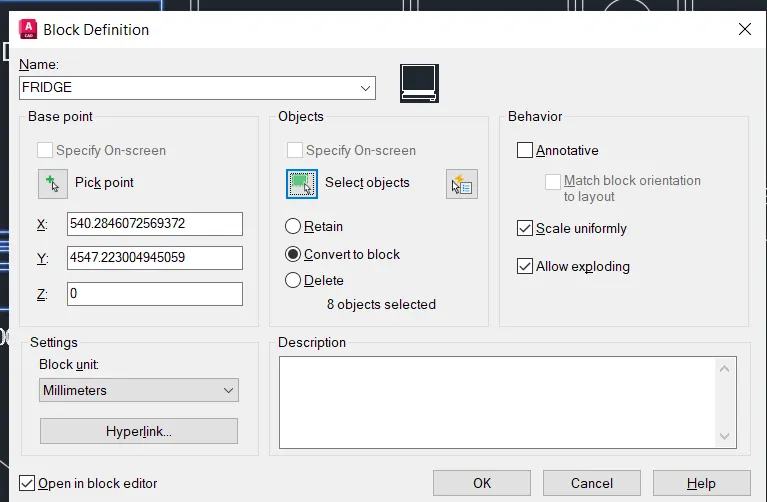
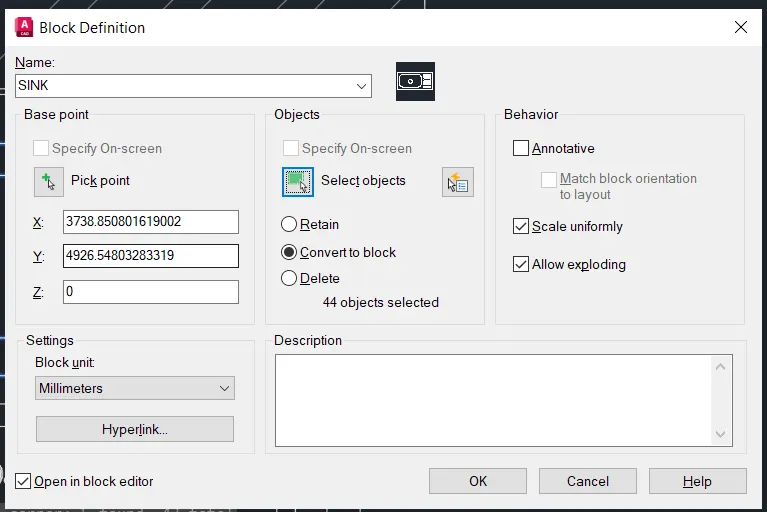
- Make door, fridge and sink as blocks
- Add necessary text and dimensions using Mtext and DIM and give hatch
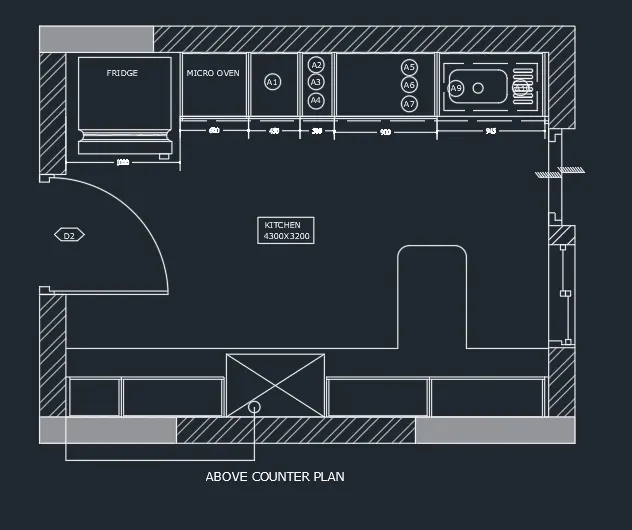
- Now copy this above counter plan
- Erase the unwanted cabinets and draw the required cabinets and give dimnesion and text
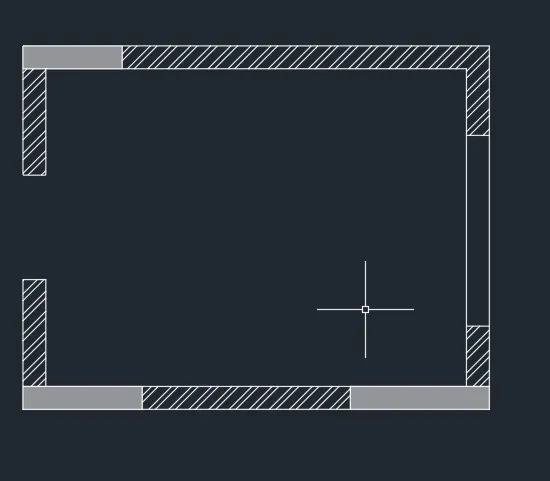
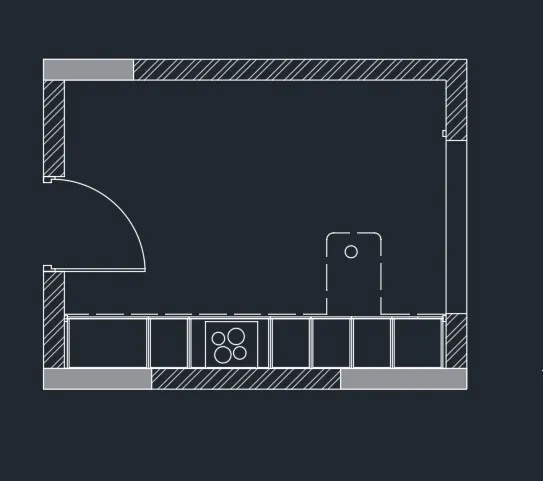
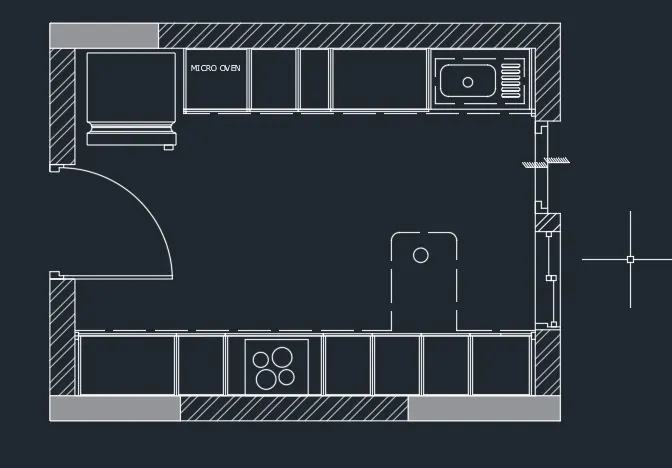
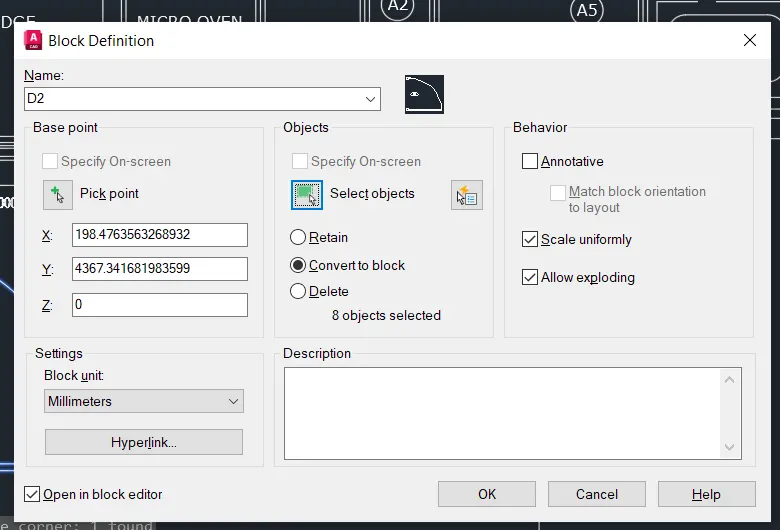
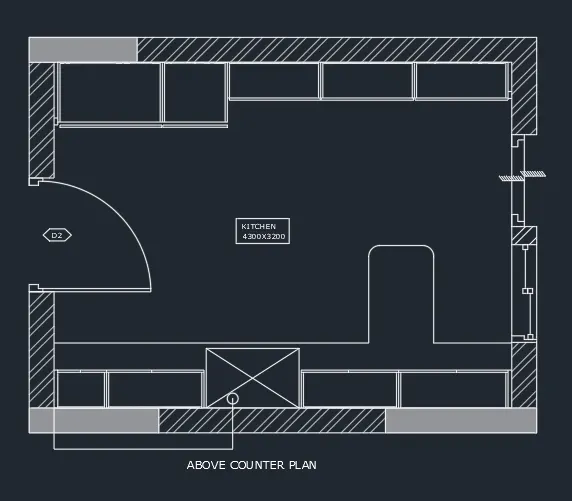
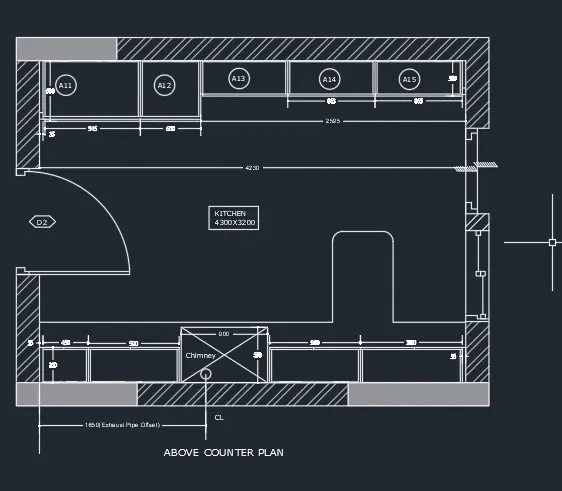
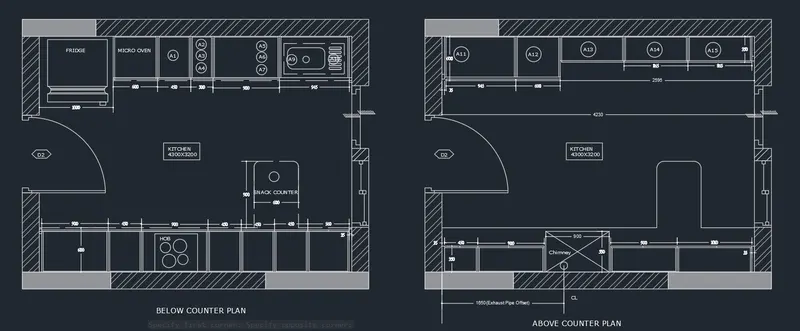
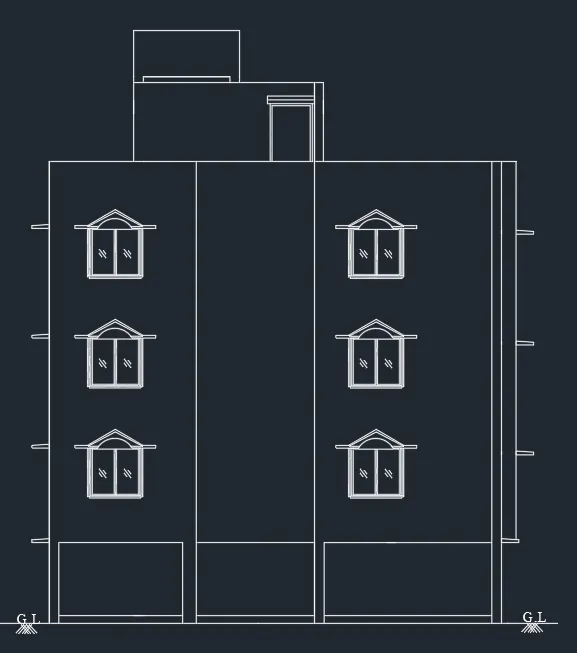
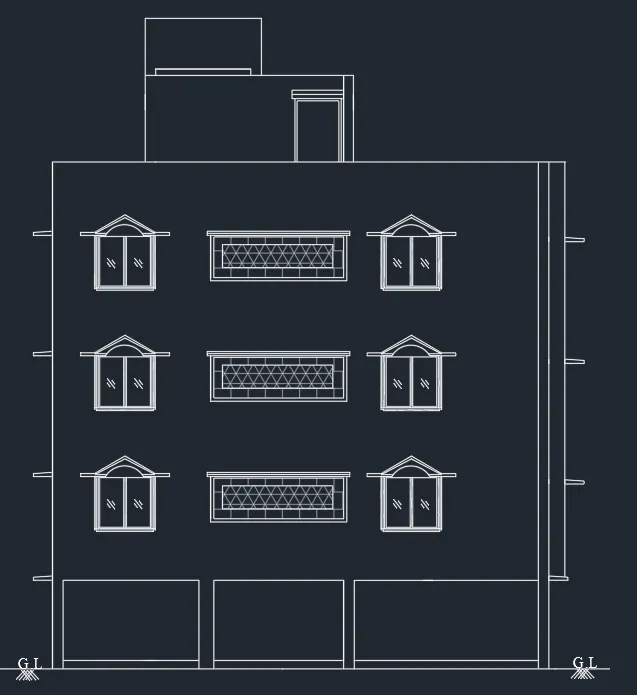
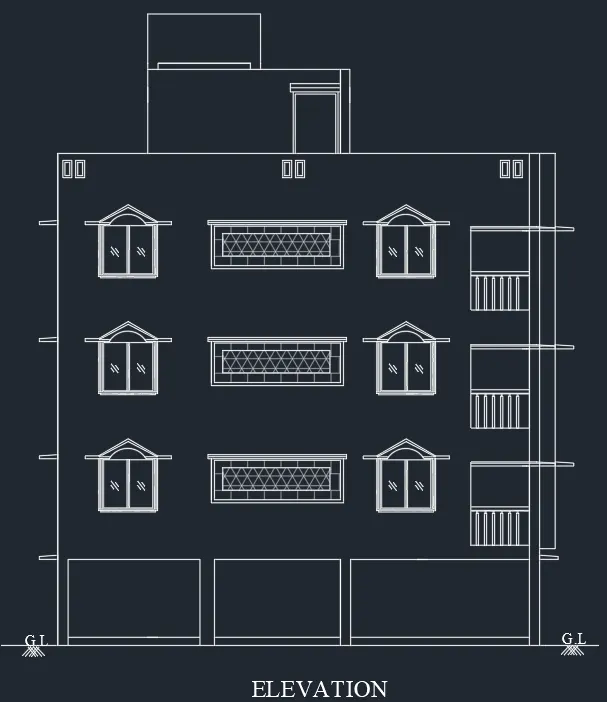
2. ELEVATION
AIM: To create the elevation of the plan already created in challenge 7 and to apply proper hatch in walls, doors, windows and other arcitectural elements
PROCEDURE:
- Initially set the units as mm
- Using line command draw the outline of the structure referring to challenge 7
- Draw windows, verandah and balcony with the dimensions from challenge 7 plan
- Now add hatches to the necessary places
- Add text
3. SECTION:
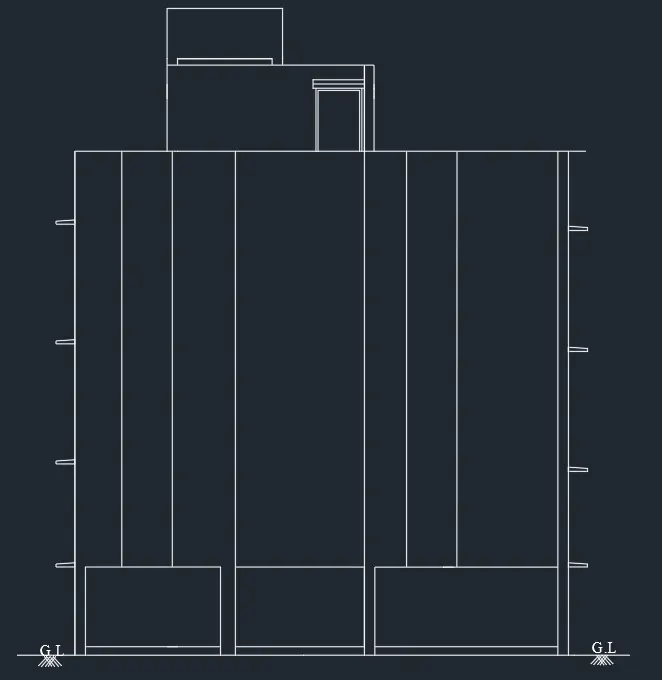
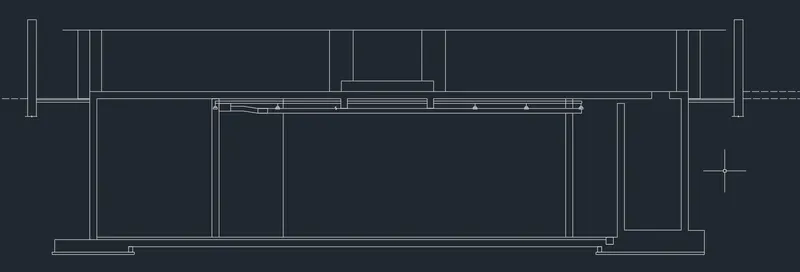
AIM: To create the scetion view of an building and provide appropriate hatching and dimensions as required. Provide annotations to the drawing
PROCEDURE:
- Initially set up the units as mm
- Draw a horizontal line at any point
- Now offset the drawn line with distance 5850
- Agian offset the line with 300
- Draw vertical line to the drawn horizontal line
- Give offset distance of 5315
- Next give offset of 5320
- Next give offset of 3900
- Next give offset of 4720
- Next give offset of 1020
- Next give offset of 5025
- Offset the left and right edges of the vertical lines drawn with 500 distance
- Trim the unwanted edges
- Now with line and offset command draw the remaining objects in the plan
- Add hatches to the drawing
- Now add annotations by using circle and mtext command
- Add all the text using Mtext command
- Now add dimensions to the section
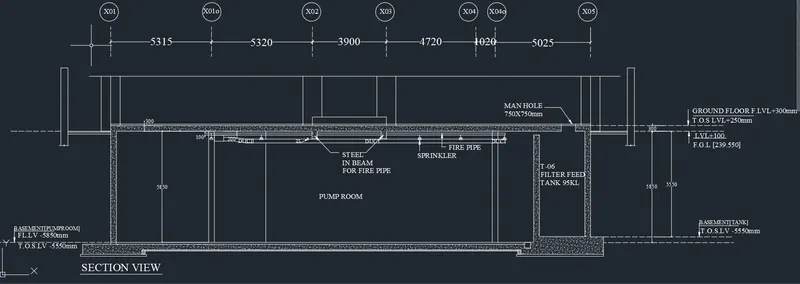
RESULT:
1.
2.
3.