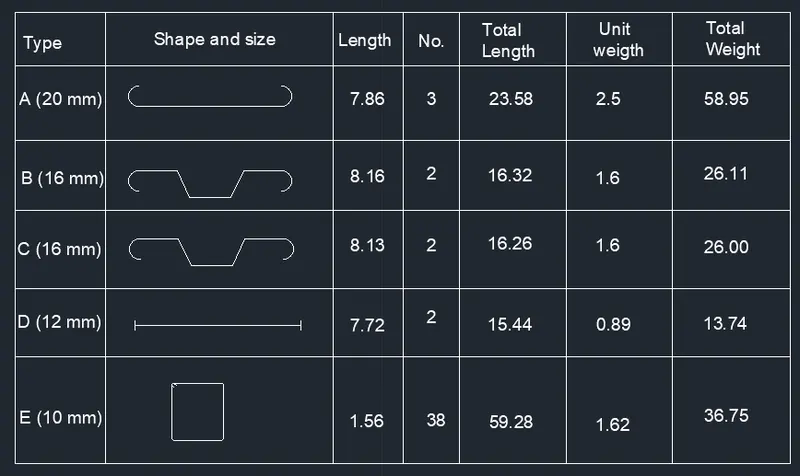
Creating Bar Bending schedule, Different Door types, and Creation of standard drawing templates using AutoCad
TASK 1:
AIM:
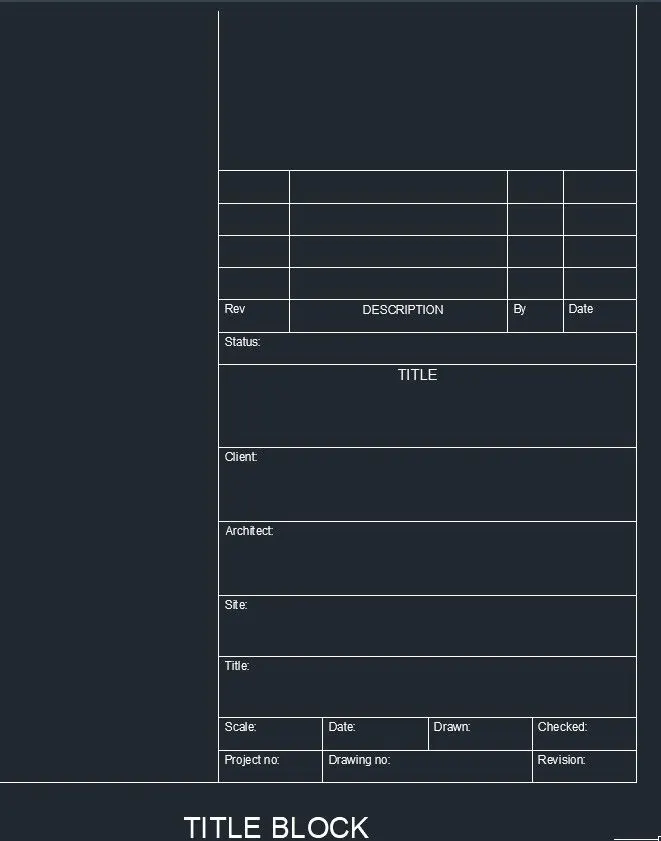
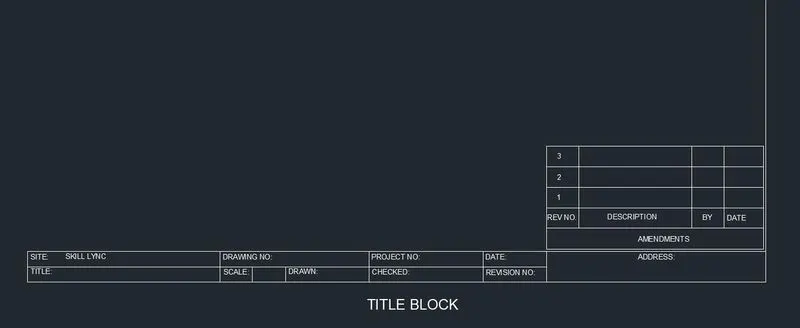
To create the templates as shown in Figures. Take the size of the title block as per industry standards or you can assume it as per the size of the paper. Use text and attributes wherever required. After creating the title block you need to save it as a block with names: Custom1_titleblock and Custom2_titleblock, respectively.
PROCEDURE:
- Go to START MENU, select AutoCAD 2023
- Click on START DRAWING .DWG File
- In the Command line type in: STARTUP [ENTER]
- Enter new value of startup: 1
- Go to Application Menu and select New
- Next select the 'Decimal' unit system from the 'Advanced Setup' option.
- Set the limits by entering LIMITS in the Command tab. The lower-left corner is specified as 0,0, and the upper-right corner is specified as 100,100.
Commands used:
- Line command,
- Circle Command,
- Block Command,
- Block Editor Command,
- Define Attributes Command,
- Manage Attribute Command,
- Dimlinear command,
- Text command,
- Offset,
- Trim,
- Extend....
TASK 2:
AIM:
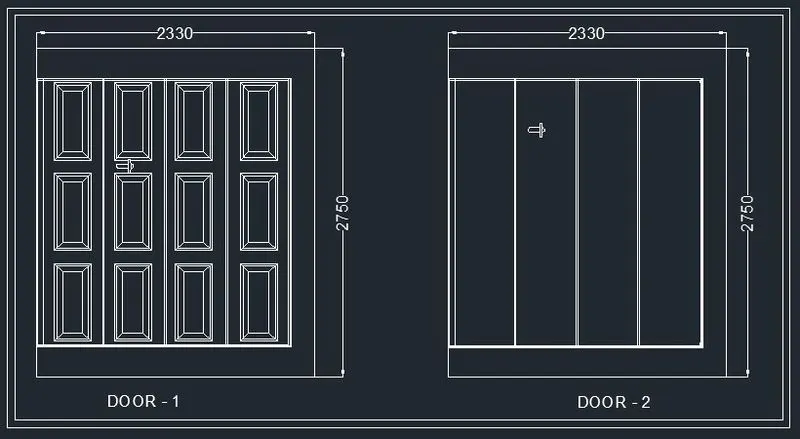
To create the doors type for warehouse as shown in the Figure. You need to create each door type as per standard size or given dimensions. Create the blocks of this door type after creating them.
PROCEDURE:
- Go to START MENU, select AutoCAD 2023
- Click on START DRAWING .DWG File
- In the Command line type in: STARTUP [ENTER]
- Enter new value of startup: 1
- Go to Application Menu and select New
- Next select the 'Decimal' unit system from the 'Advanced Setup' option.
- Set the limits by entering LIMITS in the Command tab. The lower-left corner is specified as 0,0, and the upper-right corner is specified as 100,100.
Commands used:
- Line command,
- Circle Command,
- Dimlinear command,
- Text command,
- Offset,
- Trim,
- Extend....
TASK 3:
AIM:
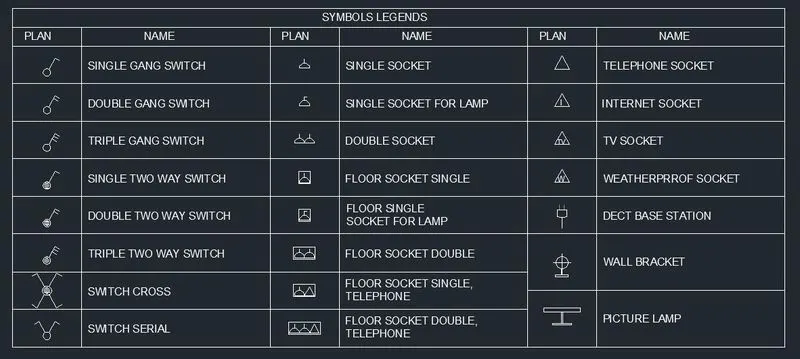
To create each symbol as a block with the name given in the legend. After creating the blocks arrange them in the legends.
PROCEDURE:
- Go to START MENU, select AutoCAD 2023
- Click on START DRAWING .DWG File
- In the Command line type in: STARTUP [ENTER]
- Enter new value of startup: 1
- Go to Application Menu and select New
- Next select the 'Decimal' unit system from the 'Advanced Setup' option.
- Set the limits by entering LIMITS in the Command tab. The lower-left corner is specified as 0,0, and the upper-right corner is specified as 100,100.
Commands used:
- Line command,
- Circle Command,
- Dimlinear command,
- Text command,
- Block command,
- Block Editor Command,
- Offset,
- Trim,
- Extend....
TASK 4:
AIM:
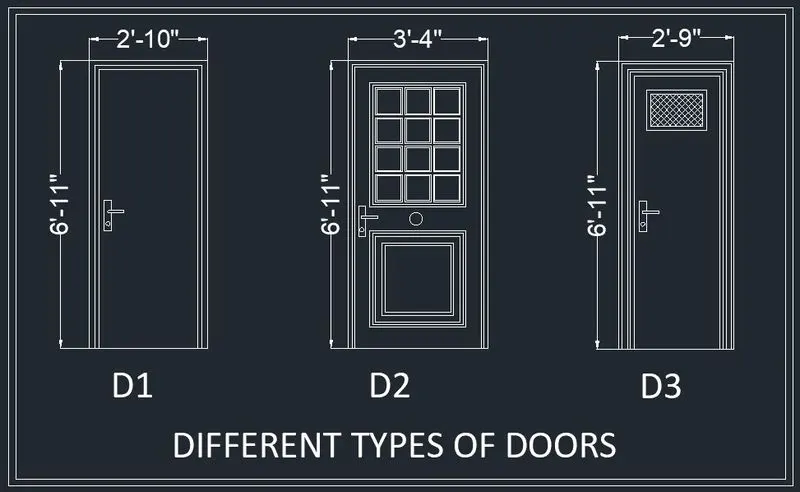
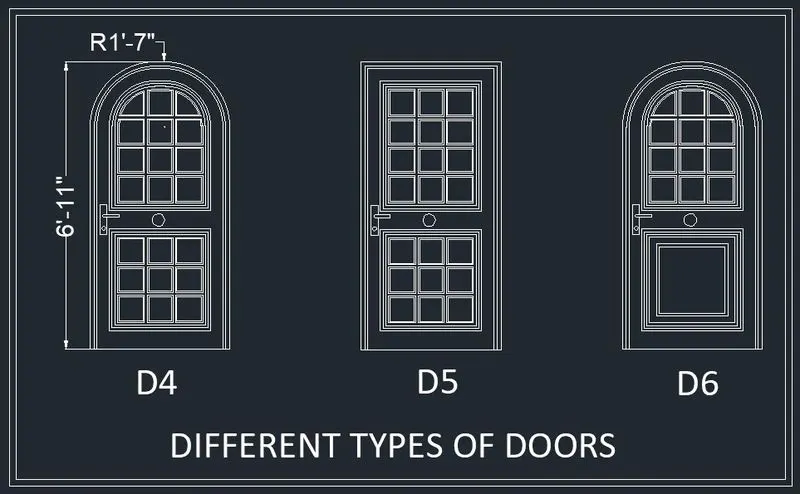
To create the door type for residential building as a block. Save the name of the blocks as type. Use given dimensions or assume dimensions as per industry standards.
PROCEDURE:
- Go to START MENU, select AutoCAD 2023
- Click on START DRAWING .DWG File
- In the Command line type in: STARTUP [ENTER]
- Enter new value of startup: 1
- Go to Application Menu and select New
- Next select the 'Engineering' unit system from the 'Advanced Setup' option.
- Set the limits by entering LIMITS in the Command tab. The lower-left corner is specified as 0,0, and the upper-right corner is specified as 100,100.
Commands used:
- Line command,
- Circle Command,
- Block Command,
- Block Editor Command,
- Dimlinear command,
- Text command,
- Offset,
- Trim,
- Extend....
TASK 5:
AIM:
To create each shape as a block as shown in the Figure. Save the block and insert them on the table.
PROCEDURE:
- Go to START MENU, select AutoCAD 2023
- Click on START DRAWING .DWG File
- In the Command line type in: STARTUP [ENTER]
- Enter new value of startup: 1
- Go to Application Menu and select New
- Next select the 'Engineering' unit system from the 'Advanced Setup' option.
- Set the limits by entering LIMITS in the Command tab. The lower-left corner is specified as 0,0, and the upper-right corner is specified as 100,100.
Commands used:
- Line command,
- Circle Command,
- Block Command,
- Block Editor Command,
- Dimlinear command,
- Text command,
- Offset,
- Trim,
- Extend....