Creating Bar Bending schedule, Different Door types, and Creation of standard drawing templates using AutoCad
TO CREATE THE BAR BENDING SHCEDULE, DIFFERENT DOOR TYPES, AND CREATION OF STANDARD DRAWING TEMPLATES USING AUTOCAD
1.AIM:
To create the titleblock named custom1_titleblock and custom2_titleblock using block and attributes commands in Autocad.
INTRODUCTION:
- Click Home tabBlock panelDefine Attributes.
- In the Attribute Definition dialog box, set the attribute modes and enter tag information, location, and text options.
- Click OK.
- Create or redefine a block (BLOCK). When you are prompted to select objects for the block, include the attribute in the selection set.
PROCEDURE:
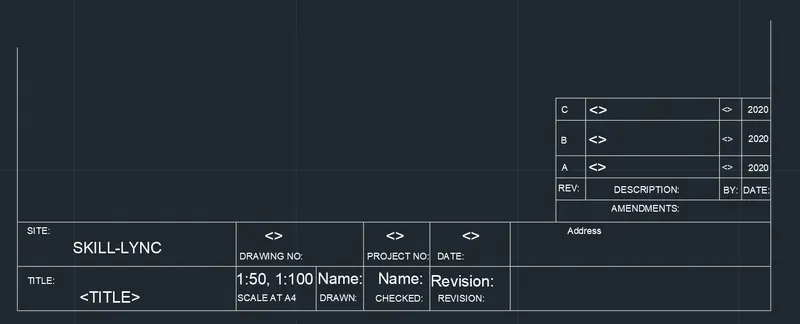
Custom1_tittleblock-
- Open a new drawing and setup the units and limits
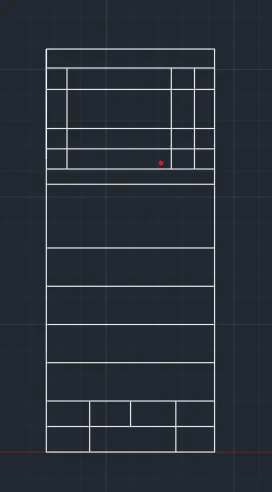
- Take line command and draw the table as shown in the figure
- Trim off the unwanted lines
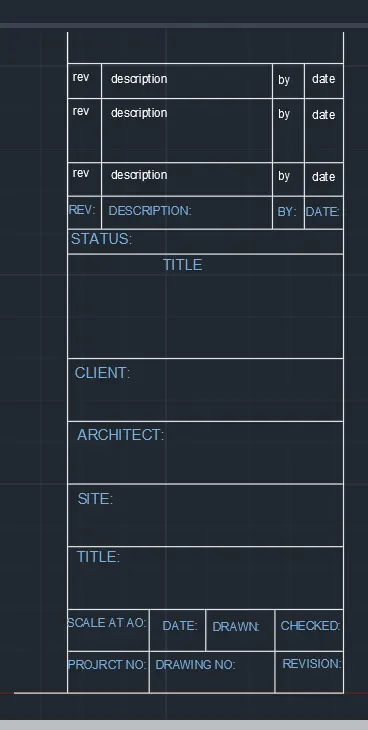
- Now add text in the table by using mtext command and change the color of text as required
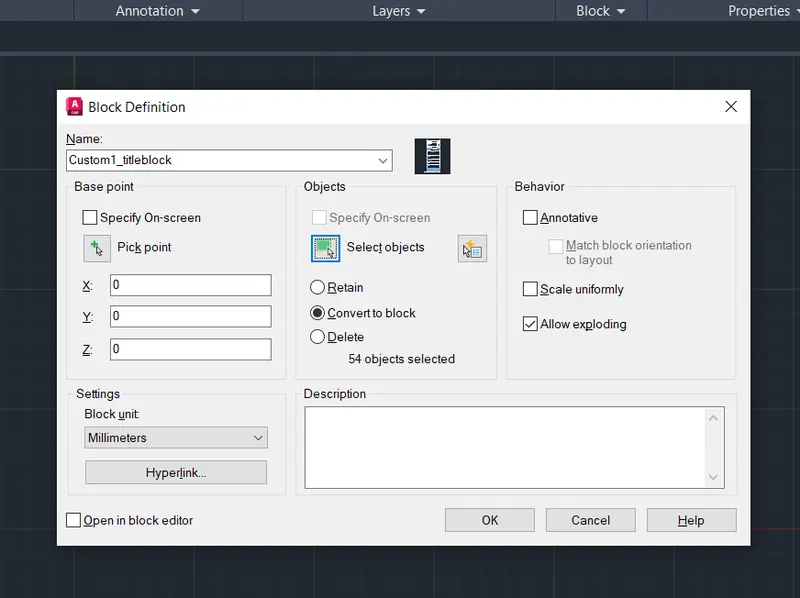
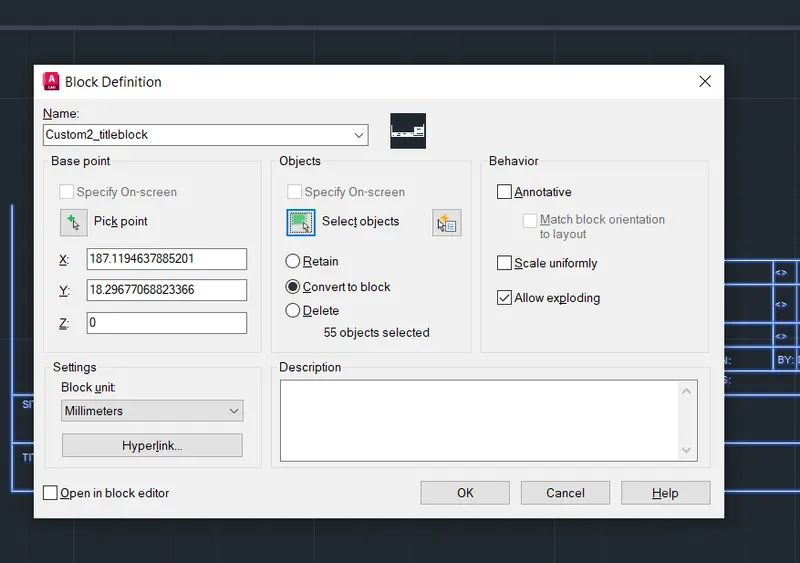
- Next convert the table into a block by using b command and name it as Custom1_titleblock
Custom2_titleblock-
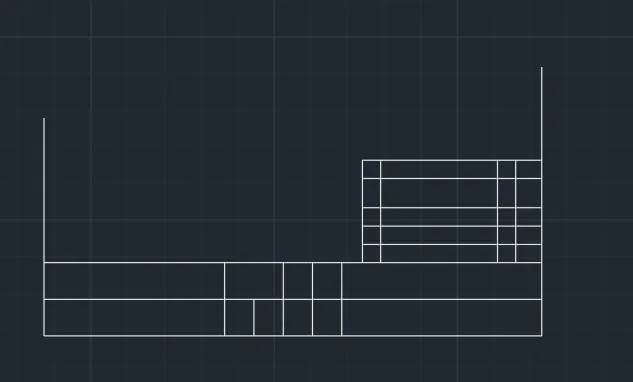
- Repeat the above procedure and name the block as Custom2_tittlblock
2.AIM:
To create the door types for warehouse coverting into blocks
PROCEDURE:'
- Set the units as decimal millimeters
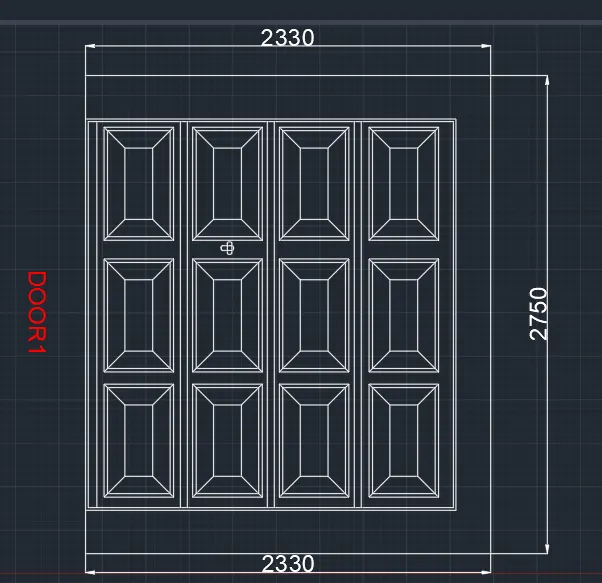
- Draw a rectangle with dimensions 2230 and 2750mm
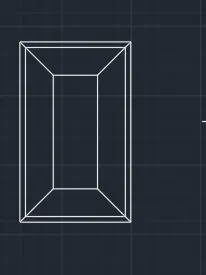
- Using offset command draw the internal lines
- Draw a door frame using line command and door knob
- Place them in the position to obtine the required figure
- Now add text and dimensions
- Select b command and name it as DOOR1 and convert it into block
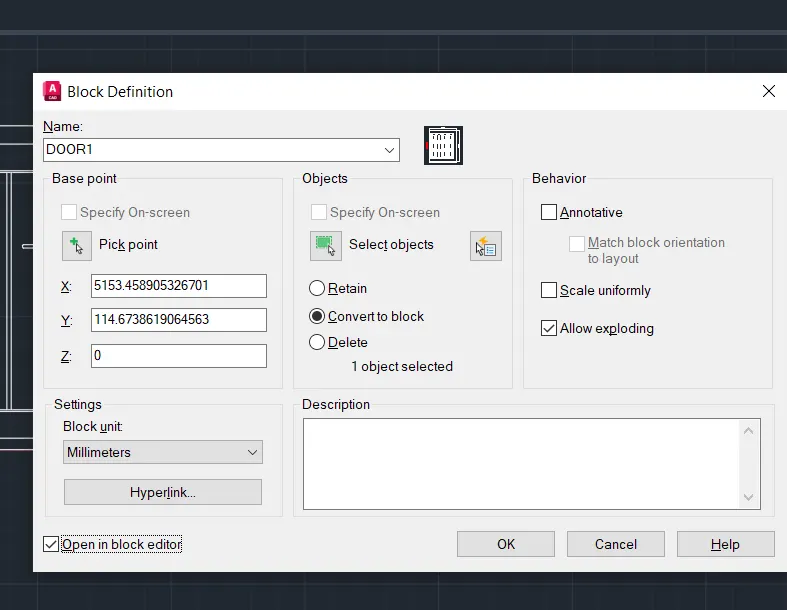
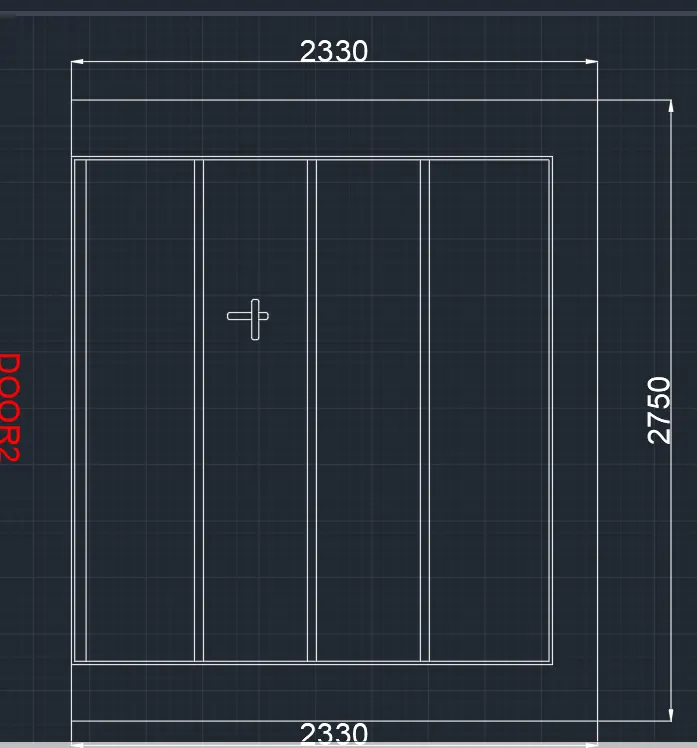
- Draw a rectangle with dimensions 2230 and 2750mm
- Using offset command draw the internal lines
- Draw a door knob using line command
- Place them in the position to obtine the required figure
- Now add text and dimensions
- Select b command and name it as DOO2 and convert it into block
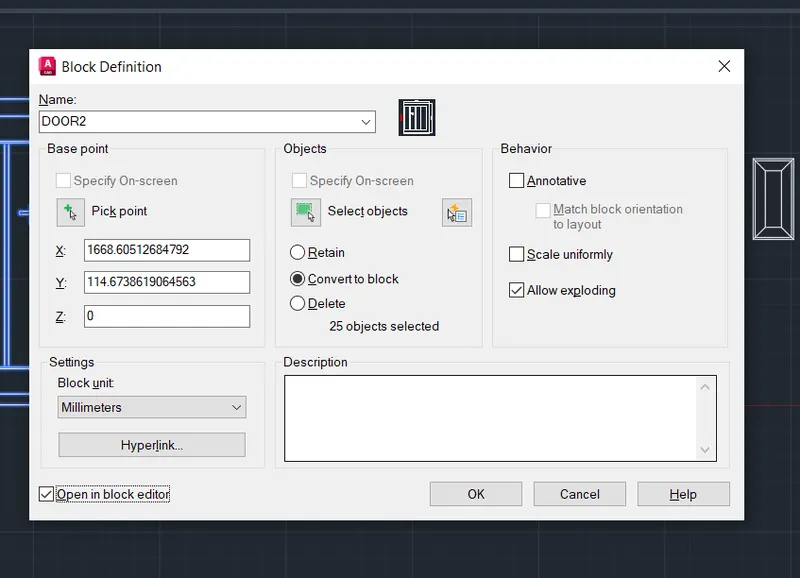
3. AIM:
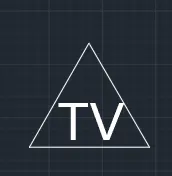
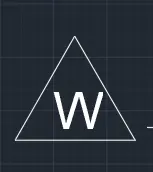
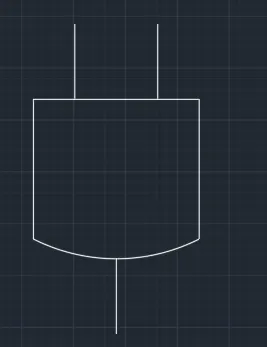
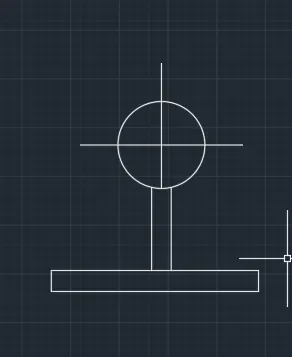
To create each symbol as a block with the name given in the legend and arranging them as shown in the figure
PROCEDURE:
- Initially set the units as decimal millimeters
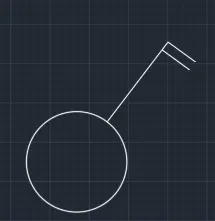
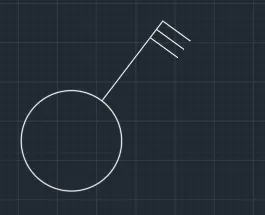
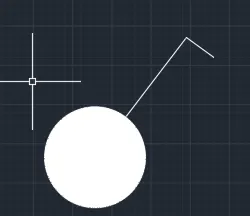
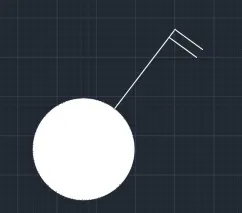
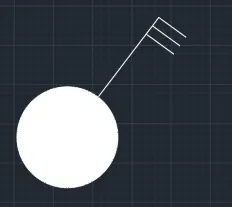
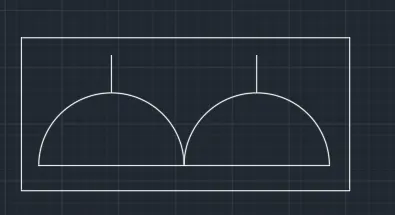
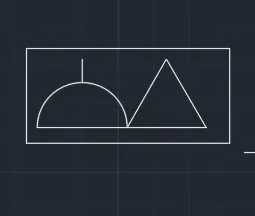
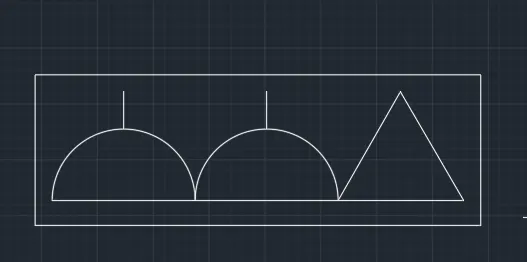
- First symbol is single gang switch, to draw it take a circle and draw a line vertically inclined and draw a line
- After drawing convert it into block
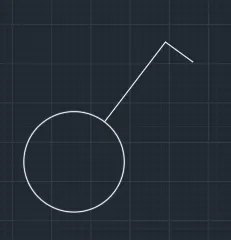
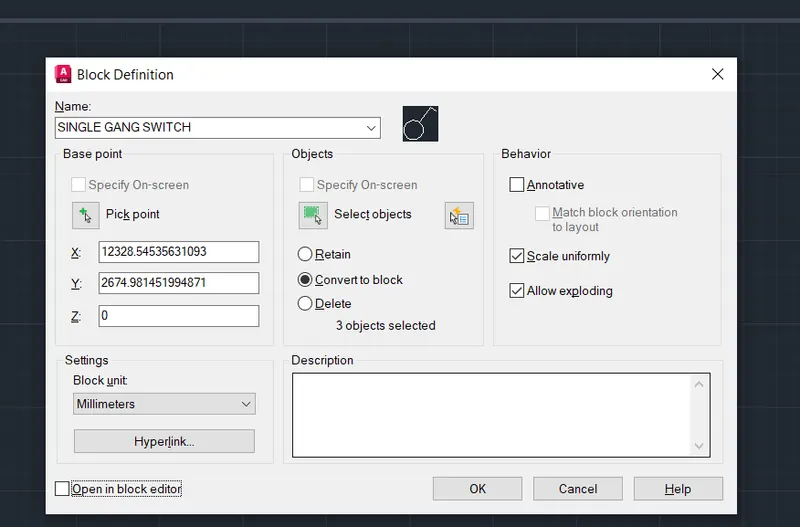
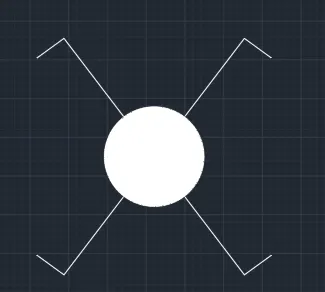
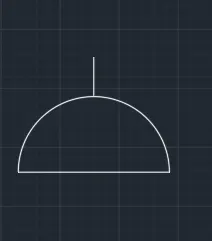
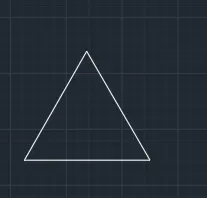
- Now draw all the symbols and convert them into block
- Agian take the line command and draw the table as shown in the figure
- Now insert the blocks and names into the table and add text
- The required figure is obtained


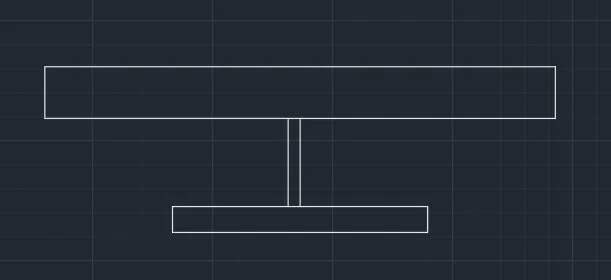
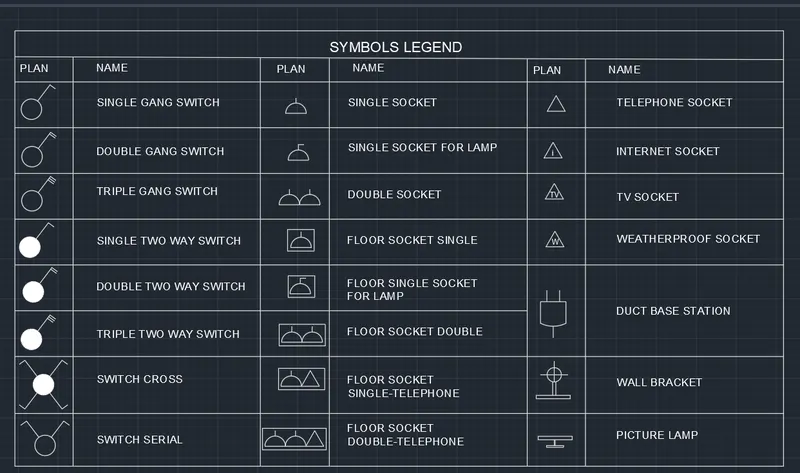
4. AIM:
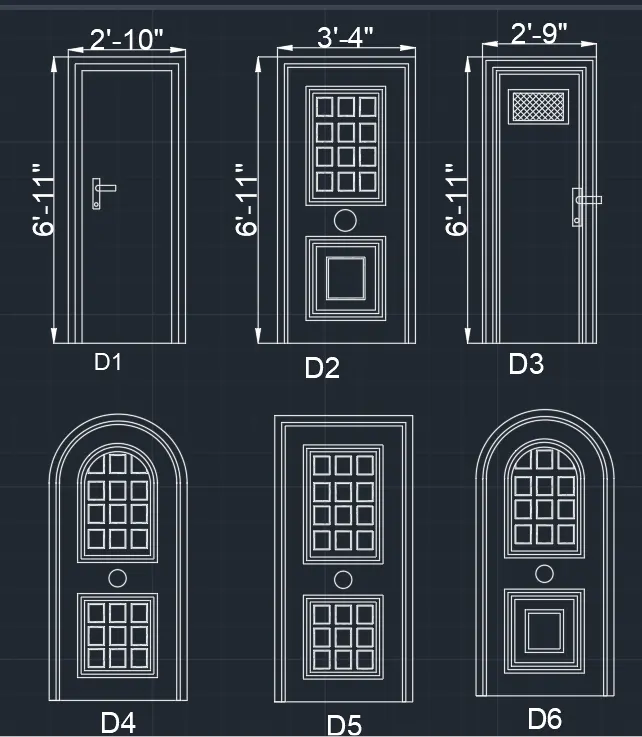
To create the different door types for Residential buildings and converting them into blocks with different names
PROCEDURE:'
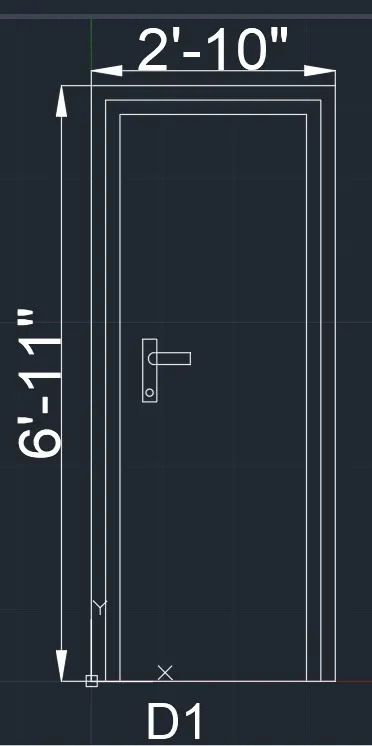
- Initially set the units as Engineering - feet inches
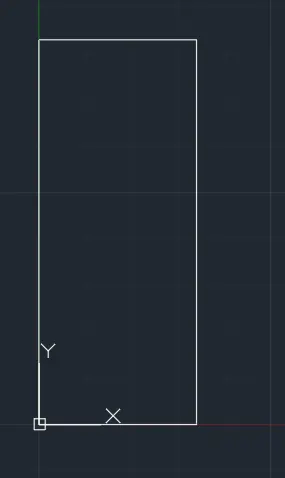
- Draw a rectangle with dimensions 6'11" and 2'10"
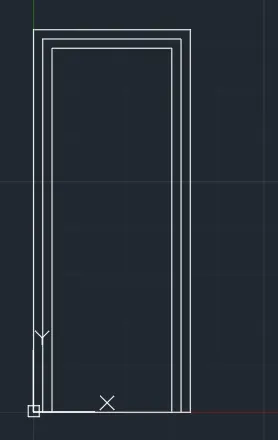
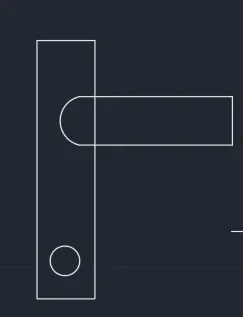
- Now offset the rectangle with different spaces and using line command draw a handle for door
- Add dimensions and text
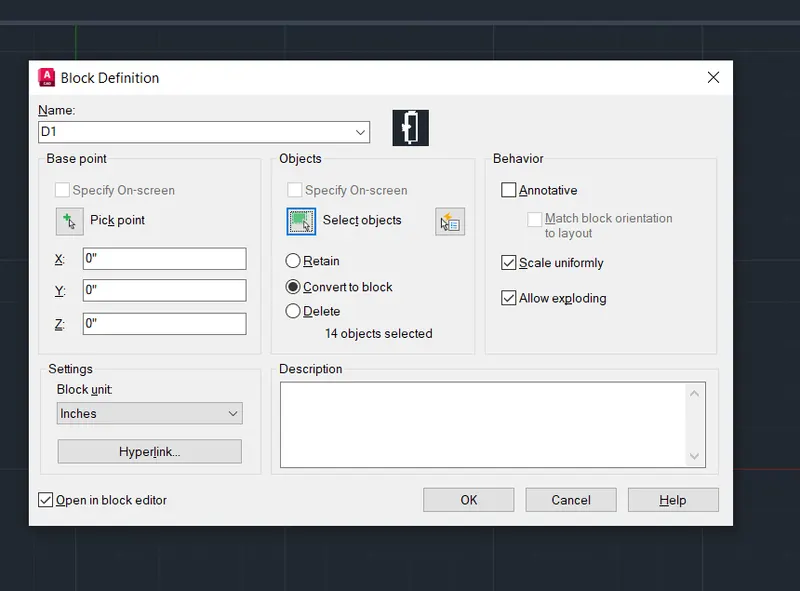
- Convert it into block and name it as D1
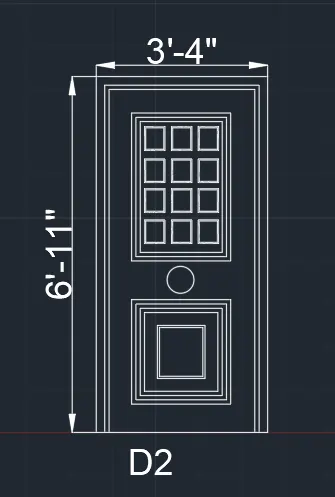
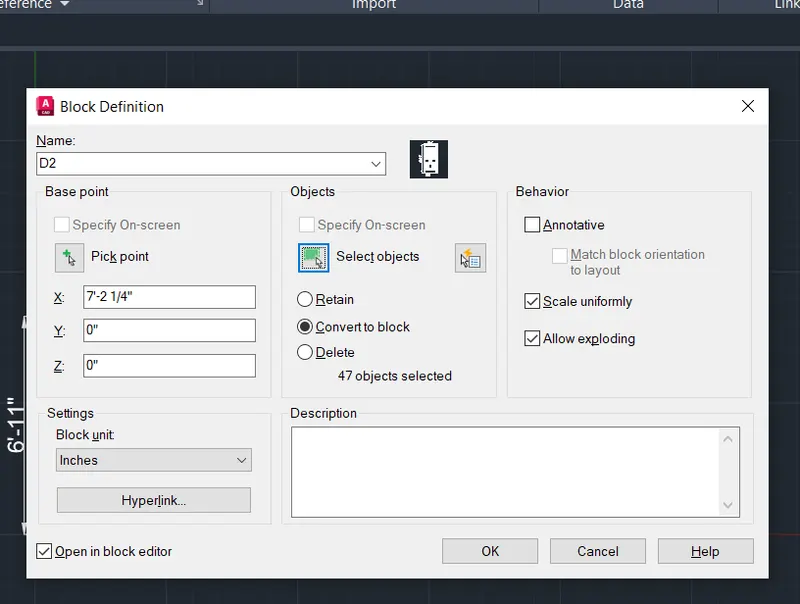
- Draw a rectangle with dimensions 6'11" and 3'4"
- Now offset the rectangle with different spaces and using rectangle command draw the door frames
- Add dimensions and text
- Convert it into block and name it as D2
-
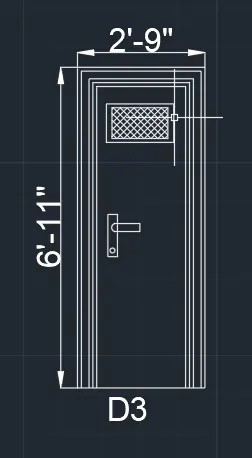
- Draw a rectangle with dimensions 6'11" and 2'9"
- Now offset the rectangle with different spaces and using rectangle command draw the door frame and give it a hatch
- Draw a door handle using line command
- Add dimensions and text
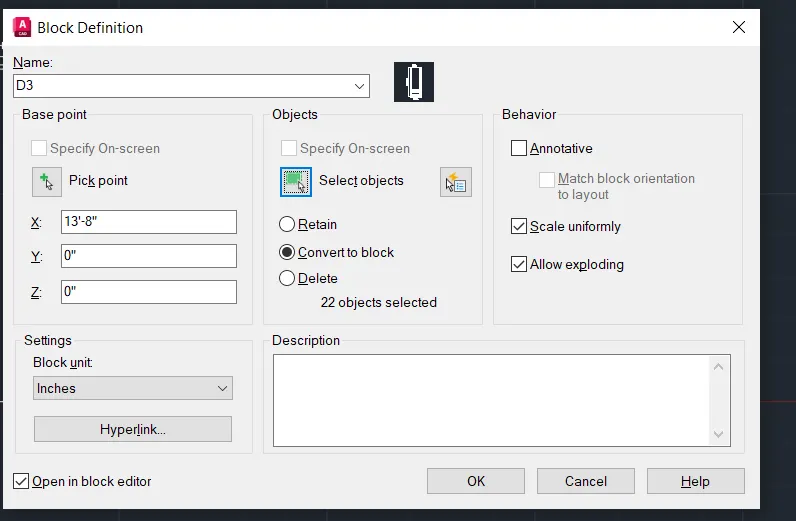
- Convert it into block and name it as D3
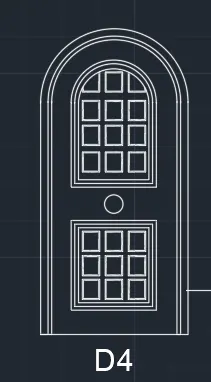
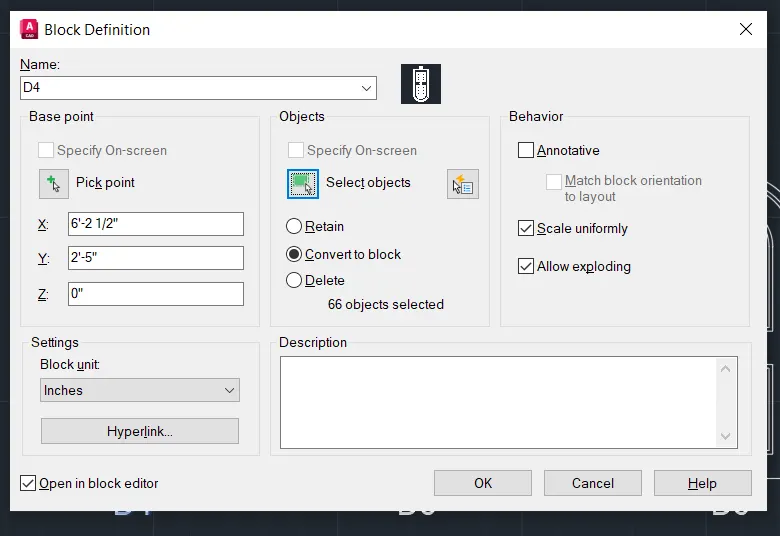
- Draw a rectangle with dimensions 6'11" and 3'4"
- Now offset the rectangle with different spaces and using rectangle command draw the door frames
- Usimg arc command, draw the arcs at necessary places
- Convert it into block and name it as D4
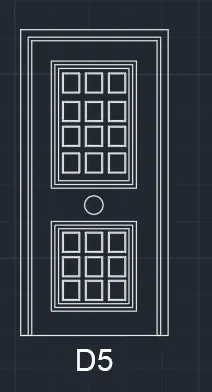
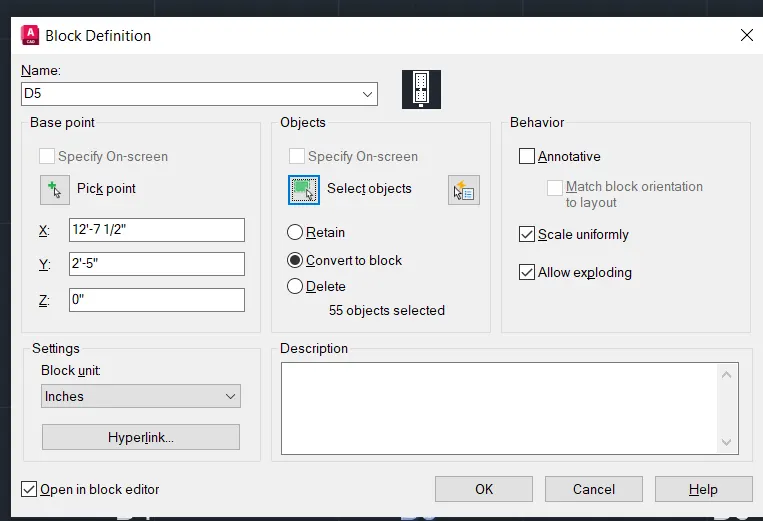
- Draw a rectangle with dimensions 6'11" and 3'4"
- Now offset the rectangle with different spaces and using rectangle command draw the door frames
- Convert it into block and name it as D5
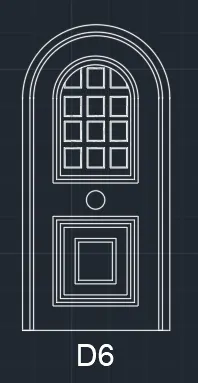
- Draw a rectangle with dimensions 6'11" and 3'4"
- Now offset the rectangle with different spaces and using rectangle command draw the door frames
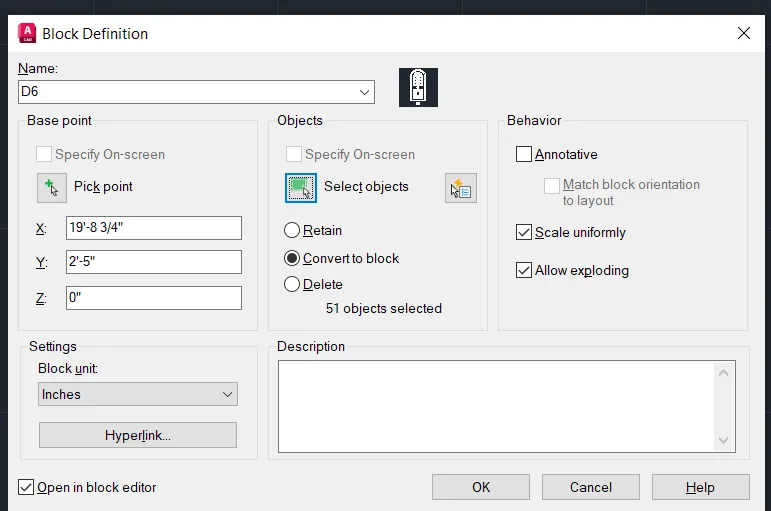
- Convert it into block and name it as D6
5.AIM:
To create each shape as given in the figure and save them as blocks and inserting them into a table
PROCEDURE:
- Initially set the dimensions as decimal Millimeters
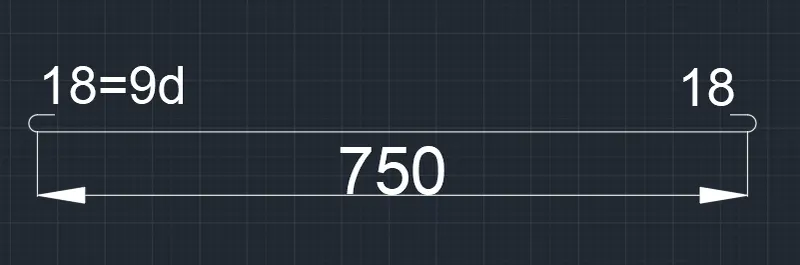
- Draw a line of 750mm
- Now draw a circle with 18 and draw two lines to it
- Trimoff the unwanted lines
- Place it on two edges of the line and add dimensions
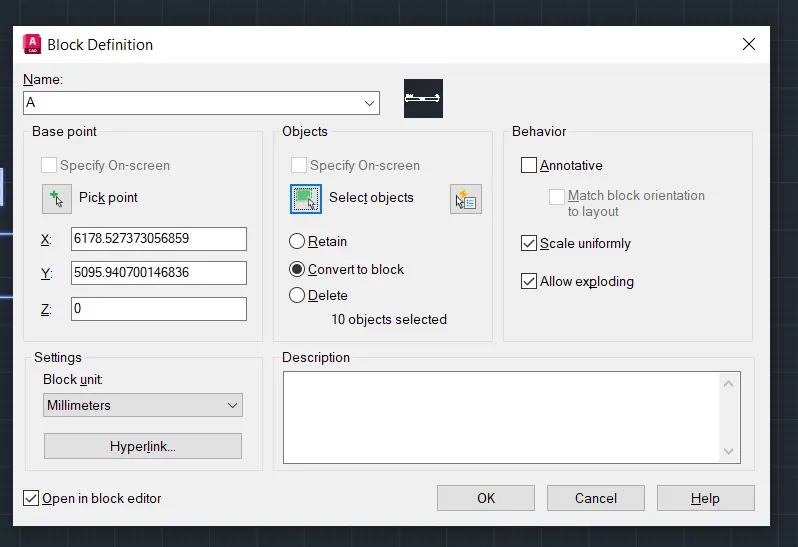
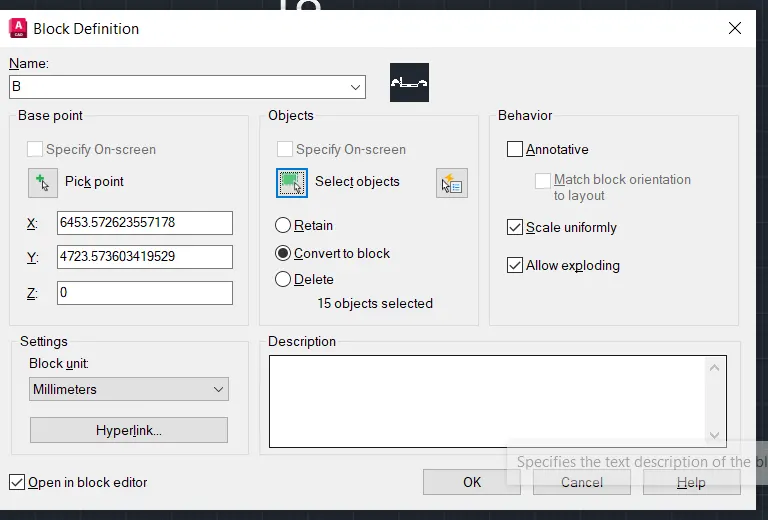
- Create a block and name it as A
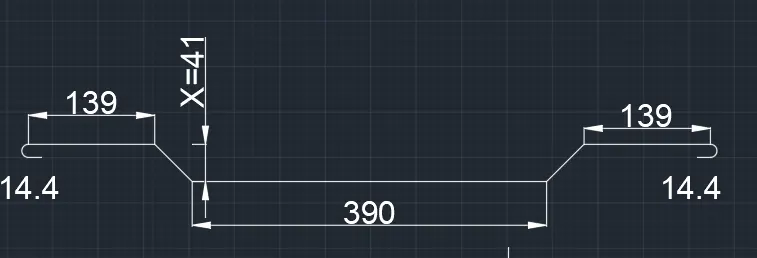
- Draw a line of 390mm and draw inlined line and draw a straight line of 139mm
- Now draw a circle with 14.4 and draw two lines to it
- Trimoff the unwanted lines
- Place it on two edges of the line and add dimensions
- Create a block and name it as B
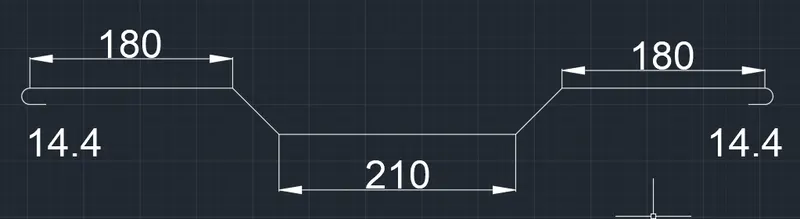
- Draw a line of 210mm and draw inlined line and draw a straight line of 180mm
- Now draw a circle with 14.4 and draw two lines to it
- Trimoff the unwanted lines
- Place it on two edges of the line and add dimensions
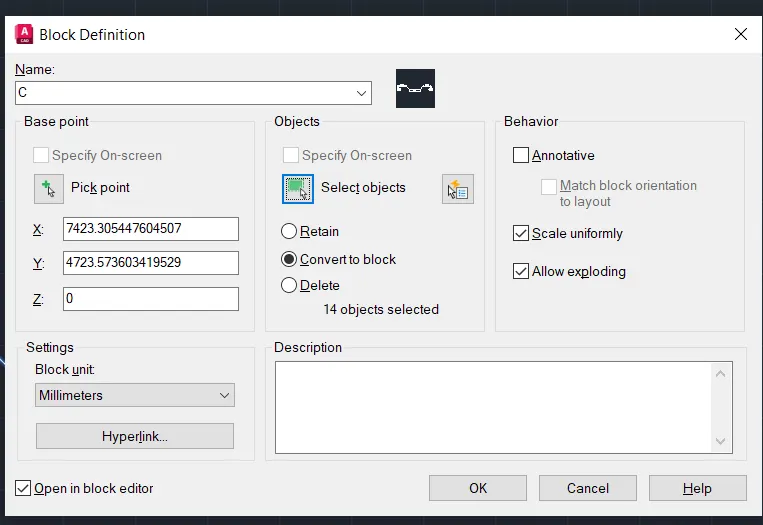
- Create a block and name it as C
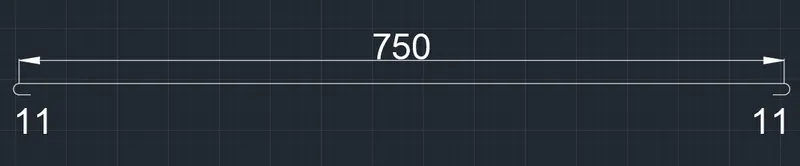
- Draw a line of 750mm
- Now draw a circle with 11 and draw two lines to it
- Trimoff the unwanted lines
- Place it on two edges of the line and add dimensions
- Create a block and name it as D
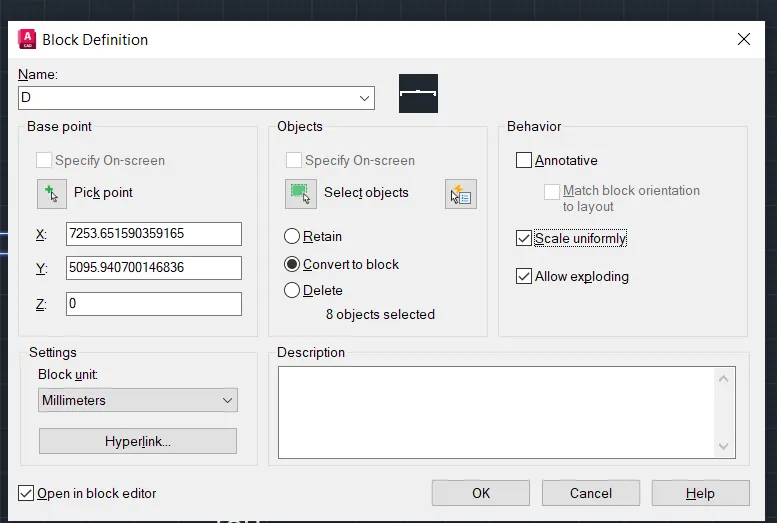
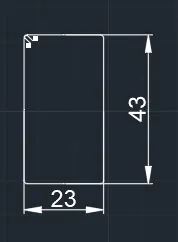
- Draw a rectangle of 23x43mm
- Fillet the all corners
- Draw a circle at top left corner and draw two lines to it
- Trimoff the unwnated lines
- Create a block and name it as E
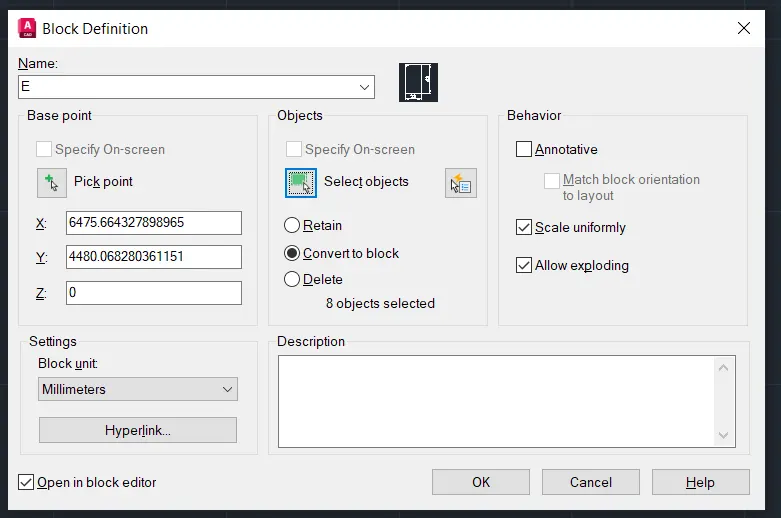
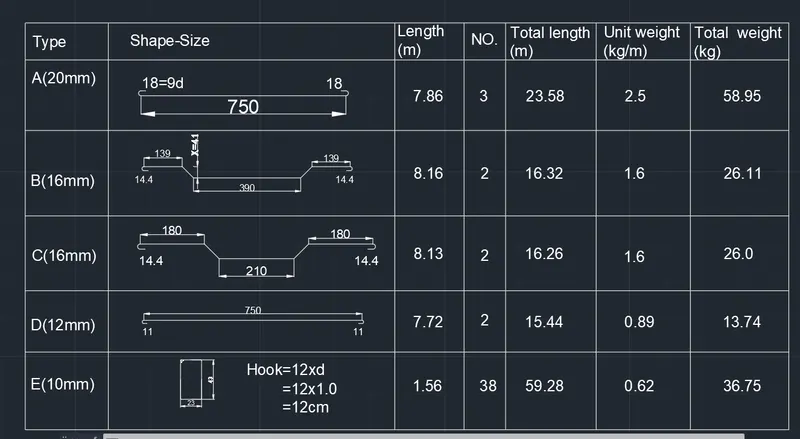
- Now using line command draw the table as shown in figure and insert the block items
- Add text and all the details
RESULT:
1.
2.
3.
4.
5.