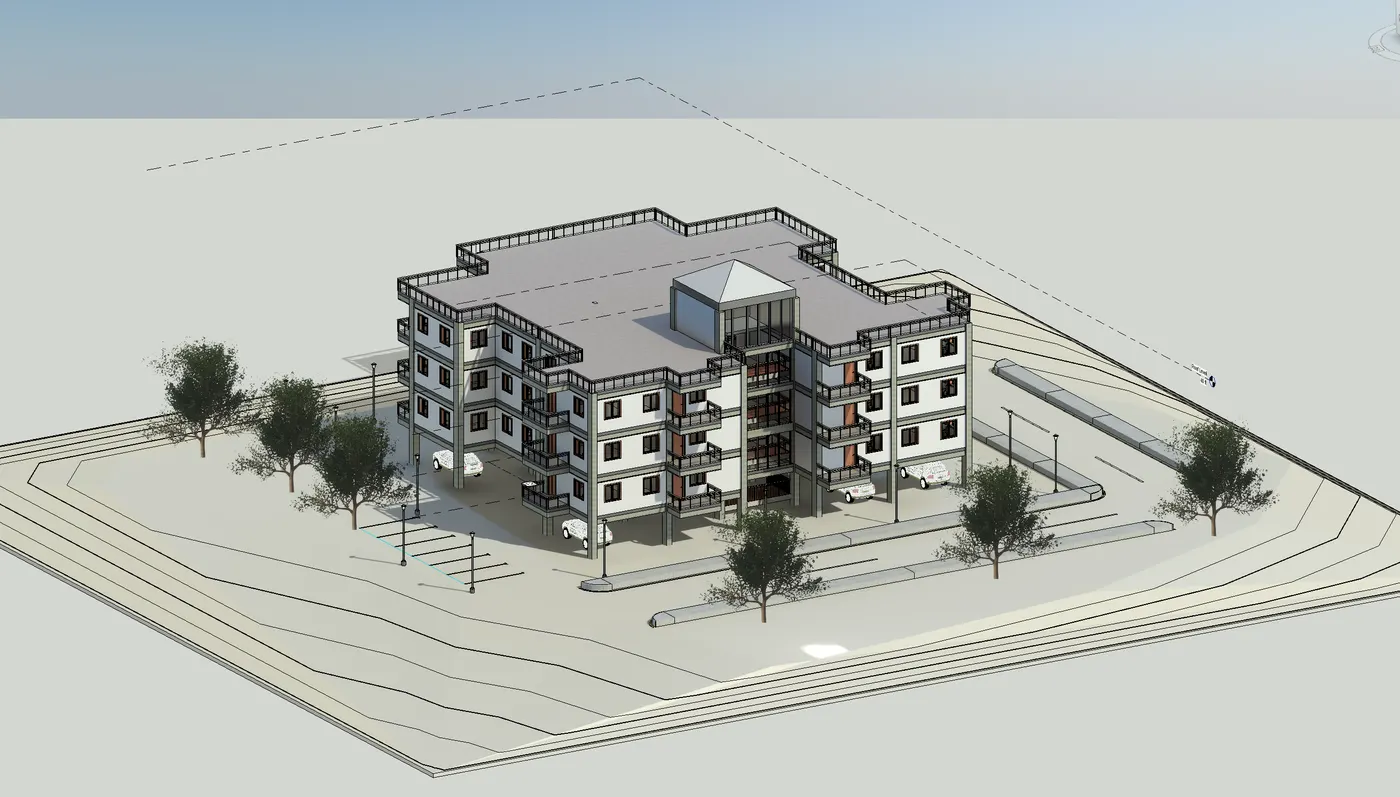
Creating Architectural and Structural model with 3D rendering using REVIT
1) Select the type of structure you want to build from one of the three below:
a. Multi-Unit Residential Apartment
b. Office Buildings
c. School
Ans- I want to build a Multi-Unit Residential Apartment
2) Assume reasonable assumptions for geographic and location details for your project modeling. Based on assumptions and type of structure selected identify the modeling requirements from NBC
Ans- From NBC (National Building Code)- 2005, To assume the geographic and location details for this project modeling. Based on assumptions and type of structure and based on the modelling requirements from NBC.
- The project is located in plane area
- The building is located and comes under Residential category.
- Road width is 50 ft
- Project height is 40 ft
- The height, area limitations and safety measure are followed as per NBC rules.
- The height of building should not exceed 1.5 times width of the road.
3) Using the structural model, include the following components based on the type of structure selected
a. Foundation – Isolated / Wall/Matt Foundation
b. Columns
c. Beams Connected to Columns
d. Roof Framing/ Truss
e. Floor / Decks
f. Floor Openings for Elevators and Stairs
Ans-
AIM- Using the structural model and to include the following components based on the type of structure.
PROCEDURE-
- Open a New project and select architectural template in Revit software
- Save as Residential project challenge (arch)
- Draw the grid lines from the specified coordinates 0'0" for both horizontal and vertical.
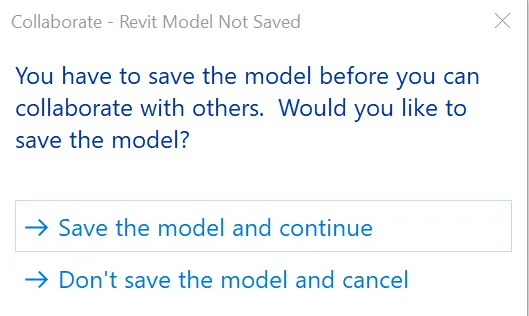
- Click on collaborate and save the project.

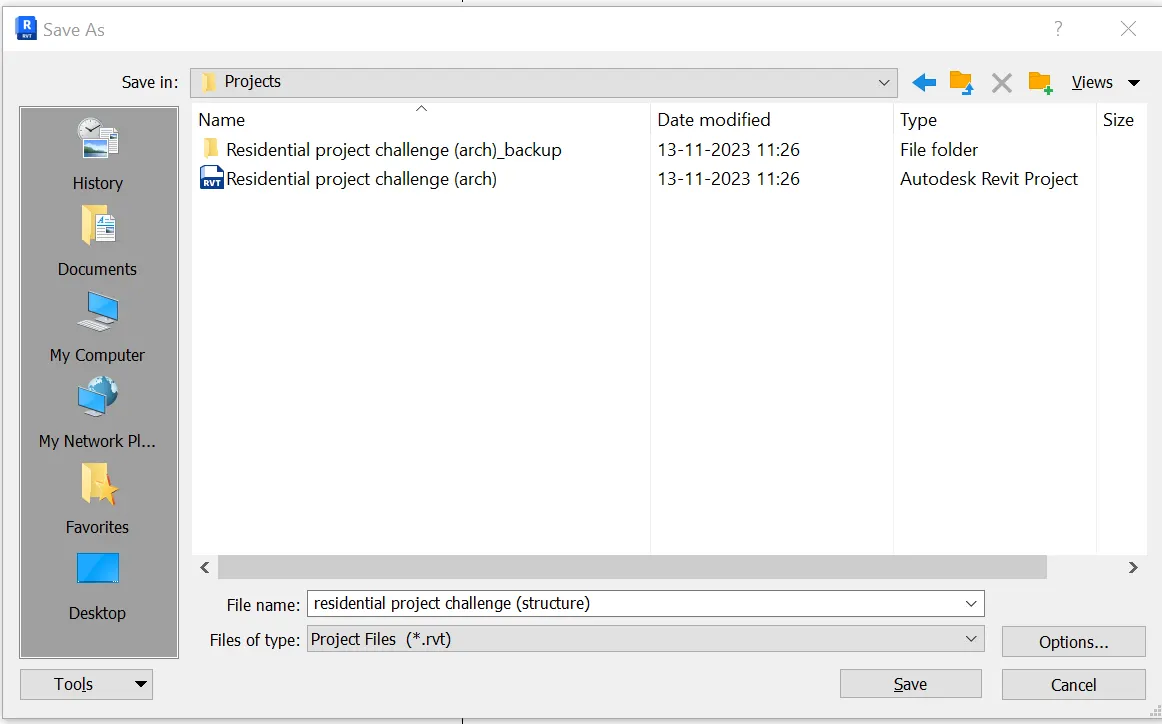
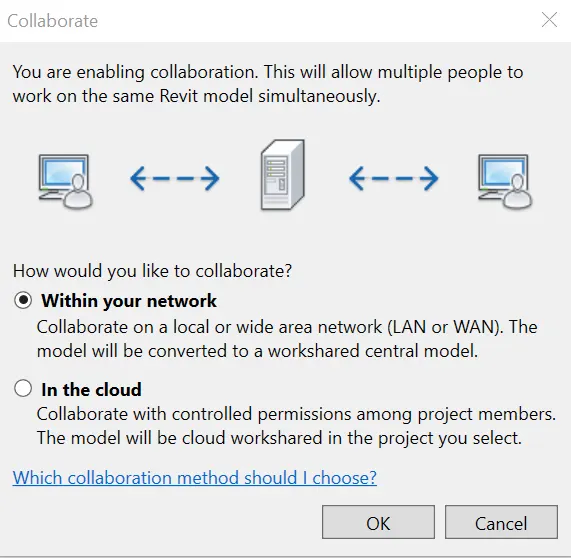
- Now Open a new structural template and save as residential project challenge (structure)
- Repeat the steps to collaborate and save the file.
- Create a new architectural template and add the architectural and structural links using manage the links options.
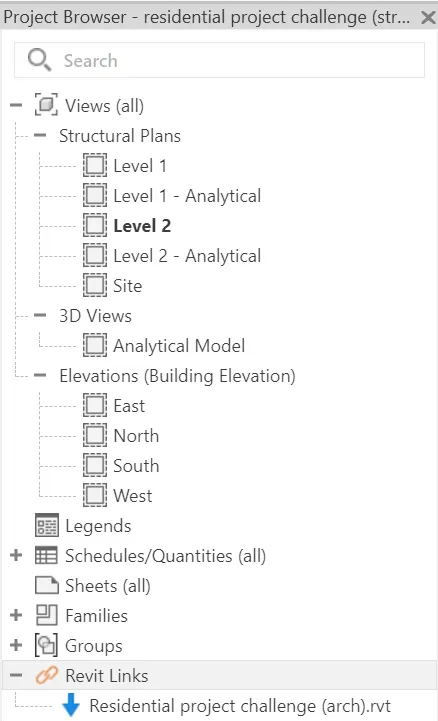
- Select the acquired coordinates and set links to the current coordinates.
- Now start drawing the structural components of the project in structural template.
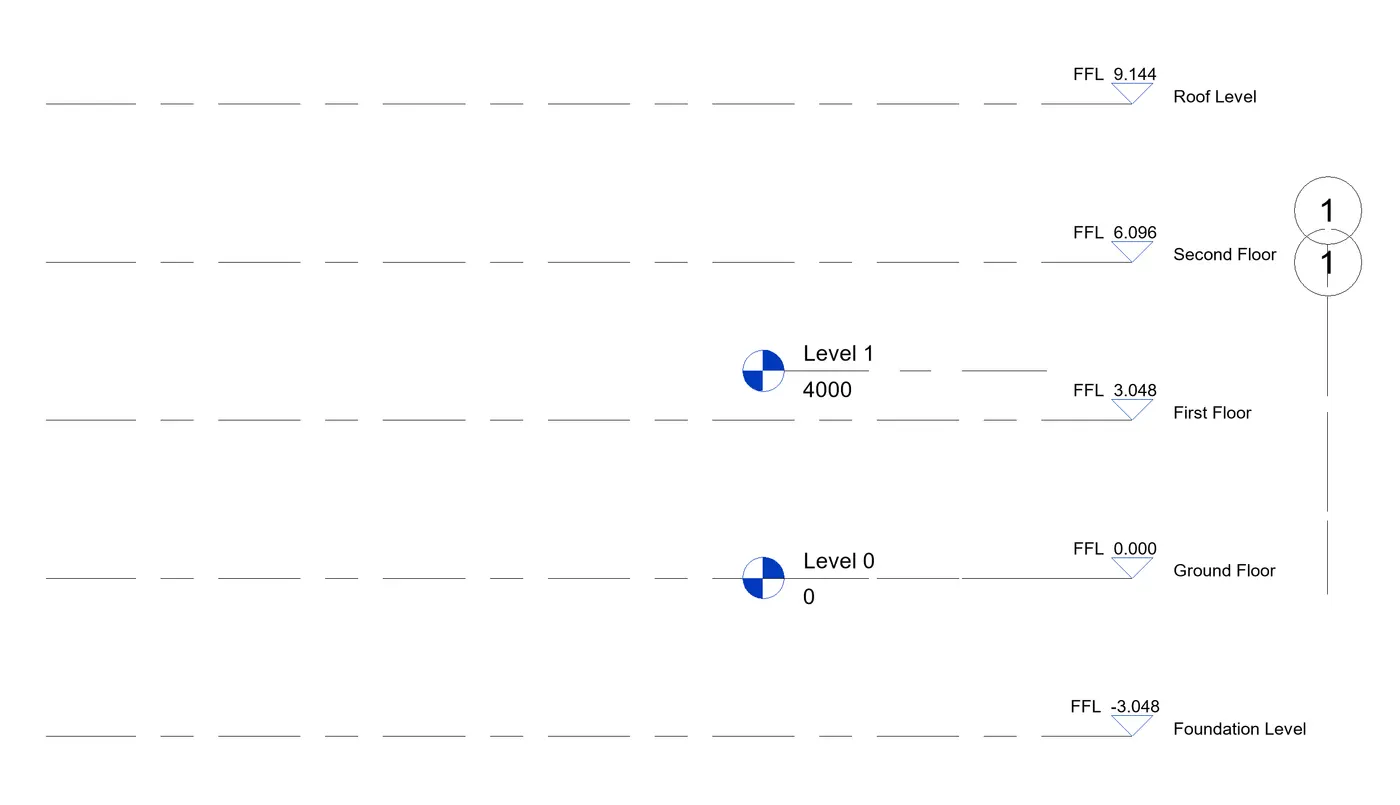
- Draw the vertical and horizontal grid lines and also set the levels. Foundation level, ground floor, first floor, second floor and roof levels are created.
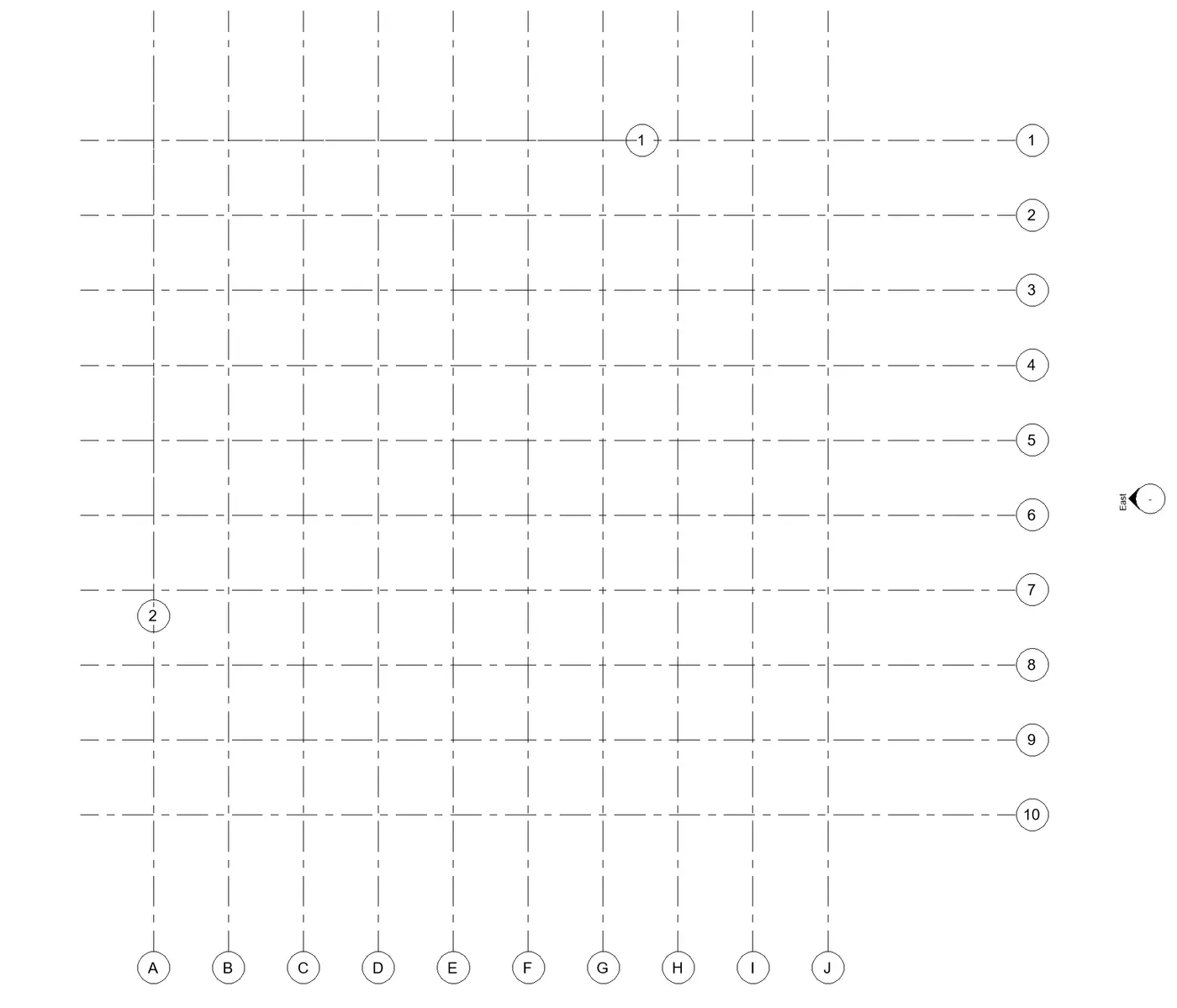
- Select columns option from the structure tab and draw the columns intersection points of the grids.
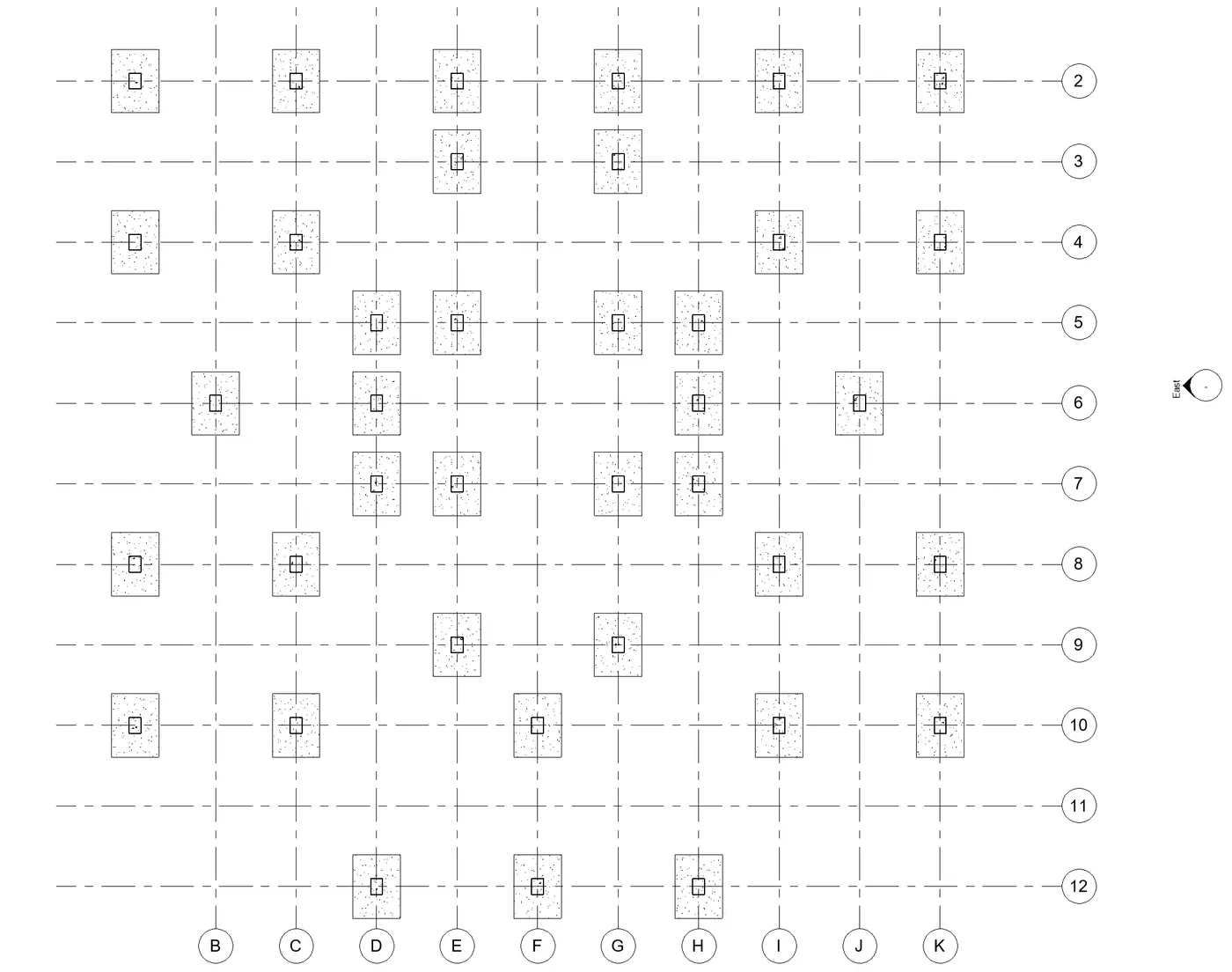
Foundation Level (Isolated Footing)
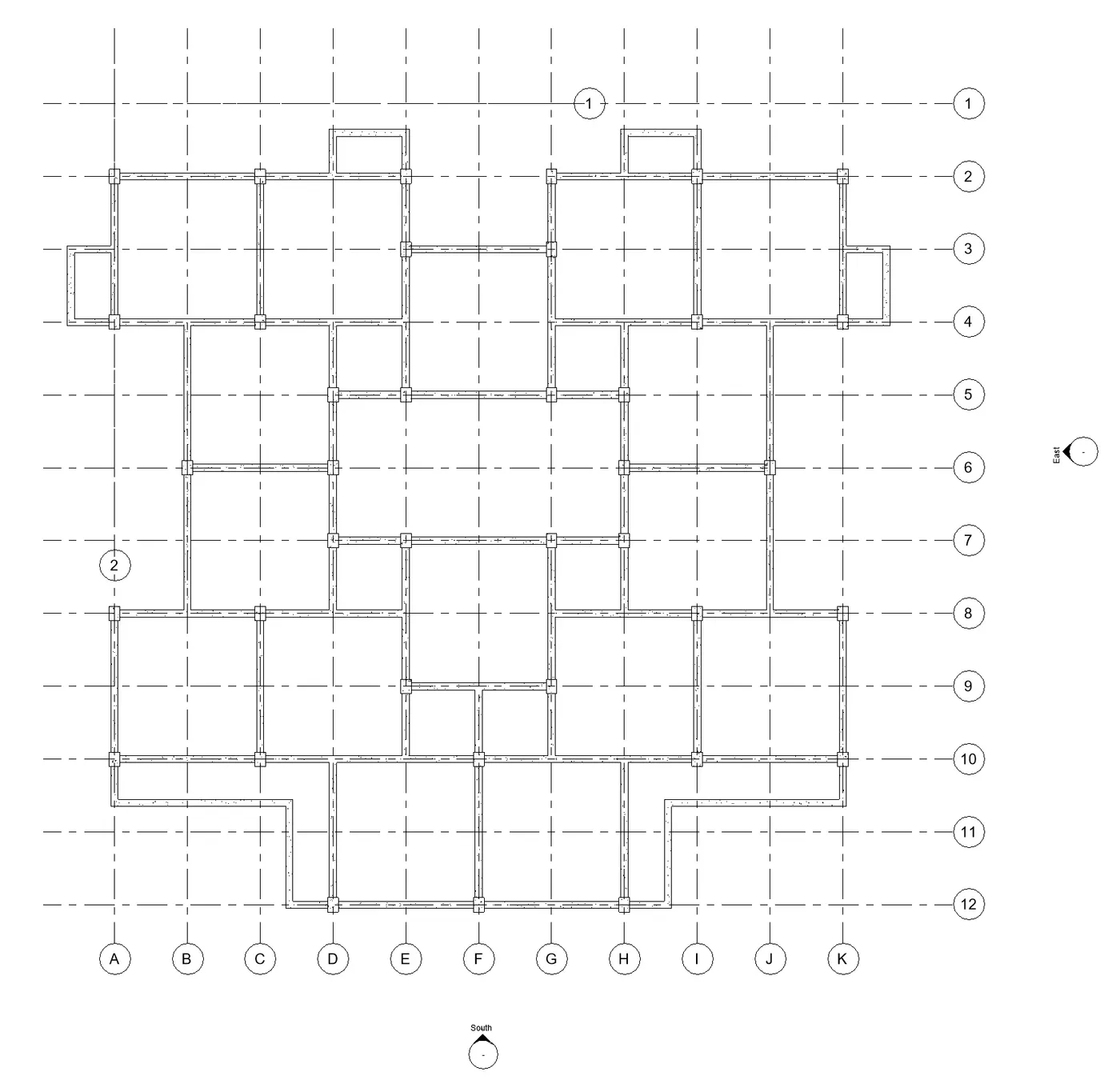
Ground Floor view (Beams and Columns)
3D
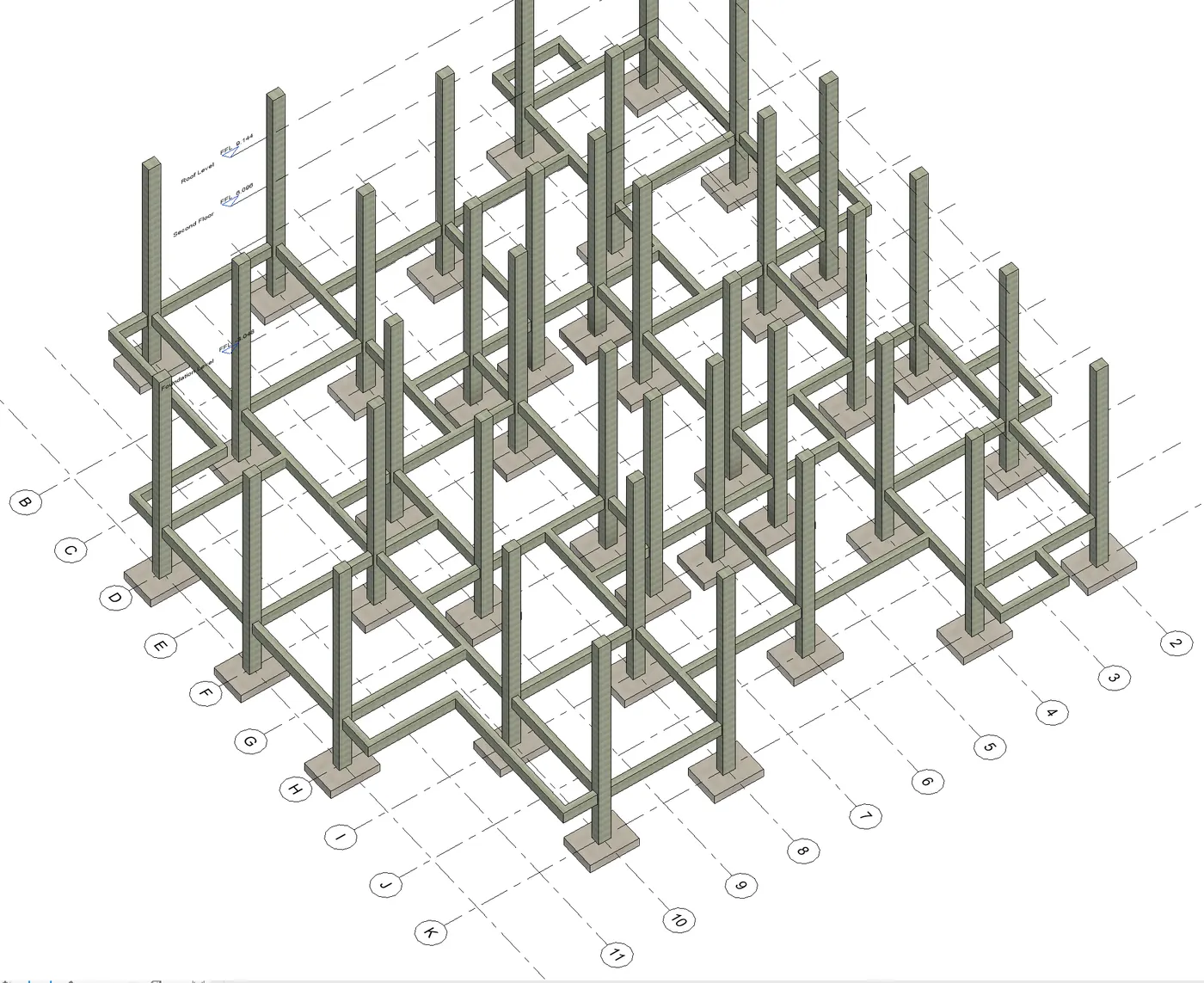
- Repeat the same process, draw the structural components like foundation,beams, floor, and copy to all floors. Then, save the project to the central file.
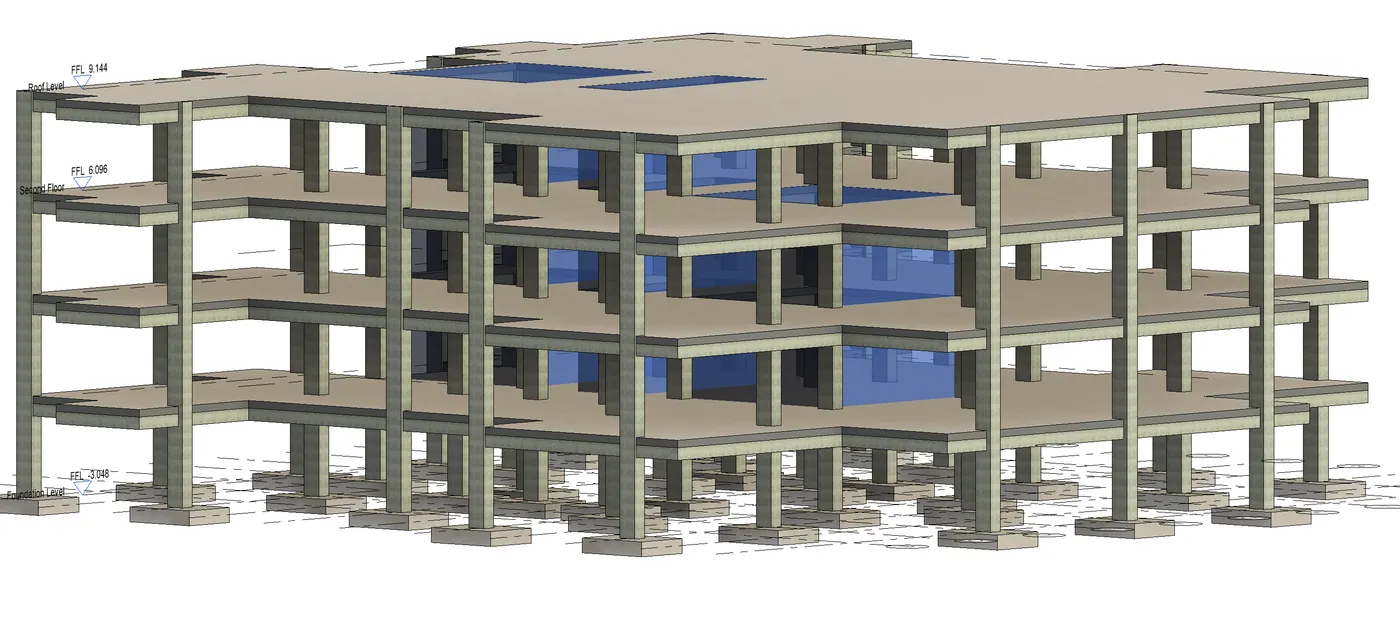
- Now, provide floors and floor openings for lift and staircase using shaft
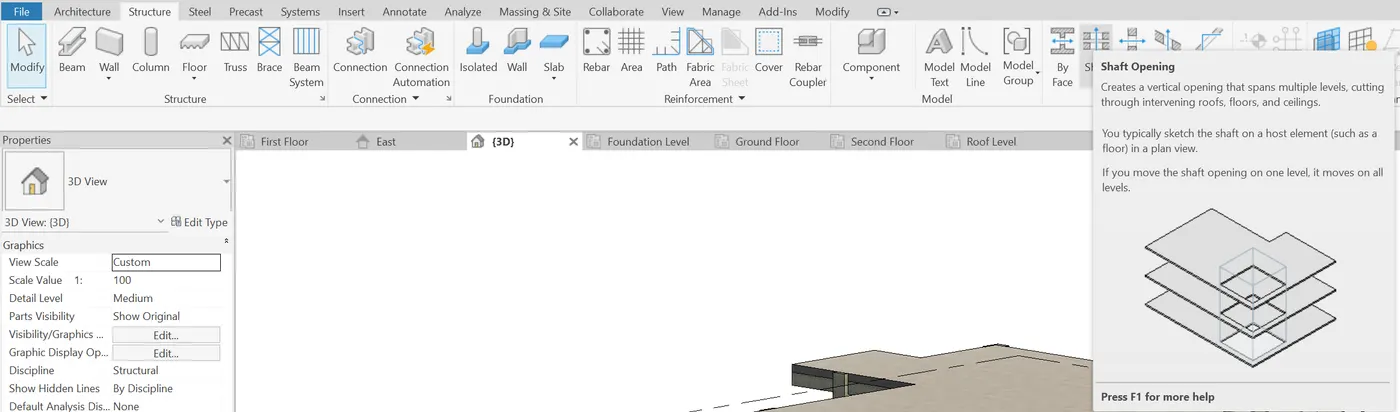
- Applying shaft to the project model.For lift the levels are from ground floor to second floor. For staircase the levels are from ground floor to roof level.
Shaft Opening for stairs and lifts
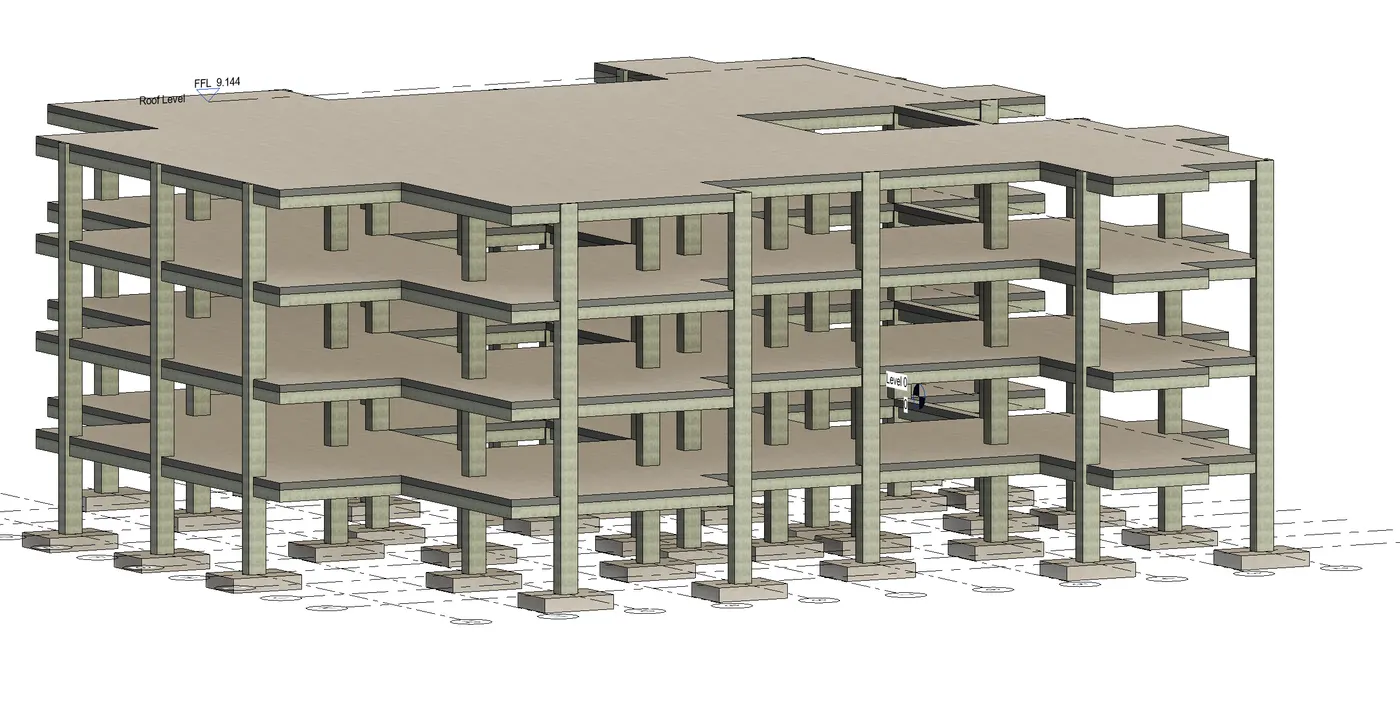
Roof Framing
- For roof framing the project. Go to roof under architecure tab
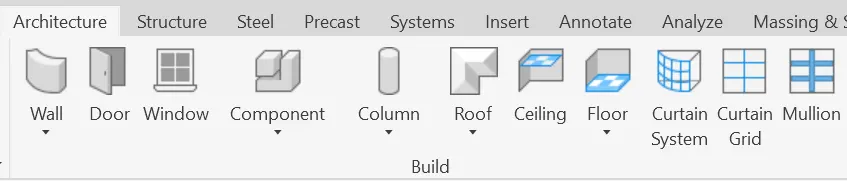
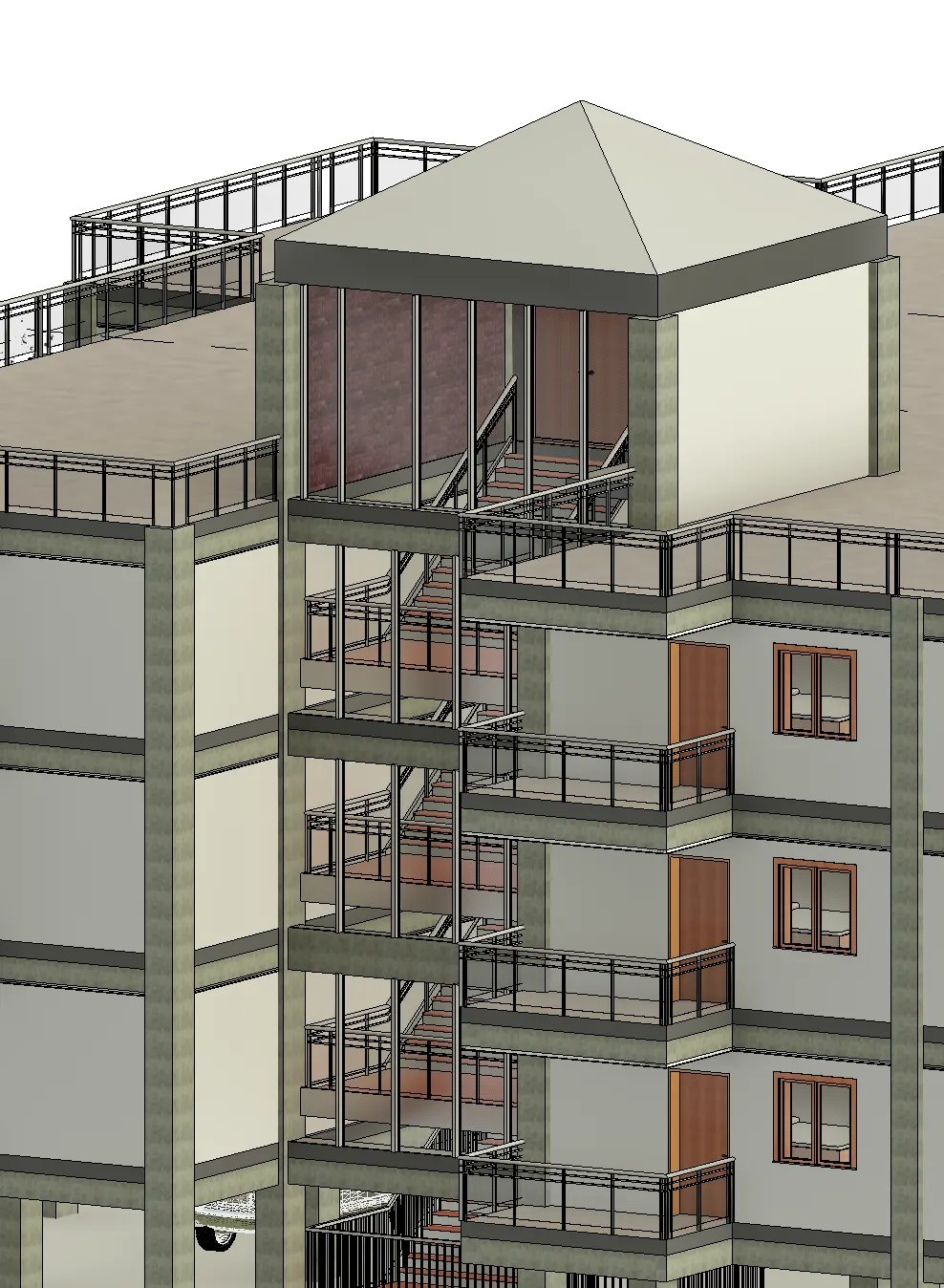
- Create roof by clicking the boundary on the roof level. Slight changes were made in the structural template file. Like Columns are extended till the roof level. Shaft opening height was modified as per the project requirement.
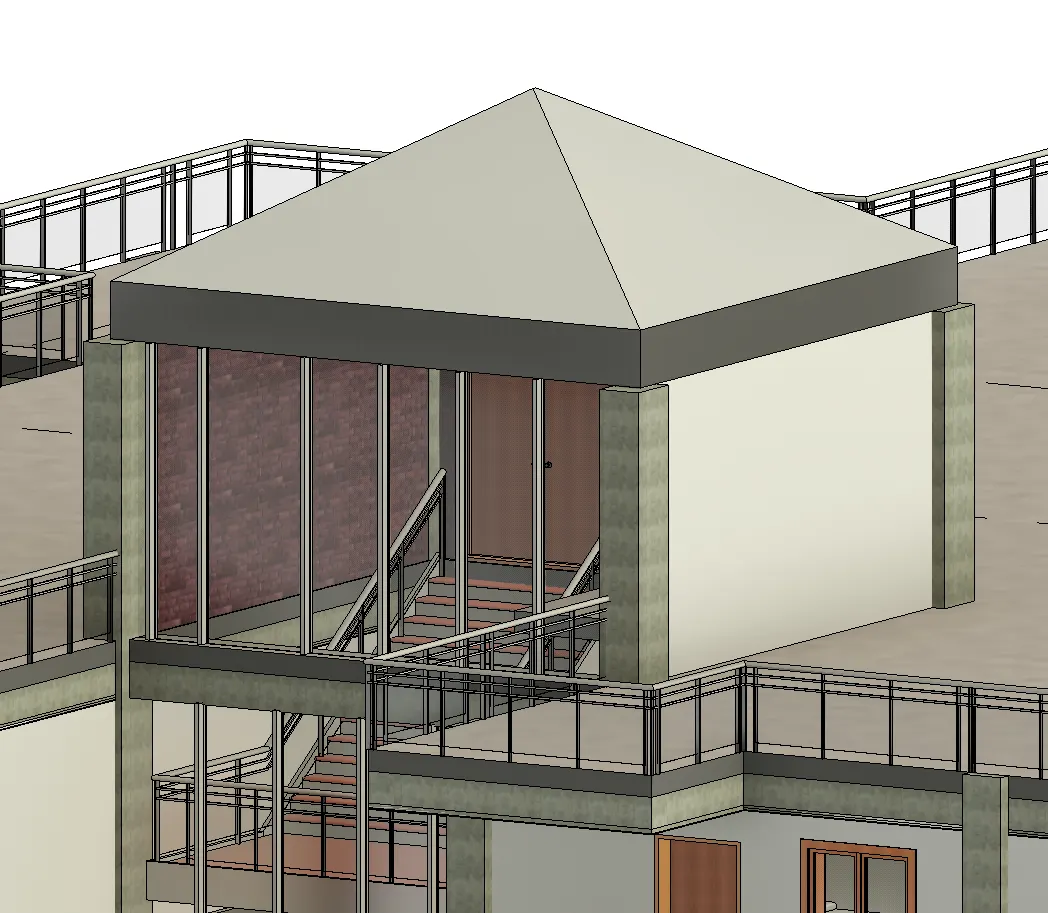
RESULT- We have created the foundation, beams, columns, roof framing and shaft openings for lifts and staircase.
4) Using the architectural model, include the following components based on the type of structure selected
a. Wall Layout with appropriate material and finishing
b. Exterior façade with fancy finish
c. Interior partition walls to size rooms
d. Components to add details to a room (Desk, Chair, Lighting, Plumbing fixtures)
e. Add components such as stairs Elevators
f. Have at-least one side of the building with curtain walls and glass panels
g. Include interior and exterior lighting fixtures
h. Place proper topographic components from outside ( Trees, Parking, Plants) to add details to the model
Ans-
AIM- Using the architectural model and to include the following components based on the type of structure.
- Wall Layout with appropriate material and finishing
- Exterior façade with fancy finish
- Interior partition walls to size rooms
- Components to add details to a room (Desk, Chair, Lighting, Plumbing fixtures)
- Add components such as stairs elevators
- Have at least one side of the building with curtain walls and glass panels
- Include interior and exterior lighting fixtures
- Place proper topographic components from outside (Trees, Parking, Plants) to add details to the model
PROCEDURE-
- To work on architectural template. Open architectural template file saved before.
- Now, link the structural file we worked on before using Revit link.
- After linking, go to architectural tab. Click on walls
- Go to ground floor, choose wall Wall-int 12P for internal walls. Apply them as per plan
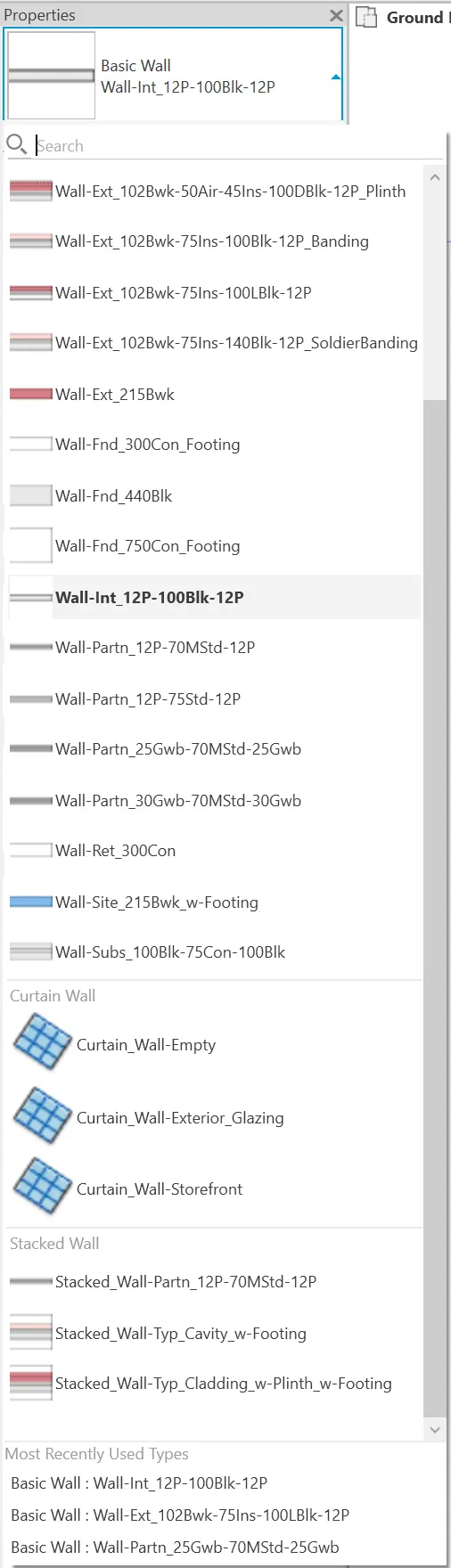
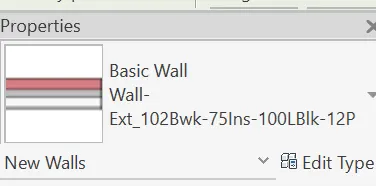
- Choose Wall Ext_102 Bwk for external walls with height of 10ft. Apply them on the periferral parts and also as per plan.
- After applying walls as per the plan
GROUND BEAM LAYOUT PLAN
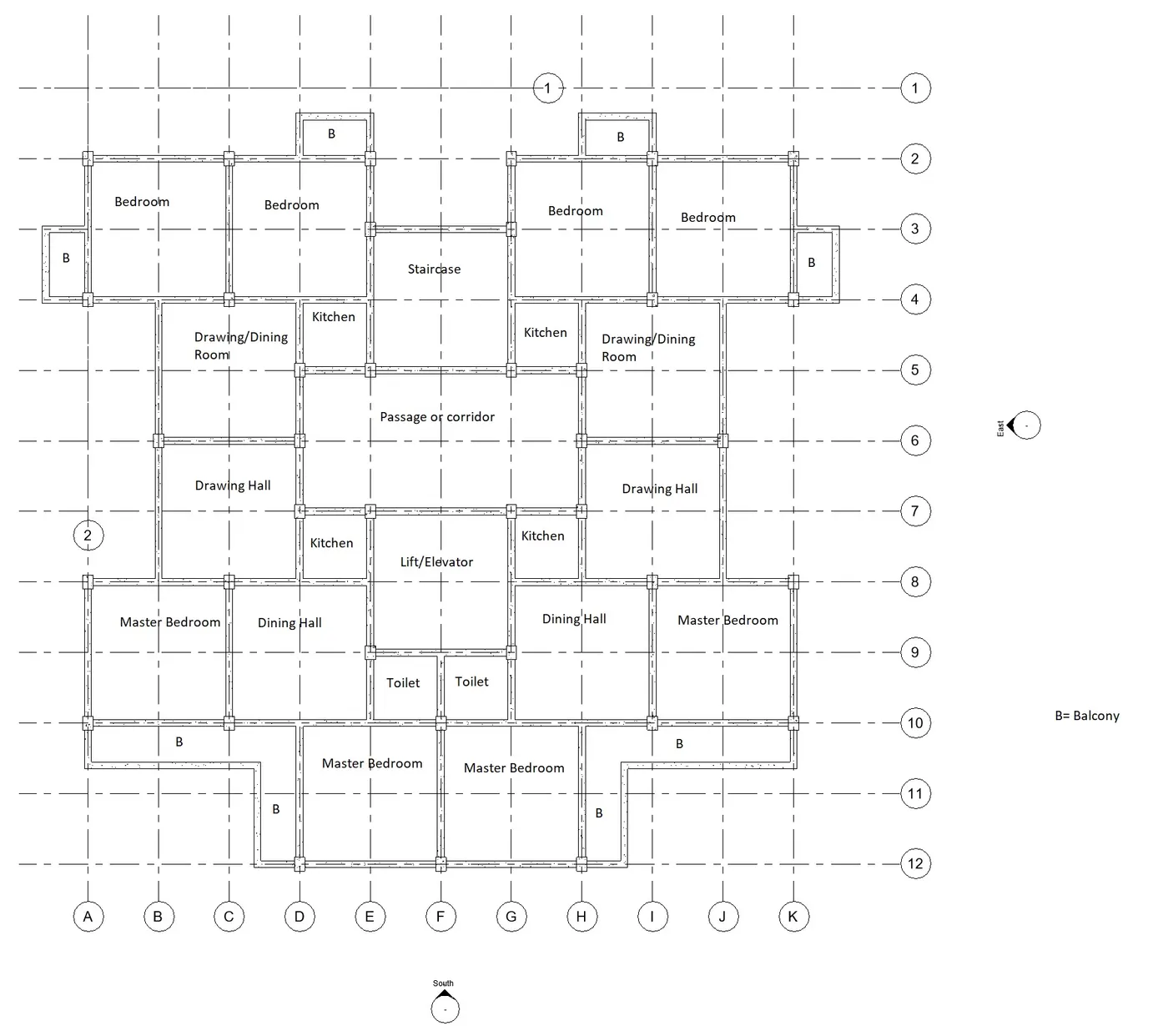
- In balcony, the beams are cantilever.
Wall Layout without any material and finishing
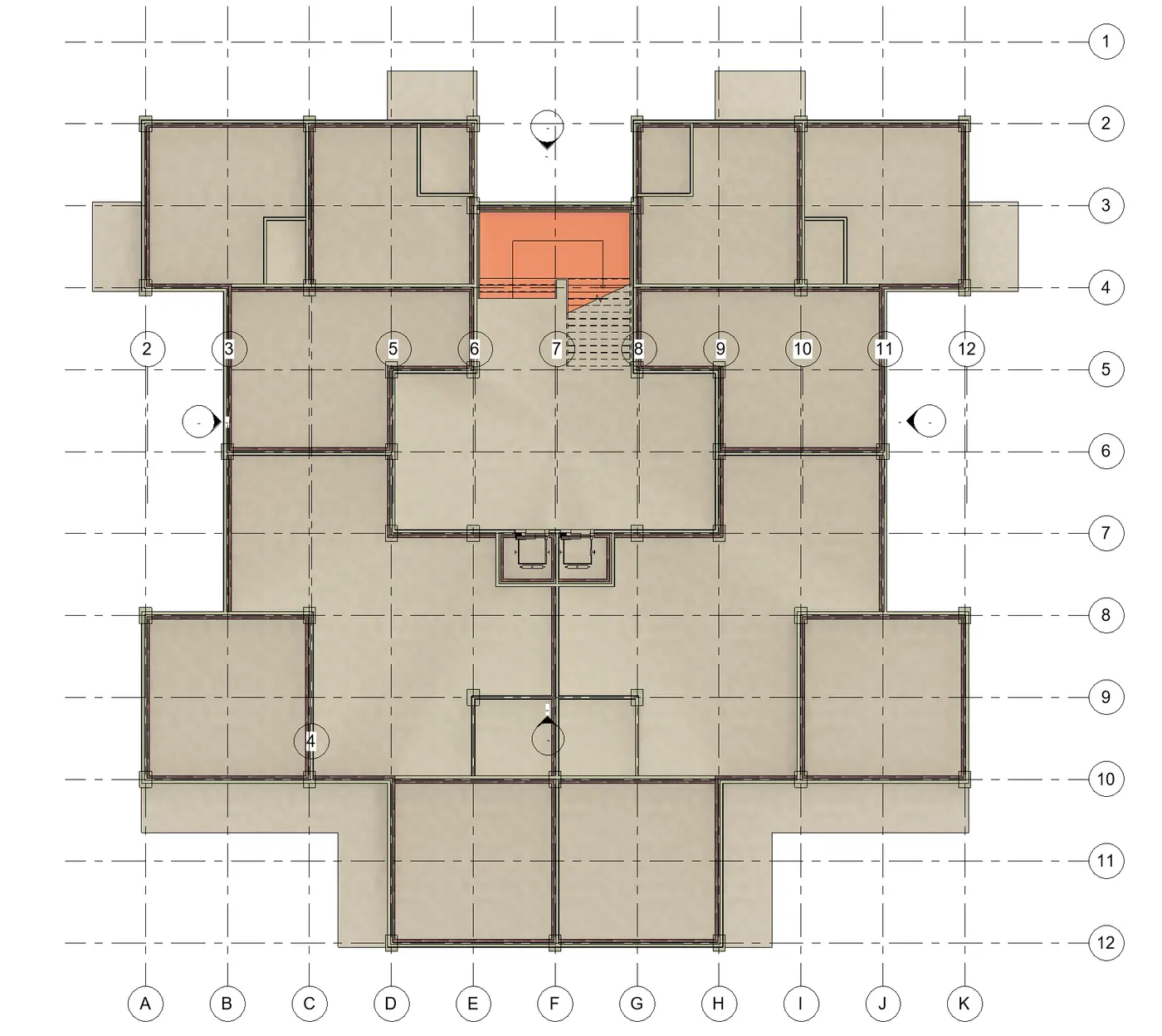
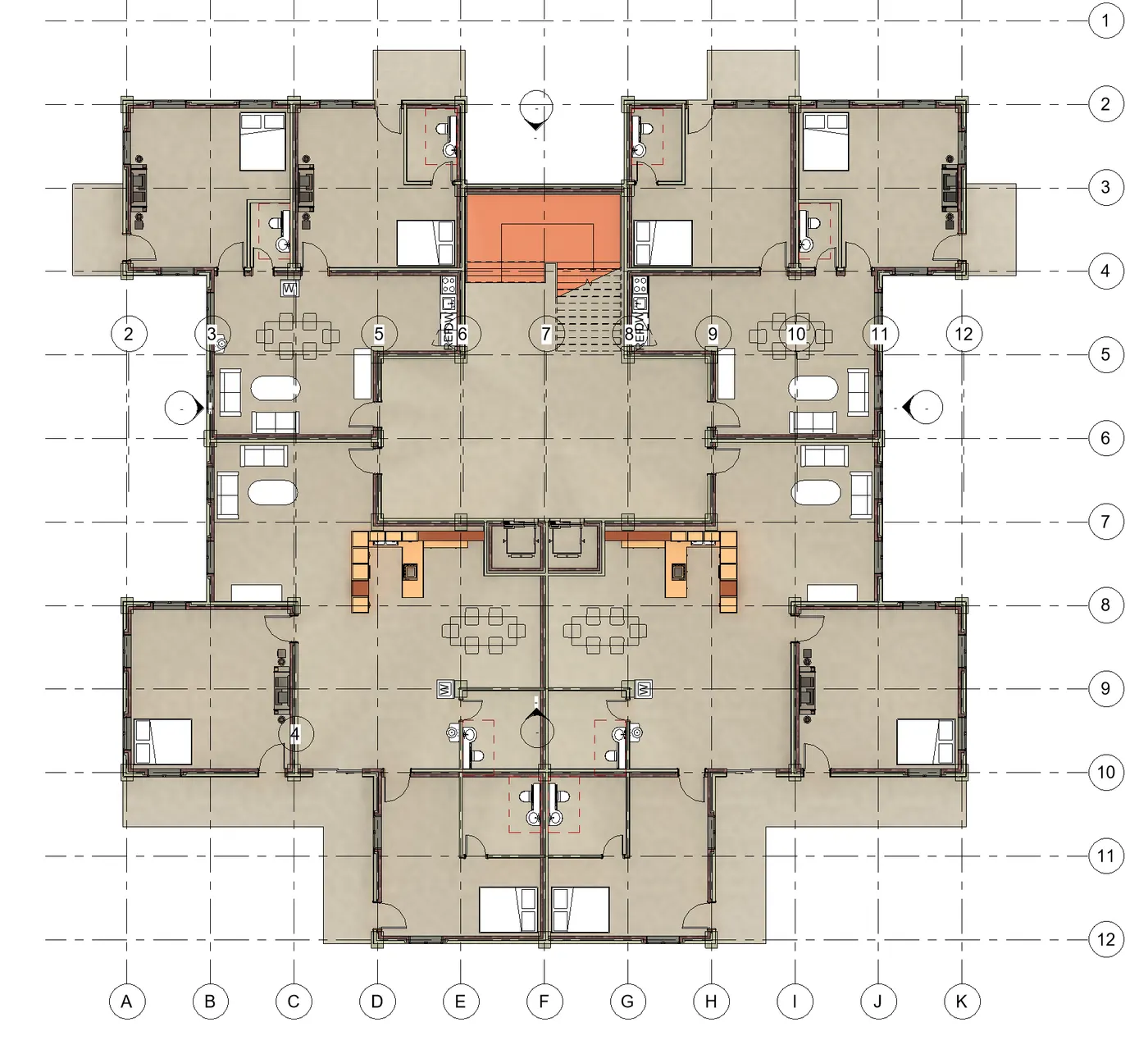
- Now we apply materials and finishes to the rooms and walls respectively. And copying to first and second floor level
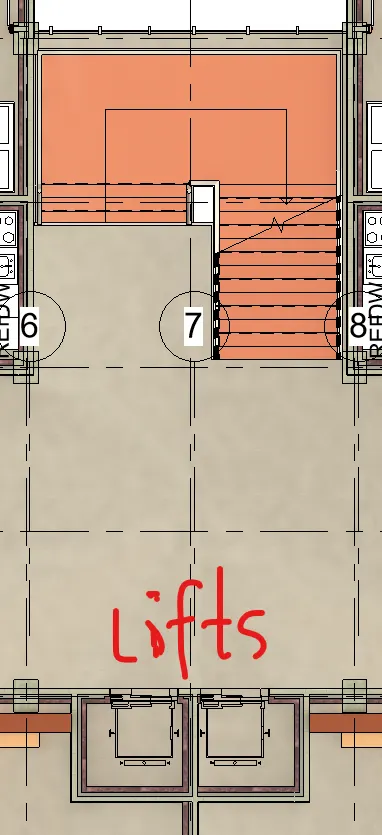
- Stairs and Lifts are added
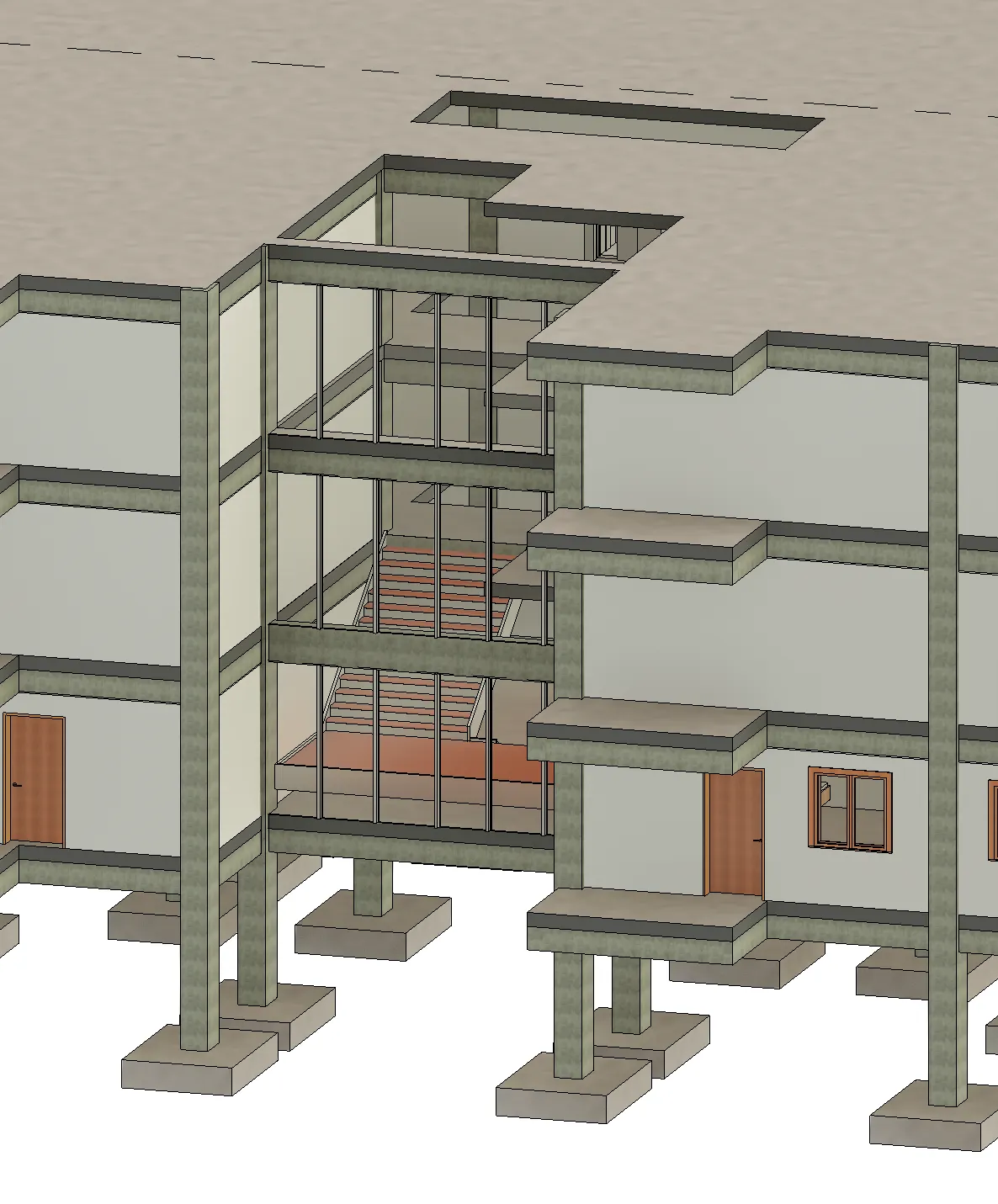
- one part is curtain wall and glass panels
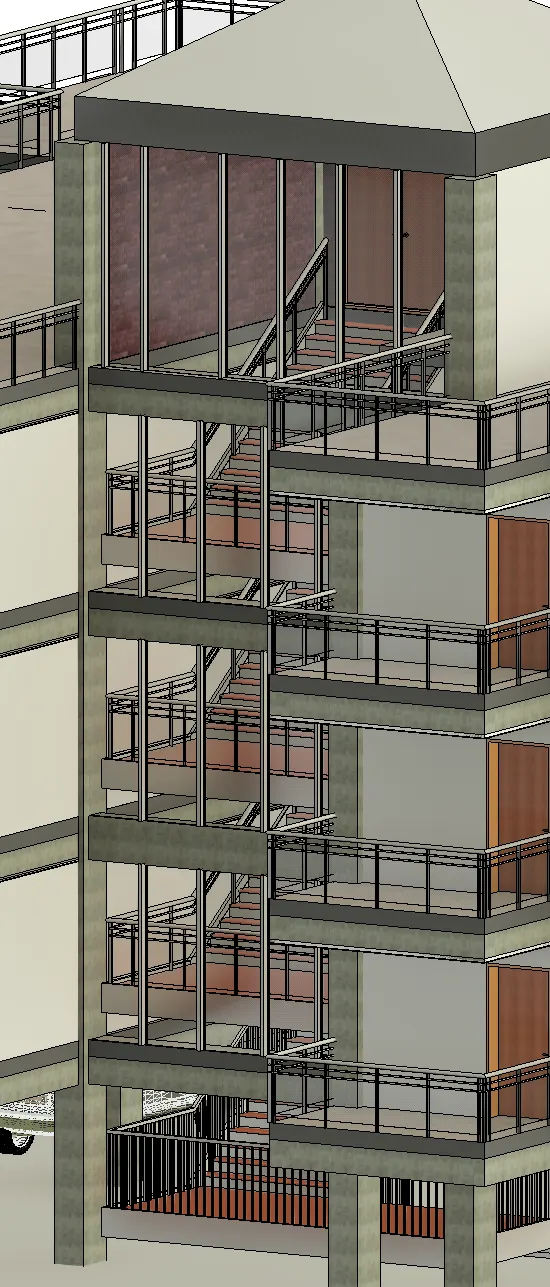
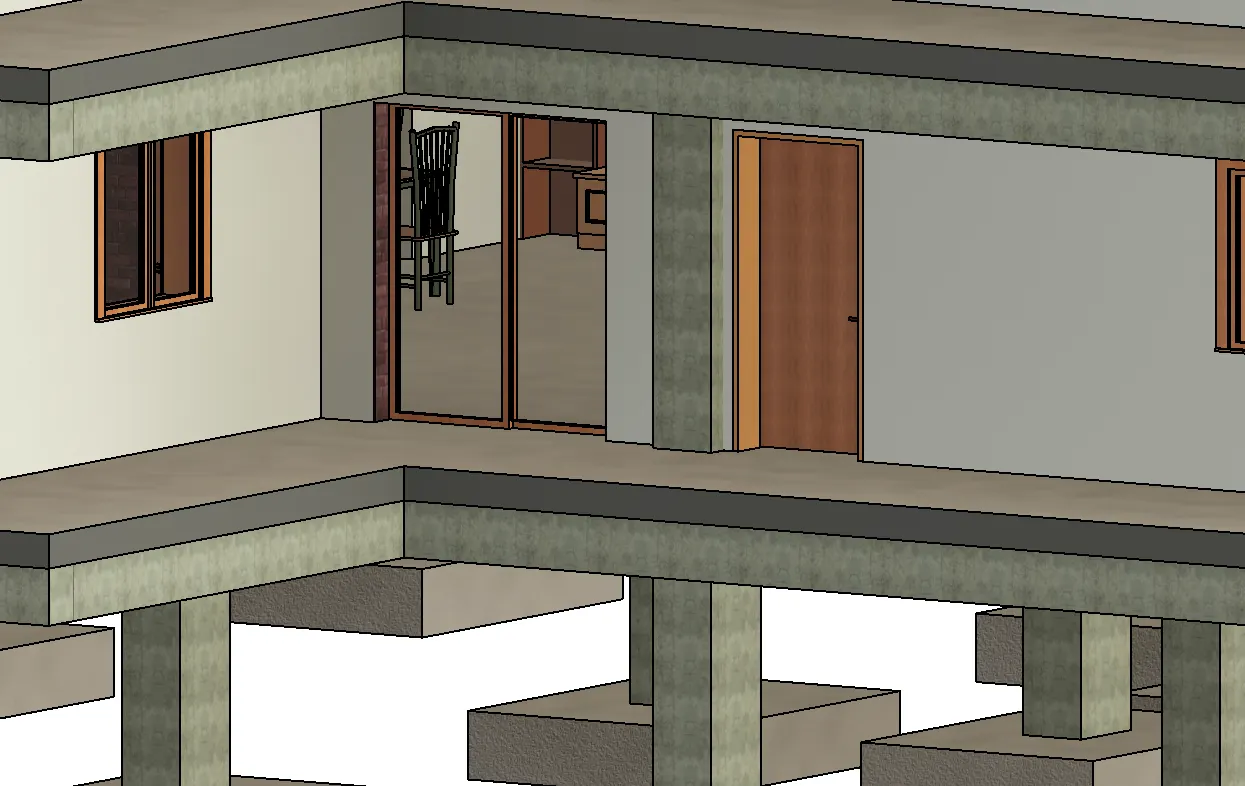
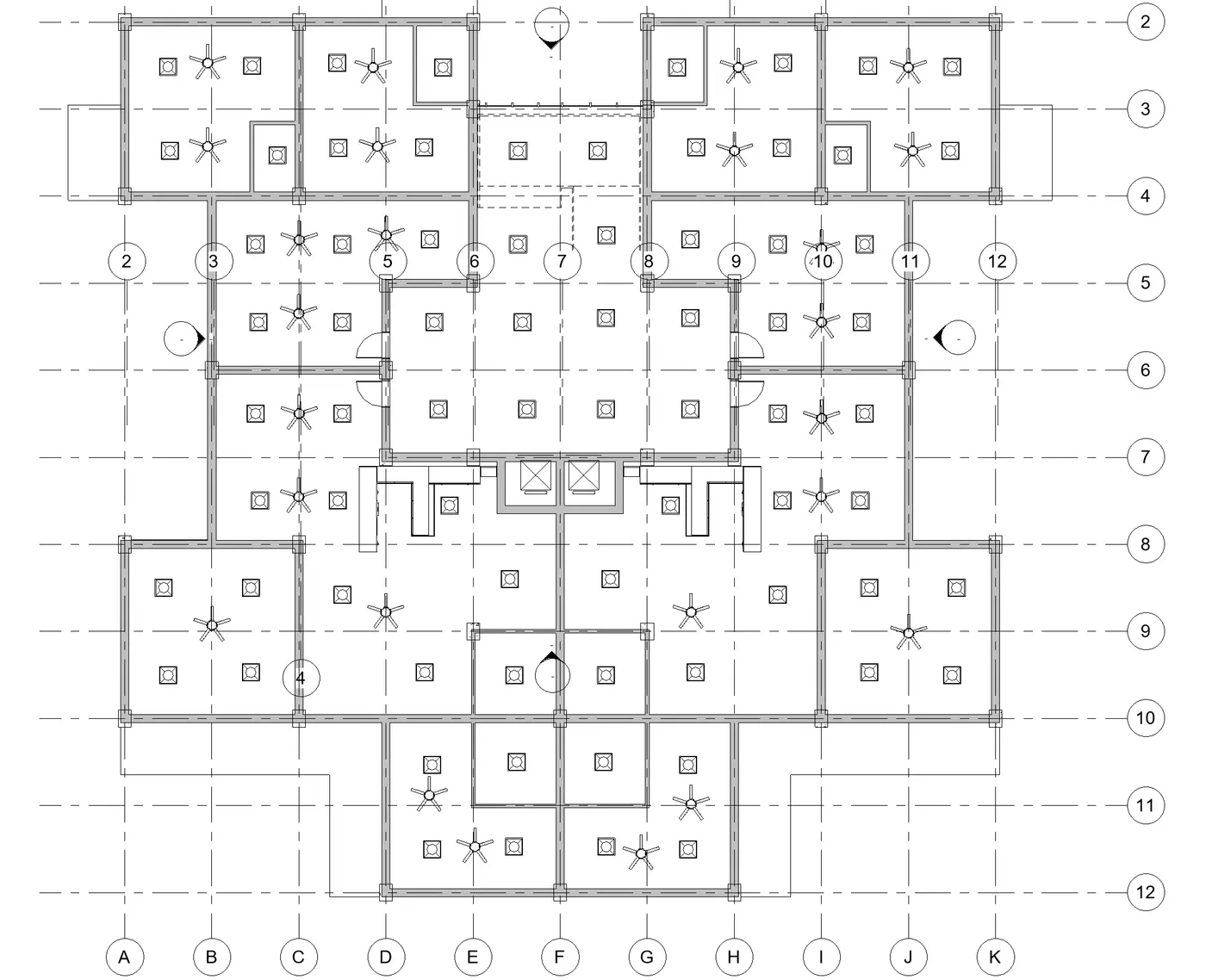
- Including interior and exterior lighting fixtures and copying to first and second floor levels.
- To place proper topographic components outside to add details to the model (Trees, Parking, Plants)
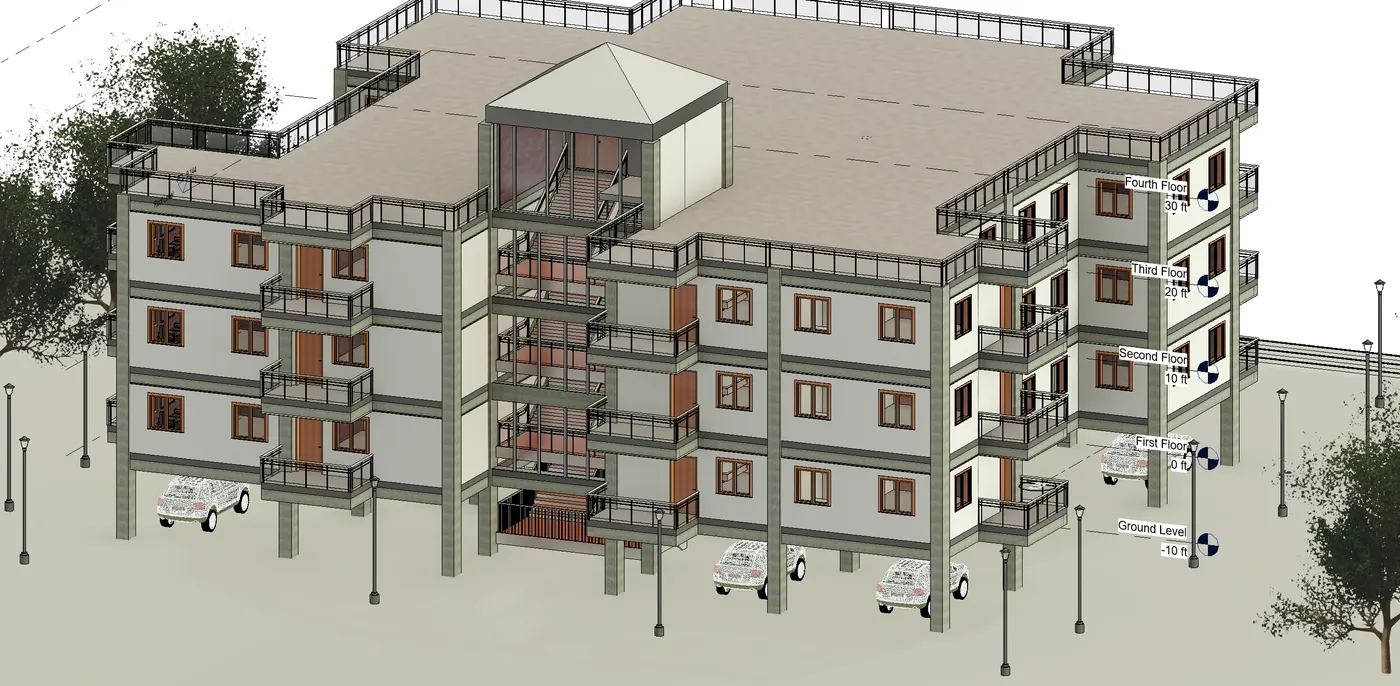
- Parking is provided in ground floor. As shown above including trees.
RESULT- Hence, all the components as asked are created.
5) Provide a set of drawings in an architectural and structural model to list the following details with categories and appropriate sheet templates included
a. Floor Plans with Annotations
b. Elevations
c. Sections
Ans-
AIM- To provide a set of drawings in an architectural and structural model to list the following details with categories and appropriate sheet templates included
- Floor plans with annotations
- Elevations
- Sections
PROCEDURE-
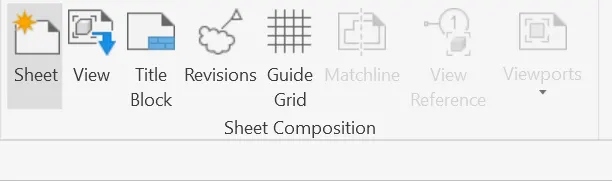
- Go to view tab. Choose sheet icon under sheet composition and click on sheet

- Choose paper size A0 metric and press OK.
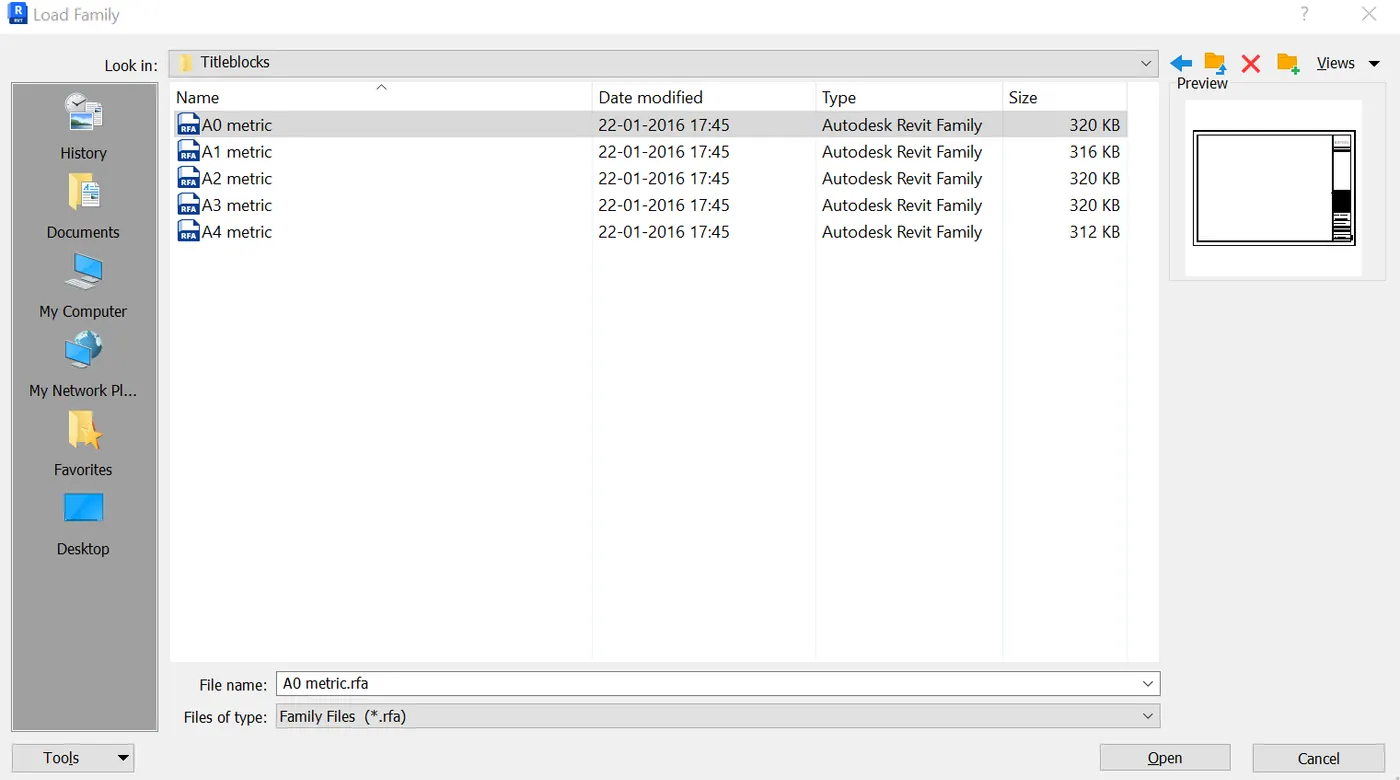
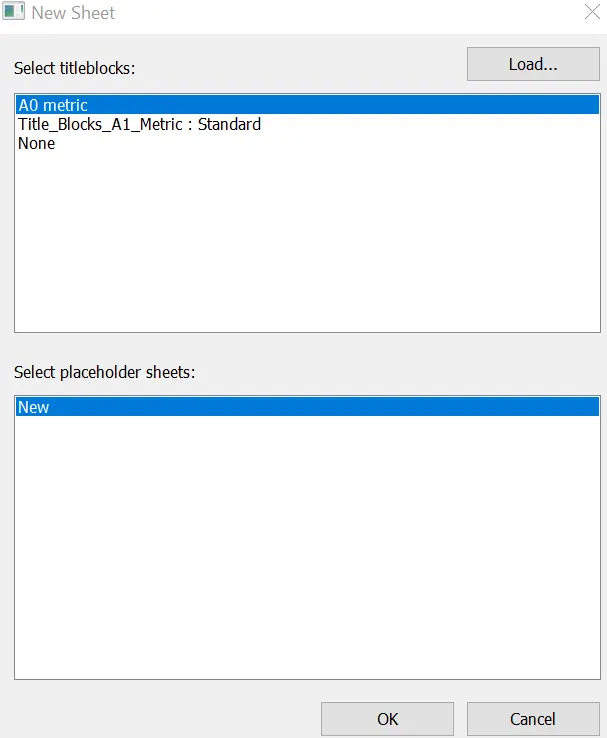
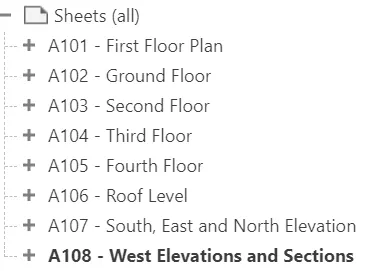
- Sheet will be then created as shown
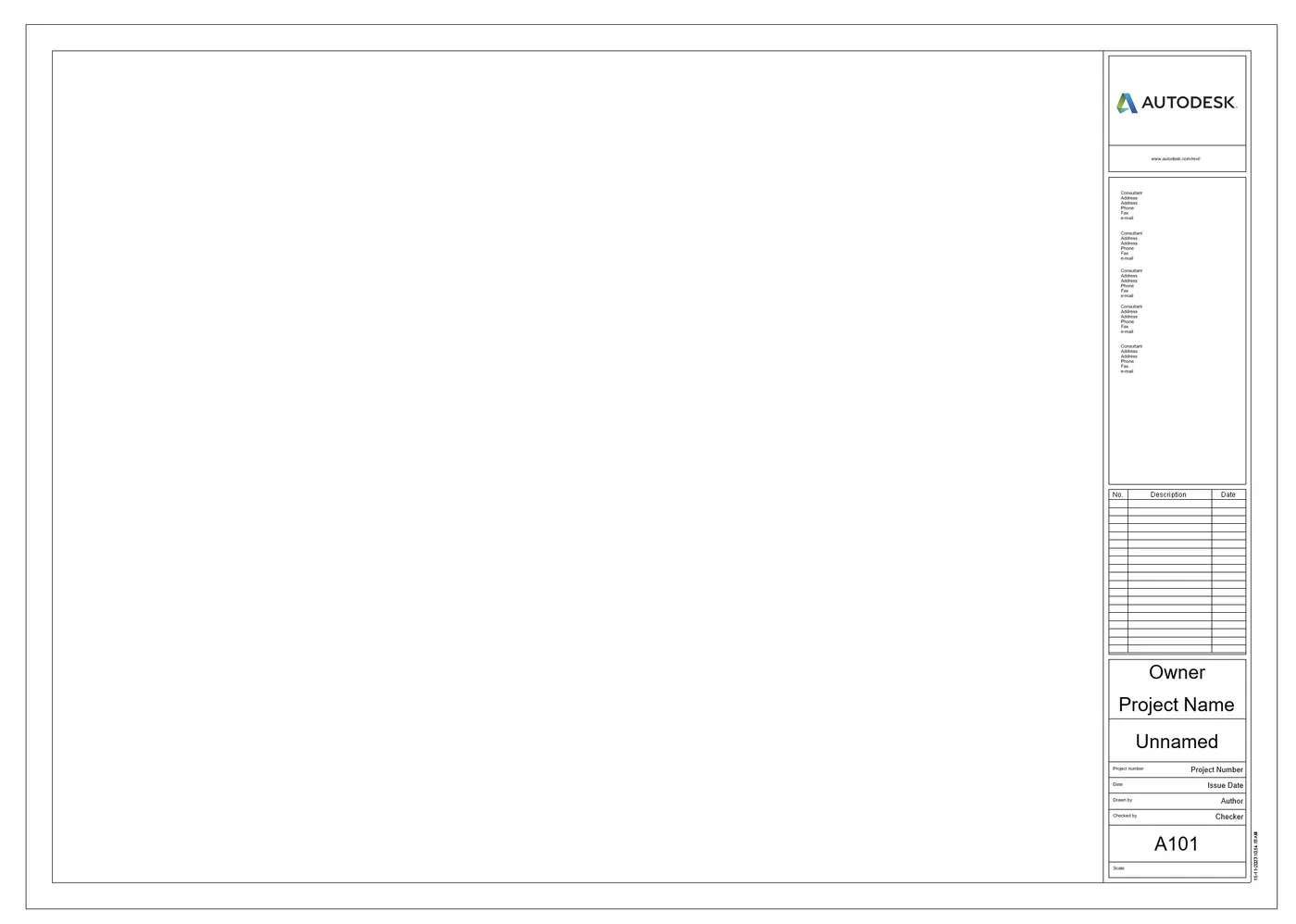
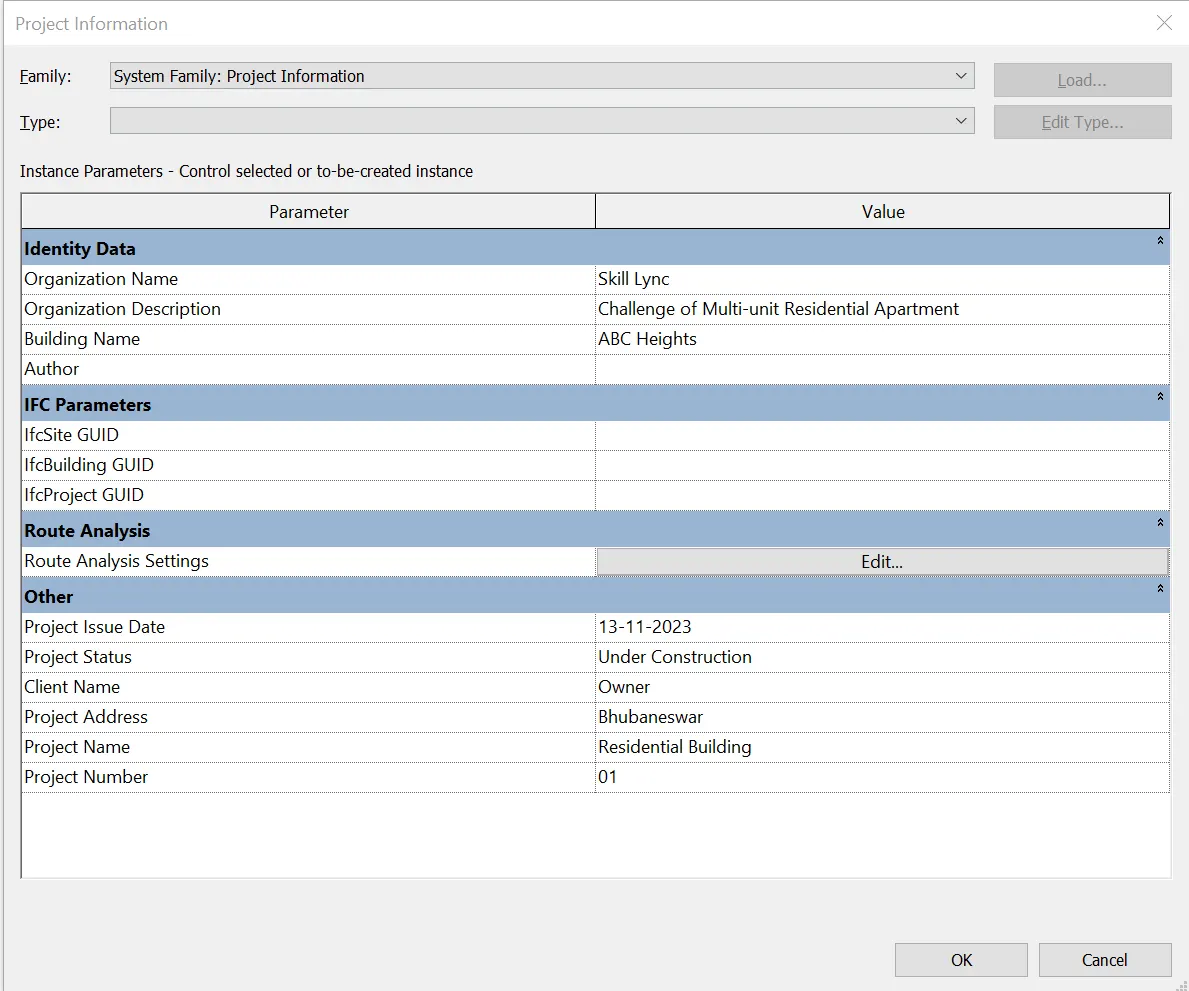
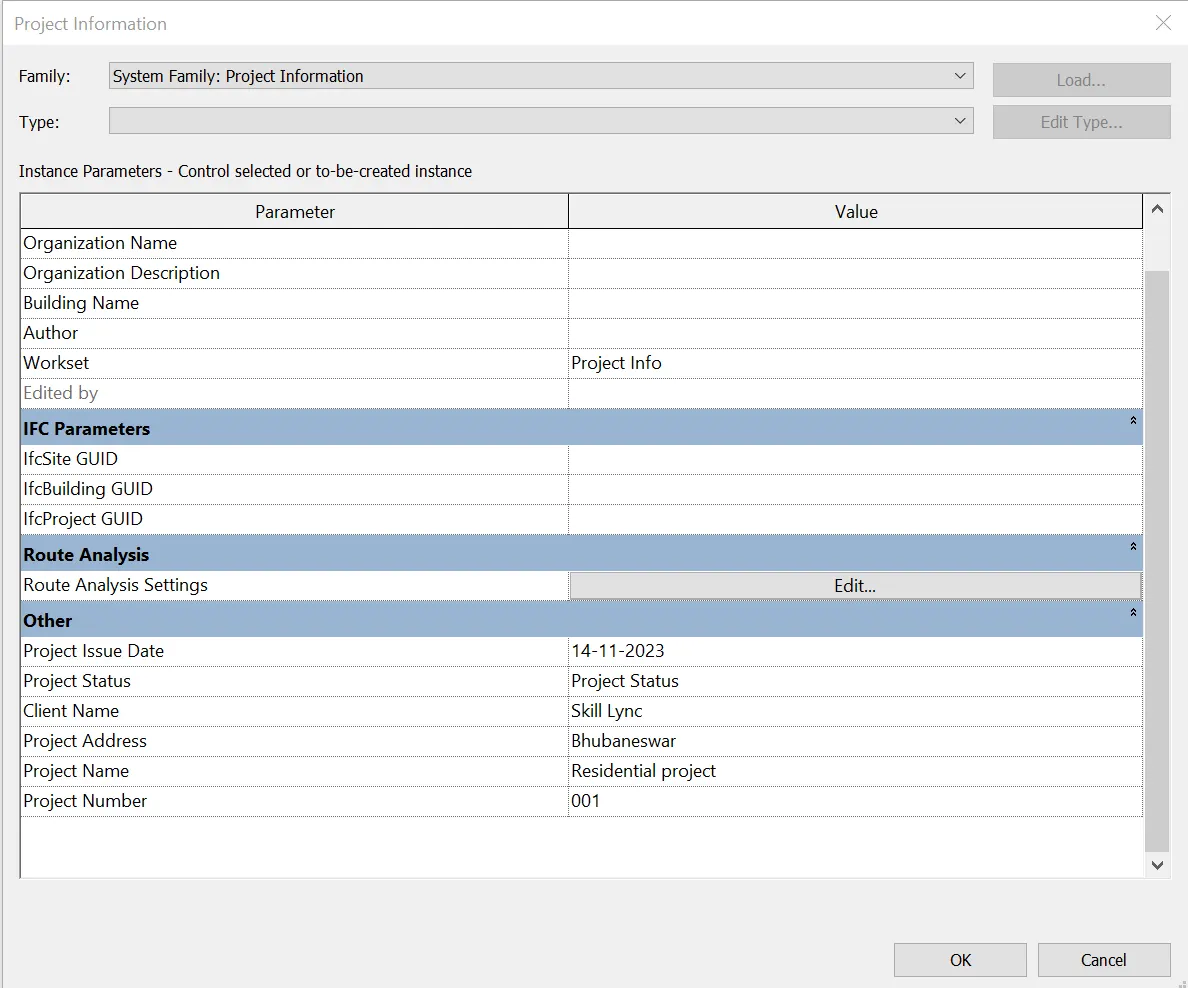
- Rename the sheet and fill the project details under project information
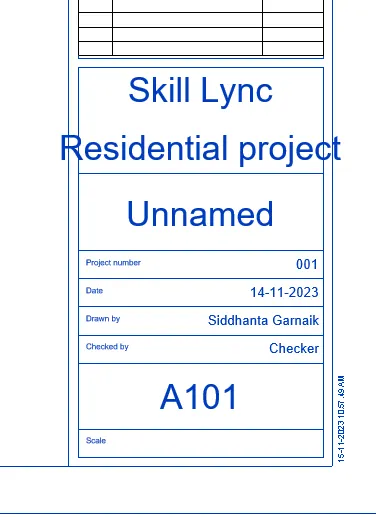
- Adjust the parameters on the sheet and then go to sheet composition and click on view to add appropriate views.
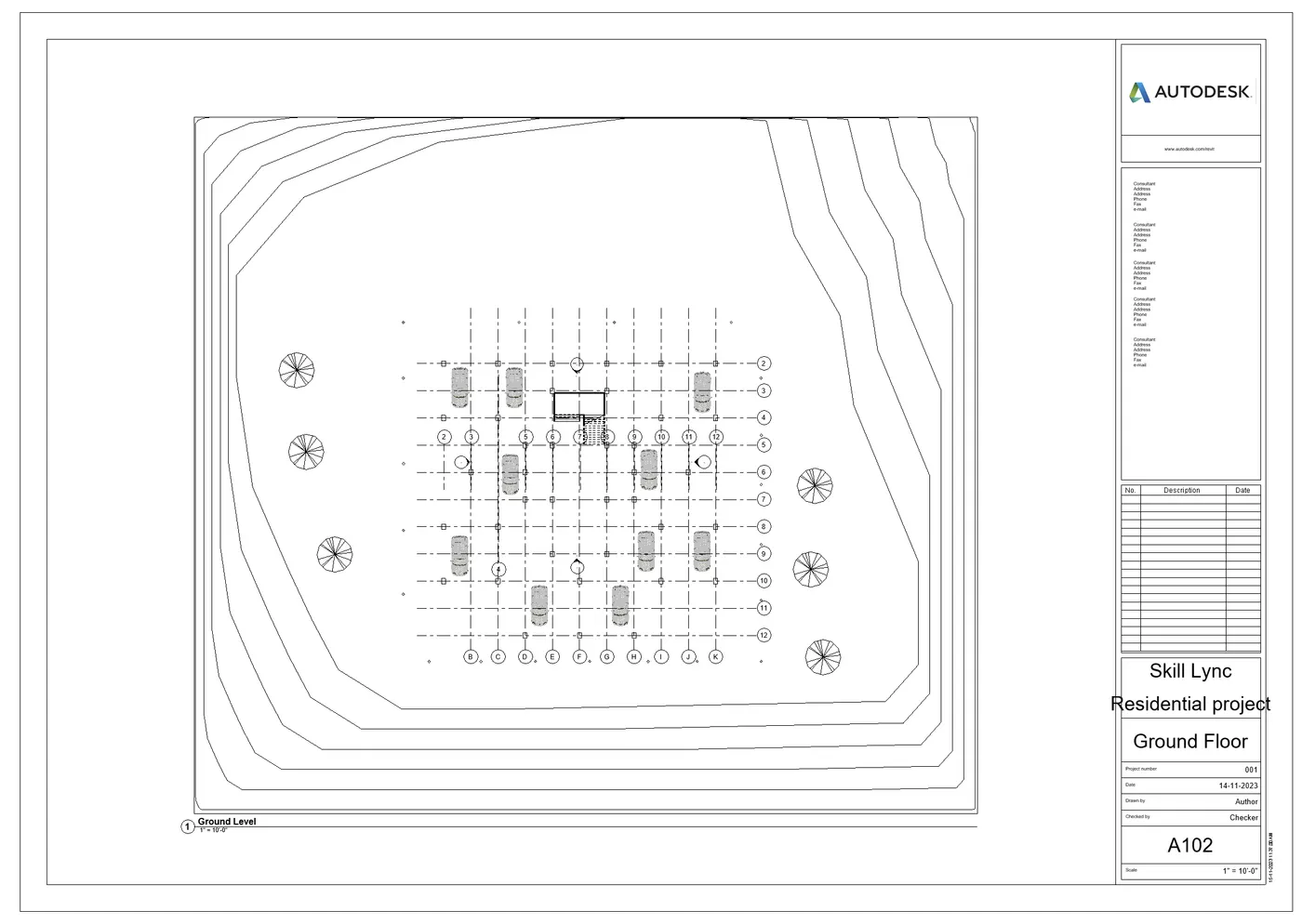
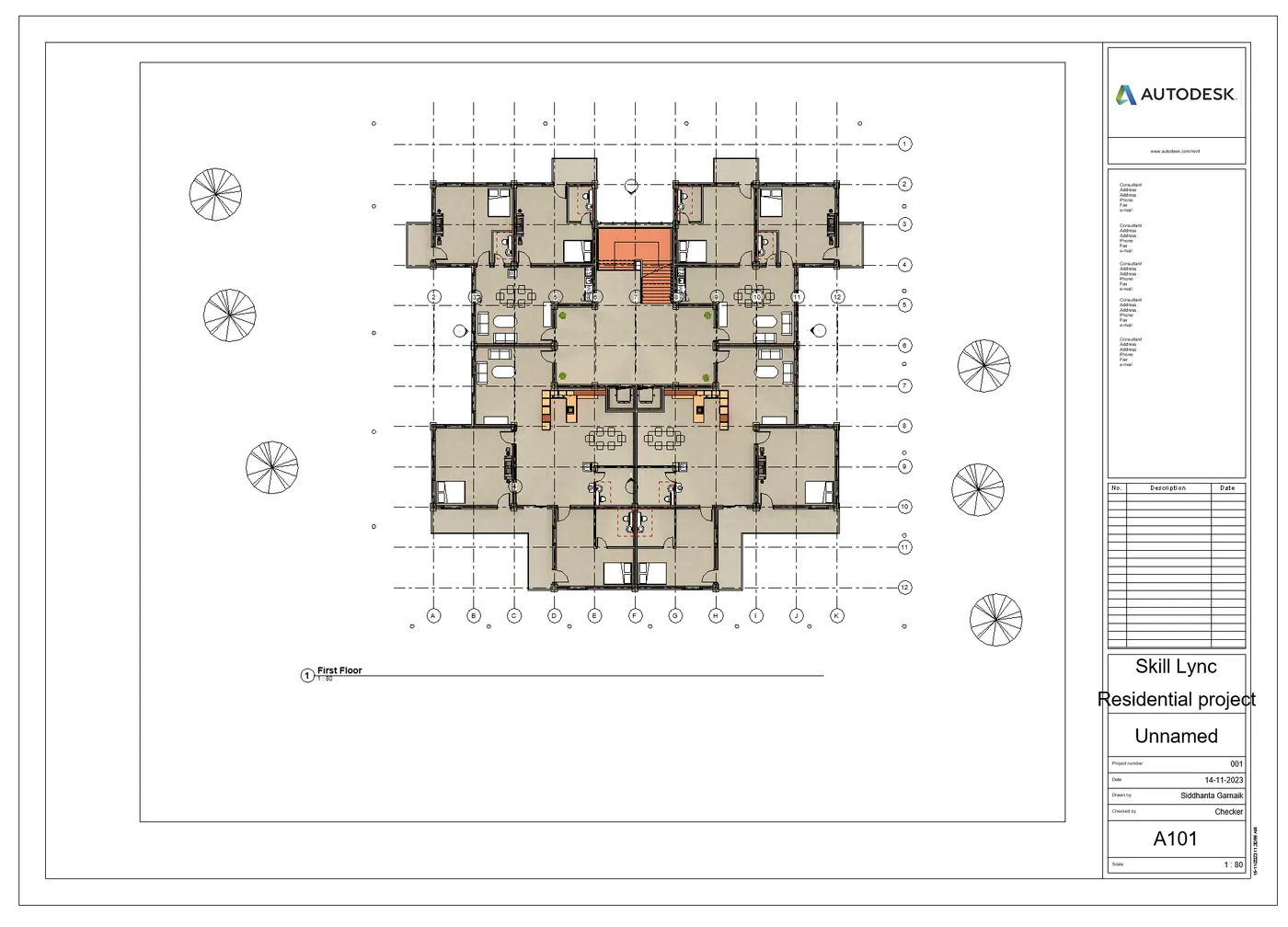
- Go to sheet from property browser. Click and drag the plan on sheet.
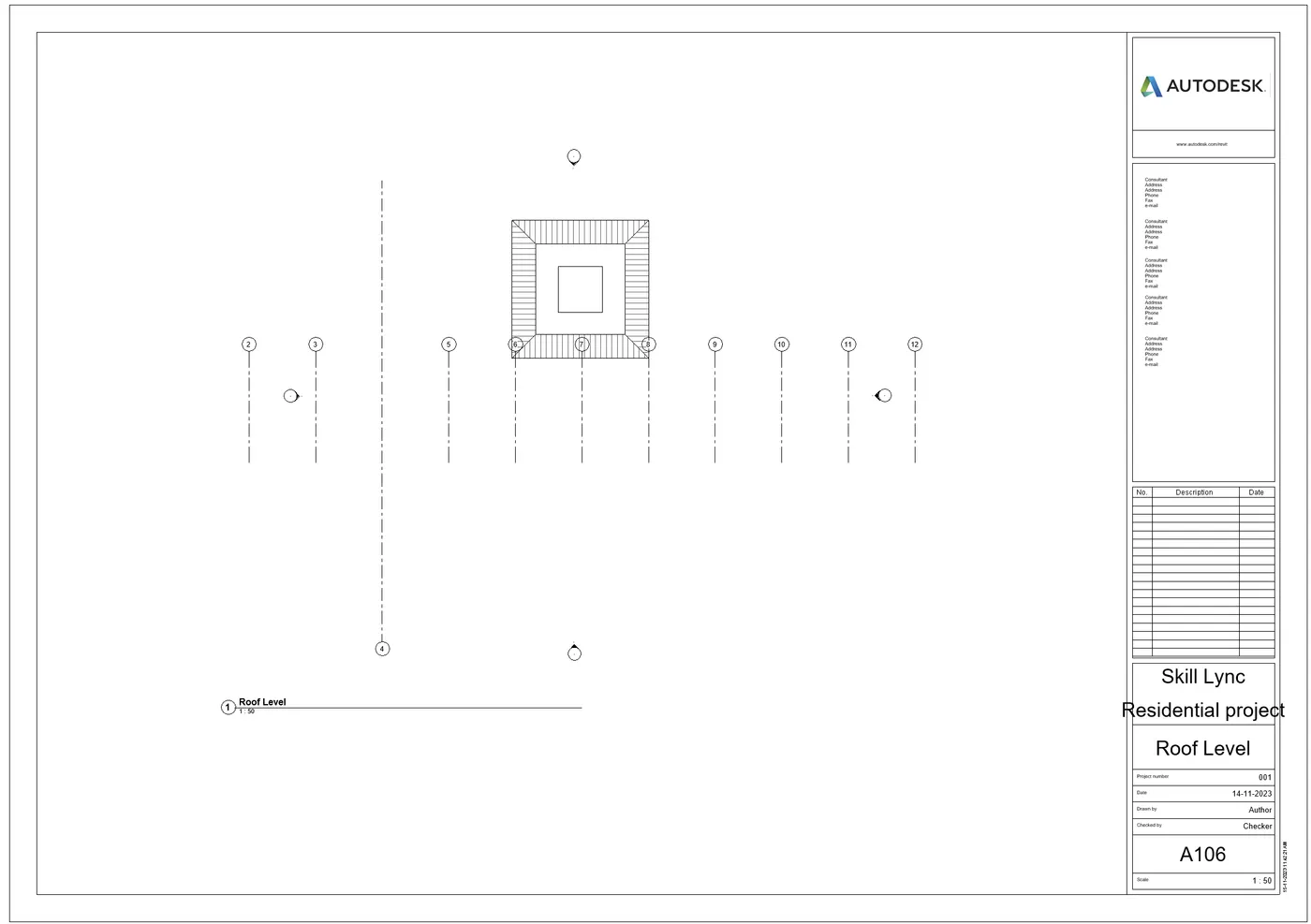
- Adjust the scale. Taking scale as 1:80 for clear visibility of plan
Ground Floor
First Floor
Second Floor
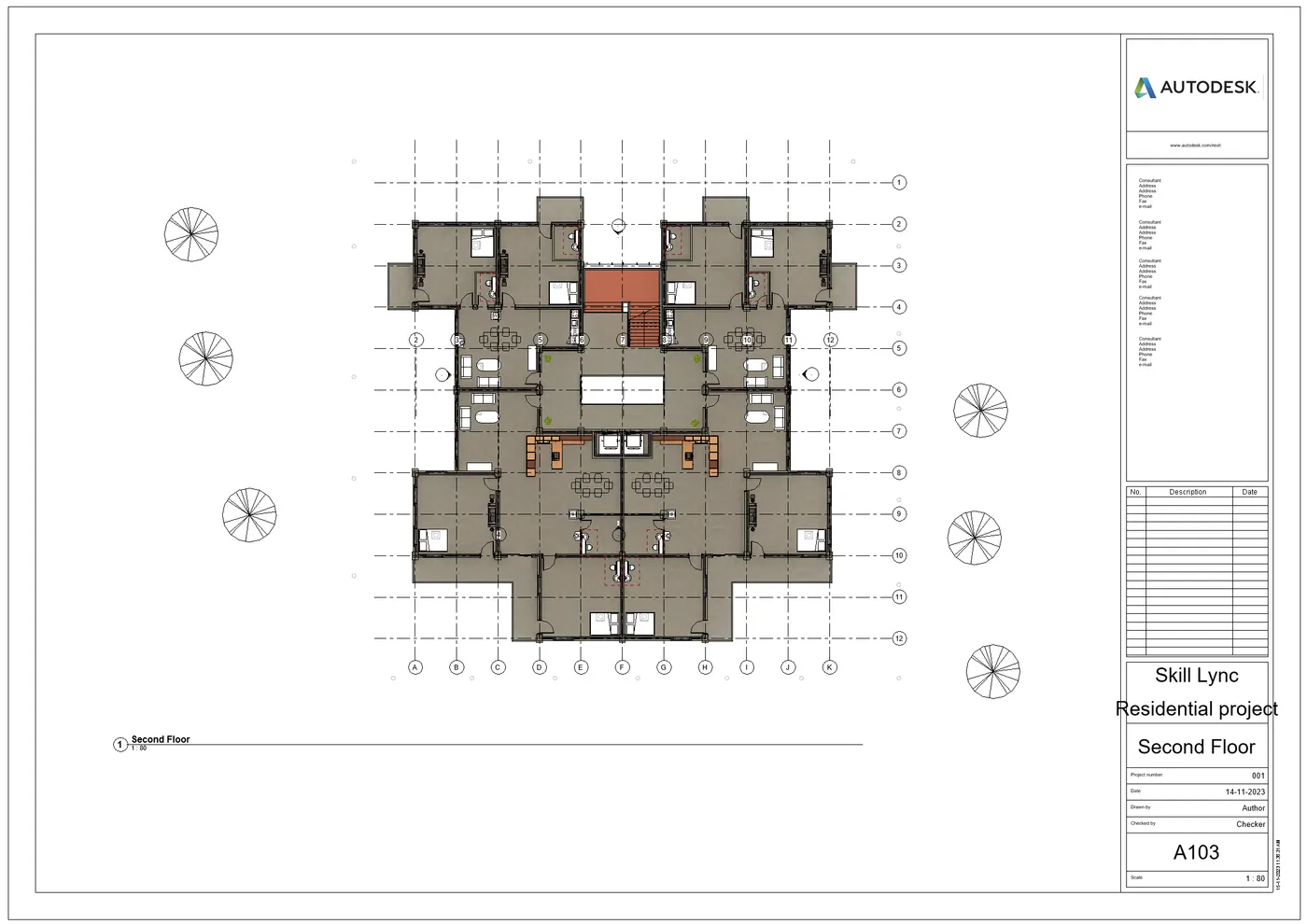
Third Floor
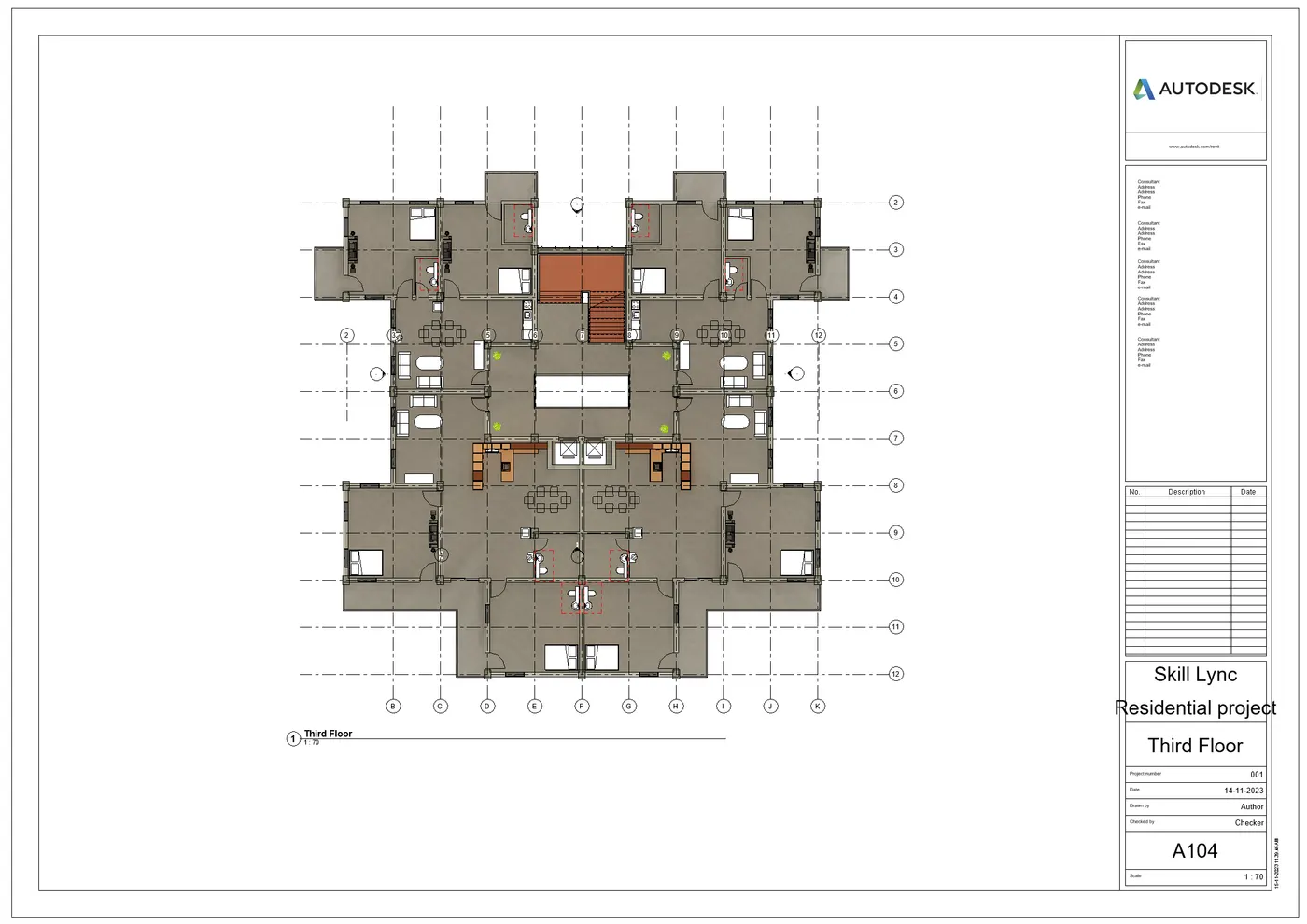
Fourth Floor
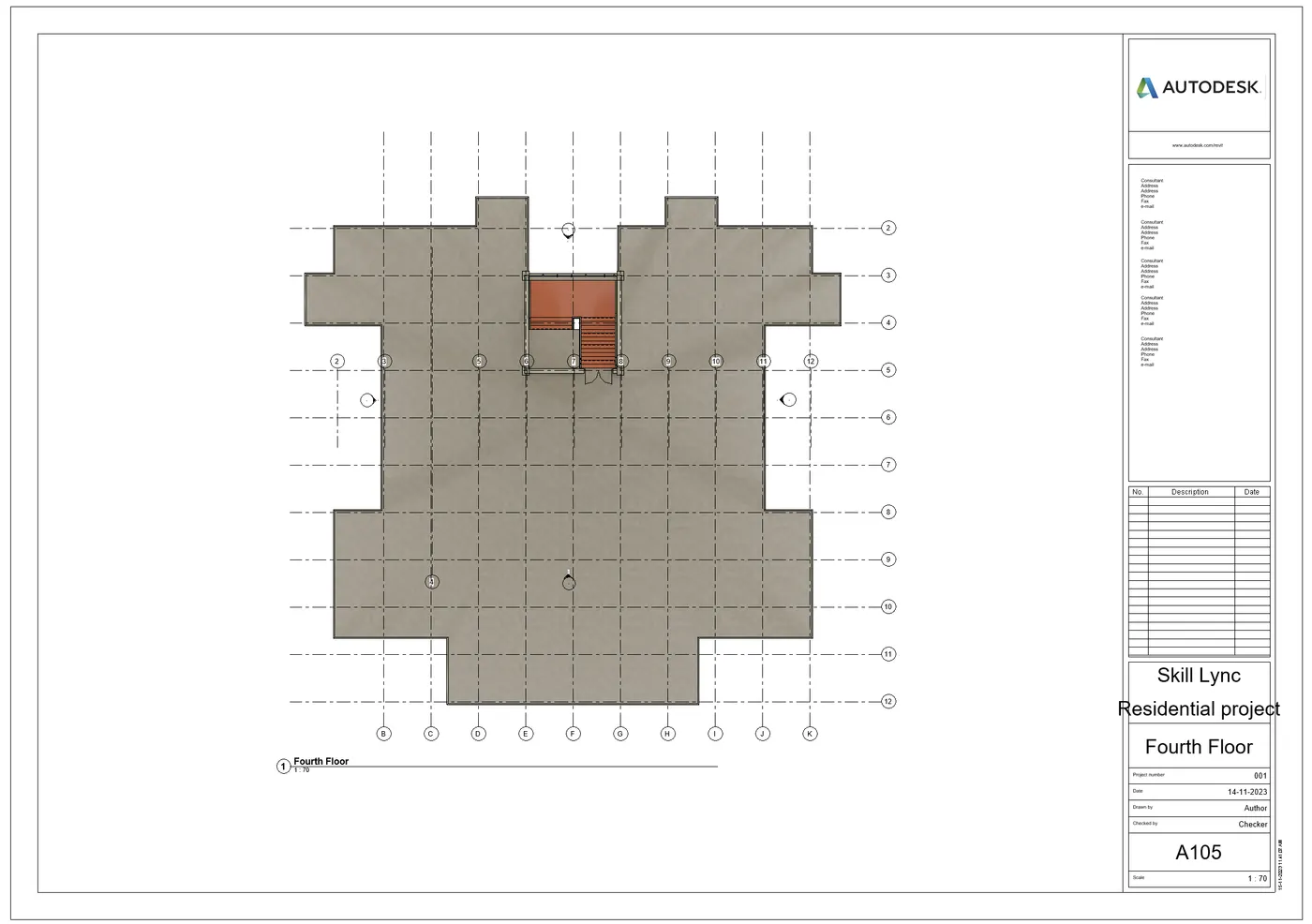
Roof Level
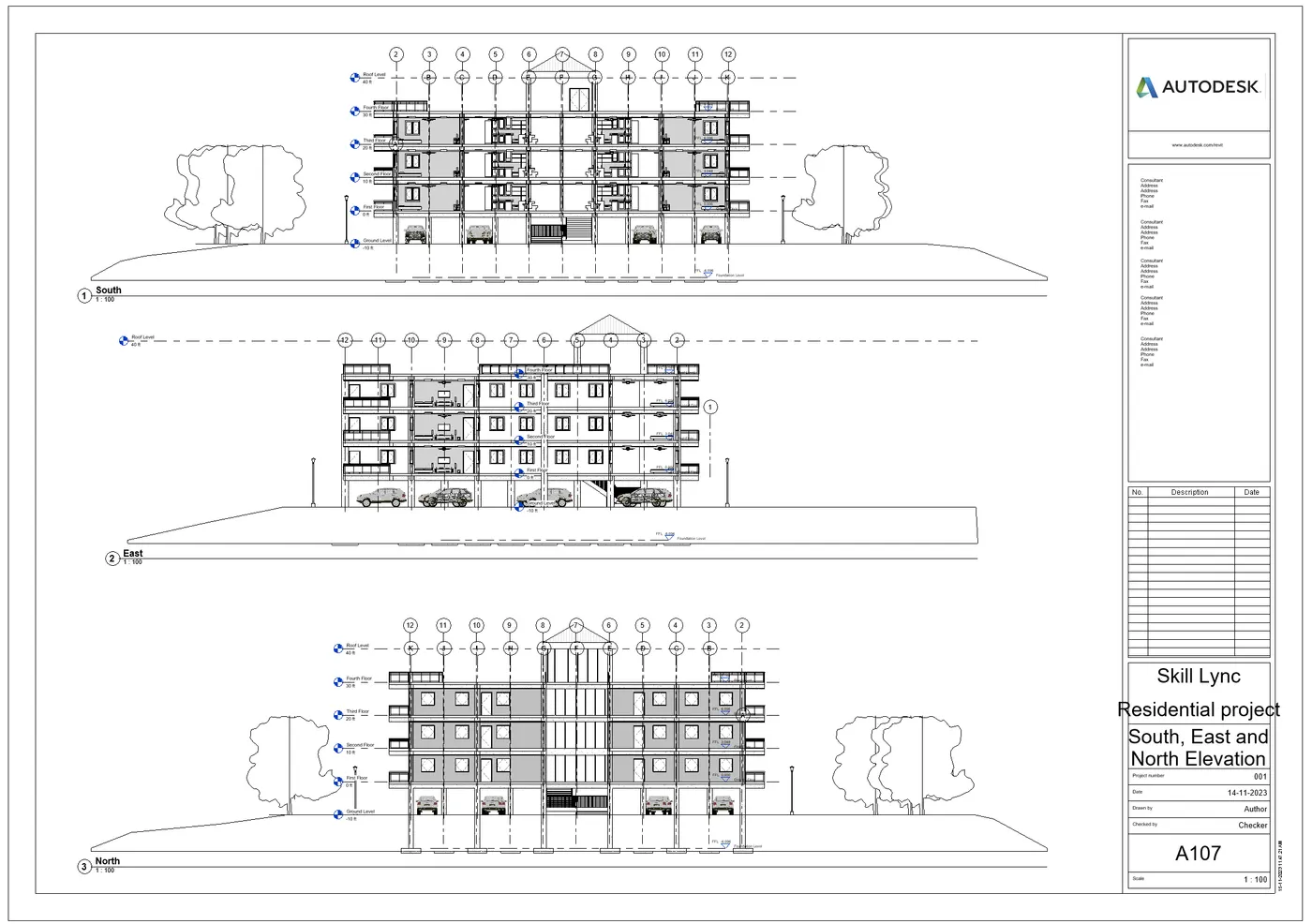
South, East and North Elevation
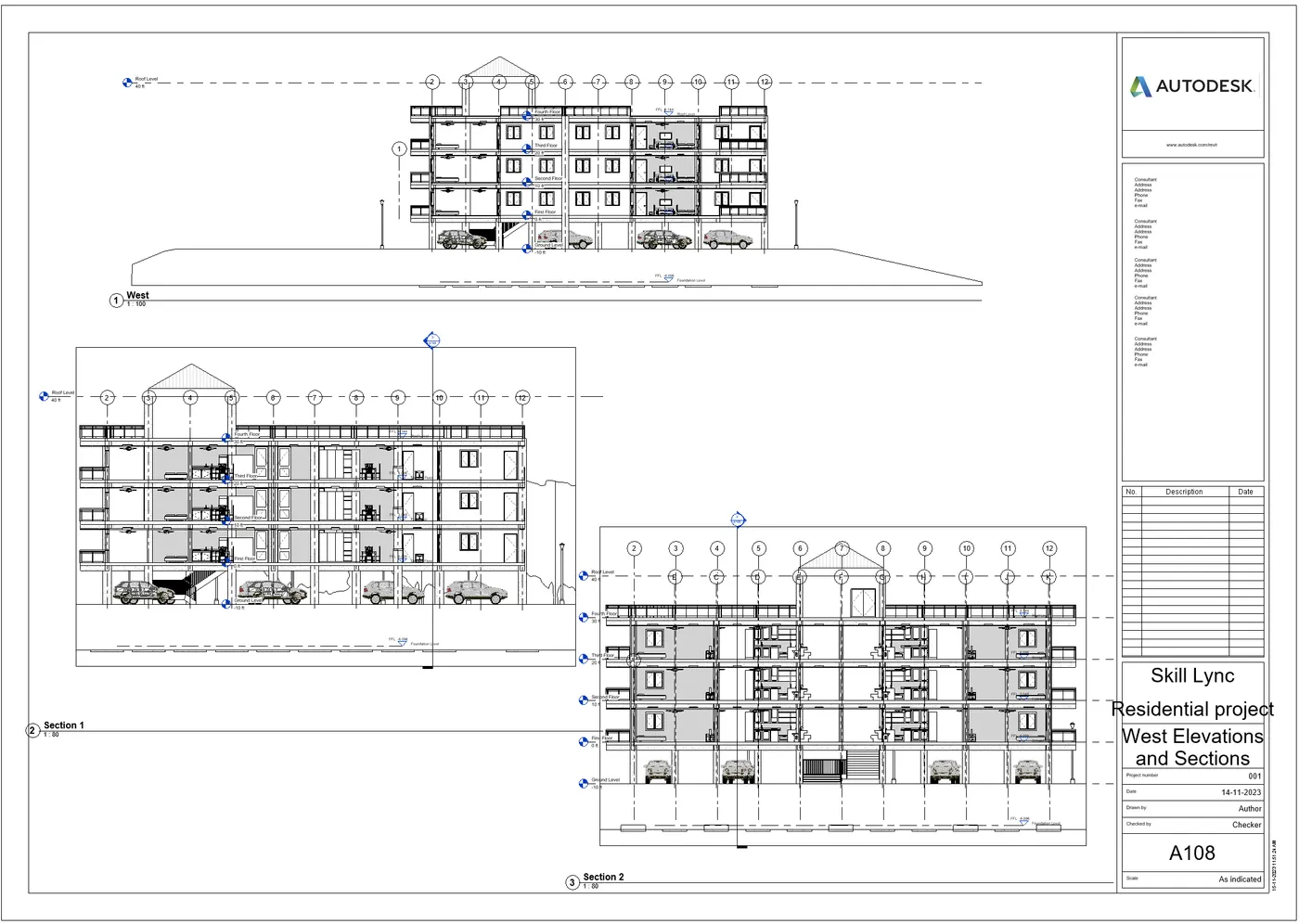
West Elevation and Sections 1 and 2
- For sections we create 2 sections 1 and 2 one longitudinal and one transverse. Then the views are placed on the sheet.
RESULT- The set of drawings (Floor plans with annotations, elevations and section) in an architectural and structural model are listed with categories and included in sheet templates.
6) Using the Rendering settings, Render images of the 3D model produced and include the rendered images to the drawing sheets
a. Rendering from interior rooms
b. Rendering from out showing topographic features
c. Rendering through structural framing
Ans-
AIM- Using the Rendering settings, render images in 3D model produced and include the rendered images to the drawing sheets.
- Rendering from interior rooms
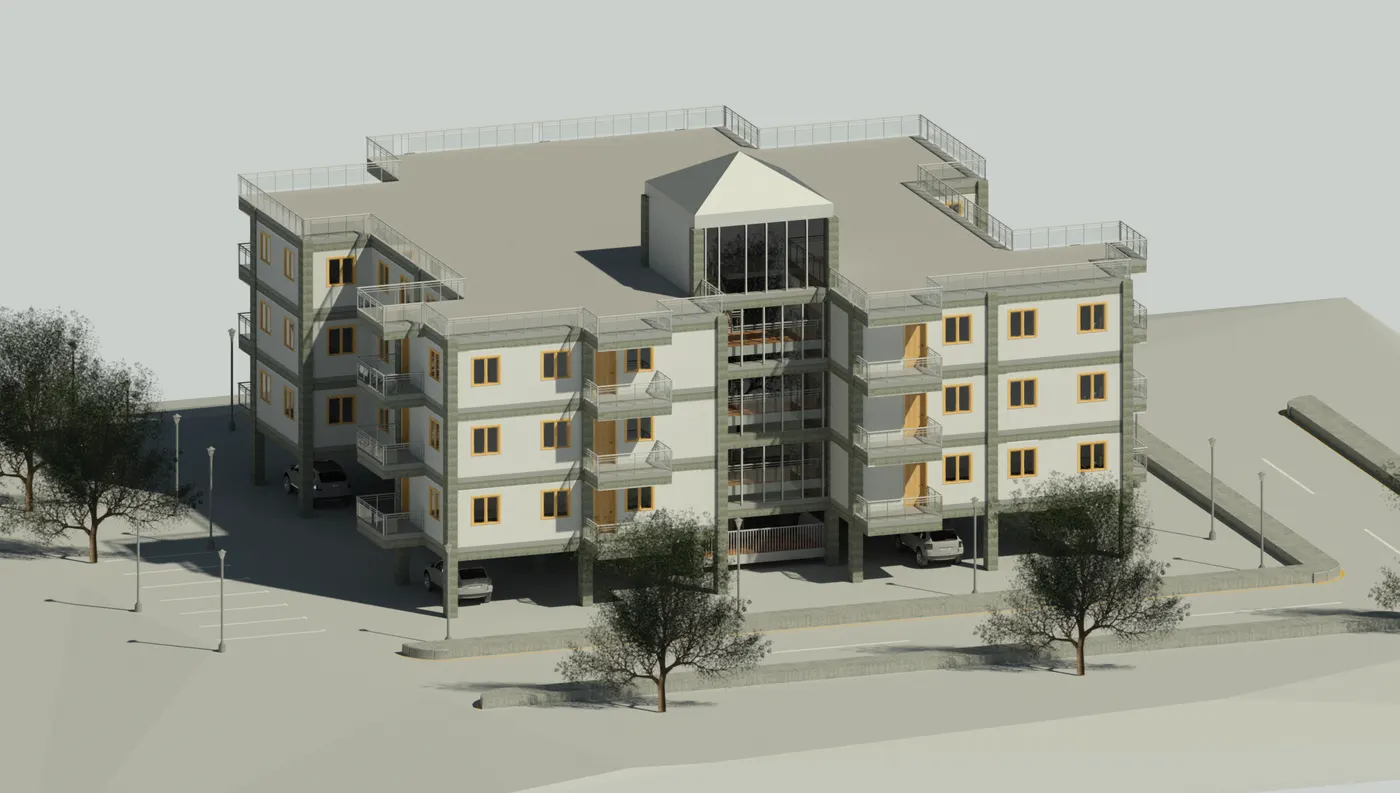
- Rendering from out showing topographic features
- Rendering through structural framing
PROCEDURE-
- For rendering, go to view tab and choose render option from it.
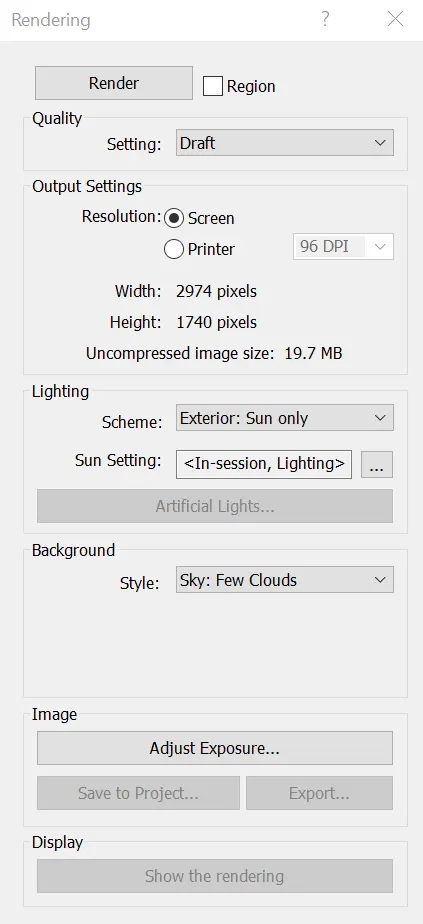
- Click on render after adjusting all settings.
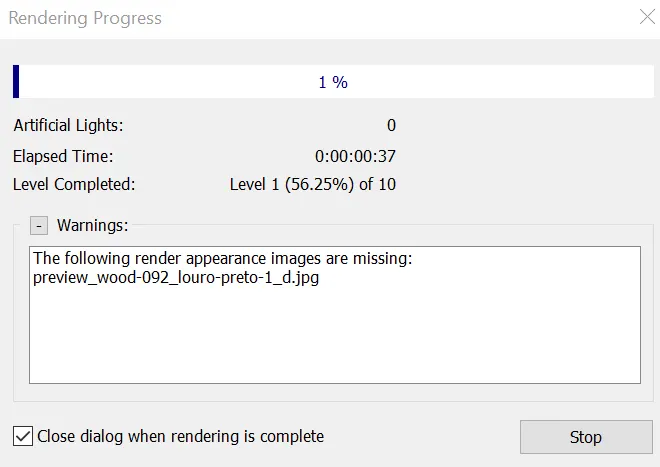
- Choose option like atmosphere, quality
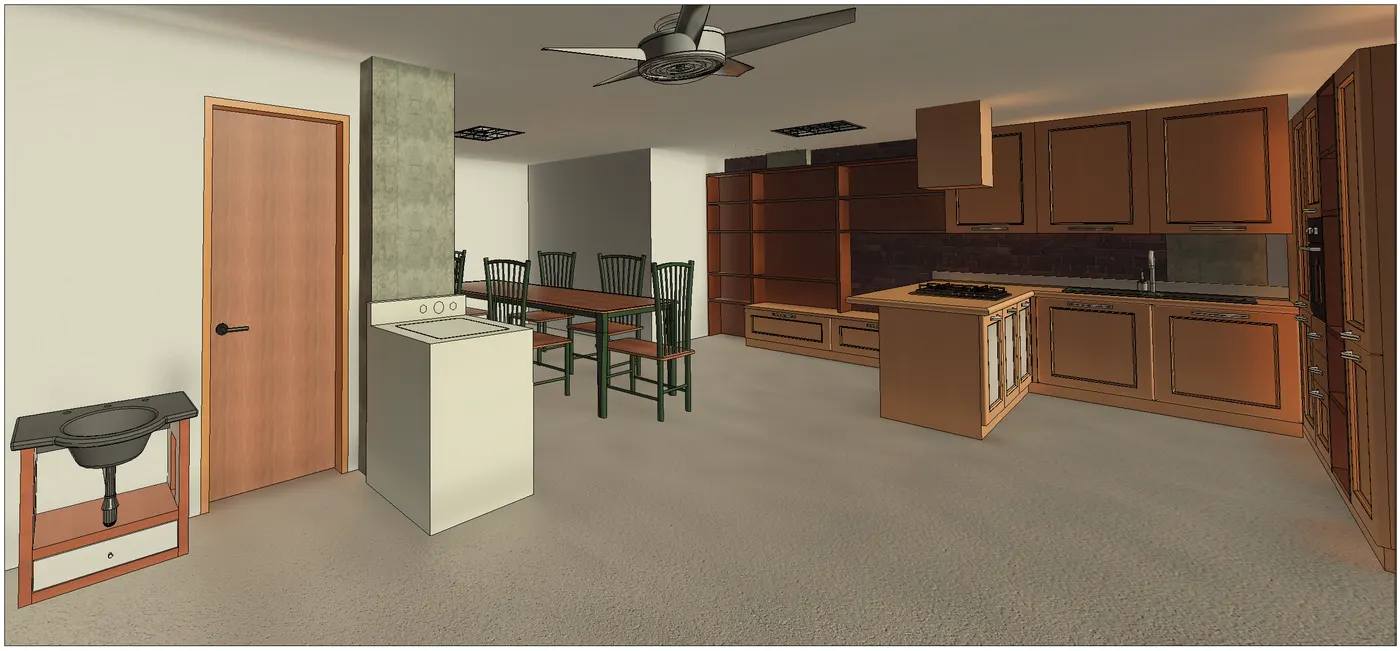
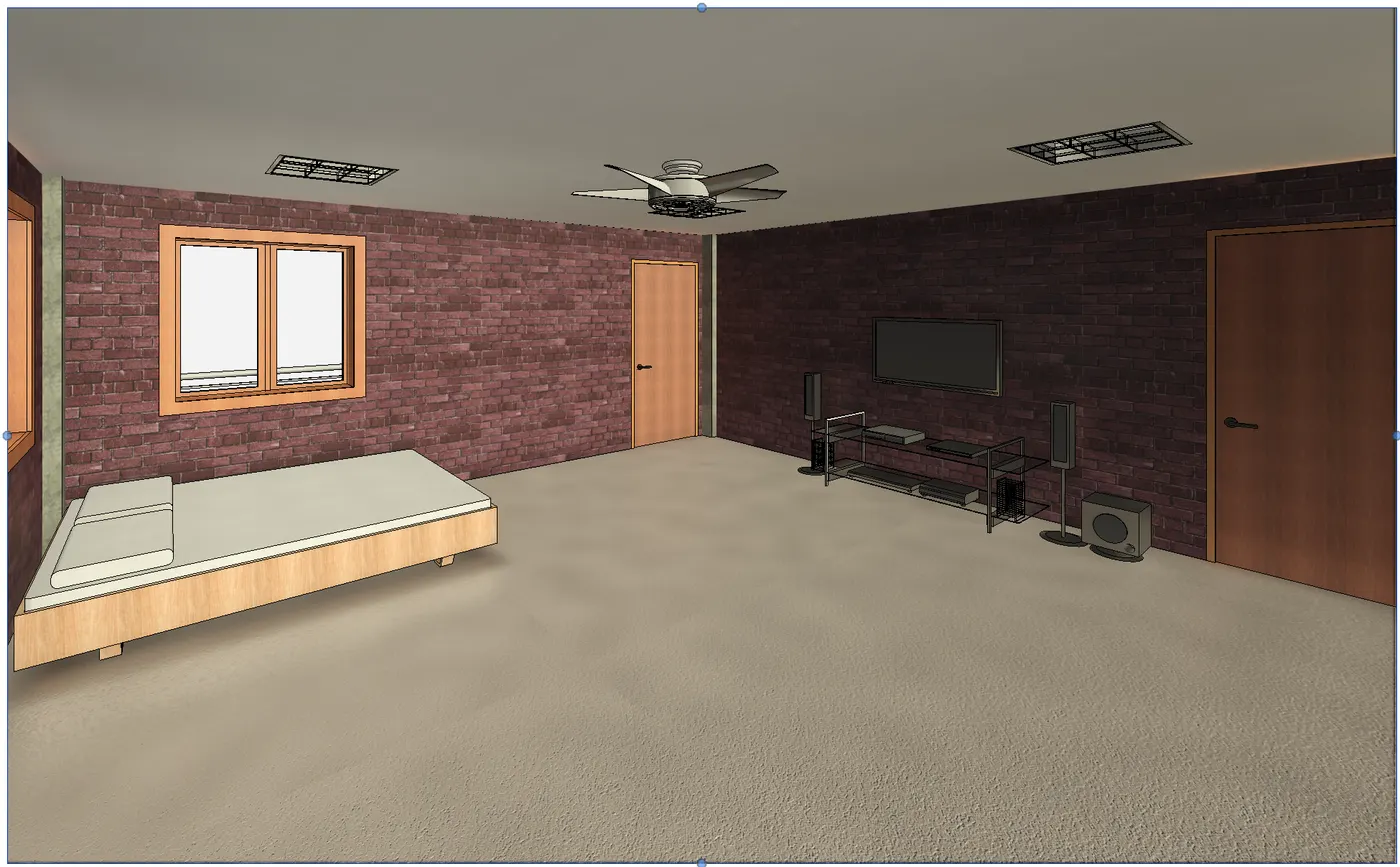
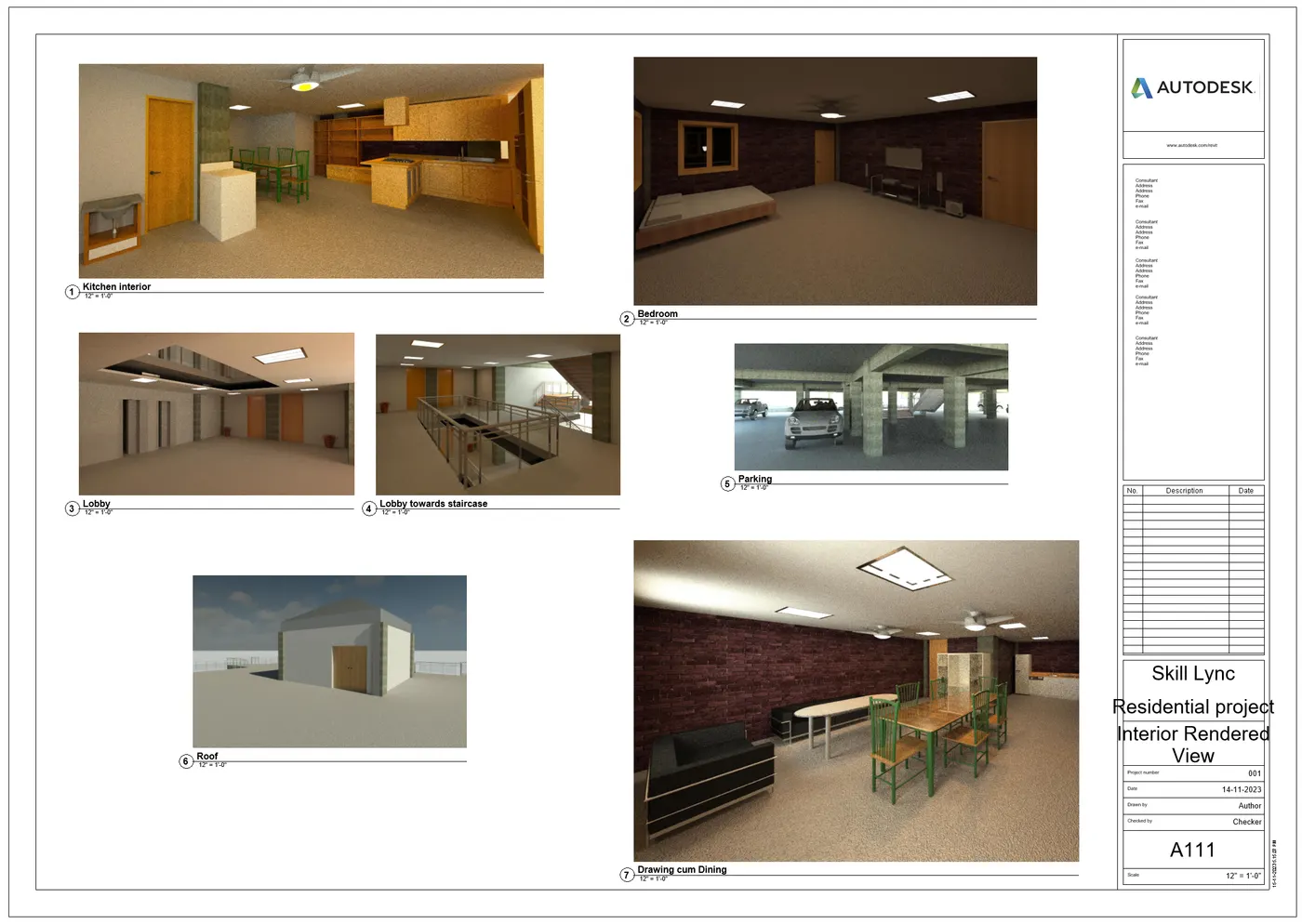
Rendered Image from interior rooms
Kitchen and Dining Room
Bedroom
Rendered Image from outside (Sun only)
- Save the rendered view.
Rendered image to drawing sheet
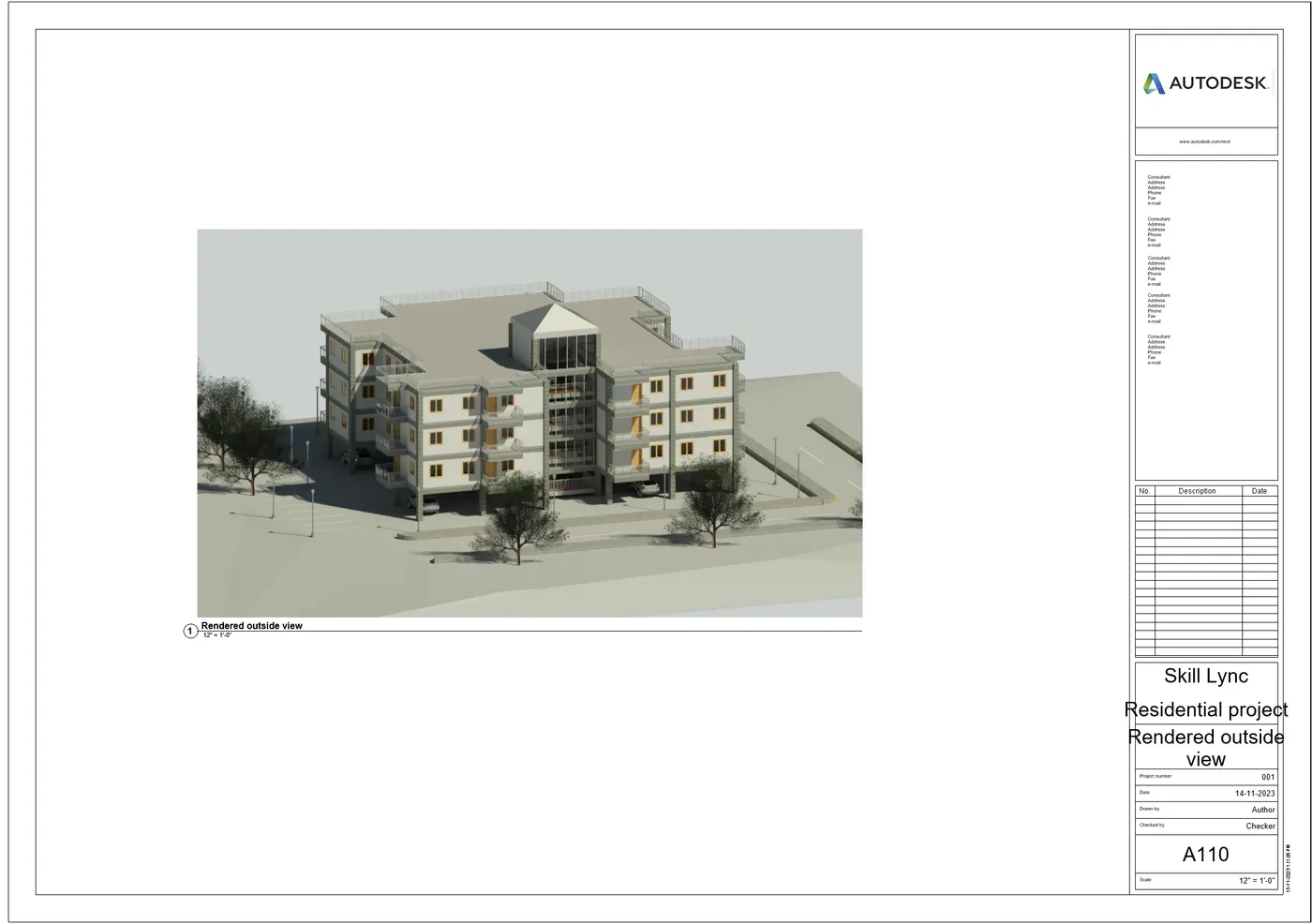
RESULT- The 3D models are hence rendered.
7) Print the set of drawing sheets created and submit the drawings from the architecture and structure model
Ans-
AIM- To print the set of drawing sheets created and to submit the drawings from the architecture and structure model.
PROCEDURE-
- To print the set of drawing sheets created we need to first open the respective models.
- First, we open structural model in Revit.
- To print the model and submit. We need to click on file> print. or click left ctrl + P. A dialogue box opens
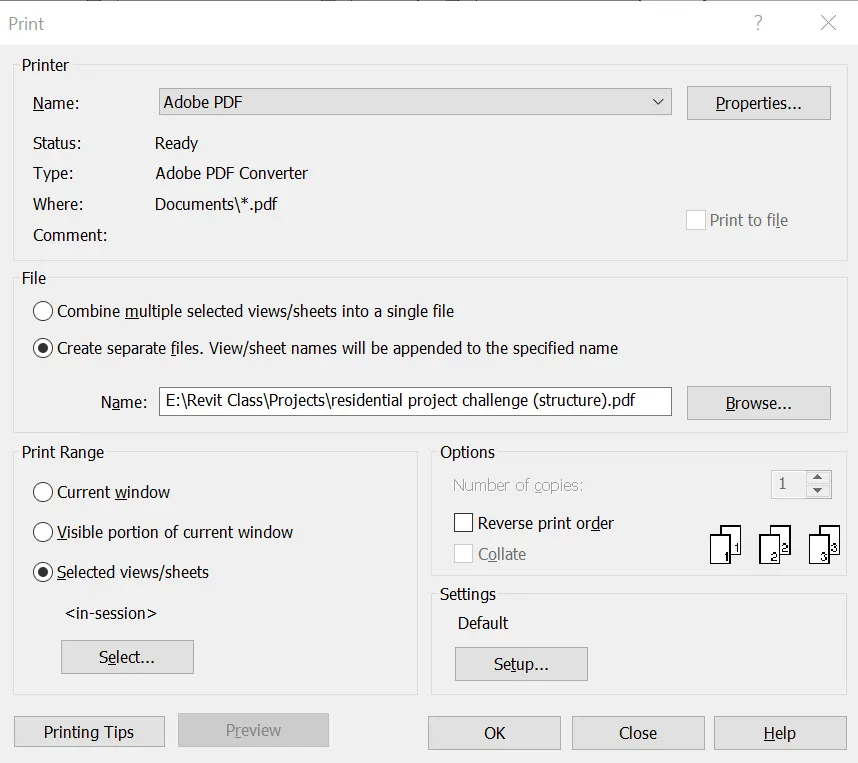
- Click on name> adobe pdf, file> create separate files. view/sheet names will be appended to the specific name, print range> selected views/sheets> select
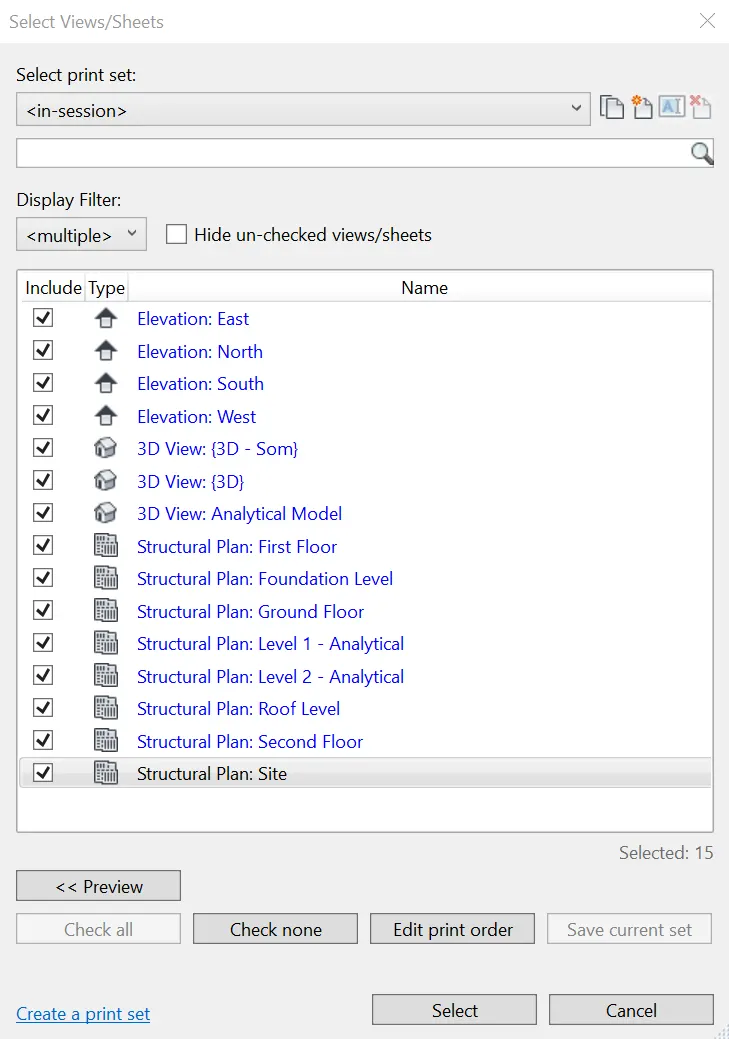
- The above dialogue box opens. click on select then ok
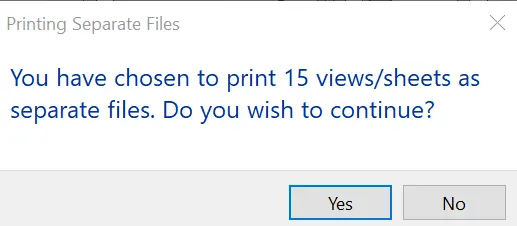
- Click on Yes then save the file on required location
- All the sheets are created in pdf which are attached below.
- Repeat the steps for Architectural model
- Select views. Press ok
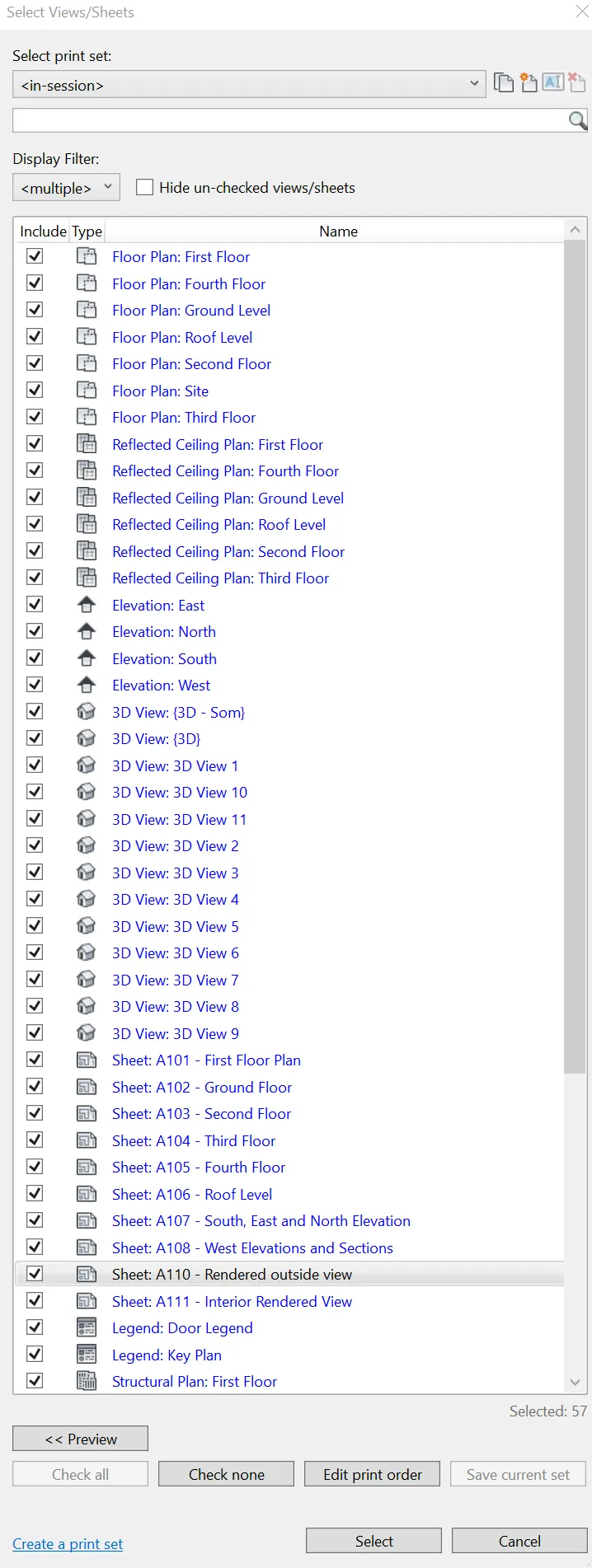
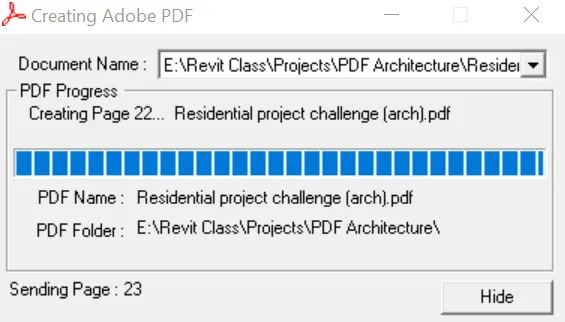
- All the sheets are created in pdf which are attached below.
RESULT- The drawing sheets are printed and the 3D model is below. The architecture file is more than 20 MB hence could not be attached.