Creating a Wardrobe detailed drawing, Floor Plan, Kitchen Layout and Column Detail using AutoCad
AIM: To draw the Cabinet, Floor plan, Kitchen and Raft plan in Autocad according to given dimensions
Commands used are:
Construction Line:
- Command used: XLINE
- These are temporary linework entities that can be used as references when creating and positioning other objects or linework.
- Construction lines are very important to draw the outline of the drawing plans
Offset:
- Command used: OFFSET
- It is used to create parallel lines, concentric circles, and parallel curves. We can offset any object through a point or at a specified distance.
- It has different options like Through, Erase and Layer option
Trim:
- Command used: TRIM
- It is used to remove the objects, which meet the edges of other objects. It is used to remove extra lines or extra parts of an object.
- We can also perform trim using different selection methods. We are required to select the portion of the object to trim.
- Different options available are Fence, Crossing, erase, undo, project (for 3D objects), edge.
Fillet:
- Command used: FILLET
- Fillet is an arc that is created tangent between two 2D objects. A curved transition between two surfaces or adjacent faces on a 3D solid.
Circle:
- Command used: CIRCLE
- The circles are widely used in design and drawings. The circle command is used to draw a circle by specifying the center point and radius.
- Different options available are center and radius, center and diameter, two point, three point, tangent tangent radius, tangent tangent tangent.
Arc:
- Command used: ARC OR A
- The arc is defined as the smooth curve formed by joining two or more points. The arc of a circle is defined as the portion of the circumference of a circle.
- By default, the arc is drawn counter-clockwise. We are required to press the Ctrl key to change the direction of the arc in the clockwise.
Layers:
- Command used: LA
- Layers are the primary method for organizing the objects in a drawing by function or purpose.
- Layers can reduce the visual complexity of a drawing and improve display performance by hiding information that you don't need to see at the moment.
Line:
- Command used: L
- The line object is the most basic and common object in AutoCAD drawings of any discipline.
- Each segment is a line object that can be edited separately, assigning properties such as layer, line type, and line weight.
Text:
- Command used: TEXT
- Text in an AutoCAD drawing is the means by which you communicate information.
- The ability to give text in an easy-to-read format is critical for good communication.
- The methods for accessing and formatting text provide greater efficiency and control of the text objects in your drawings.
Dimensions:
- Command used: DIM
- It is used to display the dimensions of drawings or models in AutoCAD. We can modify the dimensions in different drawing units according to the requirements.
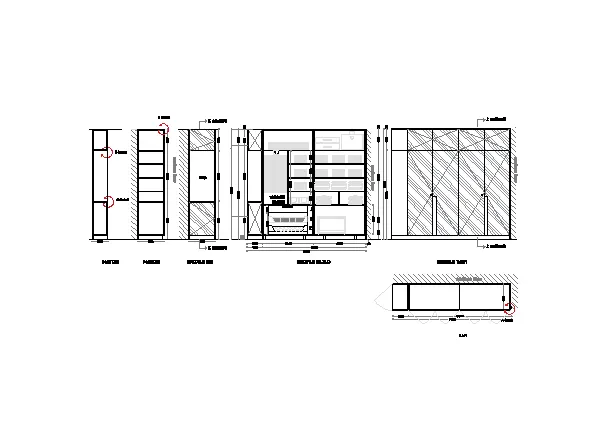
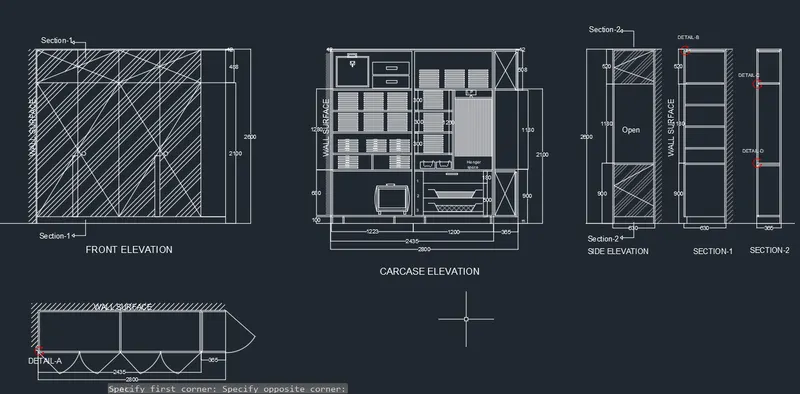
1. Cabinet Drawing:
Aim: To draw the Plan, Elevation and Section of a Cabinet
Procedure:
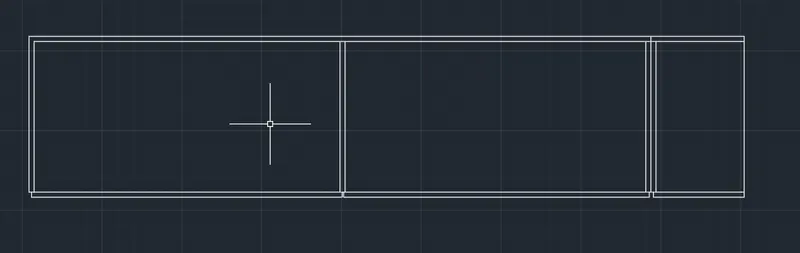
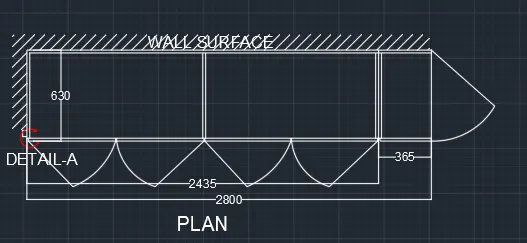
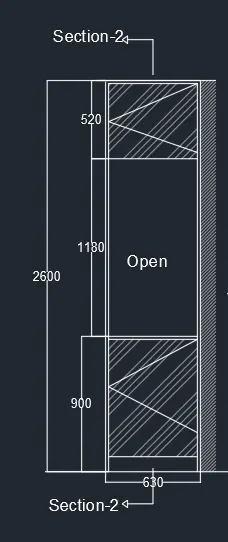
a) Drawing of Plan:
- First set up the units
- Draw a rectangle with given dimensions
- Give offset and draw an inner rectangle and draw required lines with dimensions
- Give offset of 20mm for all
- Draw the doors and give the details
- Add necessary text and dimensions using Mtext and DIM and give hatch
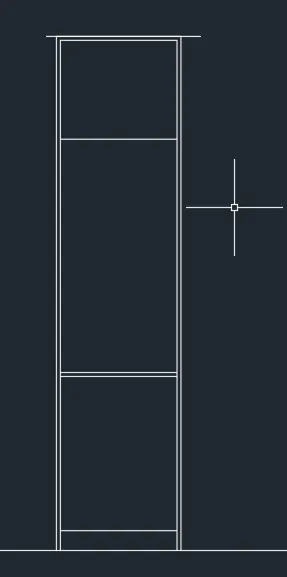
b) Drawing of Elevation:
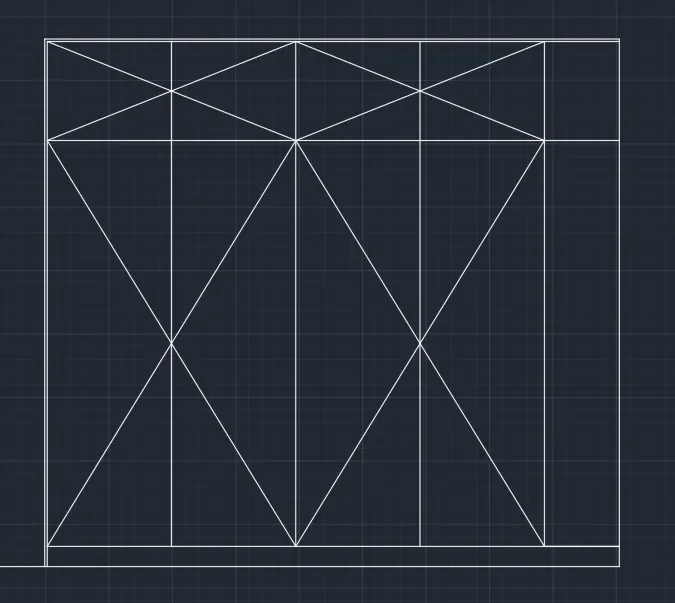
- Draw a rectangle with given dimensions
- Give offset and draw an inner rectangle and draw required lines with dimensions
- Give offset of 20mm for all
- Draw the cross end lines in all required places
- Add necessary text and dimensions using Mtext and DIM and give hatch
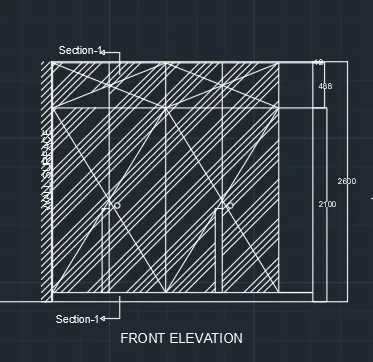
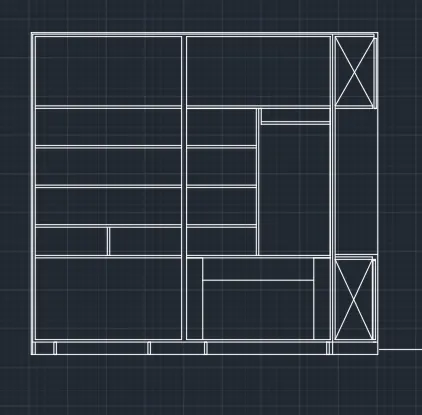
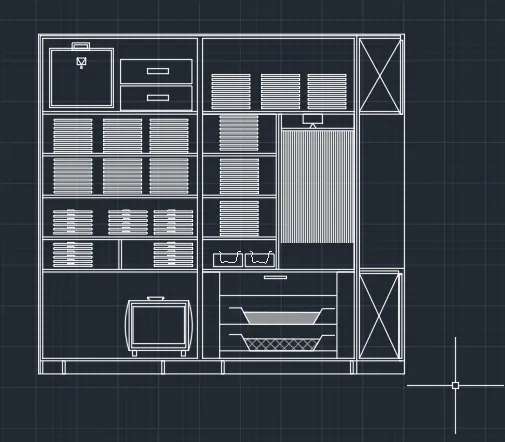
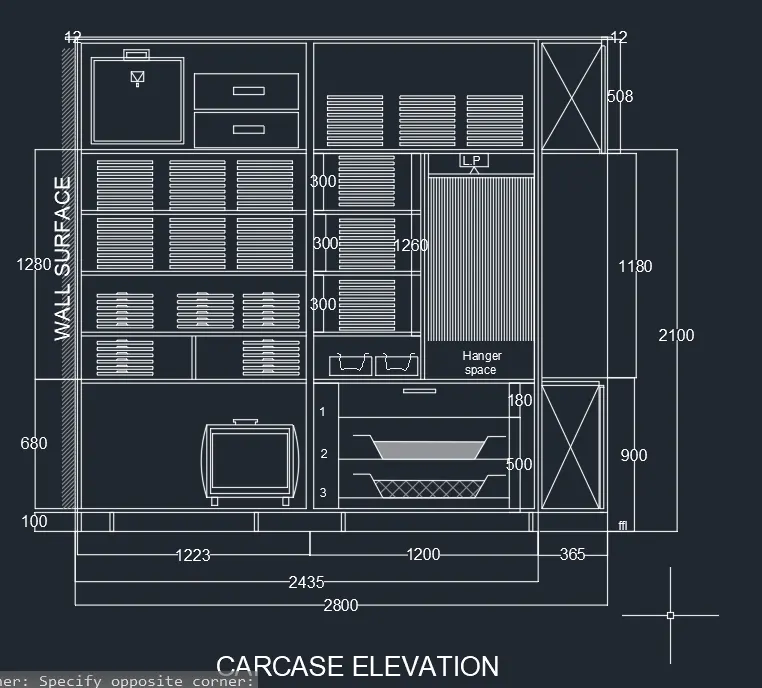
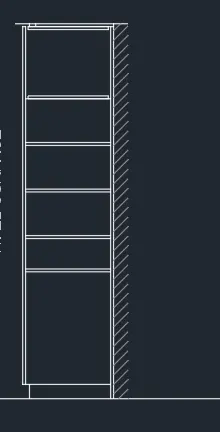
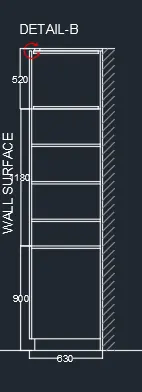
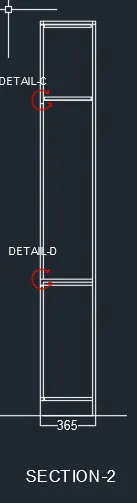
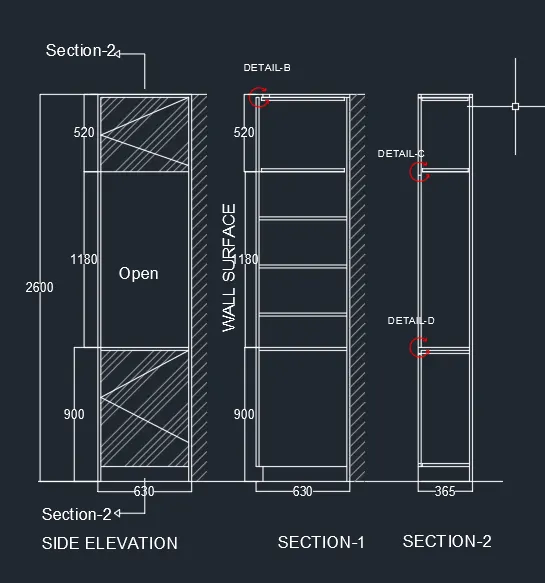
c) Drawing of Carcase, sections and side elevation :
- Draw a rectangle with given dimensions
- Give offset and draw an inner rectangle and draw required lines with dimensions
- Give offset of 20mm for all
- Draw the cross end lines in all required places
- Draw the items required in the cabinets and place them accordingly
- Add necessary text and dimensions using Mtext and DIM and give hatch
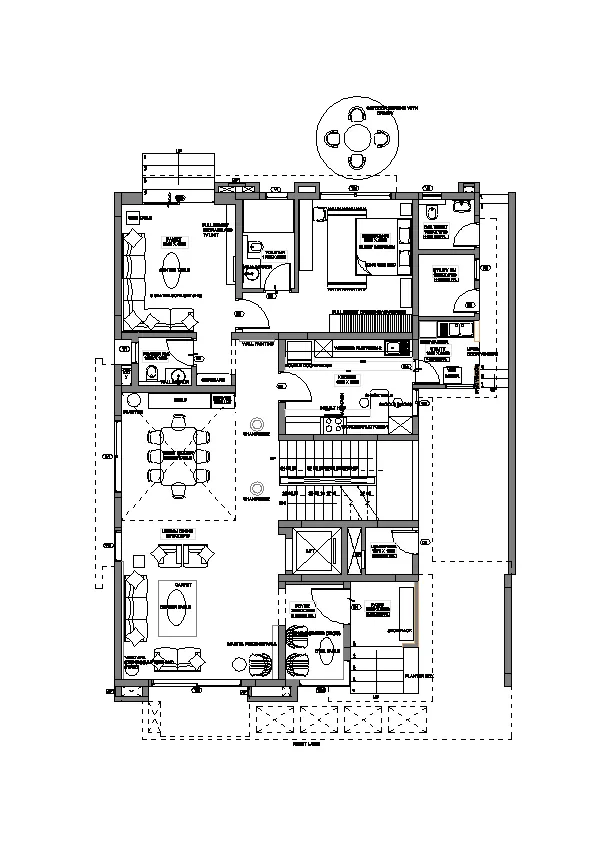
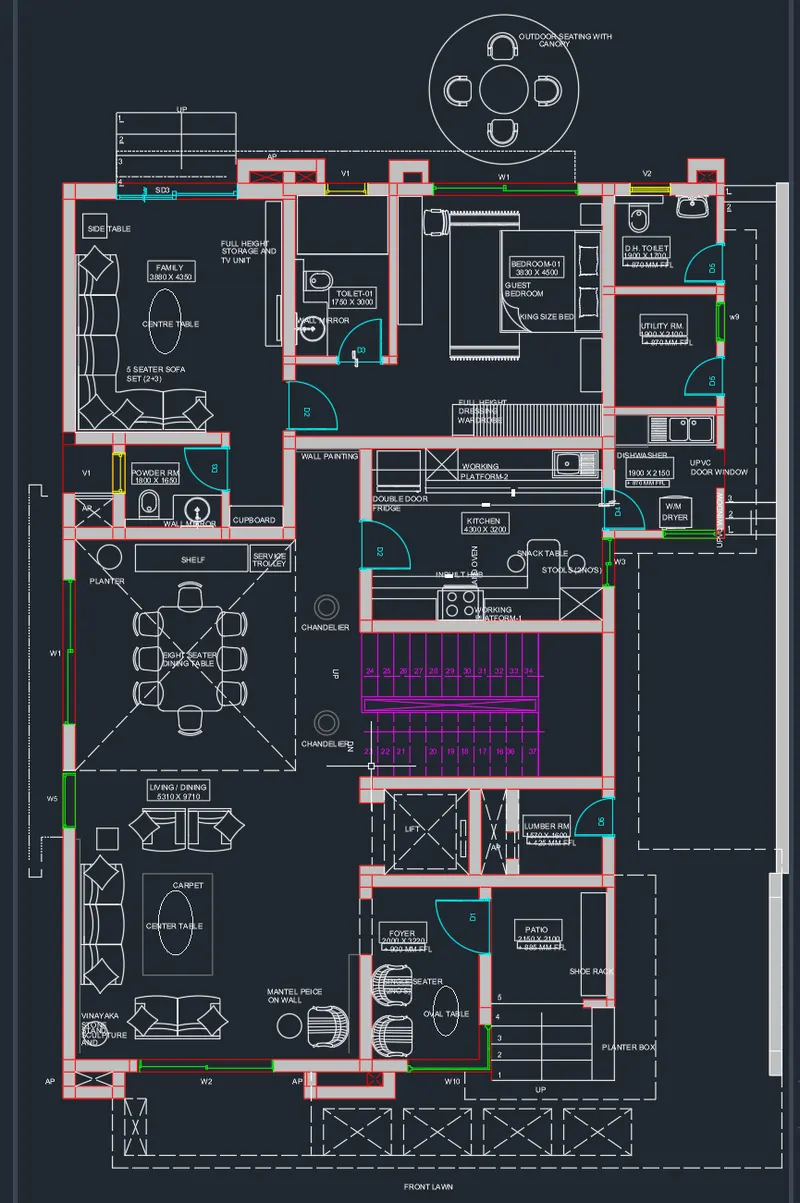
2. Floor Plan:
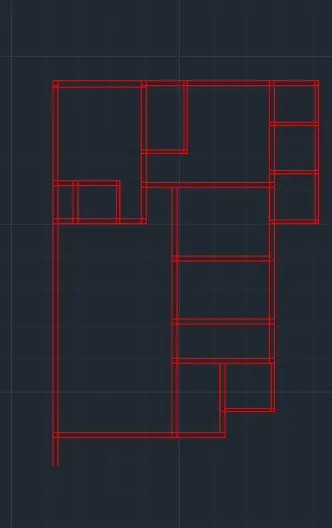
Aim: To draw the floor Plan
Given Dimensions:
1. D1- 1000X2000X500MM
2. D2-900X2100X500MM
3.D3-800X2100MM
4.D4-750X2100MM
5. D5-700X2100MM
6.SD-2256X2100
Procedure:
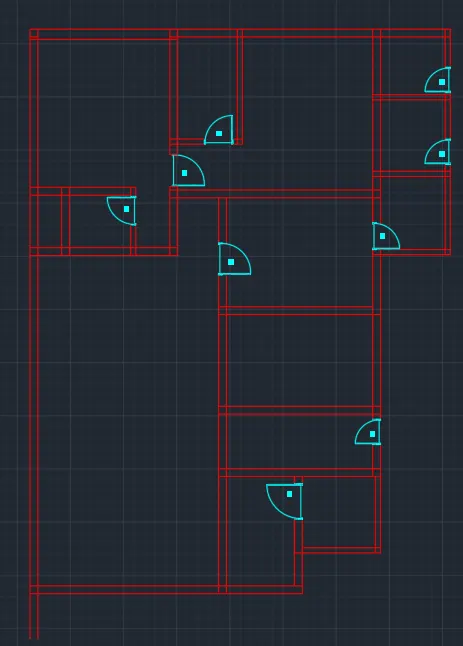
- Draw a construction line using XL command in horizontal and vertical directions
- Give offset of 230 in x direction and 300mm in y direction
- Now draw all the required rooms using offset command and get required plan
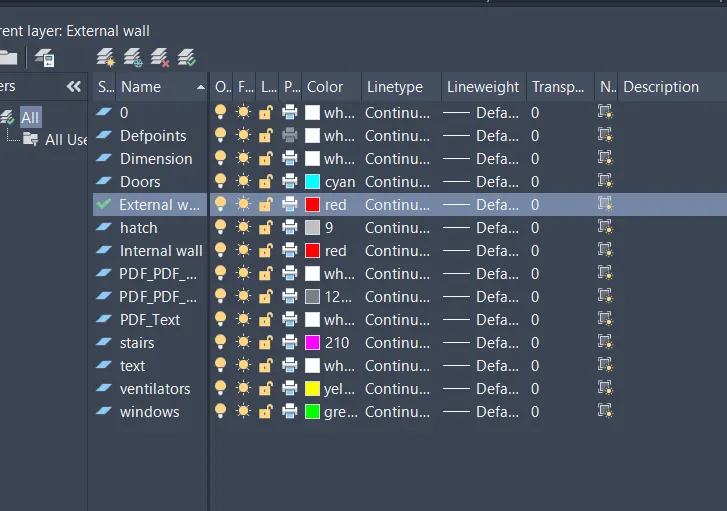
- Create all the required layers and give necessary properties
- Draw all the doors and windows according to the given dimensions
- Create the furniture in living room, bedroom, kitchen and place the items in place
- Now add the text and dimensions
- Add necessary text and dimensions using Mtext and DIM
- Give hatch to all the walls
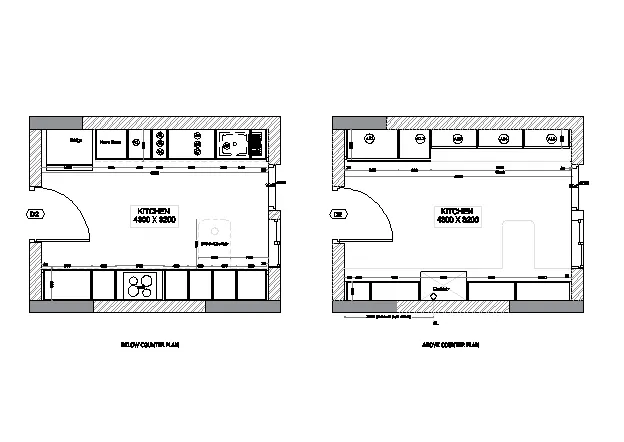
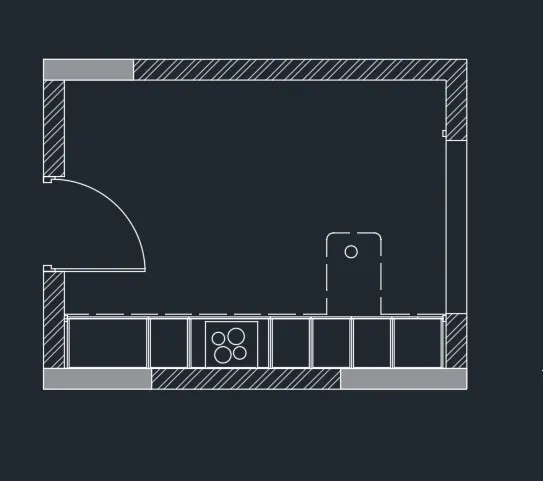
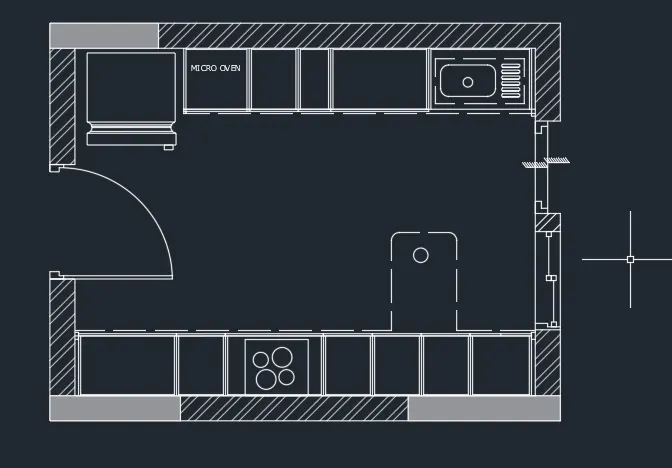
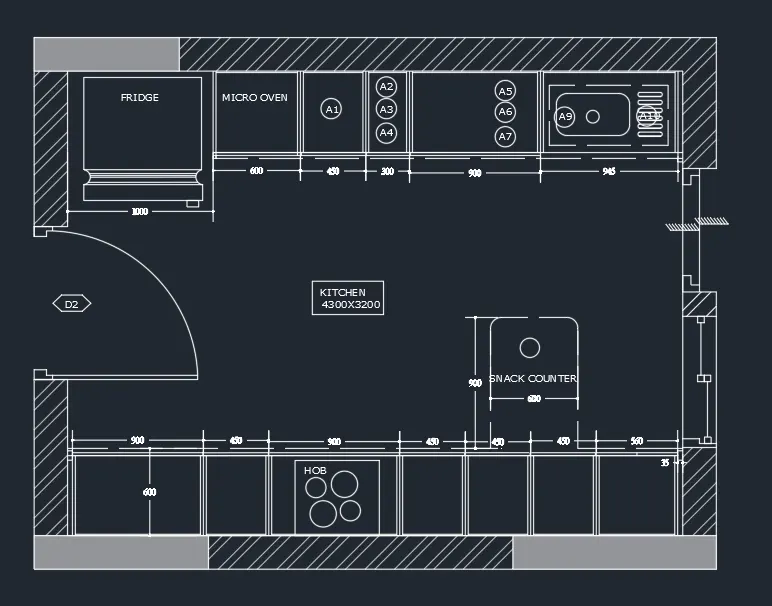
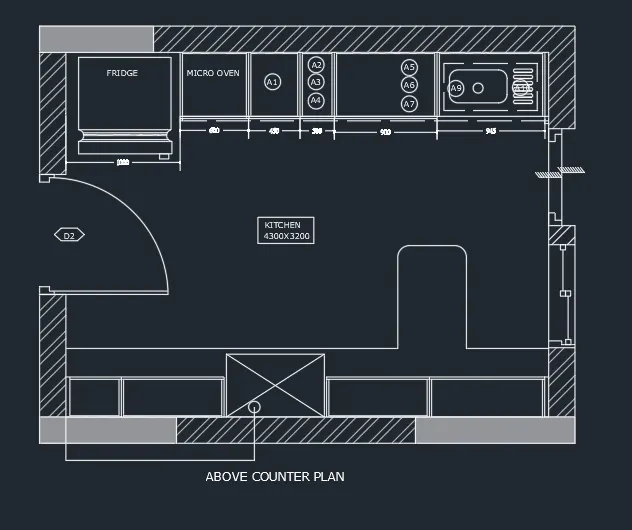
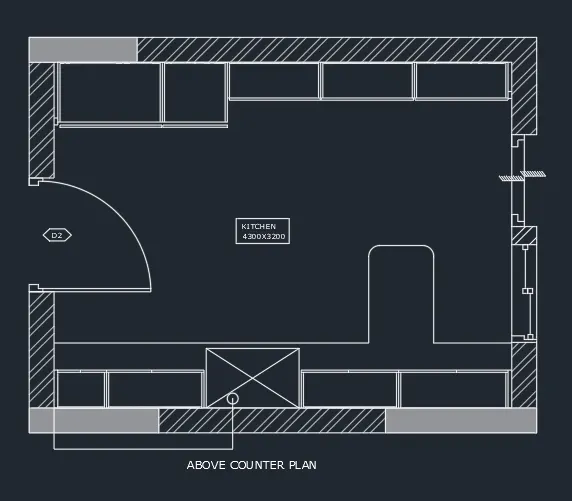
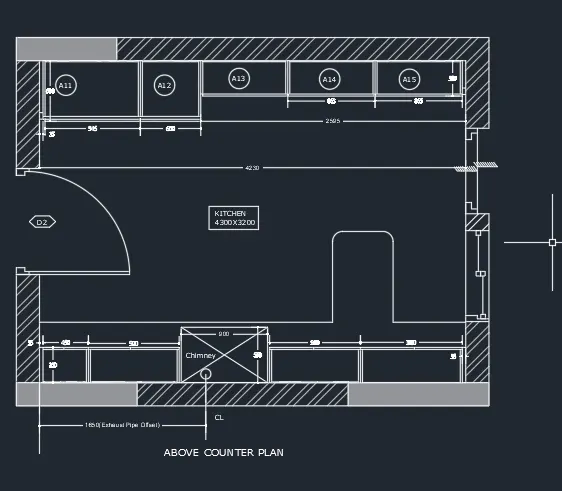
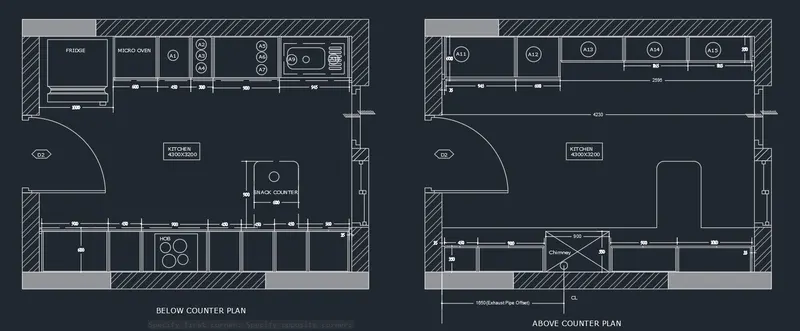
3. Kitchen Plan:
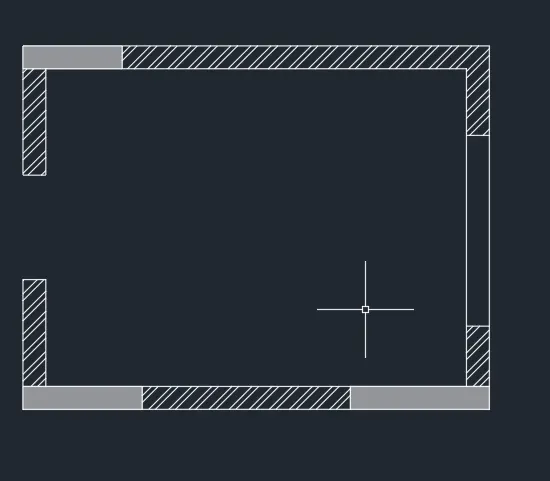
Aim: To draw the kitchen Plan
Procedure:
- First set up the units
- Draw a rectangle with given dimensions
- Give offset and draw an inner rectangle and draw required lines with dimensions
- Give offset and draw all cabinets
- Add necessary text and dimensions using Mtext and DIM and give hatch
- Now copy this above counter plan
- Erase the unwanted cabinets and draw the required cabinets and give dimnesion and text
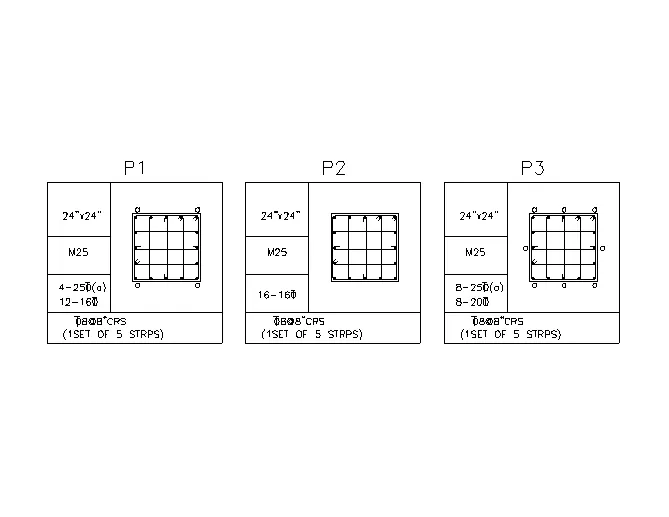
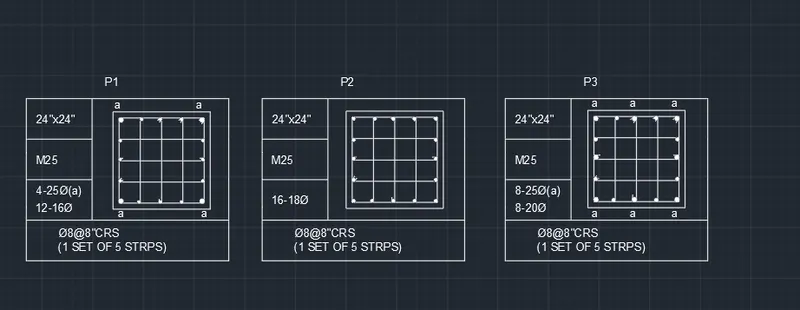
4. Columns:
Aim: To draw the columns with given dimensions
Procedure:
- First set up the units
- Draw a rectangle with given dimensions
- Give offset and draw an inner rectangle
- Divide the line into required parts and draw the lines
- select circle command draw the circles in given diameter and palce them in the columns
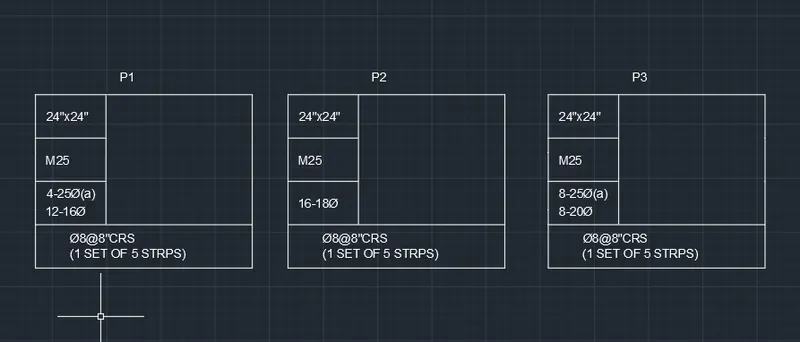
- Create the required three columns according to dimensions
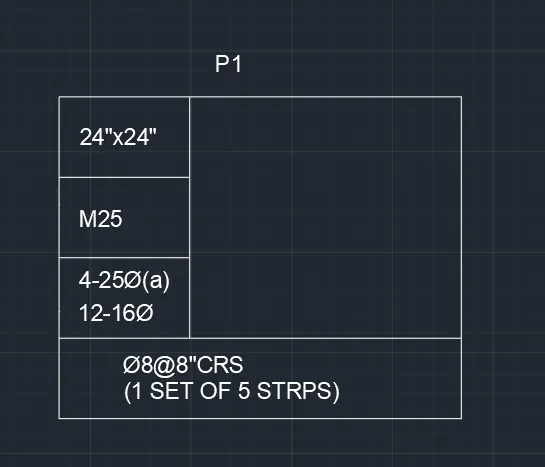
- Now draw a table for placing the columns naming them P1,P2,P3
- Place the drawn columns in the table
P1: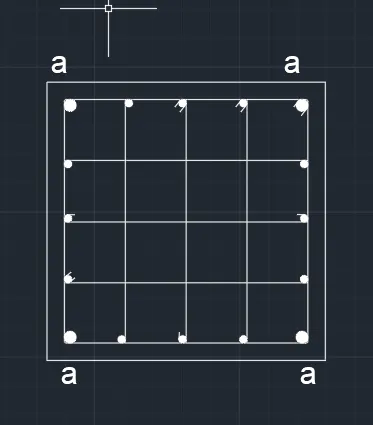
P2: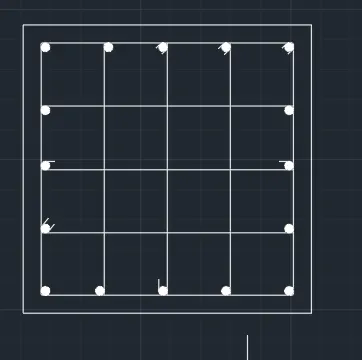
P3: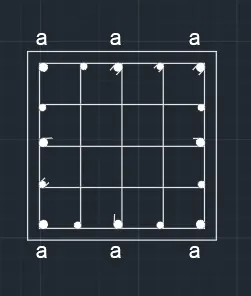
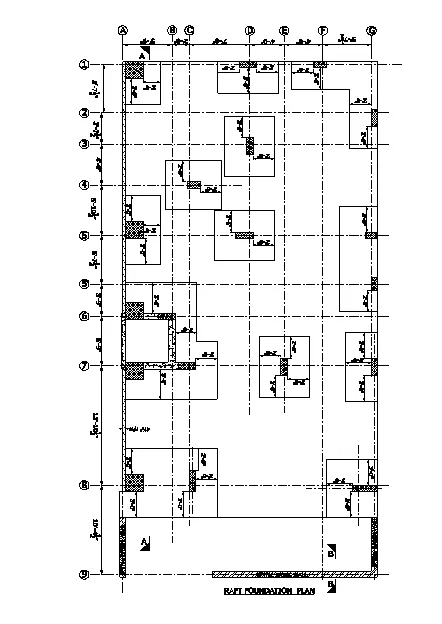
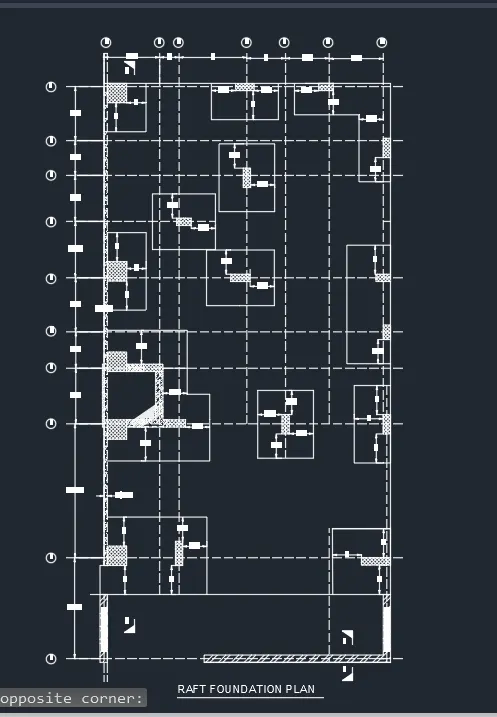
5. Raft foundation plan:
Aim: To draw the Raft foundation plan with given dimensions
Procedure:
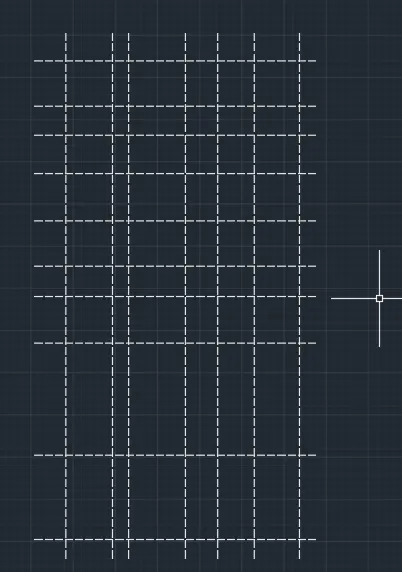
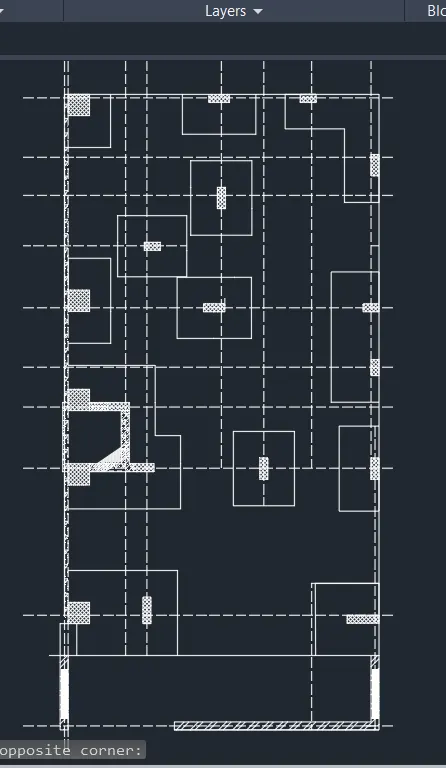
- Draw a construction line using XL command in horizontal and vertical directions
- Give offset in x and y direction
- Now draw all the required lines using offset command and get required plan
- Create all the required columns and footings
- Now add the numbers to all teh columns
- Add necessary text and dimensions using Mtext and DIM
- Give hatch for the brick wall and columns
RESULT: The following are obtained drawings for the plans drawn in AutoCAD as per given measurements
1. Cabinet Drawing:
2. Floor Plan:
3. kitchen layout:
4. Columns:
5. Raft Foundtaion Paln: