Assignment 6-Frontal Crash Simulation Challenge
Crashworthiness Analysis using HyperMesh and Radioss
#Project 1 - Frontal Crash Simulation Challenge
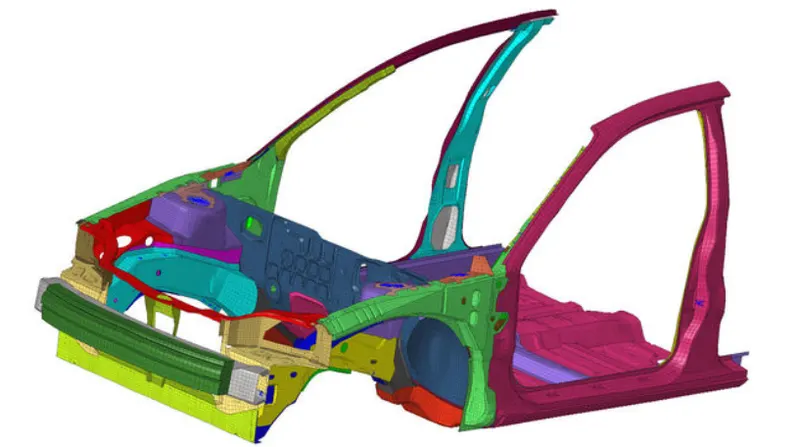
AIM: To perform the crash on the frontal section of the car with wall and analysis where stresses are working on it.
OBJECTIVES:
Frontal crash-BIW
1. Checking the unit system and either following [Mg mm s] or [Kg mm ms].
2. Creating appropriate interface, friction 0.2 and recommended parameters.
3. There should be no penetrations and intersections.
4. Creating a rigid wall with friction 0.1.
5. Adding masses to reach target weight 700kg while getting CG about the required range.
6. Adding Initial velocity 35 mph.
7. Running a model checker to ensure good quality.
8. Time-step: 0.5 to 0.1 microseconds.
9. Running 80 ms.
Output requests:
1. Adding a sectional force in the rails at the location of indicated node 174247.
2. Adding Axial force received on the rails from the bumper.
3. Adding Shotgun cross sectional forces.
4. Adding a cross section to a pillar.
5. Acceleration curve received on the accelerometer at base of B pillar (on B pillar rocker).
6. Adding Intrusions on the dash wall at node 66695 and 66244.
PROCEDURE OF OBJECTIVE 1: Checking the unit system and either following [Mg mm s] or [Kg mm ms].
STEP 1: Open the starter file neon_front_000.rad file, go to-
*Menu bar>file>import>solver desk>select .rad file>import
STEP 2: Checking unit system of the model
*Model browser>cards>begin card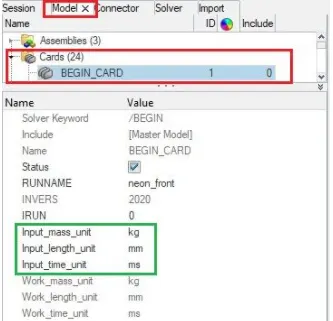
PROCEDURE OF OBJECTIVE 2: Creating appropriate interface, friction 0.2 and recommended parameters.
CREATE SELF CONTACT:
- In this case, the Type 7 Contact Interface is defined. Interface TYPE7 is a multi-usage impact interface, modeling contact between a master surface and a group of slave nodes. It is also possible to consider heat transfer and heat friction.
TYPE 7: NODE TO SURFACE
- Impacts occur between a master surface and a set of slave nodes, similar to the TYPE5 interface.
- A node can impact one or more master segments.
- A node can impact on either side of a master surface.
- Each slave node can impact each master segment except if it is connected to this segment.
- A node can belong to a master surface and a set of slave nodes.
- A node can impact the edge and corners of a master segment. None of the previous interfaces allows this.
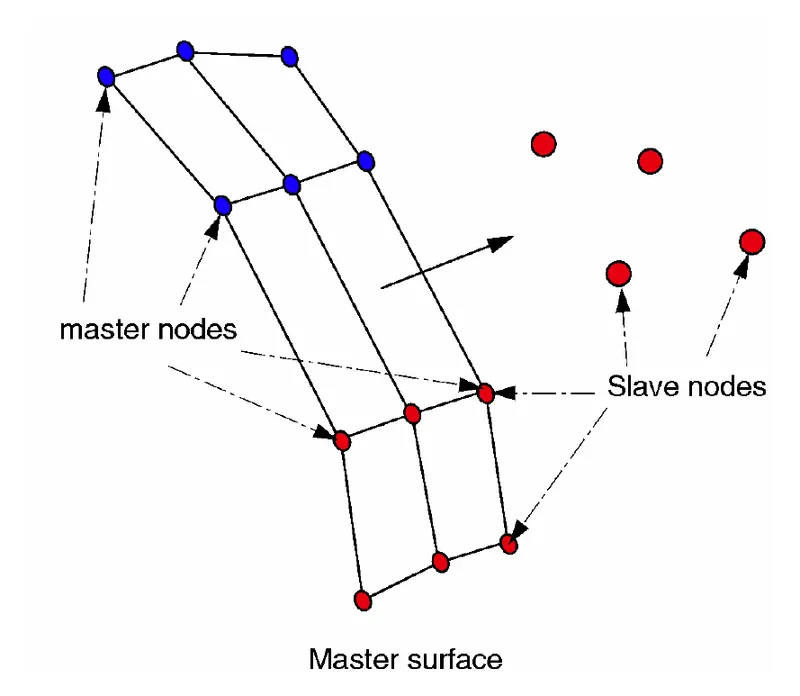
Type 7 contact
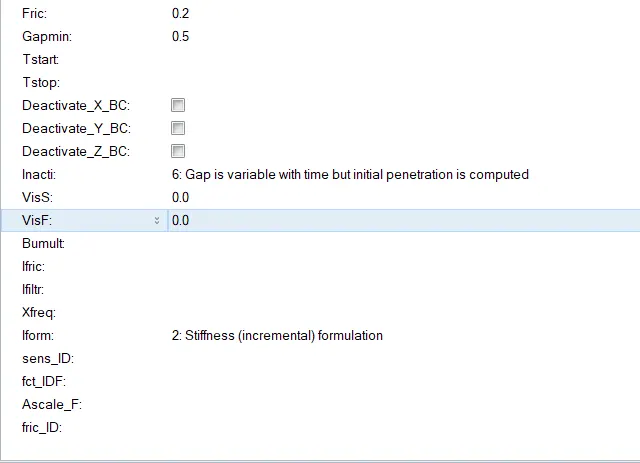
The recommended properties are as following:
1.Igap = 2 (Variable Gap took into account.)
2.Gapmin ≥ 0.5mm (minimum thickness to avoid the numerical issue.)
3.Inacti = 6 (remove initial penetrations wherever possible, else reduce to less than 30% of the defined gap)
4.Istf = 4 (Stiffness based on softer Segment)
5.Stmin = 1 kN/mm (Minimum stiffness in contact to avoid too soft contact.)
6.Idel = 2 (remove slave nodes from contact because of element deletion)
7.Iform = 2 (Frictional Forces are calculated on the basis of Stiffness parameter.)
Delete existing contacts and create new contacts with recommended properties
- Now create a new contact
- Goto model browser >> Right-click >> Create >> Contact >> Rename as Self contact >> Select slave node and master components >> Enter Type 7 recommended properties
- We can select slave and master as a component and as well as node selection
- For that, we just have to right-clicked where selecting nodes are components there is one option called create/Edit select and proceed with nodes or components
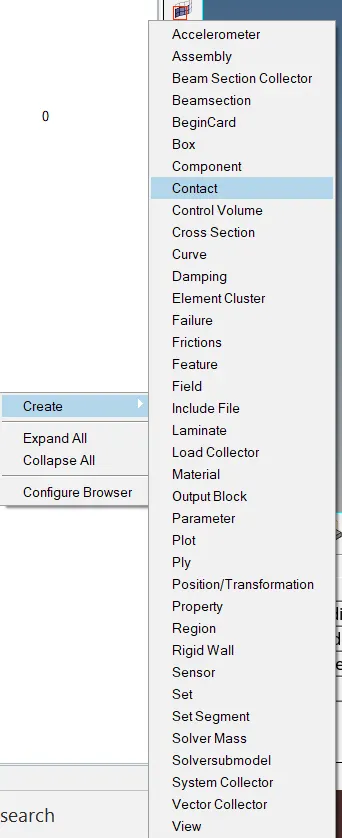
- Creating new self contact(type_7)
- Then after this step, we simply need to give in the Slave nodes and the master segment. Since we are defining a Self-Impact in the model, the Slave and Master segments for this contact will be the entire given model. So, we then select the slave and master in the graphics area.
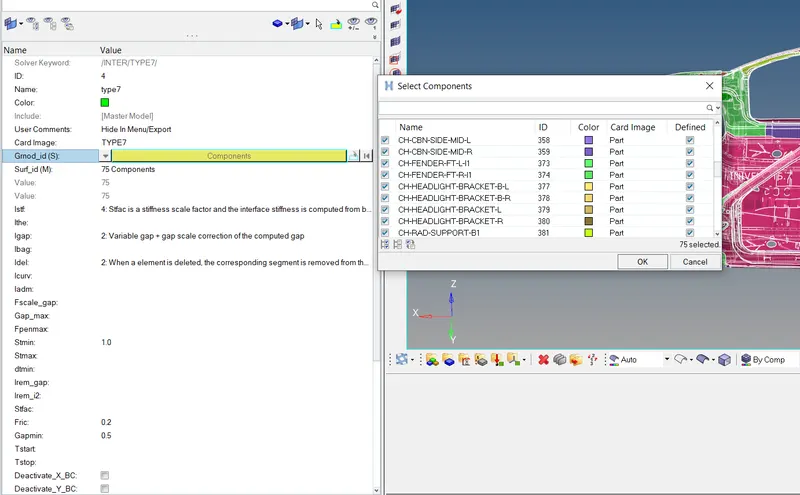
- Recommended properties
check whether master and slave nodes selected proper
For that Simply right-click on self contact >> Review
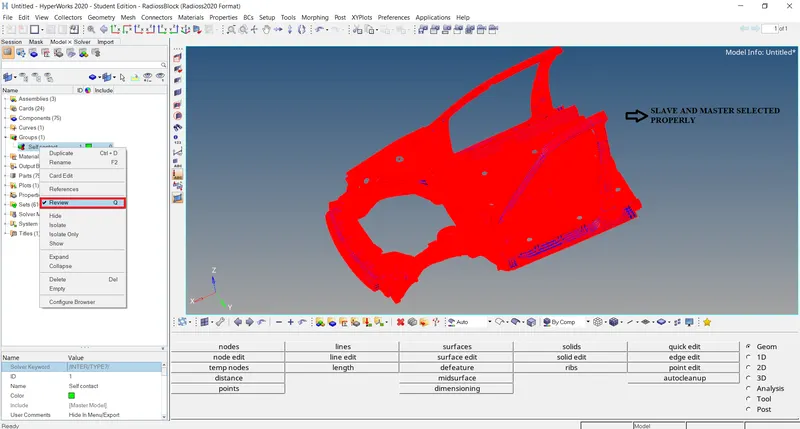
Slave and Master components
CREATE INTERFACE CONTACT BETWEEN BUMPER AND HEADLIGHT BRACKETS:
Now create a new contact's
Goto model browser >> Right-click >> Create >> Contact >> Rename as contact between bumper and headlights >> Select slave node as bumper and master components as headlights >> Enter Type 7 recommended properties
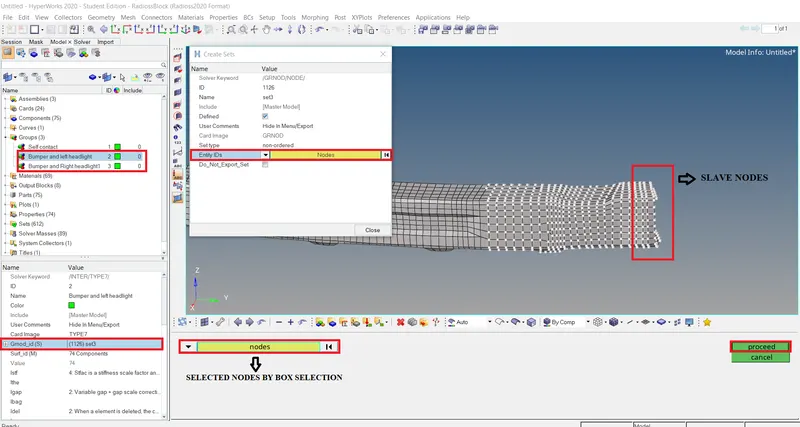
Selecting slaves nodes
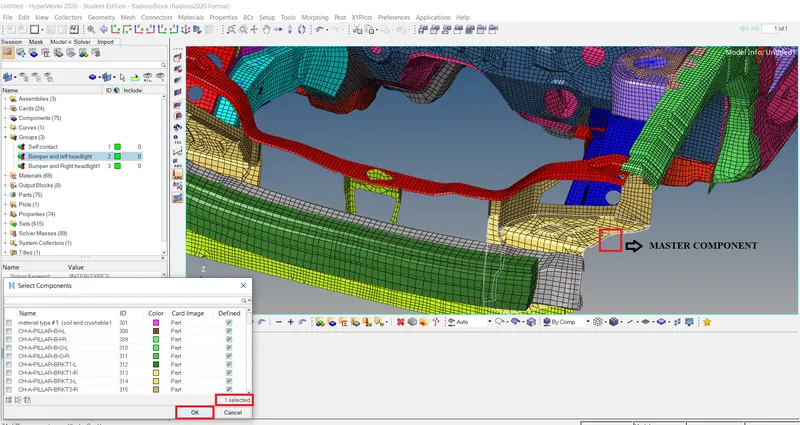
Master component selected
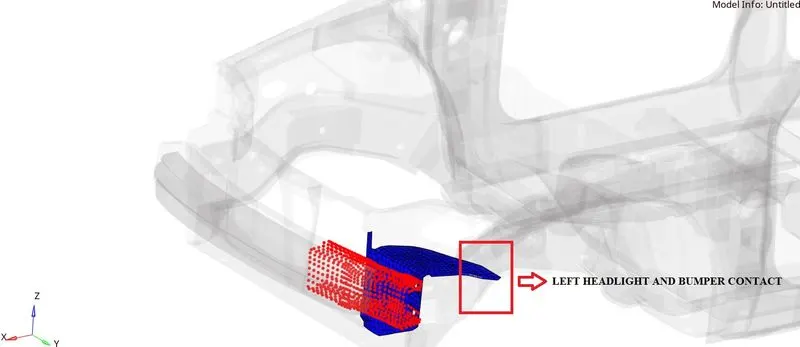
Review of left headlight and bumper contact
Here BLUE indicates MASTER component and RED indicates SLAVE nodes
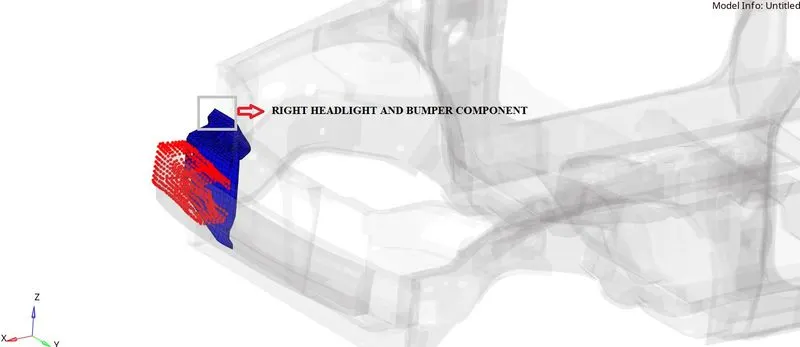
Review of right headlight and bumper contact
CHECK FOR PENETRATION AND INTERSECTION:
Penetration is defined as the overlap of the material thickness of shell elements, while Intersection is defined as elements that actually pass completely through one another. All models and especially impact models should be checked for penetrations and intersections and De penetrated to ensure the integrity of the model. Penetrations adversely affect results and should be removed.
To check penetration and intersection
Got to Quality>> Check all solver contact interfaces >> Select parts > Click on check penetration
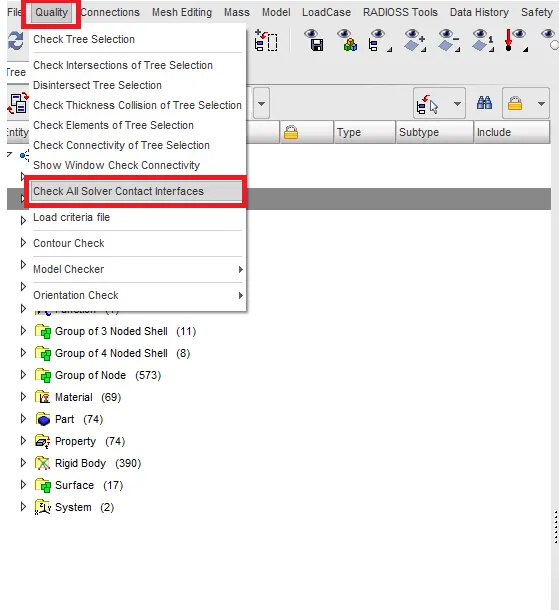
Checking for intersection and penetrations
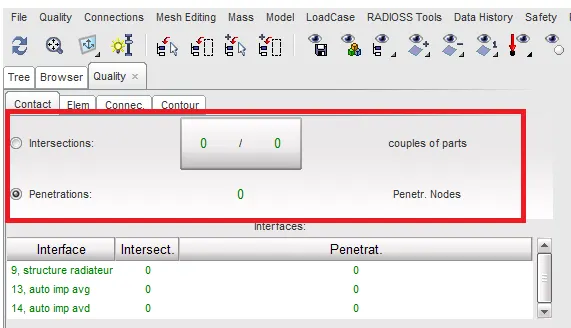
No intersection and penetrations present
We can clearly see from the above figure there are no penetrations and intersections are present in the model.
Compare the model weight with the full-scale 300k nodes model and use added masses to reach a target weight of 700kg while getting CG about the required range.
A vehicle’s centre of gravity, or CG, is the theoretical point where the sum of all of the masses of each of its individual components effectively acts. In other words, from a physics perspective, a vehicle behaves as its entire weight resides at this one point. Carrying weight up high, such as a panoramic sunroof will raise a vehicle’s CG while placing heavy subsystems low in a vehicle, such as a battery pack, will work to lower it. Lower is better from a handling standpoint, as it reduces weight transfer during cornering and braking, and it also reduces the propensity to roll over.
ADD MASSES:
Mass balancing: In order to maintain the CG of a car we have to add mass for the given components, In the given model here are so many parts are missing because of the node limits in the student version
To check the CG
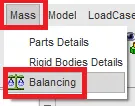
Go to menu >> Mass >> Balancing >> Show CG point
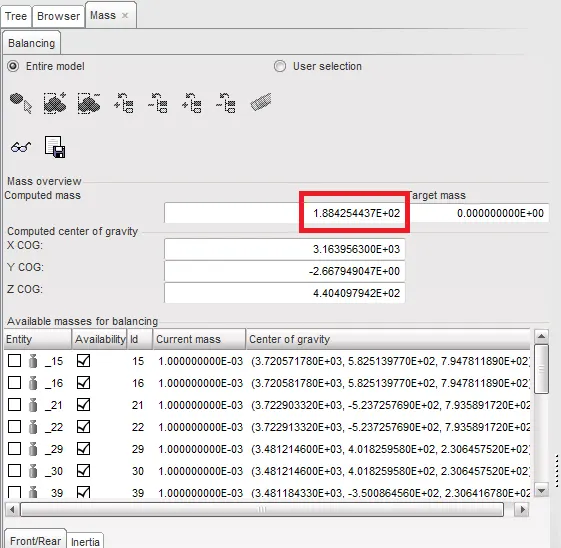
Total mass when we imported
It is showing that the total mass of the body is 188.2 kg which is 700-188.2 = 511.8 kg less than our target mass.
Before adding mass check the CG, To check the COG of the body we have to click on the specs icon.
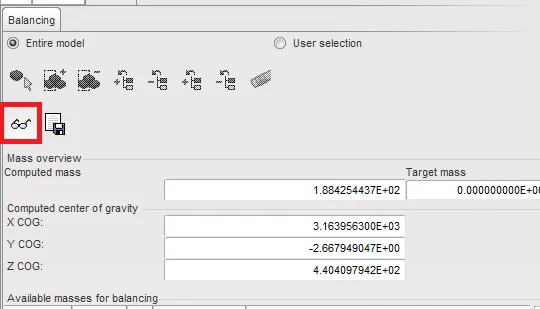
Checking for CG
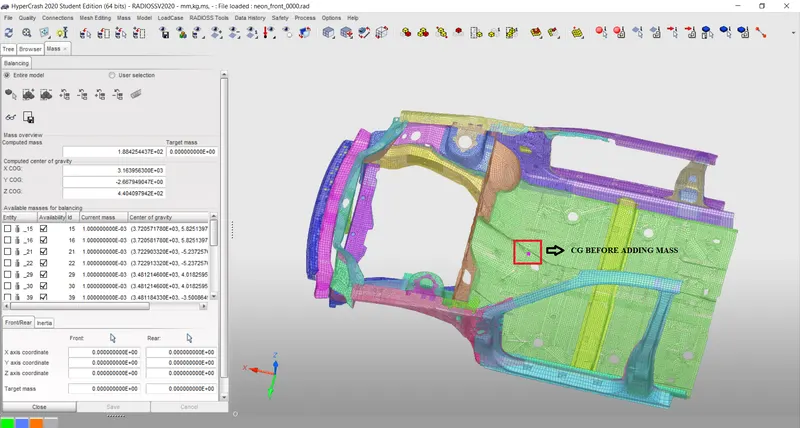
CG before adding mass
Current weight: 188 kg
Target weight: 700 Kg
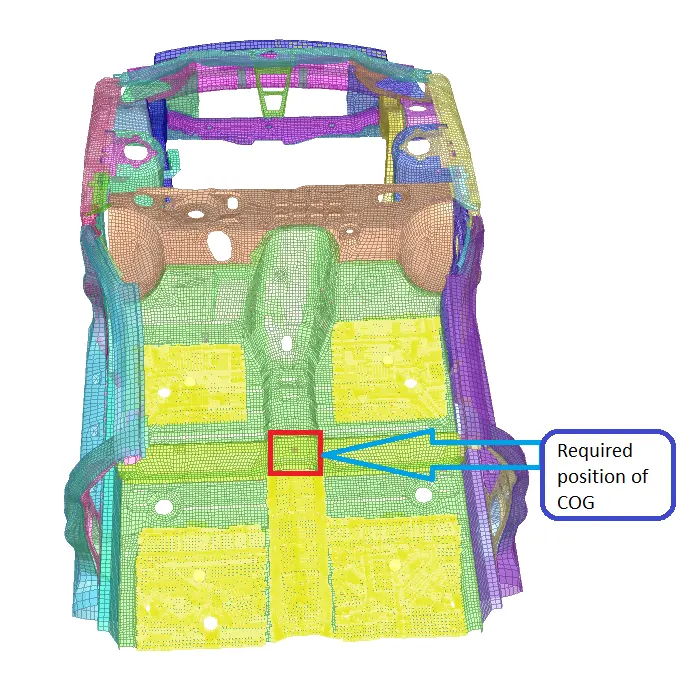
- We have to add the mass in such a way that the Centre of gravity is exactly in the middle of the Cross Beam to simulate the real-time model.
- We are only worried about the position of the COG (X and Y axis) and not the height (Z-axis).
- We use Type 1 Mass, where mass is distributed on each node of the selected group.
Added Mass > Create New >> Type =1 >> Enter the Value (ex. 85kg) >>right click to pick nodes >> Select the group node by selecting in the graphics >> Select Add/Remove nodes by picking selection >> After selected hit YES >> Save
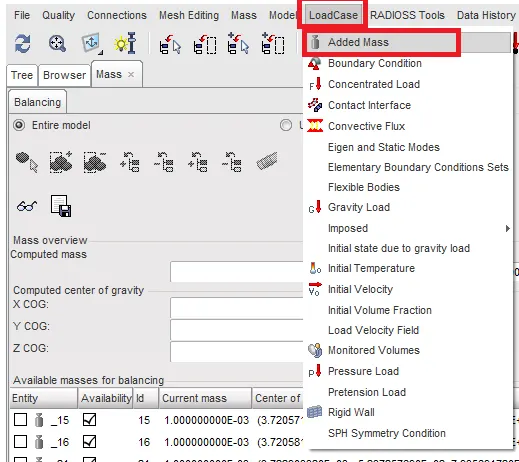
Adding mass
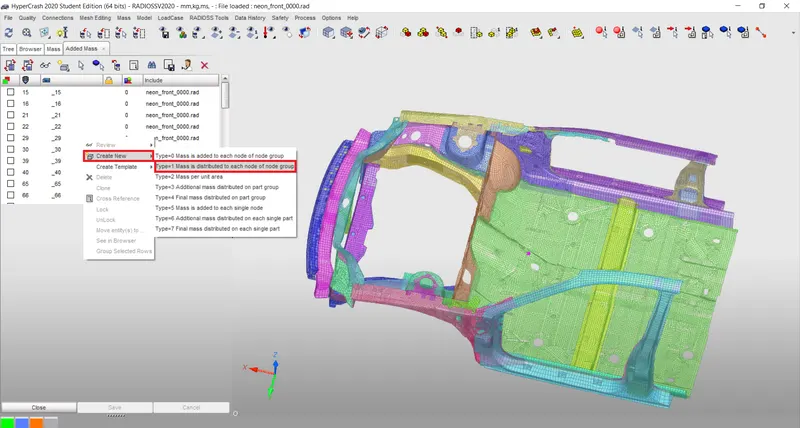
Selecting mass type as 1
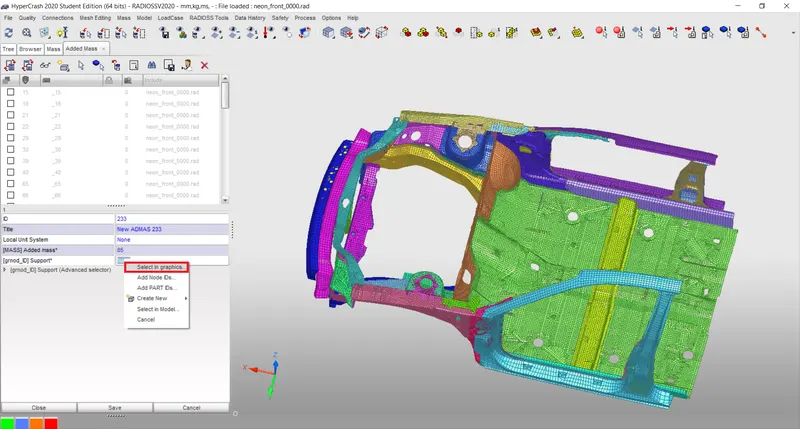
selecting nodes by graphics
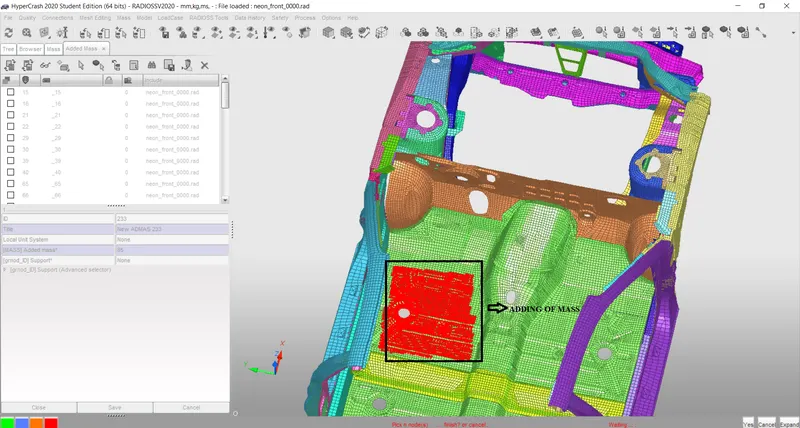
Mass added for particular selected nodes
|
MASS in KG |
DESCRIPTION |
|
85 |
Driver and his seat |
|
85 |
Passenger and his seat |
|
170.7875 |
The rear seat, spare wheel and fuel tank |
|
170.7875 |
The rear seat, spare wheel and fuel tank |
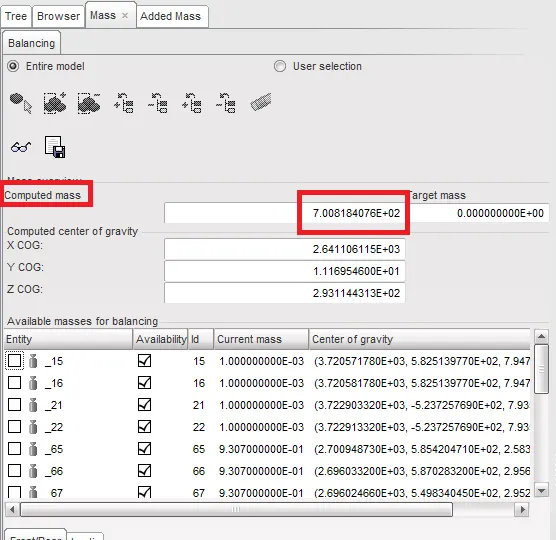
After balancing the mass we achieve our target mass that is 700kg as shown in the figure below
After adding the mass:-
And CG of the model:-
EXPORT HYPERCRASH FILE:
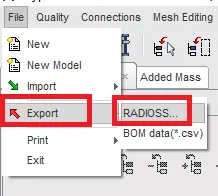
Export the rad file changes made in hypercrash and import the same file in hypermesh to make other changes
For that
Go to File >> Export >> RADIOSS
Now import the same "runname_0000.rad" file in hypermesh to do other changes
For that open hypermesh
Go to file >> Import solver deck >> Select Neon_0000.rad file >> Import
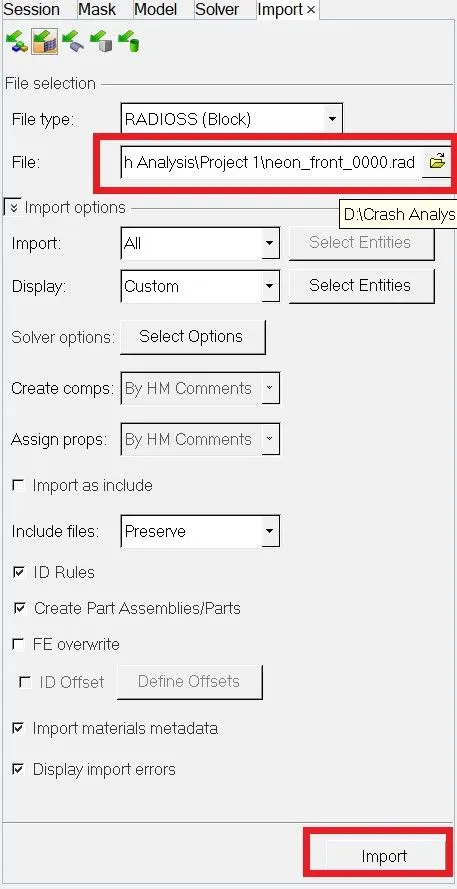
Selected starter file from the folder
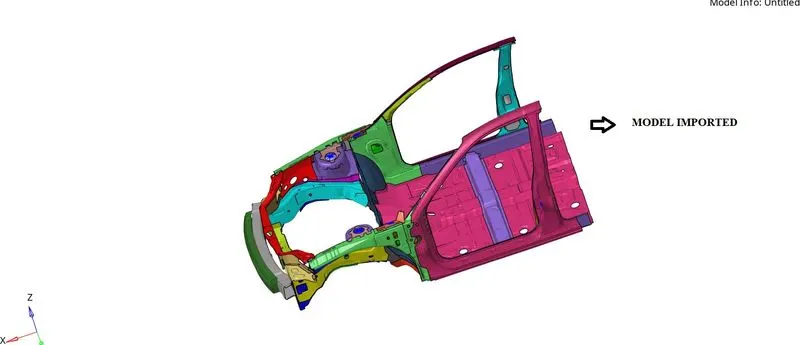
Model imported
CREATE RIGID WALL:
A rigid wall is a nodal constraint applied to a set of slave nodes in order to avoid the node penetration to the wall. If contact is detected, then the slave node acceleration and velocity are modified. Mainly to constrain the movement of a moving body after impact, we will be using a plane wall. An infinite plane wall is a plane that extends to infinity. It is defined with two points.
Rigid wall entities provide a method for treating a contact between a rigid surface and nodal points of a deformable body. In the Radioss user profiles, rigid walls can be created in the Model and Solver browsers.
To create an RWALL
Go to Slover browser >> Create >> Rwall >> Plane
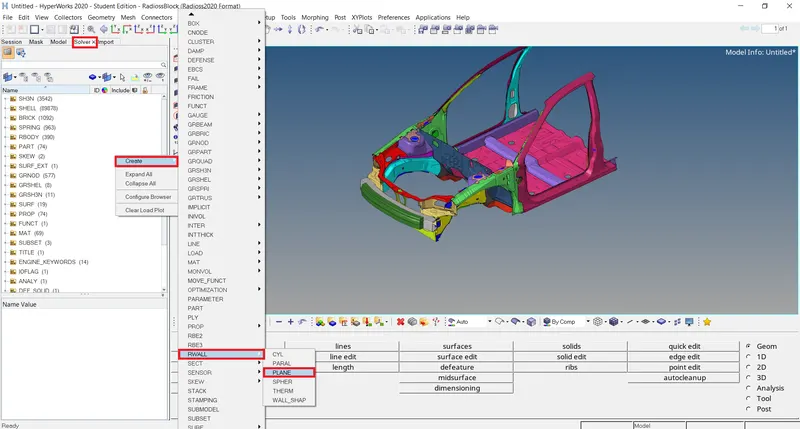
Creating an RWALL
We need a reference node to create an RWALL so for that we are creating a temp node in the mid of bumper

Temp node creating
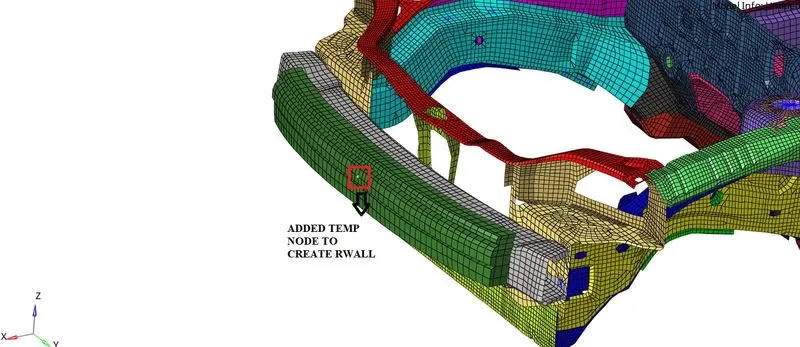
TEMP node created
Now translate this node to some distance with the reference of this translate node we have to create an R-wall with respect to that CO-ORDINATES

Translate node
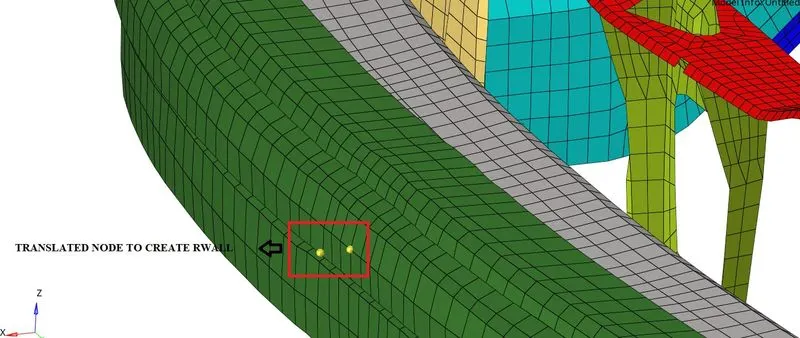
Node Translated
Now select the translated node and note down the X, Y and Z coordinates
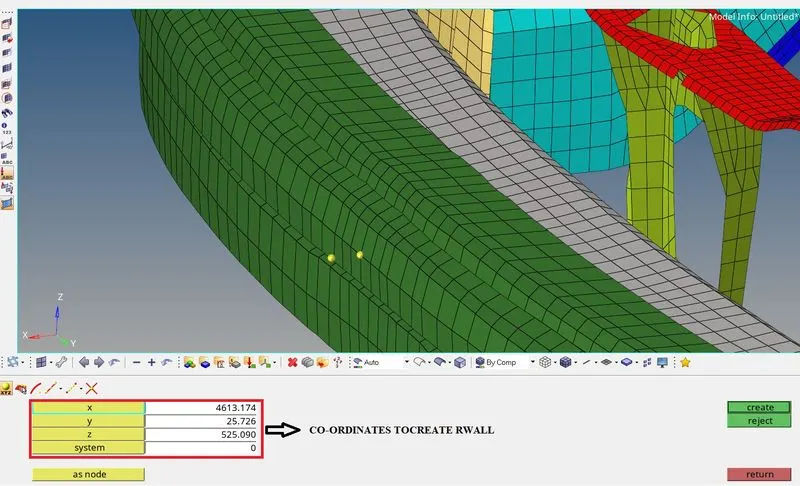
Co-ordinates X, Y and Z values
- It is a Shell element with no thickness (gap) and infinite thickness.
- A search tolerance is given (optional) so that the nodes within the range will be taken as slaves.
- We are going to create an Infinite plane type Rigid wall.
Enter the coordinates of the Temp node [XM, YM, ZM] >> Enter the Direction of the Normal [-1, 0, 0] >> Slect GRNOD_ID 1: set of displayed nodes >> Dsearch : 1000/1500 >> ok
The rigid wall is facing opposite to the car so the normal is on the negative X-axis.
- We have to provide frictional parameters for the rigid wall when the slave nodes come in contact
- Friction type [Slide] = 2: Sliding with friction
- Frictional Coefficient [FRIC] = 0.1
- The D-search distance we can use around the range of 1000 mm. All the Nodes within this distance will be considered as salve nodes for the contact between the car and the Rigid Wall.
- We can add a separate set of nodes to this Rigid wall that the system should consider for Slave nodes in the option of [grnod_ID1] as shown below figure. We can use this option and add all the nodes in the model to the Slave nodes.
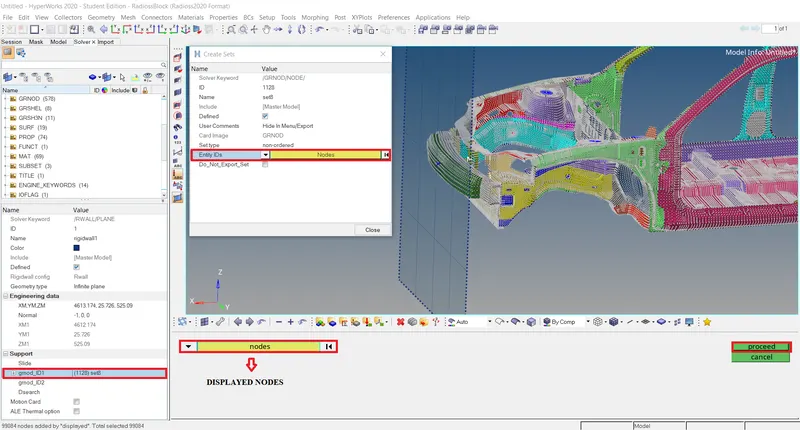
Selected Slave nodes
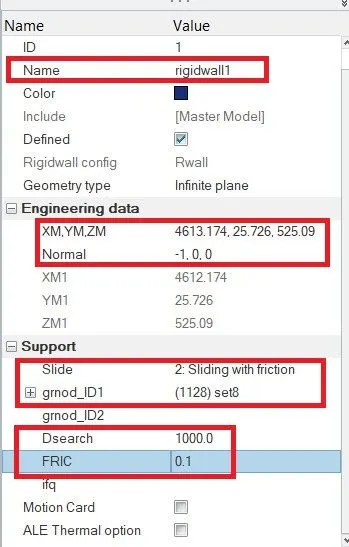
RWALL tab
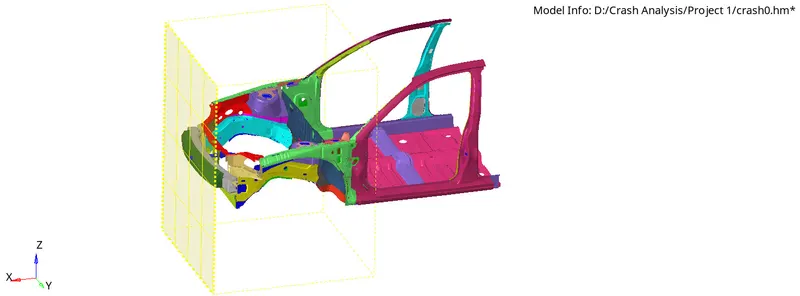
Rigid wall with infinite plane created
To create a velocity
Go to solver browser >> Create >> Boundry conditions (BC) >> Inivel
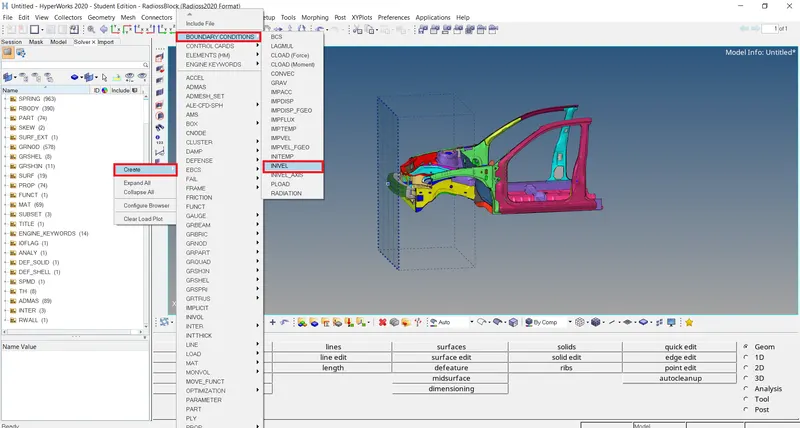
Creating velocity
Define the Node group on which specified initial velocities are applied(grnd_ID1).
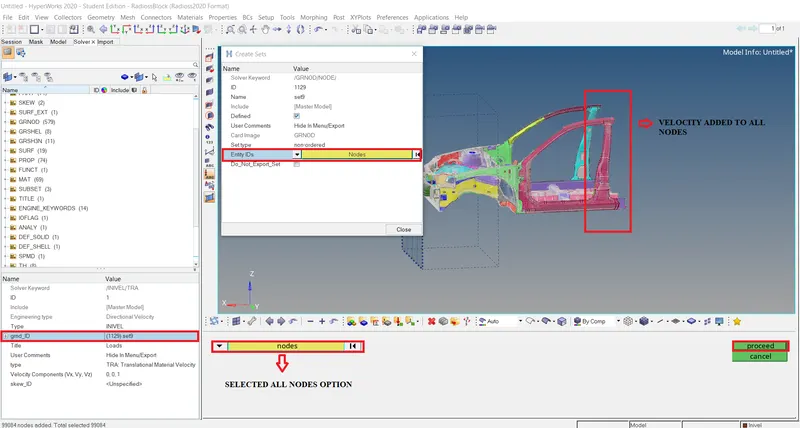
Selecting GRNOD_ ID 1 slave nodes
Define the Type of Velocity (Translational /Rotational).
Since we need to apply the velocity in translational X Direction, define the velocity 15.646m/s
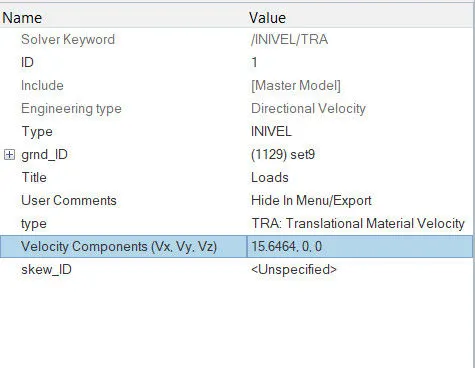
INIVEL Tab
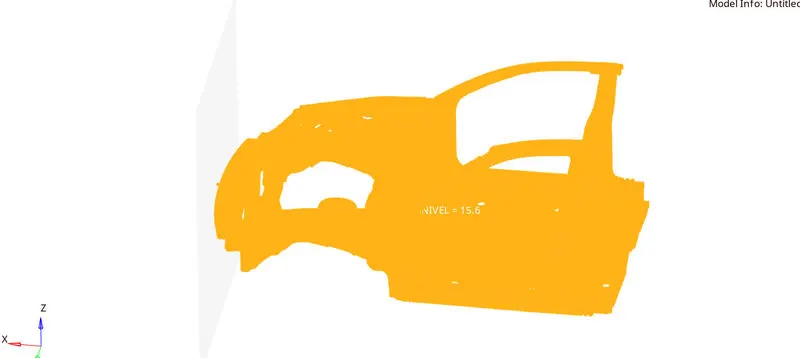
Review of inivel nodes
CREATE SECTIONAL FORCES:
Creation of Sections at A-Pillar, Shot Gun, rails and the Bumper in order to Study the sectional forces
We have to know how the forces are transmitted from the Bumper to the Dashboard and the rate of deformation. It is done in order to ensure the safety of the passenger.
Certain components have to crash (deform) more than the other so that the forces are distributed correctly leaving very little force left to transmit inside the cabin.
We are creating sections for the following parts:
| Sl. no | 1 | 2 | 3 |
| LEFT SIDE SECTION | RAIL | SHOTGUN | A-PILLAR |
| RIGHT SIDE SECTION | RAIL | SHOTGUN | A-PILLAR |
To create a section and Frame
Go to Slover browser >> Create >> Section >> SECT
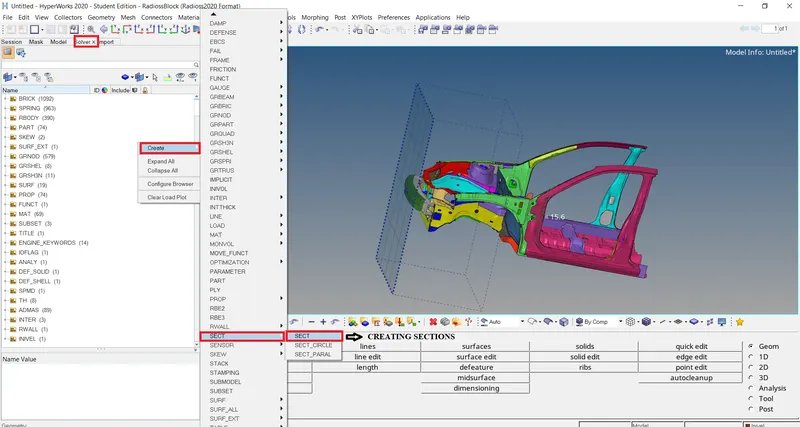
Creating section
Now when we create a section a new tab will display their we have to select N1, N2 and N3 nodes
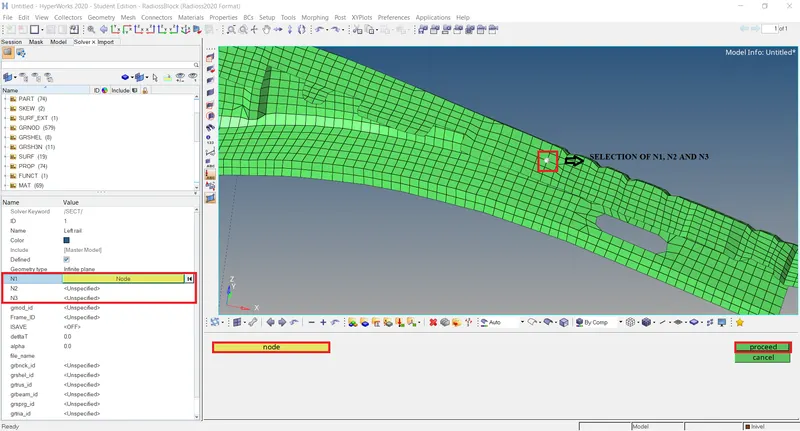
Selecting N1, N2 and N3
- We then need to select the three nodes on which we need the Frame system.
- In this case setup, we need to define around 6 sections.
- We need to make sure that the normal of all the sections defined need be in one particular direction. All the normal can be facing either the wall or even away from the wall. We need to make sure that they are in a single direction.
- We can create a Section just in the same way as we created a section system.
- We need to right-click in the solver browser and select frame.
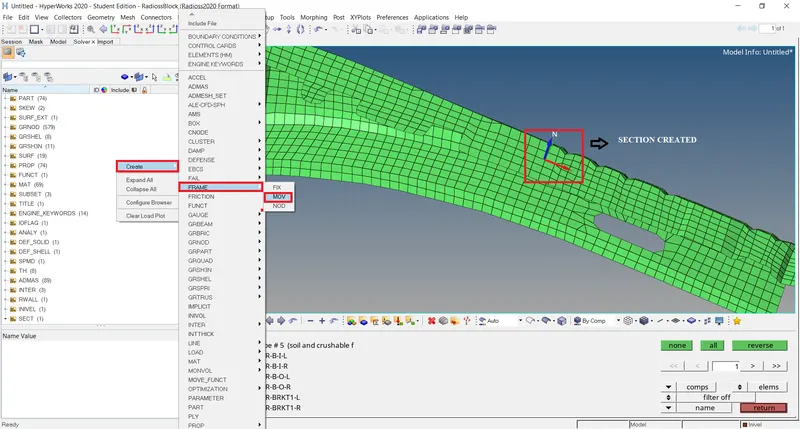
Section created

Selecting frame nodes
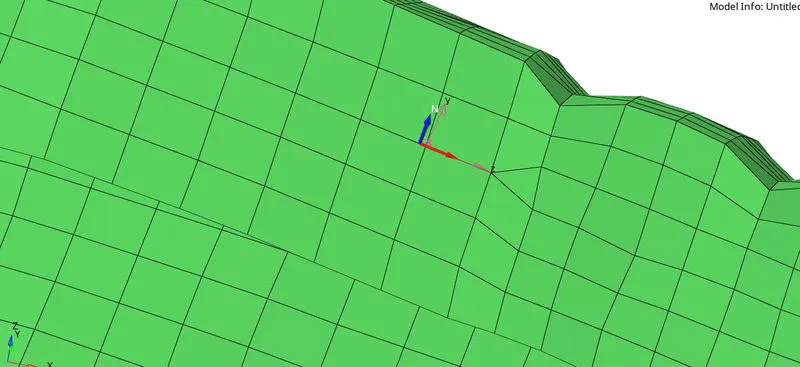
Frame created
Now assign this frame system in section
Define the Nodes with reference to the Axis of the Frame.
• Enter the values of Delta T and Alpha Value as 0.1 and 0.67 respectively.
• Define the cutting plane by a group of elements and its orientation by a group of nodes(grshell_ID)
• Hence, the sections will be created.
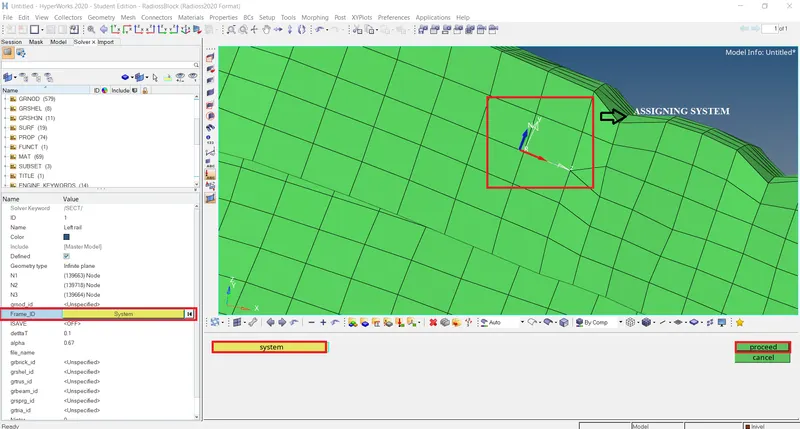
Assigning frame system
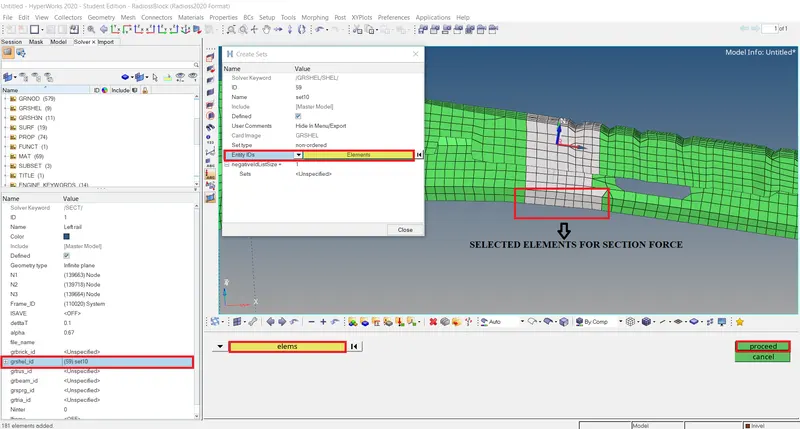
Selected elements for section forces
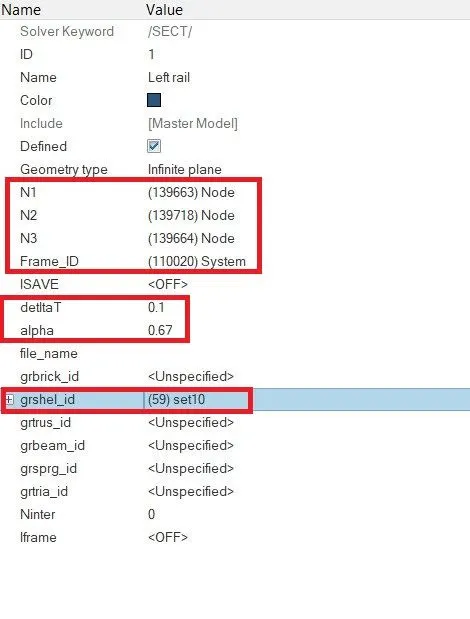
Section Tab
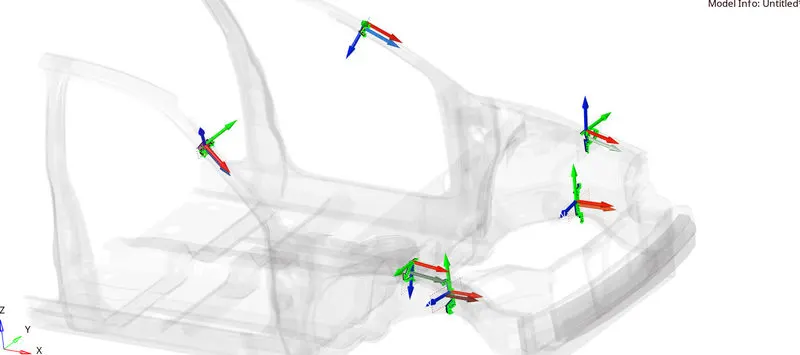
All 6 Section Created
CREATE ACCELERATION NODES:
Creating Accelerometer at both sides of the B pillar.
An accelerometer is a basic technology that converts mechanical motion into an electrical signal. It is an electromechanical device that measures acceleration forces, whether caused by gravity or motion.
To create accelerometer
Go to Model browser >> Create >> Accelerometer >> Select Node_ID >> Select node >> Proceed
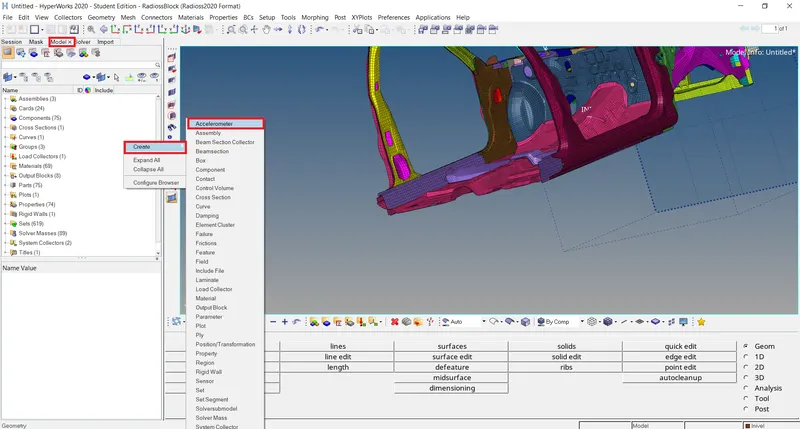
Creating accelerometer
This is done to get the Acceleration output of the Crash i.e., rate of deformation.
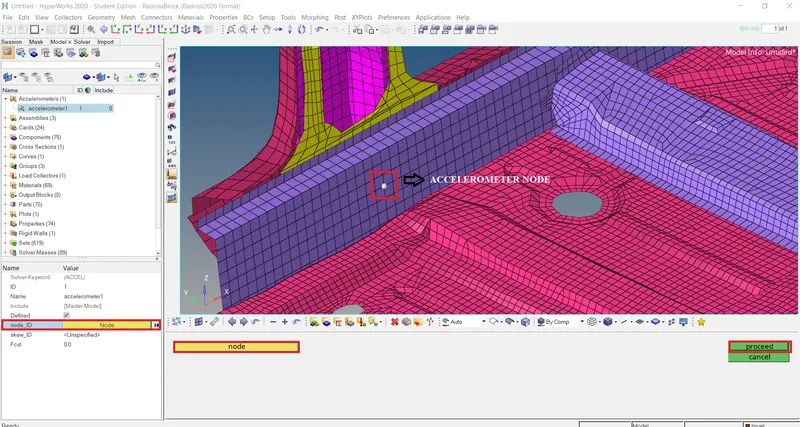
Accelerometer node selected
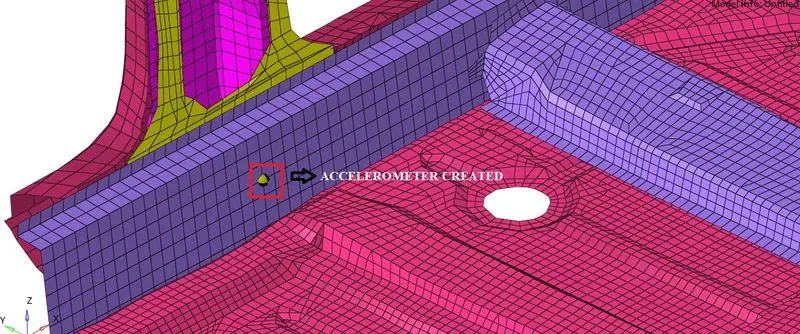
Accelerometer created
CREATE SPRINGS:
- We are planting Spring elements to study the intrusions (forces inside the cabin causing deformation/rupture).
- Create 2 parallel spring elements from the indicated nodes (66695,66244) till the Crossbeam.
- Springs can be created from the 1D Panel > Springs
To create a spring first as temp node at that particular node id then select another node on other to see deflection after crash
After adding nodes now
Go to 1D page >> Springs >> Select first and Second node >> Create spring

Spring tab
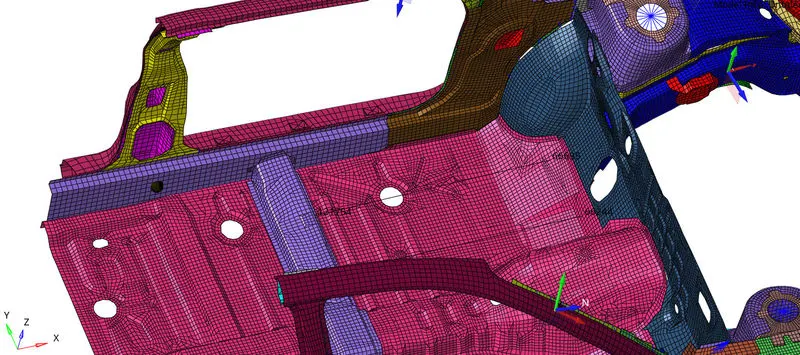
Springs created
CREATE PROPERTIES TO SPRINGS:
To create spring property
Go to model Browser >> Create >> Property >> Rename as Intrusion springs
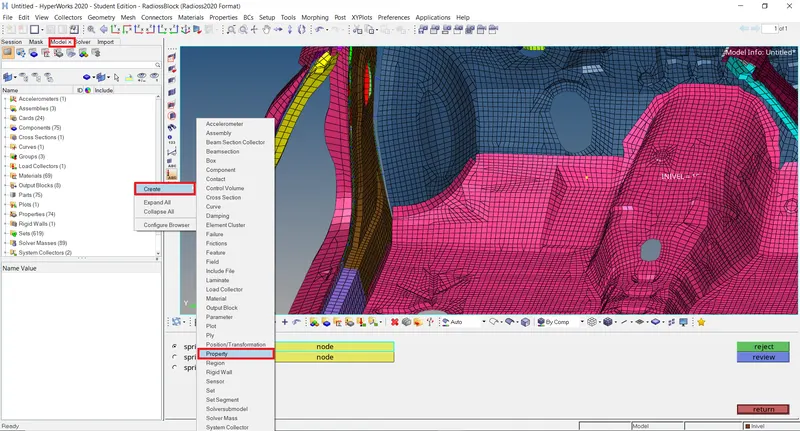
Creating new property for spring
After creating property a new tab will open there we have to select CARD image as P4 SPRING and Mass as 0.1 and Stiffness as 0.001
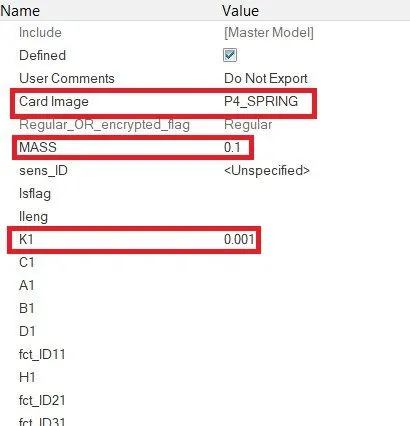
Changes CARD IMAGE
REQUESTING TH FOR INTRUSION SPRINGS, ACCELEROMETER, SECTION FORCE:
Delete existing TH and create new
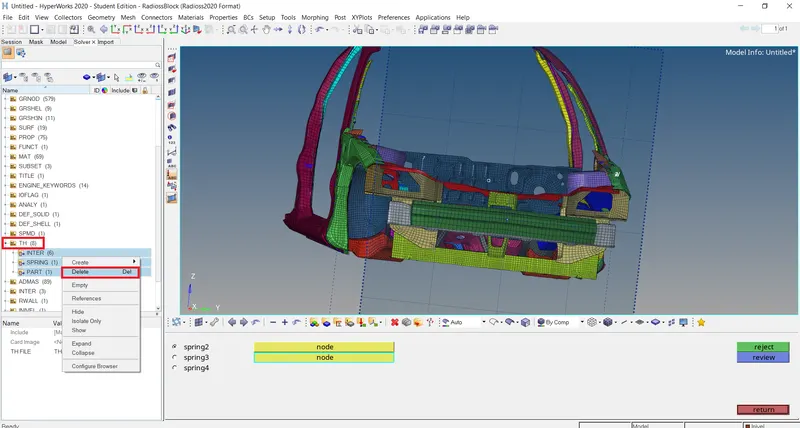
Delete existing TH
They are Output files that are requested in the Starter File.
- All the Global variables (Internal energy, Kinetic energy, Contact Energy, Hourglass Energy, etc.) are already requested by default.
- We have to call for additional Time History files for the boundary conditions that we have created for the frontal crash model.
- We can create the Output requests from within the Solver Browser:
Solver Browser > Right Click > Create > TH > Select the Output Request
|
Output Requests |
Boundary Conditions |
|
INTER |
i. Self Impact ii. Left Bumper and headlight iii. Right Bumper & headlight |
|
ACCEL |
i. On Left B Pillar ii. On Right B Pillar |
|
SPRING |
i. Intrusion on node 66244 ii. Intrusion on node 66695 |
|
RWALL |
i. Rigid Wall |
|
SECTION |
i. Left Rail ii. Right Rail iii. Left A-Pillar iv. Right A-Pillar v. Right Shotgun vi. Left Shotgun |
To create TH
Go to Slover browser >> Right click >> Create >> TH >> Select section for Sectional forces >> ok
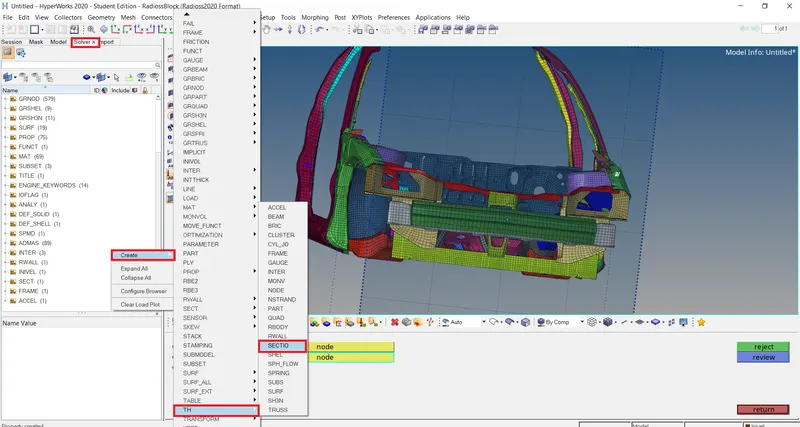
Creating TH for sectional forces
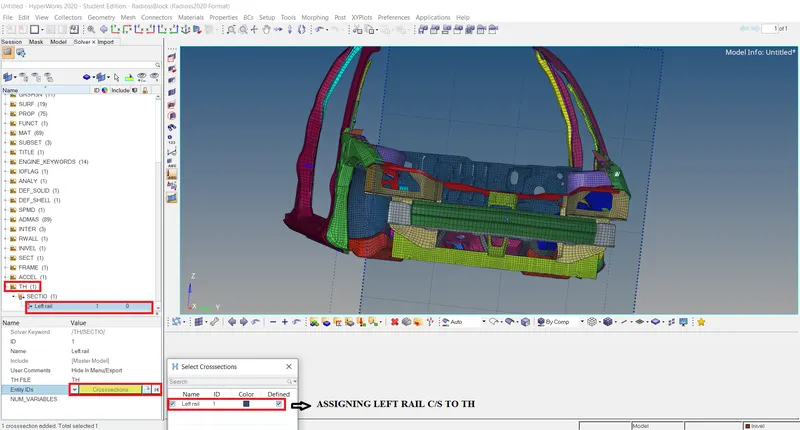
Assign left rail section
Do the same for others
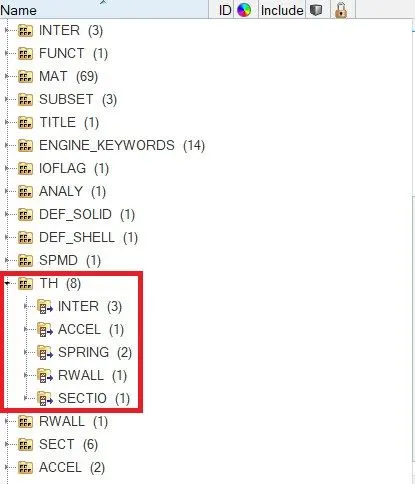
Output Requests
CREATE REQUIRED CARDS:
TIMESTEP CONTROL
|
Engine Card |
TSCALE [Scale factor] |
Tmin [Critical Timestep] |
Description |
|
ENG_DT_NODA |
0.67 |
0.001 |
Mass is added to the node when the computed timestep becomes smaller than the critical timestep. |
|
ENG_DT_BRICK |
0.9 |
0.0001 |
Controls the timestep by small strain formulation on the elements if they cause the timestep to drop. |
|
ENG_DT_INTER |
0.67 |
0.0005 |
Uses the default constant timestep method. |
Enter T stop as 80ms and T freq as 5
Go to ENG_RUN enter T stop as 80ms
For T freq
Go to ENG_ANIM_DT enter T freq as 5
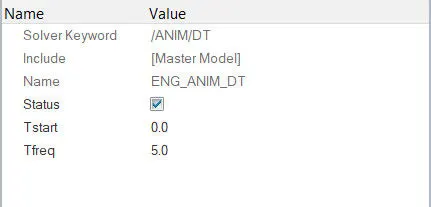
ENG_ANIM_DT card
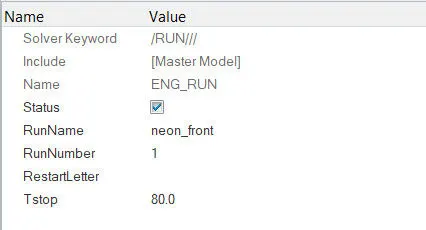
ENG_RUN card
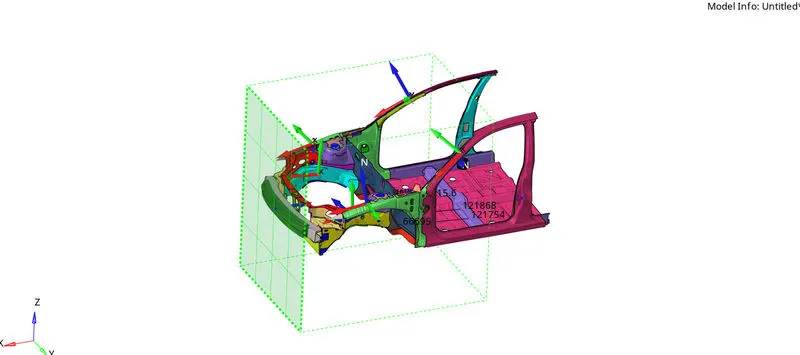
Final SET-UP
MODEL CHECKER:
This is the last and final check before giving it for simulation.
The Model checker will give us any warnings and Errors regarding the model definition and, the boundary and Kinematic conditions, etc.
For example:
- Boundary Condition is not defined properly
- Incompatible Kinematic Condition
- The Part Property or material is not defined properly, etc.
- We can avoid the Warnings as the solver will take care of them.
- But we must fix every Error in order to get a successful simulation free of problems.
we export the rad file and execute the Model check in Hypercrash
Quality > Model checker > Runs
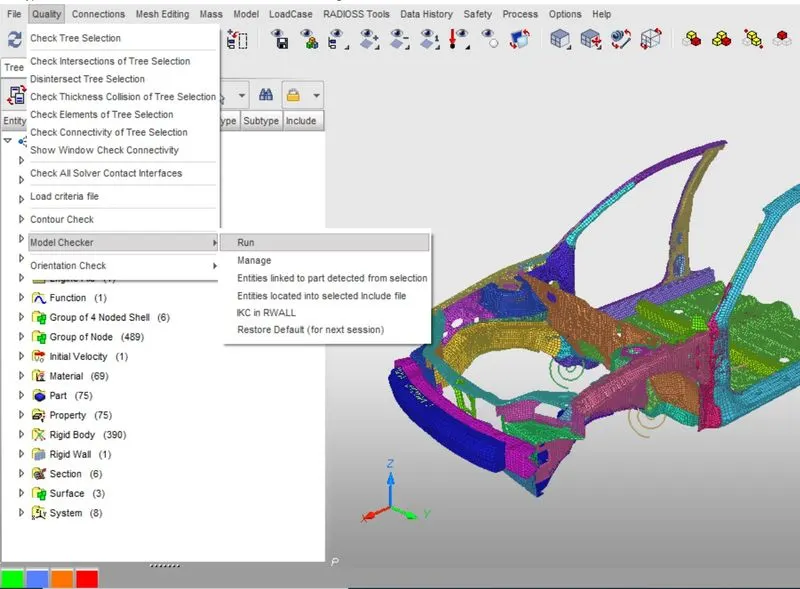
As shown in the figure below errors and warnings will show in the model checker tab
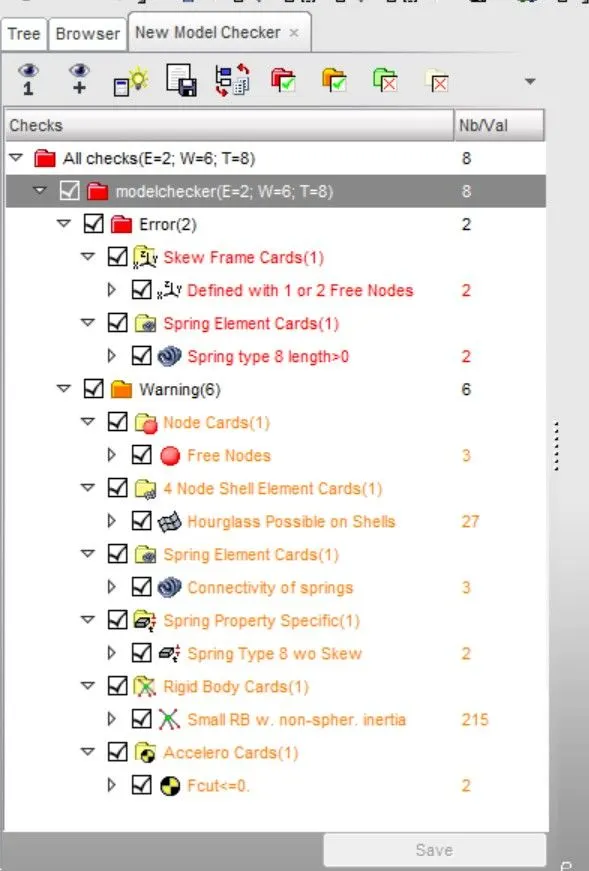
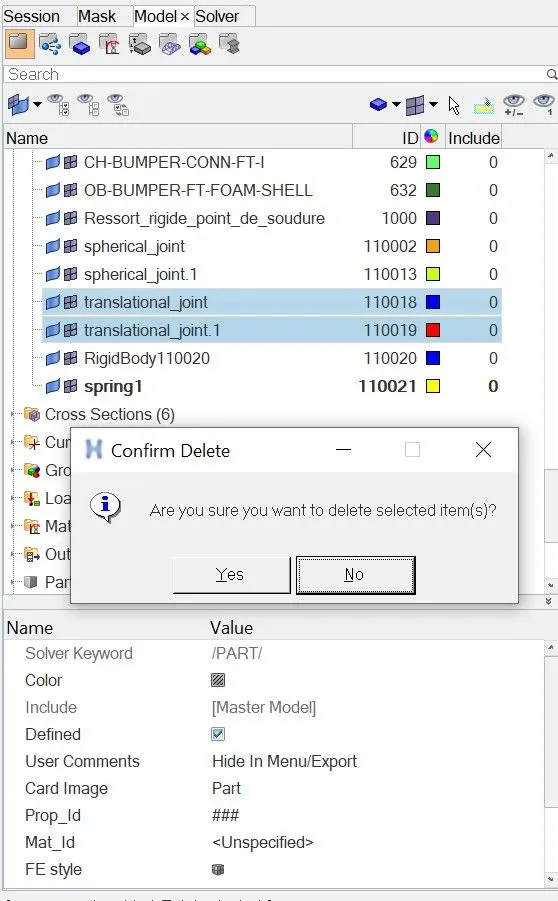
Upon inspection we found that there were two unnecessary translational joint present in the model, we delete those two translational joint and run the model checker again
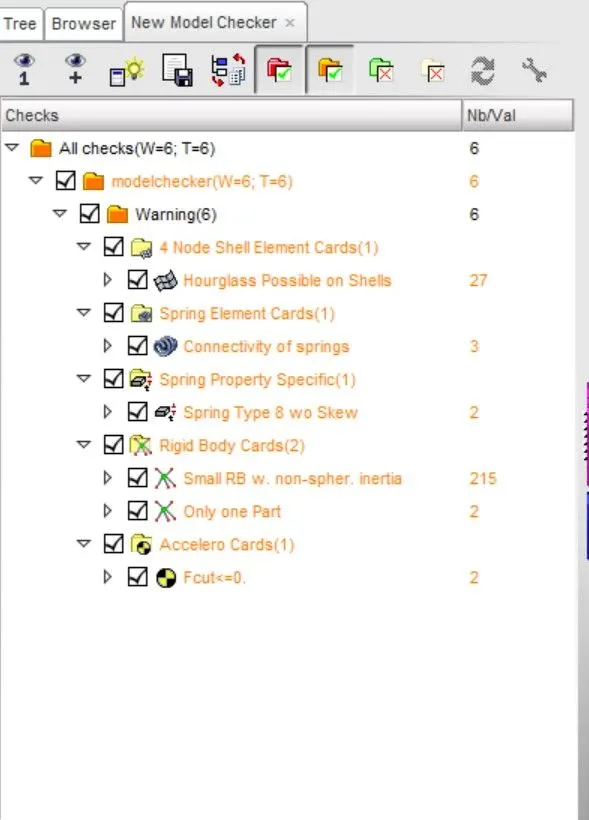
Now as you can see in the model checker tab all errors are rectified and rest of the warnings we can ignore.
RUN THE ANALYSIS IN RADIOSS
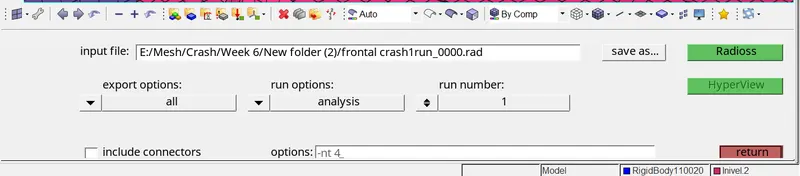
Switching to Hypermesh, moving to Analysis > radioss, we can click 'save as' to save the file if it hasn't been saved yet. Care must be taken to include '_0000.rad' in the file name since it's the starter file. After that, we can check the connectors option and input '-nt 4' in the options bar before clicking 'Radioss'. This starts the Radioss simulation.
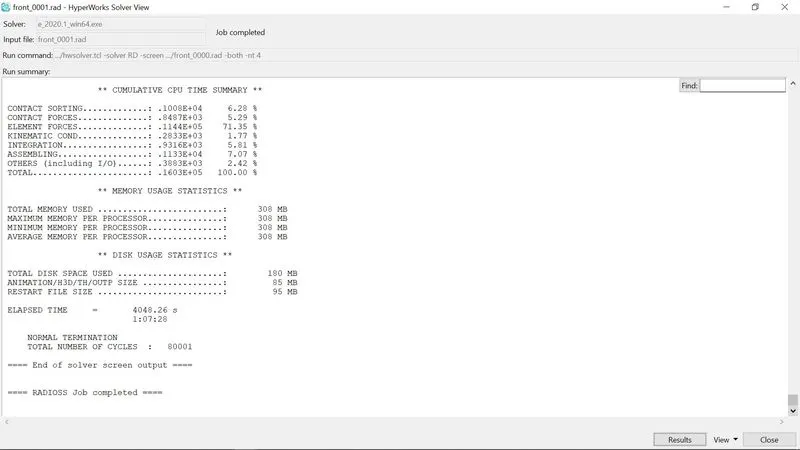
After completion of simulation a pop-up window appears showing Normal Termination without any errors as in figure below.
ANALYSING THE OUTPUT FILE
The next step is to carry out energy error and mass error checks and this is done by analyzing the RADIOSS engine output file. This can be accessed from the same directory as the starter and engine files and is denoted by the '.out' extension. The file in question contains '_0001.out' and can be accessed using any text editor - such as Notepad.
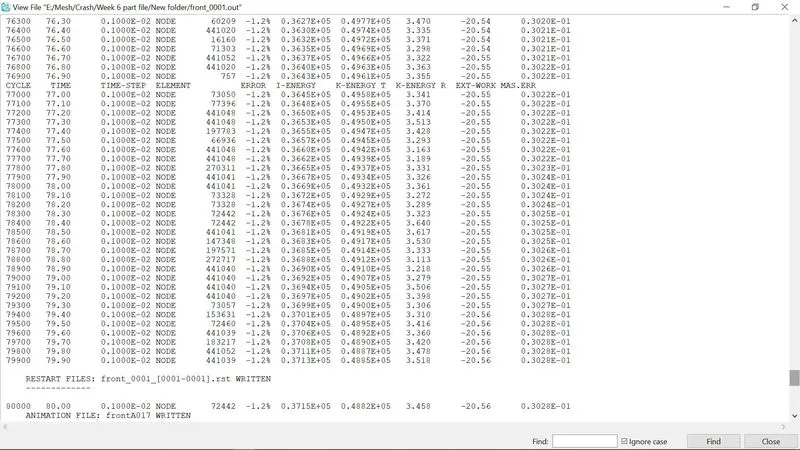
As we can see, the energy error is -1.2%. It is definitely with in the acceptable range of -10% to +5% error. In addition to that, the mass error is 0.0302, which means that a negligible quantity of mass of was added during the simulation, possibly for the sake of time step control/stabilization. It is a rather low amount so it's still acceptable.
Total Simulation Time: 4048.41s
No. of cycles : 80001
SIMULATION ANIMATION
To view the simulation, we can switch to Hyperview through the client selector.

In Hyperview, we will need to import the h3d variant of the file.
Then the contour panel is opened, which appears as shown in fig below. In which the parameters to view the simulation are selected. Such as: result type:In terms of Displacement, von misses stress etc. then selecting the components & apply.

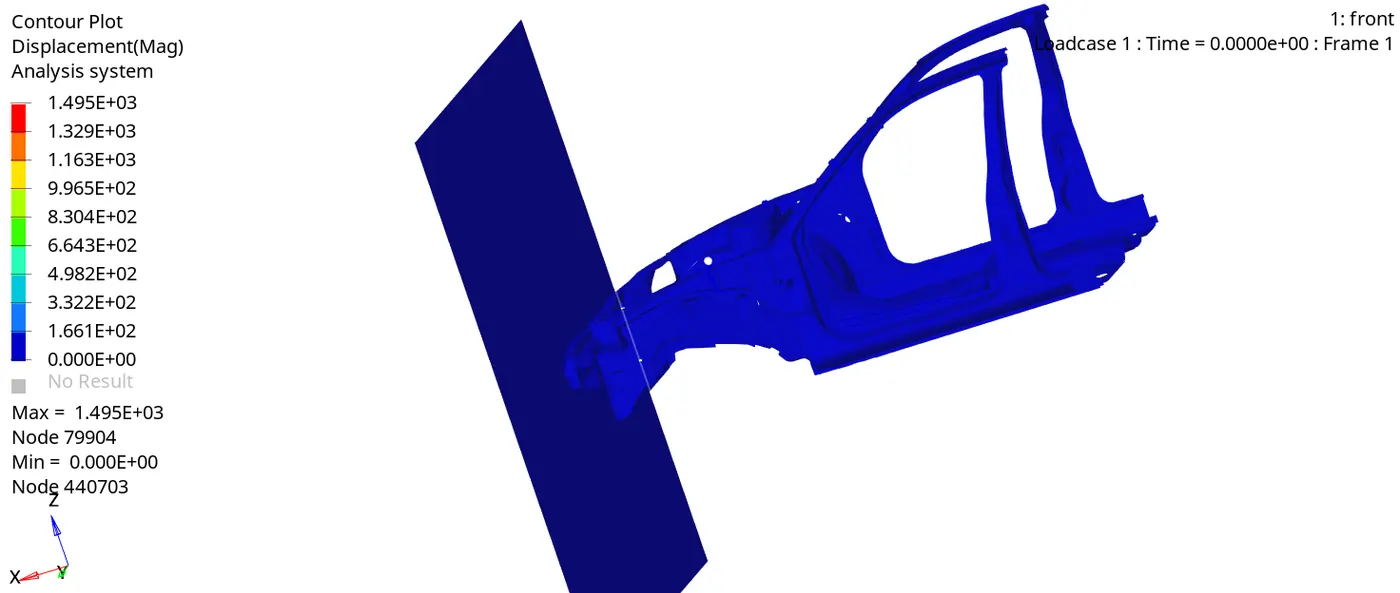
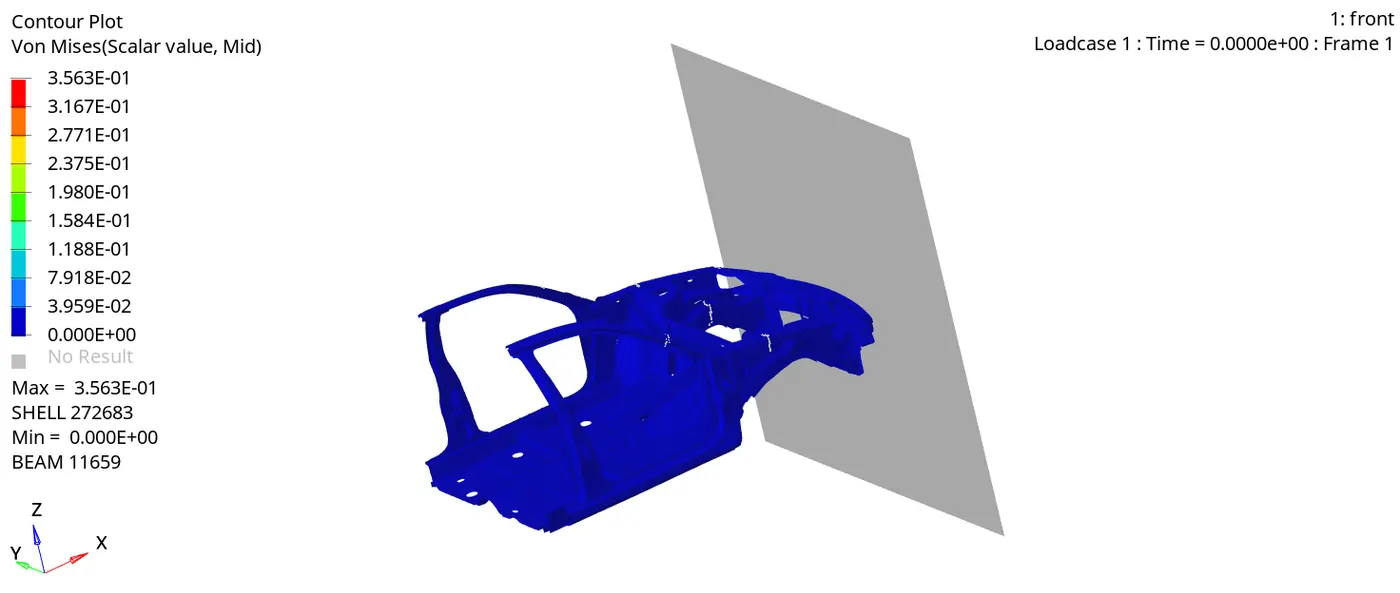
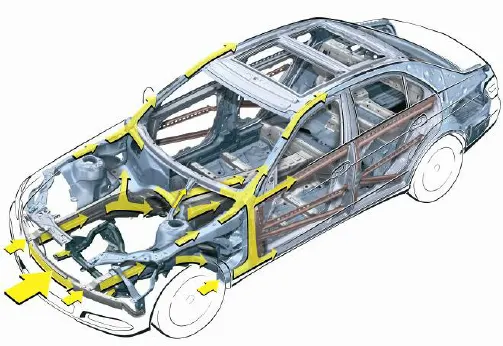
From the simulation, we can see that. Initially, the bumper starts crushing then the bumper forces are transferred to the left and right rail then from the rail forces are transferred to A-Pillar LH and RH. In each stage, the forces are going to reduce because energy is absorbed in each stage. Because of no engine blocks, suspension system and tyre etc the car BIW is going to go down at the end of the simulation
From the Von Mises stress plot, we can say that the stress distribution is quite good in the vehicle after the crash. There are very few areas where we can see stress concentration. Generally the stress is more in bumper region as it is the first point of impact.
GENERATING THE PLOTS
After generating the simulation, we can then go ahead and generate the plots. Using the same client selector, we can switch to Hypergraph2D . In the Hypergraph client, we are asked to import the required file, which is the T01 (Time history file ) variant of the file.
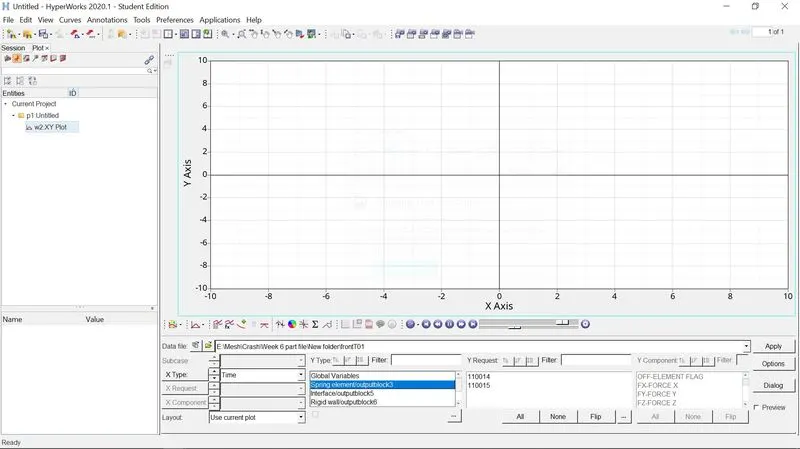
On importing, we can build the plots using different variables. We shall first look at general plots of energies and rigid wall forces generated in and by the entire BIW respectively.
Some basic definitions of energies:
- Energy: Energy, in physics, the capacity for doing work. It may exist in potential, kinetic, thermal, electrical, chemical, nuclear, or other various forms. In FEA we have Total Energy, Internal Energy, Kinetic energy, Contact energy and hourglass energy
- Total Energy (TE): Total Energy is the sum of Internal Energy, Kinetic energy & External Work
- Internal Energy (IE): The internal energy of a thermodynamic system is the energy contained within it. It is the energy necessary to create or prepare the system in any given internal state. It does not include the kinetic energy of motion of the system as a whole, nor the potential energy of the system as a whole due to external force fields, including the energy of displacement of the surroundings of the system. It keeps account of the gains and losses of energy of the system that are due to changes in its internal state
- Kinetic energy (KE): In physics, the kinetic energy (KE) of an object is the energy that it possesses due to its motion. It is defined as the work needed to accelerate a body of a given mass from rest to its stated velocity.
- Contact Energy (CE): Contact energy is the energy acting opposite to the system to prevent the penetration acting on the system due to the applied load case.
- Hourglass energy (HE): This is usually done by adding extra stiffness or viscosity across the diagonal which adds extra strain energy into the system and we call this Hourglass Energy.
GLOBAL VARIABLE GRAPHS: ENERGIES
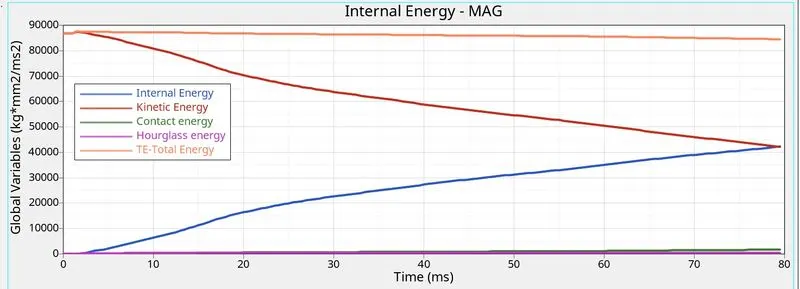
Global variable VS Time
INTERNAL ENERGY AND KINETIC ENERGY:
The changes in kinetic and internal energies occur at the exact moment the BIW makes contact with the rigid wall. Understandably, the BIW loses kinetic energy throughout the simulation due to the obvious decrease in velocity. At the same time, it absorbs the forces, and this results in an increase in internal energies, and as a result, the deformations also occur. Thus the total energy in the system is almost constant at 87000 J and due to some energy loss which we can see in energy error, there is some decrease in total energy.
From the above graph, we can see that the Hourglass energy is almost negligible since we have used Improved integrated element formulation (QEPH).
Taking a look at the contact energy graph:
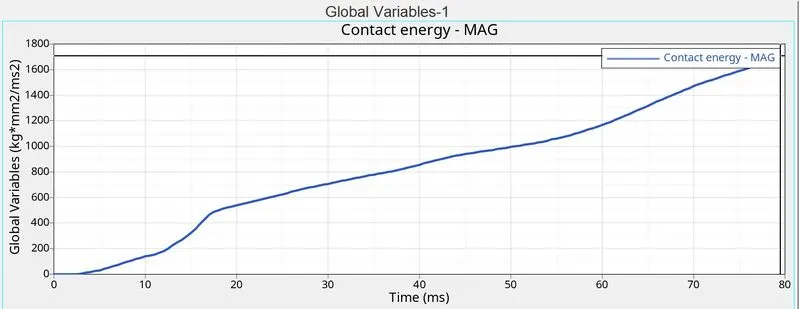
Contact energy is a type of energy that is formed when one element comes in contact with the other or neighbouring elements. The opposing force created by this element forms the contact energy. In this case, it increases after 5 ms, at this point the model starts deforming in such a way that penetration of nodes occurs. When certain regions of the model press on themselves, buckled elements are forced into contact.
The increase in contact energy affects the overall energy of this system, which is why there is a decrease in the total energy over the course of the simulation. it is a negligible decrease though. The magnitude of contact energy generated is much lower.
Rigid Wall Forces
Taking a look at the rigid wall forces generated:
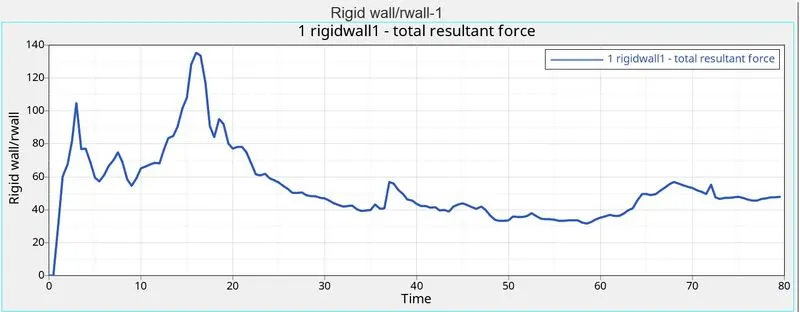
The rigid wall forces peak at around the 16ms mark, which looks like is the point in time where the BIW had exhausted its deformation capabilities in the bumper and reinforcement regions. After that, deformation (forces) were transferred to members that house the engine and tyres. Due to the freedom given to deform in those regions, the rigid wall probably experienced a reduction in forces from there.
- OUTPUT REQUESTS
SECTIONAL FORCES:
1. On RAILS:
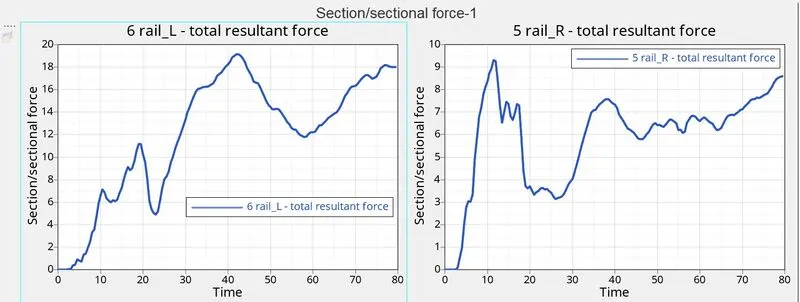
Sectional forces on rails VS time
The maximum cross-sectional force at Left Rail is 19.1 kN/mm at t= 42ms whereas the maximum cross-sectional force at the Right rail is 9.31kN/mm at t=11.5ms. The force acting on the rail is the force transmitted by the bumper during the crash. The force transmitted by the bumper to the rail can be unequal due to which the force received at the LH rail may differ from the RH rail. During a crash, the rail will get into direct contact with the rigid wall which will increase the compressive force and then deform. Therefore, the compressive force drops down.
2. On Shotguns:
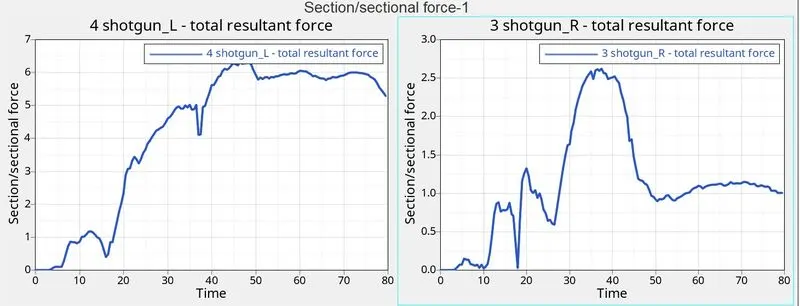
Sectional forces on shotgun VS Time
The maximum cross-sectional force at Left Shotgun is 6.33 kN/mm at t=46.5ms whereas the maximum cross-sectional force at Right Shotgun is 2.62 kN/mm at t=37.5ms. The Force that occurred at the shotgun is the force transmitted from the rail section. The force propagation is not the same at both the rails and hence the amount of deformation at both the shotgun sections are different. Once the Compressive force reaches its maximum value it starts to deform rapidly. Therefore, the Compressive force is decreasing as referred from the graph. As the crash happen continuously, the shotgun will come into contact with the Rigid wall as found in Animation, the rigid wall also exerts the force directly on to the shotguns and hence there is an increase in the Sectional force as seen in the graph.
3. On A-Pillars:
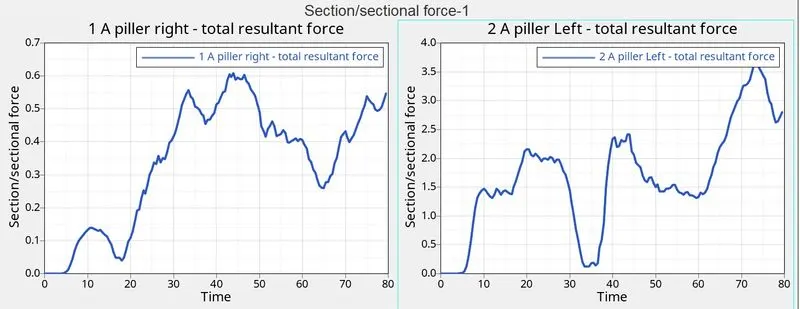
Sectional forces on A-pillar VS Time
The maximum cross-sectional force at Left A-Pillar is 3.66 kN/mm at t= 73.5 ms whereas the maximum cross-sectional force at Right A-Pillar is 0.608 kN/mm at t=44ms when the car hits the rigid wall, there will be some amount of force coming into the A-pillar at both sides. These forces coming to the A-pillar are nothing but the force transmitted from the rail and the shotgun. The force flowing into the LH and RH of the A-pillars will not be equal and hence the deformation of the elements will differ accordingly. During a frontal crash, the sectional force reaching the A-pillars are coming in from the rails and shotgun, hence the force at the A-pillars will be less when compared to the front sections. When the compressive force between the wall and car is maximum, the rail and shotgun get in contact with the rigid wall which causes the shotgun and rail to exert more force. This force then propagates to the A-pillars and hence the force reaching the A-pillar increases again.
INTRUSION SPRINGS:
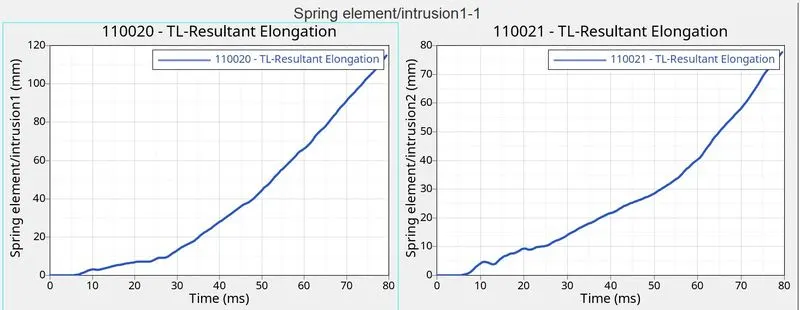
Intrusion spring VS Time
To check the Intrusion at the dash wall at the particularly given node, we have created the spring over the place. The intrusion at this particular node is calculated in order to check whether the crash will hamper the safety of the driver due to the deformation that occurred at the front portion of the vehicle. From the above graph, we can see that the maximum intrusion occurred in the spring (Node 66695,121754) during a crash is 77.629 mm and the maximum intrusion occurred in the spring (Node 66244,121868) during a crash is 114.82 mm. Practically this elongation referred to which extent the foot pedal or the passenger's legs will move once the crash is happening. From the animation, we can notice that there is not much deformation that occurred at this location and the elongation is also less. Hence, we can conclude that there are fewer injuries will happen to the Passenger/driver.
ACCELEROMETER:
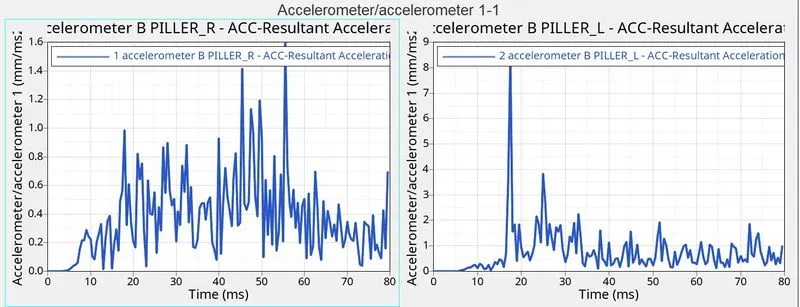
Accelerometer VS Time
As we all know that an Acceleration is the rate of change of velocity. To measure the acceleration, we have placed the accelerometer near the Rocker of B-Pillar on both sides. From the above graph, we can see that initially, the acceleration is constant before the vehicle hitting the rigid wall. Once the Car hits the rigid wall with the initial velocity, The acceleration of the vehicle during the crash is not constant across the structure. The front of the vehicle slows down immediately as it hits the rigid wall, while the rest of the structure decelerates at a slower rate as seen in the graph. As seen from the graph there is a sudden increase in the acceleration, this might be because of some vibration that occurs during the crash with respect to the point where the accelerometer is placed.
Maximum acceleration at LH = 8.40 mm/ms2 at t=17.5 ms
Maximum acceleration at RH = 1.59 mm/ms2 at t=55.5 ms
AXIAL FORCES ON RAIL OF BUMPER:
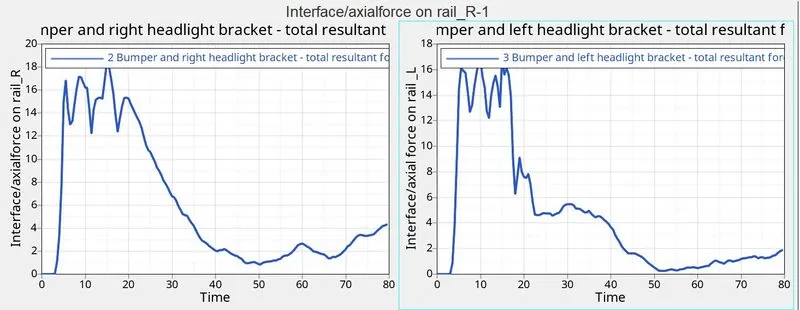
The force from bumper to rail VS Time
From the graph we can see that initially there is no axial force is transmitted from the bumper to the Rail. Once the Vehicle hits the rigid wall, first the Bumper will start deforming and transmitting the strain energy to the rail sections. From the graph, we found that the Maximum axial force received from the bumper to the Left hand rail is 16.89 kN at 15 ms and the Maximum axial force received from the bumper to the Right hand rail is 18.31 kN at 15 ms.
OBSERVATIONS
Generally, the outer body members in the BIW are supposed to be symmetrical about the centre. That means the plots generated in each of the cases involving either side of the same part should have been very similar in terms of shape and values but that is not the case here. The left side of the vehicle in general seems to be absorbing most of the impact force due to two possible reasons:
1. The location of the reference point on the bumper used to create the rigid wall was probably not at the exact centre of the bumper component. This resulted in the first point of impact being off the centre and invariably lead to the unequal distribution of forces
2. The locations of the sections created may not be exactly symmetrical about the centre of the BIW.
Coming to the accelerometer graphs, it seems like there is a lot of fluctuation in acceleration. This is probably the result of vibrations created during impact. If the BIW hadn't undergone the crash, there wouldn't be spikes in those plots, since in the general sense, acceleration and deceleration occur gradually. These accelerometers are pivotal in detecting these spikes and drops and helps in the functioning of safety systems, like airbags.
With regards to the intrusion plots, the panel on which the two nodes are located don't undergo much deformation locally, which explains the similar graphs.
RESULTS
Frontal crash analysis was carried out on the given front half of a BIW model of the Dodge Neon as per the given requirements. The output requests were also generated after the creation of cross-sections in each of those regions. Acceleration and intrusion values were also measured at certain points of the model.
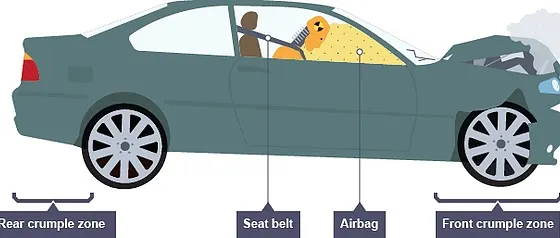
The analysis also proves the importance of the crumple zone - which is the front portion of the BIW in this case. It absorbs most of the forces generated during a frontal crash and therefore, protects the occupant(s).