Assignment 5-RADIOSS Interfaces & Study of Effect of Notches Challenge
REPORT
OBJECTIVE:-
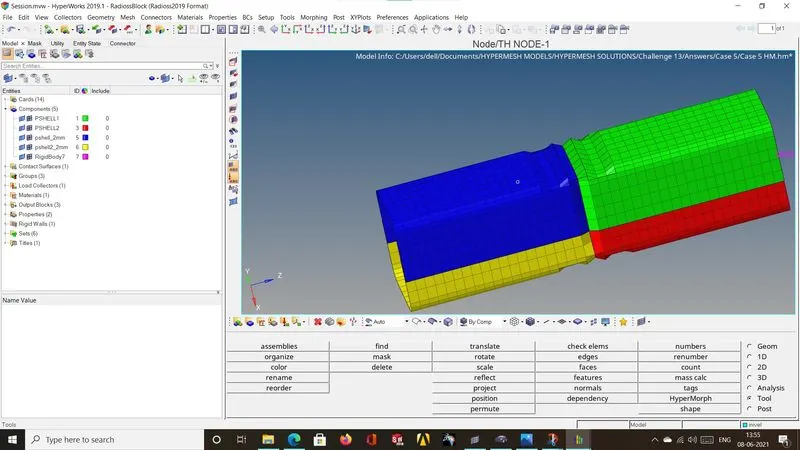
1.TO Perform Bumper Meshing With a mesh size of 6mm
2.To perform 6 Different cases on the given crash tube file
- Run The crash Tube Model As it is
- Change the Inacti =6 and Run
- To Create Type 11 contact and run the simulation for Crashtube Model
- Remove both notches and remove boundary conditions on rigid body then run
- create new notch in the middle select the whole section and run
- create a new notch with nodes only from opposing 2 faces and run
PROCEDURE:-
BUMPER MESHING:-
- Open The Bumper mesh model given that is by clicking onto the given HM file.
- Clear unwanted nodes by choosing temp nodes ans clear
- Check for the open edges such as to toggle the elements.
- toggle the required elemnts and choose 2D option and click onto Automesh with mesh element size of 6mm.
- Check for Tria elements and try to merge them
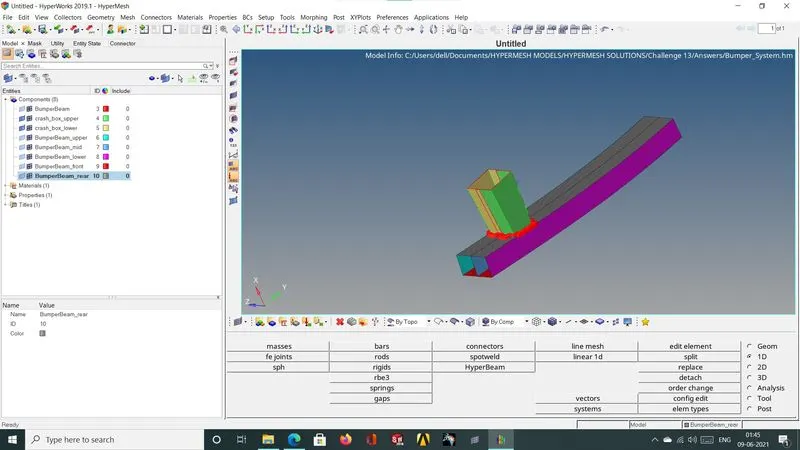
- Since there's a weldment between upper crash box and bumper rear create 1D elemnts.
- Choose 1D and choose connectors and opt seam weld with weld options and line to component connection system and create the weld.
- Hence we can see the meshing with the required weld.
2. TO RUN THE CASES OF CRASH TUBE FILE import the crash tube file in the solver deck keeping radioss as default browser and 6 cases can be executed.
CASE 1:- Import The Crash Tube file in the solver deck with radioss as default and run the simulation with options kept as
- nt 4.Run to a directory to track the files and for convenience.
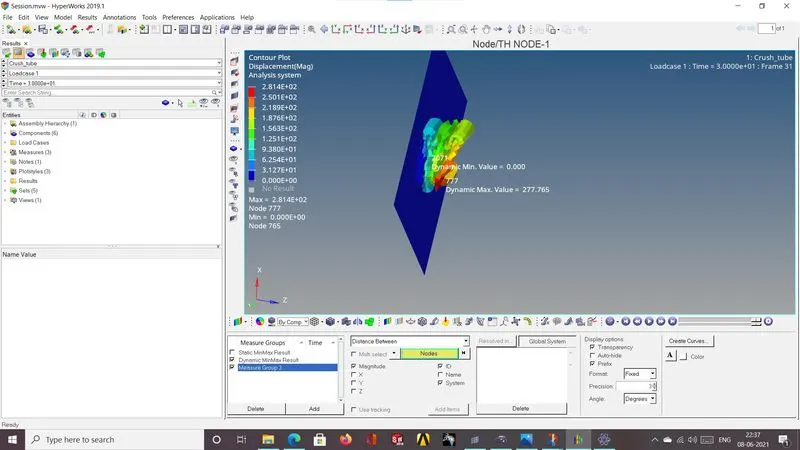
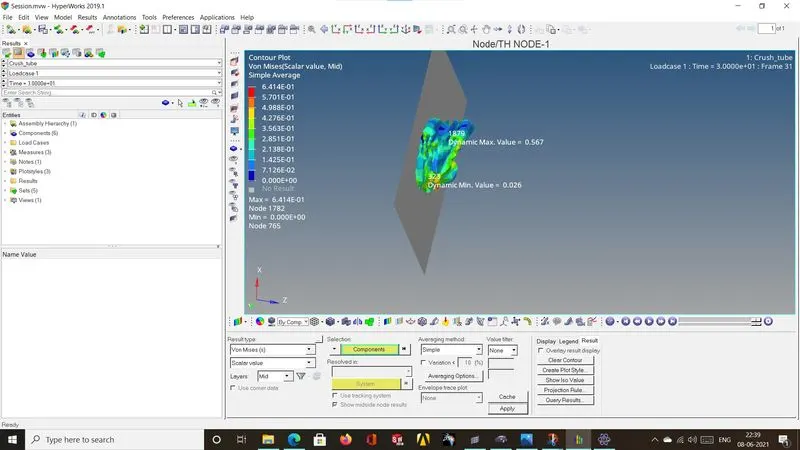
CASE 1 Hyperview models are imported usind h3d files and for HyperGraph 2D T01 file is uploaded.
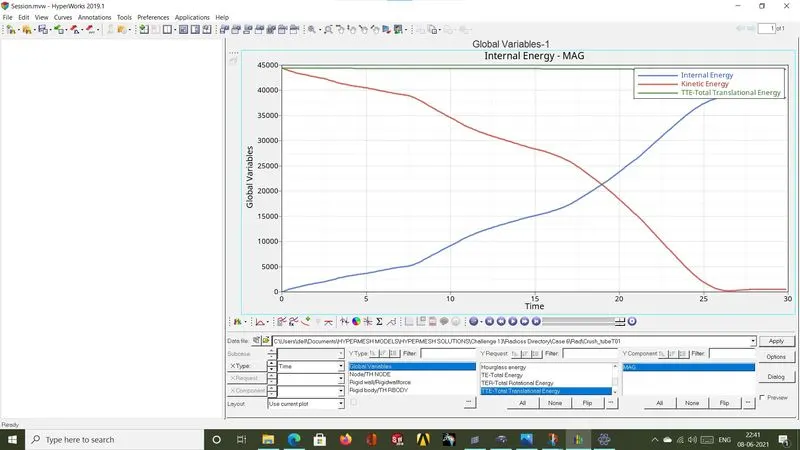
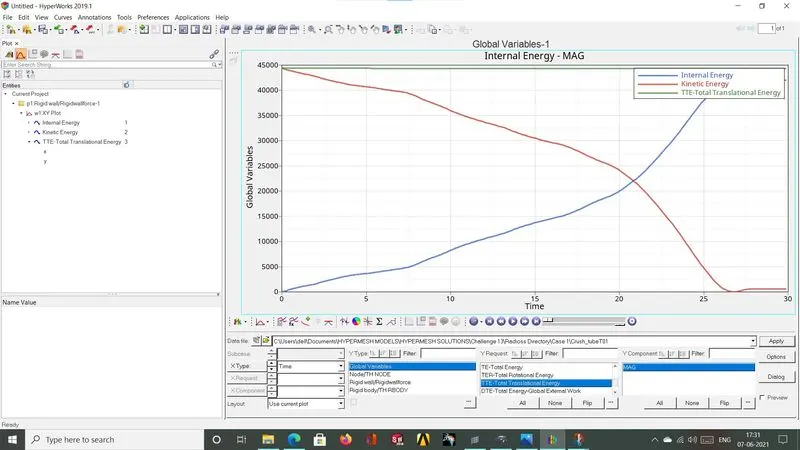
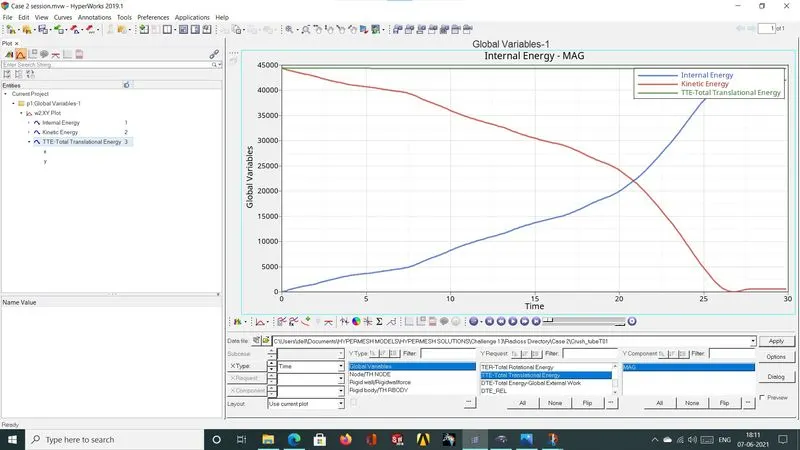
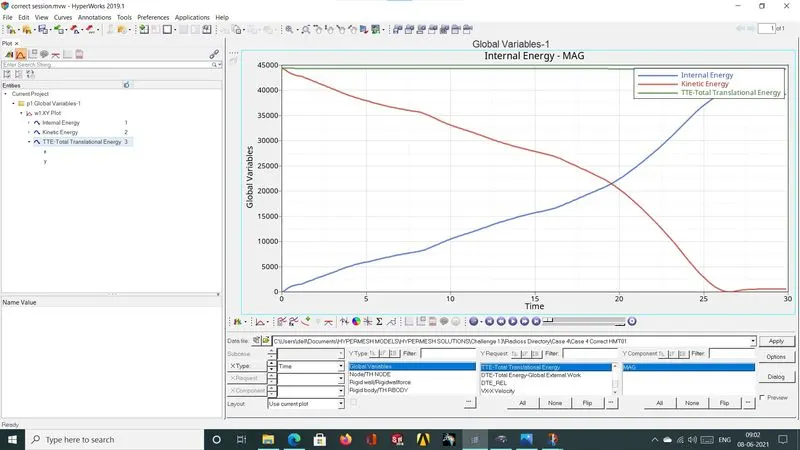
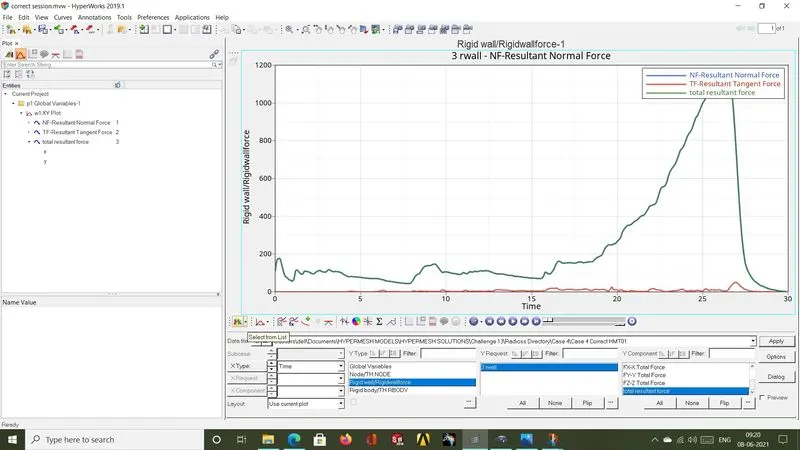
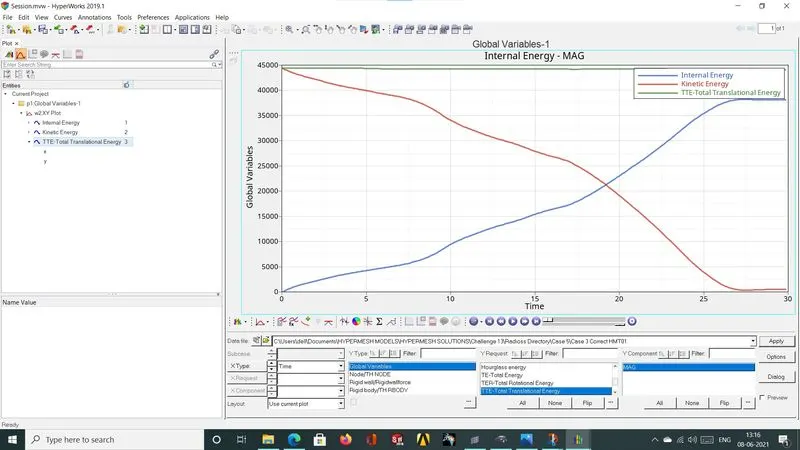
Graph For Energies :- Here Internal Energy,Kinetic Energy and Total translational Energies are plotted.
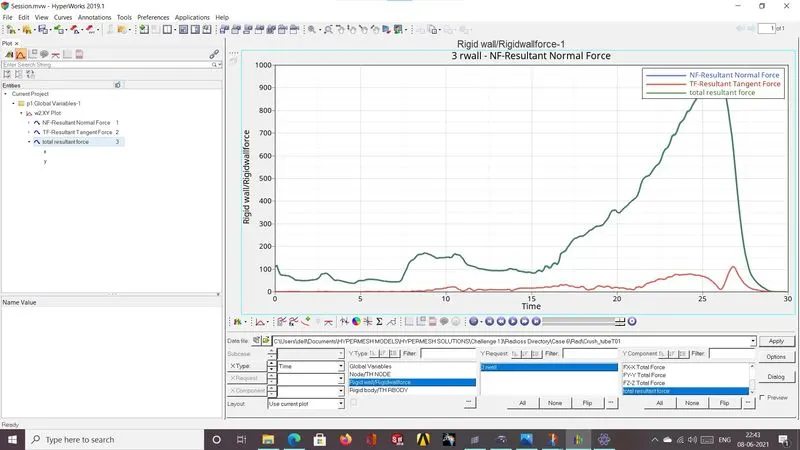
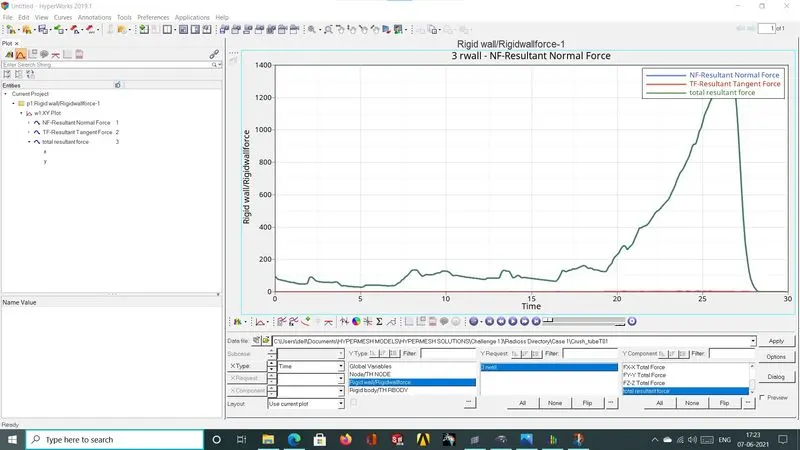
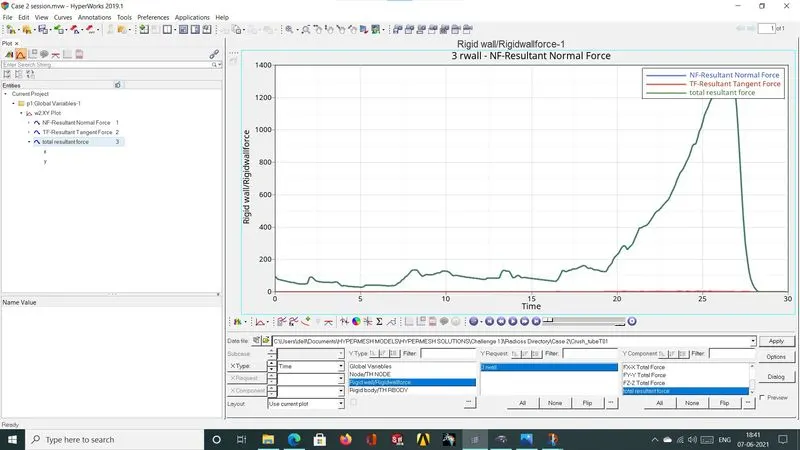
GRAPH FOR RIGID WALL FORCES:- Here Normal Force,Tangent Force and Total resultant is plot
CASE 2
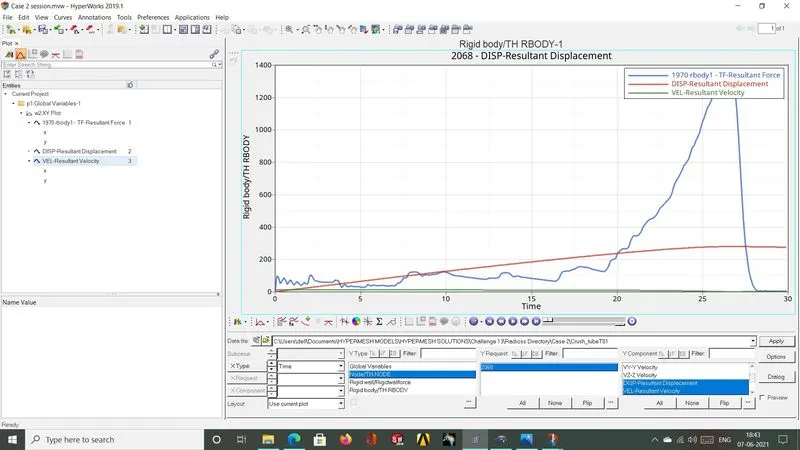
CASE 2-Change Inacti = 6 and run the model.
Steps to perform for this particular case;
Step I. In Radioss, Import Crush_Tube_0000.rad starter file using Import Solver Deck menu.
Step II. Open INTER > Type 7 under Solver Browser.
Step III. Change the Inacti value to 6.
CASE 3:-
CASE 3-Create the new type 11 contact and run the model.
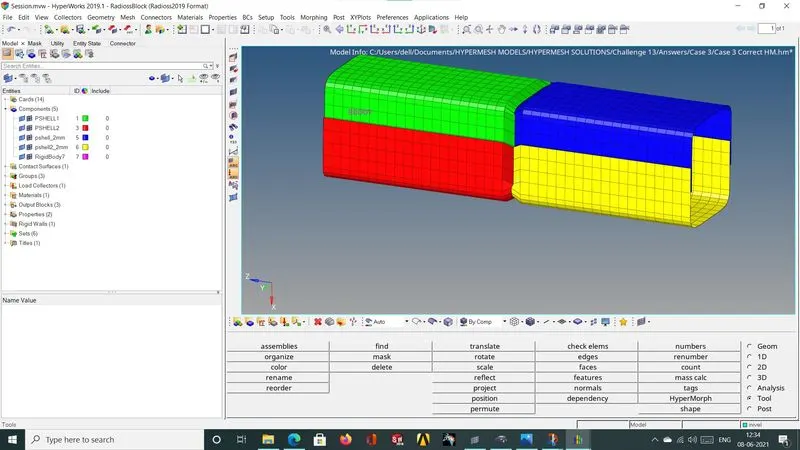
For this case, we will use HyperCrash to create new interface type easily. HyperCrash is a specialized preprocessor for Radioss.
Step I. In HyperCrash, Import Crush_Tube_0000.rad starter file using Import from File menu or Click and drag the Crush Tube
file from its location.
Step II. In menu bar, navigate to Load Case > Contact Interface.
Step III. Under Contact Interface panel, right click and create new Edge to Edge (Type 11) contact and configure the recommend parameters as shown below.
As the model is self-impacting, we will check Self Impact option which implies that the components selected for Master will also get selected as Slave because the edge to edge contact happens when impacting line can belong to the master and the slave side. So for Master line option, we will select all the 4 components of the model.
Step IV. Export and save the edited Crush Tube file to Radioss to a specified path from File menu.
Step V. Open Radioss and Import the saved Crush Tube_0000.rad starter file using Import Solver Deck menu.
Step VI. Navigate to Radioss panel in Analysis page.
Step VII. Save the model as Case_3_0000.rad in a specific folder path, tick the include connectors option and under options folder write nt 4 and click on Radioss to run the simulation.
Step VIII. Open.out Engine file from specified path and check final value of Energy error and mass error and check the values of Simulation time and Total number of cycles in the same way as mentioned in the previous cases.
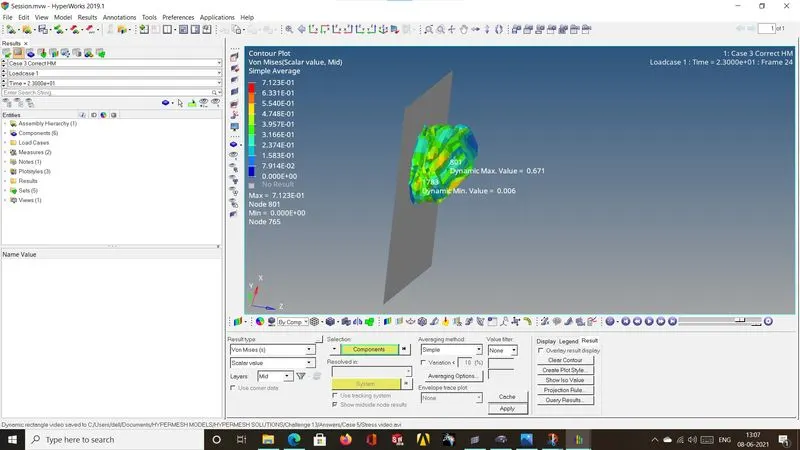
Step IX. Open new model and switch to HyperView from Hypermesh. Load .h3d file from specified path, play the animation and plot contour of Von Mises stress using Simple averaging method.
Step X. Open HyperGraph 2D in a new window, load TO1 file and plot the energies required.
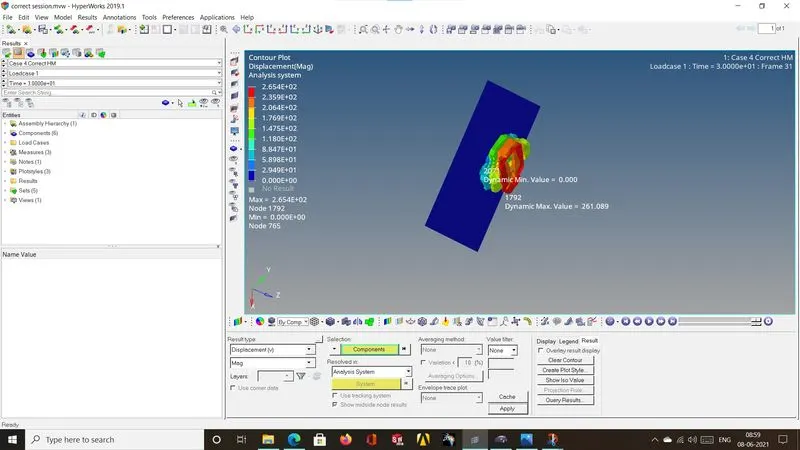
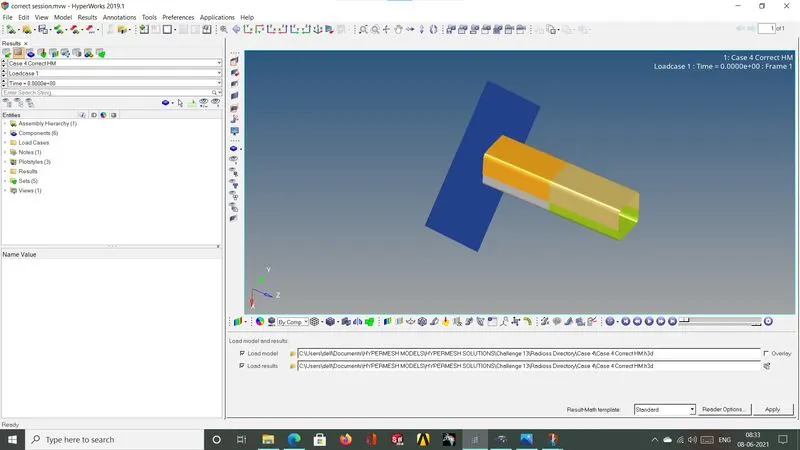
CASE 5
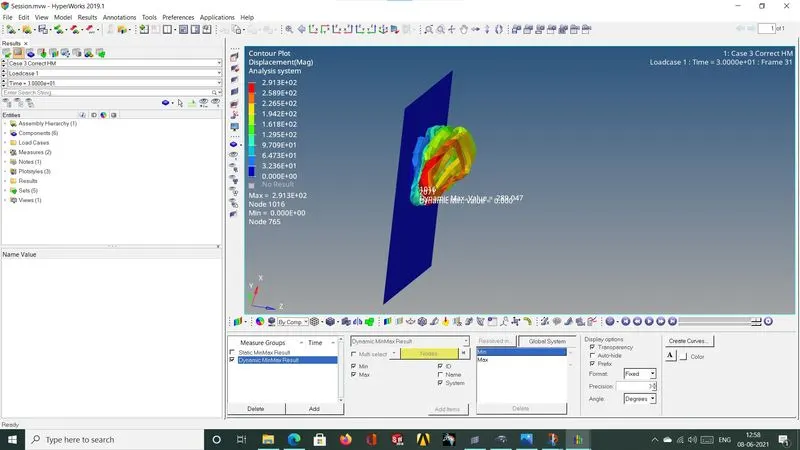
CASE 6