3D Meshing Tetra Mesh for Housing and Hex Mesh for Arm-Bracket using Hypermesh
AIM :
1. To find Speed of sound in steel rail, Time for sound to travel length of rail and to change time frequency to get 20 animation steps.
2. To create 3D Meshing tetra mesh and Hex mesh for the given model as per conditions.
OBJECTIVE :
1. For Study-1 :
- To Check the material properties of the rail component and calculate the speed of sound in steel rail.
- To find The length of the rail is about 1000 mm.calculate the time takes for a shock wave to travel from one end of the rail to the other.
- To find the Time for sound to travel length of rail
- To Edit the engine file so that the stress wave can be monitored, moving from one end of the rail to the other during impact -this will require a termination time equal to the time it takes for the sound to travel the length of the rail(set on/RUN card) and
2. For Study-2 :
- Open the given Model of Housing and Arm bracket in Hypermesh and do 2D mesh and 3D Meshing tetramesh and hexmesh as per given conditions.
PROCEDURE :
STUDY - 1 :
Calculation :
Given :
- Material Properties of the rail component has given in rad file, Import the given file in Hypermesh.
- Length of the rail (1000 mm).
- Set the frequency of animation output to a time that will give 20 animation steps(/ANIM/DT).
To find :
- Speed of sound in steel rail (c)
- Time for Sound to travel length of rail(`trianglet`).
- Edit the frequency time to get 20 Animation steps.
Formula :
1. `c=sqrt(E/rho)`....................Eqn(b)
where,
c - Speed of sound in steel.
E - Youngs modulus,
`rho` - density
2.`triangle t = l/c` ....................Eqn(a)
where,
`trianglet` - Time for sound to travel length of rail,
l - Length of the rail,
c - Speed of sound in steel.
Solution :
1. Importing the given 'rad' file in Hypermesh and check the value of Young's Modulus(E) and Density(`rho`) for calculating Speed of Sound in steel(c),
Young's Modulus(E) = 210000 `g/(mm*(ms^2)`, .................................(1)
Density(`rho`) = 0.0078 `g/(mm^3)`........................(2)
Sub (1) & (2) in Eqn(b), we get
`c=sqrt(E/rho)`
`c=sqrt(210000/0.0078)`
`c=sqrt(26923076.92)`
`c=5130.60 (mm/ms)`..............................(3)
2. Substitute the value of Speed of sound in steel(c) and length of the rail(l) in Eqn(a) to find the Time for sound to travel the length of the rail.
`triangle t = l/c`
`triangle t = 1000/5130.60`
`triangle t = 0.194 ms`......................(4)
3. For setting the frequency of animation output to a time that will give 20 Animation steps (/ANIM/DT)
`triangle t = 0.194/20`
`triangle t = 0.0097 ms`.................(5)
Now Set the frequency time as t = 0.0097 ms to 20 Animation steps and charge /print-10.
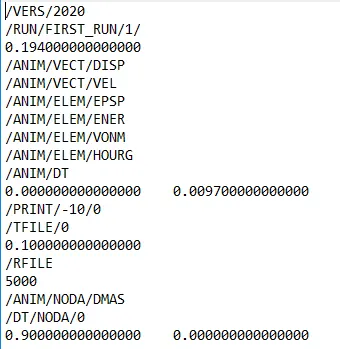
Fig : Engine File
RESULT-1 :
1. Speed of Sound in steel rail(c) is 5130.60 mm/ms,
2. Time for Sound to travel length of rail(`trianglet`) is 0.194 ms.
3. Frequency time has changed and got 20 Animation steps and shown in above Engine file figure window.
STUDY - 2 :
MODEL -1 : HOUSING
Importing the Model :
Importing the given model by using File-->Open-->Model
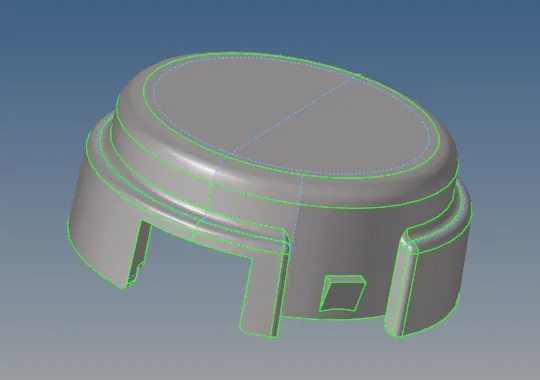
Fig : Cover
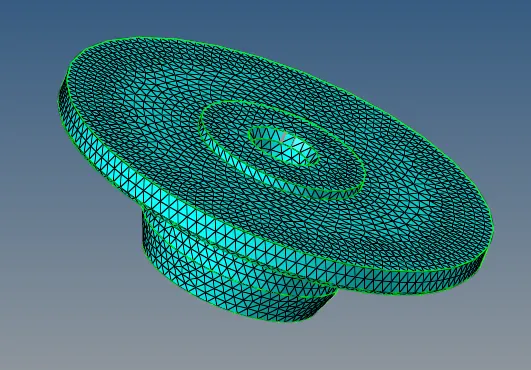
Fig : hub with default 2D meshing
Meshing :
1. After Importing the model, Go to View-->Browser-->Hypermesh-->Utility option
2. Select Geomesh and Select Quicktetramesh in Mesh tools.
3. Select the component to mesh and set minimum traingle & mesh size value as per given conditions.
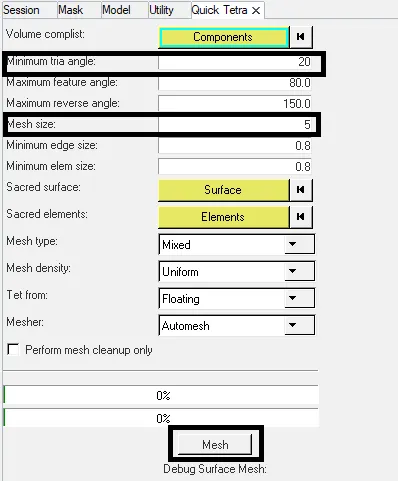
Fig : Utility mesh setting tools
4. Finally Click mesh and Quicktetra mesh will be created in the model.
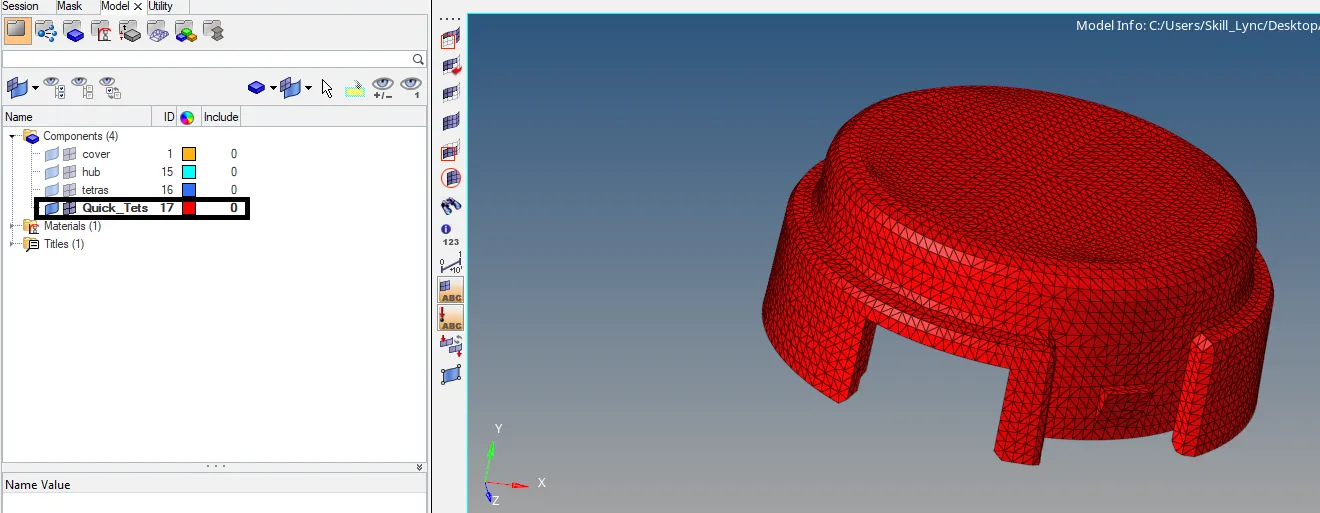
Fig : Cover 3D mesh using Utility method
5. For meshing hub component go to 3D-->Tetramesh and select elems and set element size as per given target size.
6. Go to Tetramesh parameters and set Element quality target-->tetcollapse as per given condition.
7. Go back to Volumetetra and Click mesh.
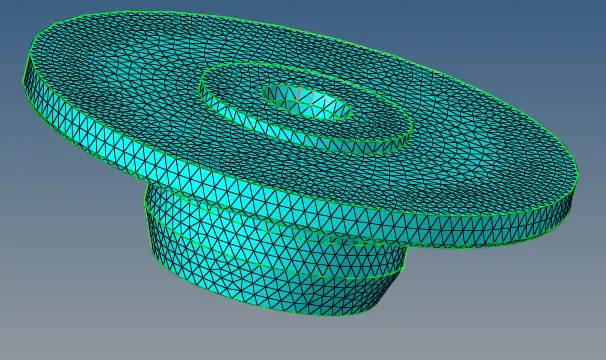
Fig : hub 3D mesh using tetramesh
8. After meshing and Go to Tools-->check elems option and check tetcollapse.
 Fig : Checking tet collapse
MODEL -2 : ARM-BRACKET
Importing the model :
Importing the given model by using File-->Open-->Model
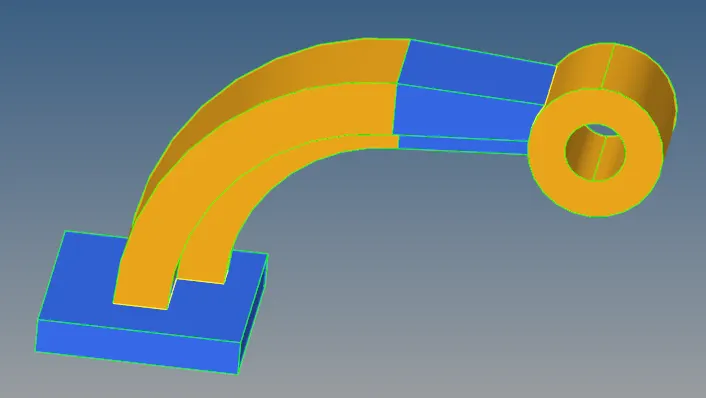
Fig : Arm-Bracket
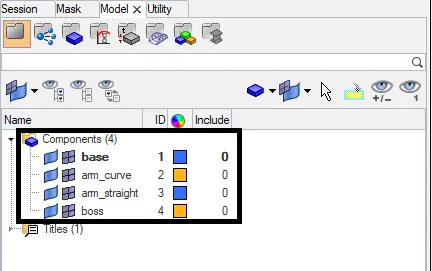
Fig : Components for Arm-bracket
Meshing :
Base meshing :
1. Go to 2D-->automesh and select surfs to mesh.
2. Set Mesh type & element size and click mesh.
3. After 2D meshing, go to 3D-->elem offset and select elems & surfs.
4. Set num of layers as 5 and total thickness as 25 and click offset+.
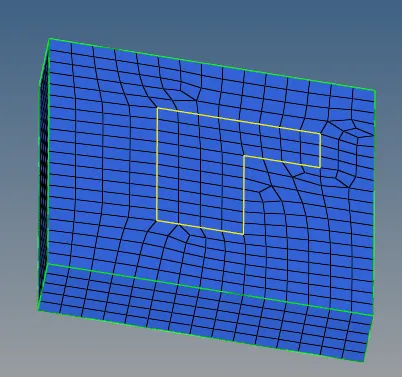
Fig : base mesh
Arm-Curve meshing :
1. Select Arm-curve in Model-->Components and hide 3D eleents.
2. Press F5 and Select elems and set type hex8 and click mask.
3. Click F4-->Three nodes and select three nodes on lines and create circle centre.
4. Go to 3D-->Spin-->Spin elems and set angle as 90 degree and on spin as 25 and click Spin- .
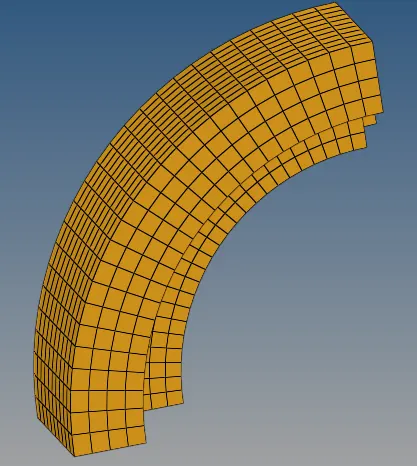
Fig : Arm-curve Mesh
Arm-Straight meshing :
1. Go to Tools-->faces and select comps-->arm-curve and click find faces.
2. Deselect all geometry except faces and arm-straight component.
3.Go to 2D-->automesh and select one side surface of arm-straight and set mesh size as 10 and click mesh.
4. Go to 3D-->linear solid and select elems & three nodes and set density value as 12 and click Solids.
5. For moving current component to arm-straight, click shift+F11-->organize and select elems to move and click move.
6. For deleting faces, click shift+F3 and delete faces.
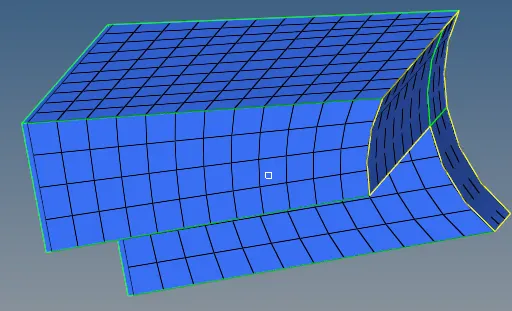
Fig : Arm-Straight Mesh
Boss meshing :
1. Go to 2D-->automesh and Select Top face on boss component and click mesh.
2. For Project, Click F7-->To surface and select nodes and make duplicate.
3. Also select surf and set along vector-->surface normal and click Project.
4. Go to 3D-->Solid map and in general set source geom as none.
5. Set dest geom,elem to drag & along geom and click mesh.
6. Delete 2D--> quad4 and click delete entities.
7. Go to Tools-->Organize and deselect armstraight.
8. Select boss & make current and click move.
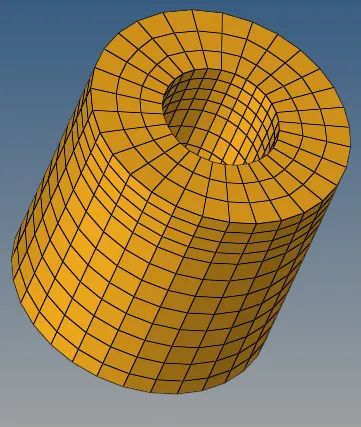
Fig : Boss Mesh
RESULT -2 :
3D Meshing tetramesh and hexmesh has been done as per target tet size as 5mm, hex size as 10mm, tet collapse as 0.15 and results figure has shown below.
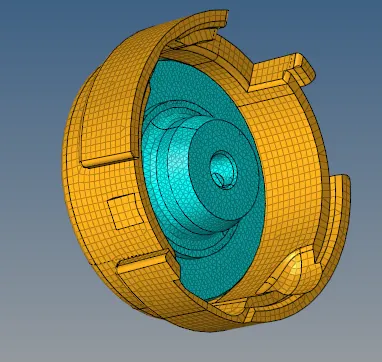
Fig : Housing Mesh
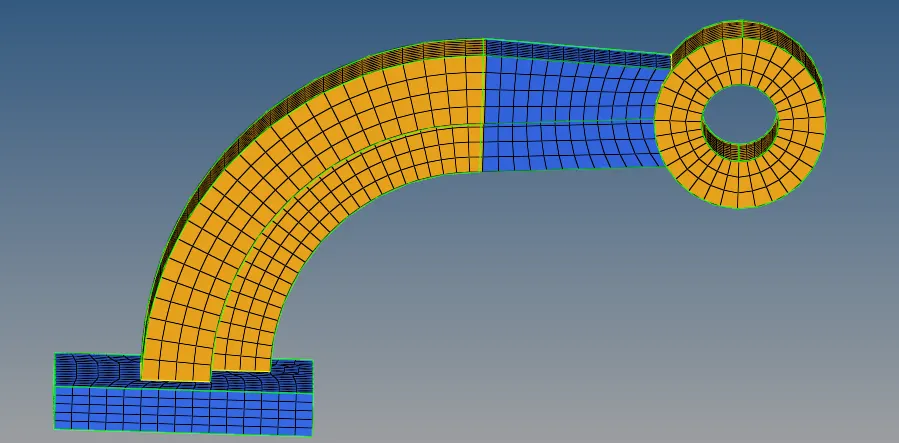
Fig : Arm-Bracket Mesh