Assignment 1-2D Meshing Challenge
2D MESHING
OBJECTIVE: To clean up geometry and create midsurface of models and then do 2D meshing of the models.
MODELS:-
The models are imported in hypermesh using option of import model in tab bar.
PRACTICE
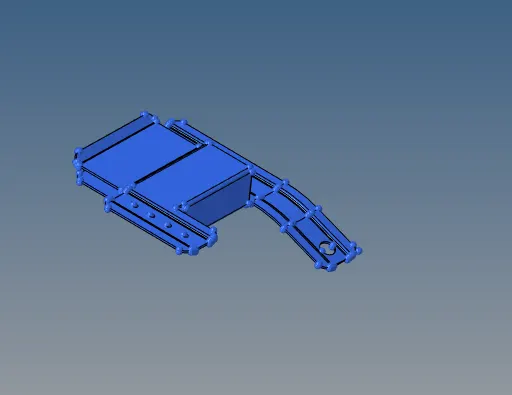
CLIP REPAIR
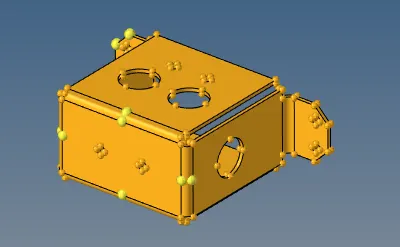
MOUNTING BRACKET
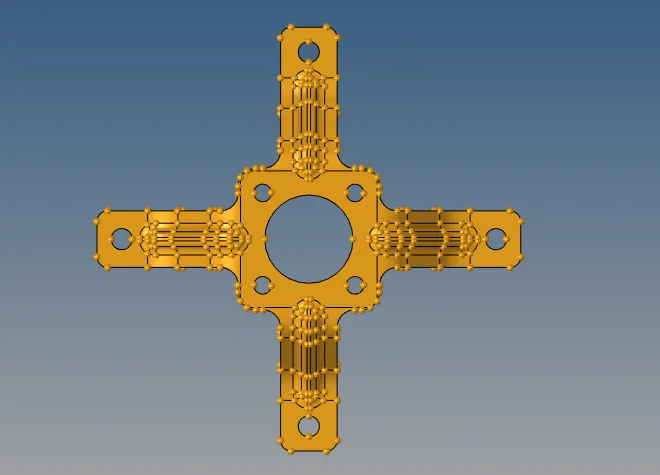
CRITERIA:-
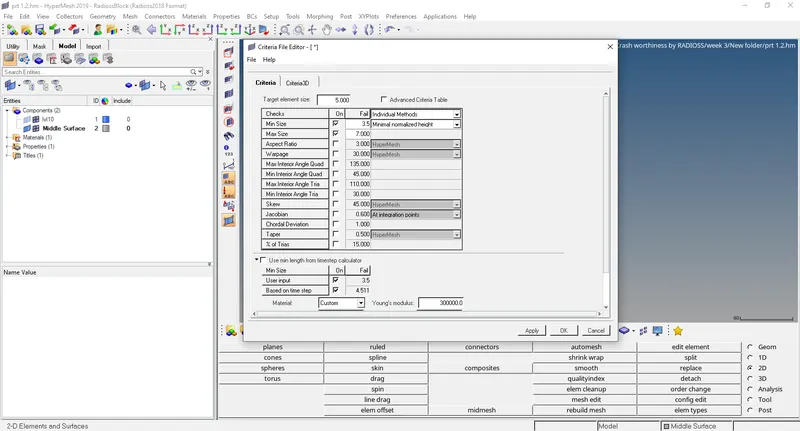
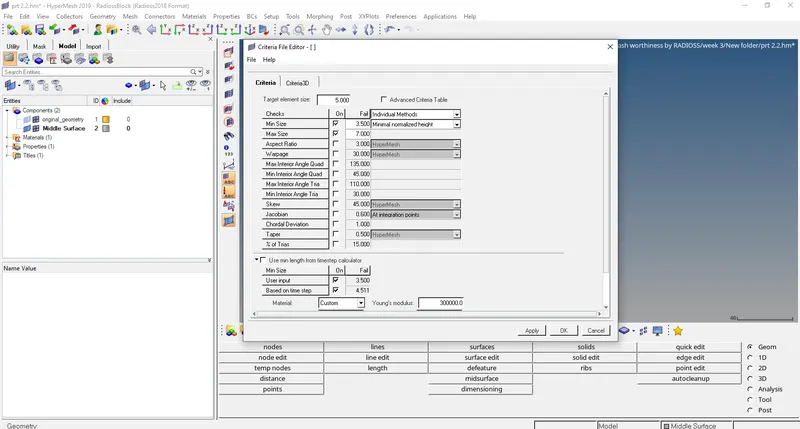
Target Element Size= 5mm.
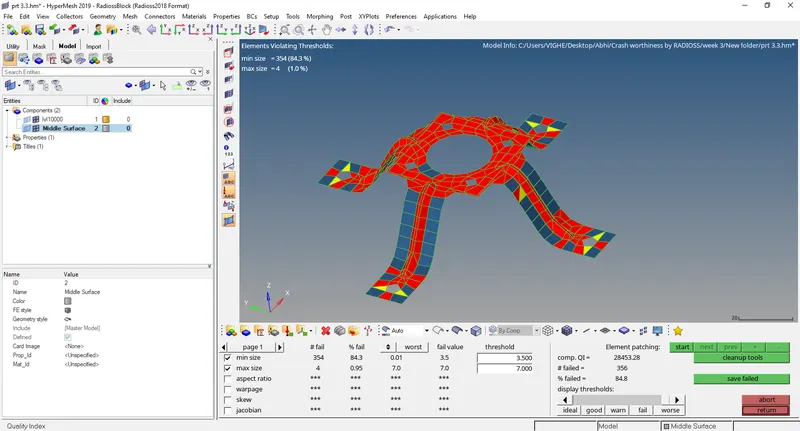
Minimum Length = 3.5 mm
Maximum Length = 7 mm
PROCEDURE:-
Practice
- First the model is imported using import model option in tab bar in Hypermesh and the required component is separated out and the solid part is deleted.
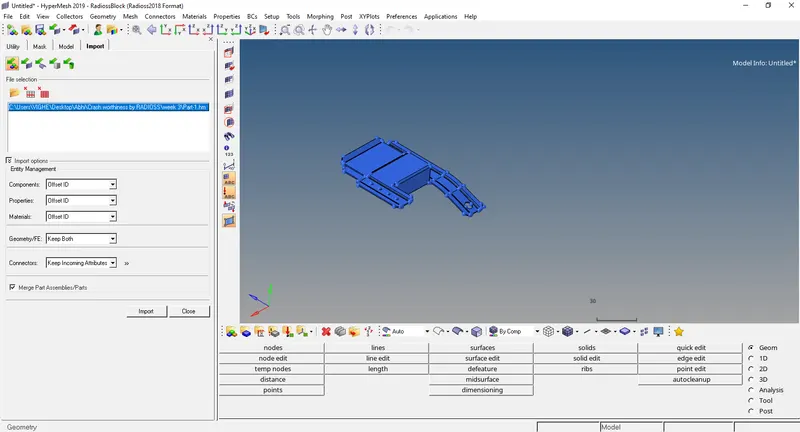
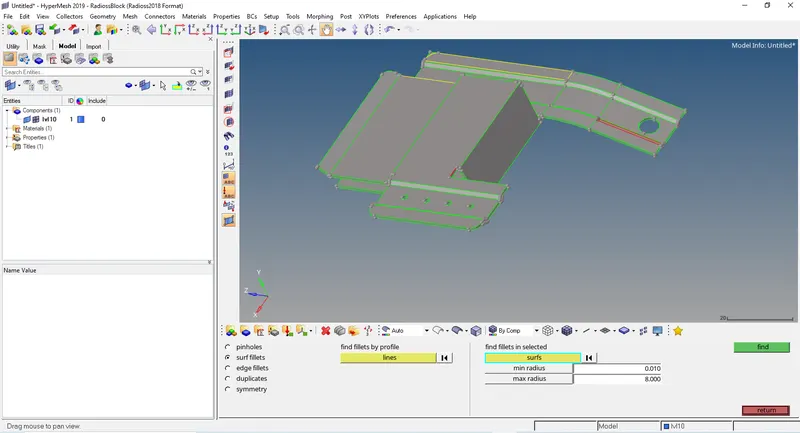
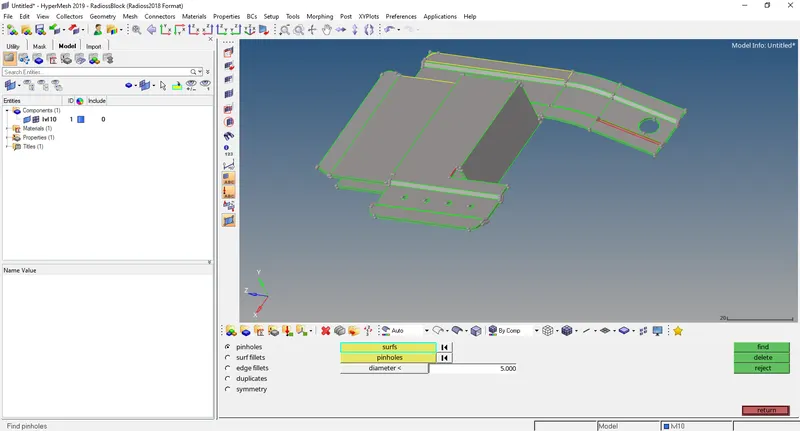
- The model has surface fillets are removed using surface fillets option (Geom>Surface edit>Surface fillets) and pinholes of diameter less then 5 mm using pinholes option (Geom>Pinholes).
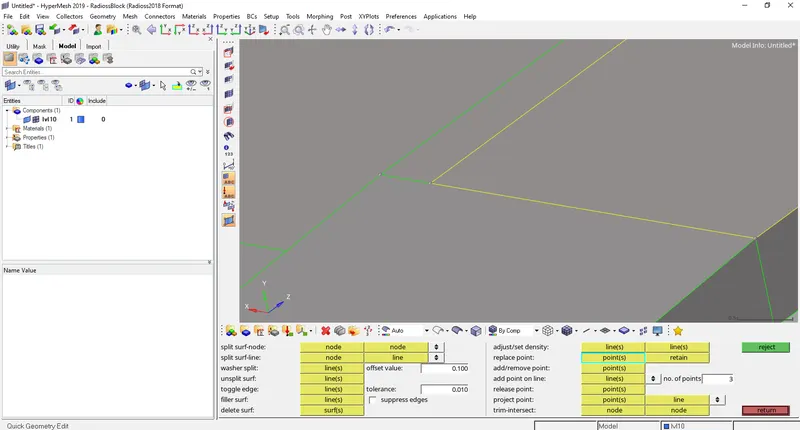
- Now we have to geometric clean up of the model using quick edits (Geom>quick edits)
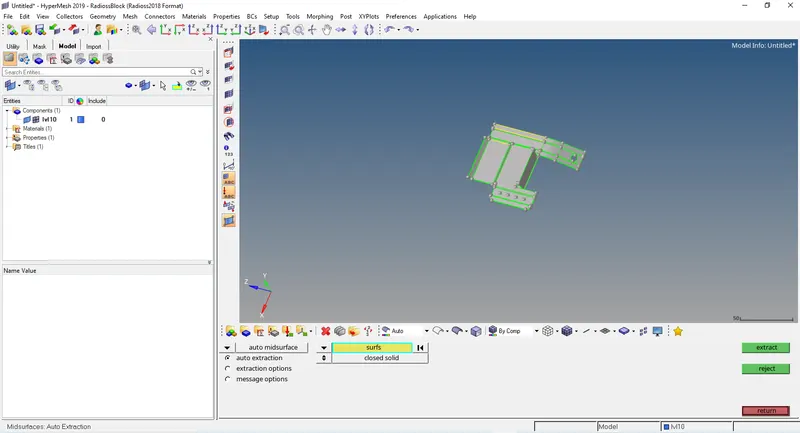
- Now we to create midsurface of the model using midsurface option (Geom>midsurface)
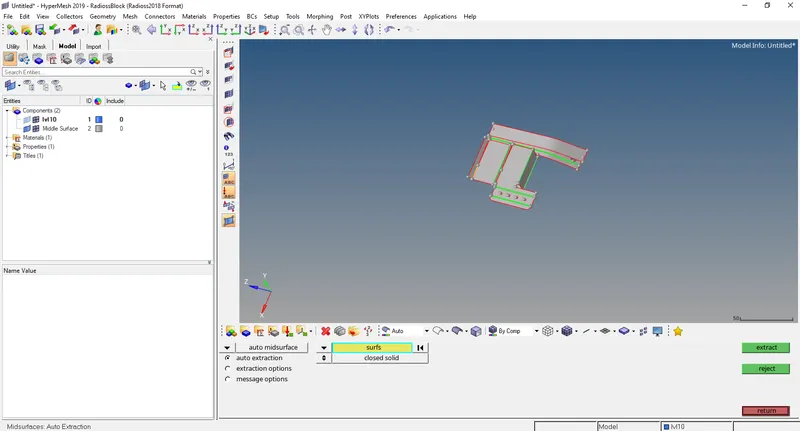
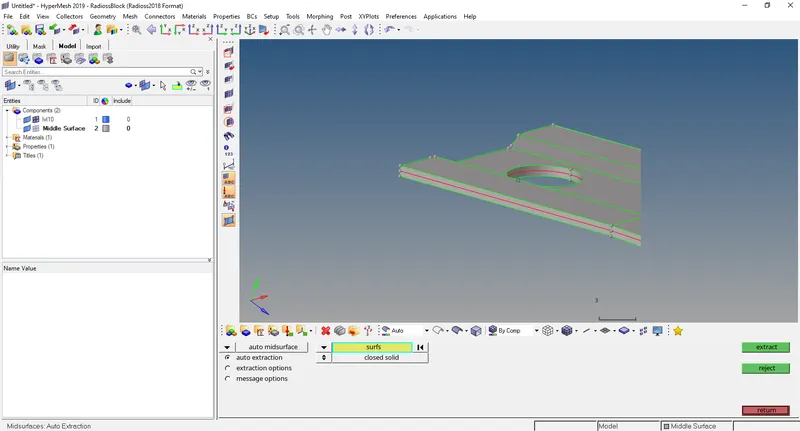
- Now we put the criteria given (Preferences>Criteria file editor)
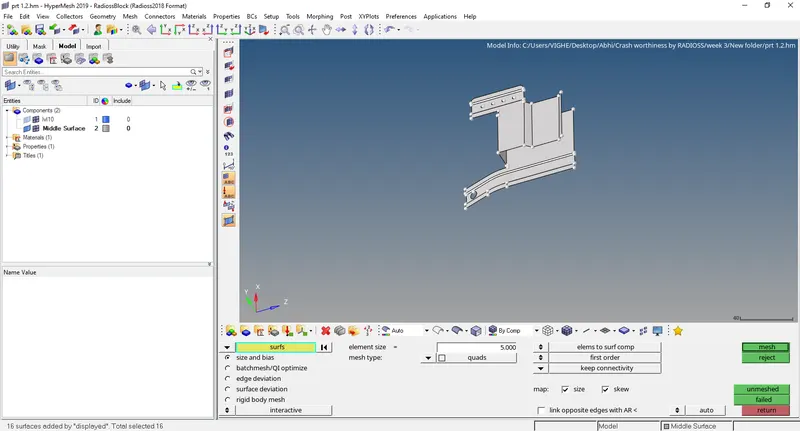
- The meshing of the model with target element= 5 mm is done (2D>automesh).
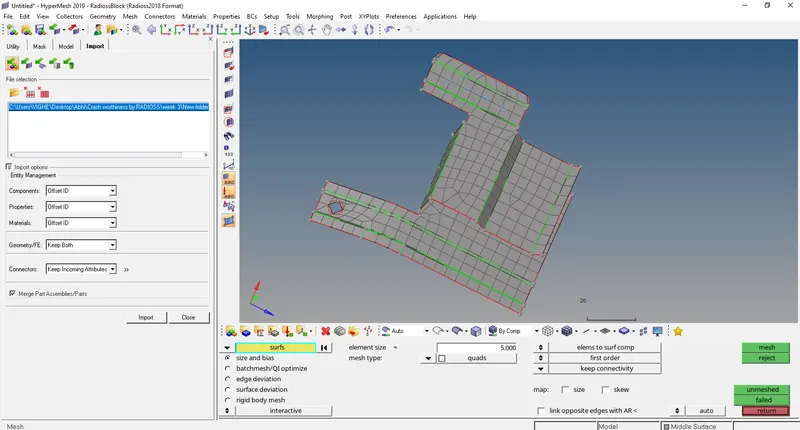
- Now we have to create a new property for the mesh with thickness in property equal to model thickness.
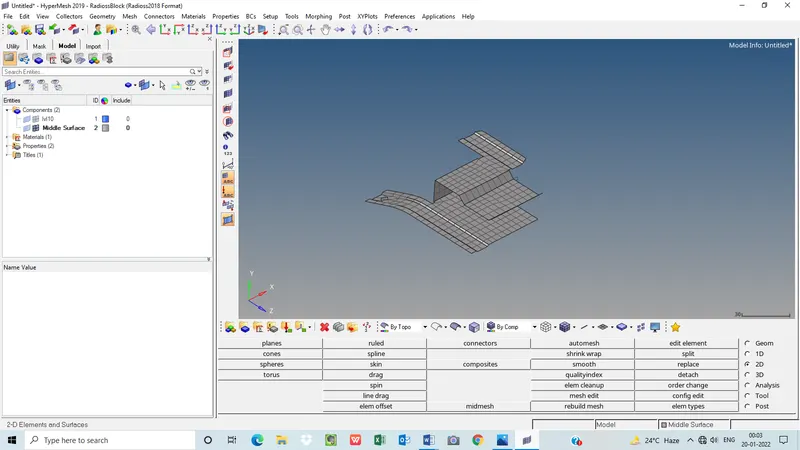
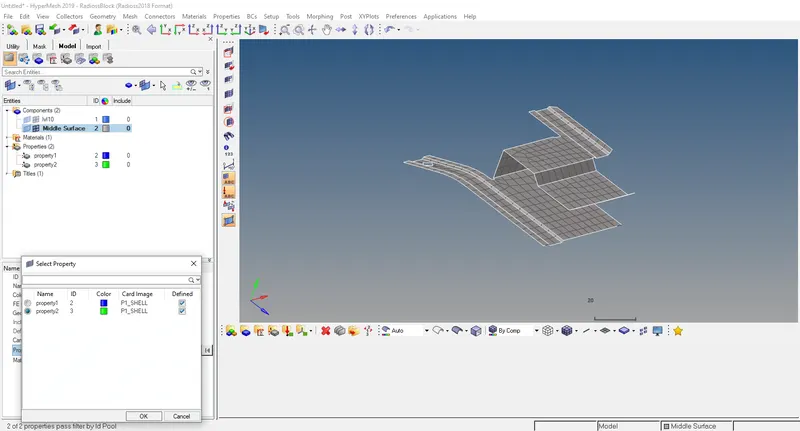
- Assign the new property to the mesh.
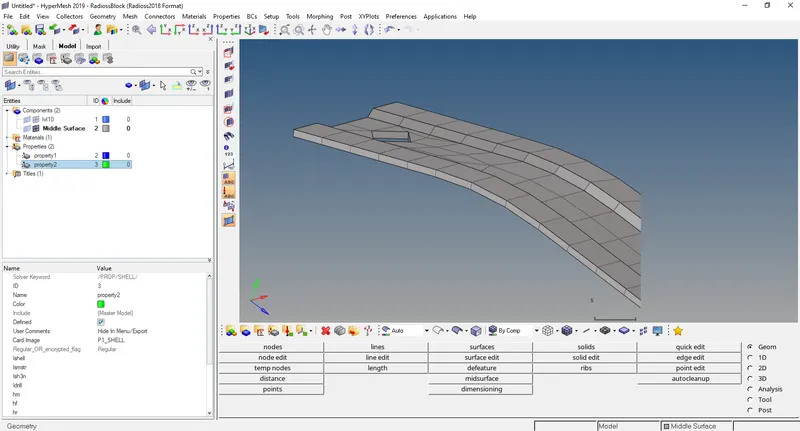
- Plot the mesh metric using quality criteria option (2D>Quality Criteria).
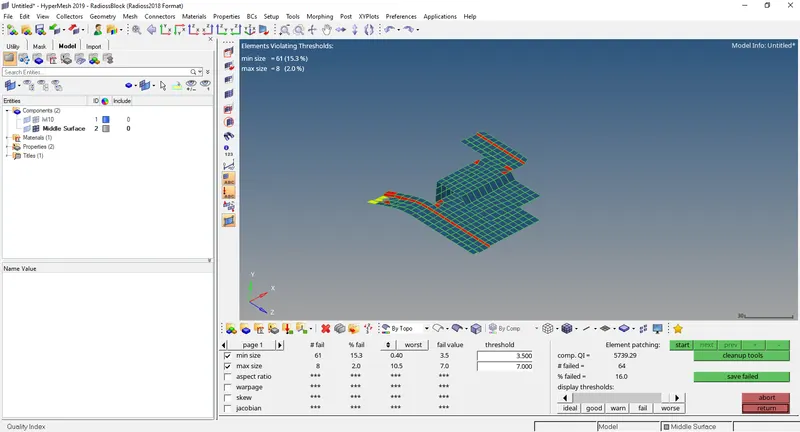
Clip Repair:-
- First the model is imported using import model option in tab bar in Hypermesh and the required component is separated out and the solid part is deleted.
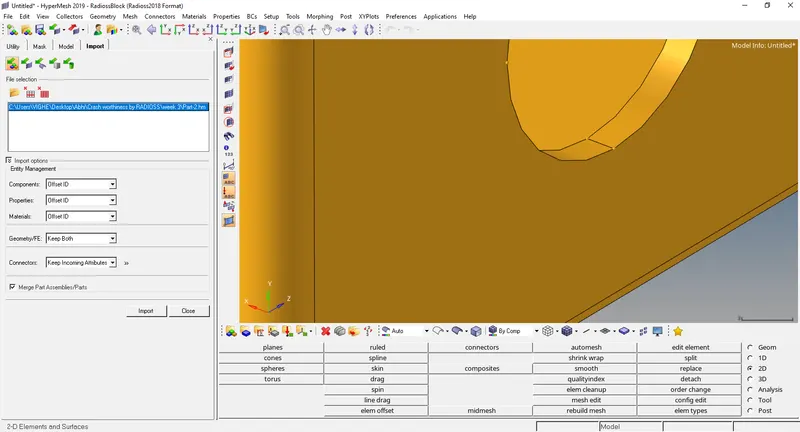
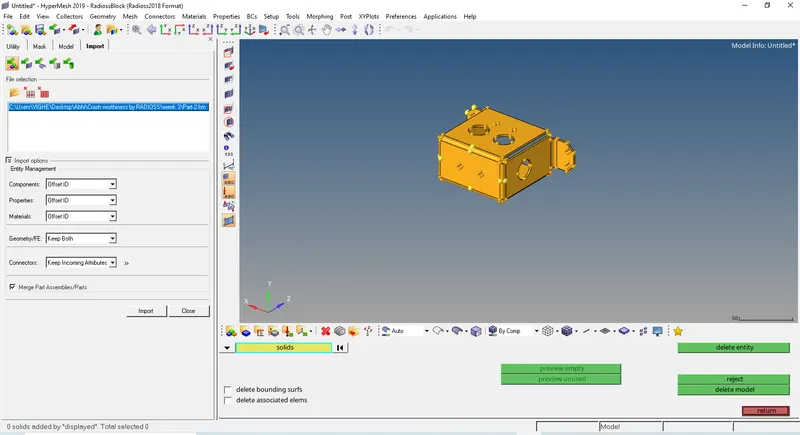
- The model has surface fillets are removed using surface fillets option (Geom>Surface edit>Surface fillets) and pinholes of diameter less then 5 mm using pinholes option (Geom>Pinholes).
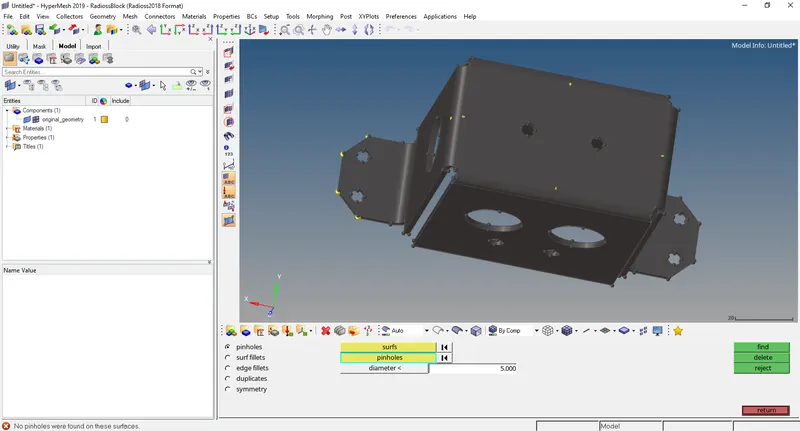
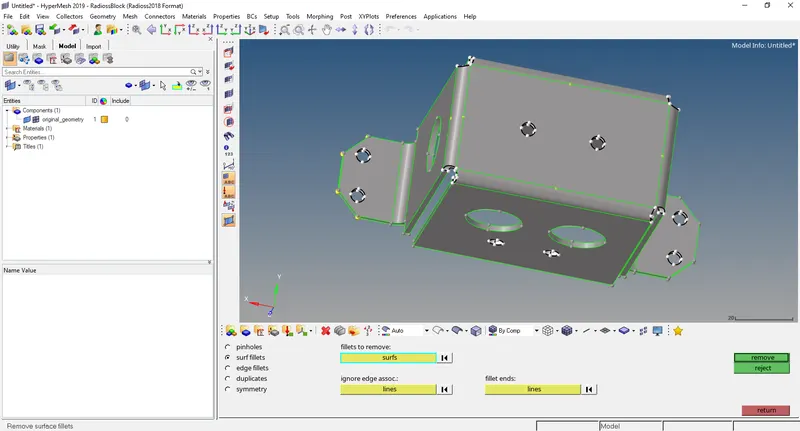
- Now we have to geometric clean up of the model using quick edits (Geom>quick edits).
- Now we to create midsurface of the model using midsurface option (Geom>midsurface).
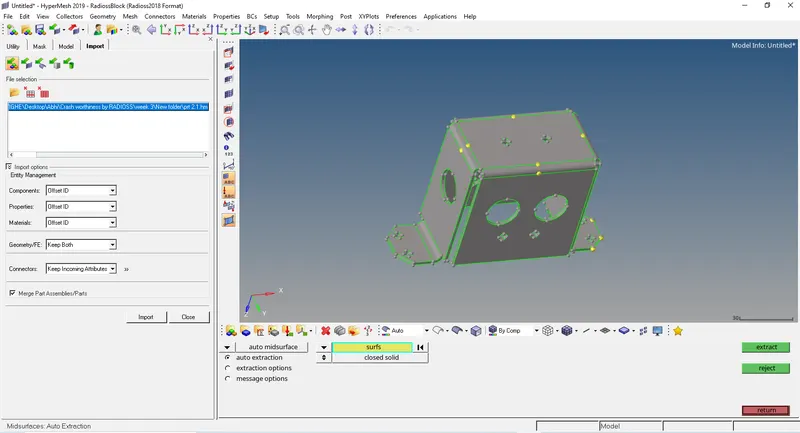
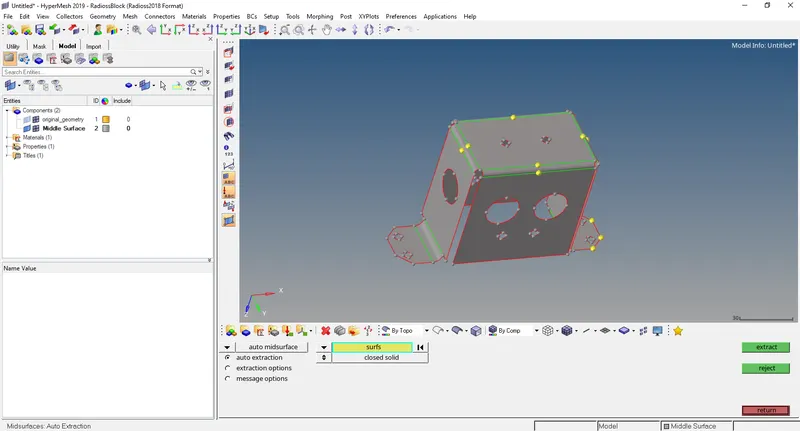
- Now we put the criteria given (Preferences>Criteria file editor)
- The meshing of the model with target element= 5 mm is done (2D>automesh).
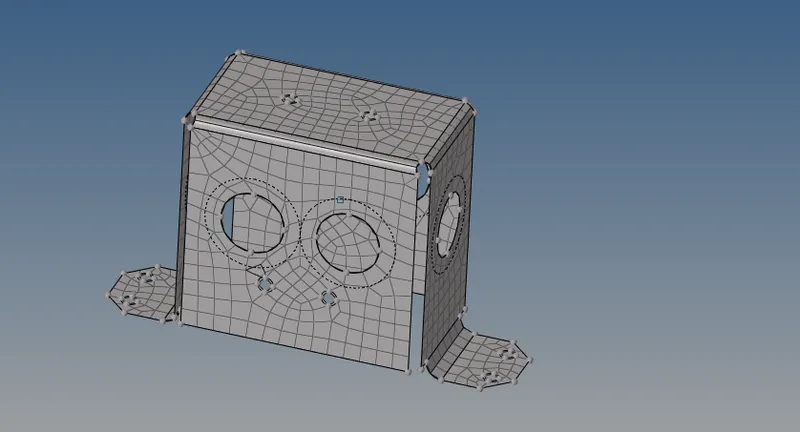
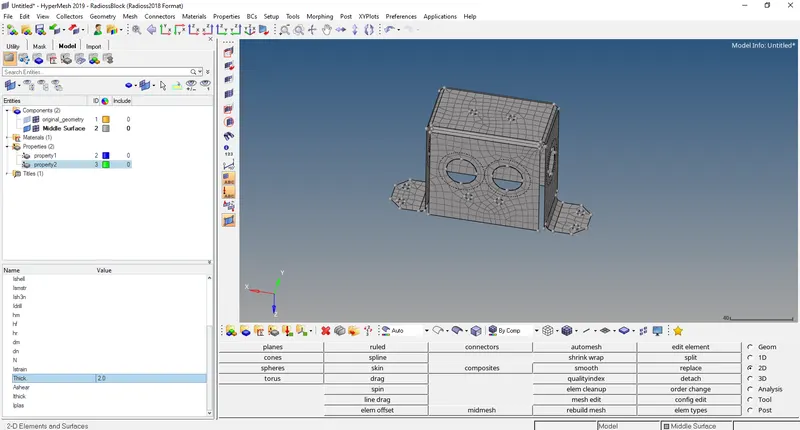
- Now we have to create a new property for the mesh with thickness in property equal to model thickness.
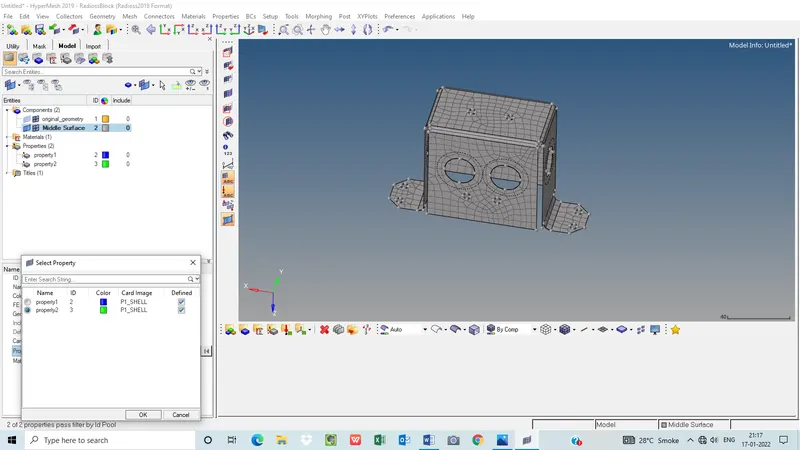
- Assign the new property to the mesh.
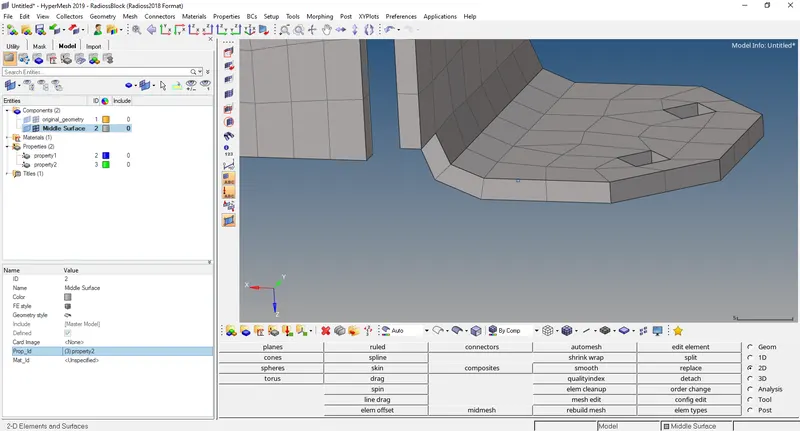
- Plot the mesh metric using quality criteria option (2D>Quality Criteria).
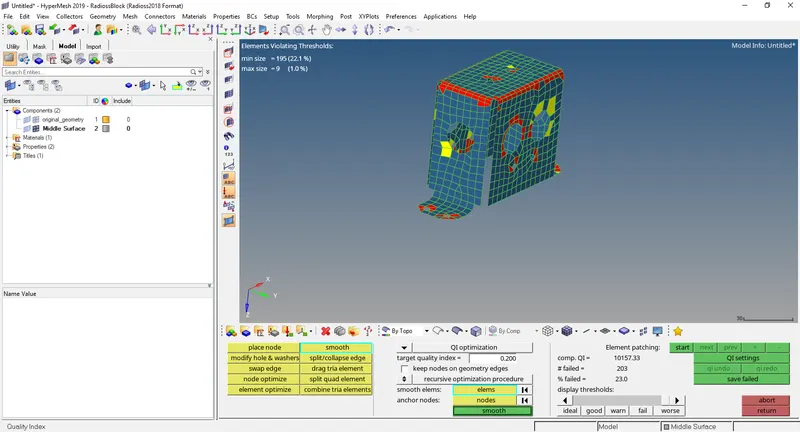
Mounting Bracket:-
- First the model is imported using import model option in tab bar in Hypermesh and the required component is separated out and the solid part is deleted.
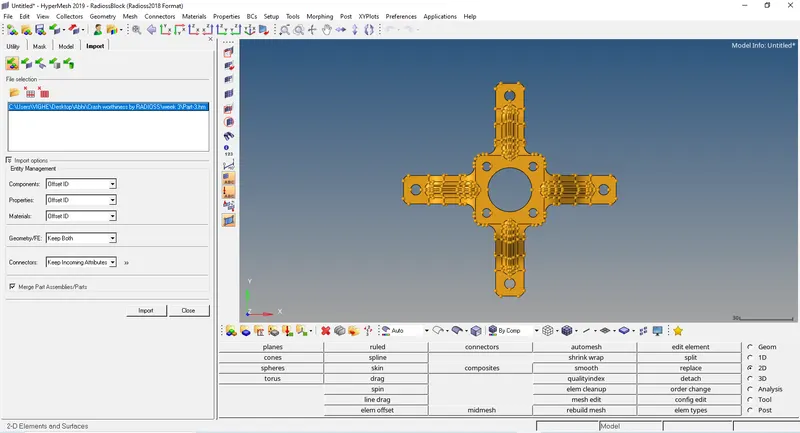
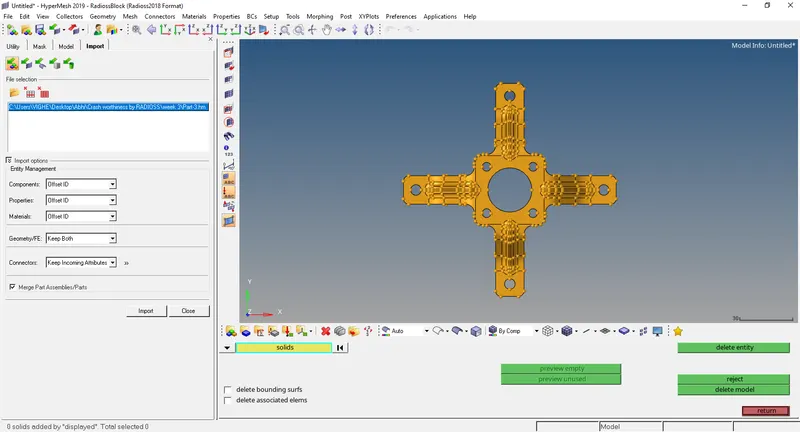
- The model has surface fillets are removed using surface fillets option (Geom>Surface edit>Surface fillets) and pinholes of diameter less then 5 mm using pinholes option (Geom>Pinholes).
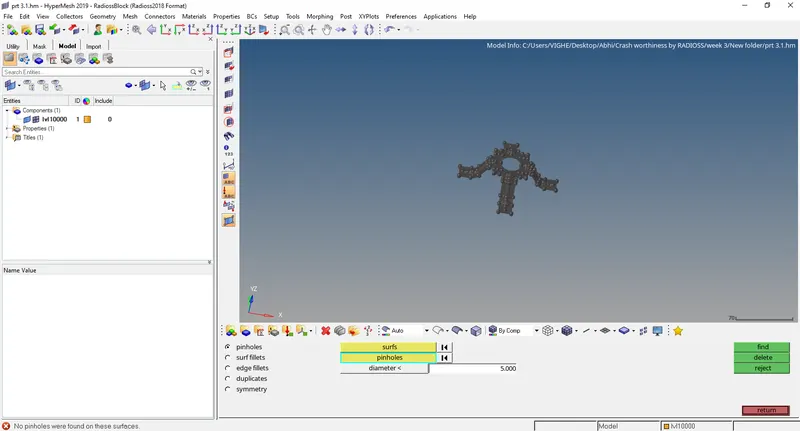
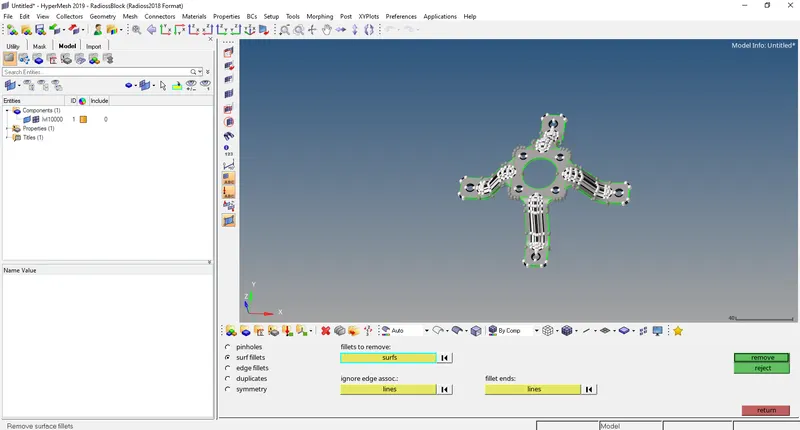
- Now we have to geometric clean up of the model using quick edits (Geom>quick edits)
- Now we to create midsurface of the model using midsurface option (Geom>midsurface)
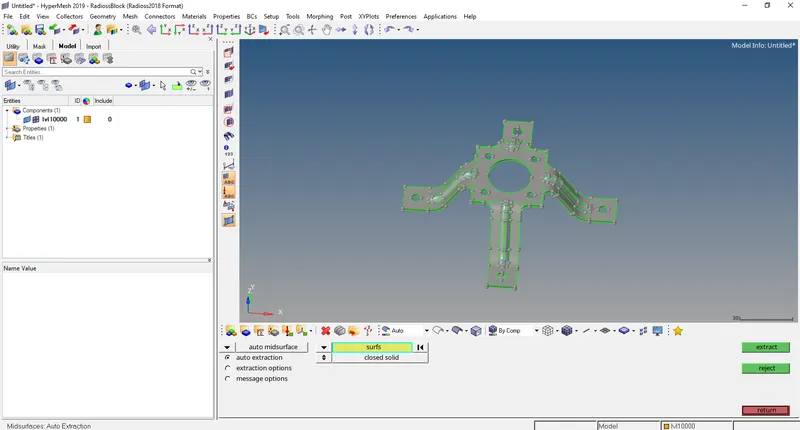
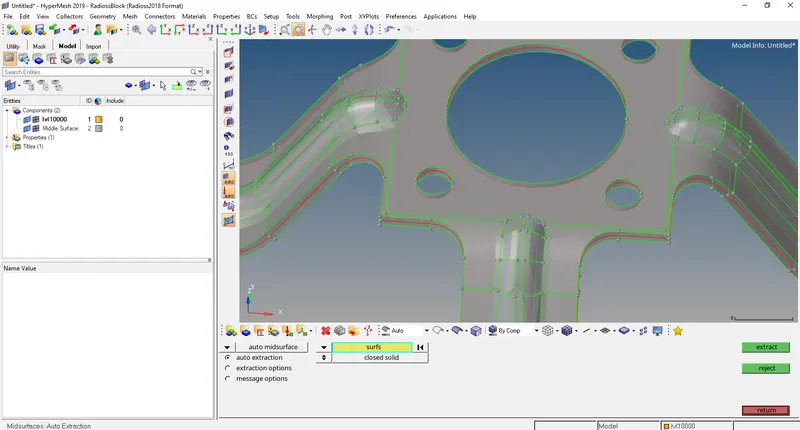
- Now we put the criteria given (Preferences>Criteria file editor)
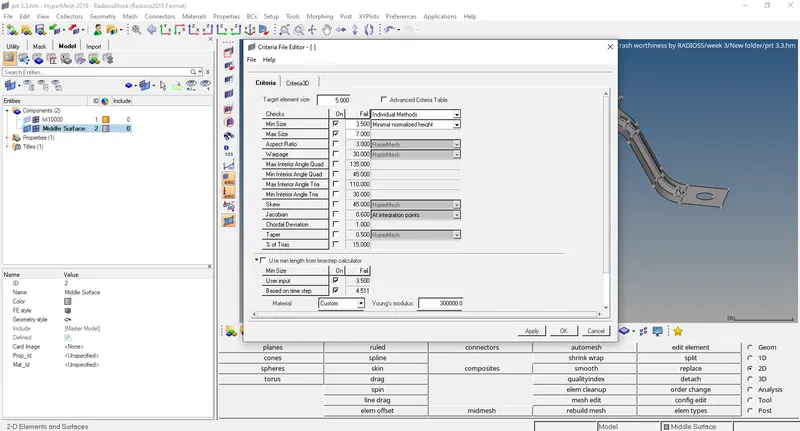
- The meshing of the model with target element= 5 mm is done (2D>automesh).
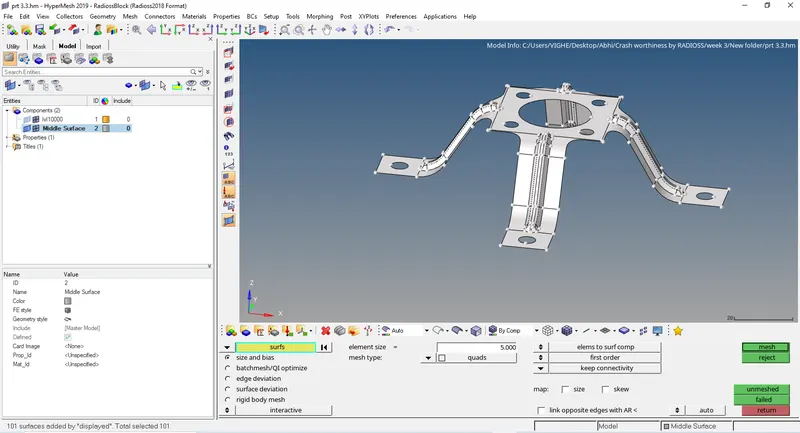
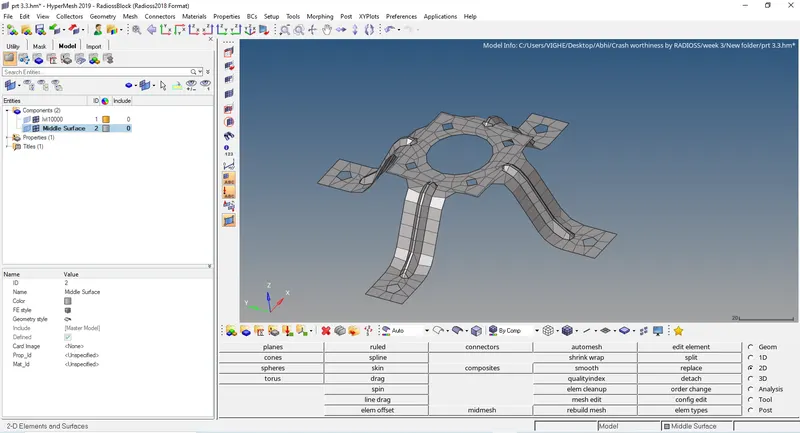
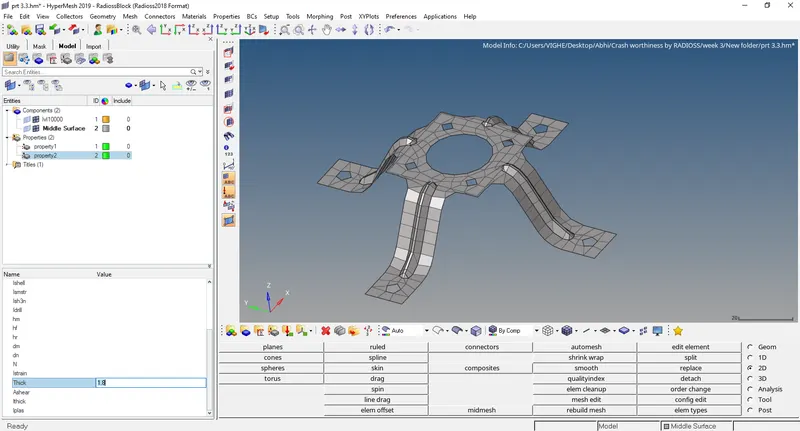
- Now we have to create a new property for the mesh with thickness in property equal to model thickness.
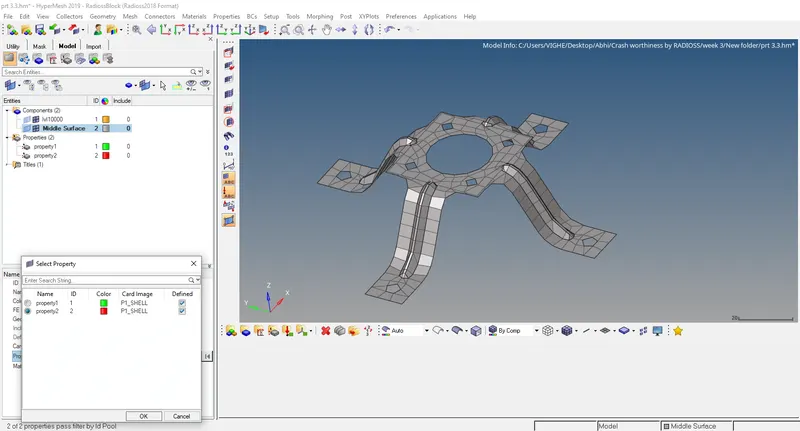
- Assign the new property to the mesh.
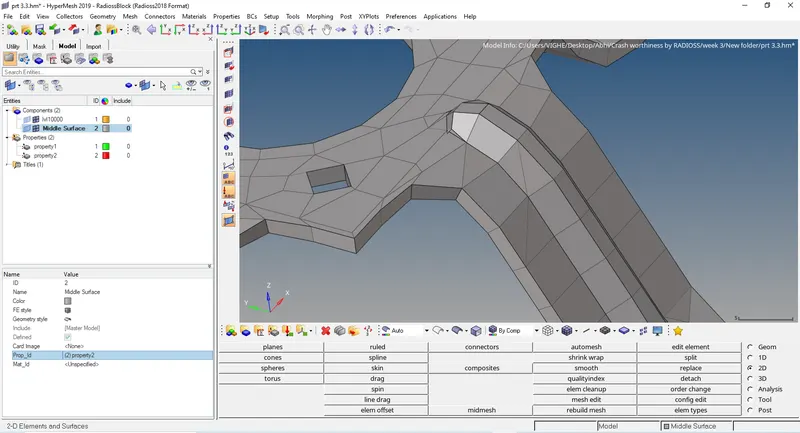
- Plot the mesh metric using quality criteria option (2D>Quality Criteria).
CONCLUSION: The project was done successfully.