How to Install MySQL on your PC?
It is possible to develop websites that will interact in real-time with a MySQL database to quickly show classified and searchable information to website users when used in conjunction with a scripting language like PHP or Perl.
 Navin Baskar·6 Jul 2022·2 min read
How to Install MySQL on your PC?
An Introduction to MySQL
The relational database management system MySQL is built on the SQL (Structured Query Language) language. Data warehousing, e-commerce, and logging applications are just a few of the many uses for the application. MySQL, however, is most frequently utilized as an online database. From a single piece of information to a whole inventory of goods for an online business, it may be used to store anything.
It is possible to develop websites that will interact in real-time with a MySQL database to quickly show classified and searchable information to website users when used in conjunction with a scripting language like PHP or Perl.
MySQL Installation Guide
Below are the steps for MySQL installation on your personal computer:
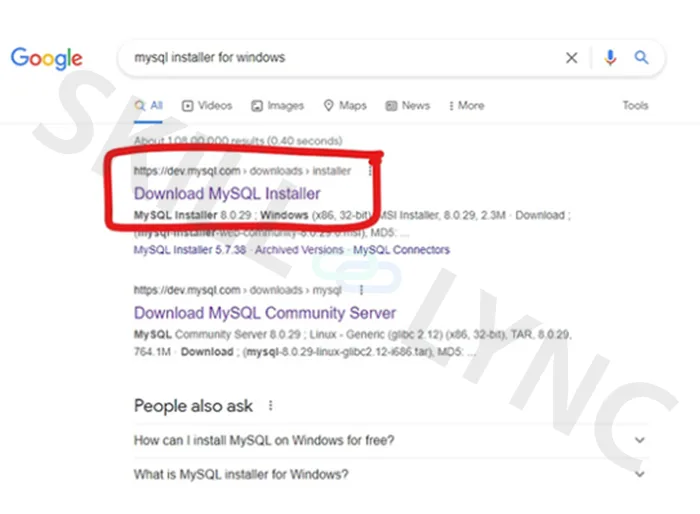
Step 1: Open the browser, search for MySQL installer for windows on google and select the first result.
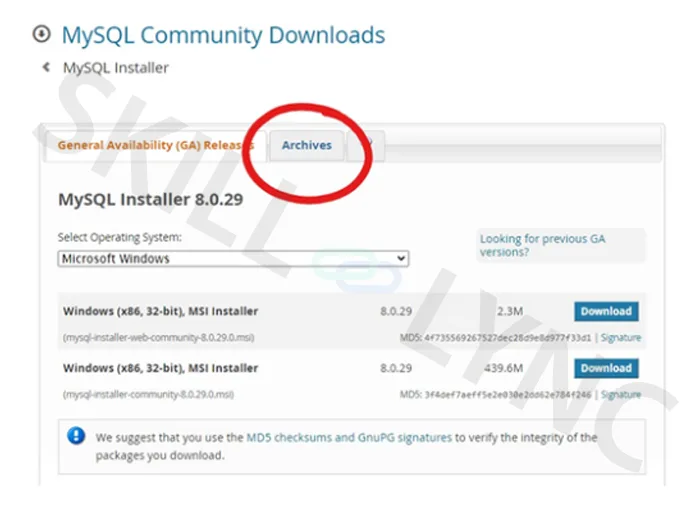
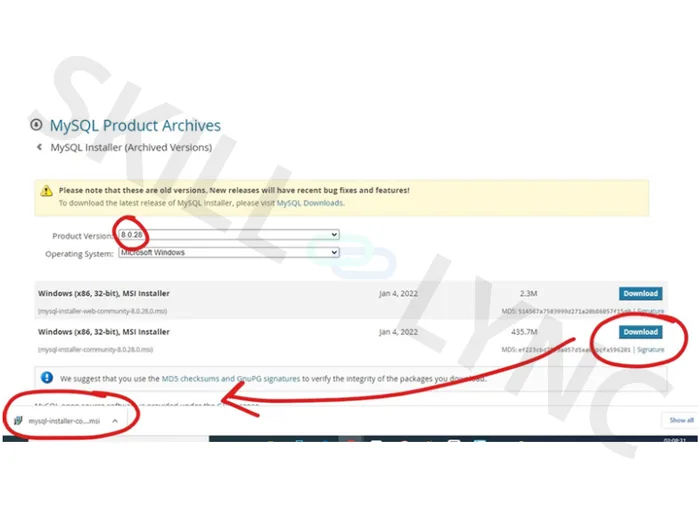
Step 2: Select Archives to download a specific version of MySQL. Or you can download the latest version. (Download the 8.0.28 version if you are facing any problems connecting MySQL to Excel).
Step 3: Click on the Download button to start your download. Once the download is complete, open the file.
Step 4: Click next to install.
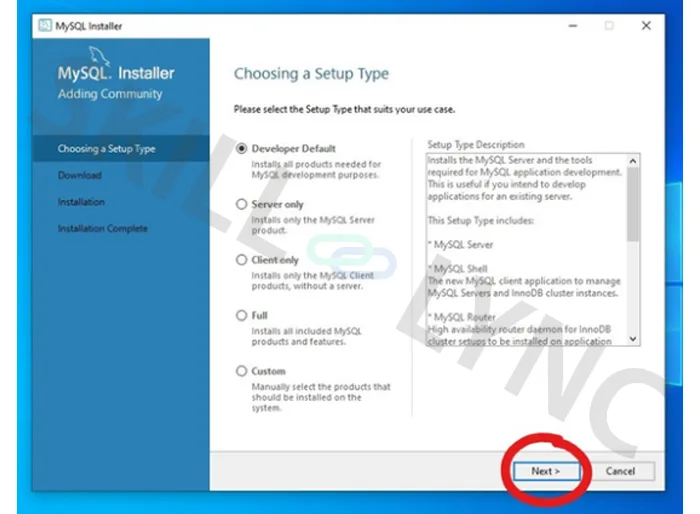
Step 5: Click the Next button to continue.
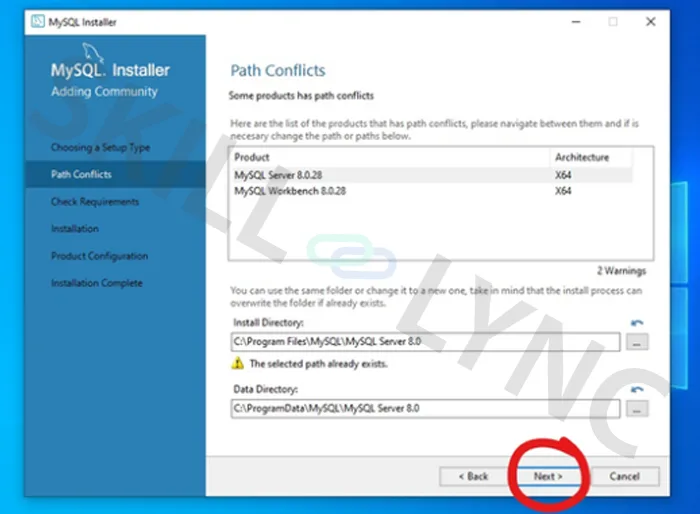
Step 6: If you get a warning popup, select yes and click the Next button.
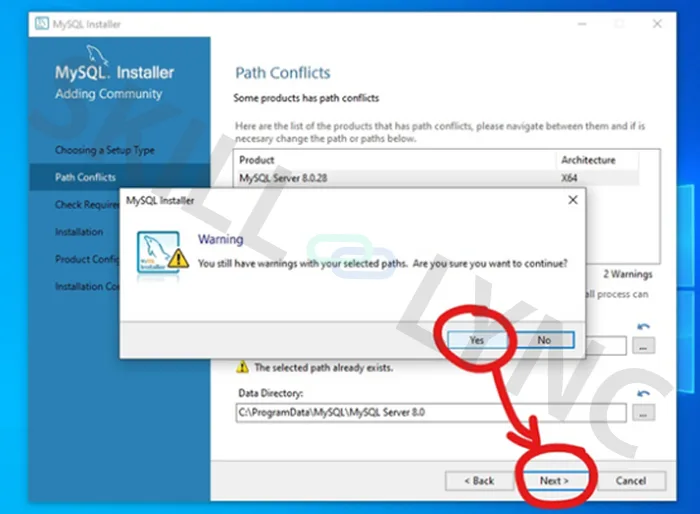
Step 7: Click the Next button to continue.
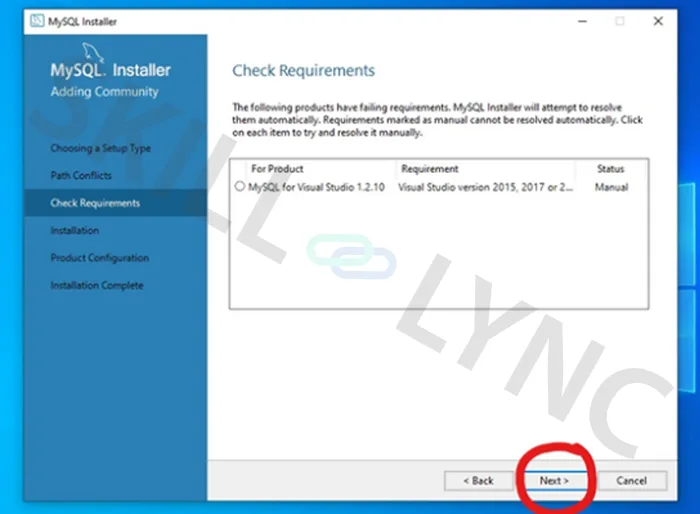
Step 8: If you get a warning popup, select yes and click the Next button.
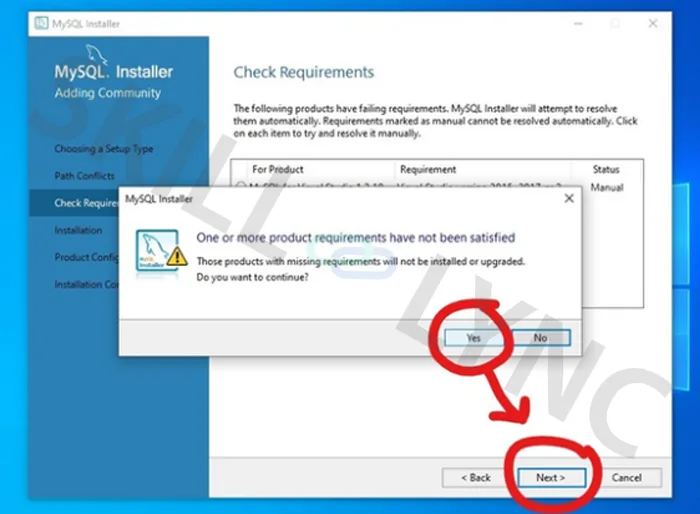
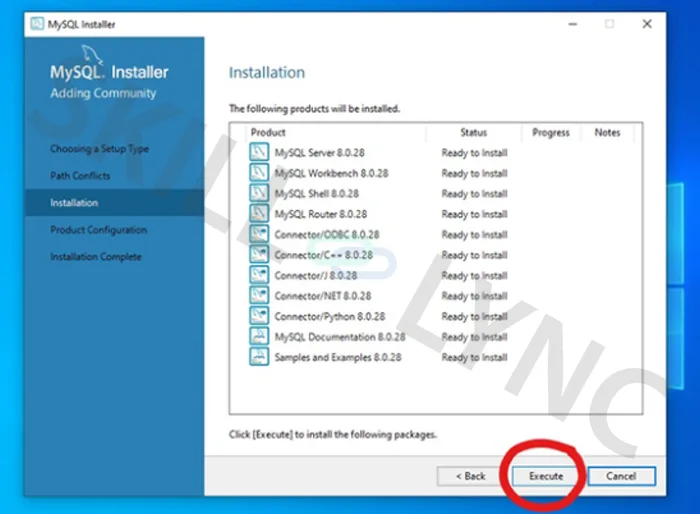
Step 9: Click Execute button to start the installation and download of the products. It may take some time.
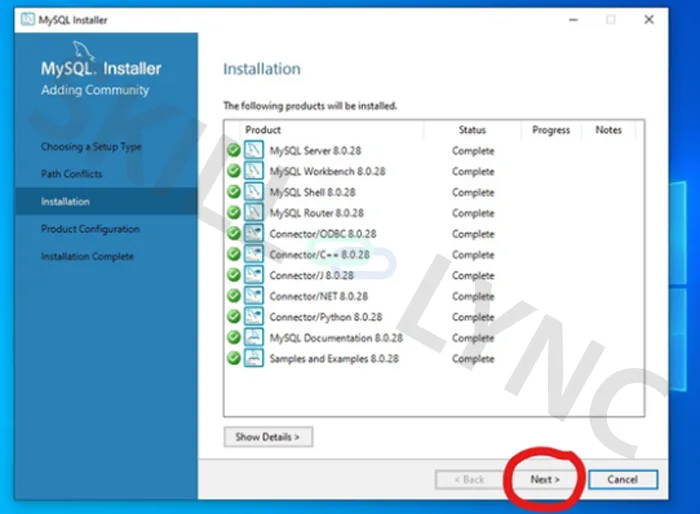
Step 10: Once complete, click the Next button to continue.
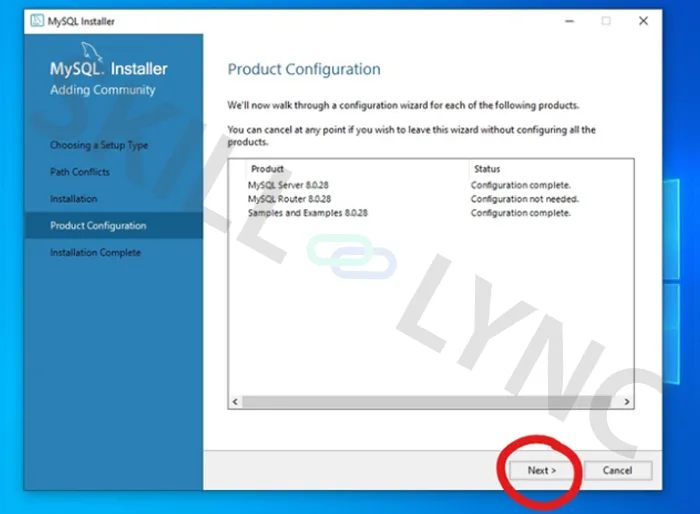
Step 11: Click the Next button to start the configuration.
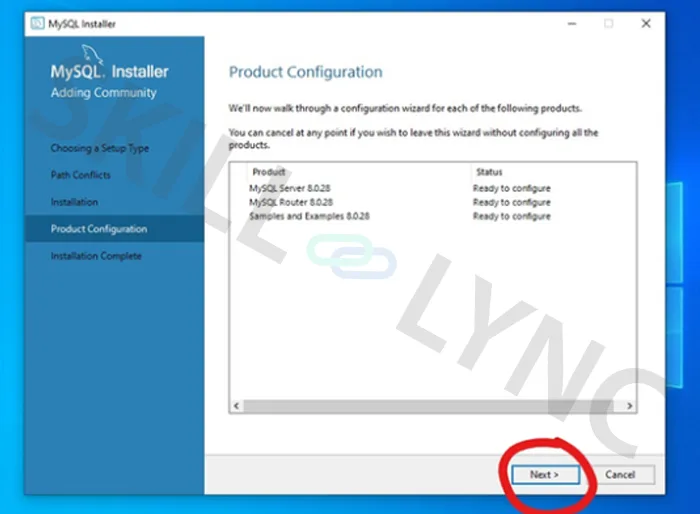
Step 12: Click Next button.
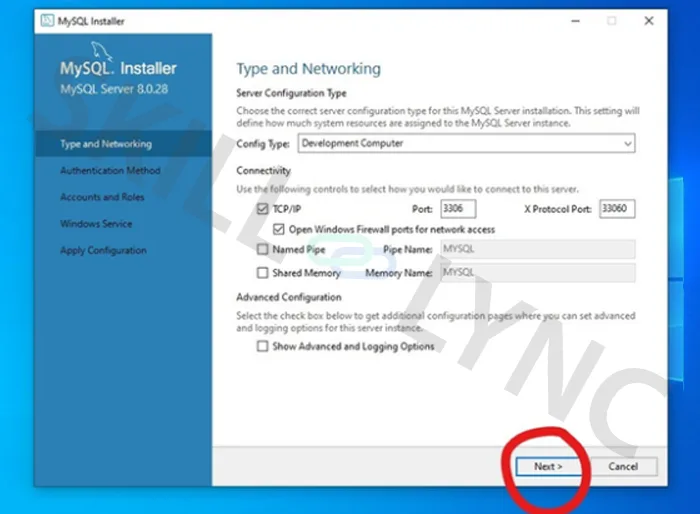
Step 13:Click the Next button.
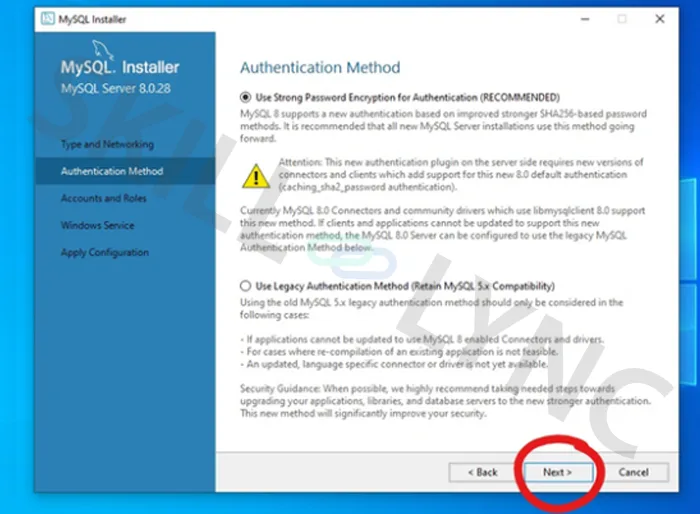
Step 14 Set the password for your account and click the Next button.
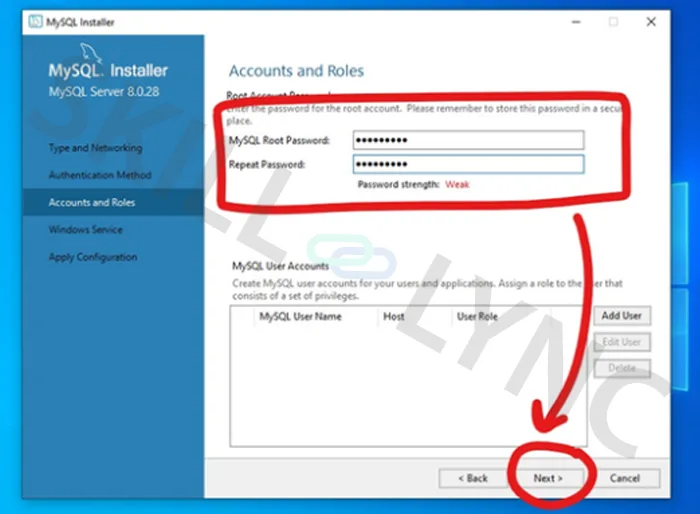
Step 15: Click the Next button.
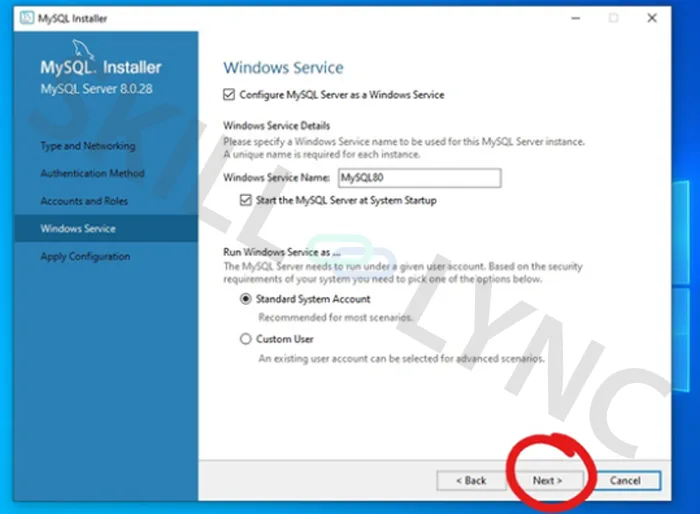
Step 16: Click Execute button to apply the configuration.
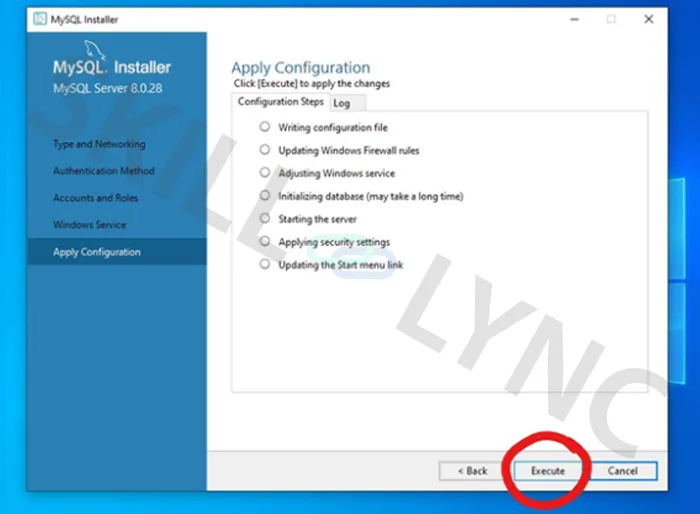
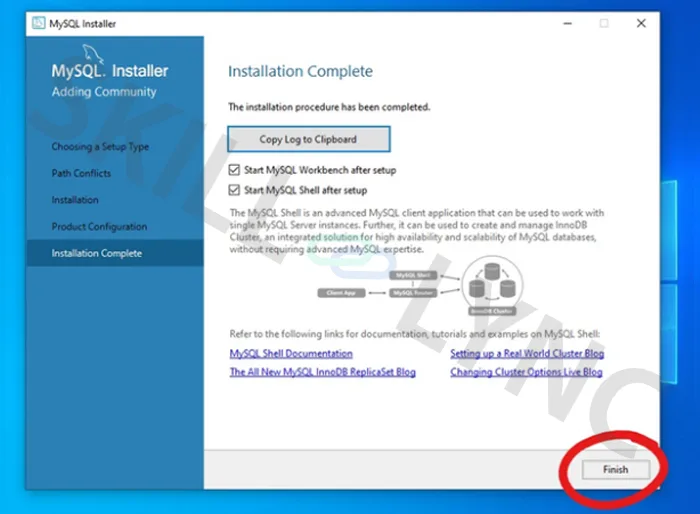
Step 17: Click to Finish button.
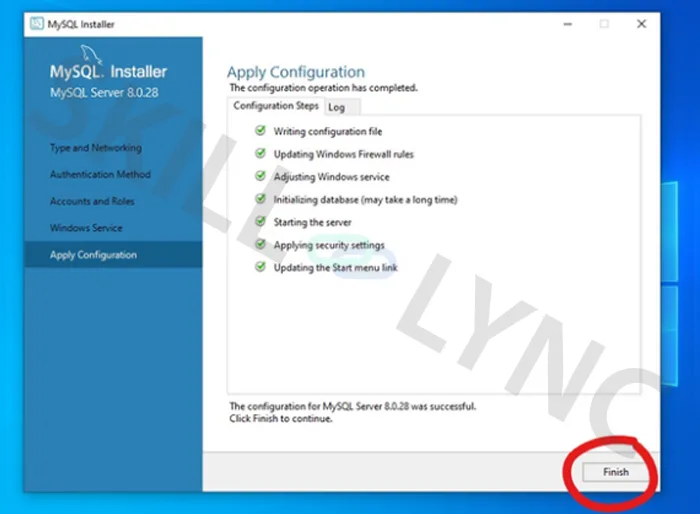
Step 18: Click the Next button.
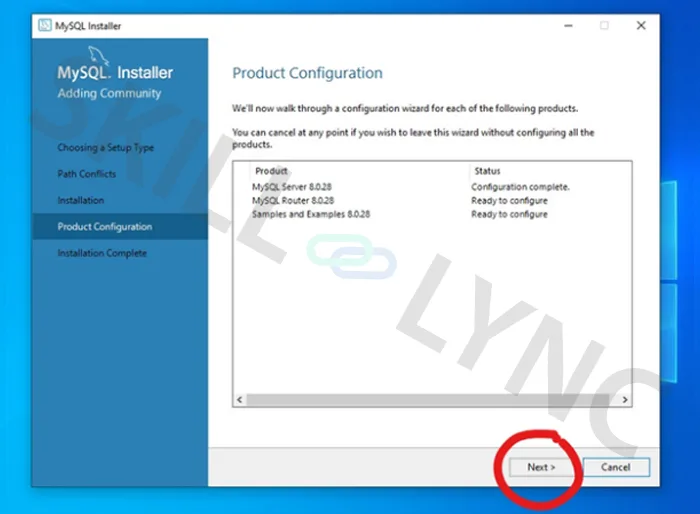
Step 19: Click the Finish button.
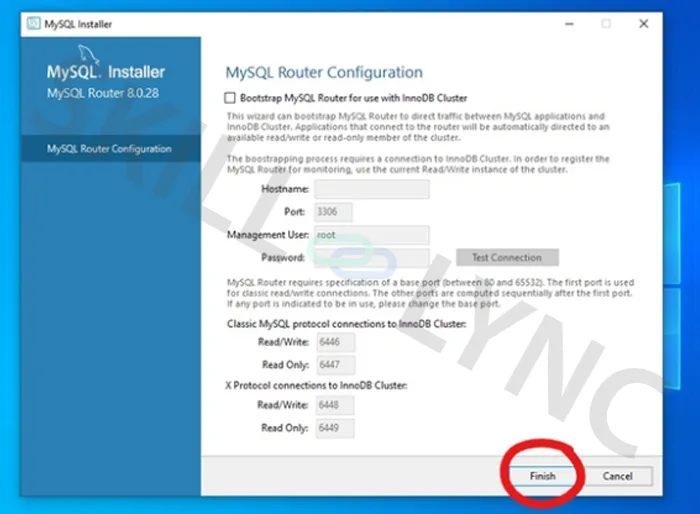
Step 20: Click the Next button to continue.
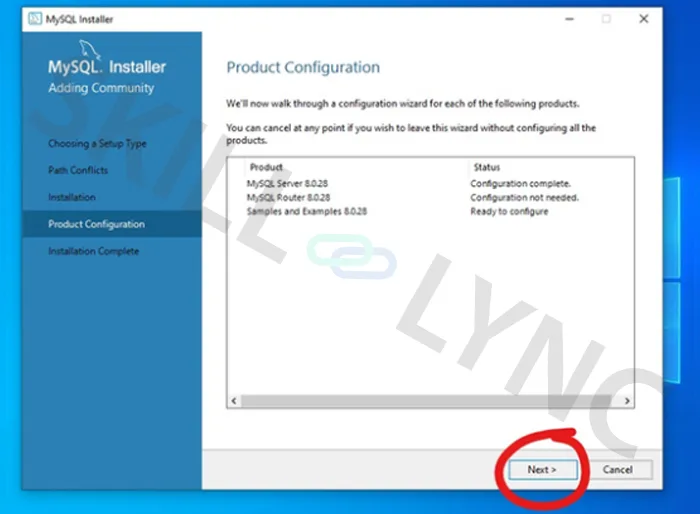
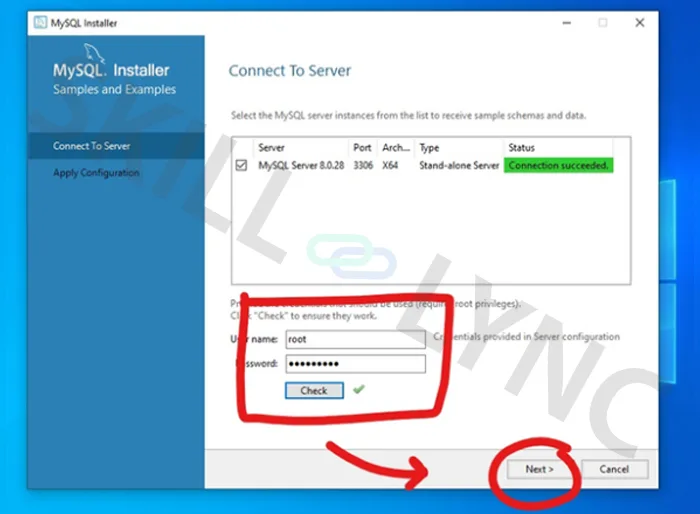
Step 21: Type your password and click the check button. Once the connection is succeeded and green in colour, click the Next button.
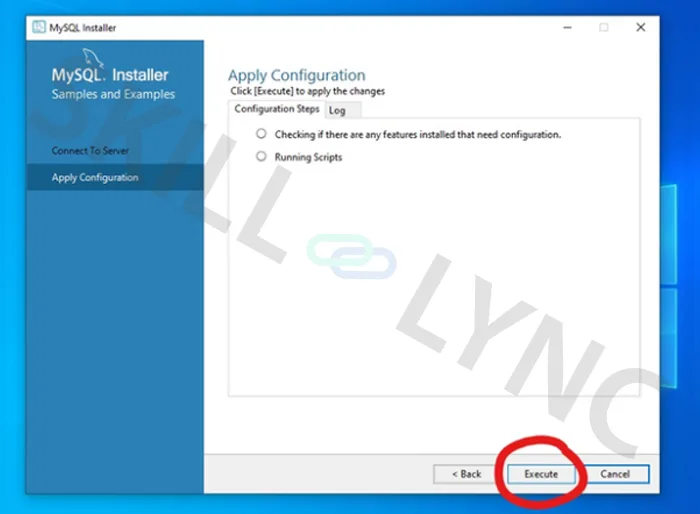
Step 22: Click Execute button to apply the configuration.
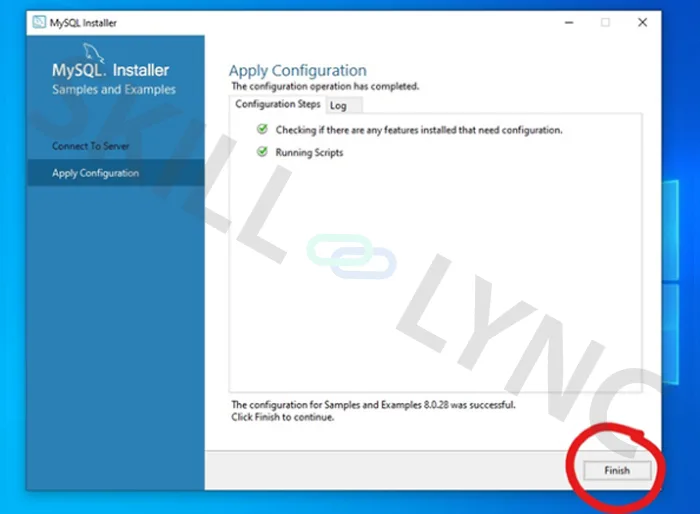
Step 23: Once complete, click on the Finish button.
Step 24: Click the Next button to continue.
Step 25: Click Finish to complete your installation. And explore MySQL Workbench.