Wiring harness design in CATIA V5 - 3D modeling Week 7 Challenge
we need to open the 4TH WEEK challenge and open new product in assembly change that product to flatterning
PROCEDURE
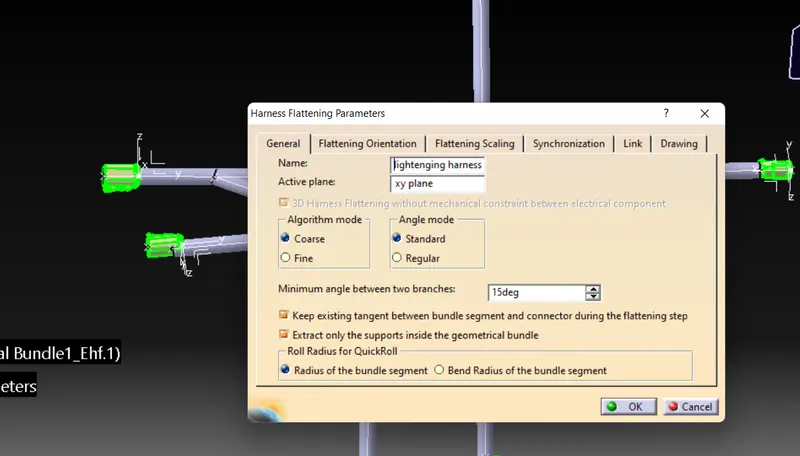
Step 1 : Create a new product file and switch to Electrical Harness Flatten Workbench and set the flattering parameters.Then the flattering paramenter will be added in the model tree.
Step 2 : Bring the harness assembly into the newly created Flattening Product by using the "Extract" Command.
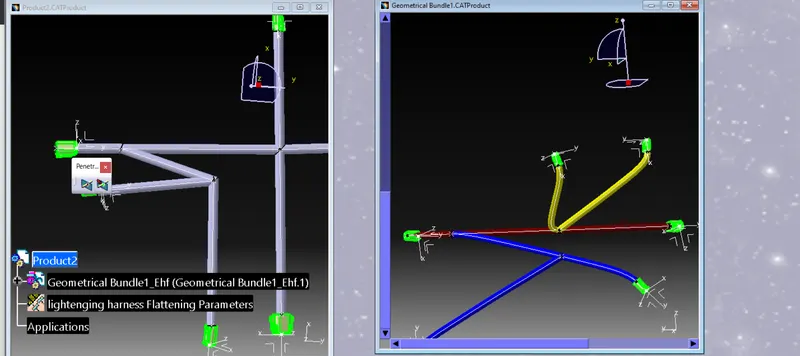
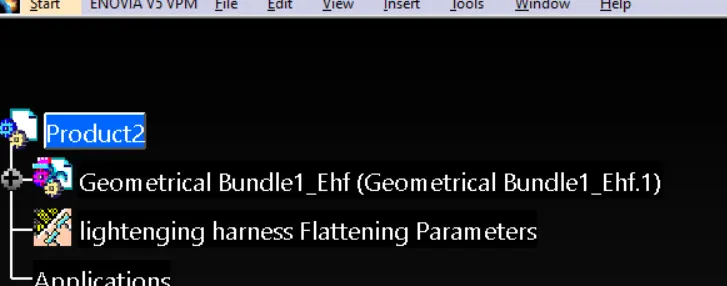
Now the geometrical bundle assembly or harness assembly file is changed to an "EHF" file which stands for "Electrical Harness Flattening
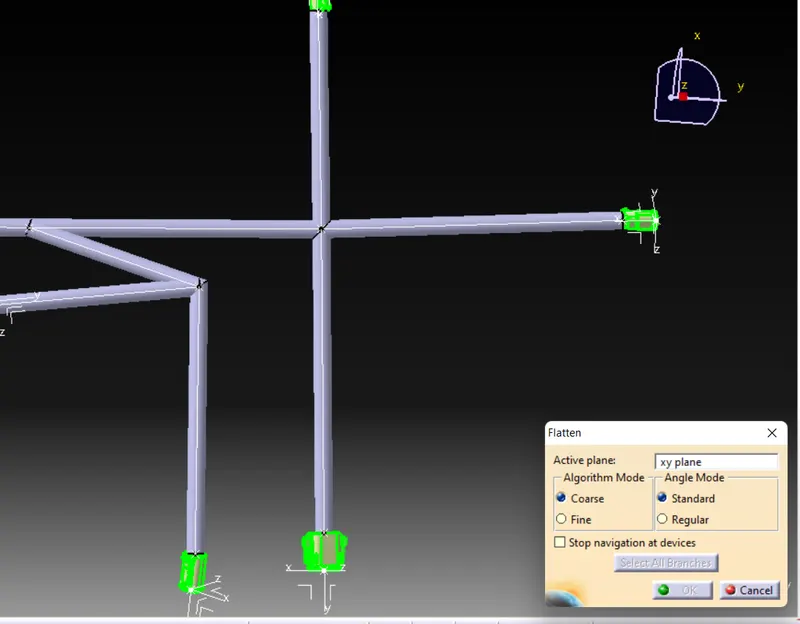
Step 3 : Now to flatten the harness select the Flatten command and then select all the branches present in the harness assembly.
Step 4 : Arrange and rotate the branches using 'Arrange junction' and 'Rotate' Command
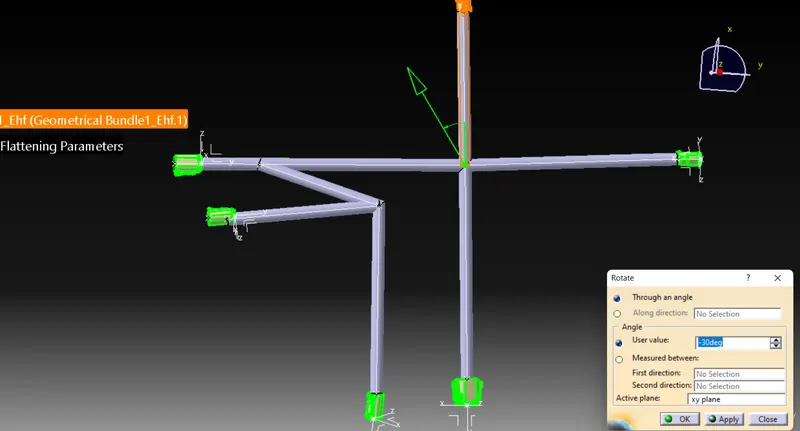
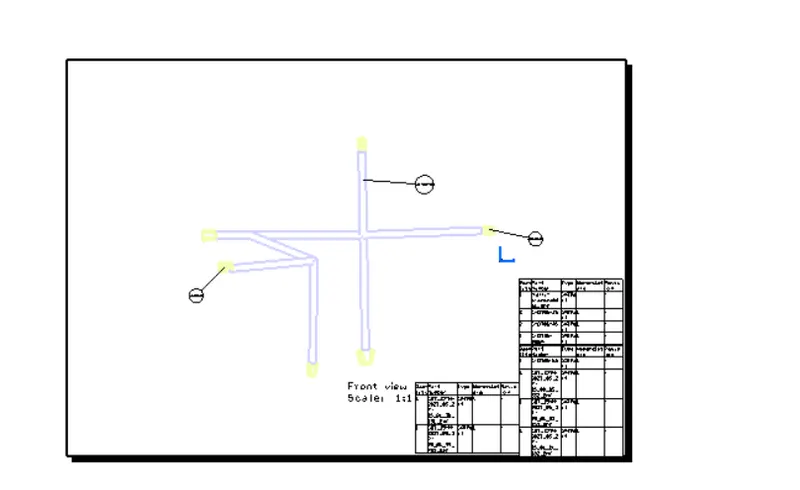
Step 5 : Converting the Flattened bundle in to drawing, for that open new file in 'Drawing'
Step 6 : Click on Front view and select any surface from the flattened bundle
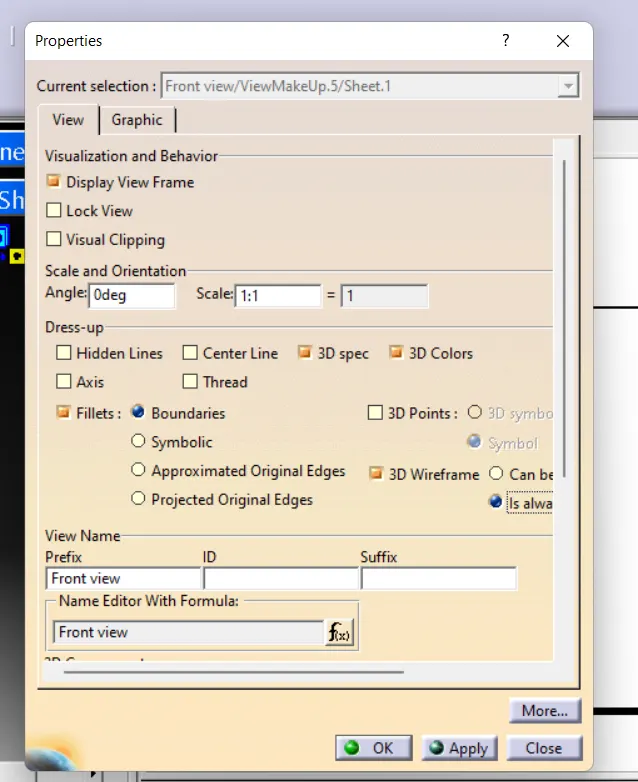
Step 7 : Right click on the view and go to properties and in the view section and check the '3D Wireframe' and select 'Is always visible'.To view the bundle we have to make sure the box is checked.
CONCLUSION
Flattened the harness assembly and to placed the flattened view on drawing sheet.