Wiring harness design in CATIA V5 - 3D modeling Week 5 & 6 Challenge
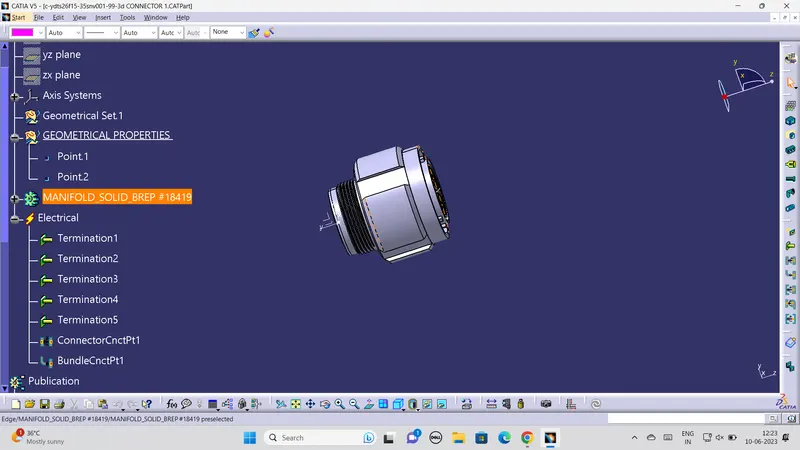
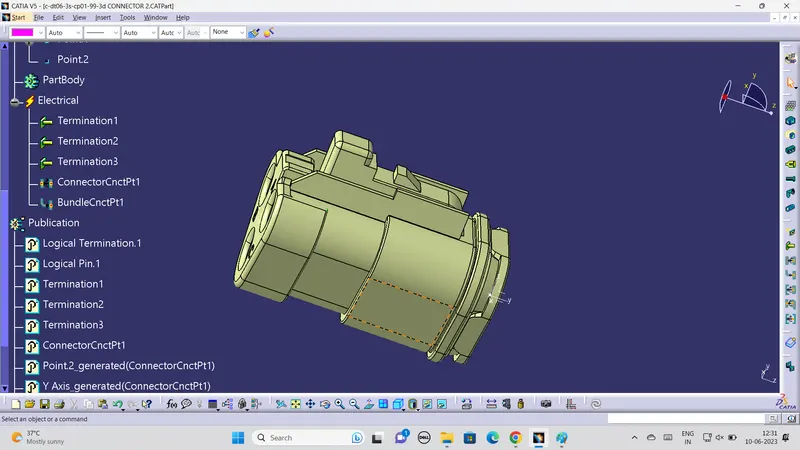
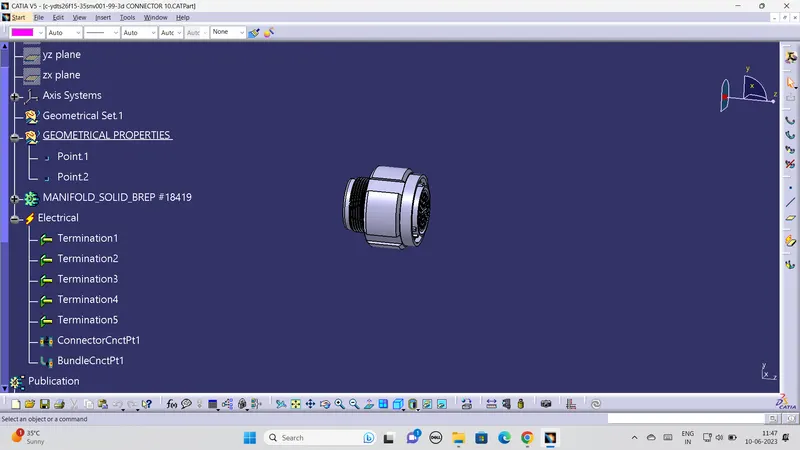
We have create the geometrical properties and electrical properties in electrical part workbench for the all given connectors .The images are attached below
Connector 1
COnnector 2
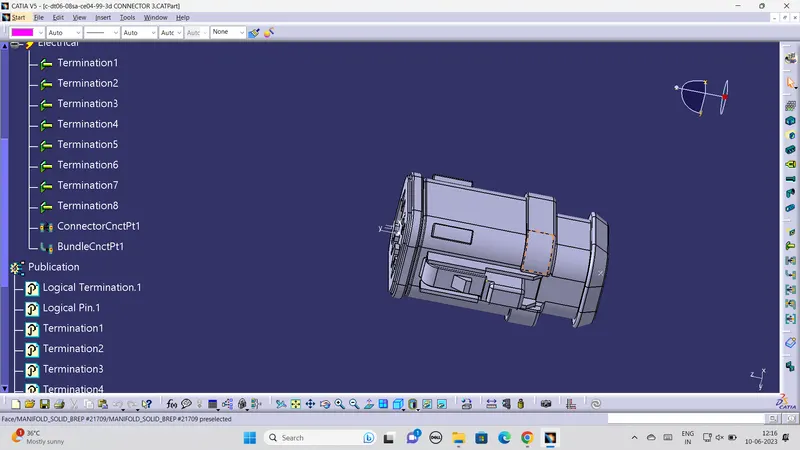
Connector 3
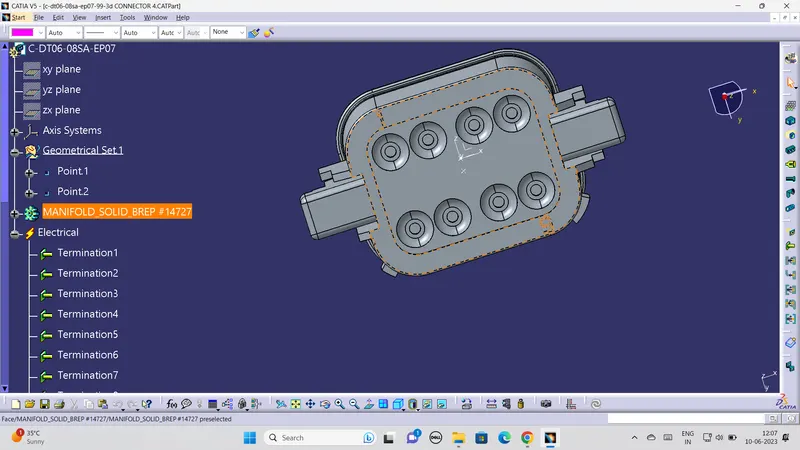
connector 4
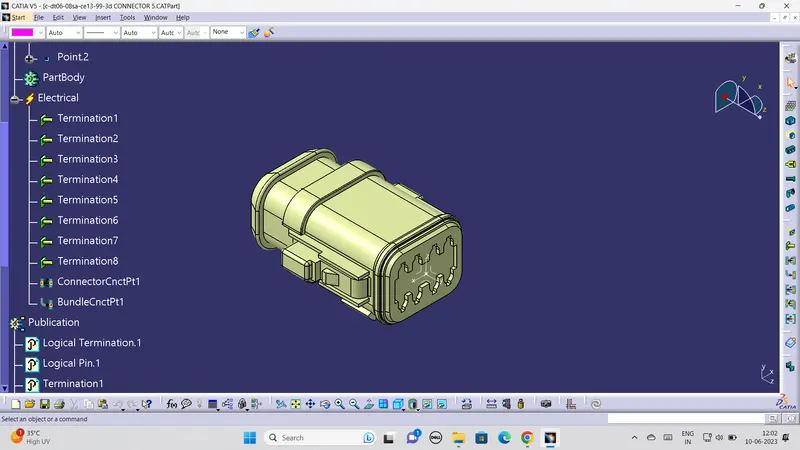
Connector 5
Connector 6
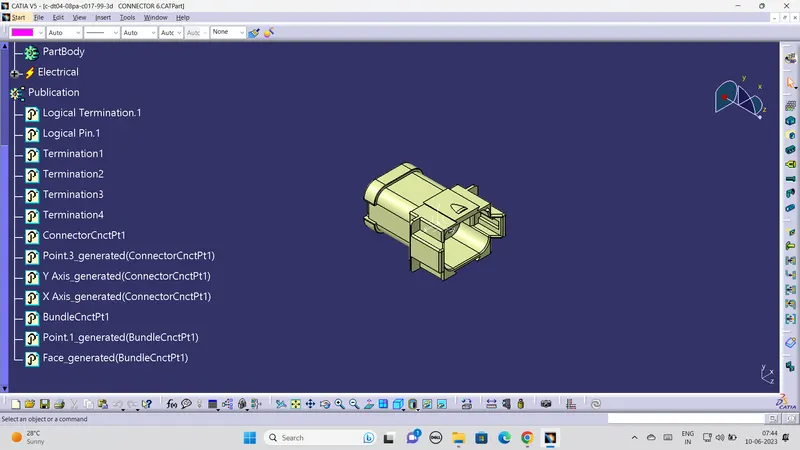
connector 7
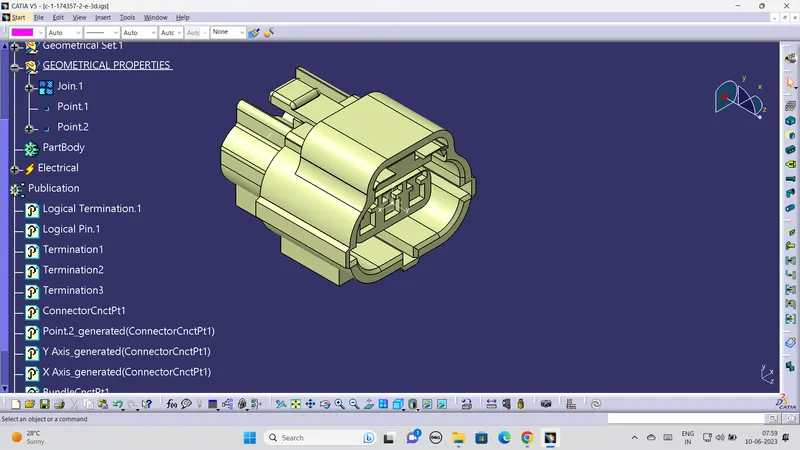
connector 8
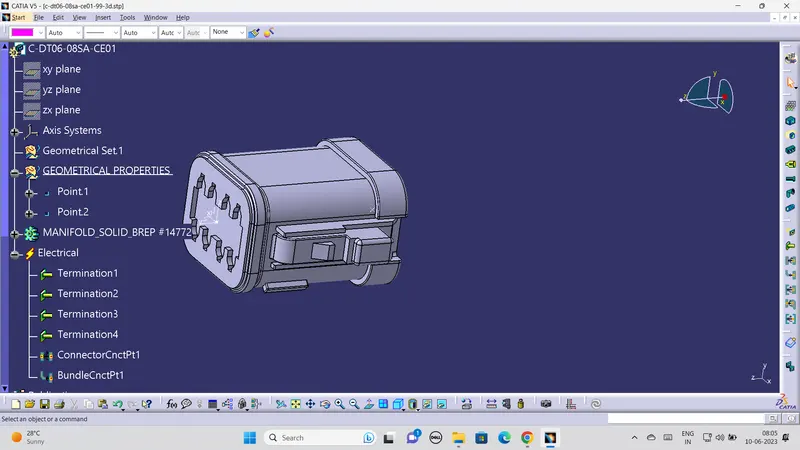
connector 9
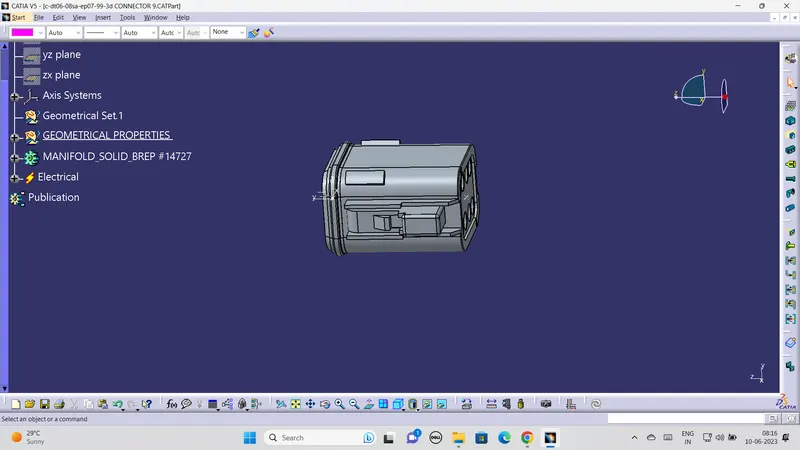
Connector 10
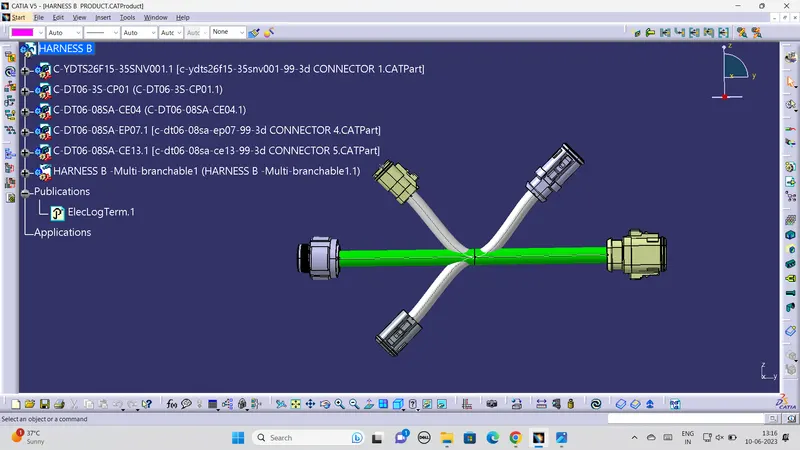
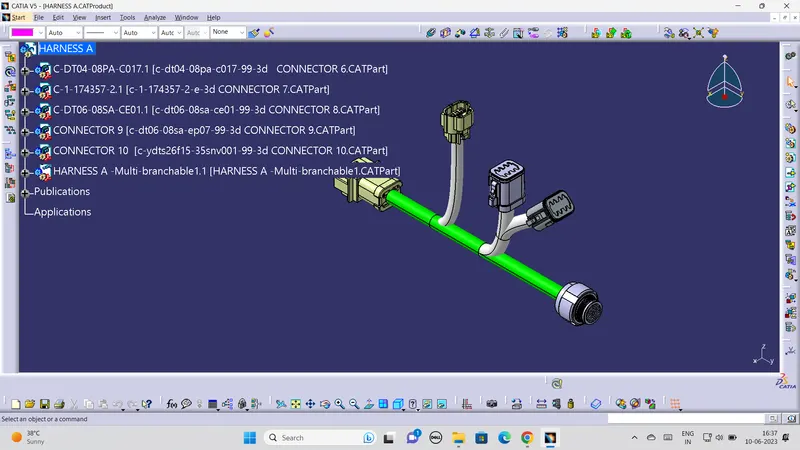
After creating the geometrical and electrical properties we have to assemble all connector in two separate product file as per given question.After assembling the connector as per the given question we have to connect the all the connector by defining the product file as a geometrical bundle after defining it by using multibranchable icon we can bundling the assembled connector with diameter of 12 mm diameter and bend radius 1.4 mm.
For creating the branch in the in the main bundle 1st we have to create the branch point in the main branch as per the given question . The image of the harness A and B are attached below .
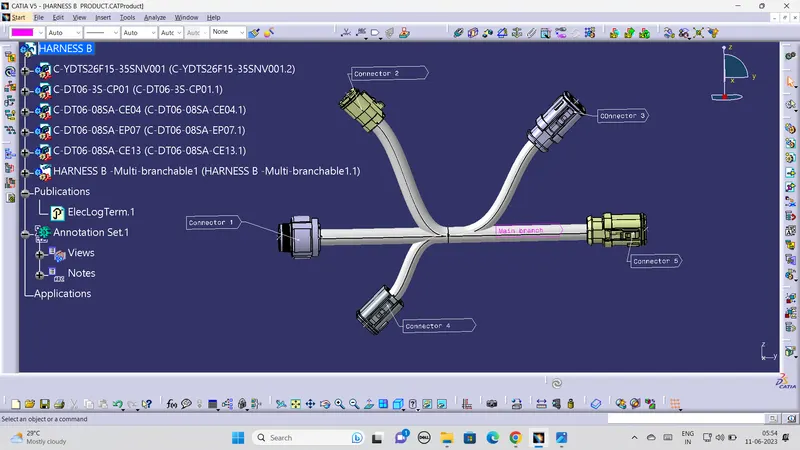
HARNESS B :
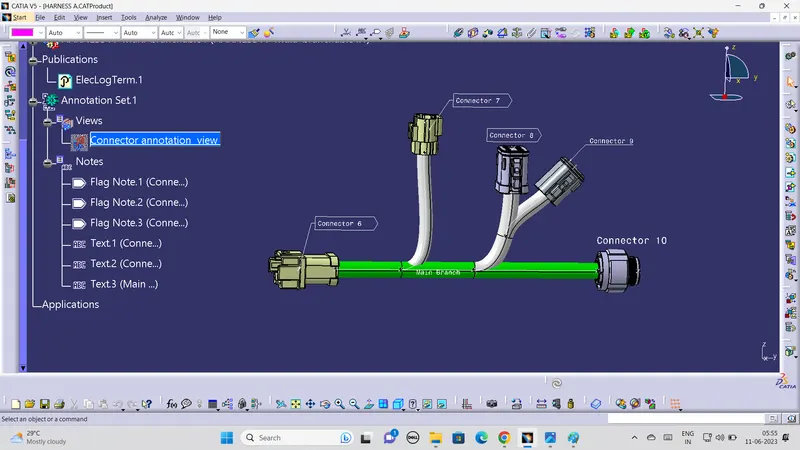
HARNESS A :
CREATION OF ERROR AND SOLVING :
While creating of branch from the main branch for for bundling the connector using branch point there is some error is created due to dend radius of branch the image is attached below
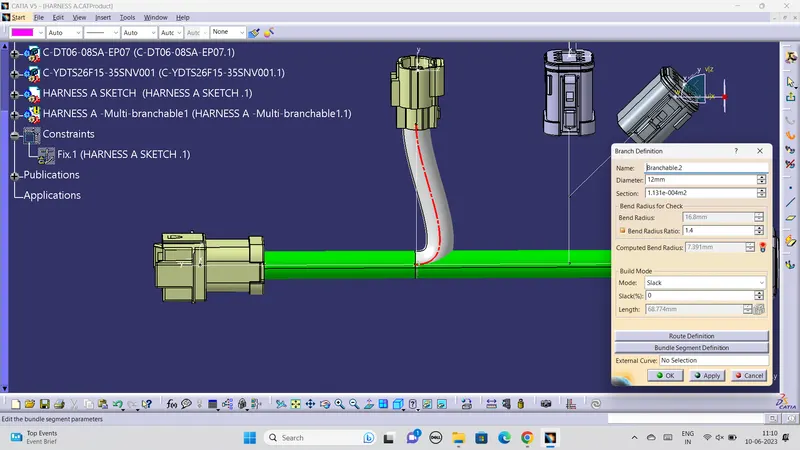
To solve this error i have tried slack upto 30 %it is not get solved .another method i have adjusted branch point forward and back word to few dimension that also not get solved .AFter that i have adjusted the connector little move by upword again create a branch bundle from the main bundle by using the branch point the error gets solved the images are attached below .
Adjusting connector :
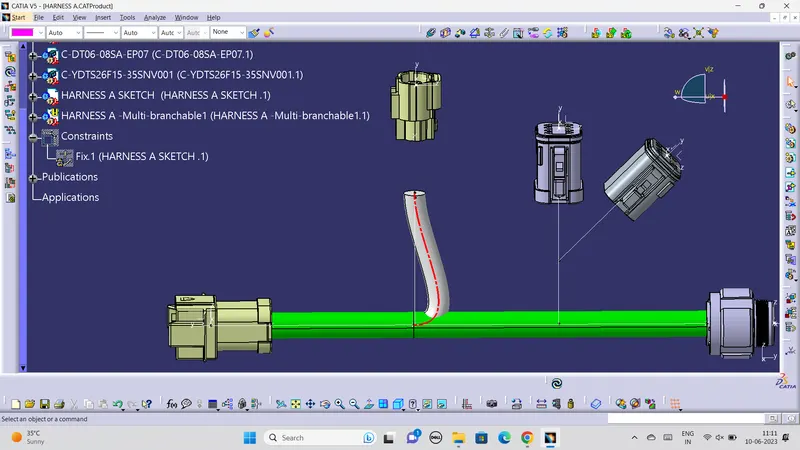
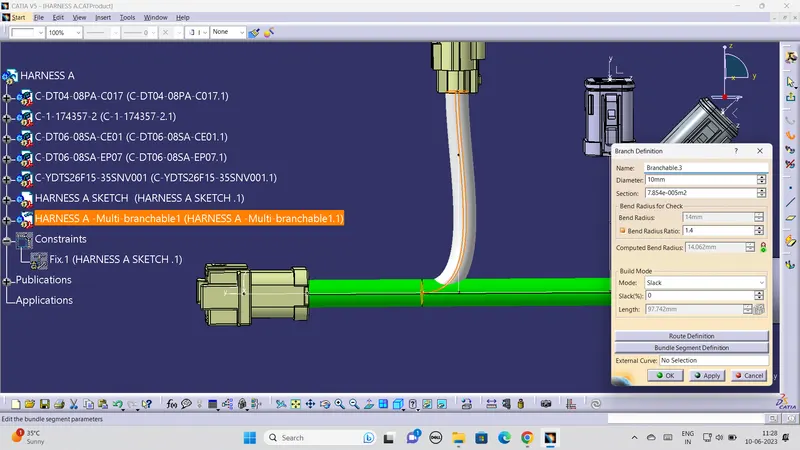
Solved error:
Checking the full connected bundle :
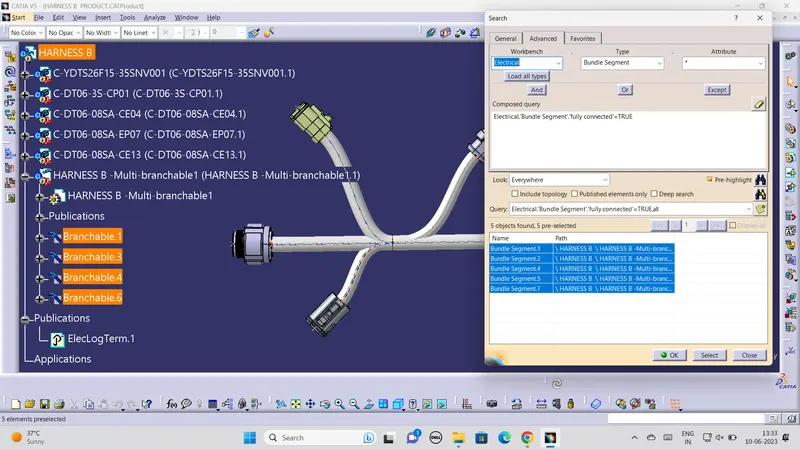
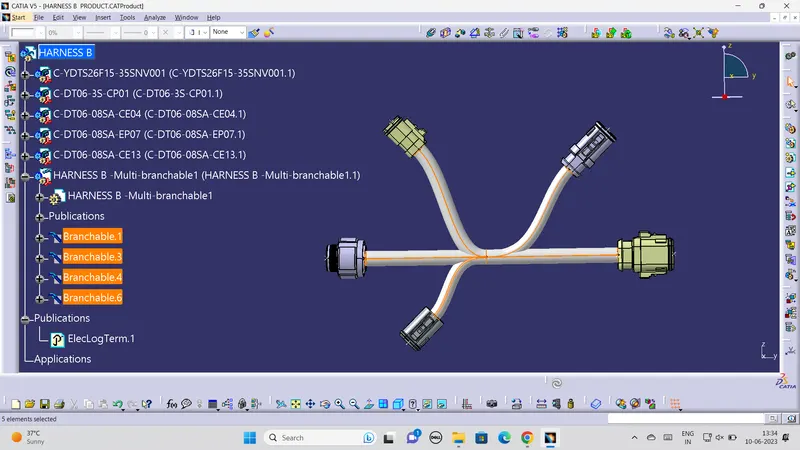
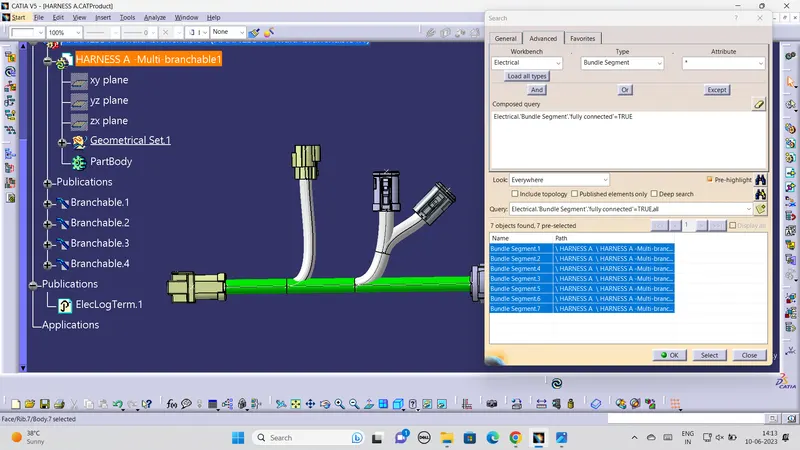
After the bundle connection is compeleted we have to check the whether the bundle is fully connectoed or not by by clicking Edit >Search the popup dialog box is appeared in that we have select Advanced>electrical>bundle segment >fully connected again the popup dialog box is appered in that we have select True which means it will displayed connected bundle which are fully connected .if we select false it will show the bundle which are not fully connected in that we have re work on the bundle which are not fuly not connected the checking iamge are attached below .
HARNESS B :
HARNESS A :
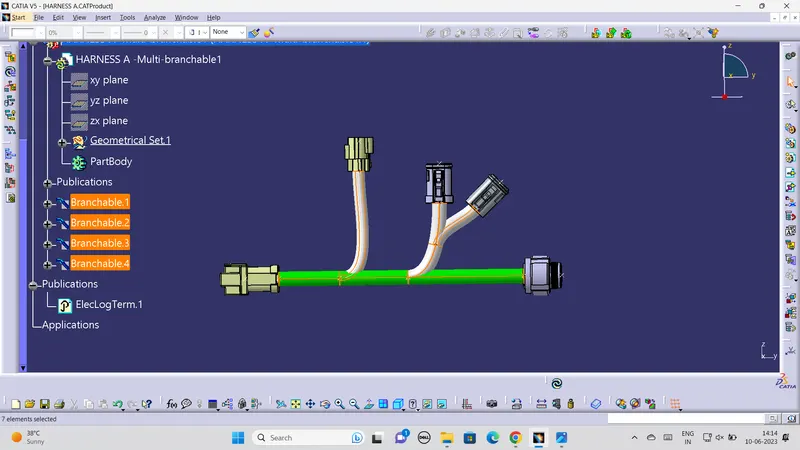
CATOLOG DOCUMENT :
After completeing the geametical bundle connection create a catloag document in the name of family harness a and b and add the both harness A and B in the catlog family .
After completing above all process we have assemble or connect both connectors in the single product document as shown below by importing the 2 harness A& B file .
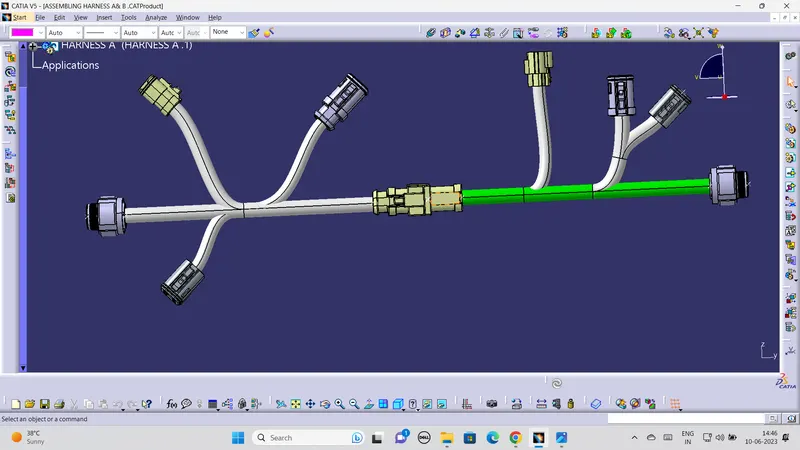
After assembling it we have to check once again whether the all bundles are fully connected or not .the fully connected bundle are shown below
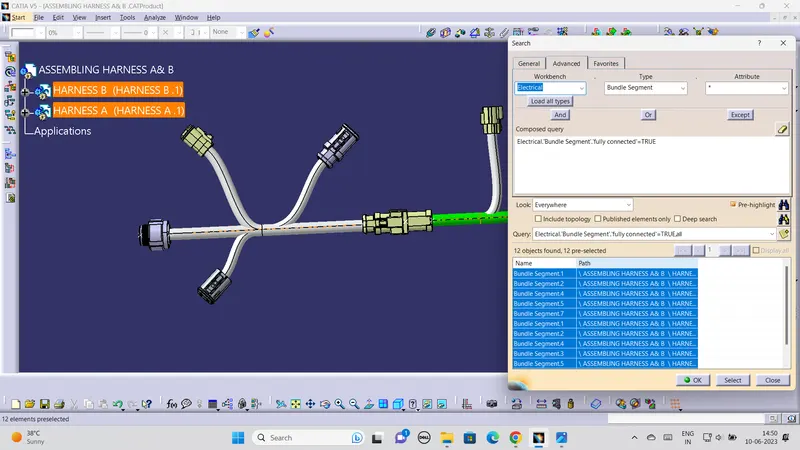
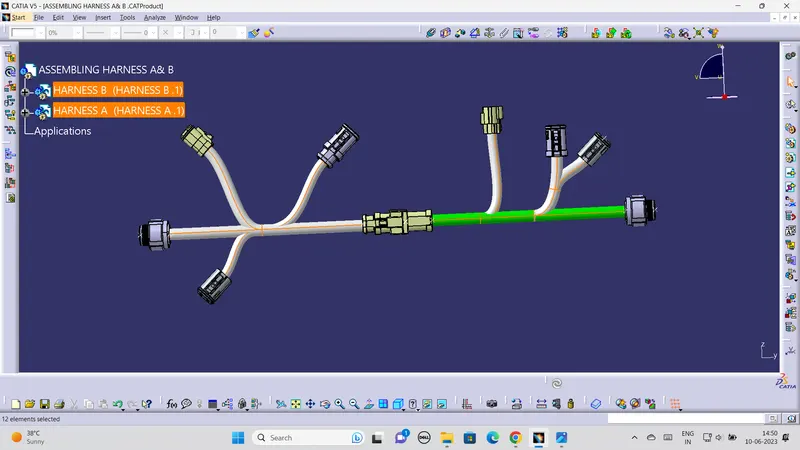
after checking we have to add in to the catalog in the family of HARNESS A and B the image which is attached below
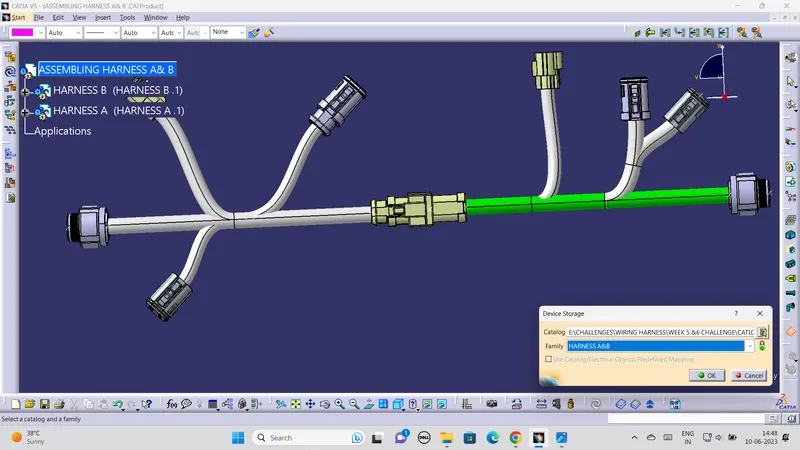
To create the product file into the part file go to mechanical assembly work bench select TOOLS>Create the catpart from product after the selection it will convert in the product in to the part file .And also we create a igs file in the by the save as the product document .The cat part file image is attached below .
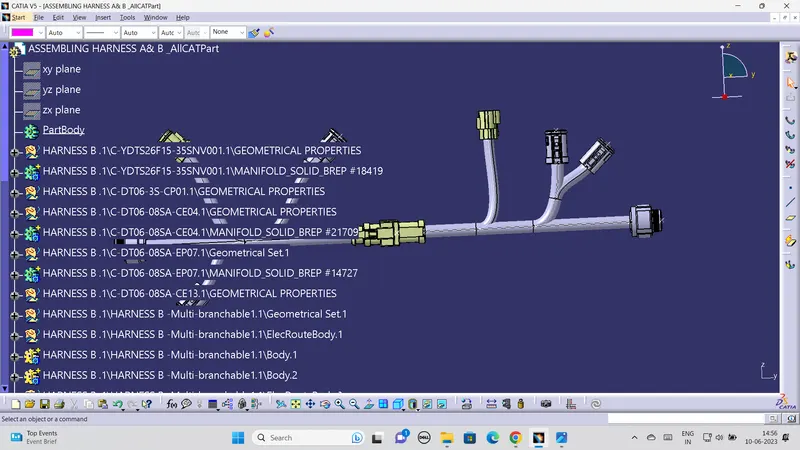
After all these process we need to give annotations for the all parts in job.the annotation of the image attached below