Week 9 - Challenge 2 - Switch Bezel Design
Week 9 - Challenge 2 - Switch Bezel Design:
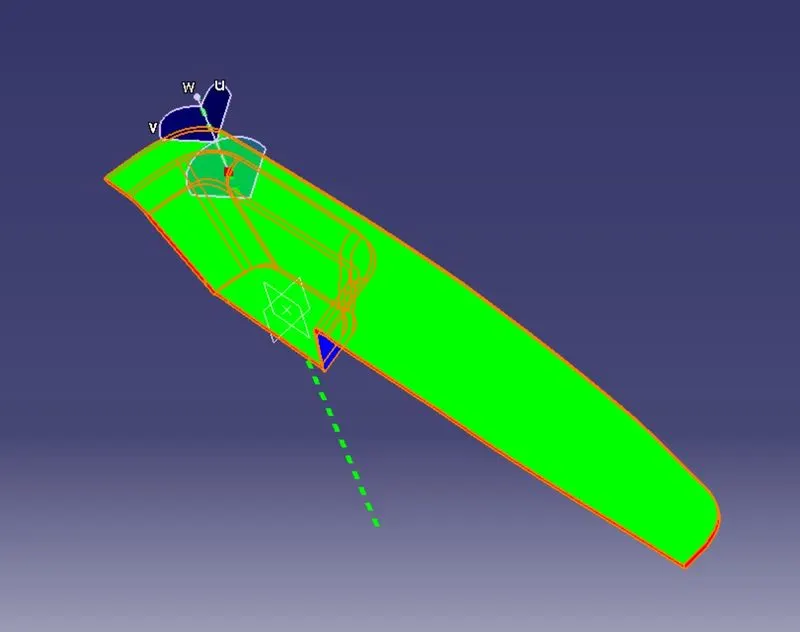
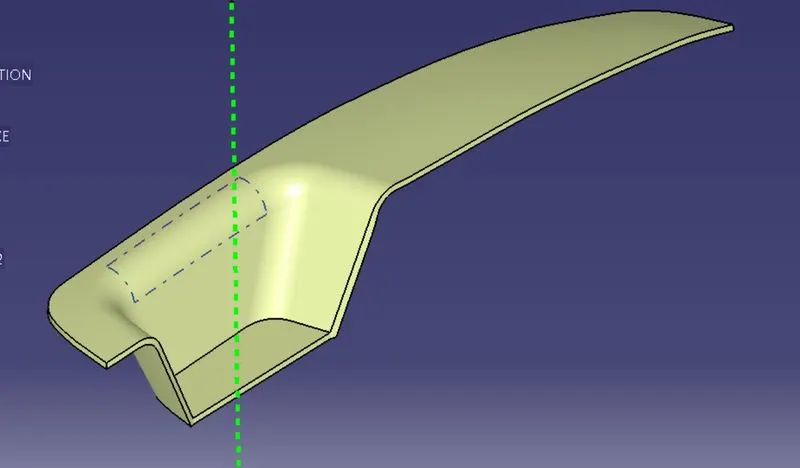
Given Class-A Surface
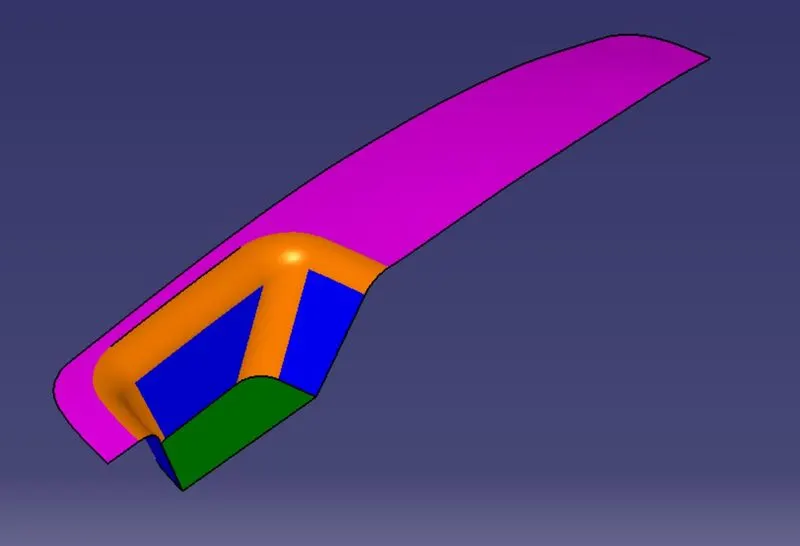
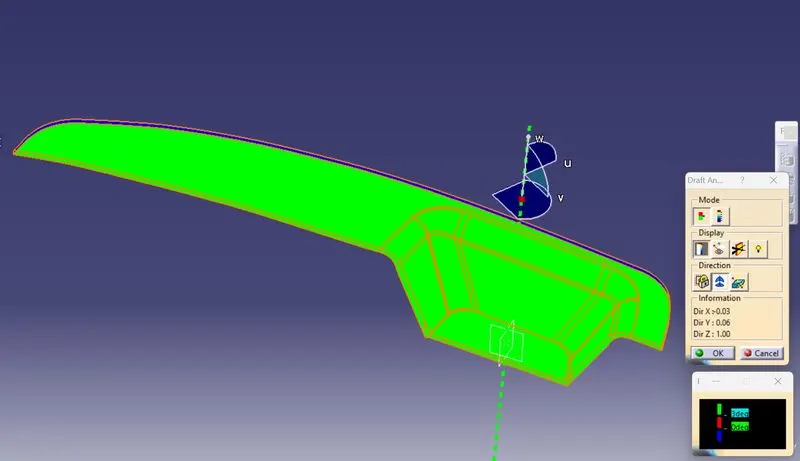
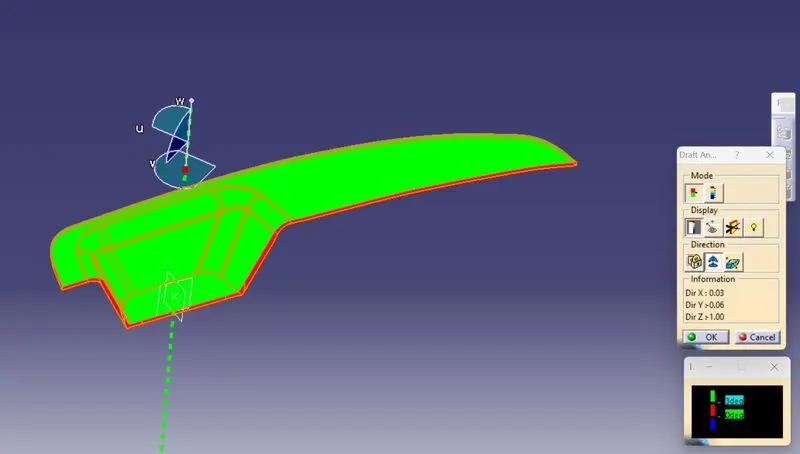
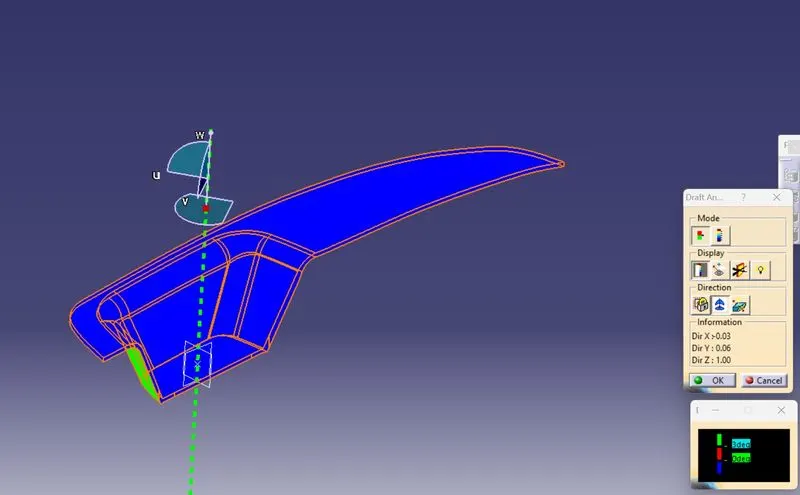
Class-A Draft analysis
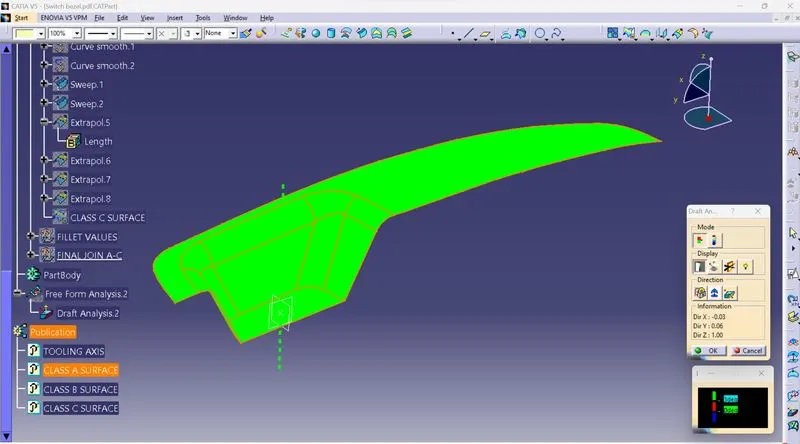
Design steps:
- Before making any plastic product surface design we need to create tooling axis and with the help of different surfaces we can create tooling axis and for tooling axis, Bisecting method is used.
- Bisecting
- After making tooling axis with the help of bisecting method then need to create Class B surface with help of Class A surface. And use of extract, offset, trim, extrapolate, untrim commands etc. we can create Class B surface.
- After Class B surface with help of multi-extract we can generate boundry line of Class A surface which help to create Class C surface and for smooth and curvature surface we used smooth curvature command on generated boundry line.
- After that need to join Class A and Class C surface for trim with Class B surface to get proper final body and after that creating final solid body need to use Close surface command.
Tooling axis creating steps:
- For tooling axis first need to check surfaces where we can create tooling lines and for like this complex surface need to create sketches and then with the help of bisecting we can create tooling axis.
- Generally for plastic product we use 3° to create draft, same that for creating tooling line of single surface we use 3° but in this design i used 5° line from surface cause we can see below that surface on Class A surface is alreay is negative direction.
- Then after creating this two lines with help of bisecting line command we can create tooling axis and in below side picture shows green line which is tooling axis.
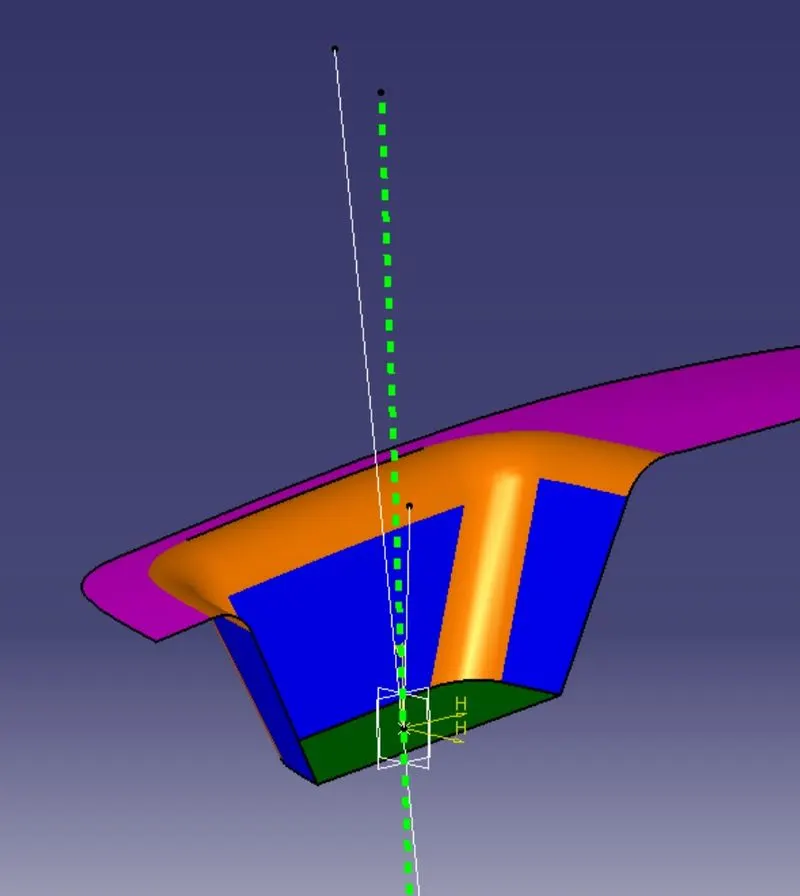
- Bisecting two lines
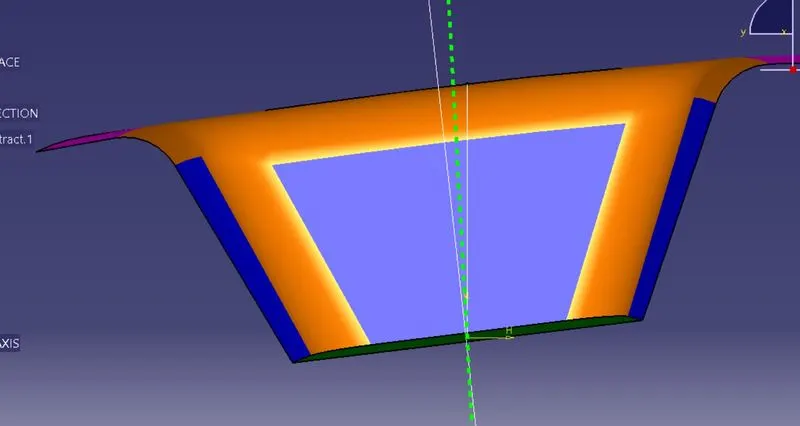
Tooling Axis
-
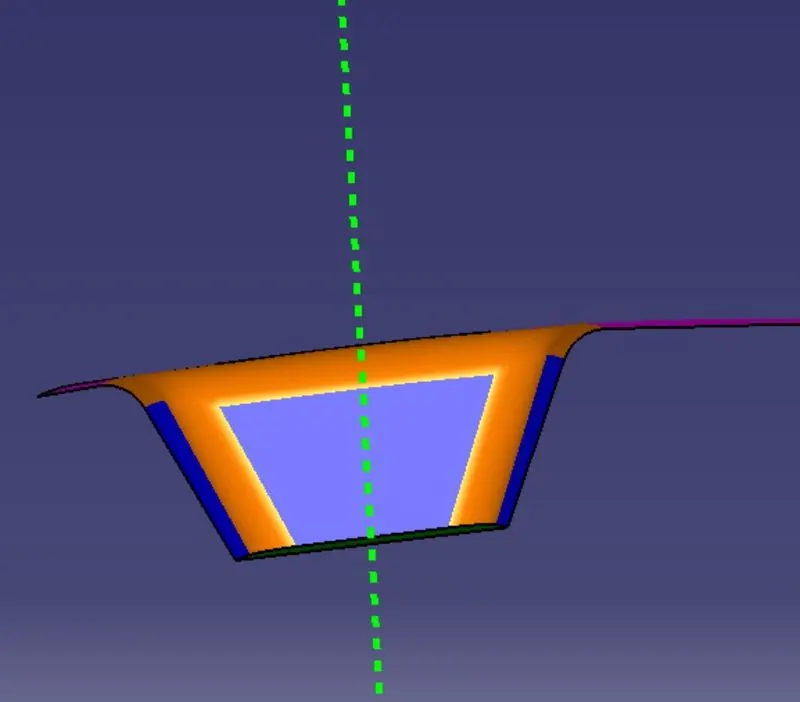
Class A & Class B Surfaces
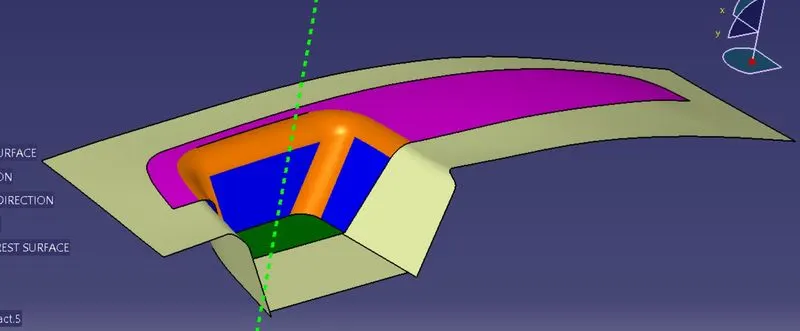
Final Surface after Class C
Note: Thickness taken is 3mm
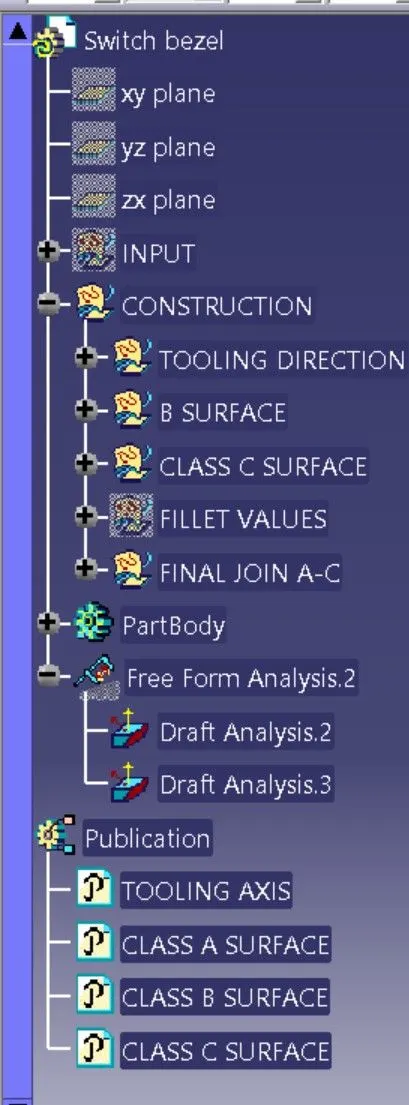
Brief Geometrical Tree structure
Different views
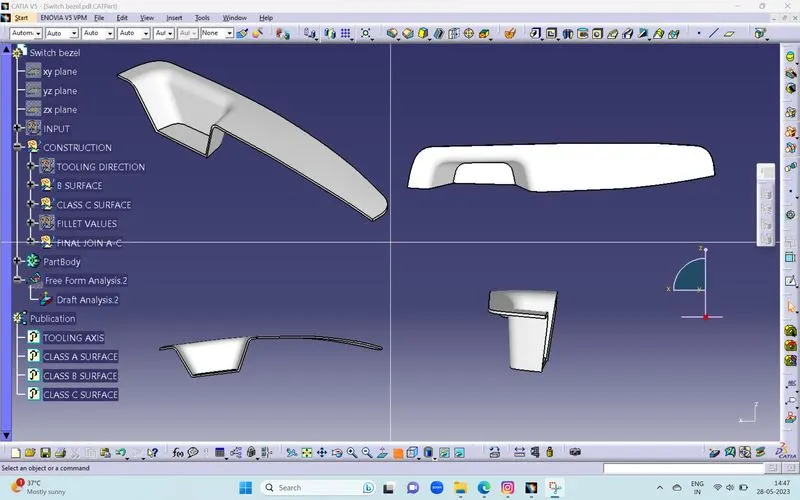
Isometric view
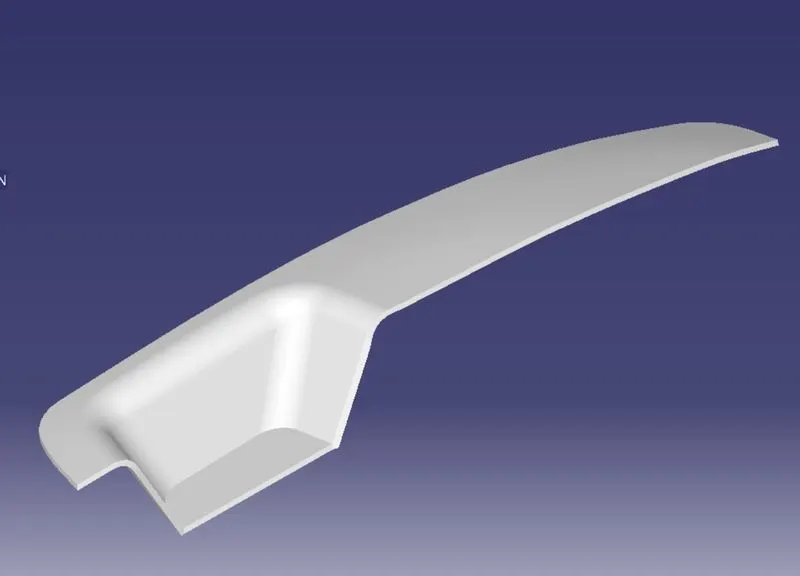
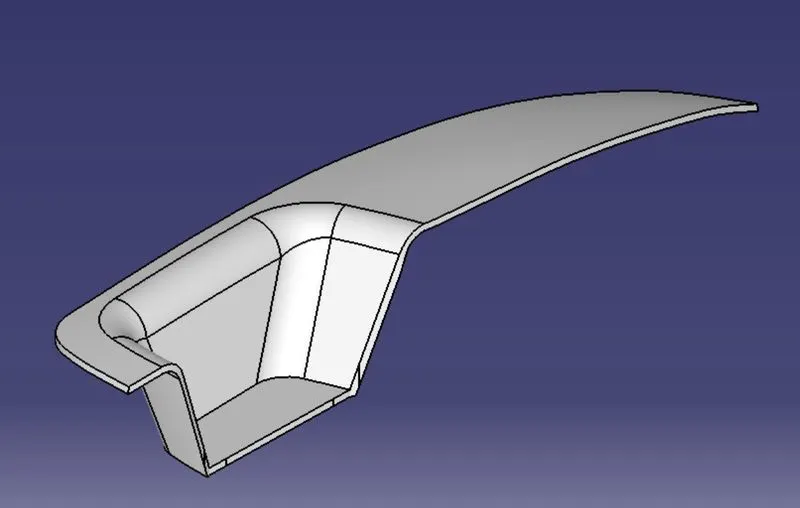
Top View
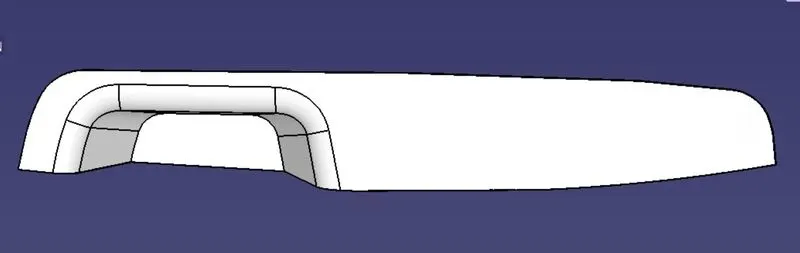
Front view
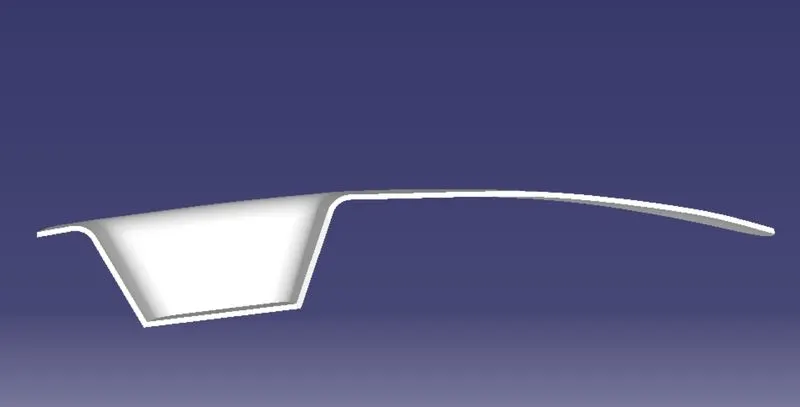
Side view
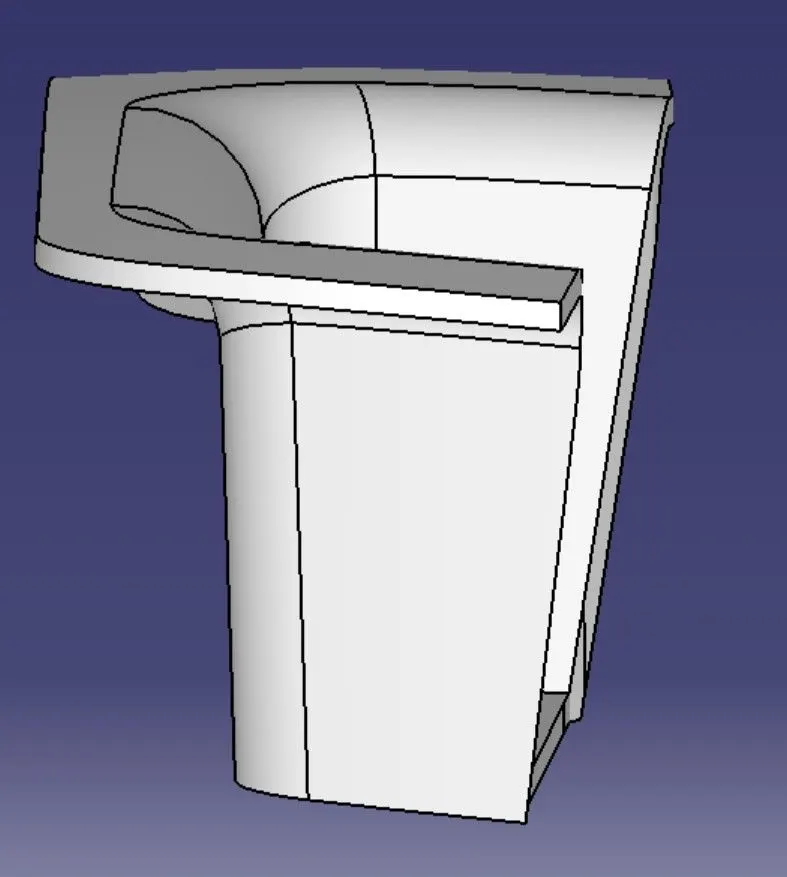
Draft Analysis on Part