Generation of 3D TetraMesh for Solids
OBJECTIVE:
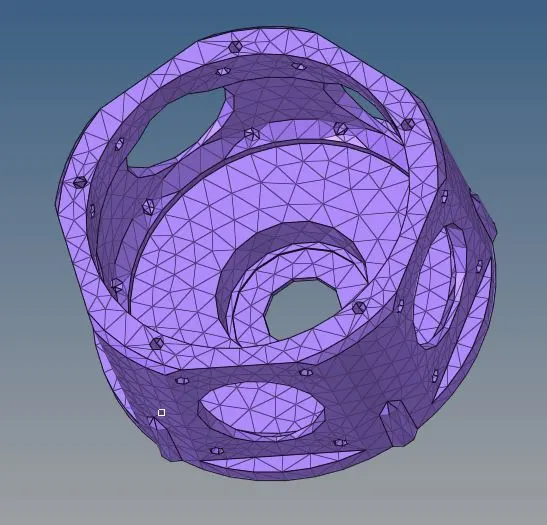
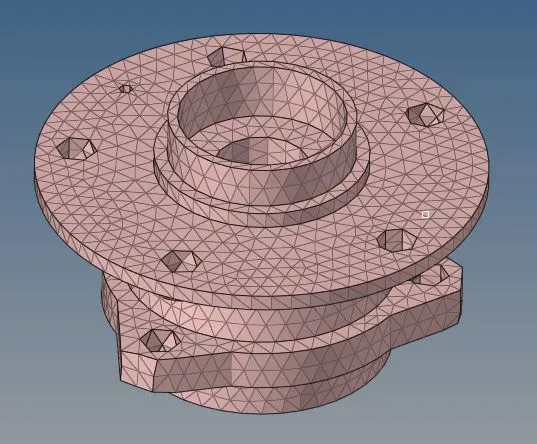
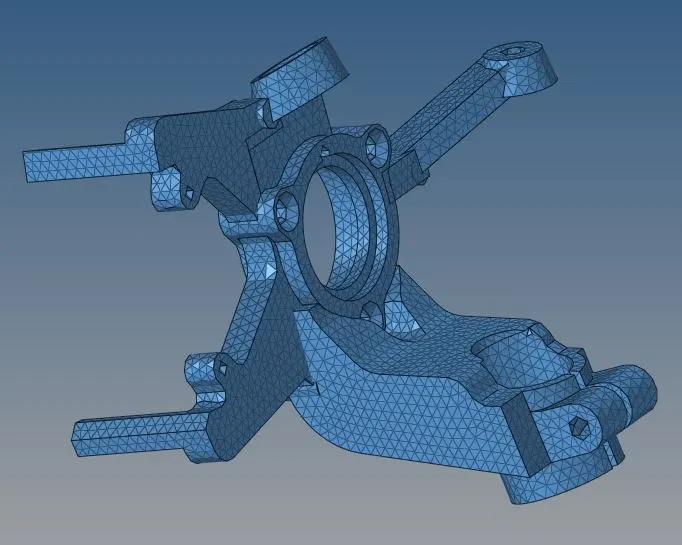
To create 3D mesh for the given three models named Housing model, Chassis Assy and Tetmesh pm. Element size conditions: Min - 2mm, Target – 5mm, Max – 7mm. For all three models, tetramesh needs to be generated with mesh size 6mm and tet collapse of 0.15.
SOLUTION:
The objective of this project is to create 3D meshes for the given models using tetra mesh. The given model are named Housing, Chassis Assy and Tetmesh PM and the 3D mesh of 6mm is to be generated with tet collapse value of 0.15. There are multiple ways to create a 3D mesh for a model. The easiest method to create a 3D mesh is to use the Volume tetra option in the tetramesh tab in 3D panel. Both solids and surfaces can be meshed using this method and mesh is generated based on the element size given. However, this method does not guarantee to generate a mesh always and will depend on the model design. Also, the mesh formed is entirely computer generated and may lack in quality. This is preferred when the CAE engineer has to create a meshed model in the least amount of time. The second method is to use the Quick tetra mesh option. To use this option, go to View → Browsers → Hypermesh → Utility → Geom/Mesh → Mesh tools → Quick TetraMesh. Similar to the first method, this generates a 3D mesh based on the input values given. This method too gives less control over the mesh quality and is used when the engineer has limited time. The final method to create a 3D mesh is to convert an existing 2D mesh into 3D. The 2D mesh can be generated using the conventional methods and tools provided Hypermesh. This gives good control over the quality and flow of the mesh since the mesh can be modified with much less effort and as per the need of the engineer. Once the 2D mesh is made, it can be converted into a 3D mesh using tetramesh tab in 3D panel. In tetramesh, select all the elements to be converted, select the mesh type and press mesh. This will convert the 2D mesh into 3D mesh. This method is time consuming, but gives good control over the mesh quality. Further, tetra remesh option helps to modify the existing 3D mesh into mesh of required quality. After creation of mesh the quality and mesh parameters can be checked using the Check elements option in Tool panel.
Step 1:
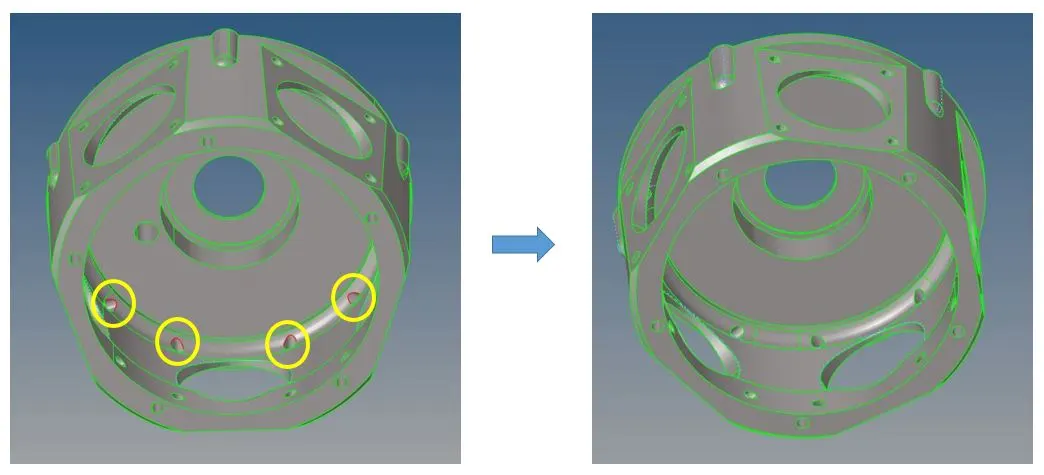
Open the models and analyse them in detail. The aim is to identify clean-ups required in the geometry and make necessary changes. Eliminate unwanted free edges, duplicate surfaces and modify or eliminate negligible features.
Step 2:
Decide the method to be used to create the 3D mesh. A 2D to 3D conversion is preferred method, when the geometry is complex and enough time is available, otherwise try using volume tetra mesh. If it doesn’t generate the mesh, use the quick tetra mesh method.
Step 3:
To create the 2D mesh, decide on the target element size, min size and maximum size. Once the element size is finalised, modify the features in the model so that the least number of element fails the quality criteria. Create the 2D mesh using the automesh option in the 2D panel and modify the elements for quality criteria. Once the 2D mesh satisfies all quality criteria, convert the mesh into 3D using tetramesh option.
Step 4:
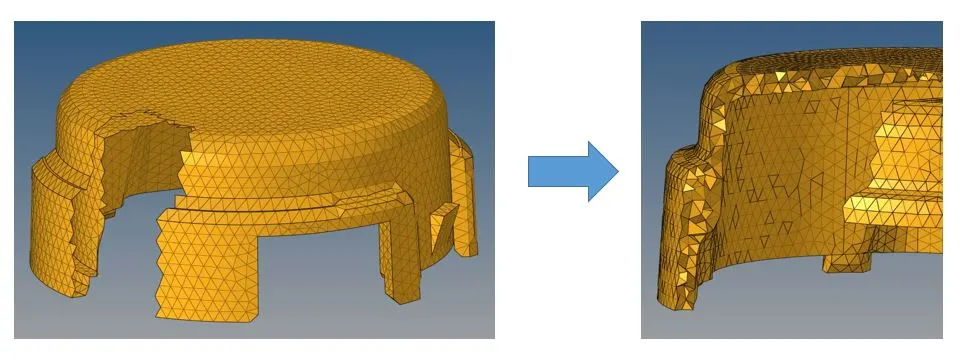
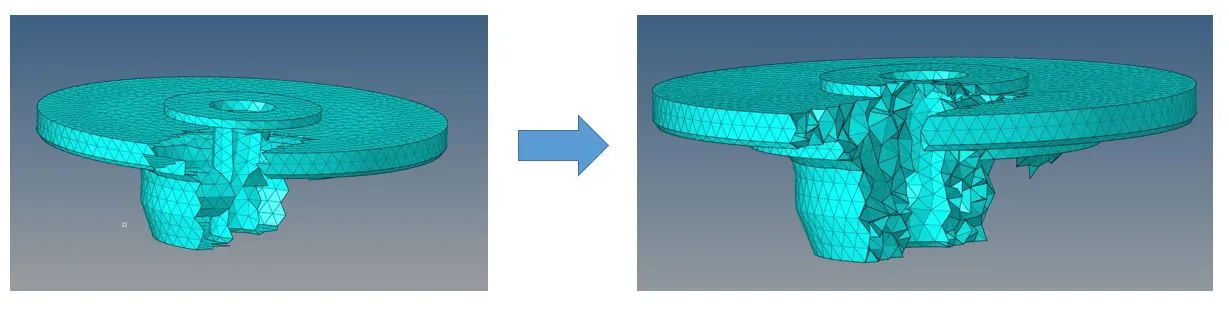
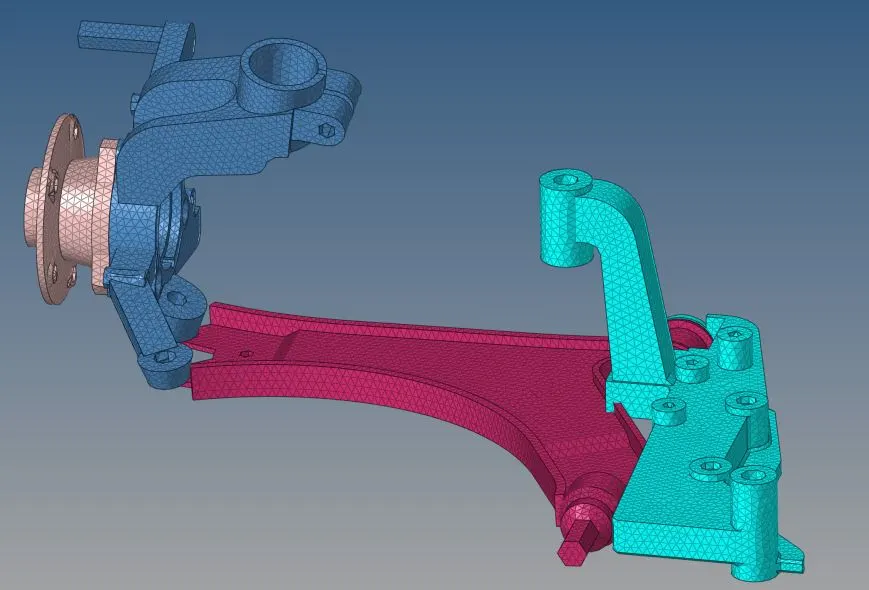
After generating the 3D mesh, check for tet collapse values of the elements. Separate the elements failing the criteria using mask option and use tetra remesh option to modify the elements. If there are any elements still failing the quality criteria, modify them manually so as to satisfy the quality criteria. In the Chassis Assy model, the meshed models were not reflected because the number of elements generated exceeded the version capability.
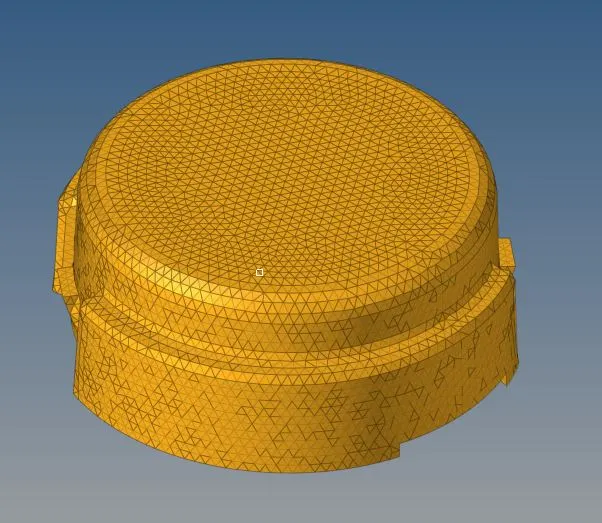
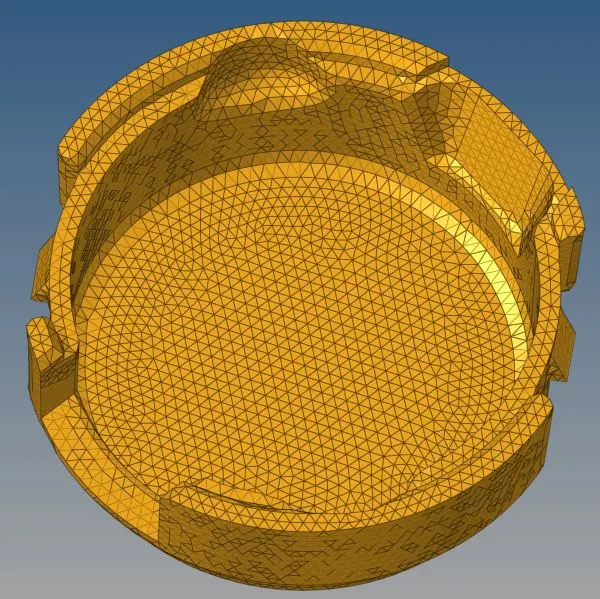
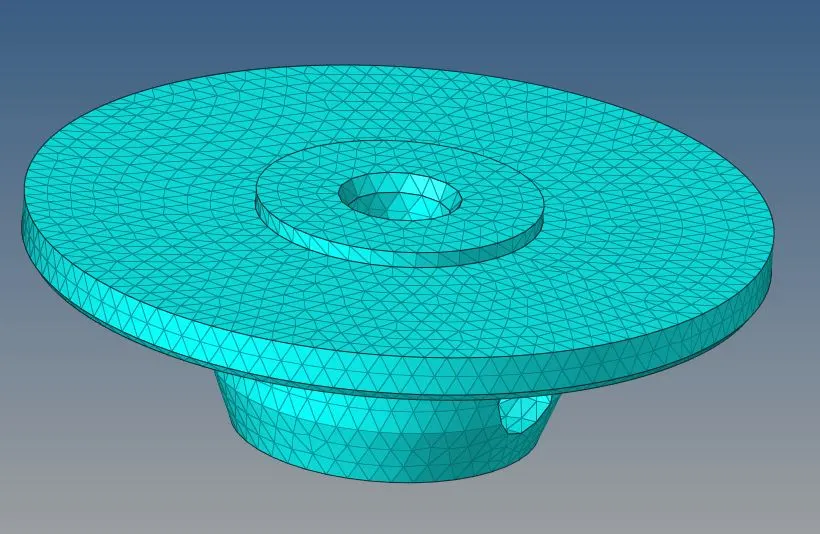
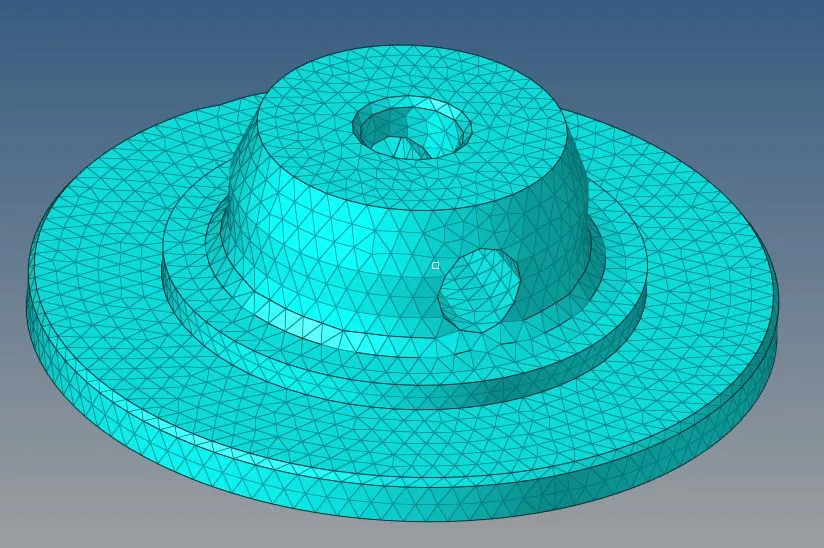
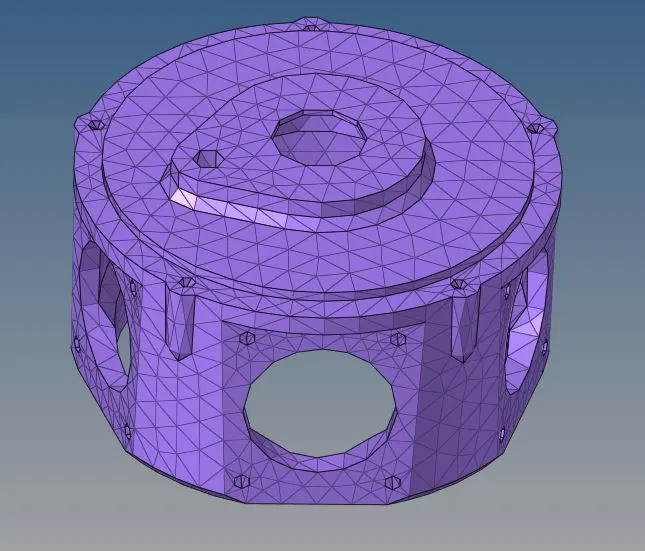
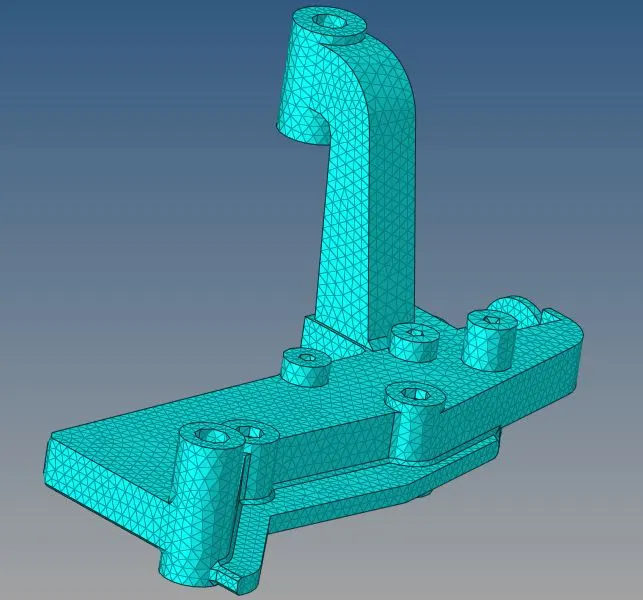
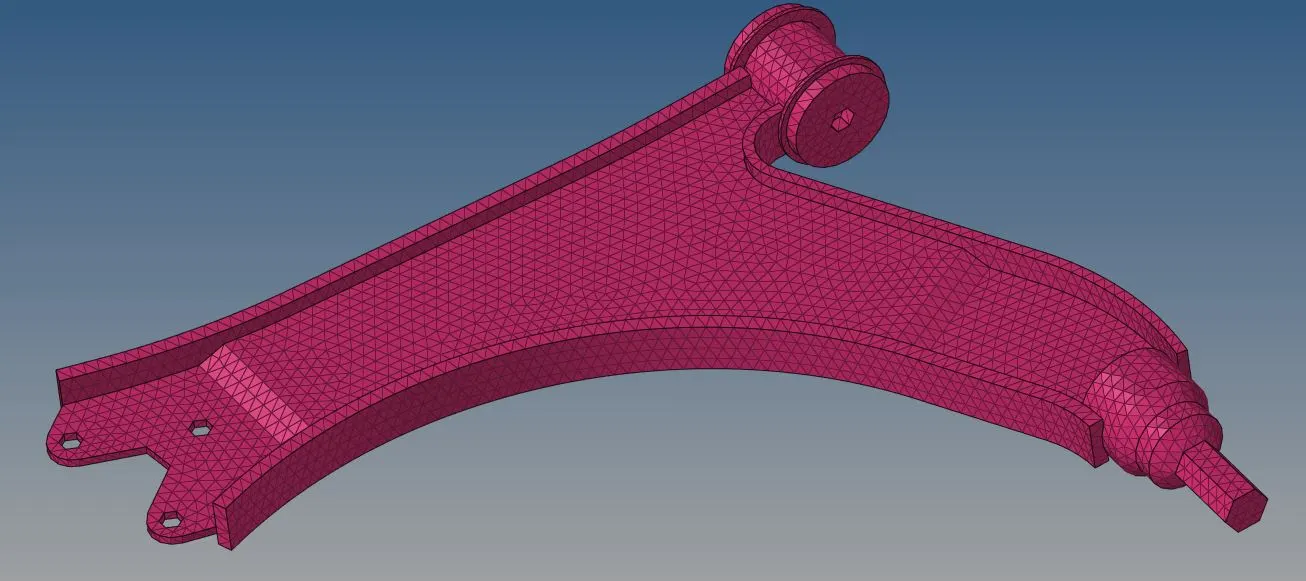
The different meshed models are as shown:
Conclusion:
- The given components were analysed and cleanup was performed
- Appropriate method for 3D mesh was decided depending on the model complexity and time available.
- 3D meshes were generated from 2D mesh, such that all quality criterions were satisfied.
- Tet collapse values were found for the elements and failed elements were modified accordingly.