Week 8 - Challenge 2 - Switch Bezel Design
SOLUTION:-
What is Draft Analysis?
The draft analysis technique is used to analyze whether our part model created in CAD is manufacturable based on the draft condition applied. Here the part should get easily removed from the panel dies (in case of Sheet metal part) or Mold (in case of plastic).
No parts can be ejected from the tool if it is having a straight 90-degree profile from its base surface. A small draft angle is provided to each and every area of the component in order to get easy removal of the component from the tool.
Here we are providing a direction in which components should eject in order to get easy removal of components from the tool. In other words, it also lets us know whether the model is having a draft angle and how much is the draft angle from the tool direction
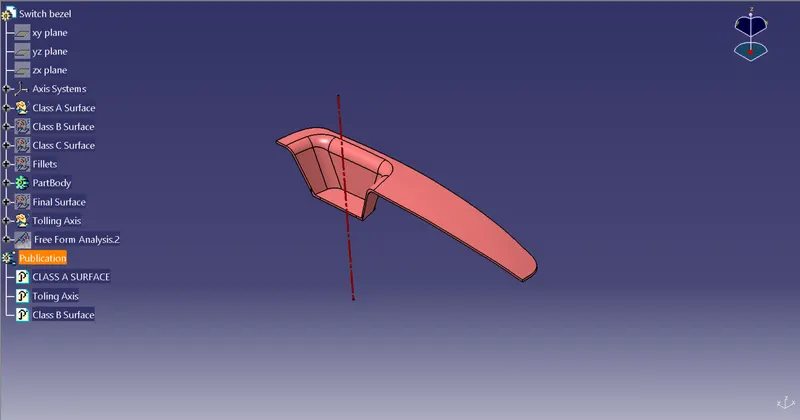
The isometric View of the created plastic component is given below:-
Draft Analysis on the created part. The image is given below:-
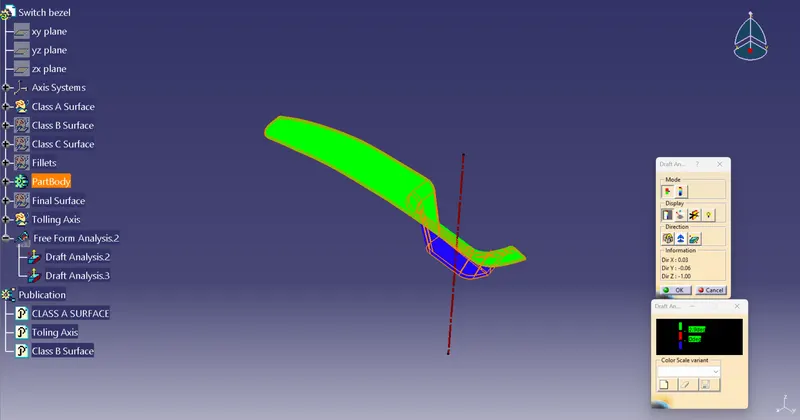
In the above picture, the green color means the surface is drafted with more than 2.9 deg. And the blue color means the surface is drafted with less than 0 deg.
Procedure I followed for the Draft Analysis:-
Step_1:- First I changed the view mode to MAterial mode.
Step_2:- Then I placed the compass on the tooling axis and then locked it.
Step_3:- Then I clicked on the part and then I got the colored surface and then I changed the value of the color variant scale as per my convenience. Now we can get the final result of the draft analysis.
Draft Analysis on Class A surface is given below:-
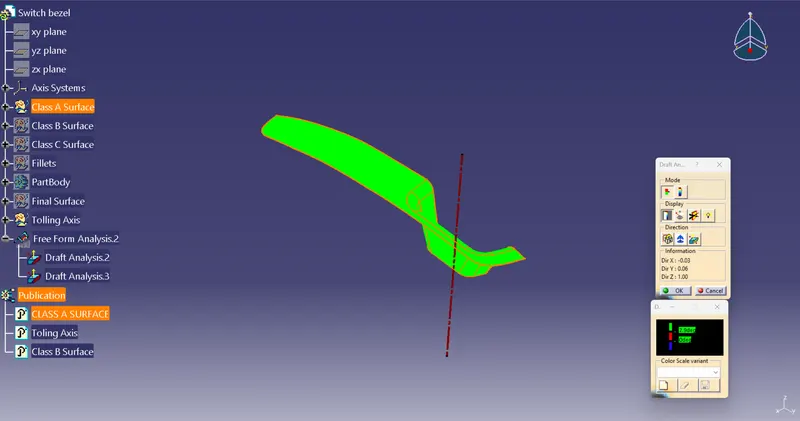
In the above image, the surface is Class A surface that's why it is drafted with more than 3 degrees.
The four views with draft analysis are given below:-
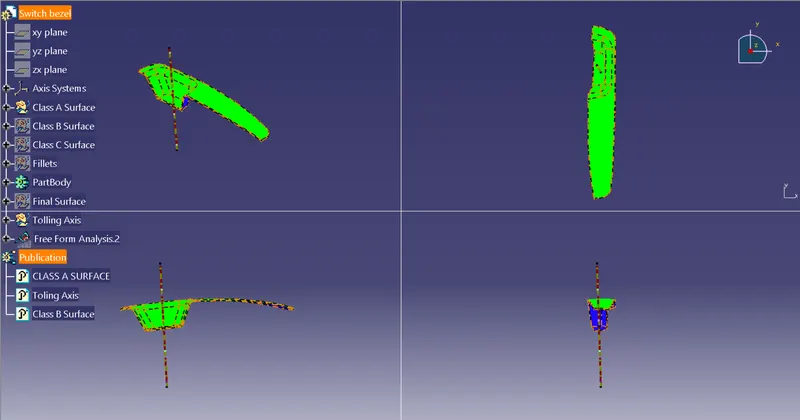
The Four views of the created model are given below:-
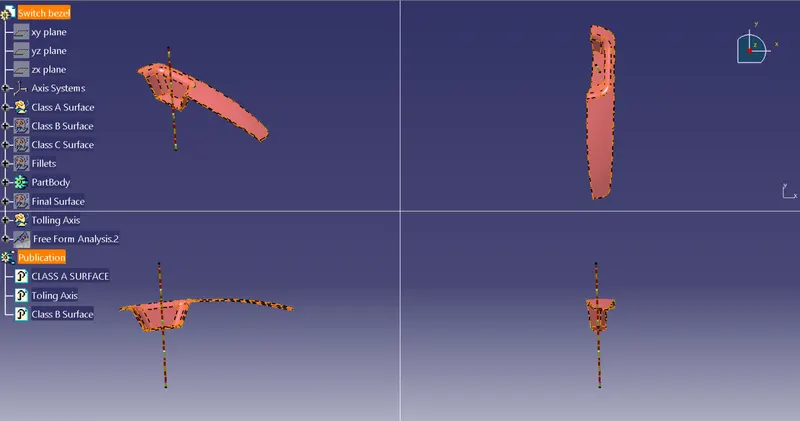
Procedure I followed for the creation of the tooling axis:-
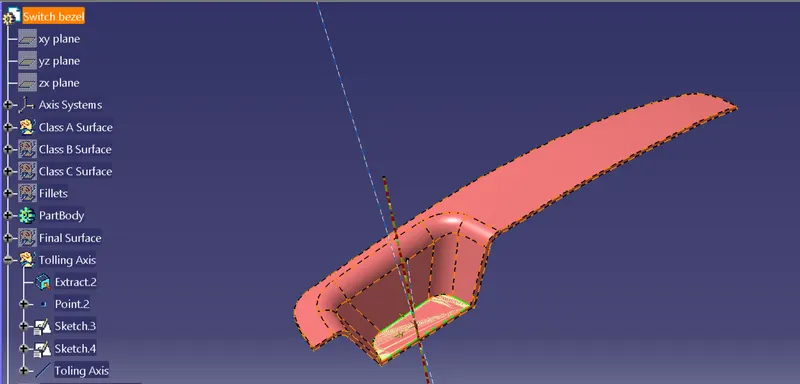
First I extract the bottom surface, then I created one point in the middle of the extracted surface.
Then I created one sketch on the YZ plane and create one intersection of the complete A surface along the YZ plane and then I create one bisecting line same procedure I followed on the ZX plane for creating the bisecting line on the ZX plane.
After that, with two bisecting lines, I created one more bisecting line that line is my Tooling axis.