Morphing in ANSA
Objective:
- To practice all the morphing techniques and morph the given sheet metal model according to the one shown in the respective video, and prepare a report on various cases of morphing used in the industry.
Introduction:
- Morphing is a module in “CAE” or in “ANSA”, which enables the user to morph or change the shape of a model, whether it is a “CAD” or “FE” into useful, intuitive, and logical ways.
- The main advantage of morphing is that only the node location or the location of the surface is changed while their information i.e. the node id, element id, surface id, and any association such as contact groups etc. remains the same, thus allowing the user to modify the mesh and meet the new design requirements.
- Morphing is mainly used when there is not a big design change or when only the shape of the model has to be changed while all the other parameters are to be kept constant. This is mainly seen when there is a new iteration of the existing product.
- If a new iteration of a product which exists in the market has to be made, the morphing tool is used. This process/tool gives a brief idea about how the model will look like with the specifications and the features same as the previous product.
- This feature is fast, easy to use, and large number of applications. Using this tool, any kind of shape can be achieved with the existing model. Then this morphed shape can be further used for design considerations and a new model can be mathematically designed from it.
- The major examples of this technique in the automotive world are the vehicles like ‘Dzire’, ‘Xcent’, ‘Amaze’, and ‘Etios’, wherein there is a design modification to their predecessors or hatchback versions, ‘Swift’, ‘i10’, ‘Brio’, ‘Liva’ respectively.
Procedure:
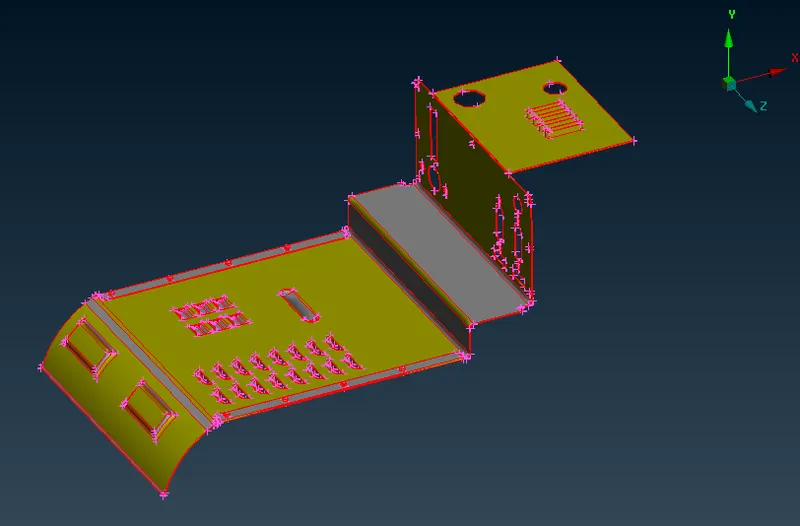
- The model was imported in “ANSA” and was observed for any visible geometrical errors. The topology of the model was not proper and the surfaces were not stitched properly. The image below shows the model as it was provided in the challenge.
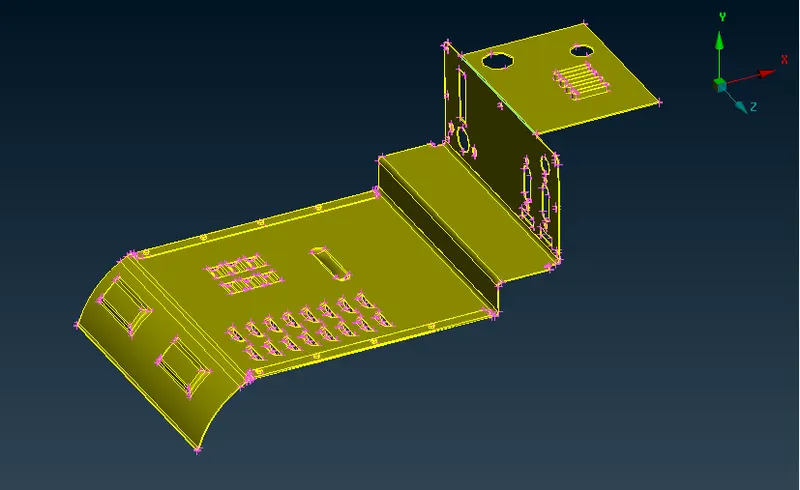
- To make the topology of the model proper and to stitch the model, the ‘topo’ command was applied, and to change the orientation of the model in one single type throughout, the ‘orient’ command was applied. The ‘length’ of the ‘parameters’ was changed from the ‘mesh’ module to make the geometry more clear. The image below shows the model with its visible topology improvement.
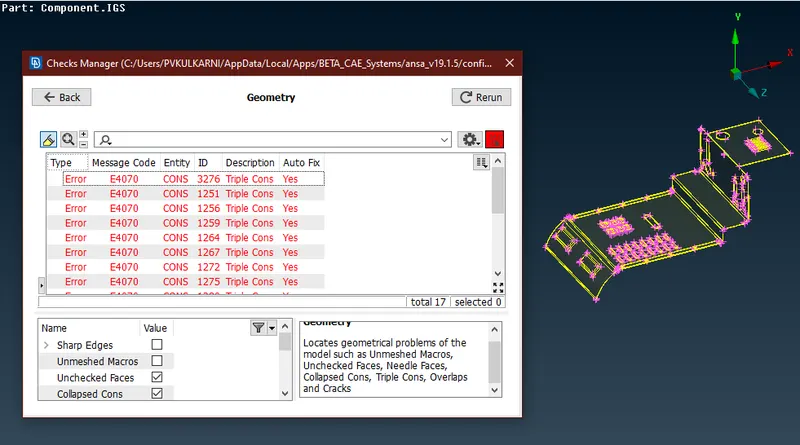
- In order to proceed further with the morphing process, it had to be made sure that the geometry of the model is free of any errors. Therefore, the geometry check was performed from the ‘checks manager>geometry’, and some triple con errors were found in the model as seen in the image below.
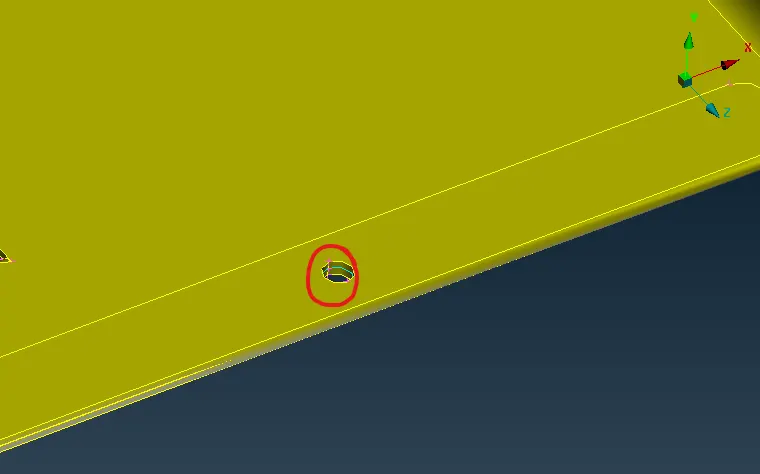
- These errors were auto fixed using the ‘fix’ command. But there were still a couple of triple cons present in the model which needed to be cleared manually. These were present at the bolt area as seen in the image below.
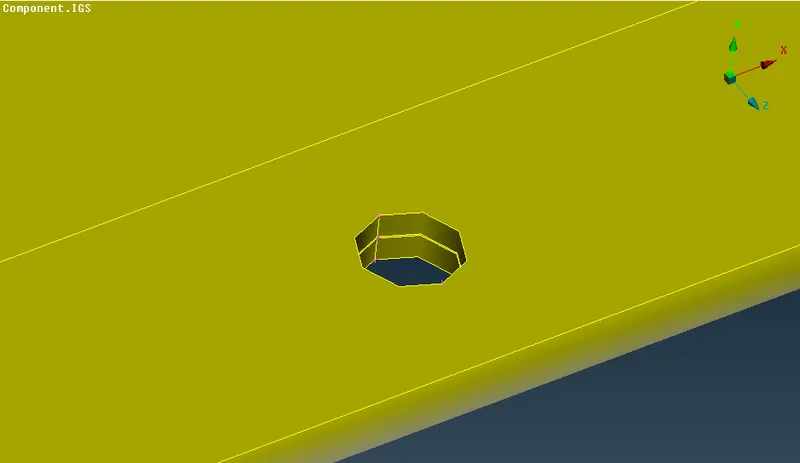
- This triple cons were released using the ‘release’ option. There were two surfaces which were joined together as one surface. These two surfaces were released and the two sets of single cons were pasted using the ‘topo’ option separately, as seen below.
- After making sure the geometry was free of any errors, it was feasible to proceed with the morphing. Morphing of a model can be done in many ways like creating a box, using a curve, using hatch, etc. But the simplest and easiest way of morphing is by creating a box.
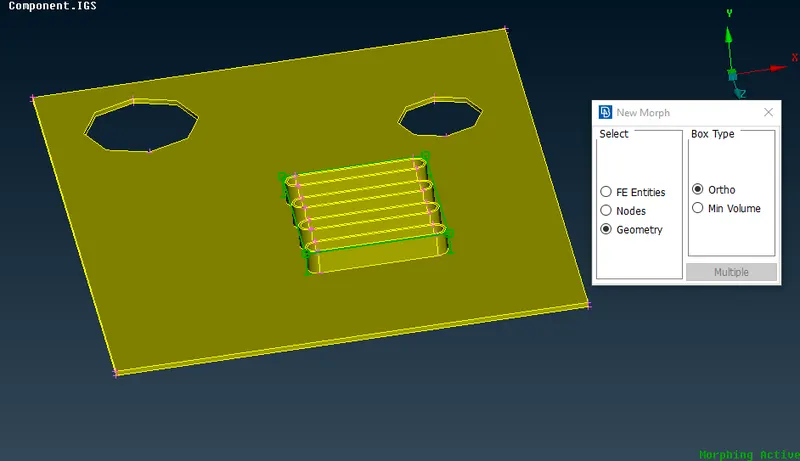
- So, the upper portion of the model containing the fin like structure was isolated from the rest of the geometry, and a box was created around the fins using the ‘new’ option from the ‘boxes’ tab in the ‘morphing’ mode. In the ‘new morph’ window, the ‘geometry’ option was ticked and the fins were selected. This created a box around the fins as shown in the image below.
- Using the ‘move’ option from the ‘box morphing’ tab, the nodes or the control points of the box were moved. These control points can be moved freely by using the co-ordinates and axes by ‘mv free’ option, or can be ‘translated’, ‘rotated’, or ‘scaled’.
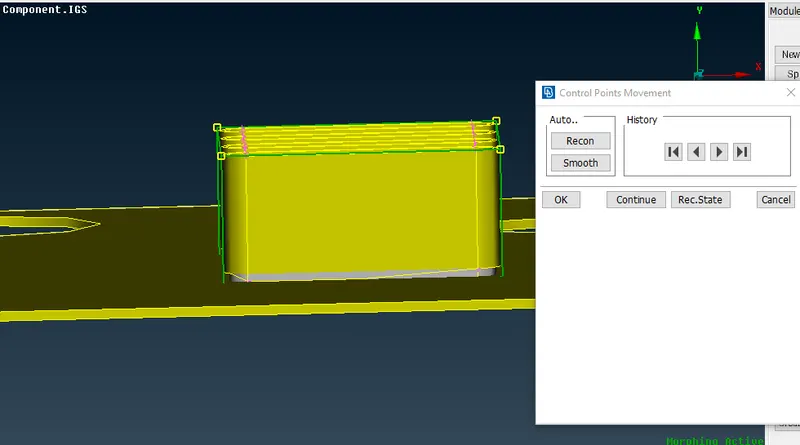
- Using the mv free option, the box was moved in the X direction by selecting the 4 control points on the top of the box. This extended the height of the fins as shown in the image below.
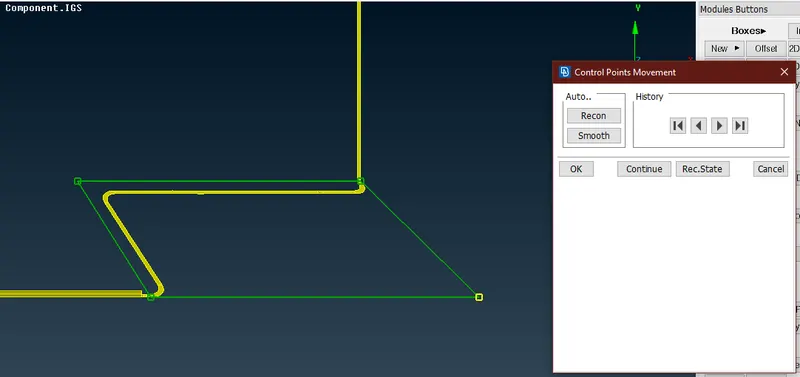
- By following the procedure, some other areas were morphed and the shape of the model was changed according to the video. The images below show different areas that have been morphed.
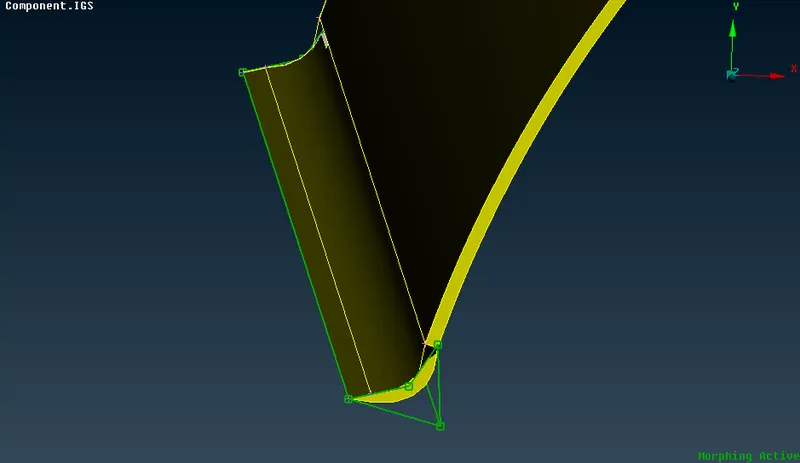
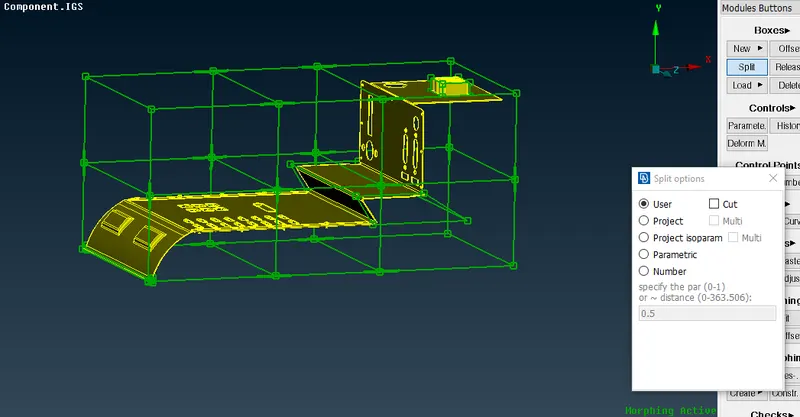
- The number of control points present in a box is by default 8. But they can be increased using the ‘split’ command. Increasing the number of control points increases the freedom of movement of the surfaces. The model can be morphed with greater accuracy into different shapes and curves.
- These boxes can be split using the ‘split’ option from the ‘boxes’ tab. There are different ‘split options’ like ‘user’, ‘project’, ‘number’, ‘parametric’, etc. which gives the user more control over the cuts that have to be made. The box created around the whole model was split into number of parts using the above mentioned options as seen in the image below.
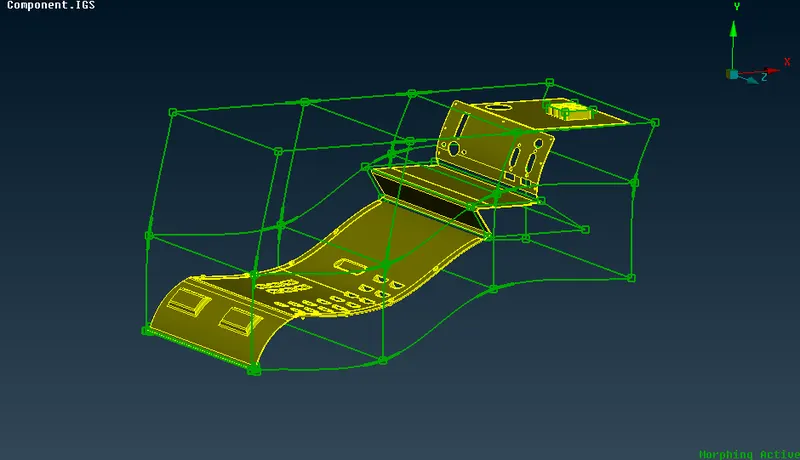
- Using these control points, the model’s geometry was morphed as per the video. For this purpose, the ‘move’ option was used and the control points were selected and the shape was changed. The image below shows the final morphed model.
Results and Conclusion:
- Morphing is a very popular technique in “CAE” that is used in almost all the industries when there is a need to alter the design of the previous product or current product to get an idea of how the product will look like once the design is changed.
- Using this morphed model for reference, the actual designing of the new model is carried out; the model is then tested mathematically for the required load conditions. Thus the morphing technique plays a pivotal role in the earlier stages of product redevelopment, as it is a time saving technique.
- In this challenge, various methods of morphing were practiced. It was evident that the simplest and easiest method of morphing is the box morphing or the free-free morphing. Furthermore, using the options like ‘split’ enables the user to get the exact required shape.
Additional GDrive Link for model : Morphing model