Week 8-3D Tetra Meshing Challenge
Model 1
Objective –
Create a Tetramesh for Housing component with the following quality criteria.
TetraMesh Generation Method: 2D to 3D Conversion
Elements sizes: Min- 2 Units, Target- 5 Units, Max- 7 Units
Tet collapse: 0.15
Procedure –
- First I have imported igs file to hypermesh workbench.
- Then I checked for any solids are available or not. If available I have to delete those.
- After deleting solids I went for geometrical clean up.
- Then I mentioned min and max size in criteria file setting as per question.
- Then I went for 2D automesh in 2D tab.
- Once I got 2D shell elements I went for check elements that every elements should meet min and max size of elements.
- If there are any elements failing for mentioned criteria by translating nodes I got these elements.
- For remesh of failed element, first I clicked on mask option.
- In mask tab first I had highlighted failed element and went to reverse, where we can see only failed elements.
- Through distance option we can measure distance between two nodes, as per our criteria we can define the distance between two nodes as well.
- Following this step I had cleared all the failed elements.
- Then I moved to 3D tab for tetra elements.
- For tetramesh , I have added first parameters in tetramesh parameters like max tetra size and tet collapse value.
- Then I clicked on tetramesh – swap from comp to elements – Select all the 2D shell elements – Hit on mesh. You will get all tetra elements right there.
- Then I moved to check elements for tet collapse value, where we have to check each elements should meet min tet collapse value as 0.150.
- If there are any elements are failing for tet collapse value, we can remesh it or else through translate option we can get it.
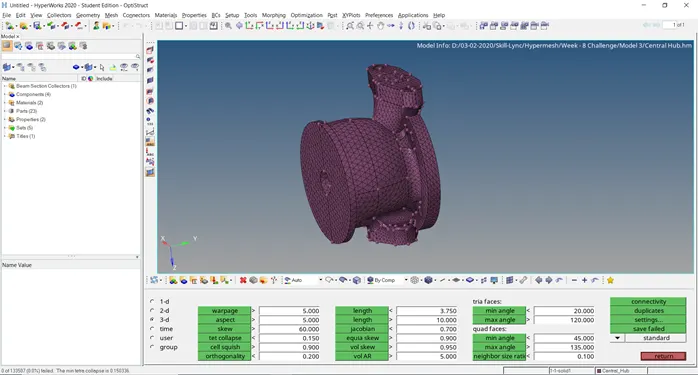
Final Result –
Model 2
Objective –
Create a 3D Tetramesh with the following quality criteria.
TetraMesh Generation Method: Quick Tetra Mesh/ Volume Tetra Mesh
Target Element size: 3 Units.
Tet Collapse: 0.15
Procedure –
- First I have imported .hm file to hypermesh workbench.
- Then I changed Geometry color mode to By Topo to clean the geometry.
- After cleaning the geometry I went to 3D tab for Volume tetramesh.
- For Volume tetramesh first I defined tertramesh parameters like max tetra size and tet collapse value.
- Then I went for volume tetra mesh option. Since my component is in surface I swaped enclosed volume from solid to surface and choosed my component – defined element size as 3 – Then I heat on mesh.
- After getting mesh elements I checked for tet collapse. Where I found some elements are failing for tet collapse.
- To remove these failed elements I went for tetra remesh.
- In tetra remesh I took all the elements and in free boundry faces I swaped from fixed to remeshable. Then I hit on mesh.
- After then I checked for tet collapse value, where I found no elements are failing for tet collapse.
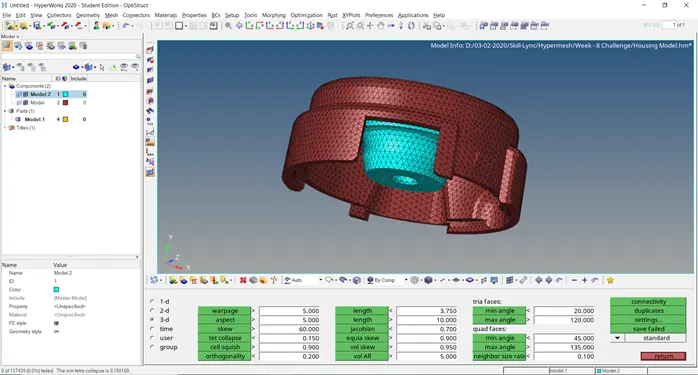
Final Result –
Model 3
Objective –
Create a 3D Tetramesh with the following quality criteria.
TetraMesh Generation Method: Quick Tetra Mesh/ Volume Tetra Mesh
Target Element size: 4 Units.
Tet Collapse: 0.15
Procedure –
- First I have imported .hm file to hypermesh workbench.
- Then I changed Geometry color mode to By Topo to clean the geometry.
- In Topo mode I found there are solids available, so I went for delete solid through delete option.
- After deleting these solids I went to 3D tab for Volume tetramesh.
- For Volume tetramesh first I defined tertramesh parameters like max tetra size and tet collapse value.
- Then I went for volume tetra mesh option. Since my component is in surface I swaped enclosed volume from solid to surface and choosed my component – defined element size as 4 – Then I heat on mesh.
- After getting mesh elements I checked for tet collapse. Where I found some elements are failing for tet collapse.
- To remove these failed elements I went for tetra remesh.
- In tetra remesh I took all the elements and in free boundry faces I swaped from fixed to remeshable. Then I hit on mesh.
- After then I checked for tet collapse value, where I found no elements are failing for tet collapse.
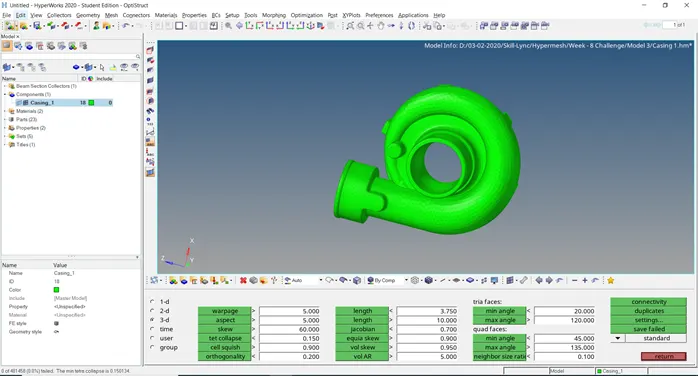
- While importing file I found 4 Components as Hub, central Hub, Casing 1 & Casing 2.
- Since we are using student version It does not allow me to save all the file in a single file.
- So I have different file for different components.
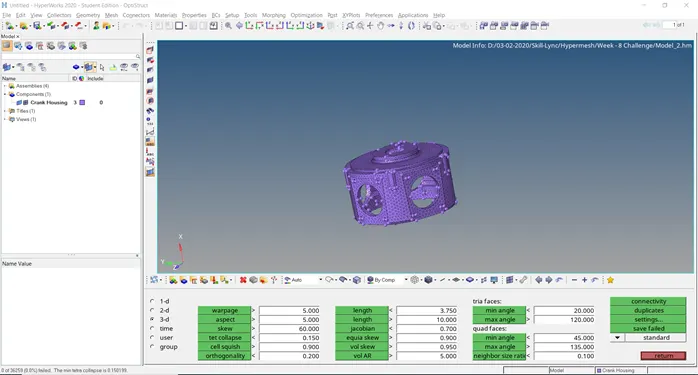
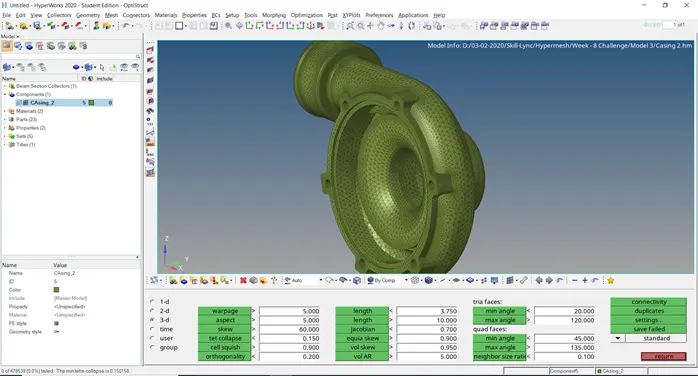
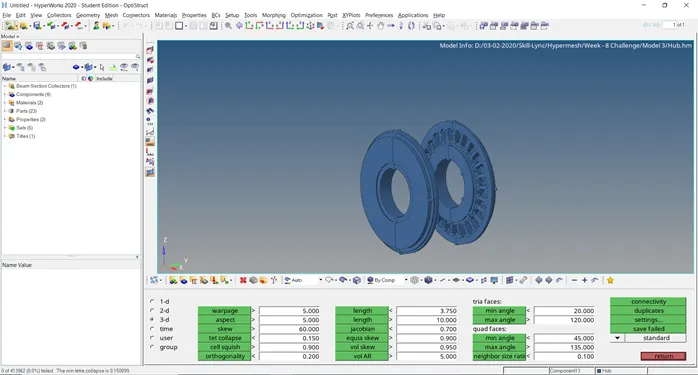
Final Result –
Casing 1
Casing 2
Hub
Centrl Hub