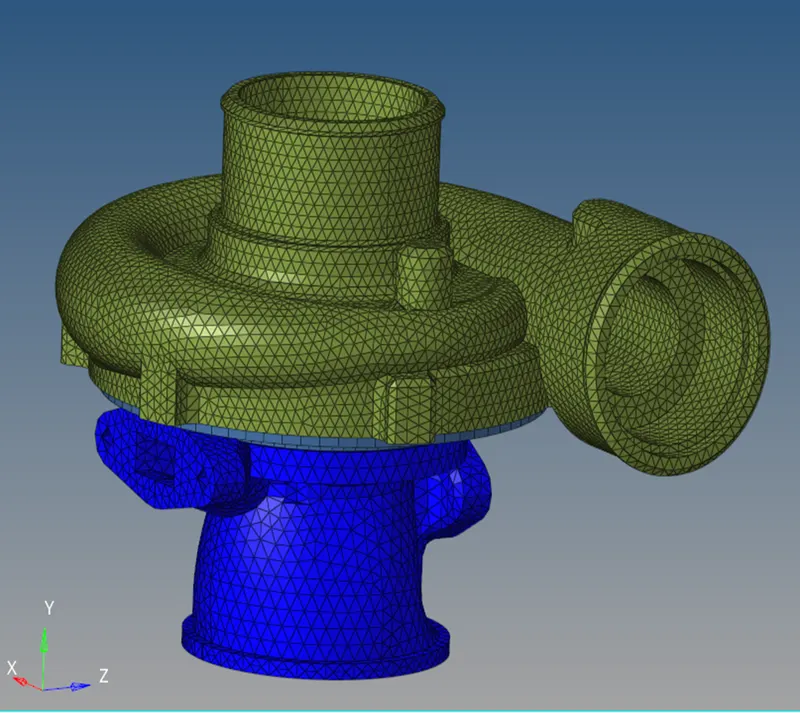
Week 8-3D Tetra Meshing Challenge
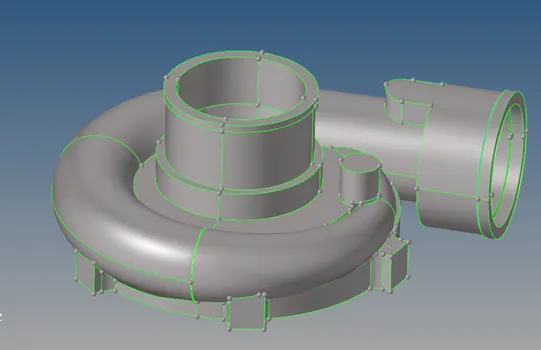
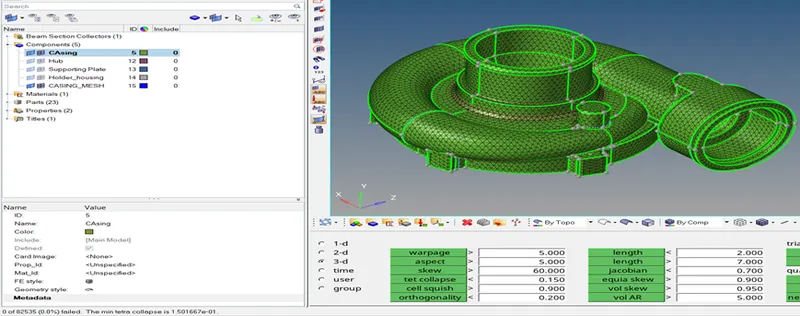
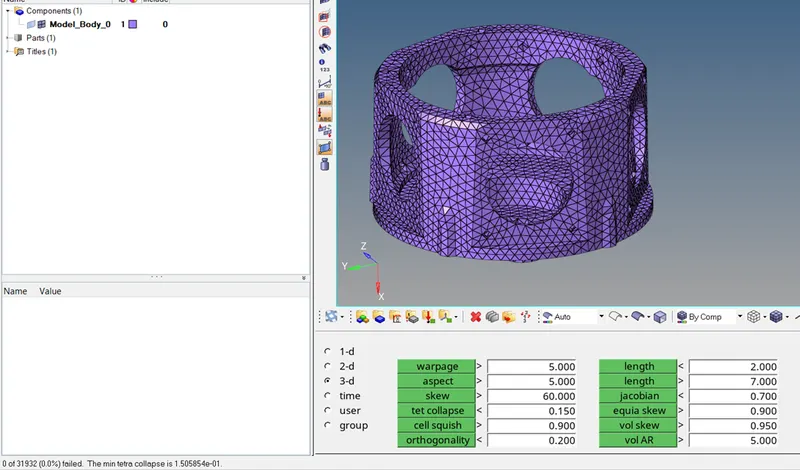
AIM: Prepare a tetra-mesh for the given model.
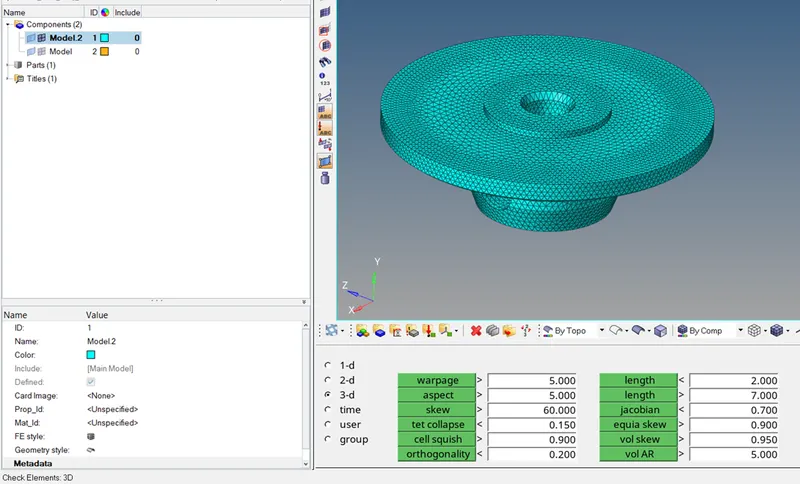
CHALLENGE I: Tetra mesh generation 2D to 3D.
Element size : Min-2 unit, Max-7Unit, Target element – 5 Unit
Tet collapse – 0.15.
PROCEDURE:
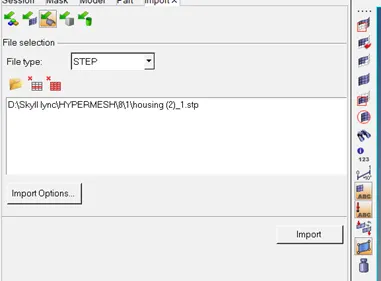
- Firstly we need to import a HOUSING model, which is step file.
Import > import geometry > select file > import.
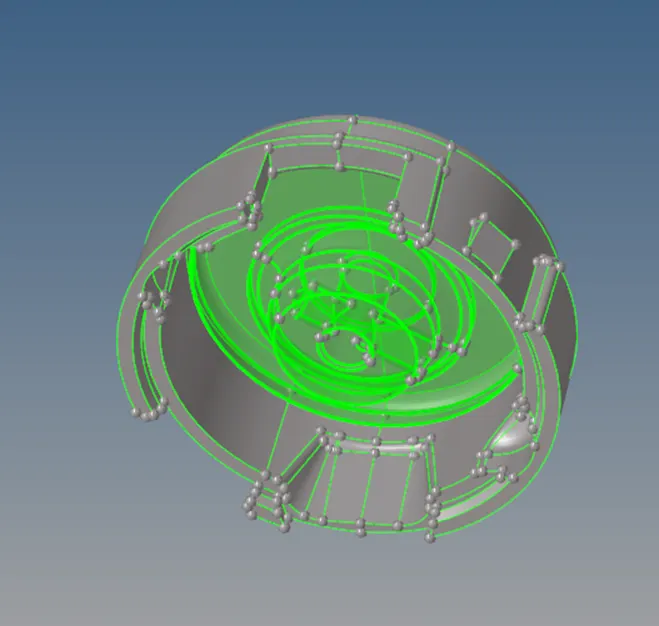
- After this we need to check the component properly, like construction line, remove chamfer, and delete the solid.
- Then we need to create a 2D mesh (Tri mesh) with element size 5
2D > auto mesh > element size 5 > mesh type – trias > select surface > mesh.
- Then we need to check minimum and maximum element size.
- After then we need to create 3D tetra mesh.
3D > tetramesh > element > select element > mesh.
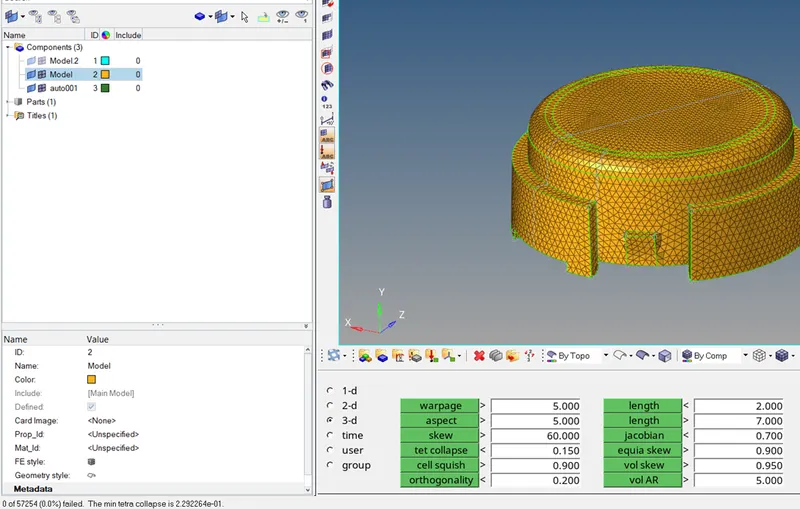
- At last we need to check the quality of the mesh, which is tet collapse = 0.15
%%%%%%%%%%%%%%%%%%%II%%%%%%%%%%%%%%%%%%%%%%%%
CHALLENGE II: Use volume tetra mesh for the given component.
Tet collapse – 0.15.
PROCEDURE:
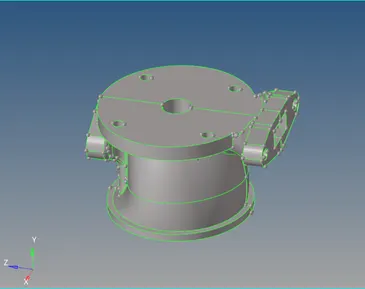
- Firstly we need to import .iges file.
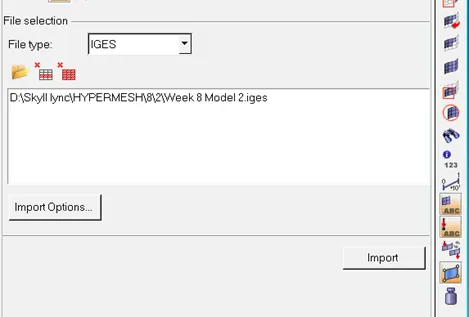
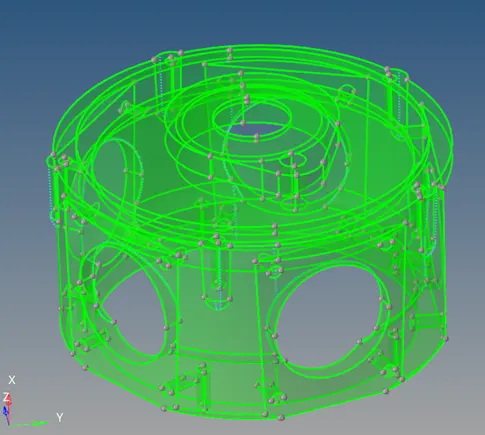
- After this we need to check the component properly, like construction line, remove chamfer, and delete the solid.
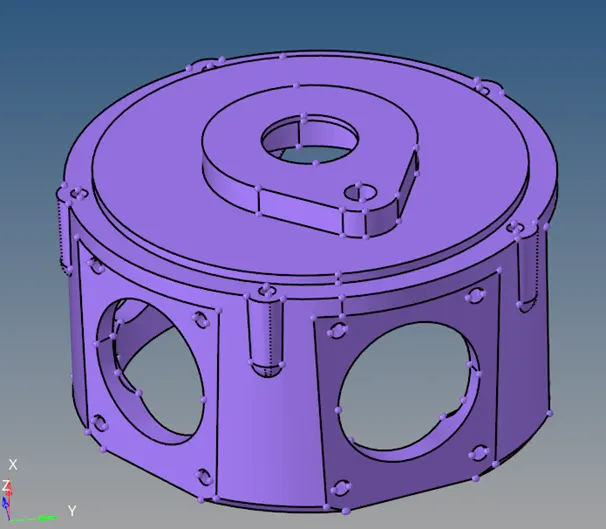
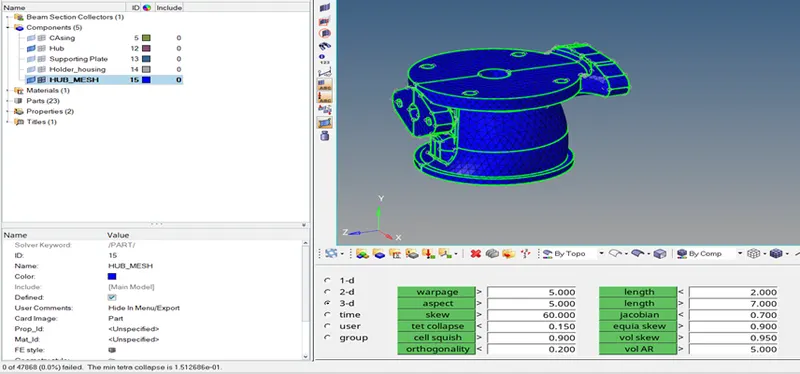
- Now we need to create 3D tetra mesh
3D > tetra mesh > volume tetra > solid > select solid > element size 3 unit > mesh.

- At last we need to check the quality of the mesh, which is tet collapse = 0.15
%%%%%%%%%%%%%%%%%%%%%%%%%%III%%%%%%%%%%%%%%%%%%%%%%%%%%%
CHALLENGE III: Use volume tetra mesh for the given component.
Tet collapse – 0.15.
Element size – 4
PROCEDURE:
- Firstly we need to import .hm file.
- After this we need to check the component properly, like construction line, remove chamfer, and delete the solid.
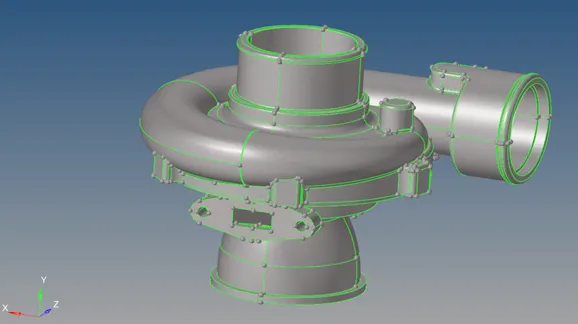
- Now we need to create 3D tetra mesh
3D > tetra mesh > volume tetra > solid > select solid > element size 4 unit > mesh
- At last we need to check the quality of the mesh, which is tet collapse = 0.15