Week 8-3D Tetra Meshing Challenge
Aim I:
To mesh the component with 3D meshing.
Procedure:
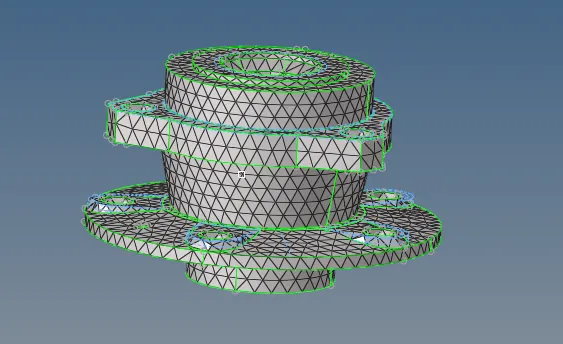
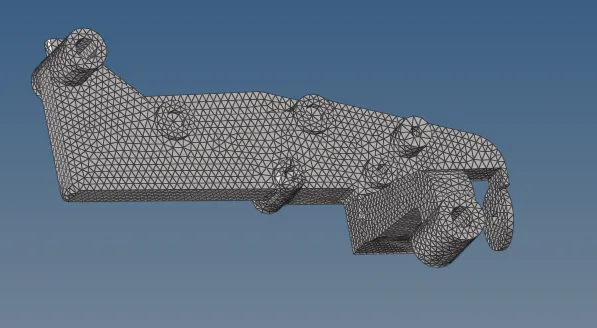
Open the given component in hyperworks. The component is housing component.
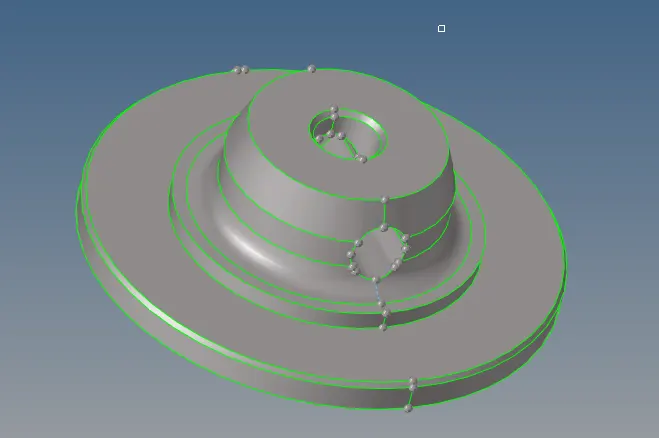
The hub
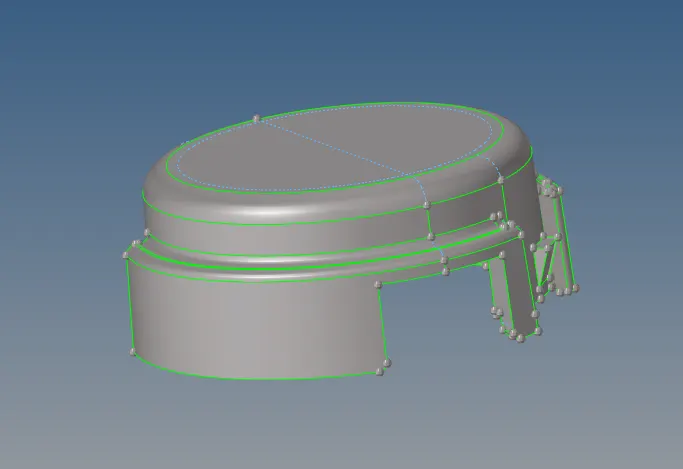
The outer cover
Meshing the component with tetramesh. For that go to 3D-> Tetramesh-> select the component and mesh.
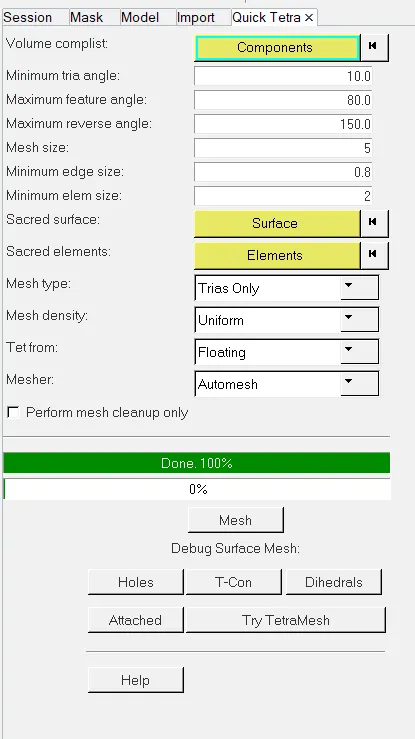
If that thing doesnt work go to view-> Browser-> Hyperworks-> Utility-> Geom/mesh-> Quick tetramesh.
In the place of the component like the component which has to meshed. Now filling the element size and and min size press mesh. The component gets meshed.
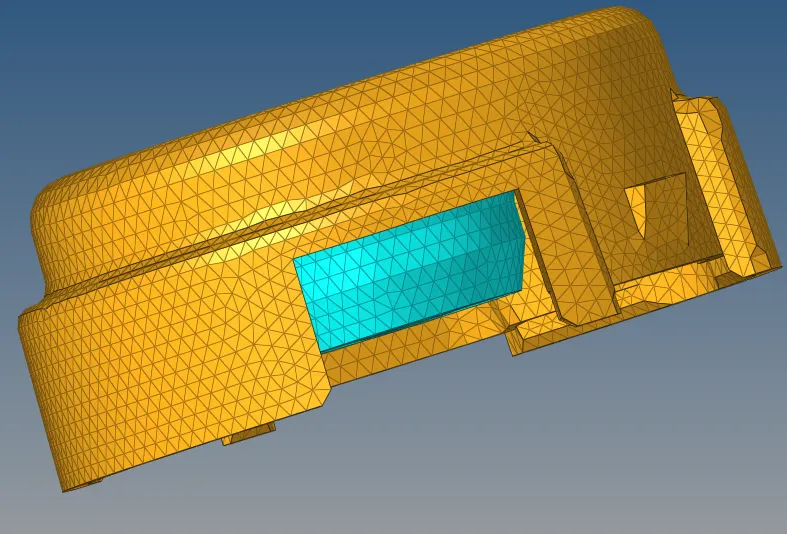
Now the component is meshed as tetramesh. Now for checking the tet collapse go to F10 -> 3D-> tet collapse-> giving the values -> shows some error occured due to some some minimum size.

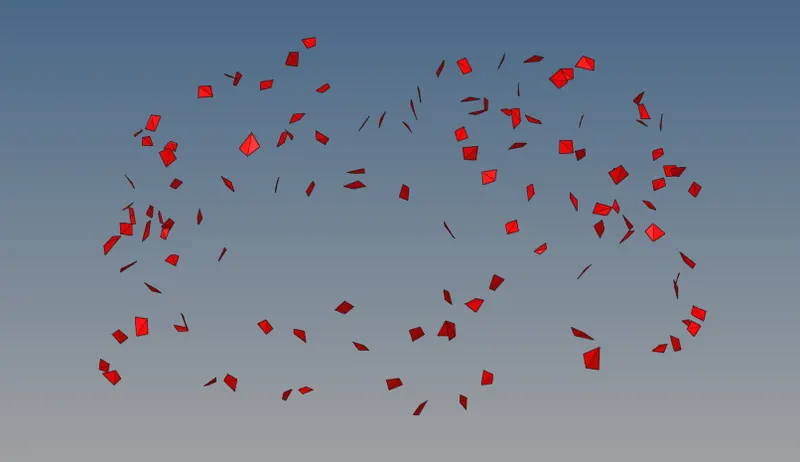
This are the element occurs after the tetramesh. It can be viewed by go to F10-> Save failed-> Mask-> retrived-> mask-> reverse. The failed element occur, it can either be cleared manually or tetra remesh can be done done.


For clearing of the failed element go to tetra remesh and giving the tet collapse value at tetramesh parameter and doing the remesh clears all the failed element.
Aim II:
The second component has to meshed with tetramesh
Procedure:
Model-2
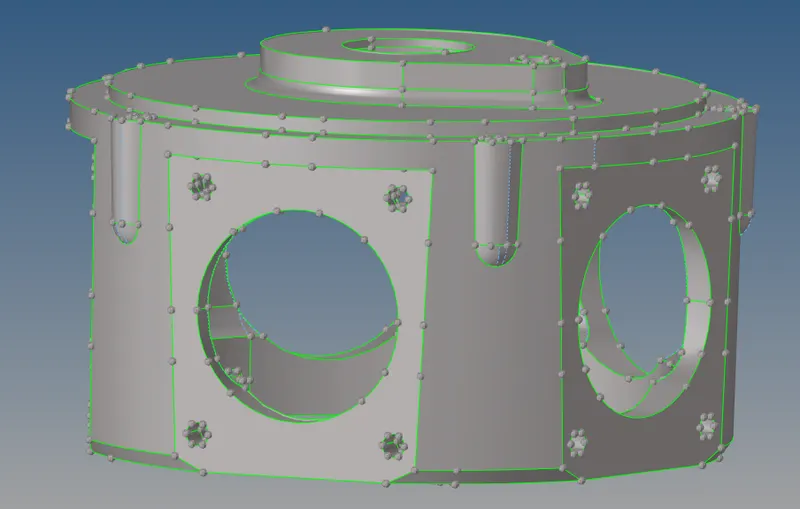
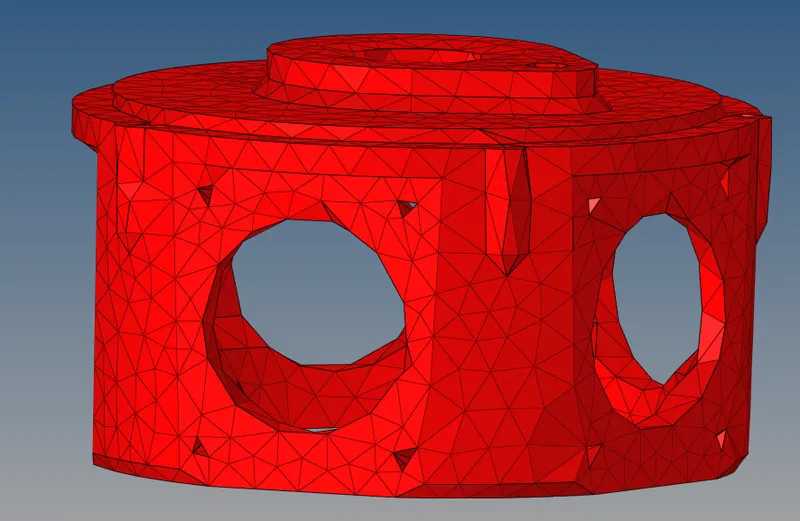
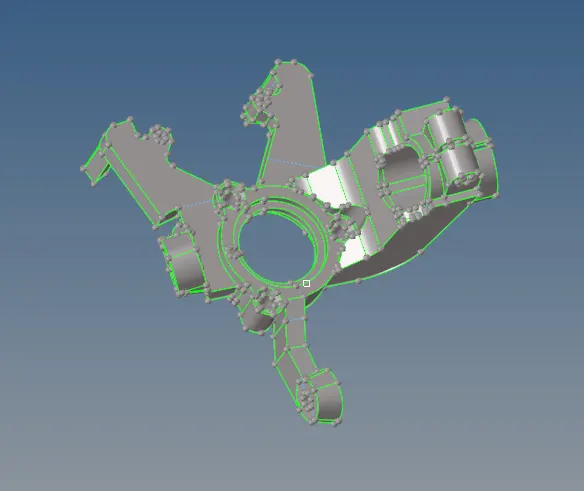
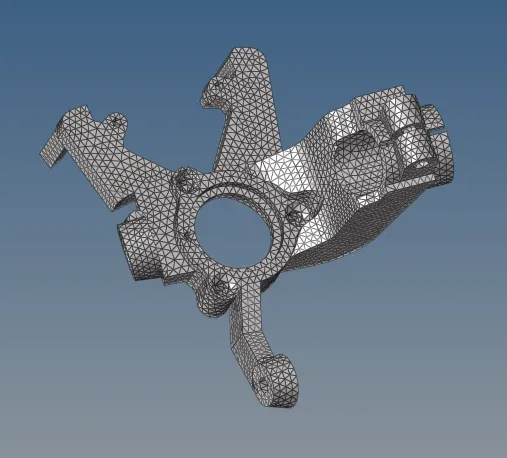
In this the component is housing crank.
With the same rules followed before and followed the same with the component.
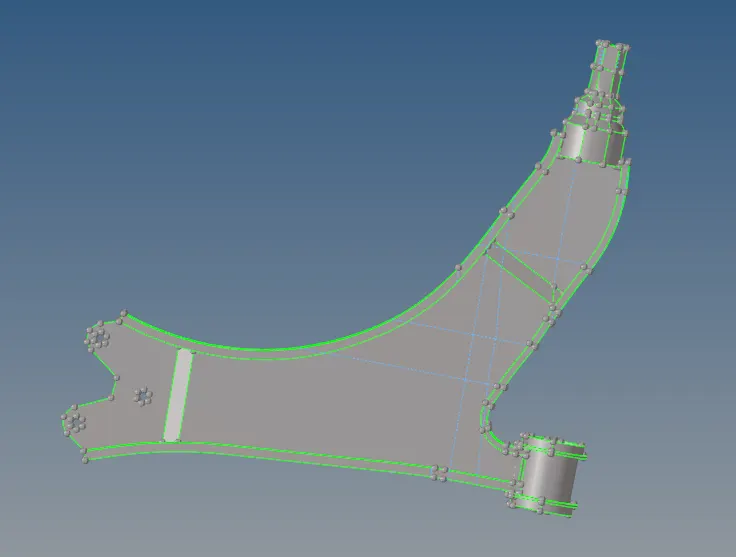
Before the tetramesh the component
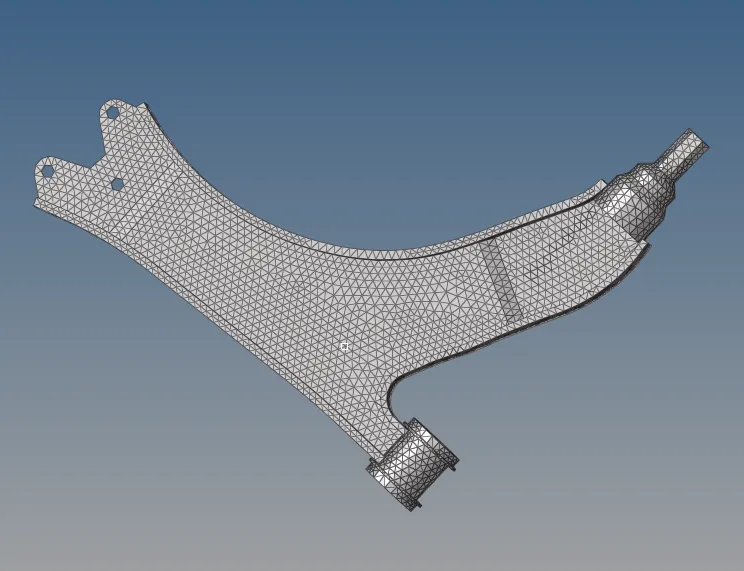
After the complete tetramesh
Model-3
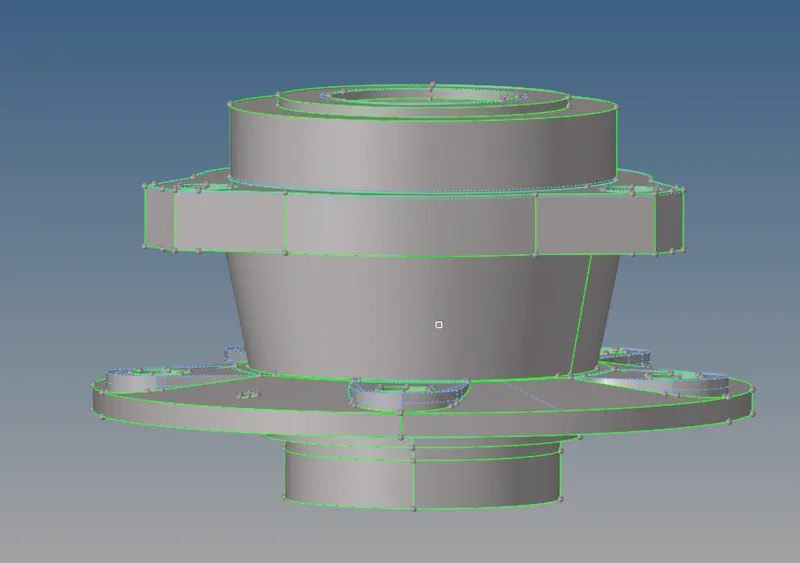
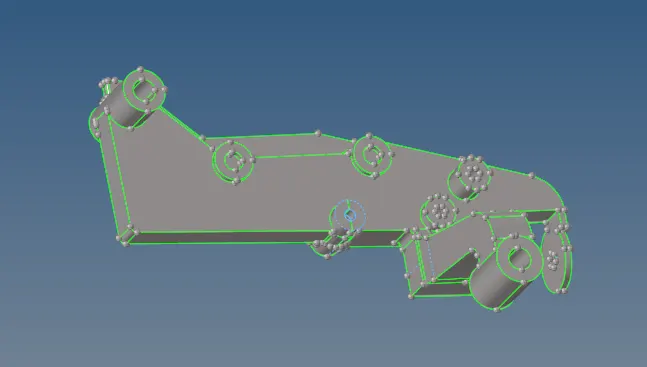
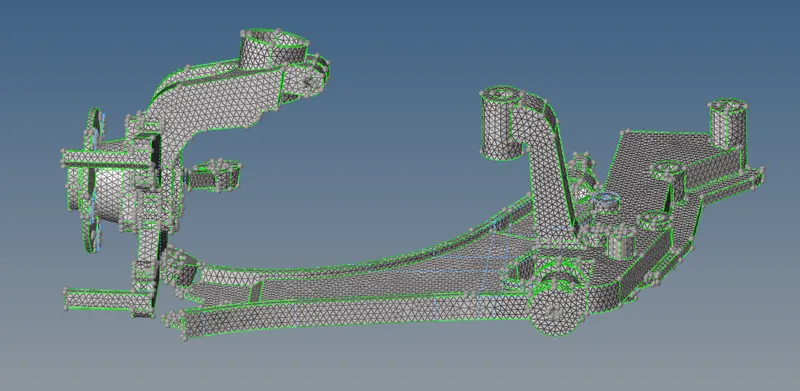
During importing the model the component are in separated component.
The same steps are followed from the above steps for this component.
Incase to avoid the minimum size error the teeth in the one of the following component is deleted.
Result:
Conclusion:
The above component is made tetrameshed with the given parameter.