Week 7 Challenge
AIM
Is to create 2 sliders for the 2 undercuts present in the model.
PROCEDURE FOR CREATING SLIDERS
- Create a plane in the undercut area by using Referance Plane option and create a sketch by using Convert Entities option.
- After creating use Split option to split the cavity and slider after spliting it show as split 1 and 2.
- In slider create remaining sketch and extrude using Extruded Boss/Base option.
- In between split and undercut there will a gap for that again use Extruded Boss/Base option.
- Inside the split 2 there will some surfaces to remove use Cut Extruded option.
- For the slider create a sketch as per the given data as use cut and extrude by using Cut Extruded and Extruded Boss/Base option.
- Slider should be fit in the Core and Cavity mold block for that take a copy of the slider and use Combine option and select subtract option.
- To close the holes and gaps create a rectangle sketch and extrude using Extruded Boss/Base option and for gaps use Move Face option and select offect option.
- In assembly create a New Part and name as Slider and after creating import the slider part in the slider folder by going to insert - feature - imported.
- In Core block slider movement should be available for that create a sketch and cut the area by using Cut Extruded option.
- For washers and bolt create a rectangle sketch as per the data given and extrude it and some position is removed in the slider for that create a sketch and use Cut Exturded option.
- Give fillets to the edges in the core, cavity and the slider by using Fillet option.
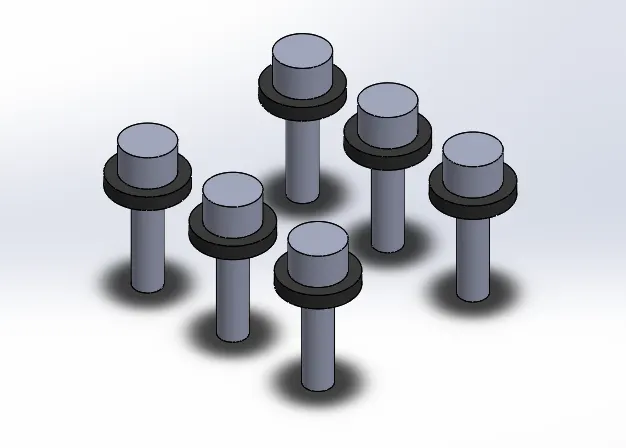
- Create a New Part by using Insert Components option for the Washers and Bolts.
- Create a Circle sketch for the washers and bolts and use extrude it as per the given data and mirror for other side by using Mirror option and more cicle use Liner pattern option.
- In cavity create a circle sketch and cut using Cut Extruded option for the Bolt.
- For Locking Mechanism create a sketch in the core as per the given data as create another sketch in the slider as cut using Cut Extruded option.
- Repeat these process for the another side of the core and cavity.
IMAGES
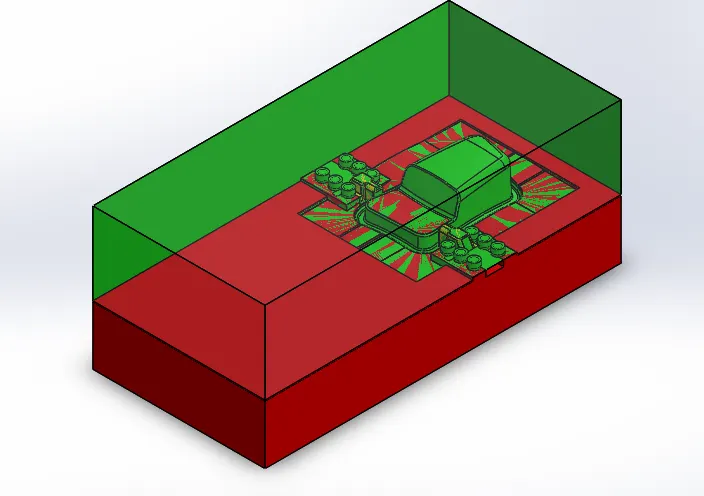
CAVITY
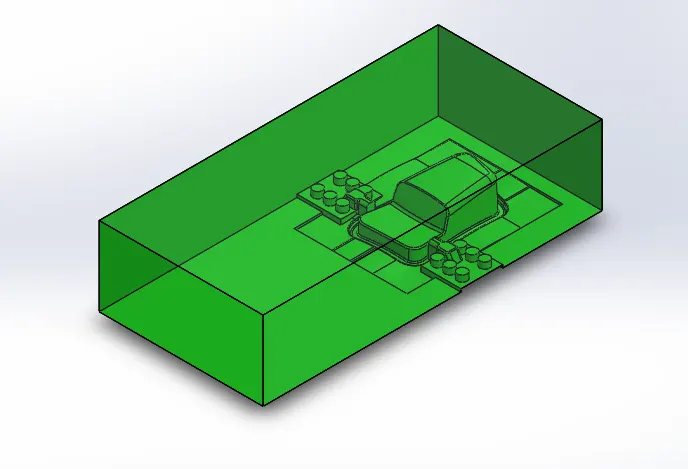
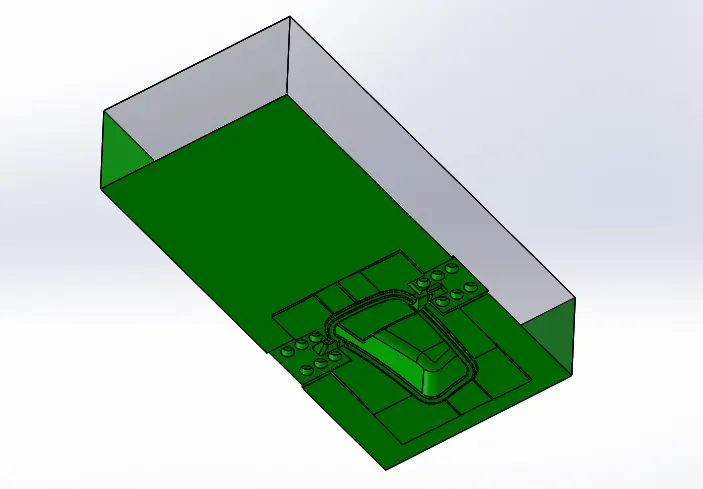
CORE
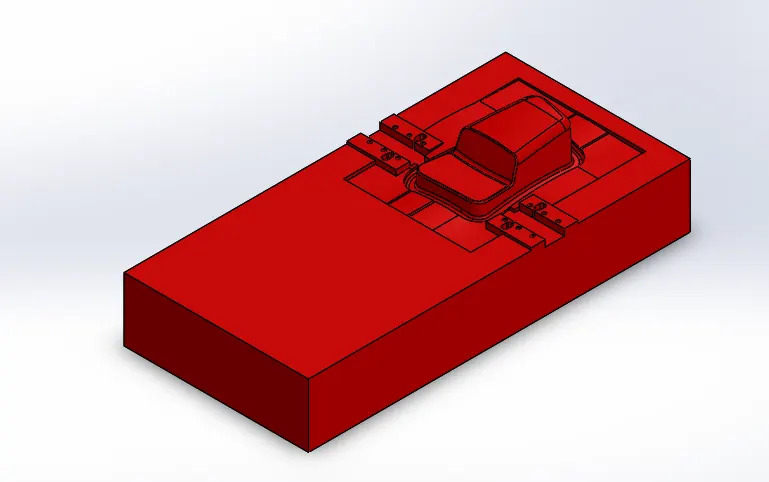
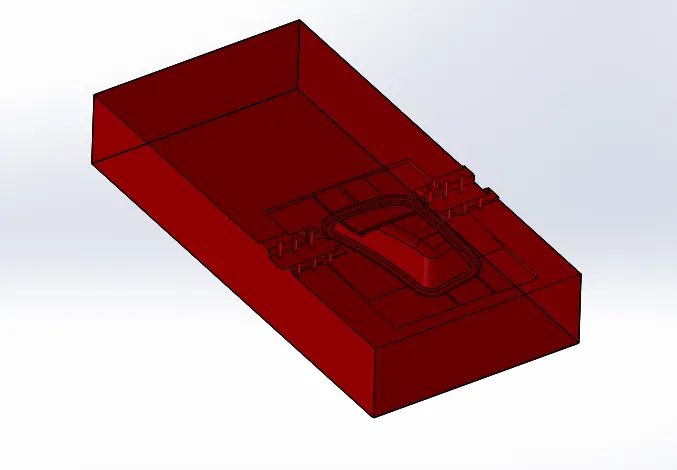
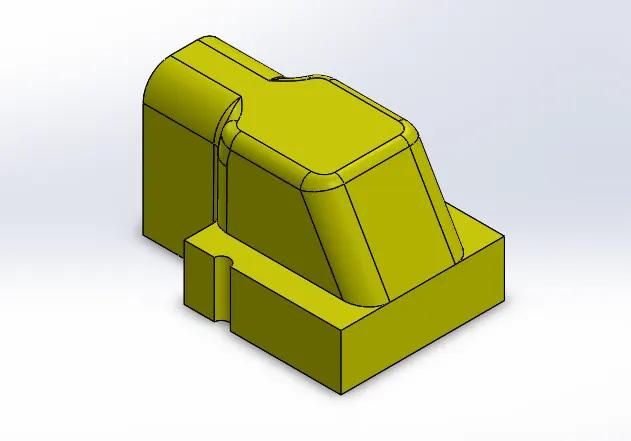
SLIDER
WASHRS AND BOLTS